If you have a lot of photo albums on your iPhone, you can waste a ton of time searching through them to find what you're looking for. One of my favorite tricks is to create folders to sort my photo albums into, which makes life a lot easier. We'll show you how to create folders for photo albums to help you sort and organize iPhone photos.
Why You'll Love This Tip
- Learn how to create a folder on iPhone to hold multiple photo albums or folders in the Photos app.
- Learn how to organize photos on iPhone to reduce the number of albums you must scroll through by creating several main folders.
How to Create Photo Folders on iPhone
System Requirements
This tip was performed on an iPhone 16 running iOS 18. Find out how to update to the latest iOS.
The difference between an album and a folder in the Photos app is that an album allows you to group and categorize photos, while a folder allows you to group and organize albums. Here's how to create photo folders on iPhone and nest other albums or folders within the main one. If you're a big fan of Apple's method of organizing things into folders, learn how to create a folder on iPhone in the Mail app.
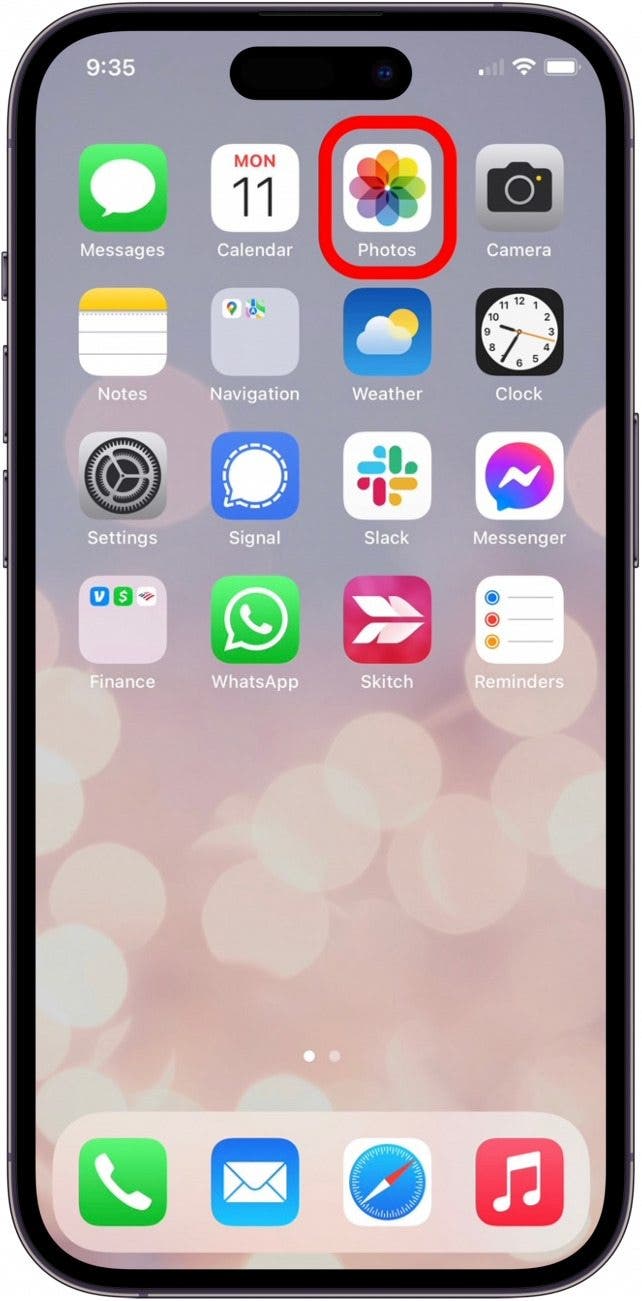
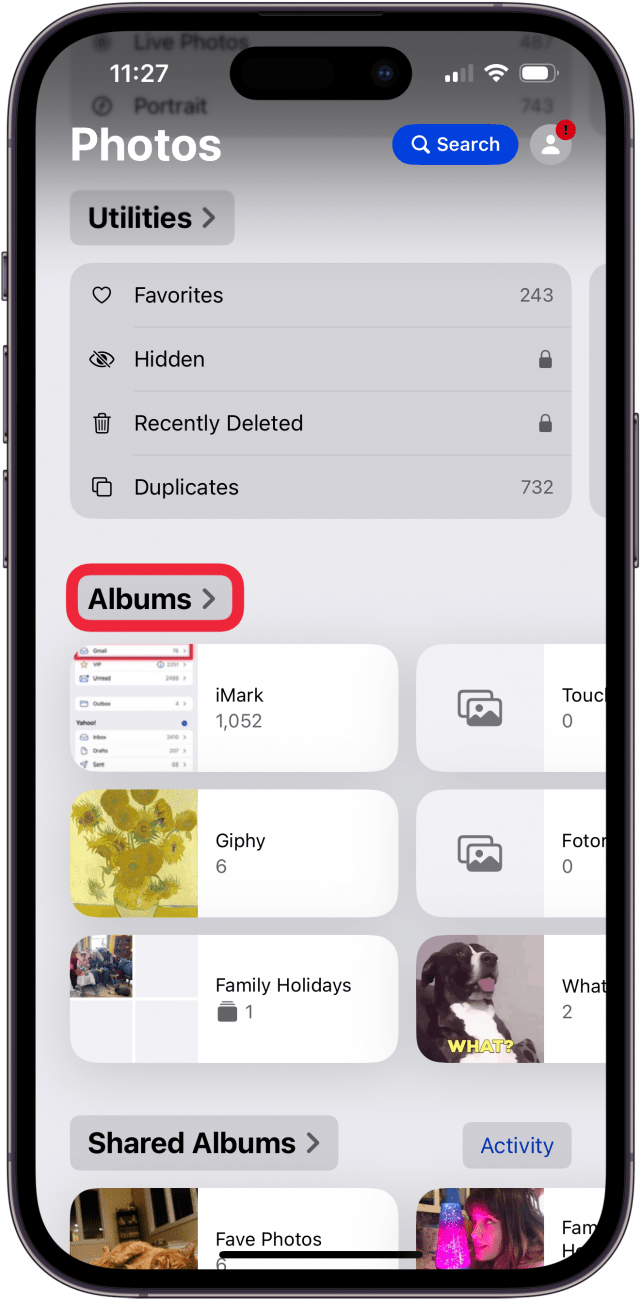
- Open the Photos app.
![]()
- Tap Albums.

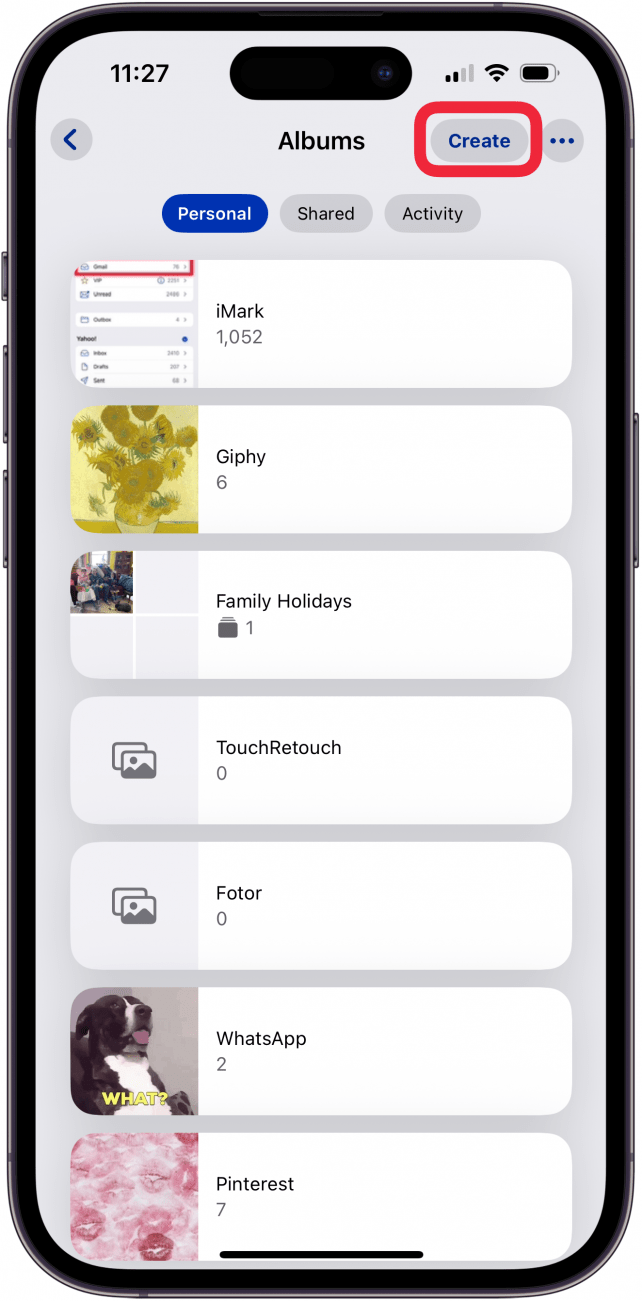
- Tap Create.

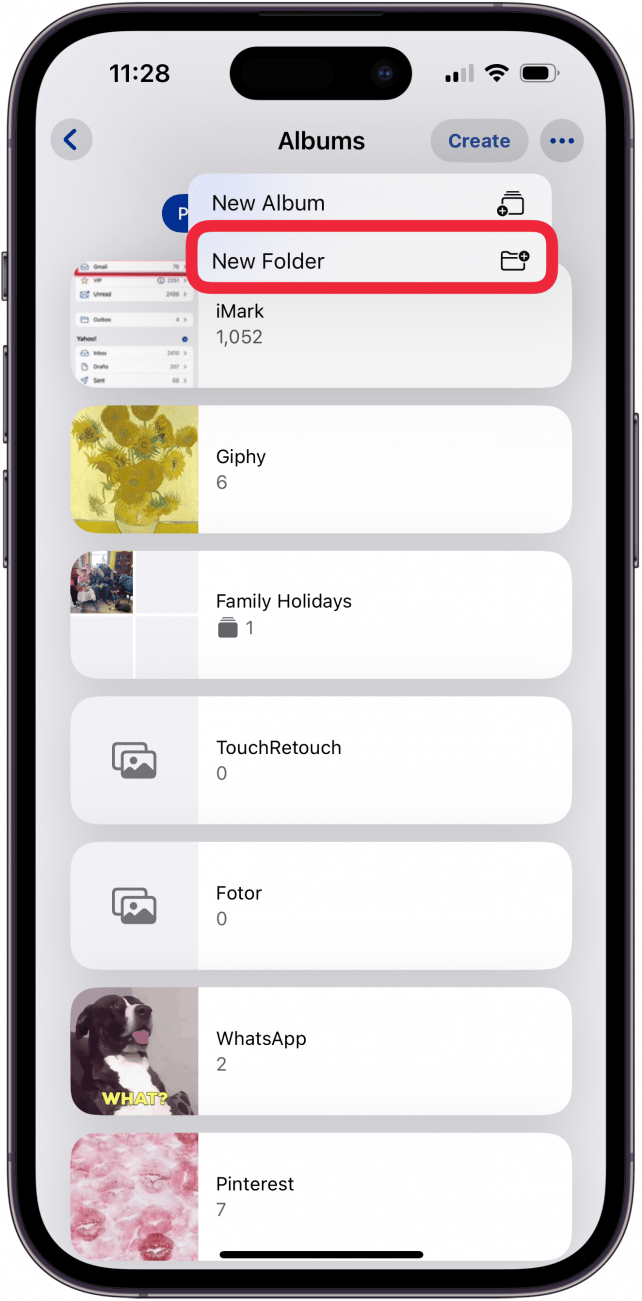
- Tap New Folder.

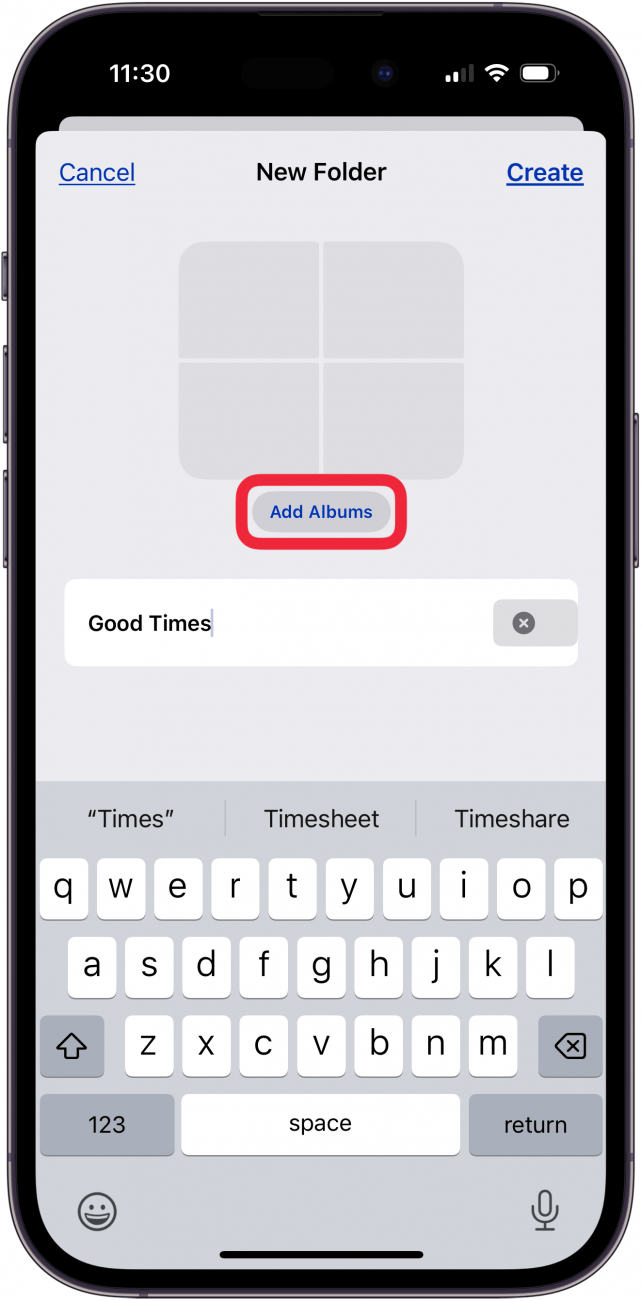
- Name your new folder.

- Tap Add Albums.

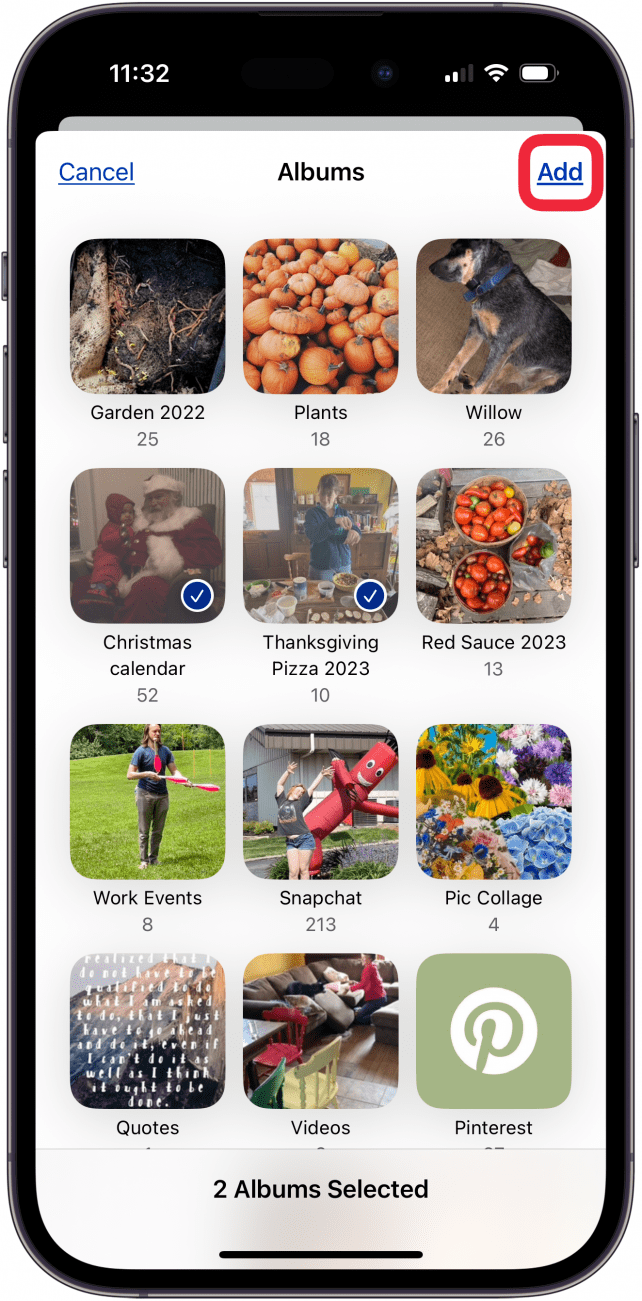
- Tap the albums you want to add to your new folder, then tap Add.

- Tap Create to complete your photo folder.

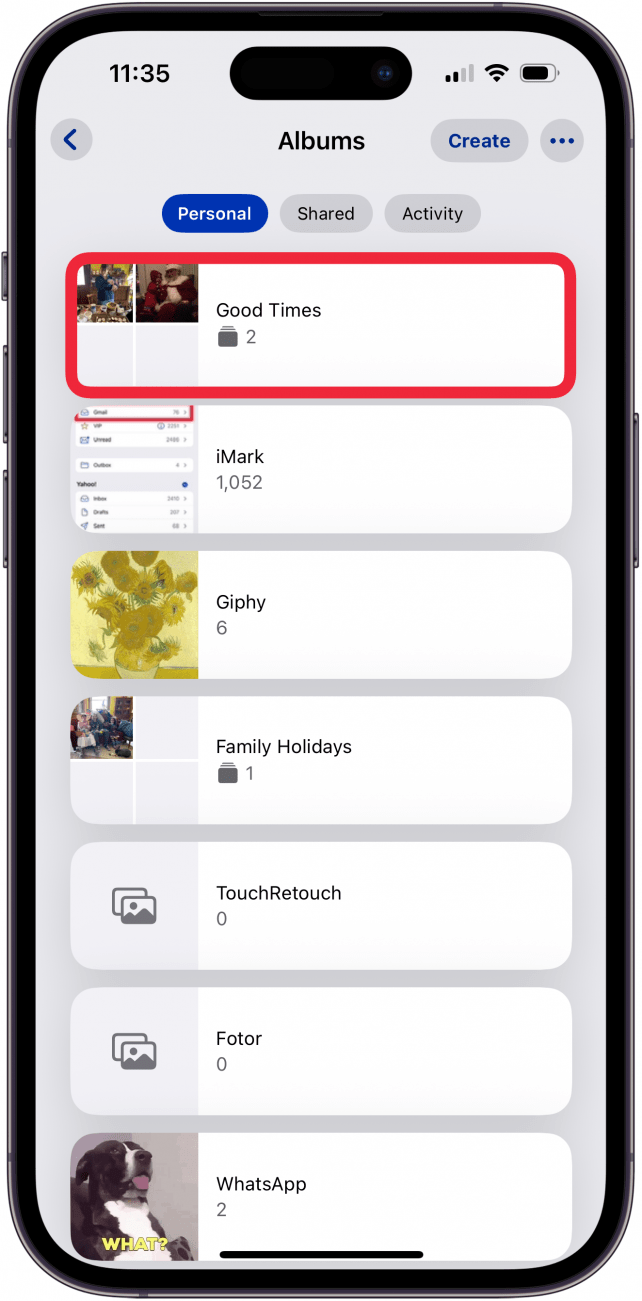
- Now, you'll see the photo folder you created in the albums tab.



Now you can keep your folders and albums organized, making it much easier to find the exact photos you're looking for. One of our team members uses this trick to sort her photos into categories, such as the Micro folder, which holds her Bugs, Plants, and Rocks albums. How many photo albums do you have on your iPhone? Do you think this will come in handy for you?

To learn more about how to organize your iPhone and Photos, check out our Tip of the Day newsletter. If you would like a refresher, learn how to create an Album on your iPhone or iPad.