How to Sign a PDF in the Preview App on Your iPhone & iPad

Leanne puts her love of troubleshooting and repair to use managing our Ask an Expert Facebook group and has authored hundreds of how-to, Apple news, and gear review articles.
Learn More Leanne puts her love of troubleshooting and repair to use managing our Ask an Expert Facebook group and has authored hundreds of how-to, Apple news, and gear review articles.
Learn MoreNeed to sign a PDF quickly? You don't have to use your Mac anymore. Here's how to sign a PDF on your iPhone or iPad in the Preview app.
Why You'll Love This Tip
- Learn how to digitally sign a PDF on your iPhone or iPad in the Preview app.
- You can also add more than one signature to a PDF if needed.
How to Electronically Sign a PDF in the Preview App
System Requirements
This tip was performed on an iPhone 17 Pro running iOS 26.5 and works on iPhones and iPads running iOS 26 and later. Find out how to update to the latest version of iOS.
Need to sign a PDF on the go? Apple's new Preview app has you covered. Here's how to digitally sign a PDF on your iPhone or iPad.
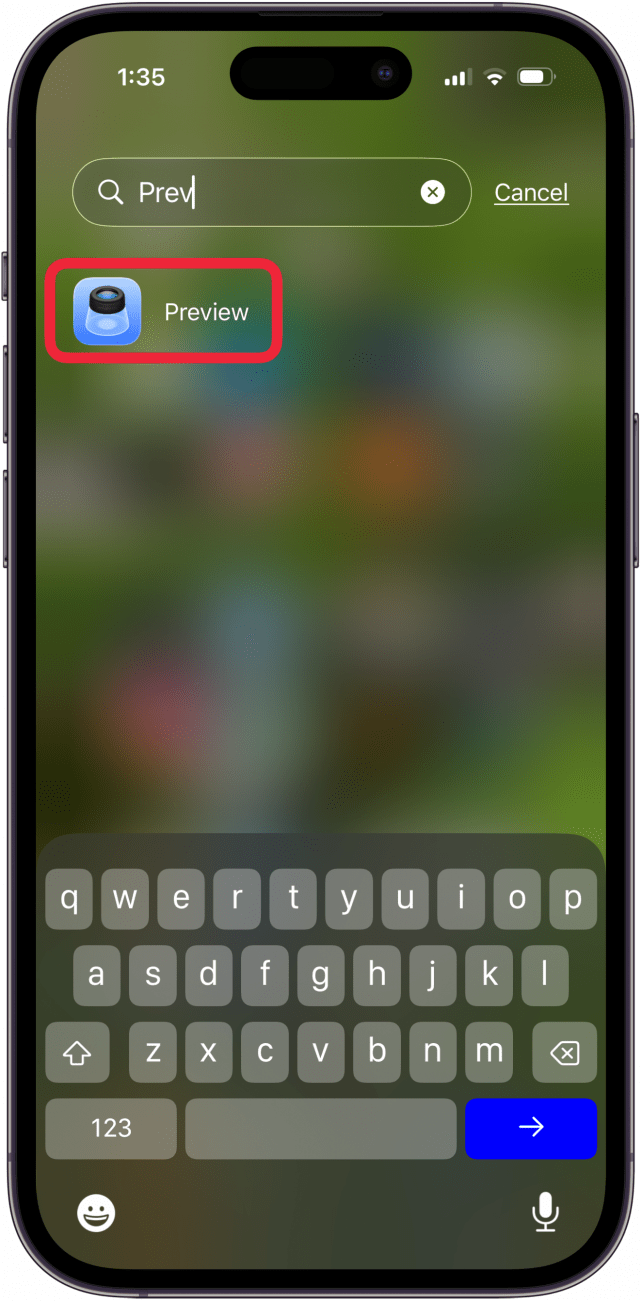
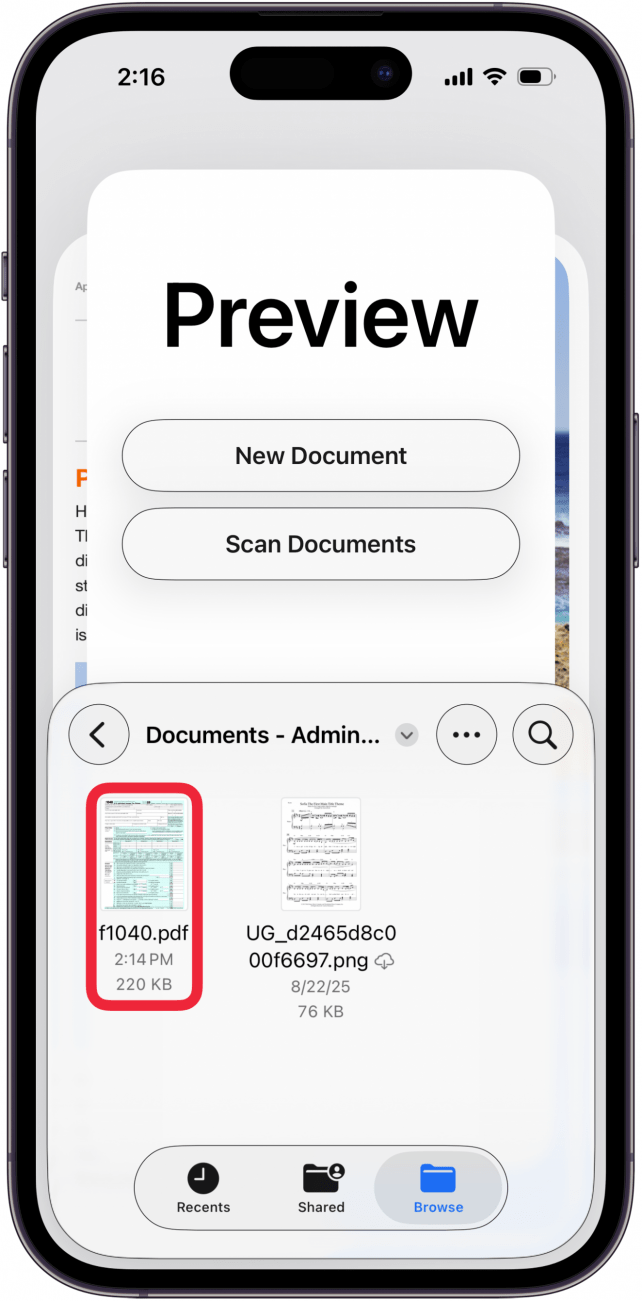
- Open the Preview app.
- Tap the Browse tab.
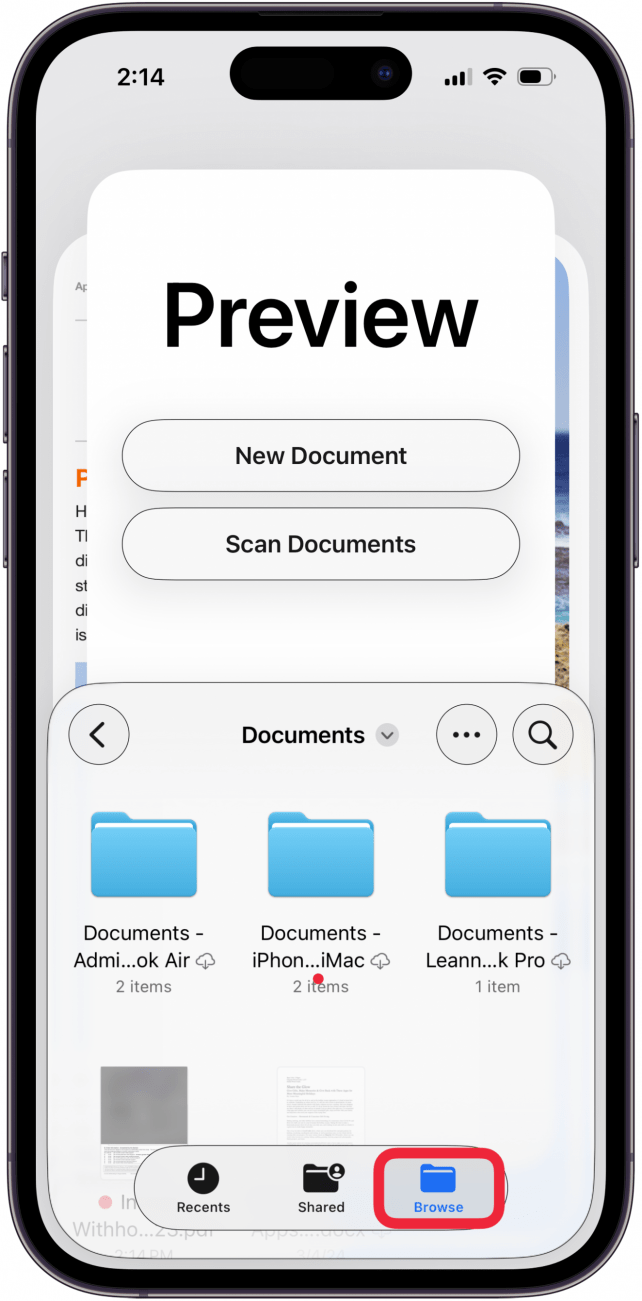
- Tap the PDF or the folder the PDF is in, then tap the PDF.
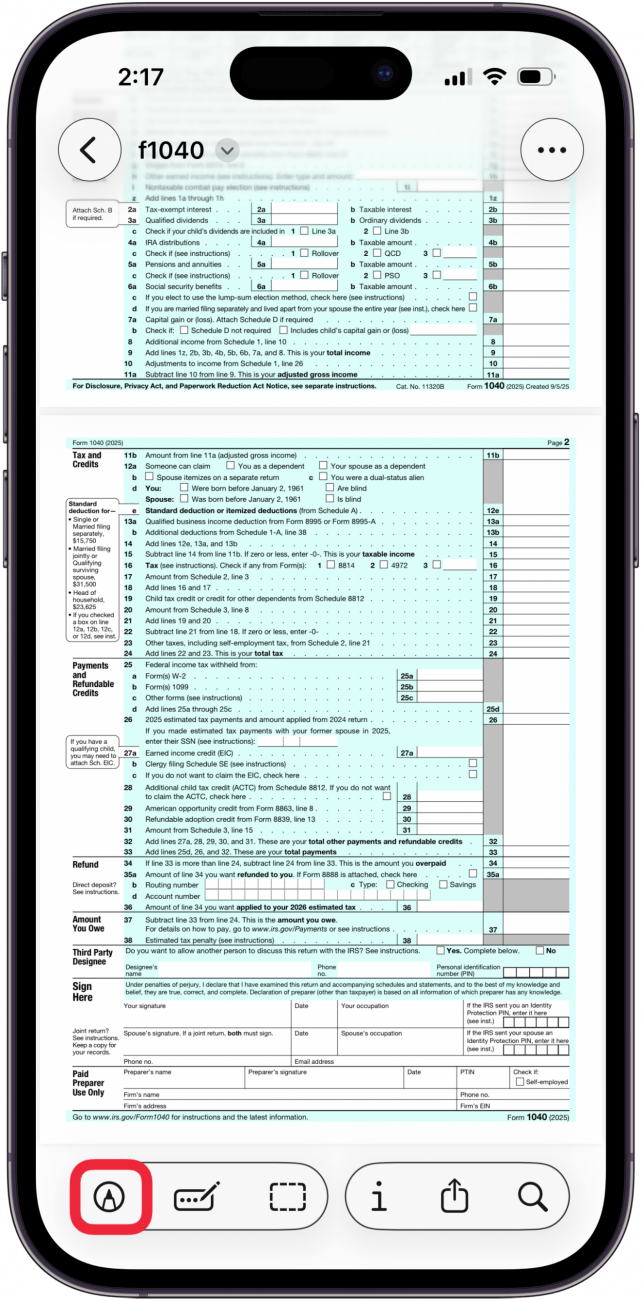
- Be sure that the page you want to sign is the page on your screen, then tap the Markup icon.
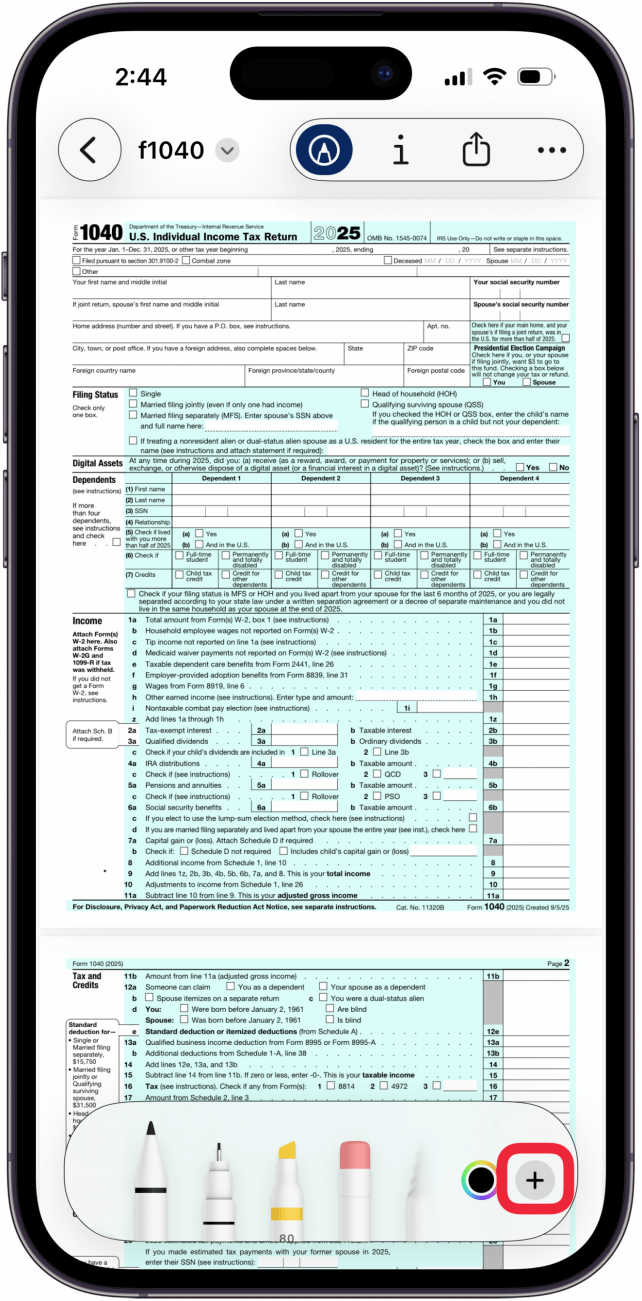
- Tap the plus sign.
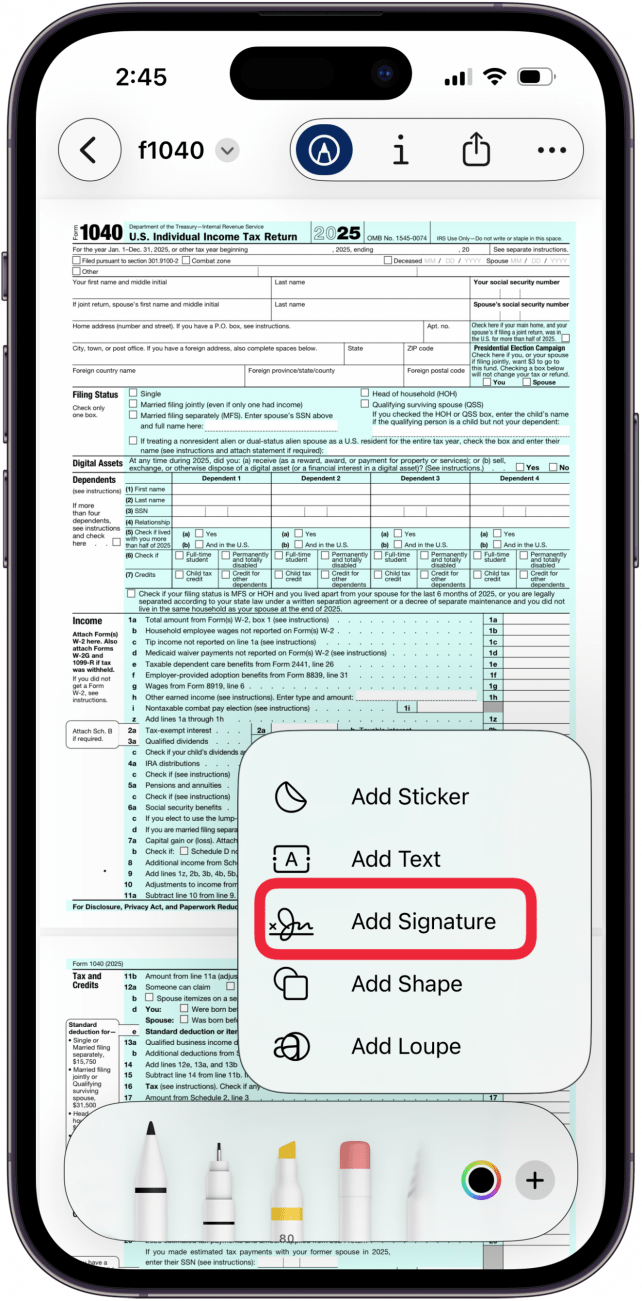
- Tap Add Signature.
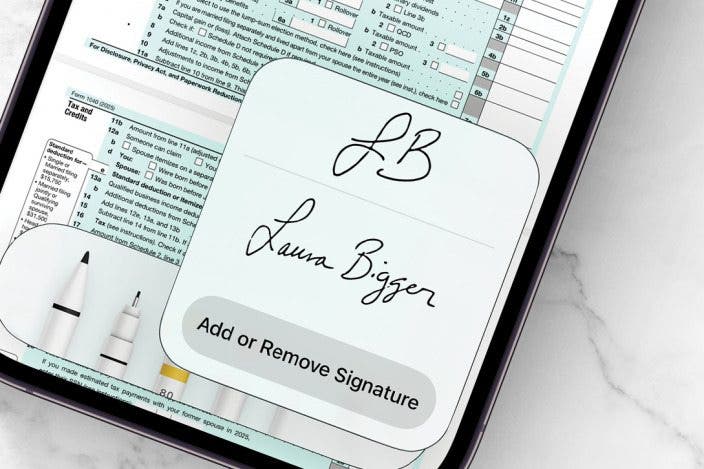
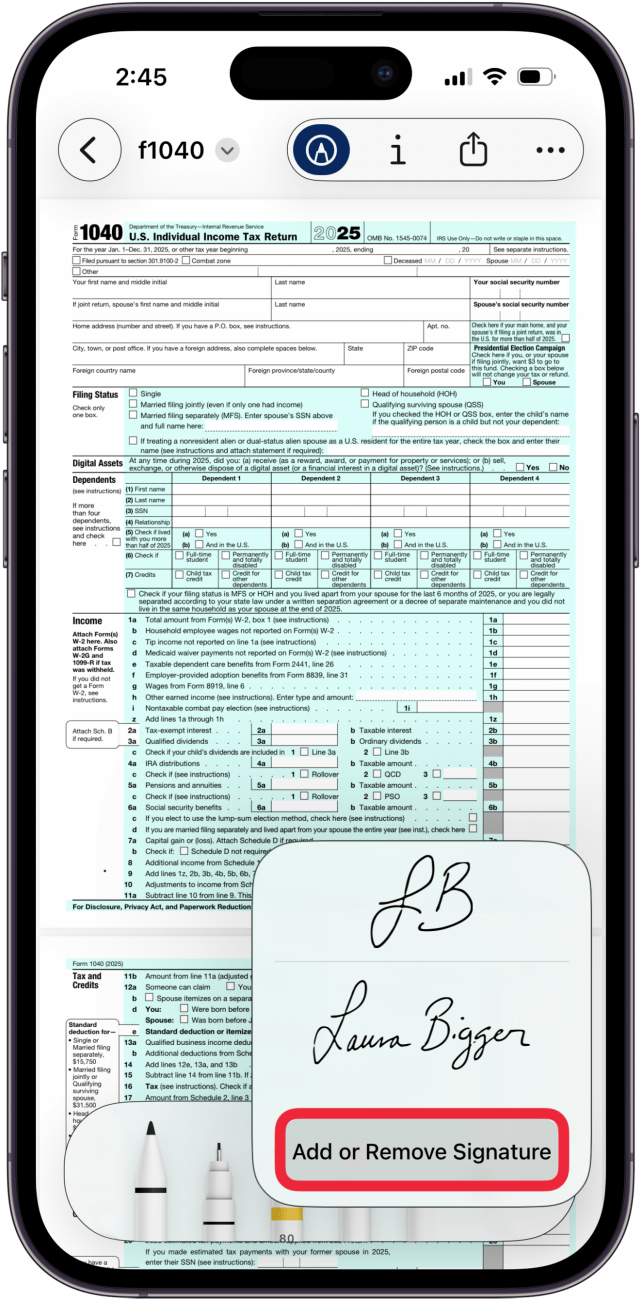
- Tap Add or Remove Signature.
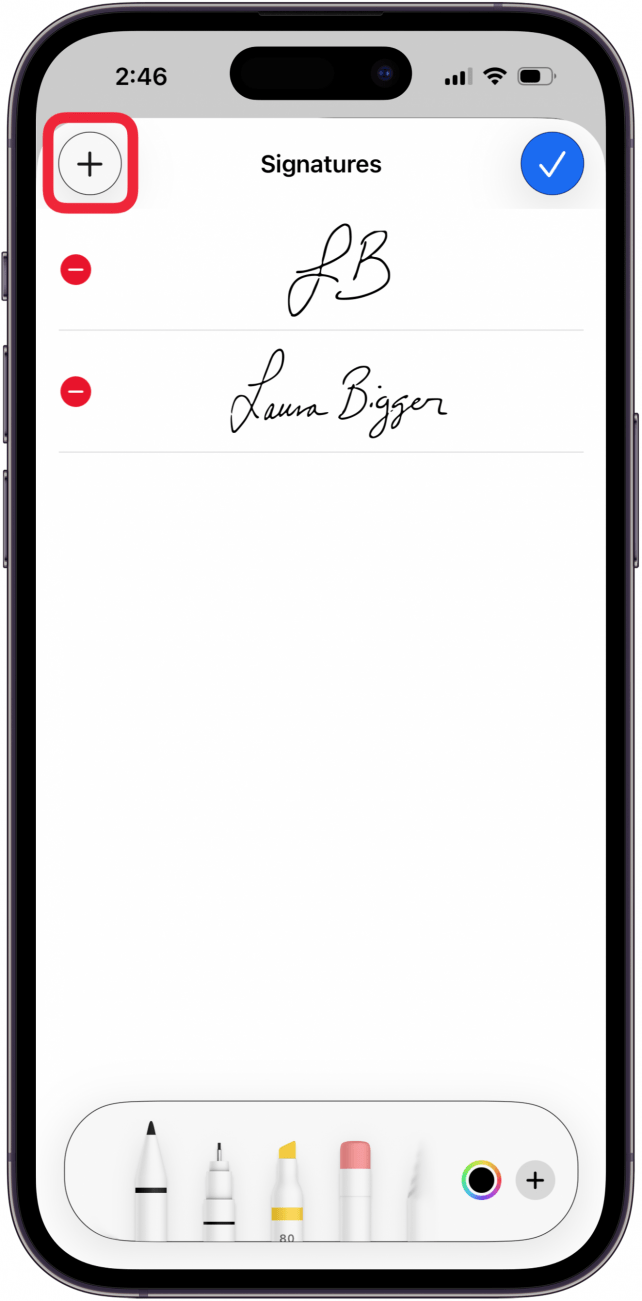
- Tap the plus sign.
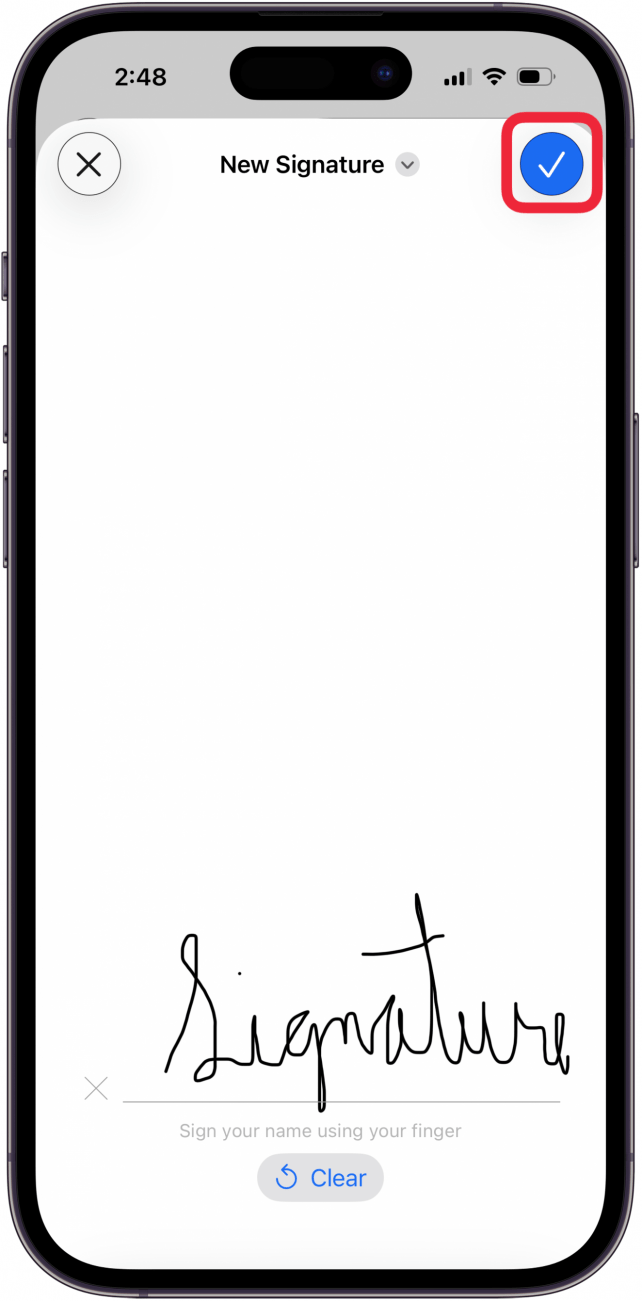
- Sign your name with your finger, then tap the check mark in the blue circle.
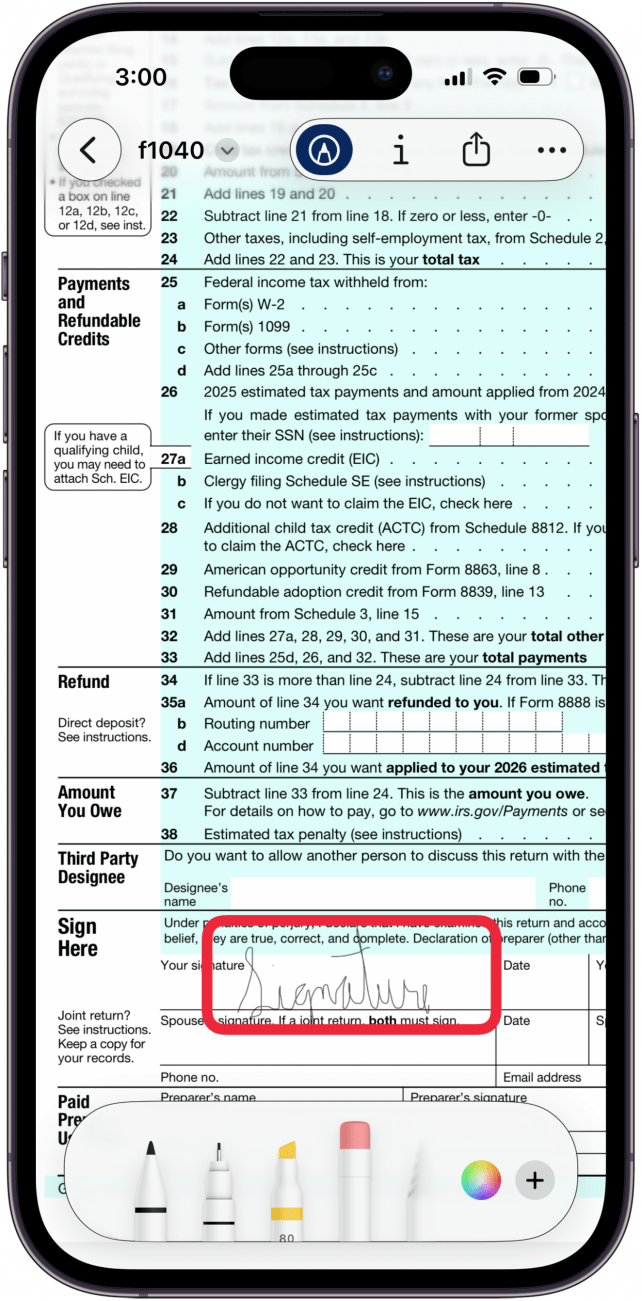
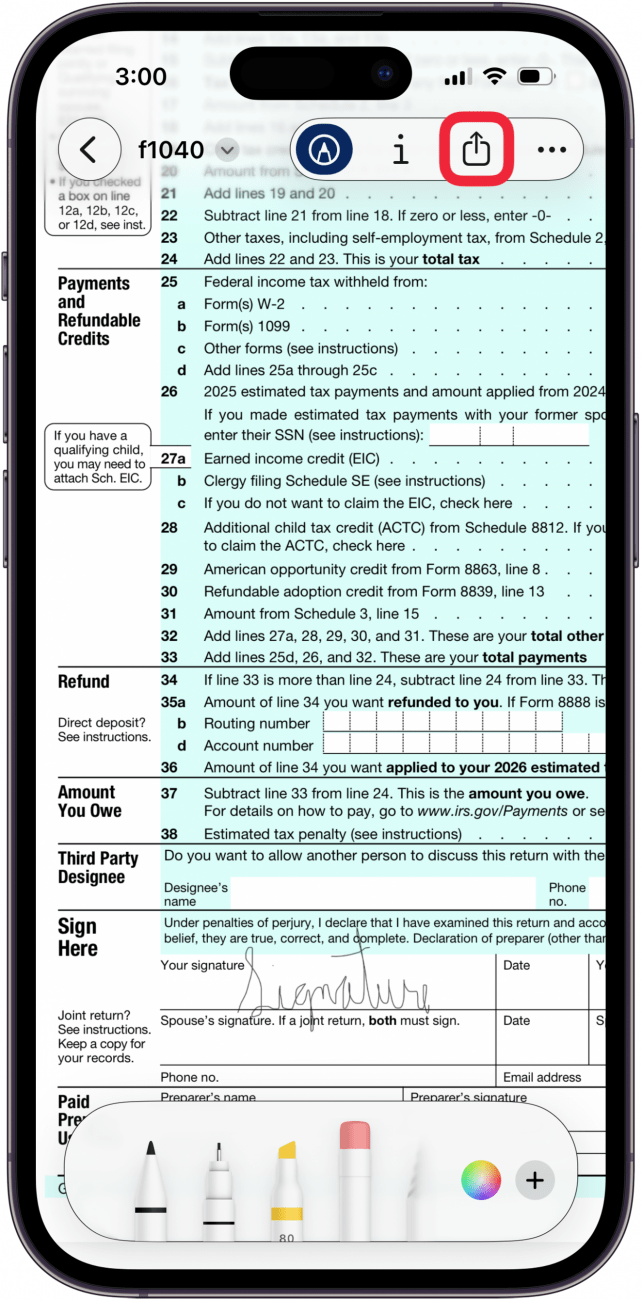
- Your signature will appear on your PDF; touch and hold the signature, then drag it to the place you want your signature to appear. Use the gray dots at the corner of the signature to shrink or enlarge it.
- Tap the screen to get rid of the box around your signature, then tap the Share icon to share your PDF wherever needed.
More On: PDFs & the Preview App
Top image credit: Amguy13 / Shutterstock.com

Every day, we send useful tips with screenshots and step-by-step instructions to over 600,000 subscribers for free. You'll be surprised what your Apple devices can really do.

Leanne Hays
Leanne Hays has more than sixteen years of experience writing for online publications. As a SEO Specialist and Feature Writer for iPhone Life, she has authored hundreds of how-to, Apple news, and gear review articles, as well as a comprehensive Photos App guide. Leanne holds degrees in education and science and loves troubleshooting and repair. This combination makes her a perfect fit as manager of our Ask an Expert service, which helps iPhone Life Insiders with Apple hardware and software issues.
In off-work hours, Leanne is a mother of two, homesteader, audiobook fanatic, musician, and learning enthusiast.
Related Articles

 Leanne Hays

 Amy Spitzfaden Both
MacBook Screen Lines FIXED: Pink, Blue, or Black Line on Monitor
 Olena Kagui
 Rhett Intriago