How to Master Simple AI Fact-Checking Techniques

In the last 10 years, Olena has been published in dozens of publications internationally and written hundreds of how-to articles and complex guides about Apple products, software, and apps.
Learn More In the last 10 years, Olena has been published in dozens of publications internationally and written hundreds of how-to articles and complex guides about Apple products, software, and apps.
Learn MoreWhen AI models are trained, they take information that's freely available across the entire internet. This includes satirical websites, extremist opinion blogs, and even propaganda that is intentionally spreading misinformation. Fortunately, it's possible to fact-check AI by using the SIFT Method, writing better prompts, requesting and checking sources, tweaking AI settings, and using reliable fact-checking websites.
Why You'll Love This Tip
- You can avoid misinformation by learning how to phrase your AI prompts better.
- Discover reliable fact-checking websites for different types of information.
- Tweak your AI model settings and request sources for improved accuracy.
How to Fact Check AI in 7 Steps
AI is everywhere and everyone is using it, sometimes even unknowingly. Now that artificial intelligence is answering so many of our burning questions, we need to be aware that AI is not always correct. Before you trust what an AI agent tells you, make sure to do your own fact-checking.
The most popular way to fact-check is known as the SIFT Method, invented by Mike Caulfield. The name is also an acronym for the four steps involved:
- Stop
- Investigate
- Find
- Trace
The SIFT Method is for general fact-checking and it can be applied to AI. Below, I break it into more specific steps to take that are specific to fact-checking AI content and models. To stay in the loop on all things Apple and the latest AI tips and tricks, don't forget to check out our free Tip of the Day newsletter.
1. Ask for sources and check them.
Depending on your query or prompt, some AI models will automatically include sources that you can easily tap or click on, which lets you explore them further. You can also specifically ask for sources in your prompt. You can even specify if you want to see actual studies on the topic or to make sure the sources are recent by including a year or time period (e.g., "Show me only studies conducted between 2022 and the present day"). As with anything AI-related, the more specific your prompt, the better the results. So be as detailed as you want regarding the types of sources you want to see.
Unfortunately, simply asking for sources is not always enough. AI will sometimes completely make things up but make them sound true. This is known as an "AI hallucination." AI hallucinations can be incorrect facts, complete with made-up source links. So not only do you need to ask for sources, but you also need to carefully examine them. You can do this by navigating to the link provided by the AI agent and confirming that it really says what AI claims it says. You don't necessarily have to read the entire article or page: I like to use either the website's built-in search feature or command+F to look up the relevant terms and read those sections to make sure they reflect what the chatbot claims.
2. Check your chatbot settings.
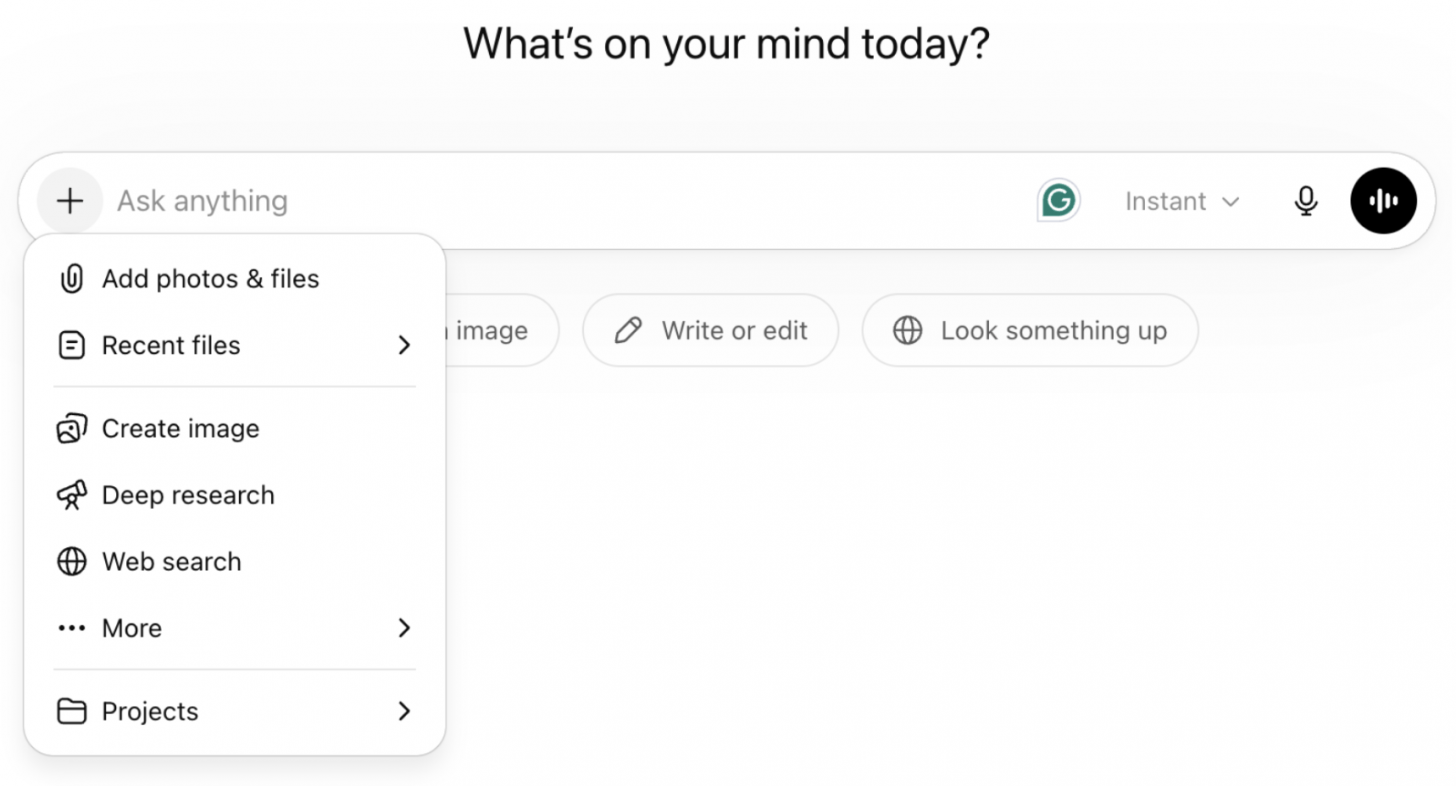
There are a few settings you can tweak to ensure that you are getting the best results and, in turn, have to do less work fact-checking the answers. First, in order to ensure that all of the information you are getting is up to date, make sure that "web browsing" is on. In many cases, a chatbot will automatically use web browsing for certain queries, but this is one way to make sure it does so. When using ChatGPT, you can find this option by pressing the plus icon to the left of your search bar.
Another thing you can do is choose an appropriate AI model in the app or on the website for certain prompts. This can be a little harder because you need to be familiar with what the available AI models are and how they differ. In ChatGPT, you can do this by selecting Instant on the right of the search bar. Here you can pick between Instant and Thinking, or go to Configure to see even more model options.
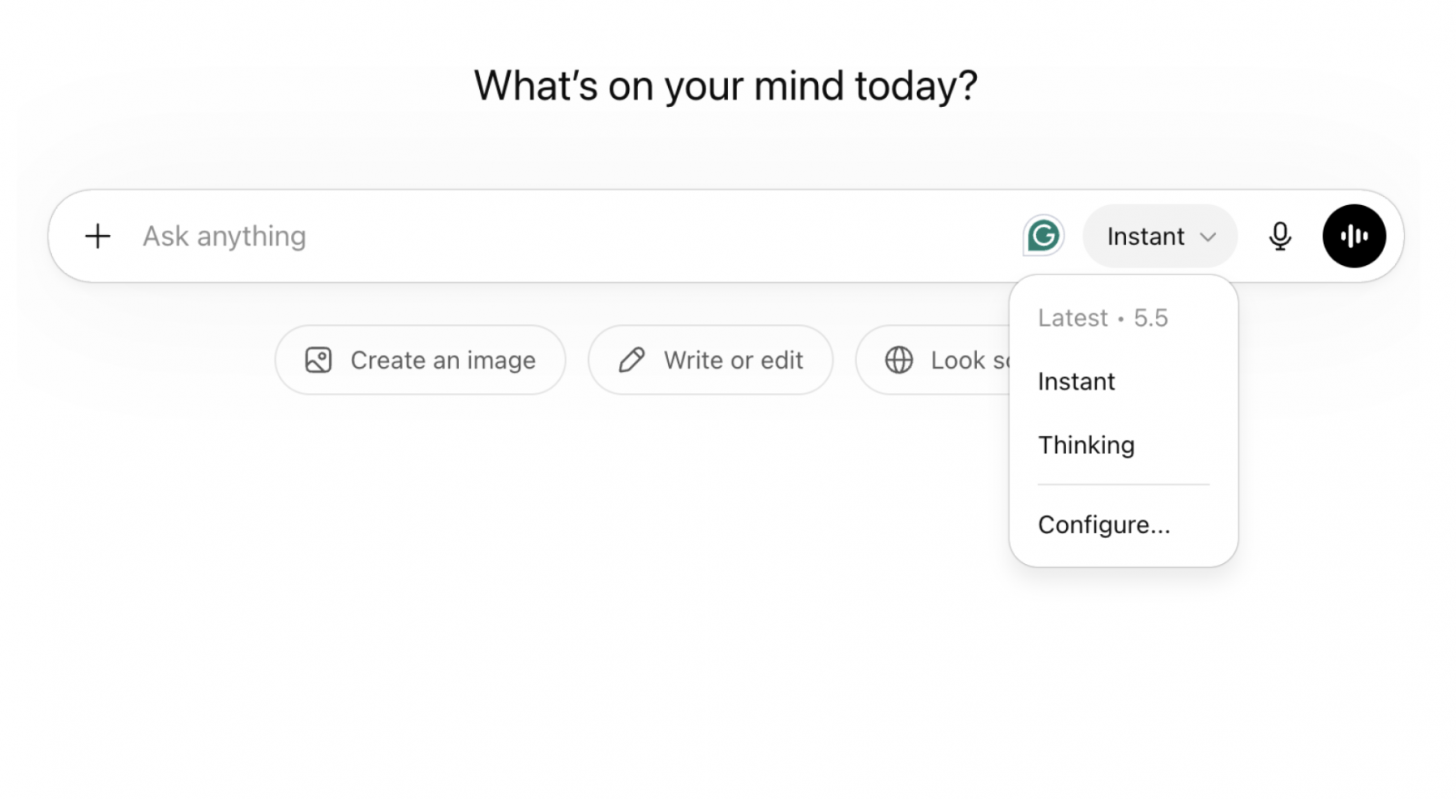
Thinking is the better option if you want AI to give you higher-quality sources, and it only takes slightly longer to get the results.
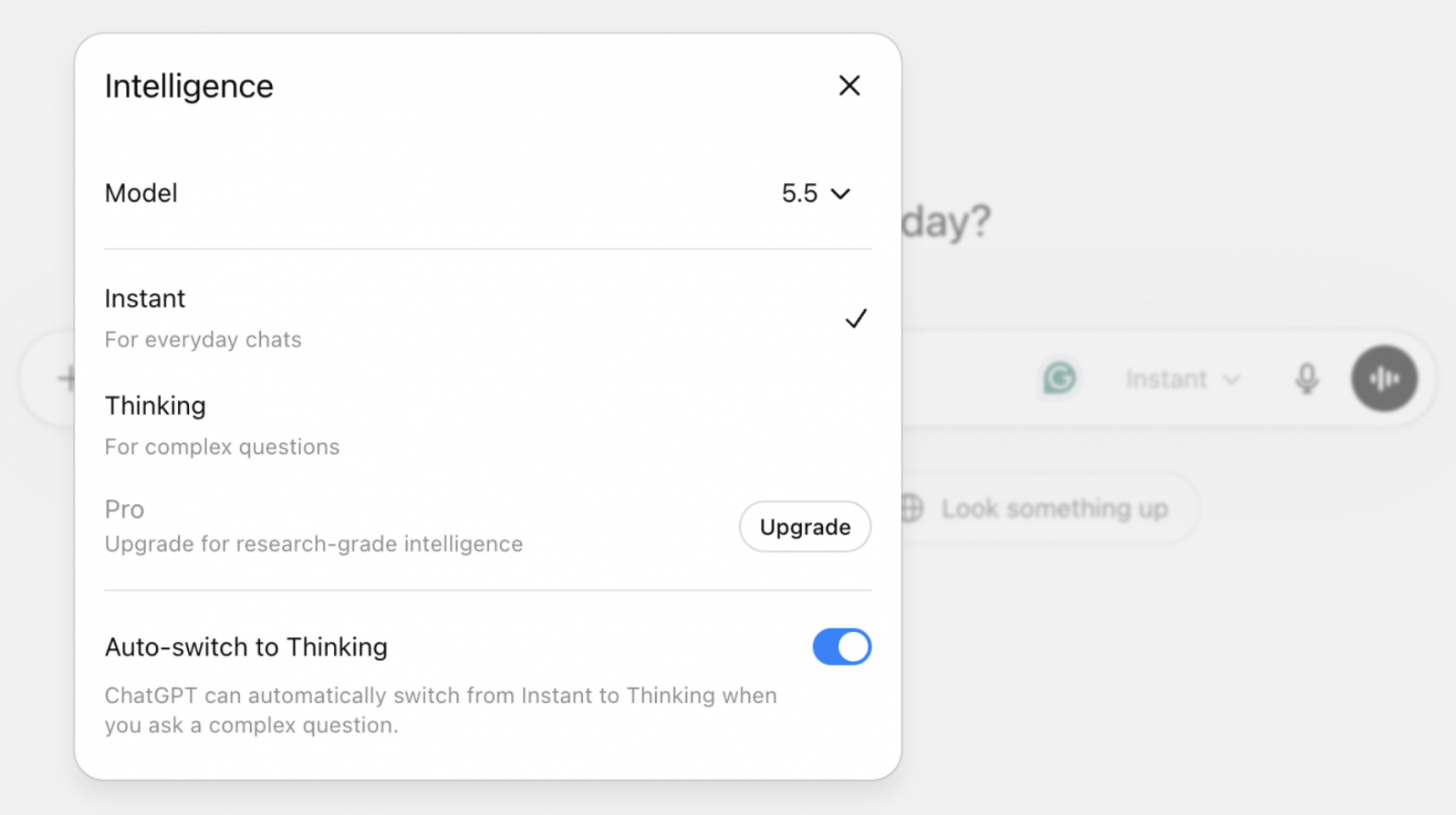
Another thing to keep in mind is that the free versions of AI models are not as good or accurate as the ones you get with a paid premium account. Paid users get access to models that have been tested more strenuously and are known to be more reliable. If you are using the free version, you may be the test case. To explore the difference between the free and paid accounts, I recommend signing up for a monthly rather than an annual subscription so that you can cancel it if it doesn't suit your needs. While a paid account could get you better results, as long as you know how to fact-check, you shouldn't be misled by results coming from a free account, and having a paid account doesn't illuminate the need for fact-checking.
3. Phrase your prompt objectively and in a brand-new chat.
AI tools, especially those with a conversational interface like ChatGPT, ultimately try to please the user by being as agreeable as possible. This can skew how the AI model responds to your prompt. Instead of asking something like, "Are iPhones the best smartphones?" ask, "Which smartphones are the best?" That removes any hint of bias in your question. Try to phrase your prompt in a direct way so that you don't get a roundabout answer.
It is also a good idea to start a brand-new chat before you ask a question, otherwise the AI assistant might consider information from previous interactions to answer your question. This happened to me when I asked Copilot to alter an image. Because I had previously asked it to add tennis balls to a photo, it ended up adding them to the newly generated image even though I did not ask it to.
4. Rephrase your question and see if the answer changes.
Once you get your original question answered, try asking the question in a different way. For example, you could ask, "Were purple-colored clothes originally worn by men or women?" Next, try something like, "Historically, which gender wore purple clothes?" You should receive the same or a similar answer, and if you don't, you know that one or both of them is wrong, and it could be a sign of an AI hallucination.
5. Use multiple AI models/tools to ask the same question.
Most users have a go-to AI app or website, like ChatGPT. Instead of always trusting one AI tool, try asking the same question on another AI tool like Gemini, Perplexity, Copilot, Grok, or Claude. You should be getting the same or similar answers no matter which AI you use. If they disagree, it's important to dive deeper into the topic to get the true facts.
6. Search for the answer on Google Scholar.
Even "Googling" a question will get you a wide variety of answers, discussions, and mentions of the topic from across the entire internet and could include unreliable sources. If you want more factual information, try asking your question on Google Scholar, so that the answers come from real studies, essays, theses, and more reliable sources. If you use Google Scholar for research, make sure the answer to your question comes from the conclusion of a study rather than a theory being tested. If you're getting your answer from a study, it's also important to make sure that you check on the number of participants, since an experiment done on a small and/or homogeneous group of people may not be as accurate as a larger number of diverse participants. There are numerous ways that study results can be manipulated or may not show what the researchers claim they show, so the best way to be safe is to make sure that your facts are corroborated by other sources.
7. Run the answer through a reliable fact-checking tool.
In the age of AI, it is easier than ever to make up and spread fake news, but there are reliable fact-checking tools that can help. One of the most popular fact-checking websites is Snopes, and it can be used to question actual facts but also pop culture gossip and more. While I use Snopes for most of my fact-checking, simply by adding "Snopes" to my Google queries, there are other resources that can be used, too. If you see a screenshot of a politician's social media post, you could try websites like PolitiFact or Reuters' Fact Check.
Since some facts can be "falser" than others, many people like PolitiFact because it includes a "Truth-o-Meter" that has ratings like "Pants on Fire", "False", "Mostly False", "Half True", "Mostly True", and "True." The most believable lies are based on some truth, so these types of ratings help you understand why something is untrue.
Now you know how to fact-check on Google, Google Scholar, and fact-checking websites. We also covered the popular SIFT method and included some specific AI fact-checking tips and tricks. Next, learn which AI assistant is best for you!
Top image credit: BestForBest / Shutterstock.com

Every day, we send useful tips with screenshots and step-by-step instructions to over 600,000 subscribers for free. You'll be surprised what your Apple devices can really do.

Olena Kagui
Olena Kagui is a Feature Writer at iPhone Life. In the last 10 years, she has been published in dozens of publications internationally and won an excellence award. Since joining iPhone Life in 2020, she has written how-to articles as well as complex guides about Apple products, software, and apps. Olena grew up using Macs and exploring all the latest tech. Her Maui home is the epitome of an Apple ecosystem, full of compatible smart gear to boot. Olena’s favorite device is the Apple Watch Ultra because it can survive all her adventures and travels, and even her furbabies.

 August Garry
 Rachel Needell

 Rhett Intriago
 Olena Kagui



 Leanne Hays