You can take incoming calls while on FaceTime with FaceTime call options. Accepting incoming calls and ending your current FaceTime call is easy. You can also decline the new FaceTime call and stay on the current one; let's dive in.
Why You'll Love This Tip
- Just because you are already on a FaceTime call doesn't mean you can't still receive another call.
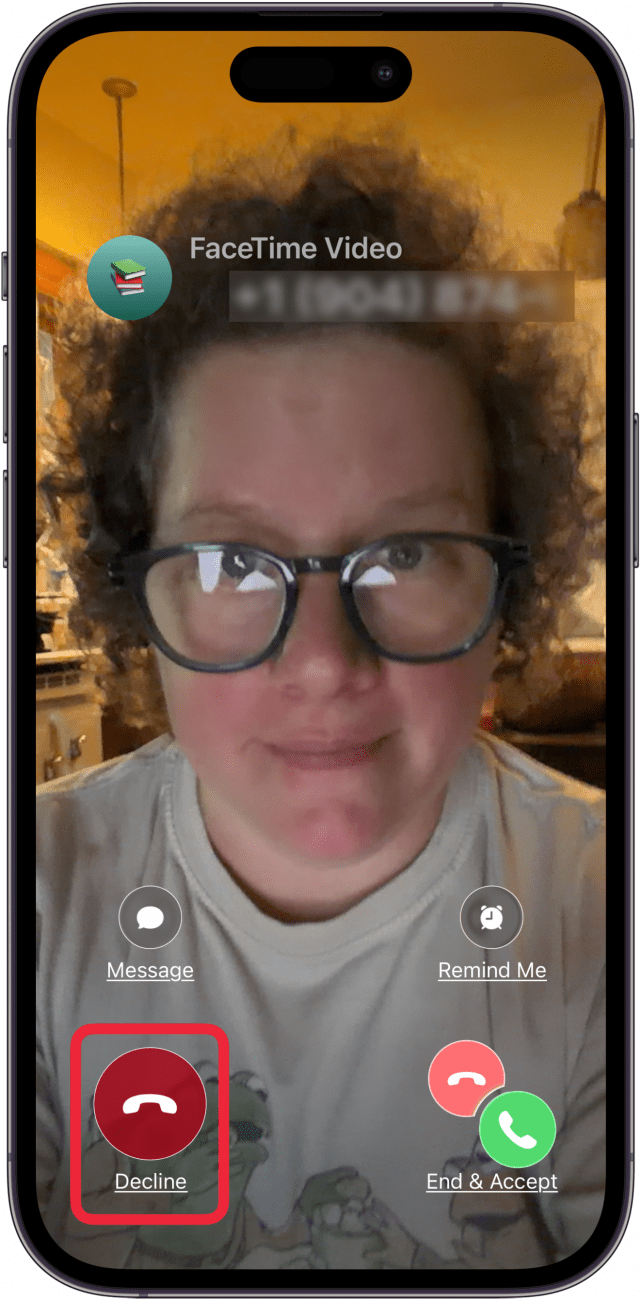
- You can decline another FaceTime call when it comes in and stay on the one you're currently in by tapping Decline.
- You can end your current FaceTime call and accept a new FaceTime by tapping End & Accept.
How to Use FaceTime Call Options on Your iPhone & iPad
System Requirements
This tip works on iPhones and iPads running iOS 13 or later and was tested on an iPhone 17 Pro running iOS 26.5. Find out how to update to the latest version of iOS or iPadOS.
When someone calls you while you're on a FaceTime call, you can End & Accept or Decline. You can also tap Message to let the person FaceTiming you know that you're busy and when you'll FaceTime them back. If the calls are both FaceTime Audio (FaceTime without video), or one is a regular phone call, you'll be able to Hold & Accept.

- To reject an incoming call and continue your current FaceTime call, tap Decline.

- To end your current call and connect to the incoming call, select End & Accept.

- You can also tap Message, and let the incoming FaceTime caller know that you're on another call, or use one of your preset message responses.



Now you know how to end a FaceTime on your iPhone to take another FaceTime call, or decline an incoming FaceTime call. Using FaceTime controls is a great way to juggle multiple calls. For more great FaceTime tutorials, check out our free Tip of the Day.