How to Respond to Calls with an Automatic Text Response

With 10-plus years of experience with Apple devices, Rachel specializes in all things iPad and is a Notes app expert. Find her writing in the Daily Tip newsletter and iPhone Life magazine.
Learn More With 10-plus years of experience with Apple devices, Rachel specializes in all things iPad and is a Notes app expert. Find her writing in the Daily Tip newsletter and iPhone Life magazine.
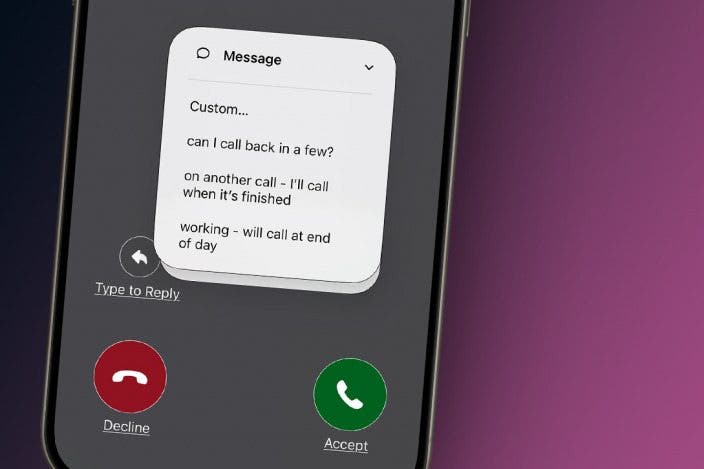
Learn MoreWe all love chatting on the phone with friends and family, but sometimes you just can't talk. Instead of declining calls and then going to the Messages app to type out a message, you can set up Respond with Text in the Phone app. This allows you to set up a custom text response that you can send directly from the incoming call screen of your iPhone.
Why You'll Love This Tip
- When you cannot answer the phone, quickly let a caller know important information with just a tap of a button.
- Create up to three custom text responses for when you can't get to an incoming call.
- Prevent repeated calls or worried callers by setting up custom messages you can send from the incoming call screen.
How to Set Up an iPhone Automatic Reply Message
System Requirements
This tip was performed on an iPhone 17 Pro running iOS 26.6. Find out how to update to the latest version of iOS.
The best part about iPhone's quick response feature is that you can customize it to say whatever is most relevant to you and your life and send it quickly in an automated message. Also, you can customize three different auto-reply texts depending on different circumstances. Here's how to customize an automatic reply iPhone text:
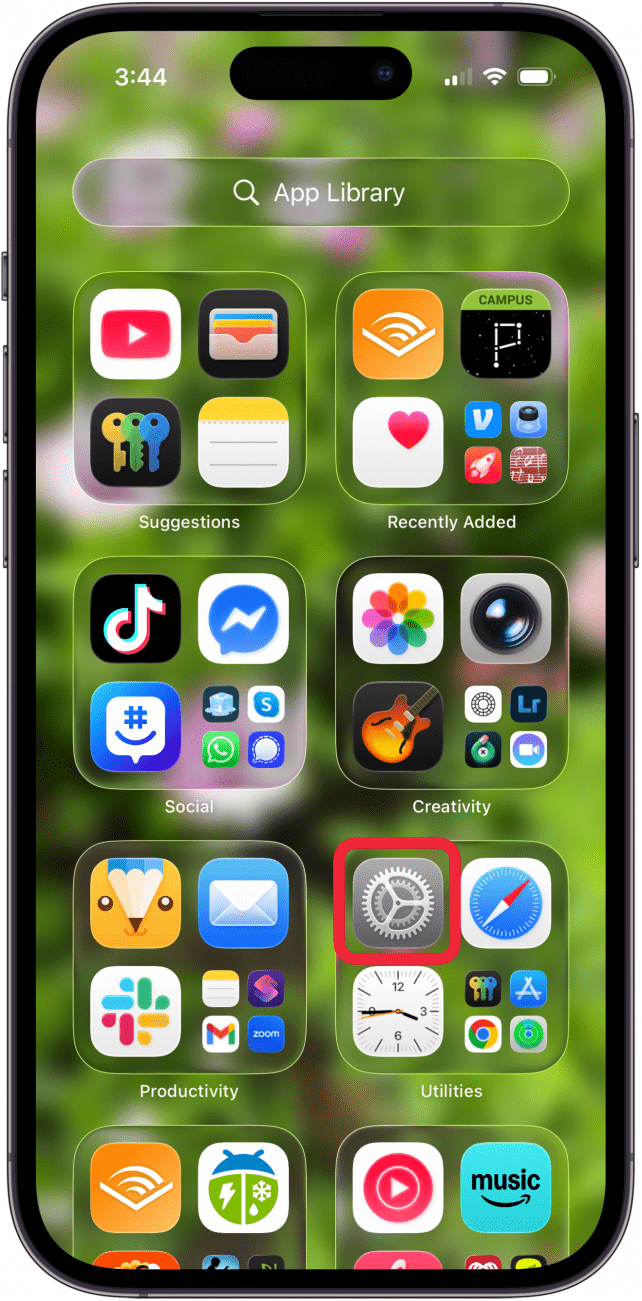
- Open the Settings app.
- Scroll to the very bottom and tap Apps.
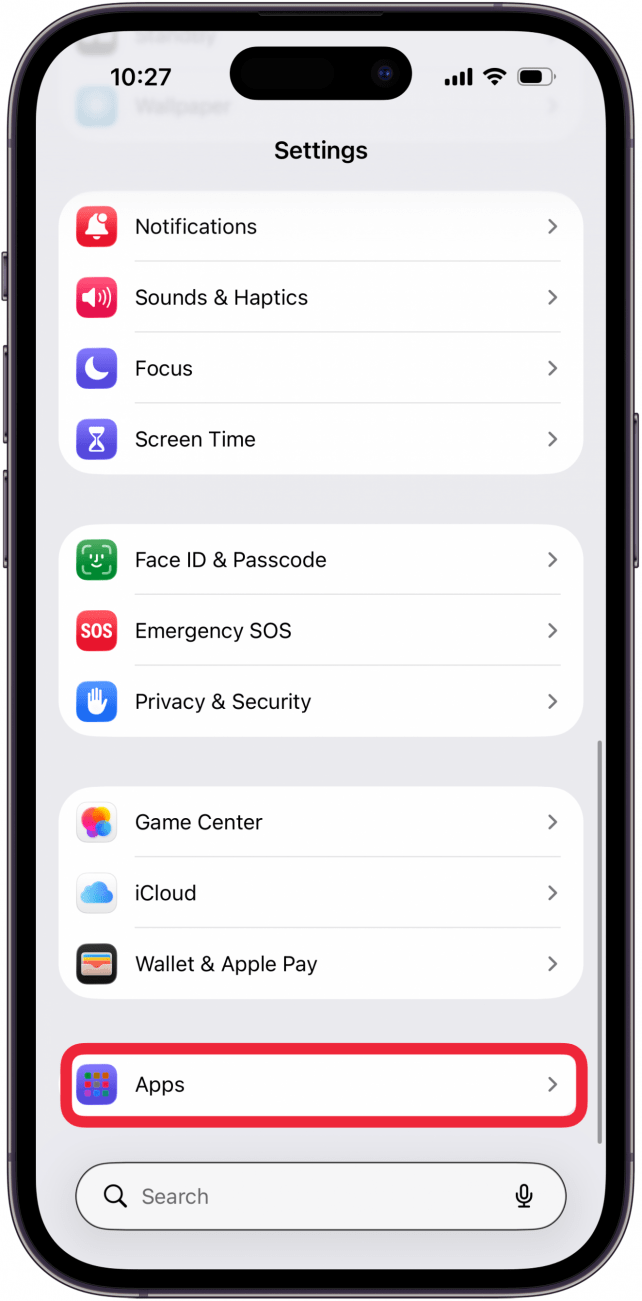
- Tap Phone.
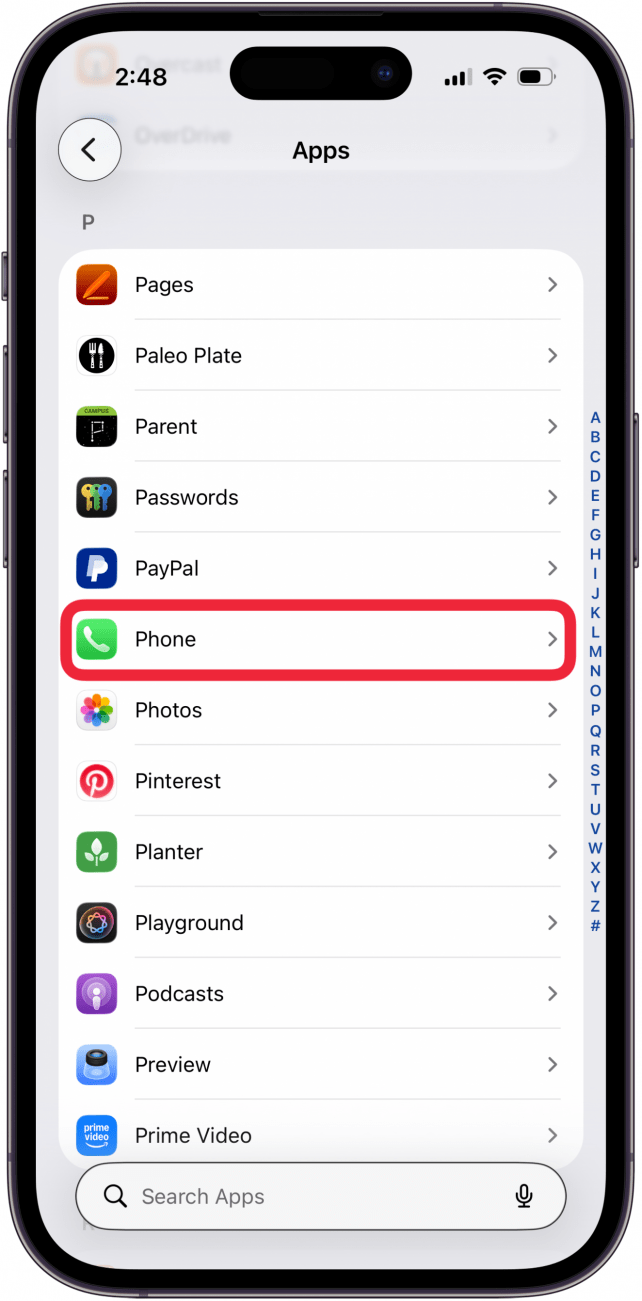
- Tap Respond with Text.
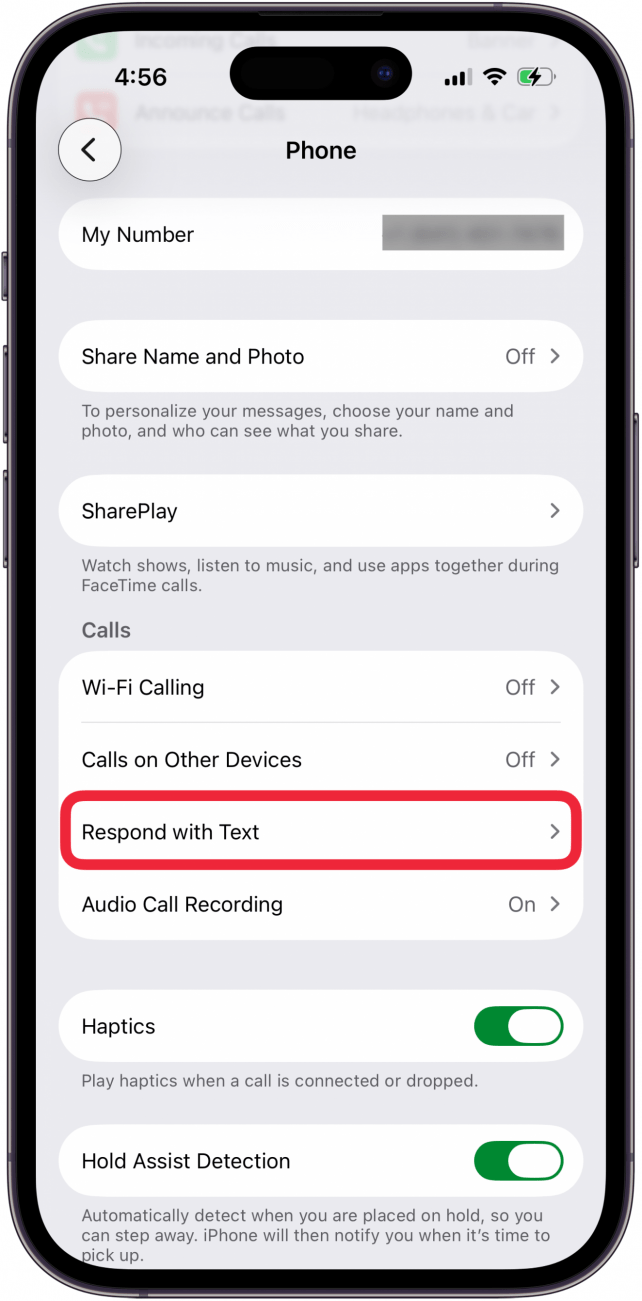
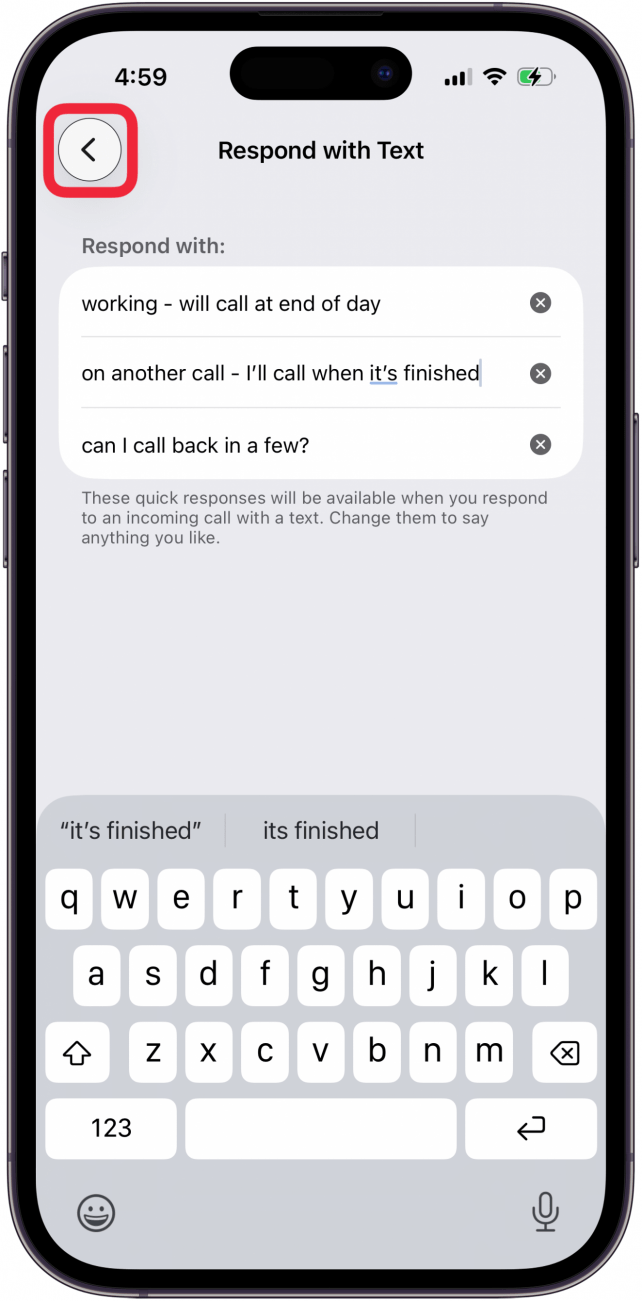
- From here, you can enter up to three custom messages. When you're finished, tap the back arrow. Your message(s) will autosave.
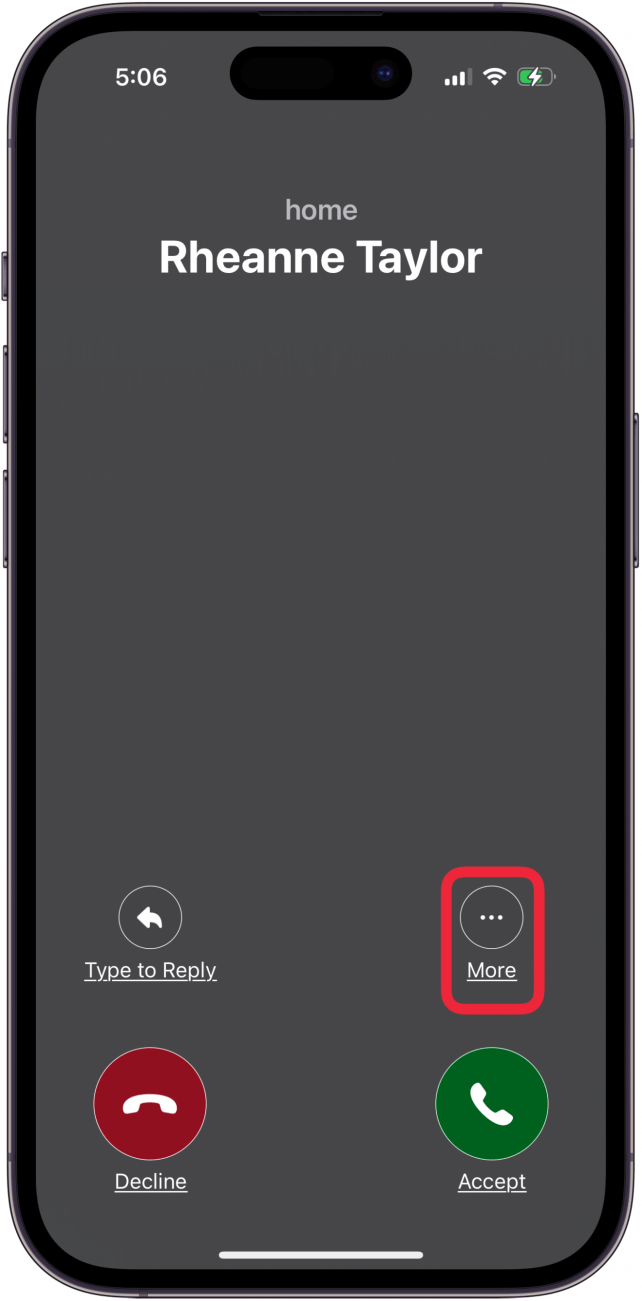
- When someone calls you, tap the call notification if it's not full screen, then tap the more icon.
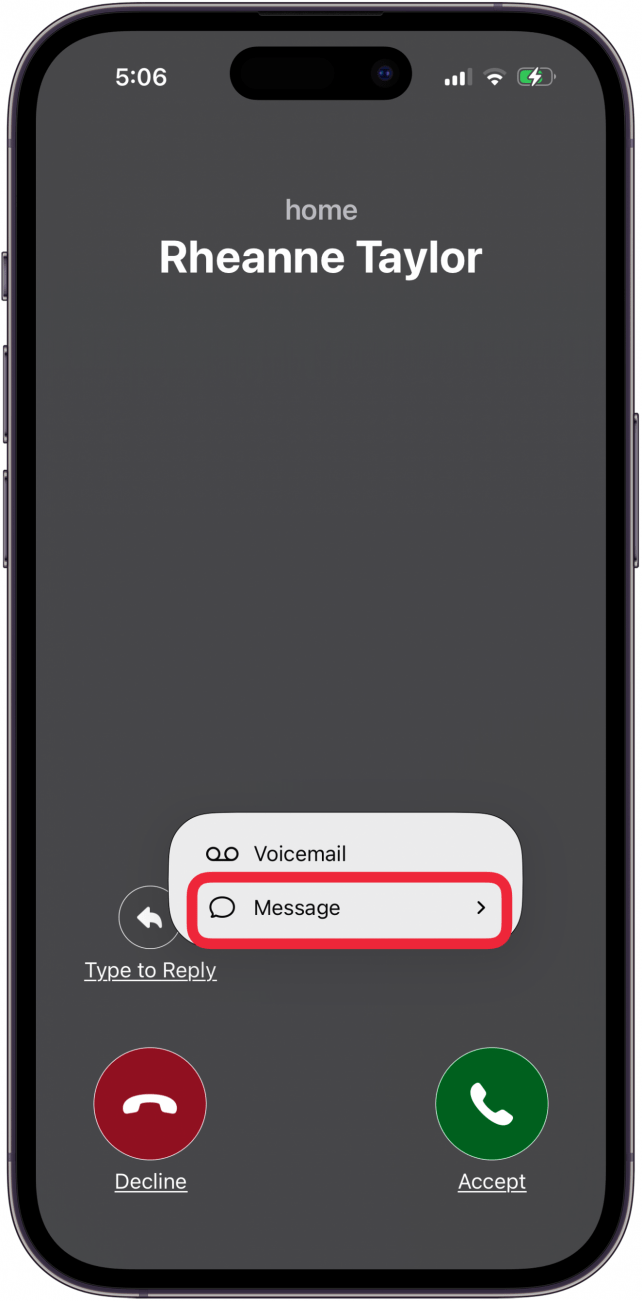
- Tap Message.
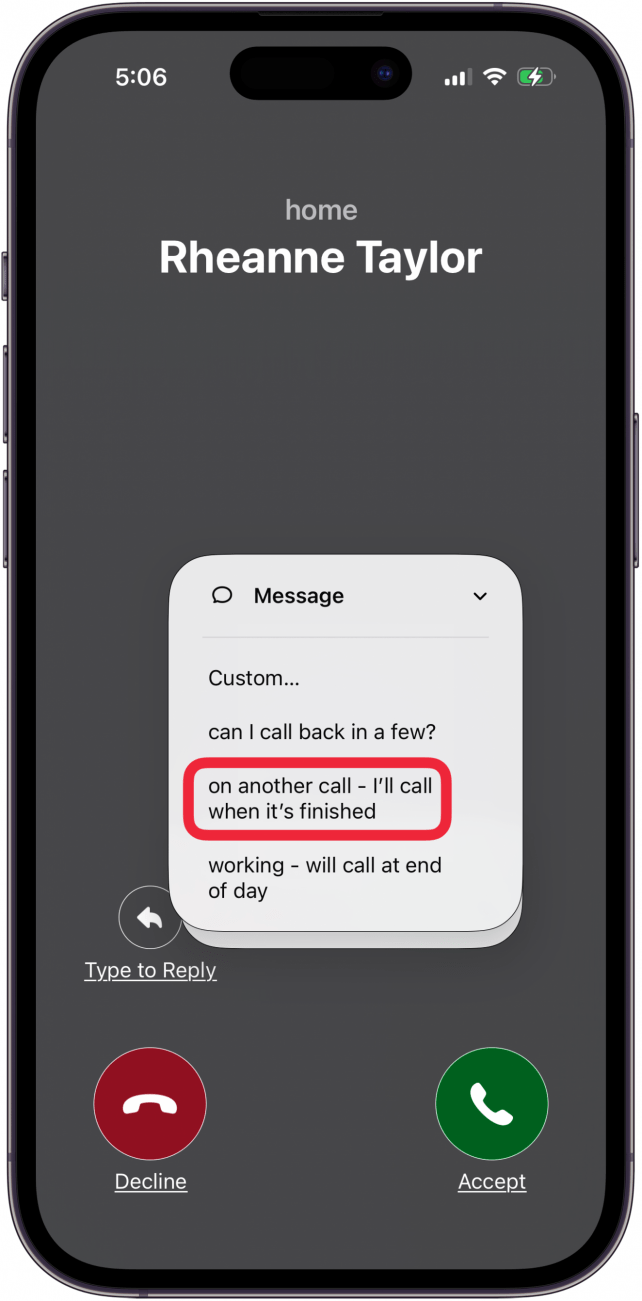
- Now you can tap one of your custom text responses. It will automatically send that text to the caller when you tap it.
And that's all there is to it! Super quick and easy to customize, but it's such a useful thing to use in daily life. If you like tips like this about using your iPhone, be sure to sign up for our free Tip of the Day!
More On: iPhone Calling

Every day, we send useful tips with screenshots and step-by-step instructions to over 600,000 subscribers for free. You'll be surprised what your Apple devices can really do.


 Nicholas Naioti
 Olena Kagui
 Ashleigh Page
 Hal Goldstein
 Rhett Intriago
 Amy Spitzfaden Both
 August Garry
 Rachel Needell