Your kids want to text and call their friends, but you don't want just anybody to be able to contact them. What's a parent to do? Luckily, Apple allows parents to control who's allowed to contact their children on their iPhone and iPad with Communication Limits. Here's how to set up Communication Limits to keep your kids safe.
Why You'll Love This Tip
- Give your kids the freedom of texting and calling their friends, without the dangers of communicating with strangers.
- Your kids can request to add contacts at any time, or you can add them without a request.
Parental Controls: Limit Who Your Kids Can Call & Text
System Requirements
This tip was tested on an iPhone 17 Pro running the iOS 27 beta, which will be shipped universally in September 2026. This feature won't work on iPhones and iPads running operating systems earlier than iOS 27. Find out how to update to the latest version of iOS.
You need to set up Family Sharing and add your kids to the group before you can set up Communication Limits. Here's how to set up phone call and texting parental controls on an iPhone or iPad.
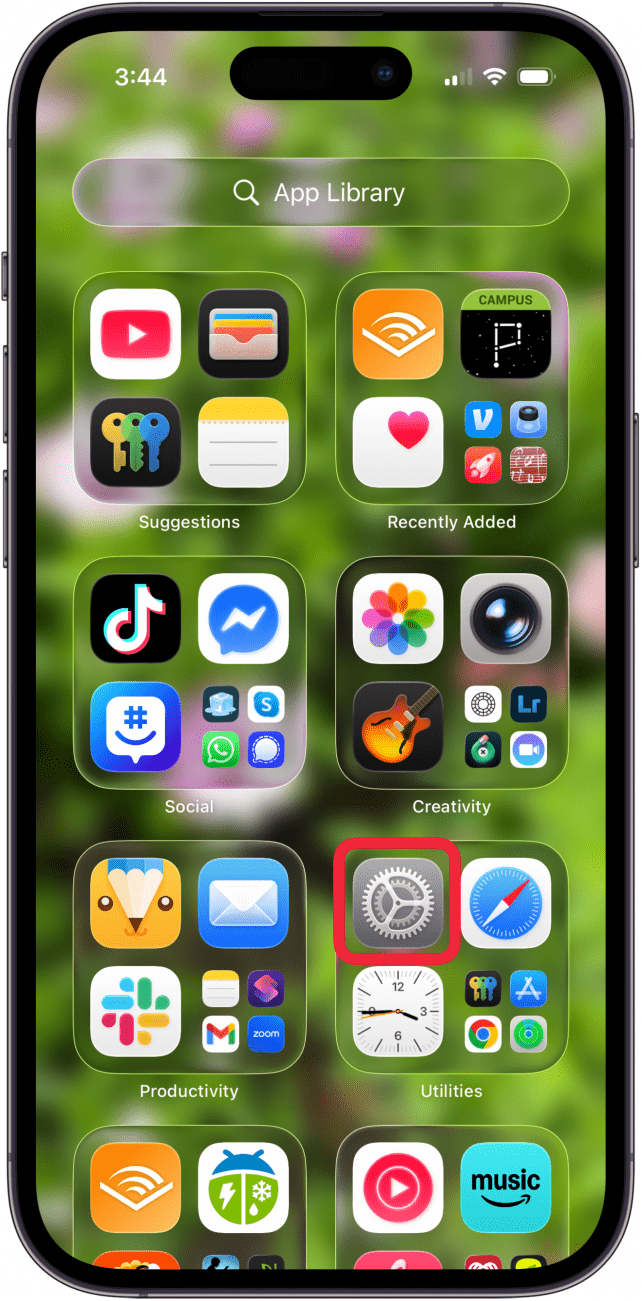
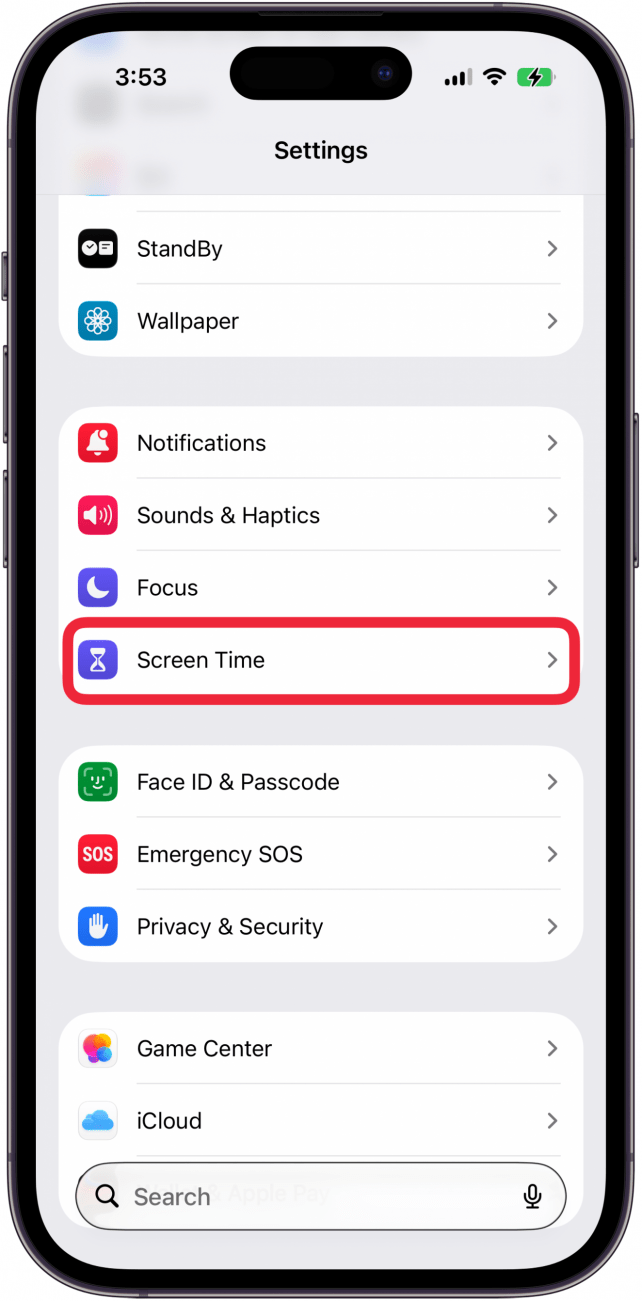
- Open the Settings app.

- Tap Screen Time.

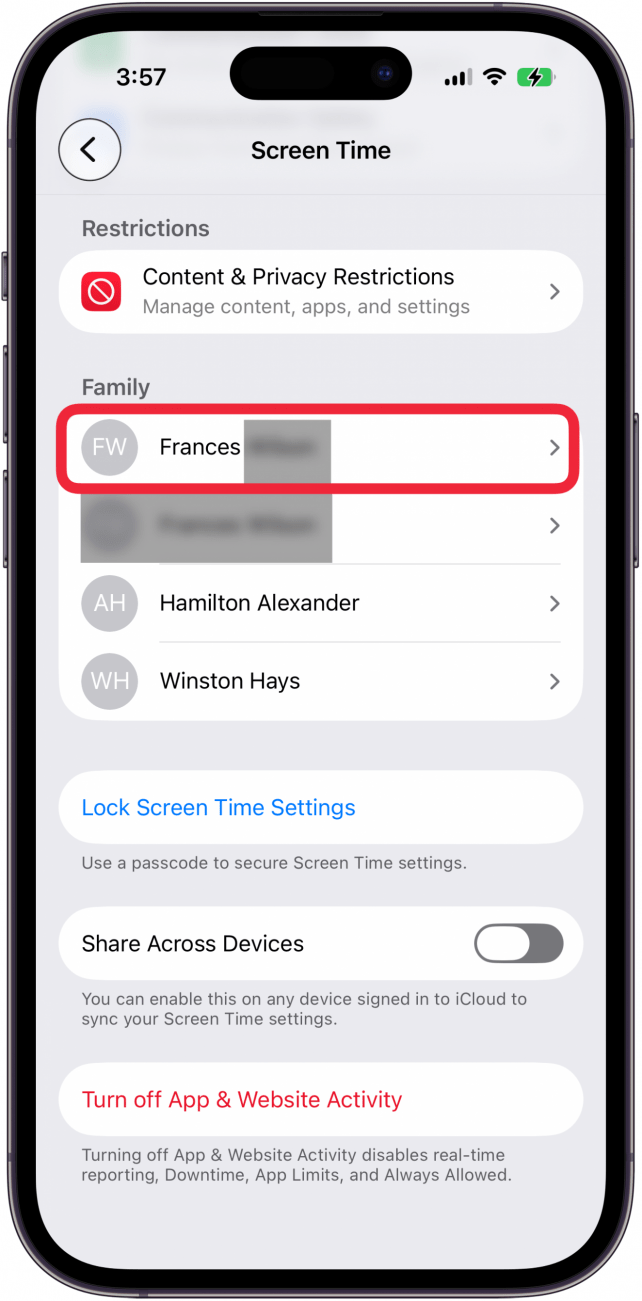
- Tap your child's name.

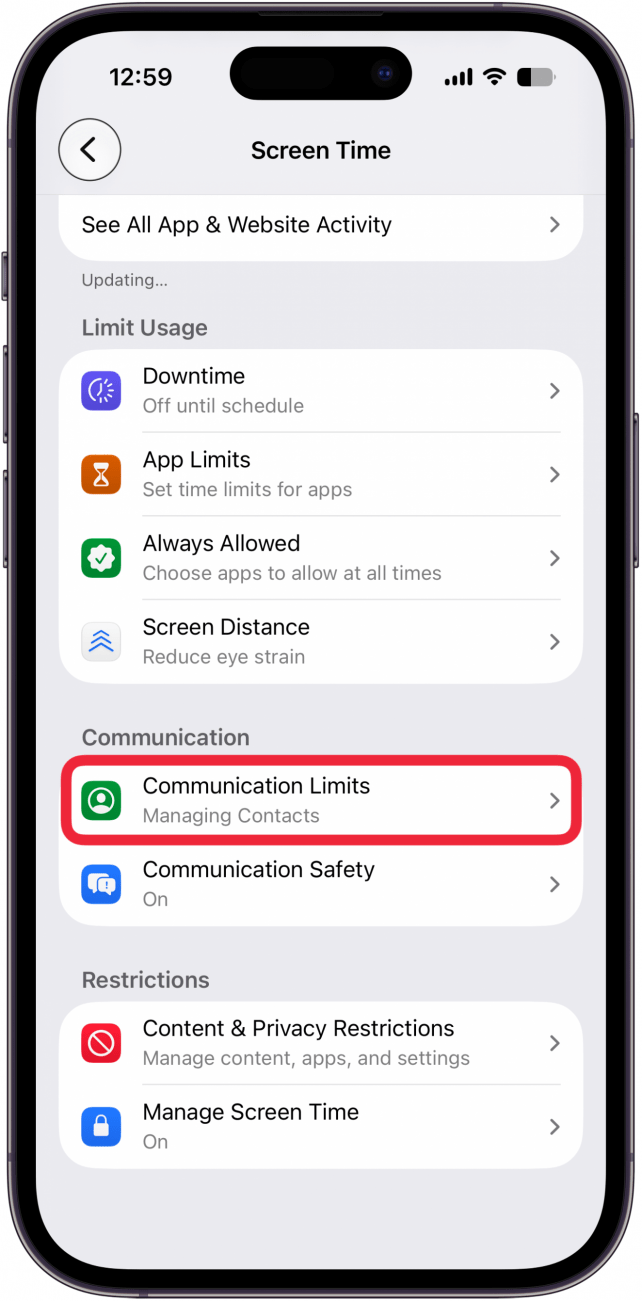
- Tap Communication Limits.

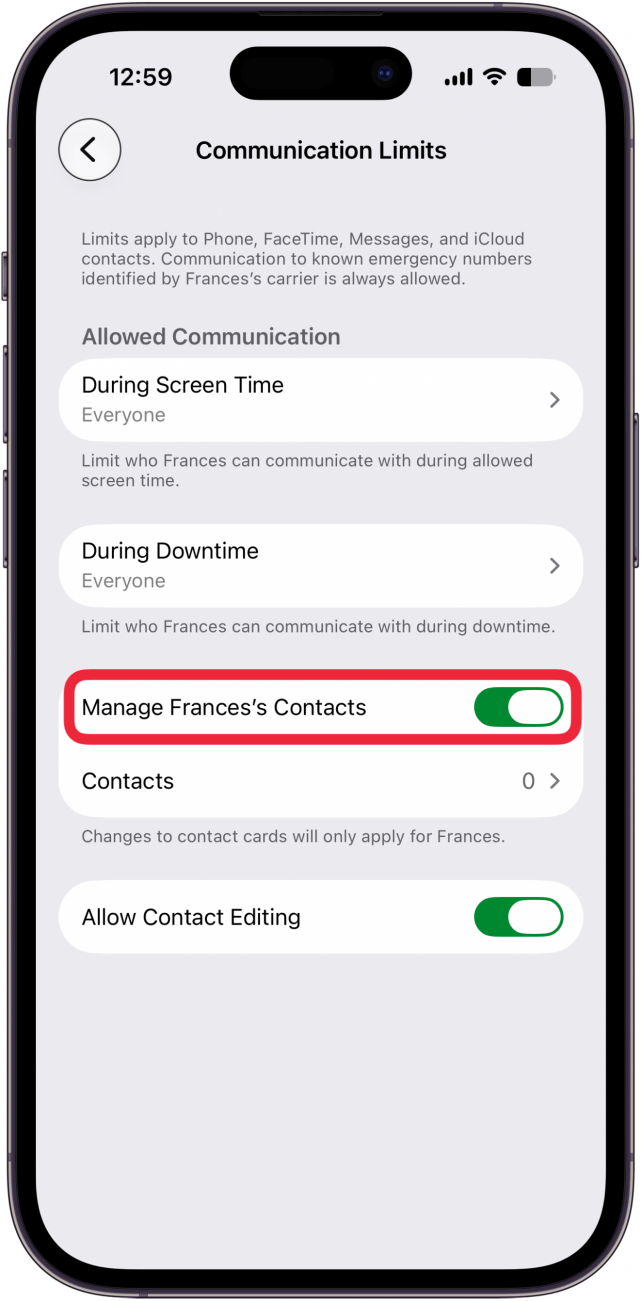
- Toggle on Manage (Child's) Contacts.

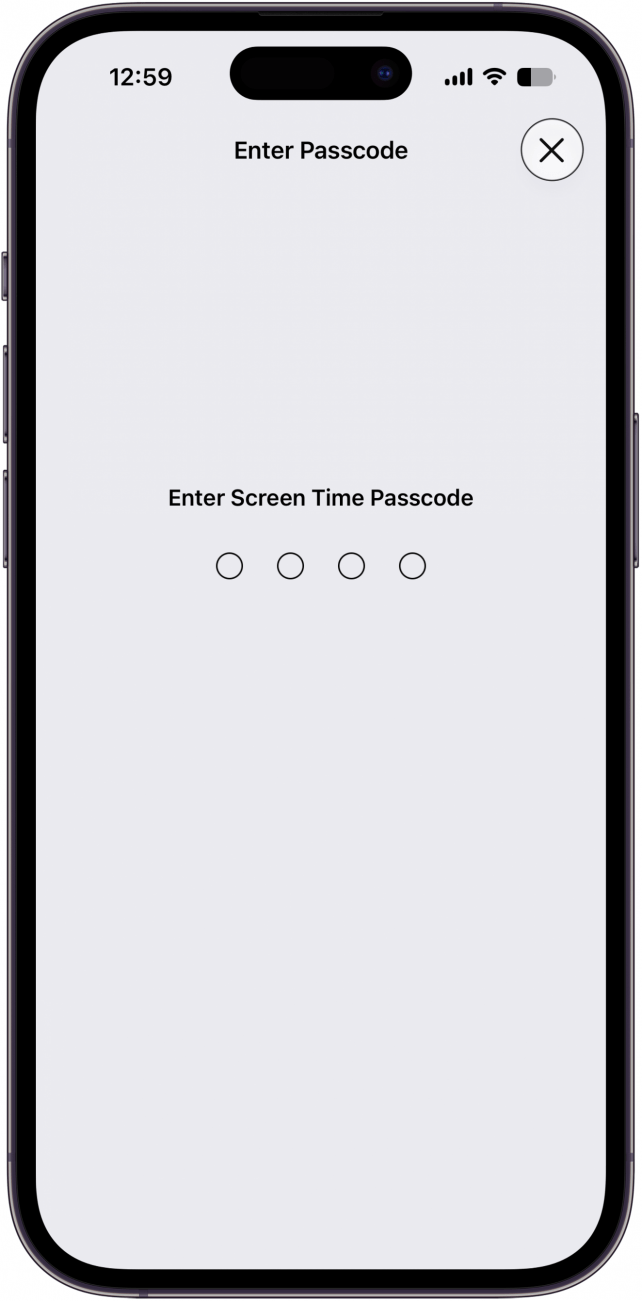
- Enter Screen Time passcode.

- Tap Contacts.

- Tap Choose From My Contacts or Add New Contact for (Child) to add allowed contacts to your child's account.

- Your child can also request to add specific contacts. A notification will be sent to you, and you can approve or deny the request.


Now you know how to set up Communication Limits for your kids. Be sure to check out our free Tip of the Day for more parental controls tutorials.