How to Use Photo Suggestions in the Messages App

A lifelong tech enthusiast, with experiences ranging from jailbreaking his iPhone to building his own gaming PC, Rhett specializes in maintaining privacy in a digital world and iPhone security.
Learn More A lifelong tech enthusiast, with experiences ranging from jailbreaking his iPhone to building his own gaming PC, Rhett specializes in maintaining privacy in a digital world and iPhone security.
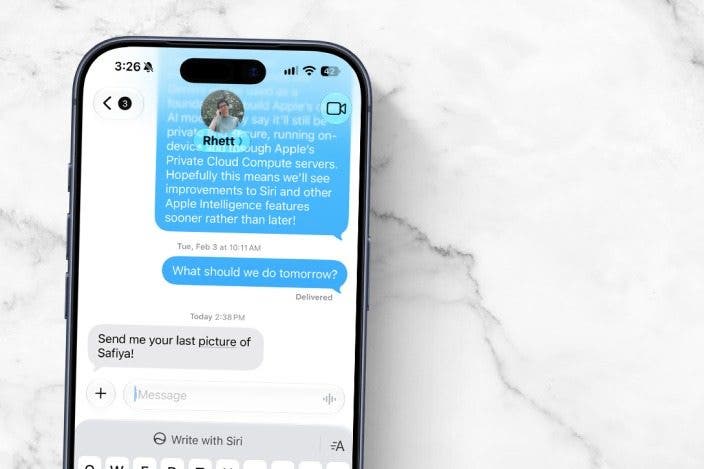
Learn MoreAs new versions of iOS are released, Siri AI continues to evolve, and now it can even interact with your messages. One of the cool ways it can do that is by knowing when to send a photo. Here's how it works.
Why You'll Love This Tip
- Attach a photo to a text in just a few simple steps.
- Add photos to texts more quickly than using the Messages toolbar or the Photos app.
Add a Suggested Photo to a Text
System Requirements
This tip was performed on an iPhone 15 Pro running iOS 27.2. Find out how to update to the latest version of iOS.
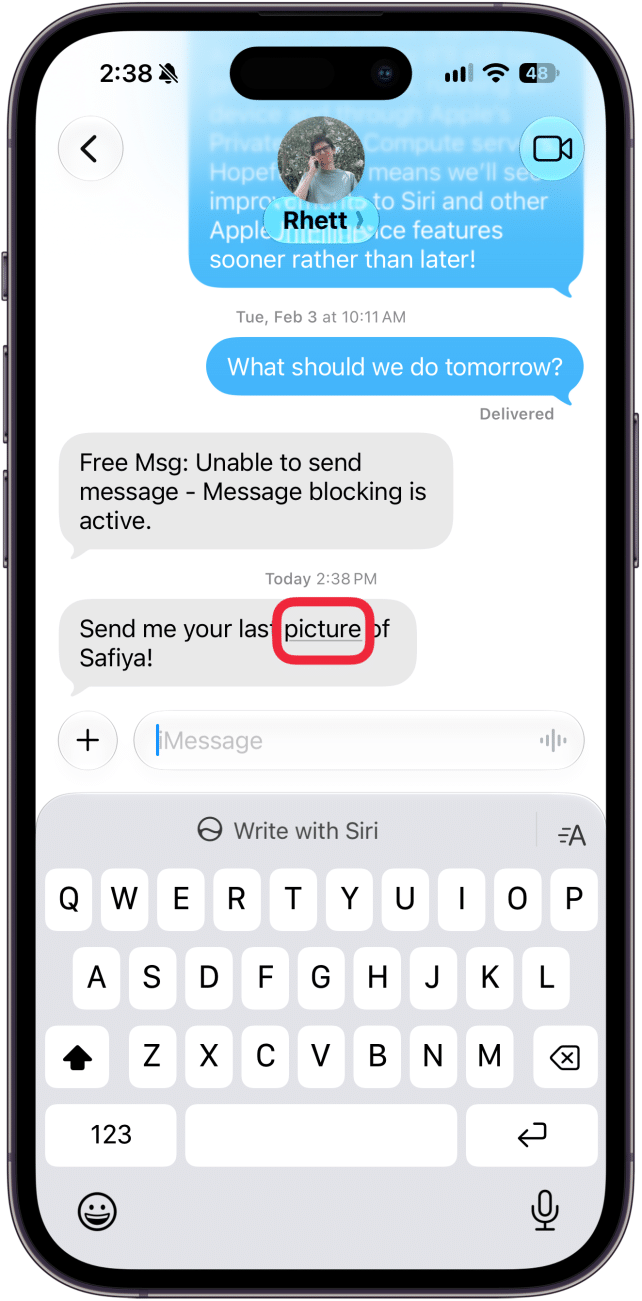
Whenever you receive a text and someone asks for a picture, your iPhone will recognize that and allow you to instantly attach a photo. For more on getting the most out of iOS 27, be sure to sign up for our free Tip of the Day newsletter. Now, here's how to attach a photo to a message in seconds:
- In any text conversation where someone has asked for a photo, tap the underlined "photo" or "picture" text.
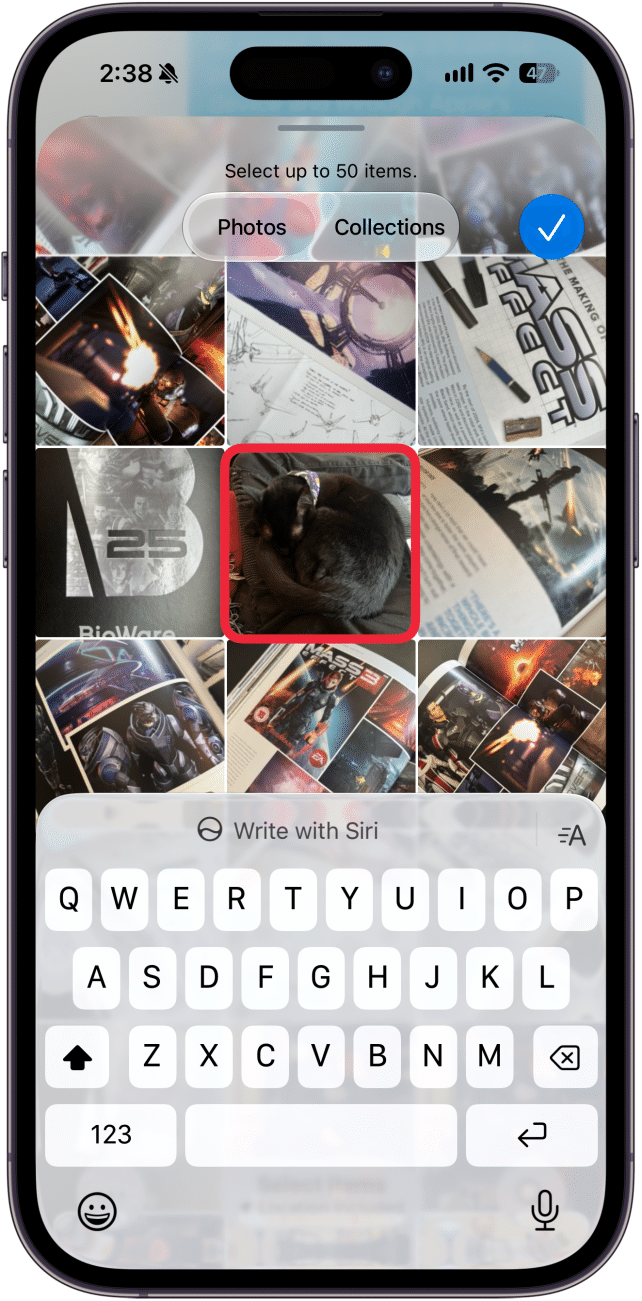
- Your photo library will open. Tap the photo you want to attach.
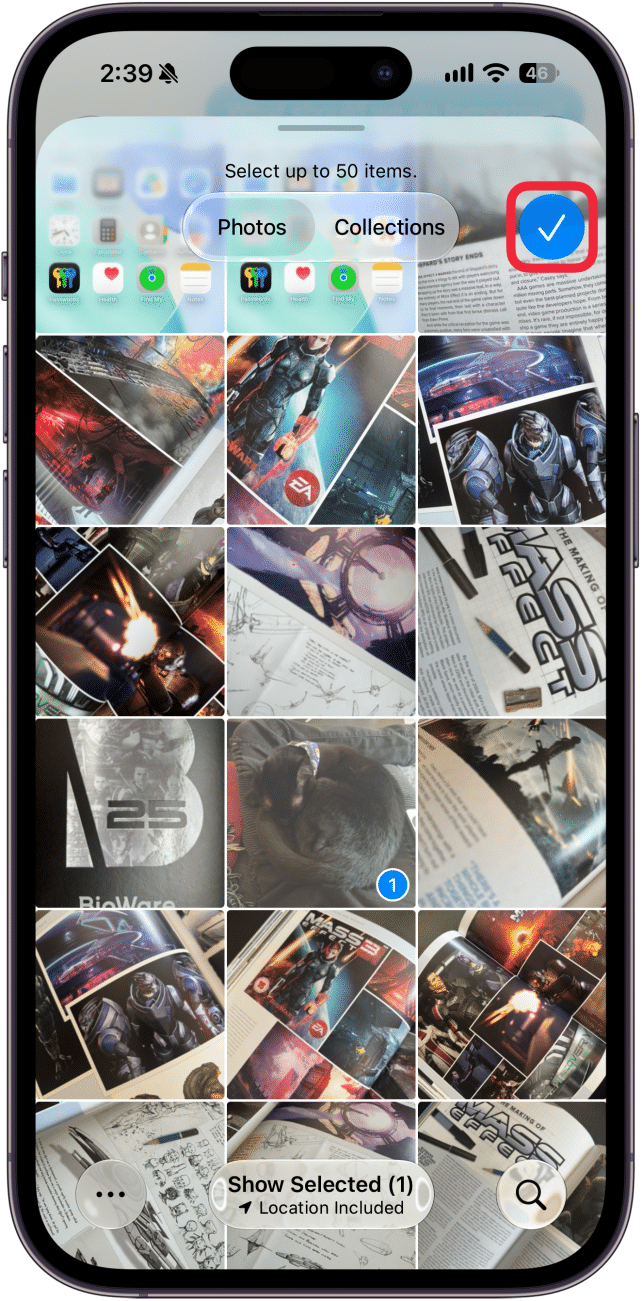
- Tap the checkmark icon.
- Tap the send icon to send your photo.
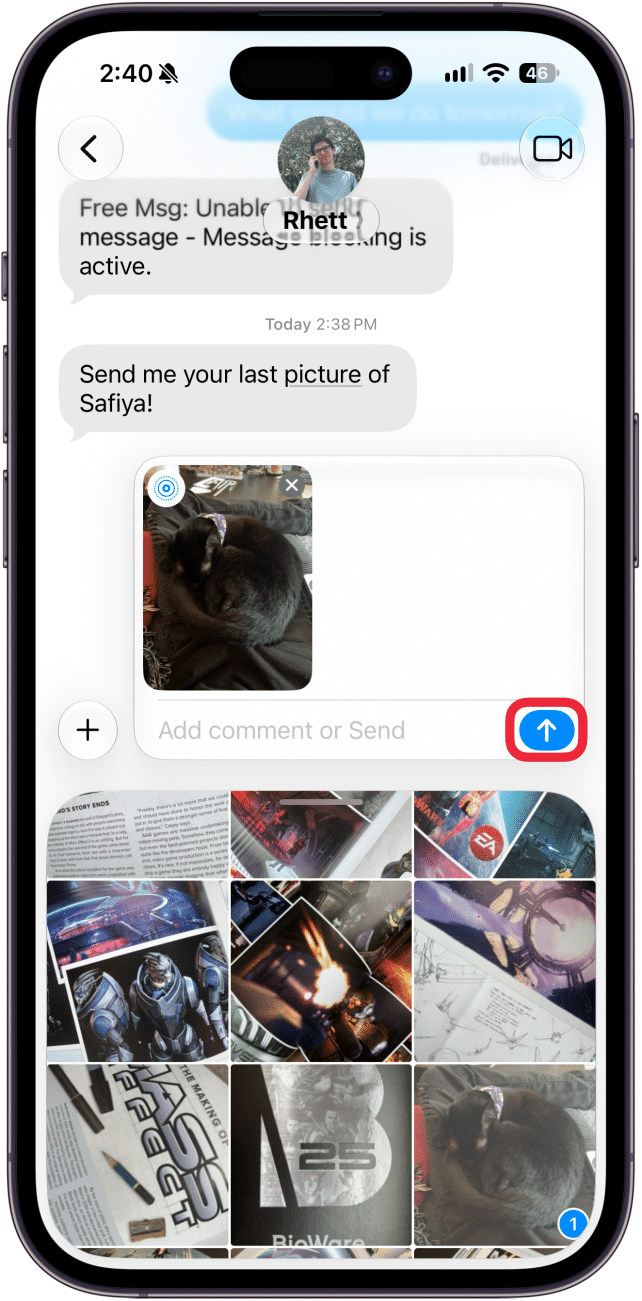
That's how to attach a suggested photo to a text. This small change makes adding photos to texts much easier.
More On: The Messages App
Top image credit: Amguy13 / Shutterstock.com

Every day, we send useful tips with screenshots and step-by-step instructions to over 600,000 subscribers for free. You'll be surprised what your Apple devices can really do.

Rhett Intriago
Rhett Intriago is a Feature Writer at iPhone Life, offering his expertise in all things iPhone, Apple Watch, and AirPods. He enjoys writing on topics related to maintaining privacy in a digital world, as well as iPhone security. He’s been a tech enthusiast all his life, with experiences ranging from jailbreaking his iPhone to building his own gaming PC.
Despite his disdain for the beach, Rhett is based in Florida. In his free time, he enjoys playing the latest games, spoiling his cats, or discovering new places with his wife, Kyla.
 Rhett Intriago
 Olena Kagui
 Leanne Hays

 Ashleigh Page

 Hal Goldstein


 Rachel Needell
 Cullen Thomas