Teach Siri How to Write to Specific People

A lifelong tech enthusiast, with experiences ranging from jailbreaking his iPhone to building his own gaming PC, Rhett specializes in maintaining privacy in a digital world and iPhone security.
Learn More A lifelong tech enthusiast, with experiences ranging from jailbreaking his iPhone to building his own gaming PC, Rhett specializes in maintaining privacy in a digital world and iPhone security.
Learn MoreDid you know Siri can learn how you talk to other people over text or email? The new Siri AI learns from how you text and when writing to specific people will adjust its tone to your writing style. Here's how it works.
Why You'll Love This Tip
- Use Siri to write texts using the same tone of voice you use with each of your contacts.
- Ensure your emails are always professional and polite.
How to Use Write with Siri
System Requirements
This tip was performed on an iPhone 15 Pro running iOS 27.2. Find out how to update to the latest version of iOS.
If you have an Apple Intelligence-capable device (iPhone 15 Pro and newer), you'll have access to Siri AI. This new version of Siri learns from your apps, including Messages and Mail. You can use Siri AI to compose texts and emails, and it'll use the information it learns from those apps to match the tone and style of writing you use with each of your contacts. To get more out of Siri AI and iOS 27, sign up for our free Tip of the Day newsletter. Now, here's how Write with Siri works:
- Open Mail or Messages.
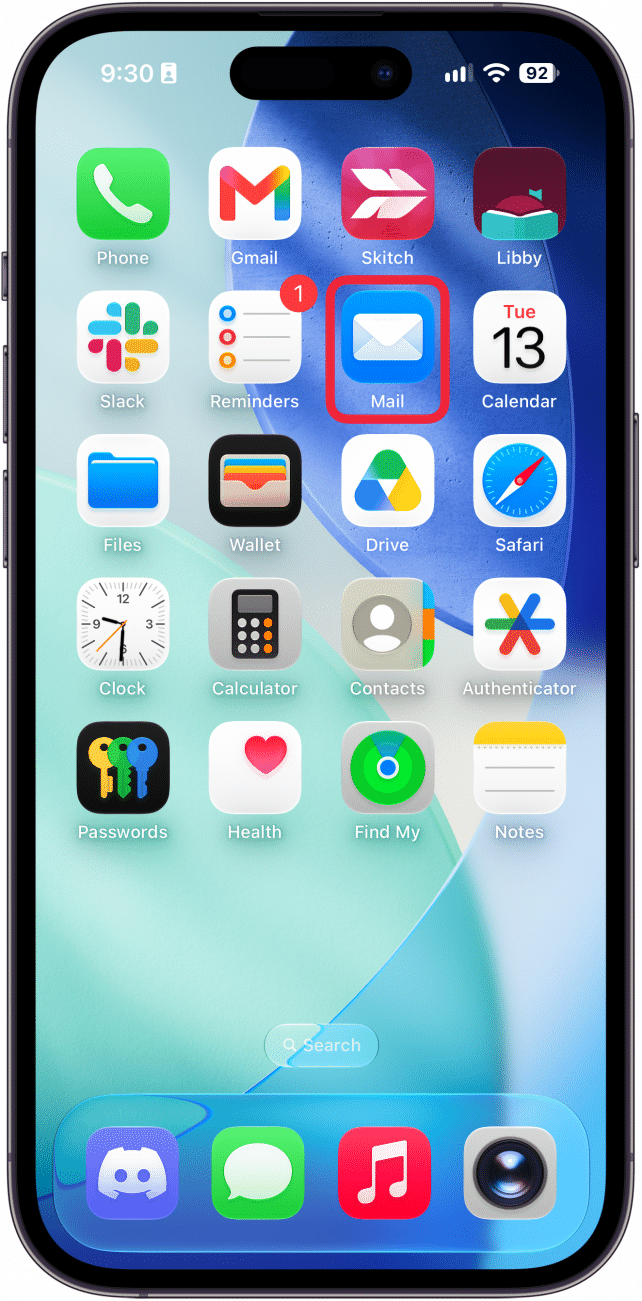
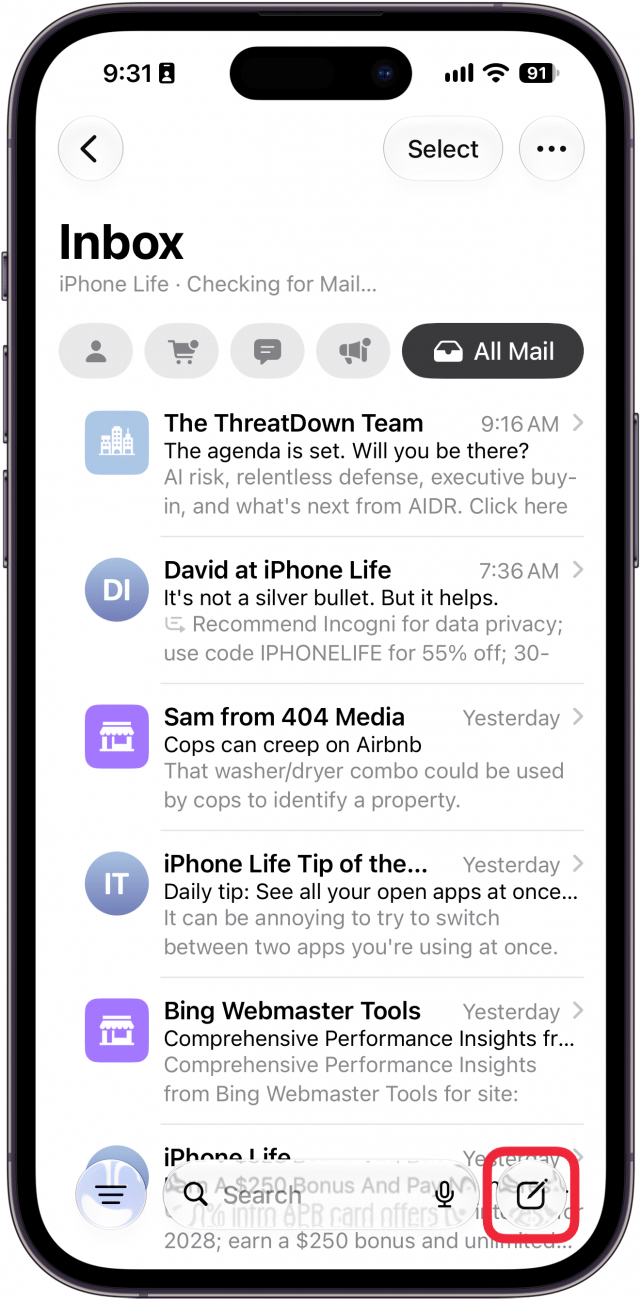
- Create a new email or text.
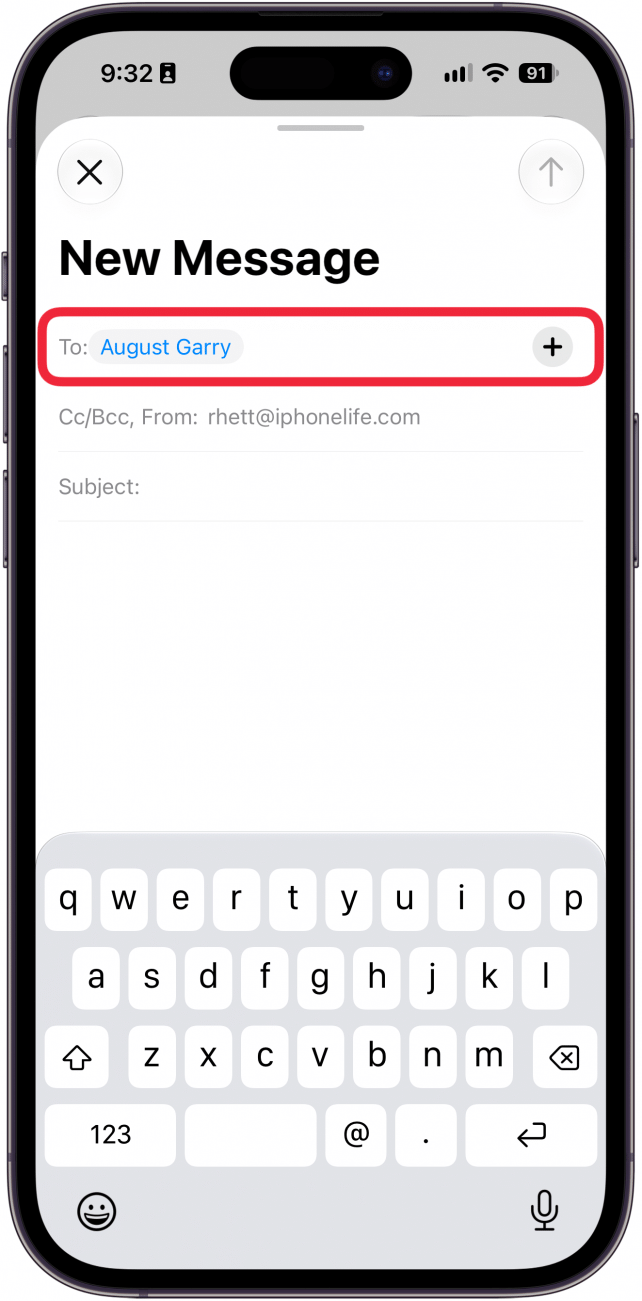
- Enter the recipient.
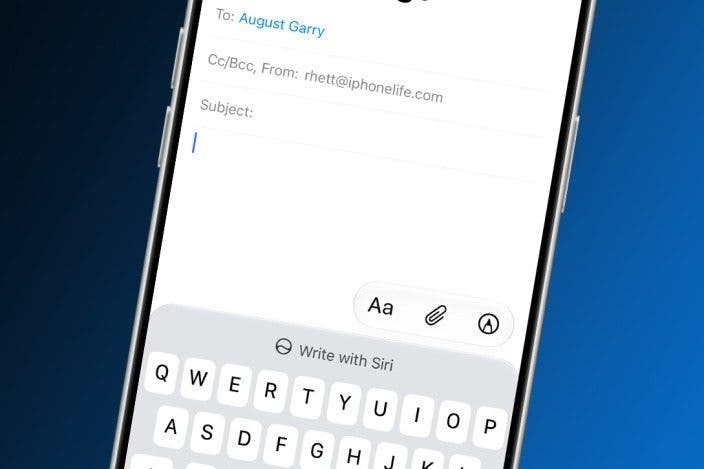
- When composing your text or email, tap Write with Siri.
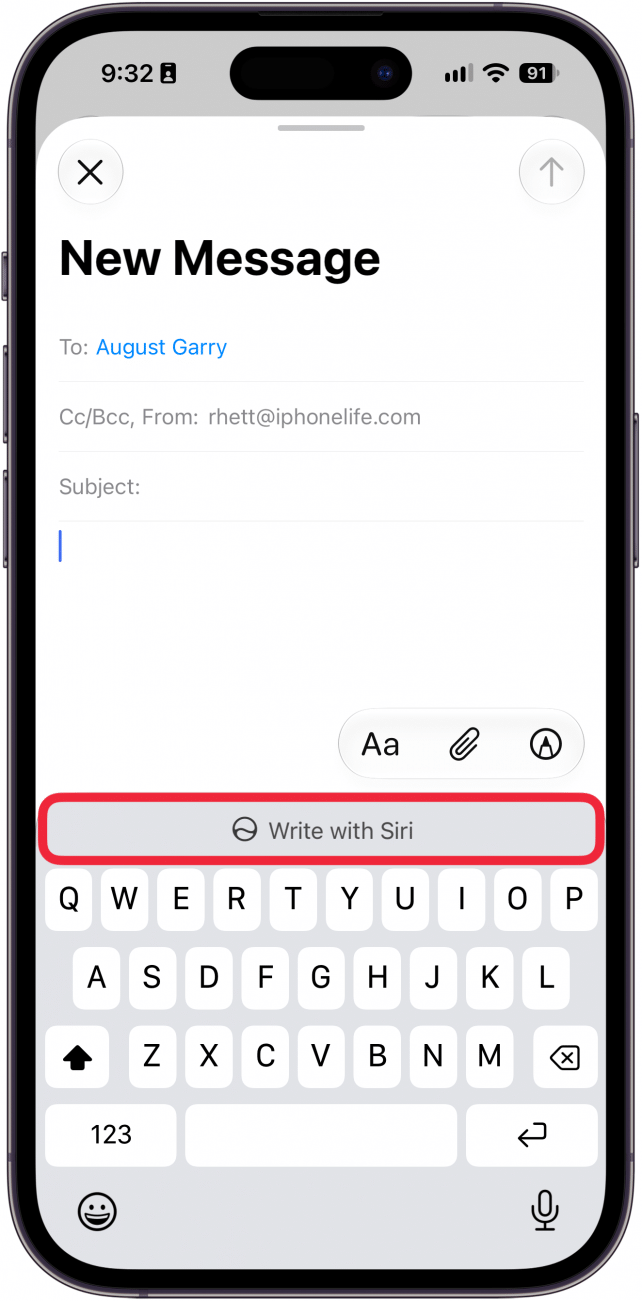
- Describe to Siri what you want your message to say, and it will type it out for you. If you're texting a friend, it'll likely use a warmer and more familiar tone, whereas if you're emailing a coworker, it'll use a professional and polite tone.
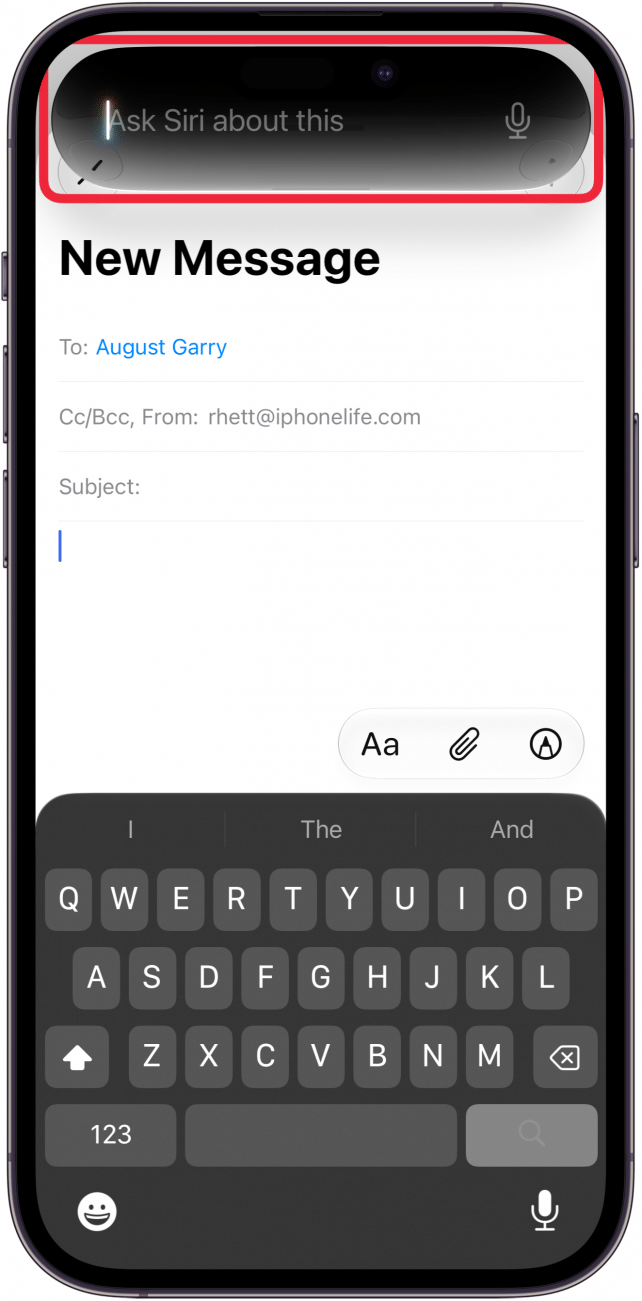
That's how the new Write with Siri feature works on iOS 27. If you don't want Siri AI to learn from your messages or emails, you can disable Siri AI and revert to Siri Classic.

Every day, we send useful tips with screenshots and step-by-step instructions to over 600,000 subscribers for free. You'll be surprised what your Apple devices can really do.

Rhett Intriago
Rhett Intriago is a Feature Writer at iPhone Life, offering his expertise in all things iPhone, Apple Watch, and AirPods. He enjoys writing on topics related to maintaining privacy in a digital world, as well as iPhone security. He’s been a tech enthusiast all his life, with experiences ranging from jailbreaking his iPhone to building his own gaming PC.
Despite his disdain for the beach, Rhett is based in Florida. In his free time, he enjoys playing the latest games, spoiling his cats, or discovering new places with his wife, Kyla.

 Rachel Needell

 Rhett Intriago

 Olena Kagui
 Amy Spitzfaden Both