How to Start a New Conversation with AI


A lifelong tech enthusiast, with experiences ranging from jailbreaking his iPhone to building his own gaming PC, Rhett specializes in maintaining privacy in a digital world and iPhone security.
Learn More A lifelong tech enthusiast, with experiences ranging from jailbreaking his iPhone to building his own gaming PC, Rhett specializes in maintaining privacy in a digital world and iPhone security.
Learn MoreChatting with AI can be fun, especially since AI assistants typically remember the entirety of your conversations, so you don't have to reestablish information every time you have a new question about a topic. Of course, sometimes when you want to start a new conversation, it can be difficult to get the AI to change topics. Here's how to chat with AI and start new conversations.
Why You'll Love This Tip
- Avoid AI assistants bringing up previous topics over and over.
- Keep conversations fresh every time you talk to an AI assistant.
How to Chat with AI & Start a New Conversation
System Requirements
This tip was performed on an iPhone 15 Pro running iOS 27. Find out how to install the latest beta.
What is meant by a new thread in ChatGPT? Sometimes, when trying to start a new conversation with an AI assistant, it can be stuck on the same topic from the last time you chatted with it. Starting a new thread simply means starting a new conversation separate from the previous topic. For more helpful AI tips and tricks, check out our free Tip of the Day newsletter. The method varies between AI assistants, so we'll show you a few examples for the most popular chatbots.
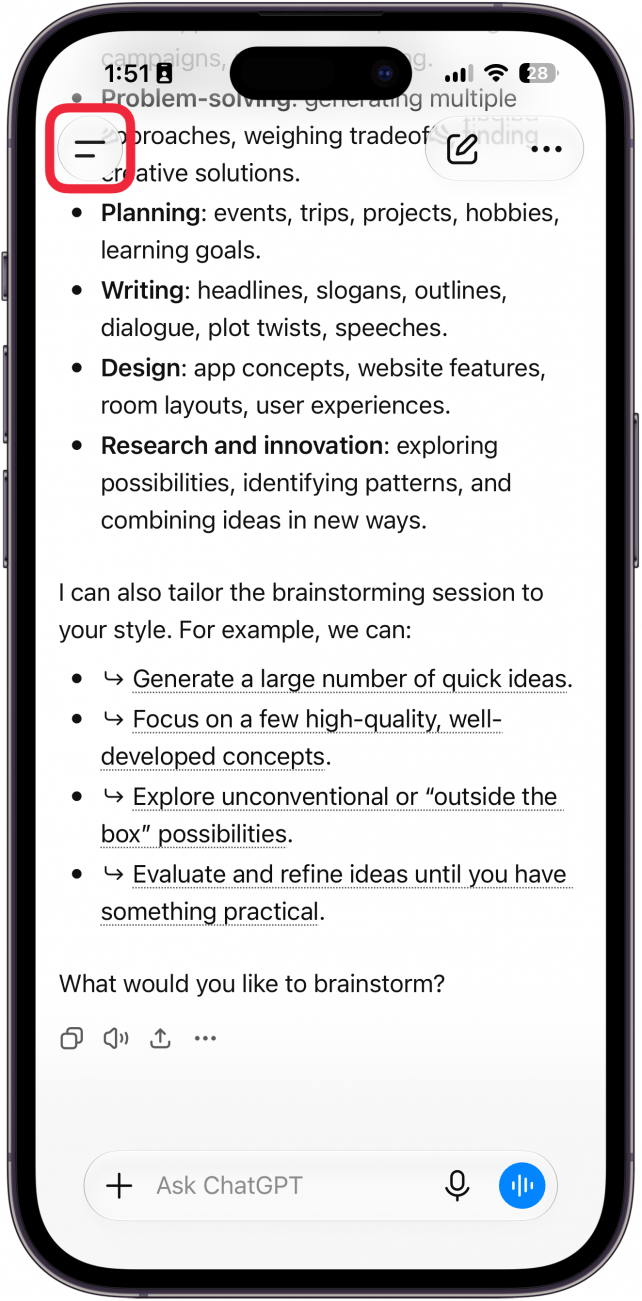
- If your AI assistant is already open to a specific conversation, you'll want to start by tapping the sidebar icon, commonly found in the upper left corner of the screen (In ChatGPT, the sidebar icon looks like two horizontal lines).
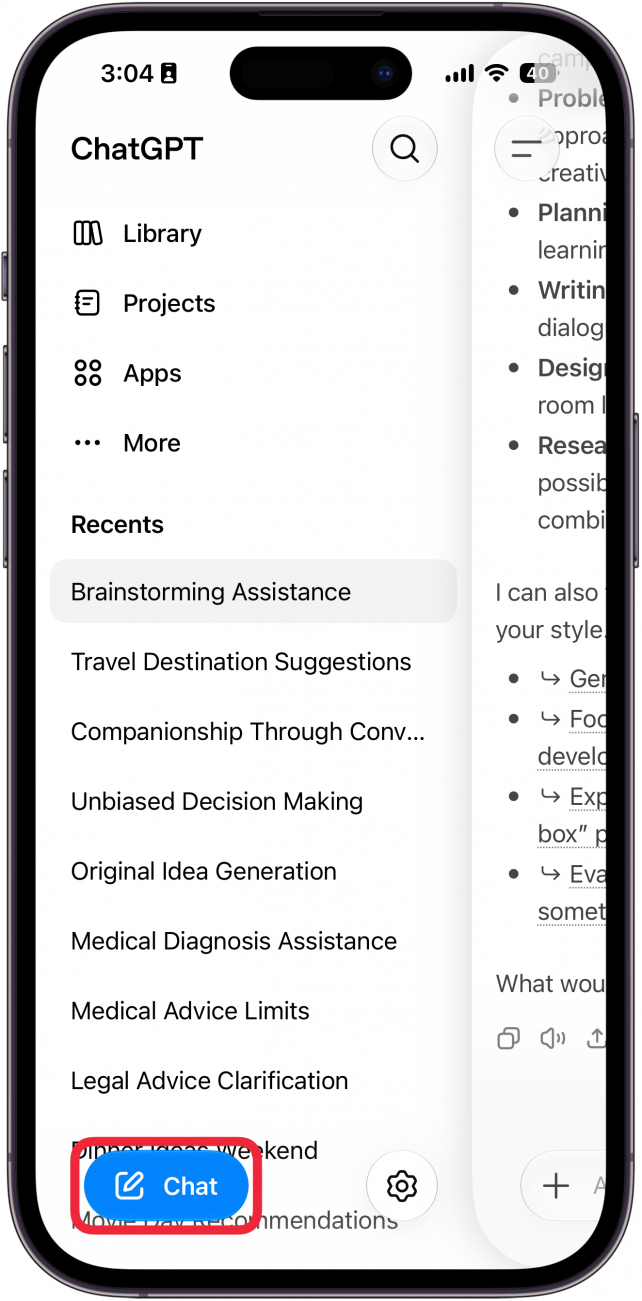
- Once you've opened the sidebar, select the Chat button.
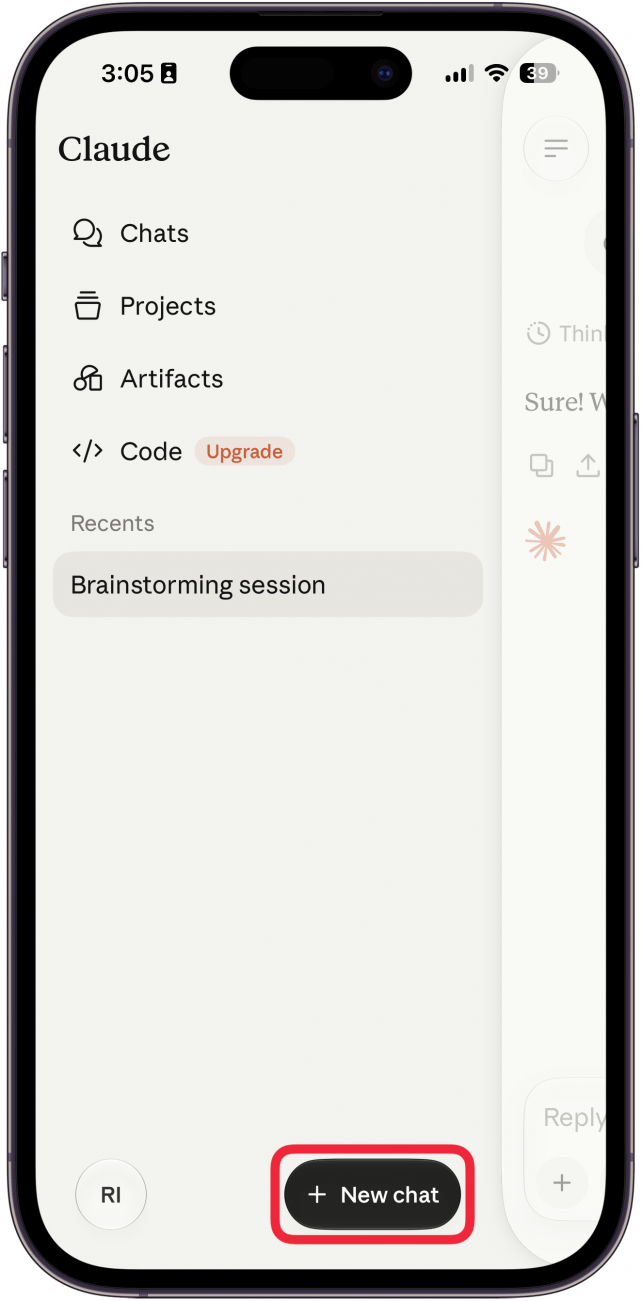
- In Claude, open the sidebar by swiping right (or by tapping the sidebar icon in the upper left that looks like three horizontal lines). Then, select the New Chat button.
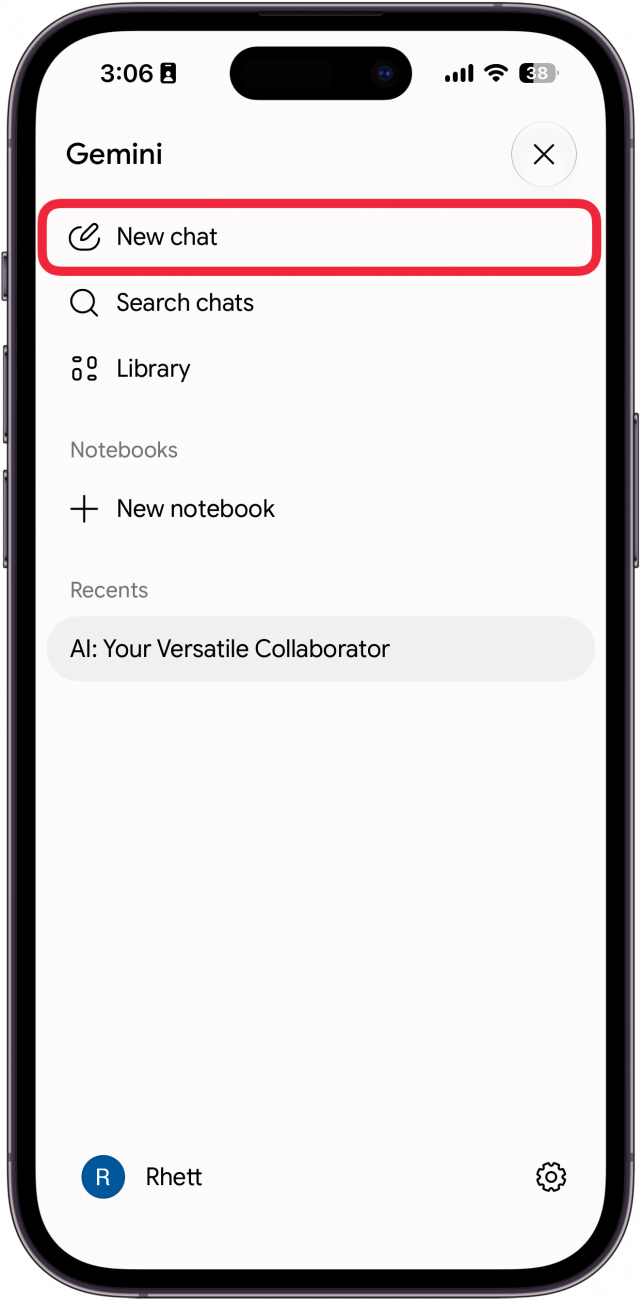
- In Gemini, open the sidebar by swiping right (or by tapping the sidebar icon in the upper left that looks like two horizontal lines). Then, select New chat at the top of the screen.
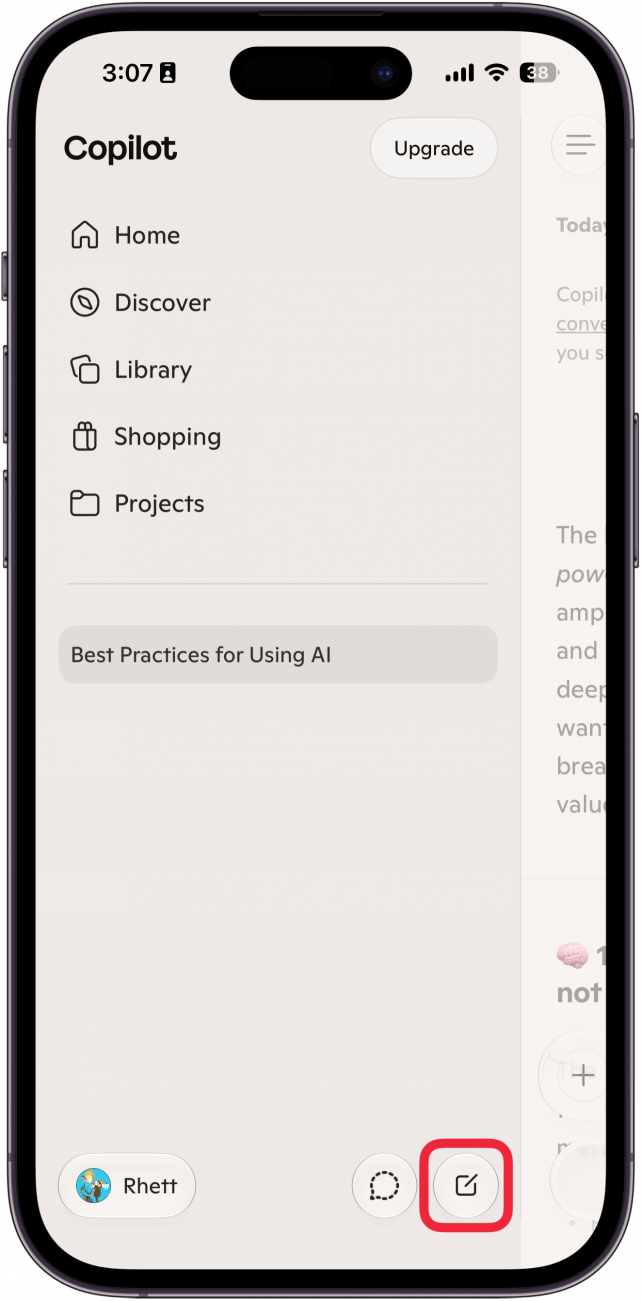
- In Copilot, open the sidebar by swiping right (or tapping the sidebar icon in the upper-left that looks like three horizontal lines). Then, select the New Chat icon, which looks like a small square with a pen over it.
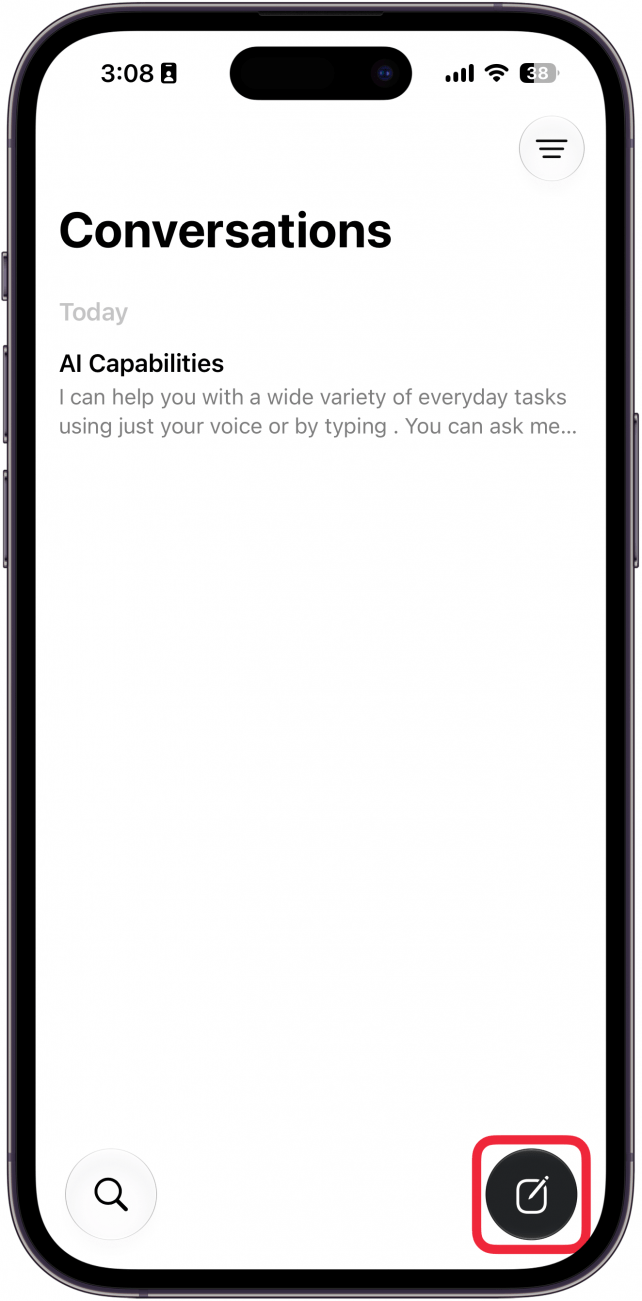
- In Siri AI, open the sidebar by swiping right (or by tapping the back button in the upper left). Then, select the New Chat icon, which looks like a small square with a pen over it.
Those are all the ways to start a new AI chat. Now you know how to chat with AI without it bringing up previous topics!
More On: Artificial Intelligence

Every day, we send useful tips with screenshots and step-by-step instructions to over 600,000 subscribers for free. You'll be surprised what your Apple devices can really do.

Rhett Intriago
Rhett Intriago is a Feature Writer at iPhone Life, offering his expertise in all things iPhone, Apple Watch, and AirPods. He enjoys writing on topics related to maintaining privacy in a digital world, as well as iPhone security. He’s been a tech enthusiast all his life, with experiences ranging from jailbreaking his iPhone to building his own gaming PC.
Despite his disdain for the beach, Rhett is based in Florida. In his free time, he enjoys playing the latest games, spoiling his cats, or discovering new places with his wife, Kyla.
Related Articles

 Rachel Needell
 Susan Misuraca
Quick Launch a Selfie with a Shortcut You Didn't Know Exists
 Amy Spitzfaden Both
Why Won't My iPad Charge? The Easiest Way to Fix It

 Rhett Intriago
 Leanne Hays
Can You Delete Apple Pay Transactions? Here's What You Can Do



Security News: App Location Data Is a Privacy Nightmare, iOS 18.1.1, and more
 Cullen Thomas
 August Garry


 Olena Kagui