How to Use Genmoji to Make Custom Emojis of Your Pets

In the last 10 years, Olena has been published in dozens of publications internationally and written hundreds of how-to articles and complex guides about Apple products, software, and apps.
Learn More In the last 10 years, Olena has been published in dozens of publications internationally and written hundreds of how-to articles and complex guides about Apple products, software, and apps.
Learn MoreDid you know that you can create your own emojis using Apple Intelligence? My favorite way to use this feature is to create emojis that look like my pets. I’ll teach you how to use the built-in emoji generator to create custom Genmoji of your cats, dogs, or whatever else you can imagine.
Why You’ll Love This Tip
- You can create a custom emoji called Genmoji that looks just like your pet.
- Genmojis are generated with Apple Intelligence using descriptive prompts.
- Custom emojis can be shared with Apple and non-Apple users.
How to Make Your Own Emoji: Custom Pet Genmoji
System Requirements
This tip requires an iPhone 15 Pro, iPhone 15 Pro Max, or iPhone 16 model or later running iOS 18.2 or later, and was tested on an iPhone 17 Pro running iOS 26.4. Learn how to update to the latest OS.
The trick to creating Genmoji that look just like your pets or other animals is to use good descriptive prompts. Once you already know how to use Genmoji, it is time to attempt to make one that looks like your cat, dog, or any other pet you may have. Here’s how to create a Genmoji that looks like your pet directly from the Messages app.
Note: You'll need to have Apple Intelligence turned on to use this tip. Open the Settings app, tap Apple Intelligence & Siri, and make sure Apple Intelligence is toggled on.
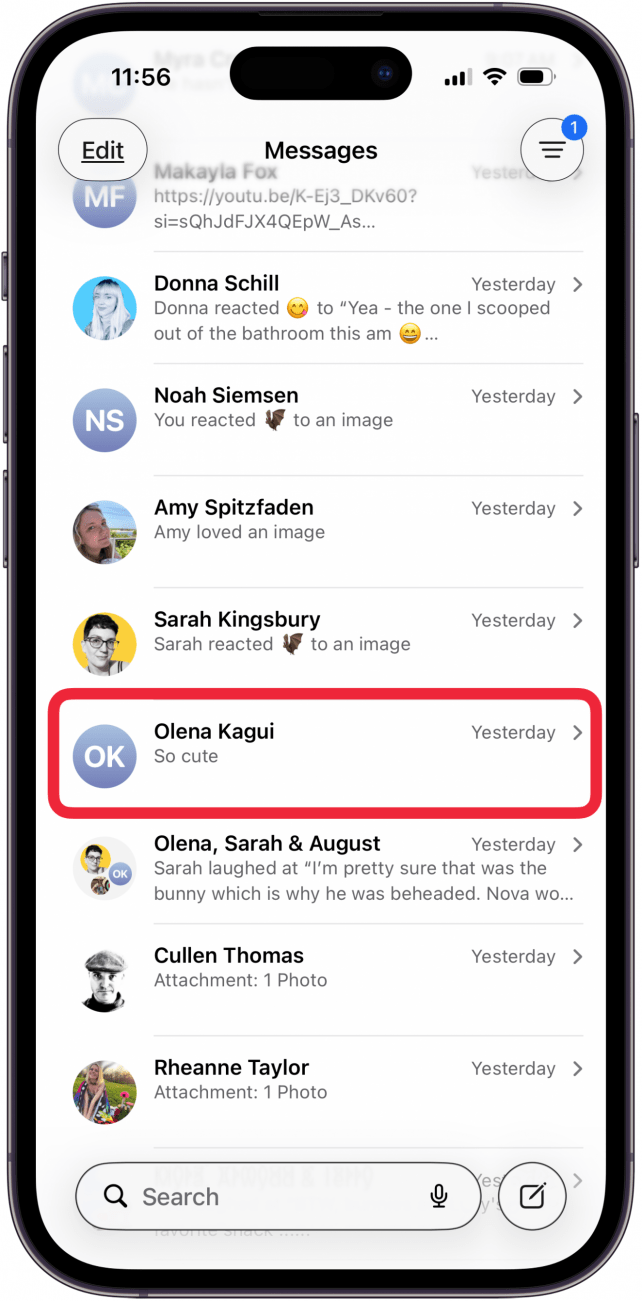
- Open the Message app and open a conversation.
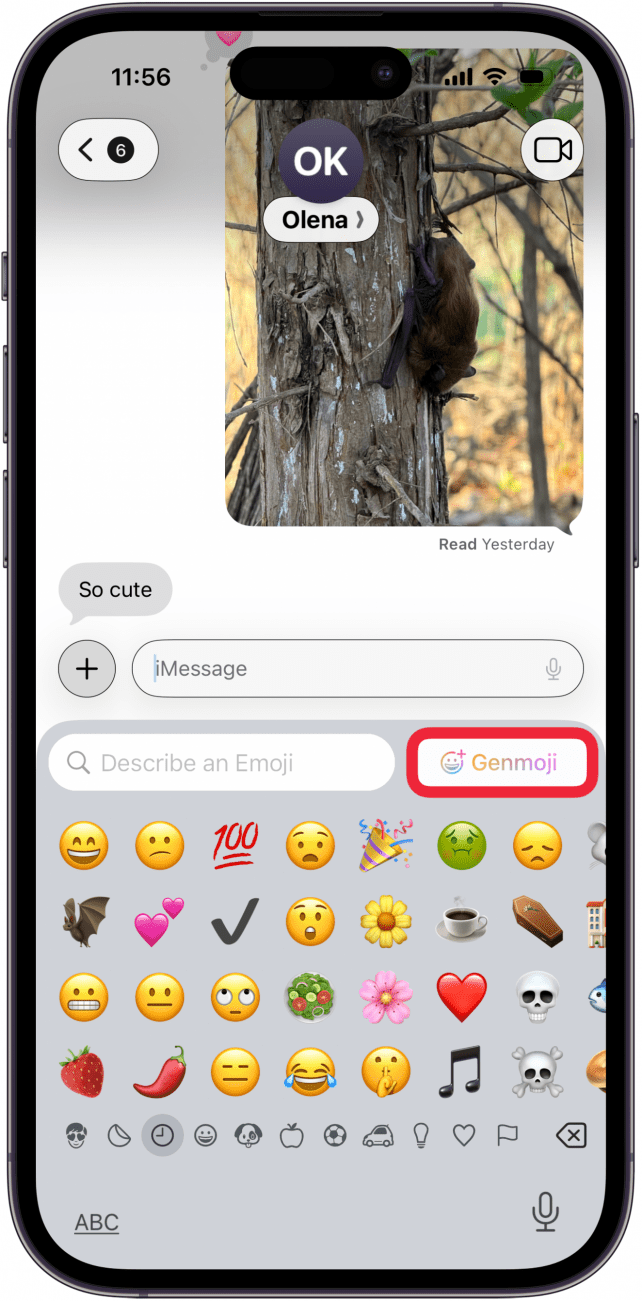
- Tap on the text field if it isn’t already open, then tap the emoji icon to access the emoji keyboard.

- Tap the Genmoji icon.
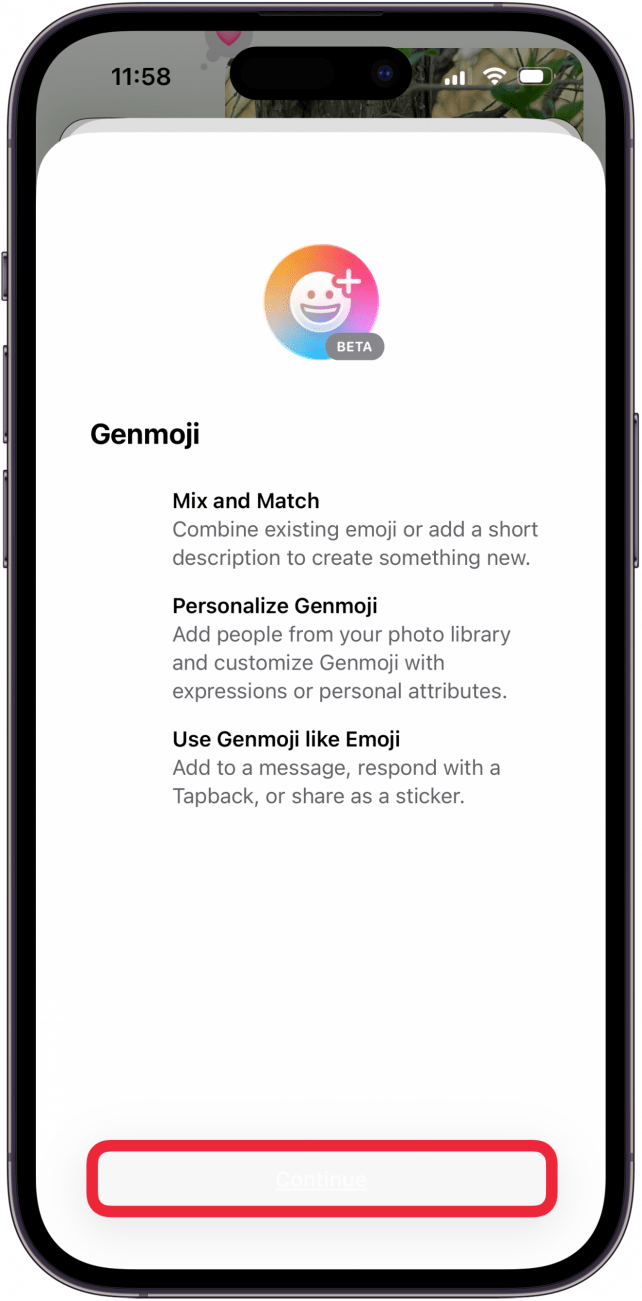
- If this is the first time you're making a Genmoji, you'll see a notification that your iPhone is Downloading support for Genmoji... Next, you'll see a page that describes what you can do with Genmoji. Tap Continue to create your Genmoji.
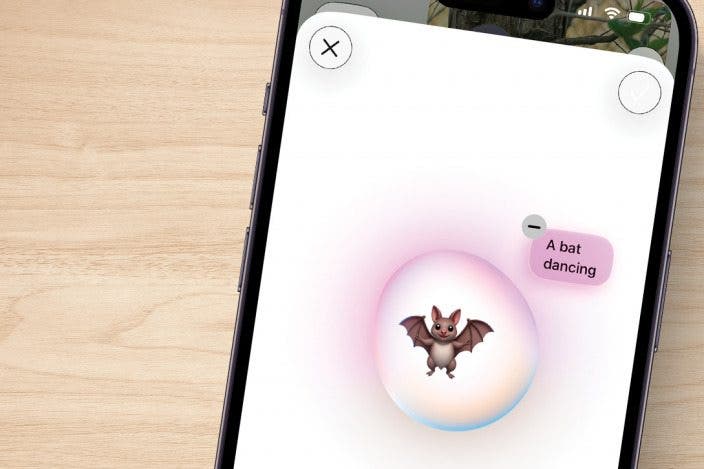
- Describe the emoji you wish to create, making sure to use words to describe the animal, including breed, colors, and whatever other physical characteristics you can think of. Tap the check mark in the blue circle to finish.

- It might take a minute, but an image should show up based on your description. You can swipe left or right to see a different variation of the Genmoji you described.

- The quickest way to save one while you continue to create more is to tap the More icon (three dots).

- Tap Add Emoji. You will remain on the same page and can keep swiping or alter your description.

Pro Tip
If you tap Edit Caption in the More menu, you'll be able to write a little caption for your sticker, though this isn't required. If you use the right keywords, it will help you find the Genmoji more efficiently, and your iPhone may even suggest it when you type words from the caption in a message.
Now you know how to create an emoji that looks exactly like your pet! It might take you some trial and error to get the hang of writing the perfect prompt for Apple Intelligence.
Don't forget that you can create Genmoji using the steps above from any Apple app that has emoji keyboard access and even some third-party apps, such as Facebook Messenger (free). Any Genmoji that you create is stored in your Stickers drawer, and it can be shared with non-Apple users as regular images. For more Apple Intelligence tips, don't forget to sign up for our free Tip of the Day newsletter.
More On: Apple Intelligence
Top image credit: wk1003mike / Shutterstock.com

Every day, we send useful tips with screenshots and step-by-step instructions to over 600,000 subscribers for free. You'll be surprised what your Apple devices can really do.

Olena Kagui
Olena Kagui is a Feature Writer at iPhone Life. In the last 10 years, she has been published in dozens of publications internationally and won an excellence award. Since joining iPhone Life in 2020, she has written how-to articles as well as complex guides about Apple products, software, and apps. Olena grew up using Macs and exploring all the latest tech. Her Maui home is the epitome of an Apple ecosystem, full of compatible smart gear to boot. Olena’s favorite device is the Apple Watch Ultra because it can survive all her adventures and travels, and even her furbabies.

 Rhett Intriago

 Olena Kagui

 Amy Spitzfaden Both
 Leanne Hays

 Cullen Thomas



 Rachel Needell