How to Copy All URLs in Open Tabs on Safari

In the last 10 years, Olena has been published in dozens of publications internationally and written hundreds of how-to articles and complex guides about Apple products, software, and apps.
Learn More In the last 10 years, Olena has been published in dozens of publications internationally and written hundreds of how-to articles and complex guides about Apple products, software, and apps.
Learn MoreLearning how to copy and paste links in bulk to save time when doing research or sharing content with others. I'll teach you how to copy all URLs in a tab group and paste the list of links in an app such as Notes, Messages, and Mail.
Why You'll Love This Tip
- Easily share multiple links with friends or family to save time on research for a group trip or event.
- Get a backup of all your most-used links by copying all URLs into the Notes app.
- Copy all URLs in bulk from your phone to continue browsing on a device with a bigger screen.
How to Copy Links in Bulk to Save Time
System Requirements
This tip was performed on an iPhone 17 Pro Max running iOS 26.5. Find out how to update to the latest version of iOS.
It's surprisingly easy to copy all tabs from a tab group in your iPhone's Safari app! I'll go over how to copy selected links and paste them into another app, like Notes, Messages, or Mail. For more Safari tips, don't forget to check out our Tip of the Day. Here's how to copy and paste website links simultaneously:
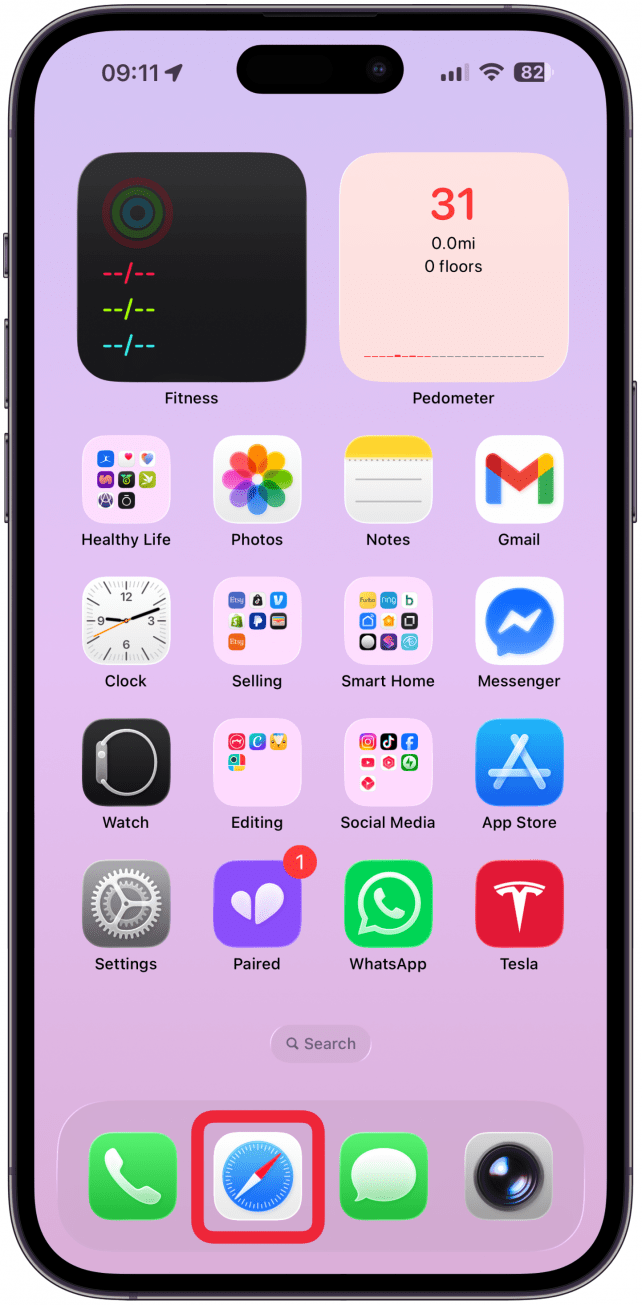
- Open Safari.
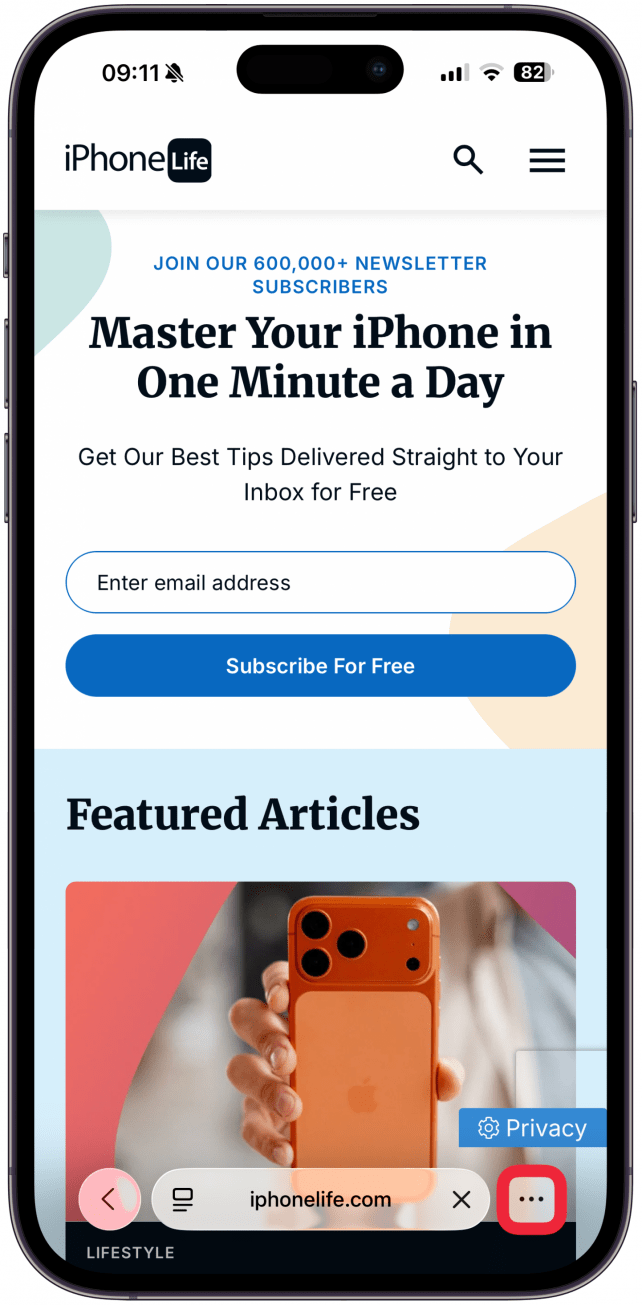
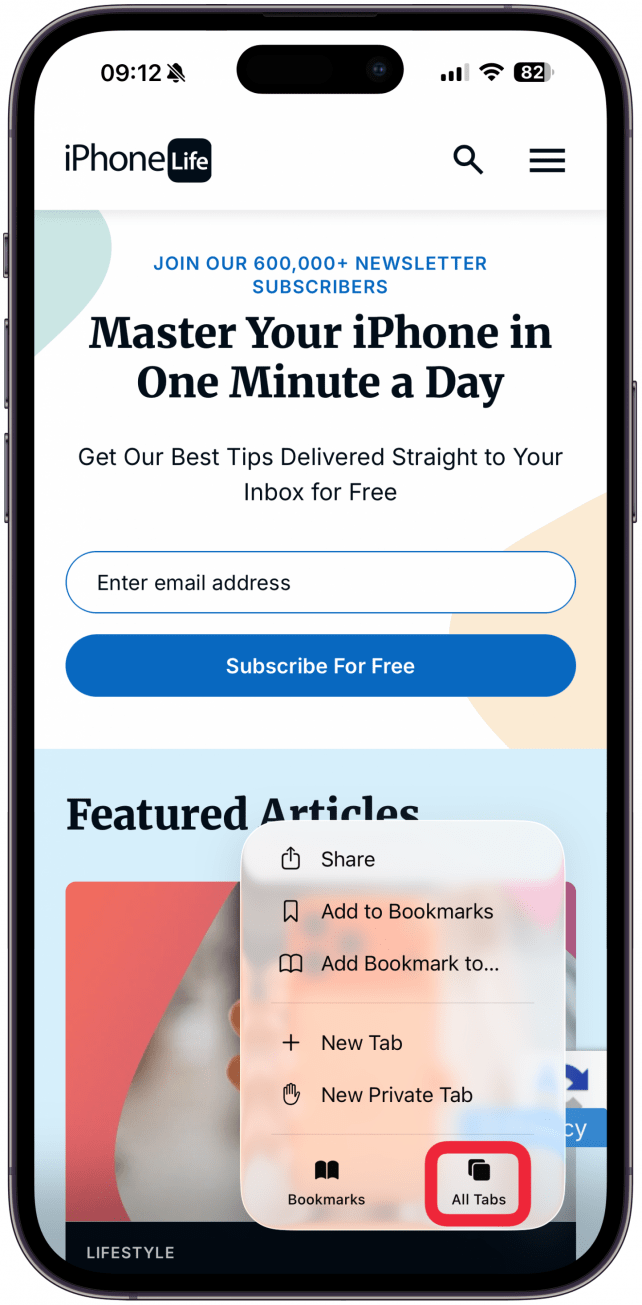
- Tap the more button (three dots) at the bottom right of the screen.
- Tap All Tabs.
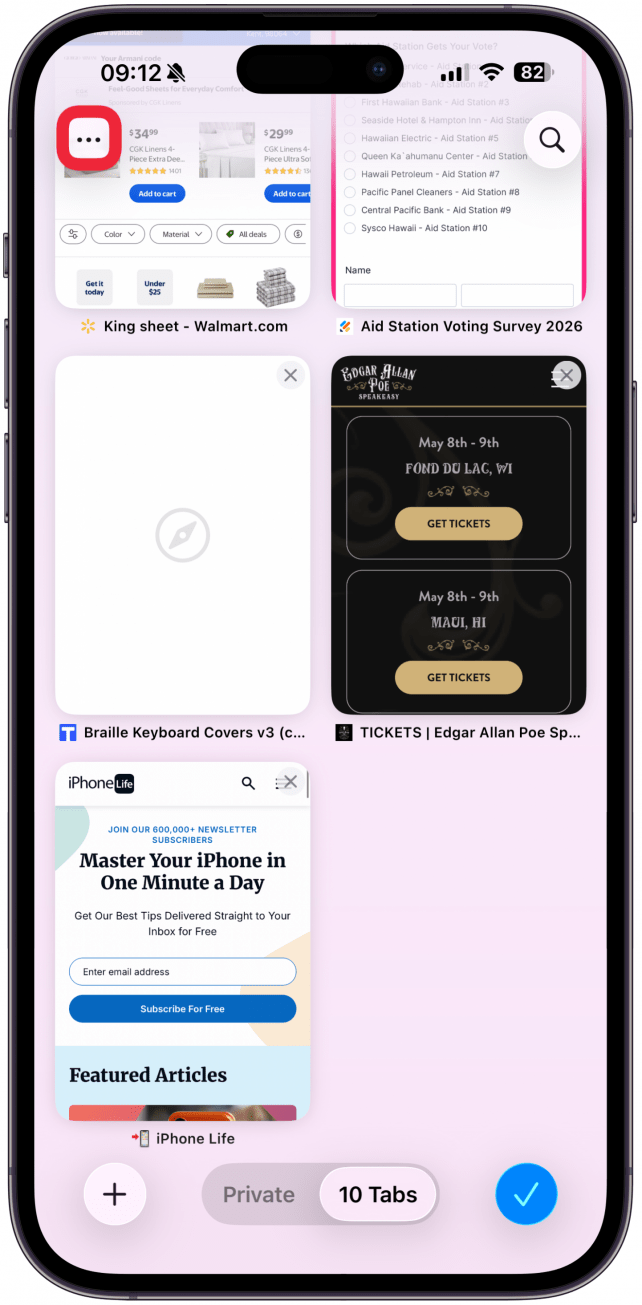
- Tap the more button at the top left of the screen.
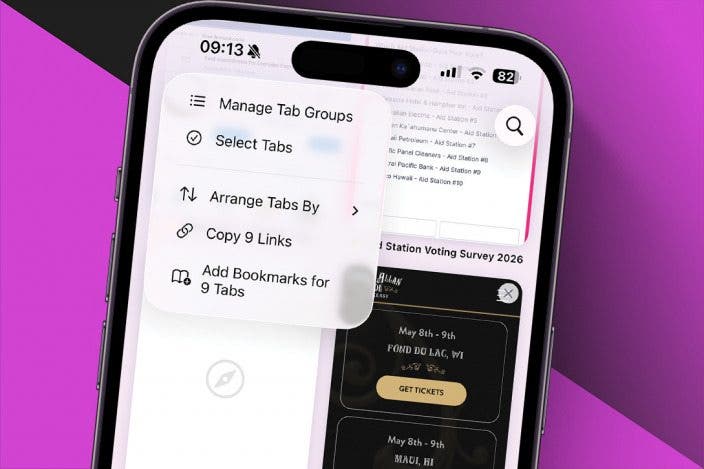
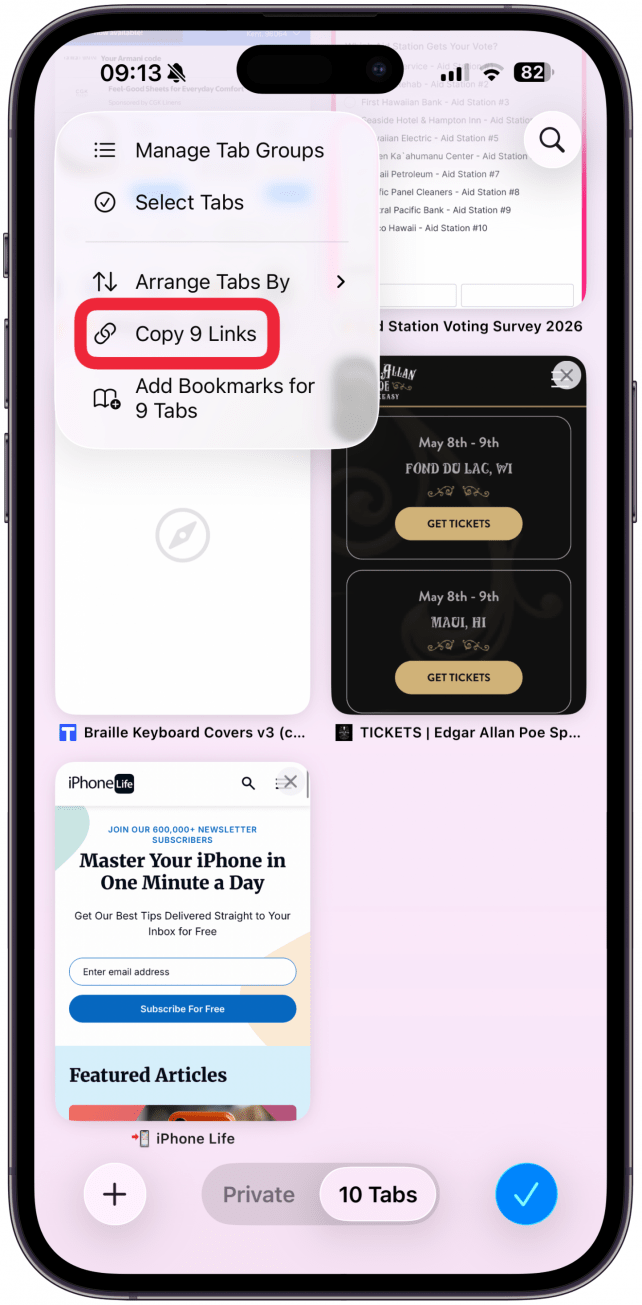
- Select Copy (Number) Links.
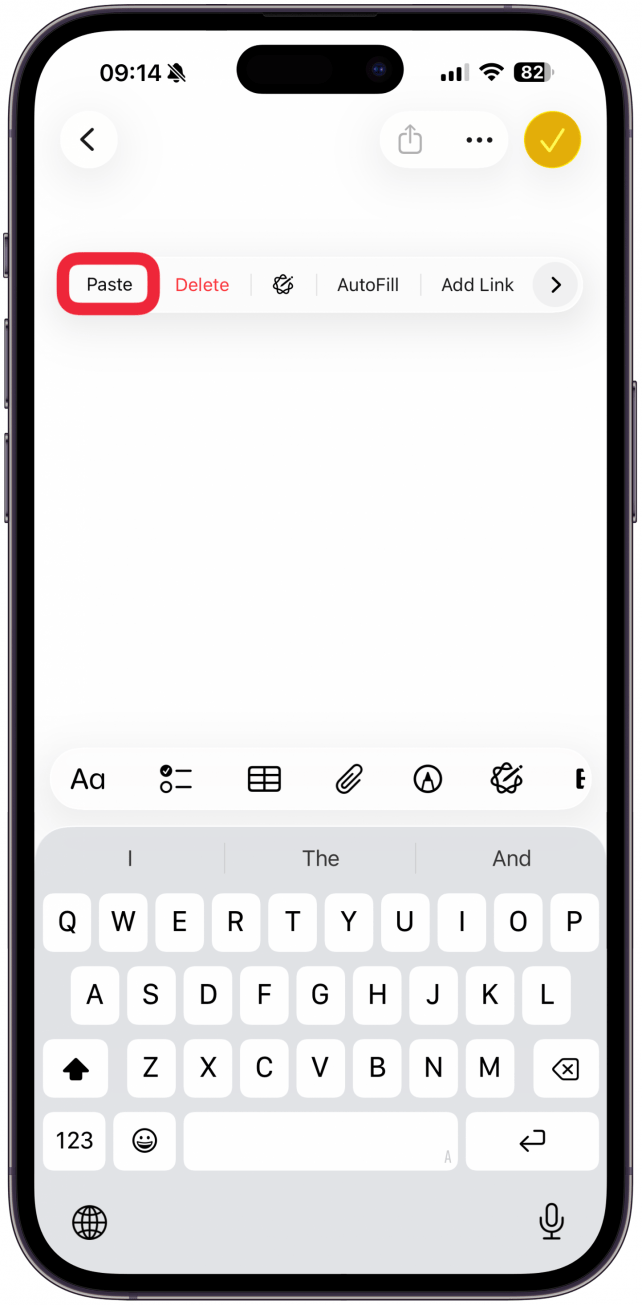
- I'll open a new note in the Notes app to paste them in. Tap where the text goes so that an options menu appears, tap Paste.
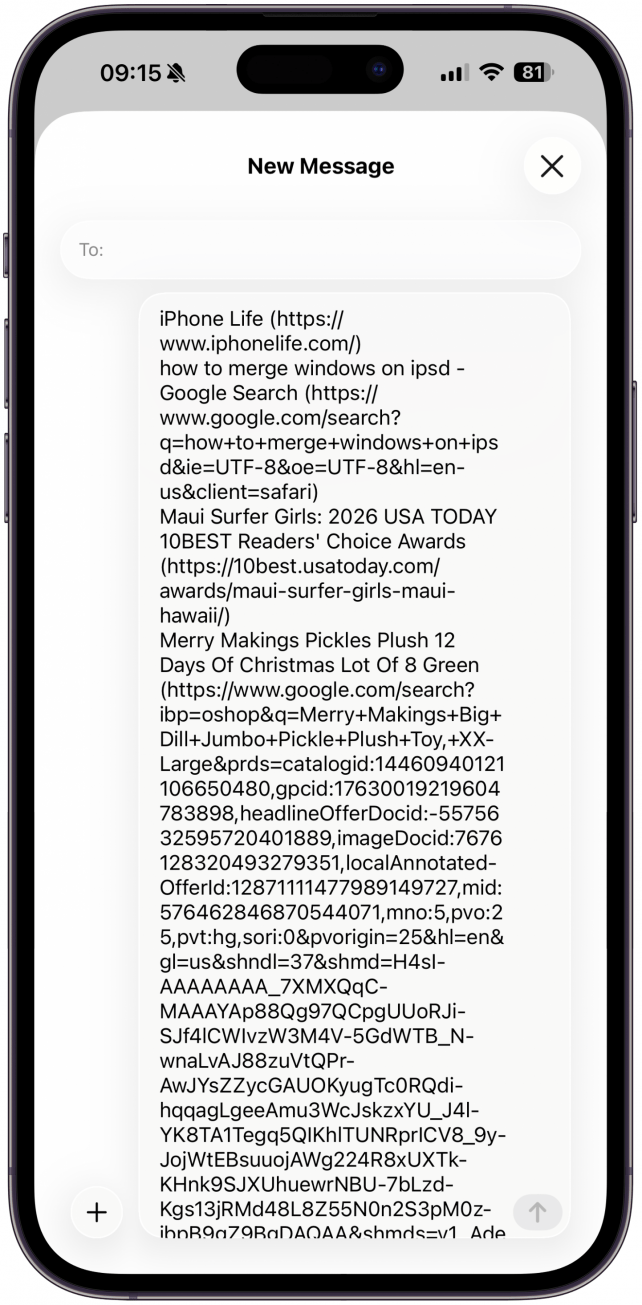
- The links will be pasted in a different format depending on the app you use.
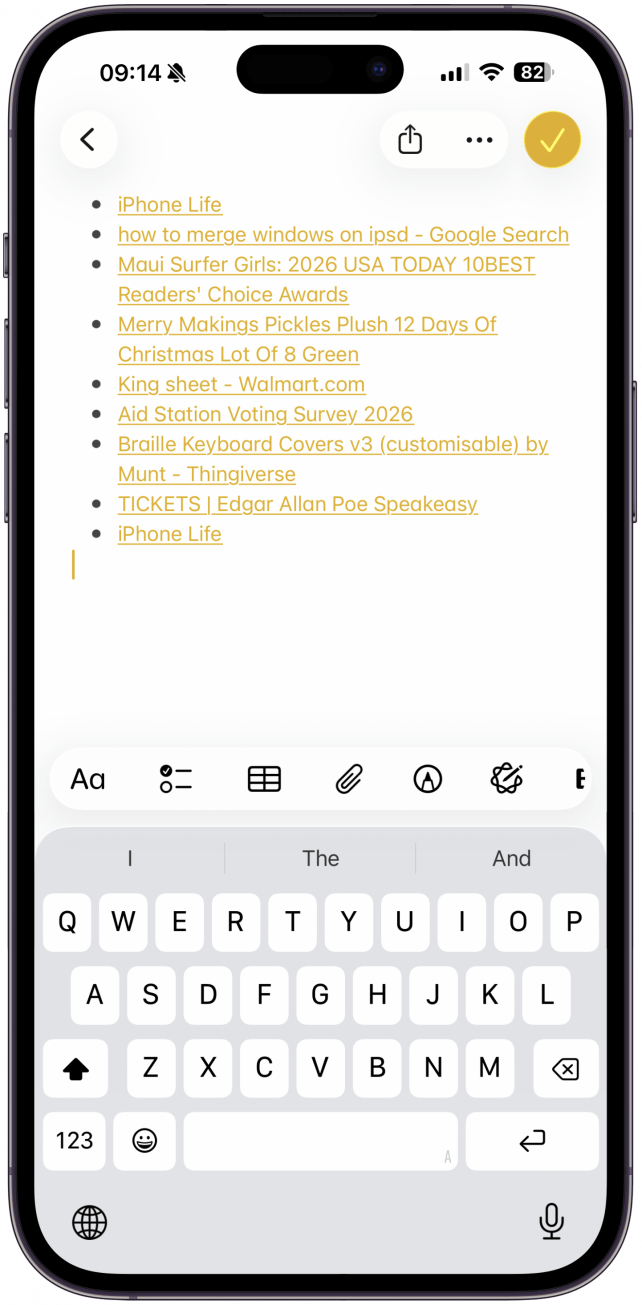
In the Notes and Mail apps, the links will be pasted as hyperlinked bullet points. In the Messages app, it will be a list of website names and URLs in parentheses, without hyperlinks.
Now you know how to copy multiple links and paste them in one go! Next, learn how to clear your iPhone's Safari history.
More On: Sharing

Every day, we send useful tips with screenshots and step-by-step instructions to over 600,000 subscribers for free. You'll be surprised what your Apple devices can really do.

Olena Kagui
Olena Kagui is a Feature Writer at iPhone Life. In the last 10 years, she has been published in dozens of publications internationally and won an excellence award. Since joining iPhone Life in 2020, she has written how-to articles as well as complex guides about Apple products, software, and apps. Olena grew up using Macs and exploring all the latest tech. Her Maui home is the epitome of an Apple ecosystem, full of compatible smart gear to boot. Olena’s favorite device is the Apple Watch Ultra because it can survive all her adventures and travels, and even her furbabies.

 Rhett Intriago
 Olena Kagui
 Hal Goldstein
 Leanne Hays
 Rachel Needell






 Amy Spitzfaden Both