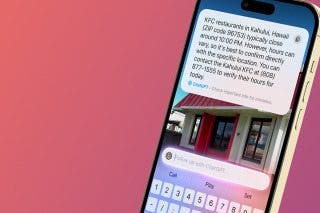
How to Disable ChatGPT Access on iPhone

A lifelong tech enthusiast, with experiences ranging from jailbreaking his iPhone to building his own gaming PC, Rhett specializes in maintaining privacy in a digital world and iPhone security.
Learn More A lifelong tech enthusiast, with experiences ranging from jailbreaking his iPhone to building his own gaming PC, Rhett specializes in maintaining privacy in a digital world and iPhone security.
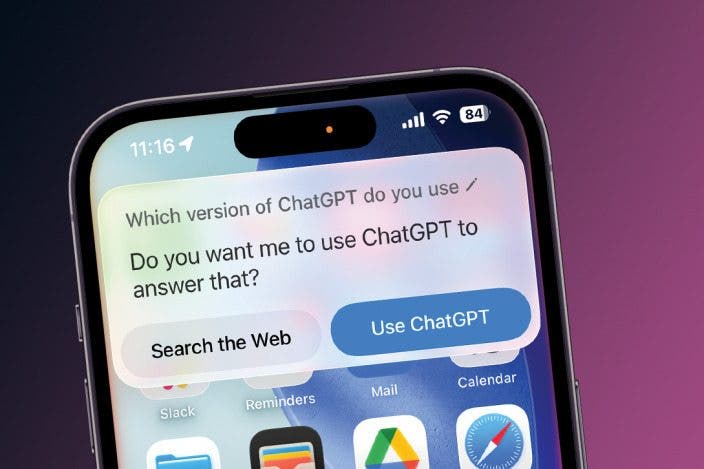
Learn MoreApple Intelligence enhances how you use your iPhone, including when you speak to Siri. Thanks to a collaboration between Apple and OpenAI, you can now use ChatGPT on your iPhone with Apple Intelligence. But if you have privacy concerns or prefer not to support ChatGPT, you can disable it. Here’s how.
Why You’ll Love This Tip
- Maintain privacy by preventing ChatGPT from accessing your information.
- Avoid supporting ChatGPT if you oppose its environmental impact.
How to Turn Off ChatGPT on iPhone
System Requirements
This tip was performed on an iPhone 15 Pro running iOS 26.2. Find out how to update to the latest version of iOS.
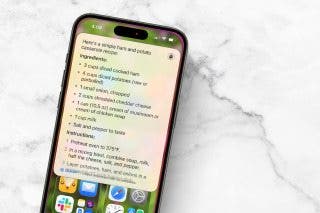
Does the iPhone have ChatGPT? Apple has natively integrated ChatGPT on iPhone, so that if Apple Intelligence fails to find an answer for you, it can defer to ChatGPT. This works without a ChatGPT account or subscription and allows you to use the AI chatbot a bit more anonymously than if you were to use the app. However, some may still have reservations about using AI unnecessarily or having their searches logged by ChatGPT. If you don’t want any part of ChatGPT on your iPhone, you can disable it. For more hidden iPhone tips and tricks, be sure to sign up for our free Tip of the Day newsletter. Now here’s how to turn off AI on iPhone:
- Open the Settings app, and tap Apple Intelligence & Siri.
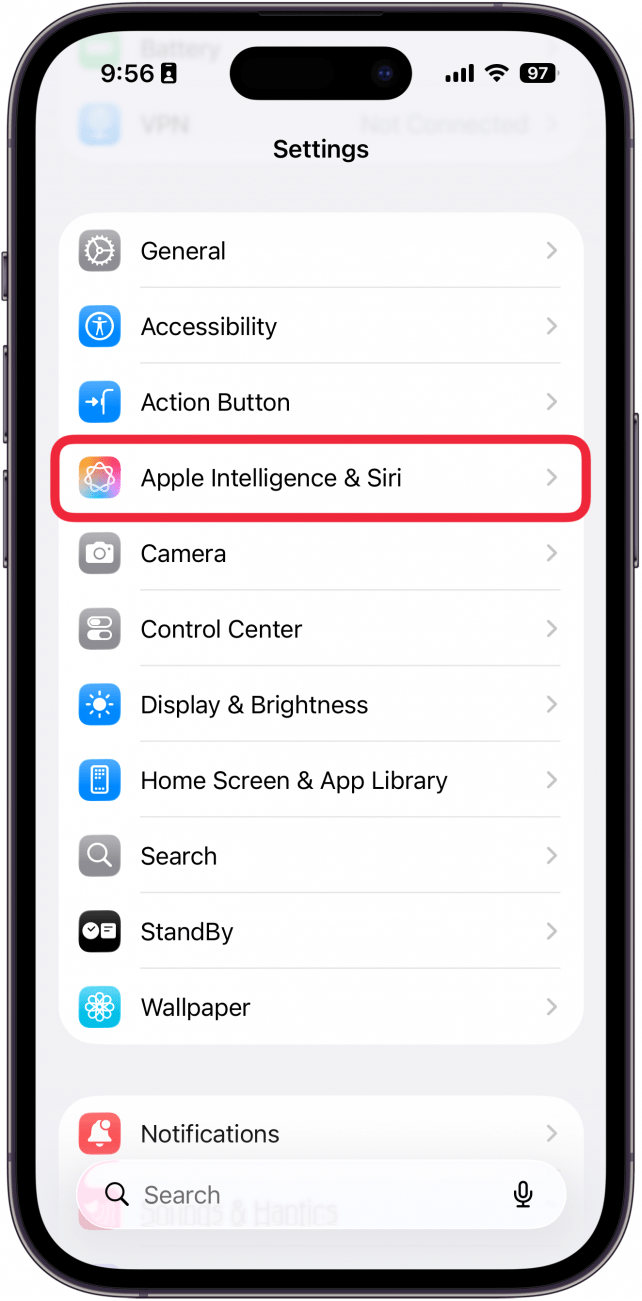
- Scroll down to Extensions and tap ChatGPT.
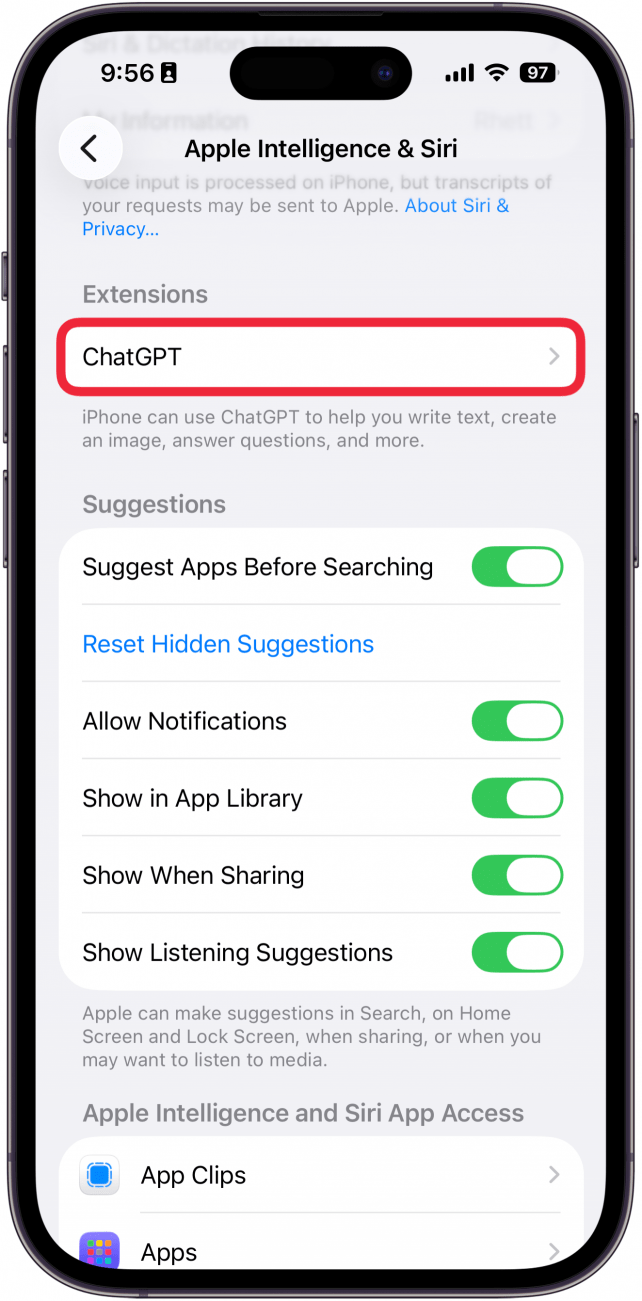
- Switch off the toggle next to Use ChatGPT to disable it.
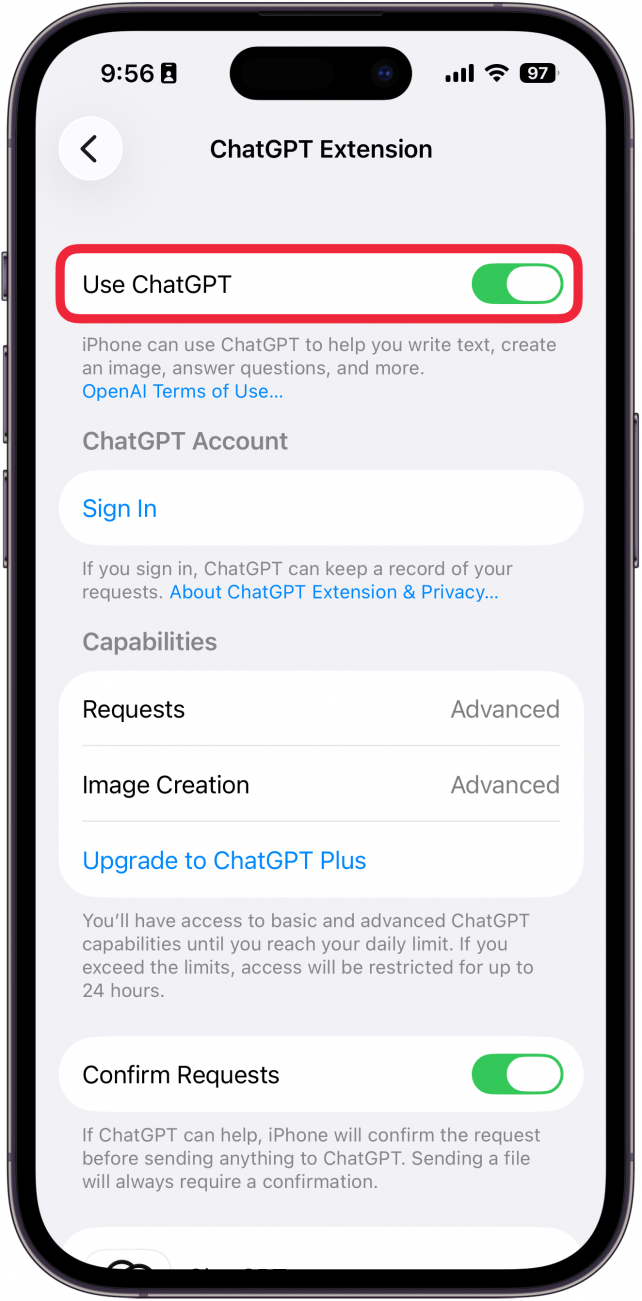
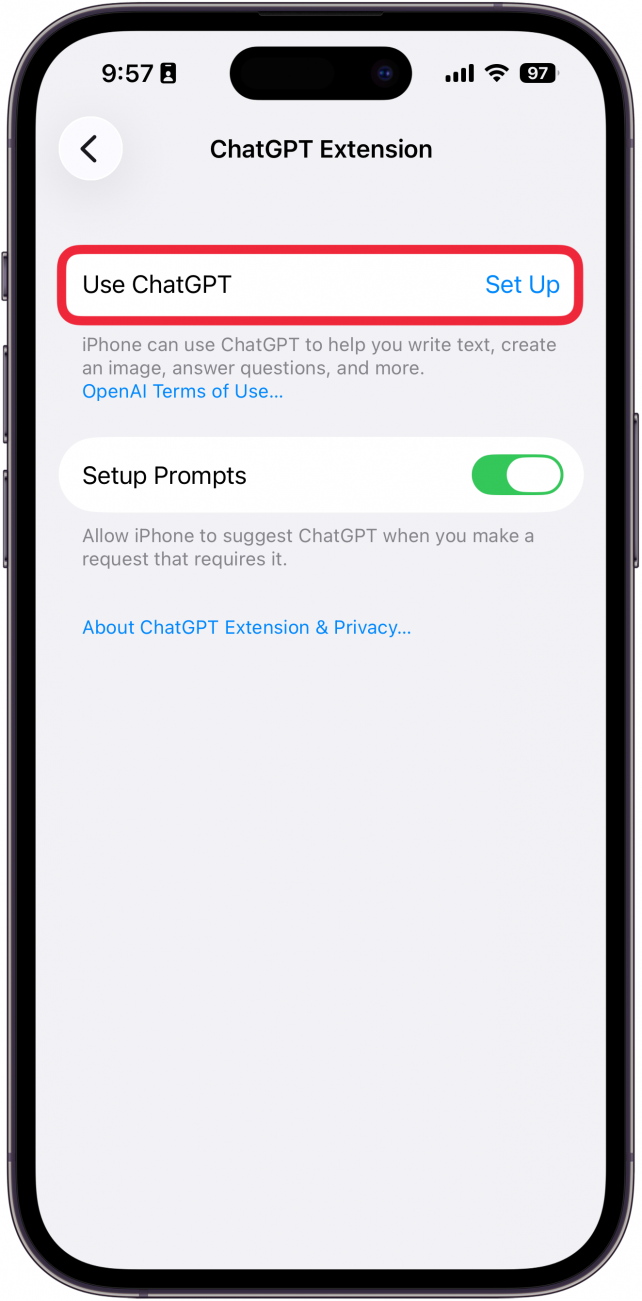
- When ChatGPT is turned off, you will see a Set Up prompt instead of a toggle.
- Even with ChatGPT disabled, your iPhone will continue to prompt you to set it up, so tap the toggle next to Setup Prompts to turn this off as well.
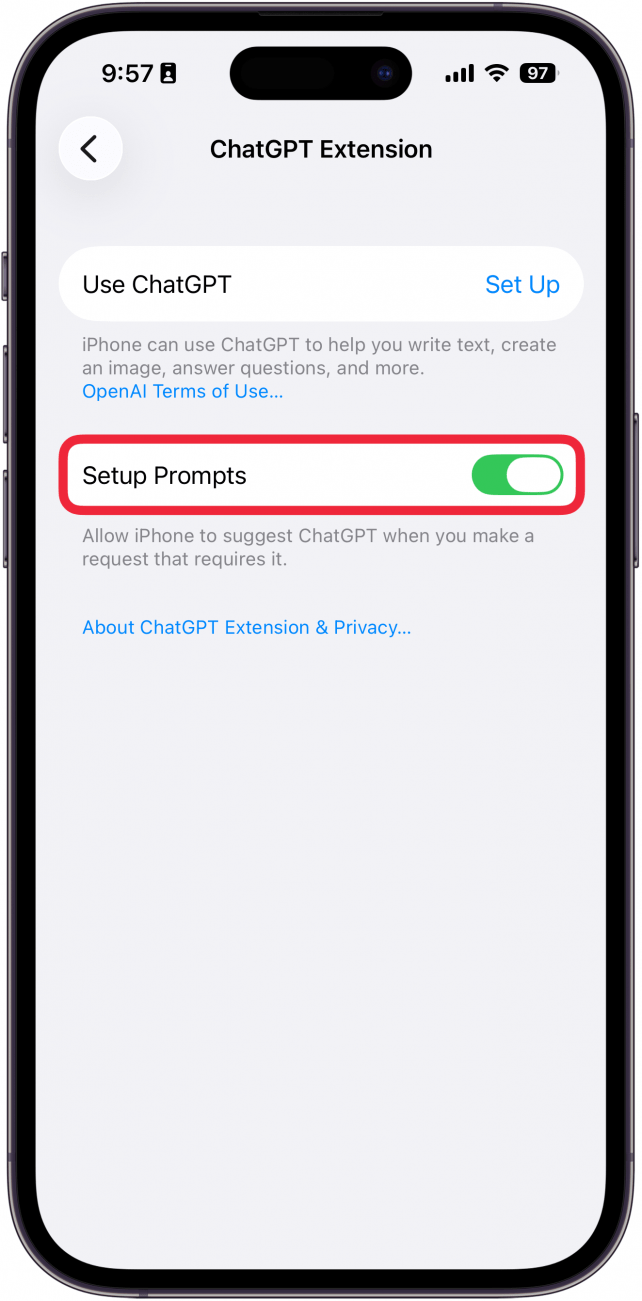
That’s how to turn off ChatGPT on iOS. Now you can rely exclusively on the privacy of Apple Intelligence for all your AI needs.
More On: Apple Intelligence

Every day, we send useful tips with screenshots and step-by-step instructions to over 600,000 subscribers for free. You'll be surprised what your Apple devices can really do.

Rhett Intriago
Rhett Intriago is a Feature Writer at iPhone Life, offering his expertise in all things iPhone, Apple Watch, and AirPods. He enjoys writing on topics related to maintaining privacy in a digital world, as well as iPhone security. He’s been a tech enthusiast all his life, with experiences ranging from jailbreaking his iPhone to building his own gaming PC.
Despite his disdain for the beach, Rhett is based in Florida. In his free time, he enjoys playing the latest games, spoiling his cats, or discovering new places with his wife, Kyla.

 Rhett Intriago
 Cullen Thomas

 Amy Spitzfaden Both
 Olena Kagui

 Rachel Needell

 Donna Schill
 Leanne Hays