How to Edit Autofill on iPhone & iPad

A lifelong tech enthusiast, with experiences ranging from jailbreaking his iPhone to building his own gaming PC, Rhett specializes in maintaining privacy in a digital world and iPhone security.
Learn More A lifelong tech enthusiast, with experiences ranging from jailbreaking his iPhone to building his own gaming PC, Rhett specializes in maintaining privacy in a digital world and iPhone security.
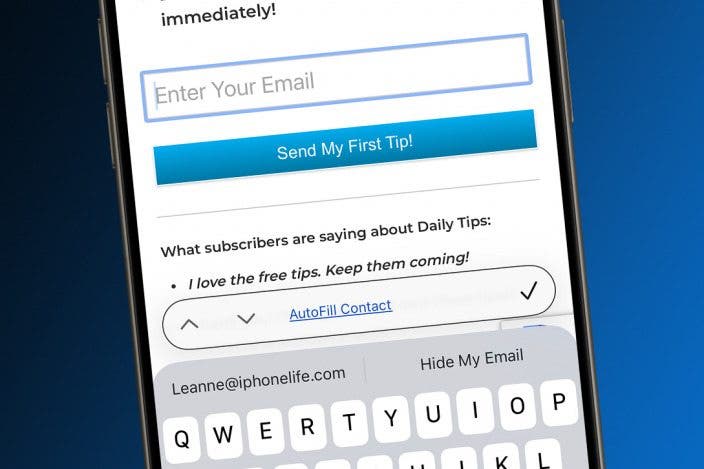
Learn MoreDoes your iPhone frequently auto-fill the wrong information? Maybe you let a friend use your iPhone once, and now their name and address won’t stop auto-populating forms. Thankfully, you can easily edit AutoFill settings on your iPhone and iPad, ensuring your contact information is always correct. Here's how to change AutoFill on the iPhone.
Why You’ll Love This Tip
- Save time by having AutoFill complete forms for you on your iPhone and iPad.
- Change autofill on iPhone to ensure your contact information is correct.
How to Change AutoFill on iPhone & iPad
System Requirements
This tip was performed on an iPhone 17 Pro running iOS 26. Find out how to update to the latest version of iOS.
AutoFill on iPhone is a great feature that automatically fills out forms for your online. For example, if you’re ordering something and need to input your name, address, and credit card info, AutoFill can populate that information for you. But sometimes, that information can be incorrect. Here’s how to change AutoFill on iPhone or iPad:
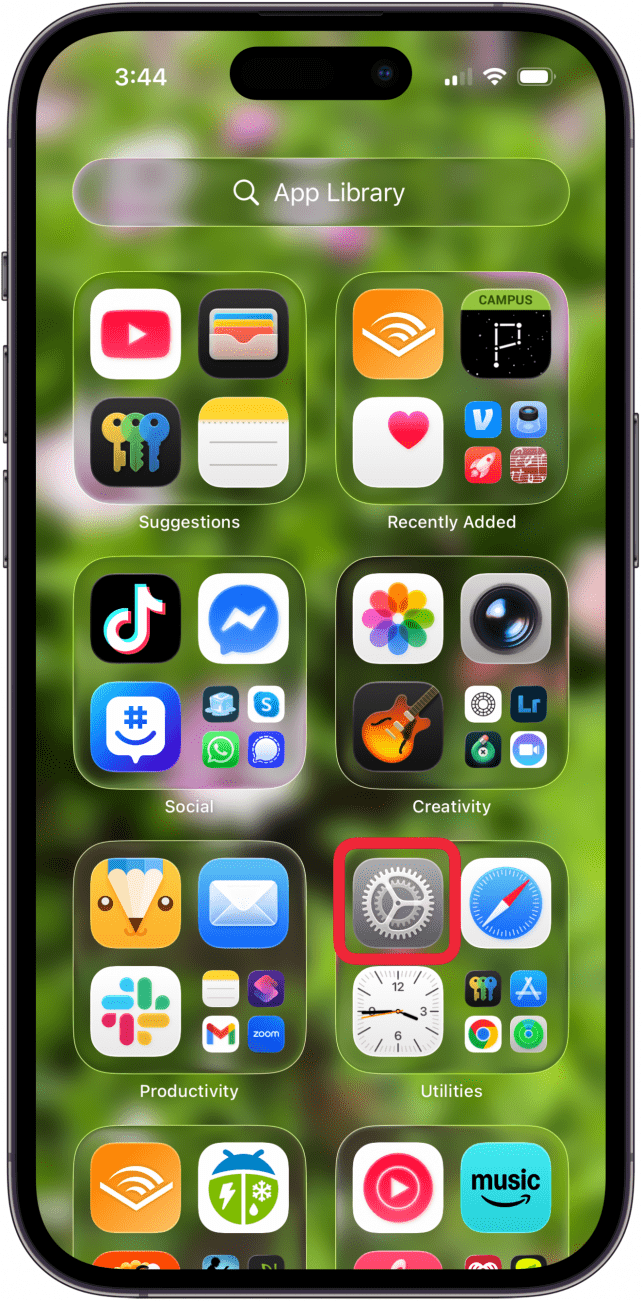
- Open the Settings app.
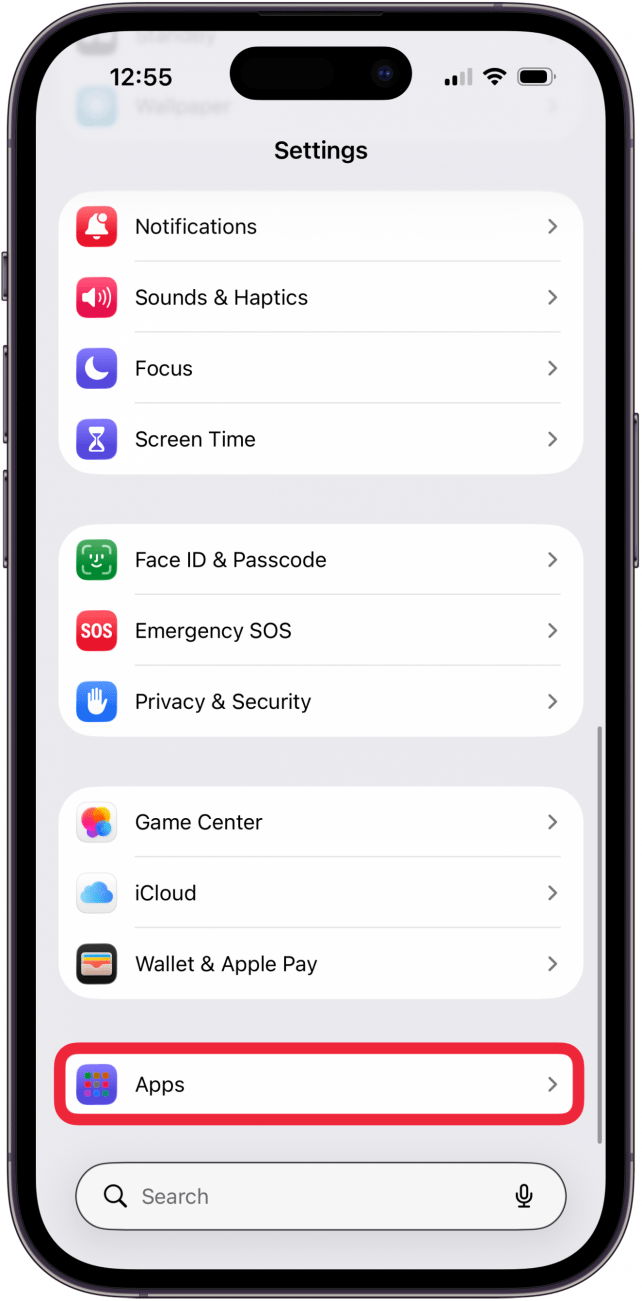
- Tap Apps.
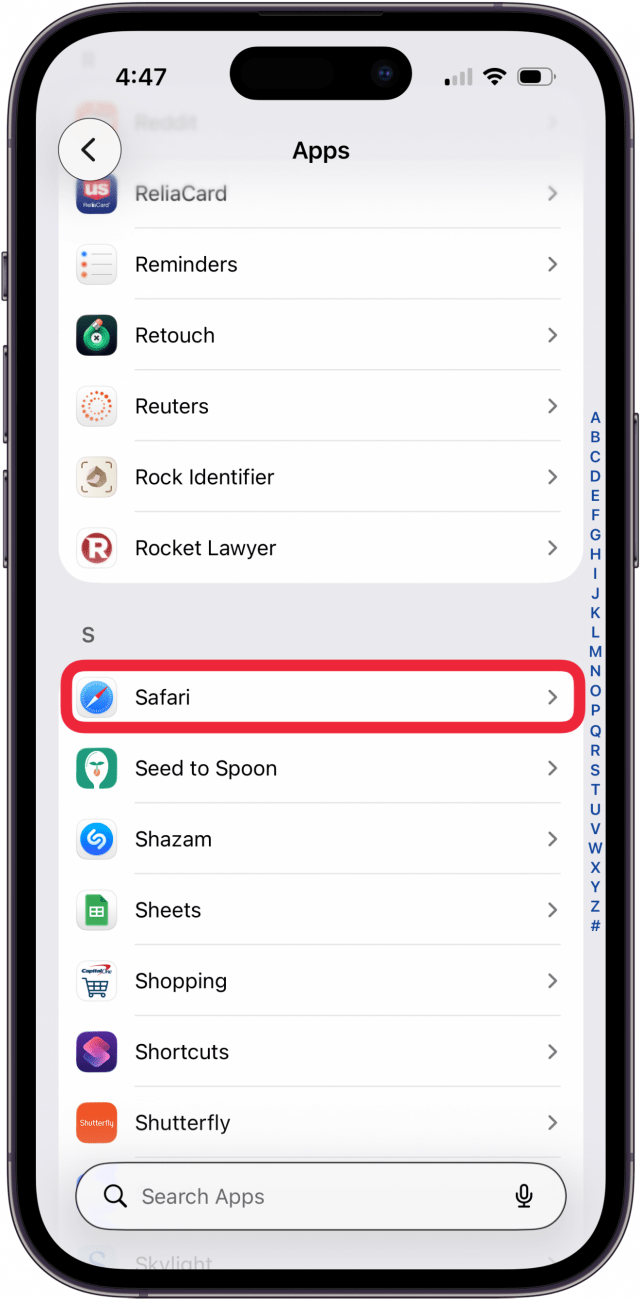
- Scroll down to Safari (or use the search bar).
- Under General, select AutoFill.
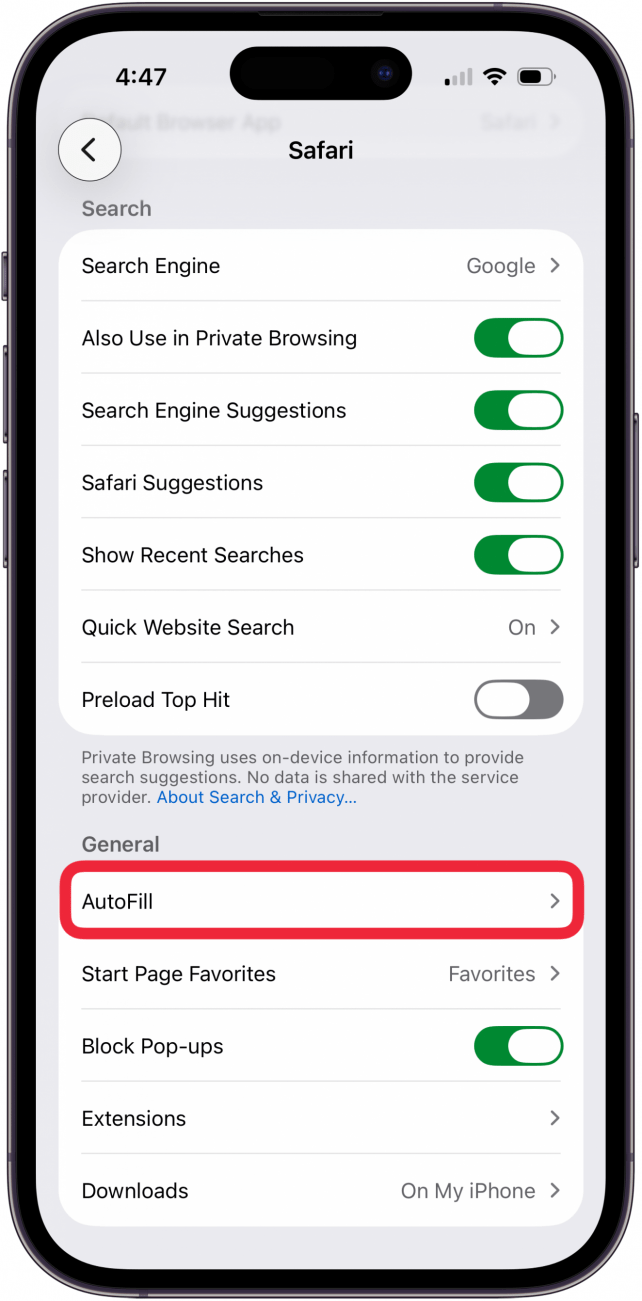
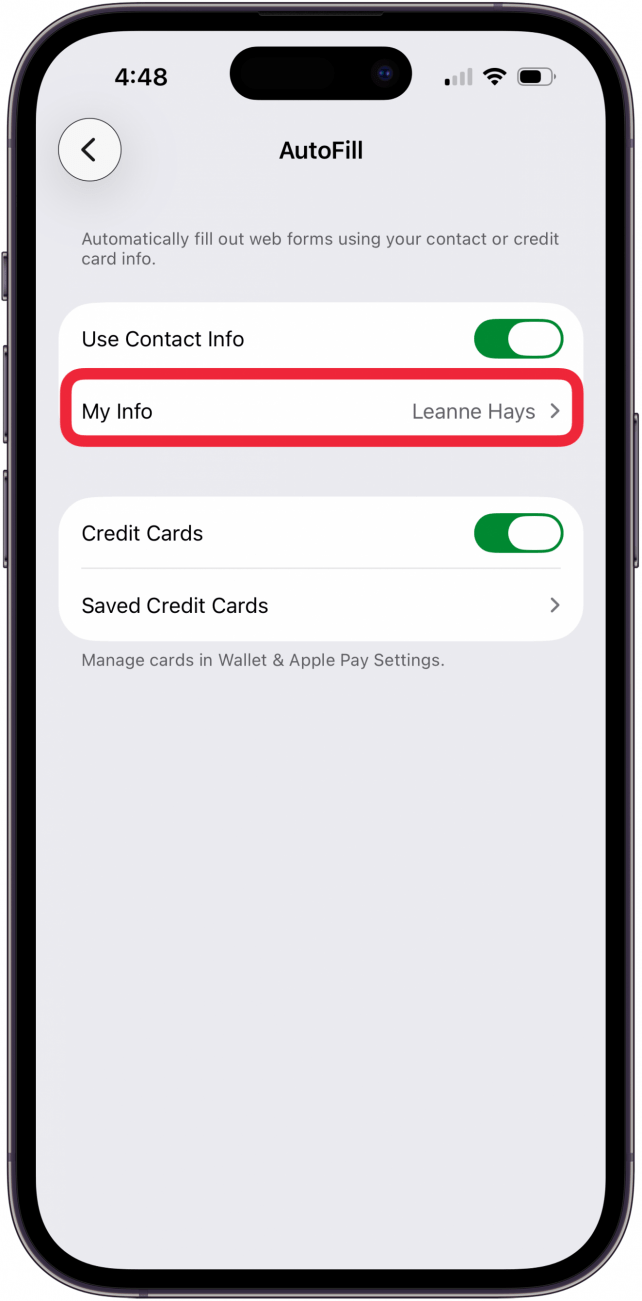
- You can tap the toggles next to Use Contact Info and Credit Cards to enable or disable AutoFill.

- Tap My Info to edit the name and address information that AutoFill pulls from.
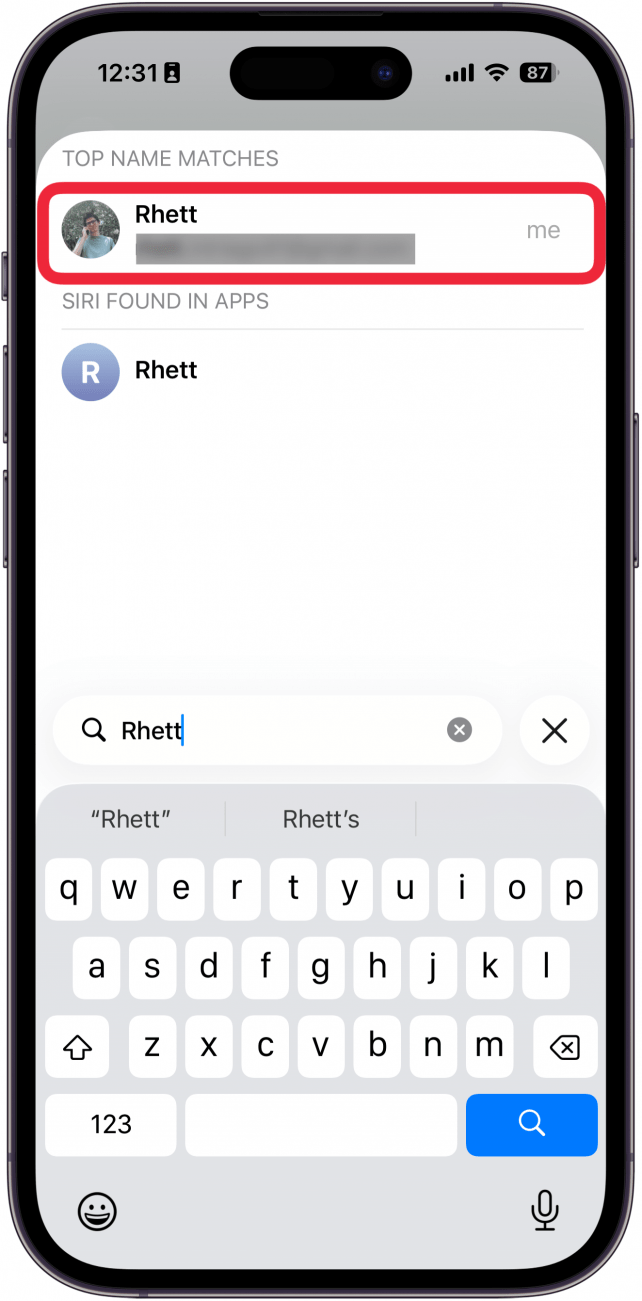
- A list of your contacts will appear. Use the search bar or scroll through the list to find your Contact Card. AutoFill will pull from the name, email, and address information on your Contact Card, so make sure it’s up to date.
Note: this step has glitched in various ways, including taking users back to the Safari AutoFill Settings page, and taking users to their contact card. To fix this, try tapping the back button, then tapping your name a second time.
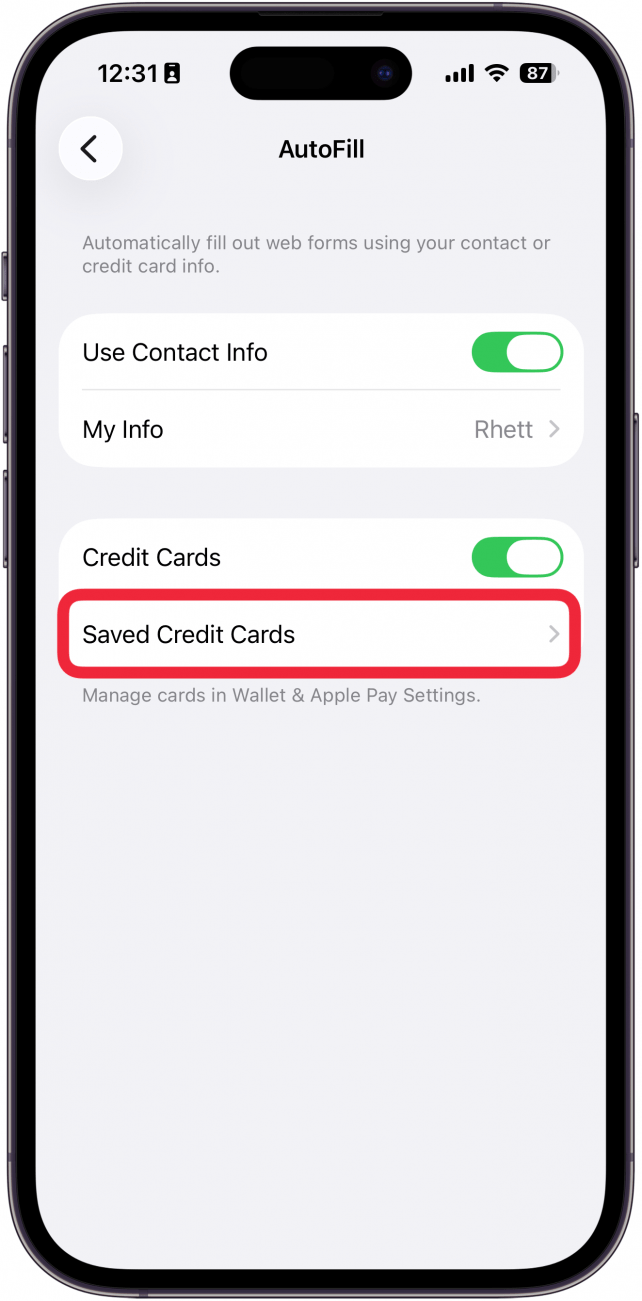
- Tap Saved Credit Cards, and you'll be taken to Wallet and Apple Pay Settings to select which card you want to use for AutoFill.
- Under AutoFill Cards, you’ll see a list of cards that Safari can pull from. Tap the card you want to remove from autofill.

- Tap Edit.
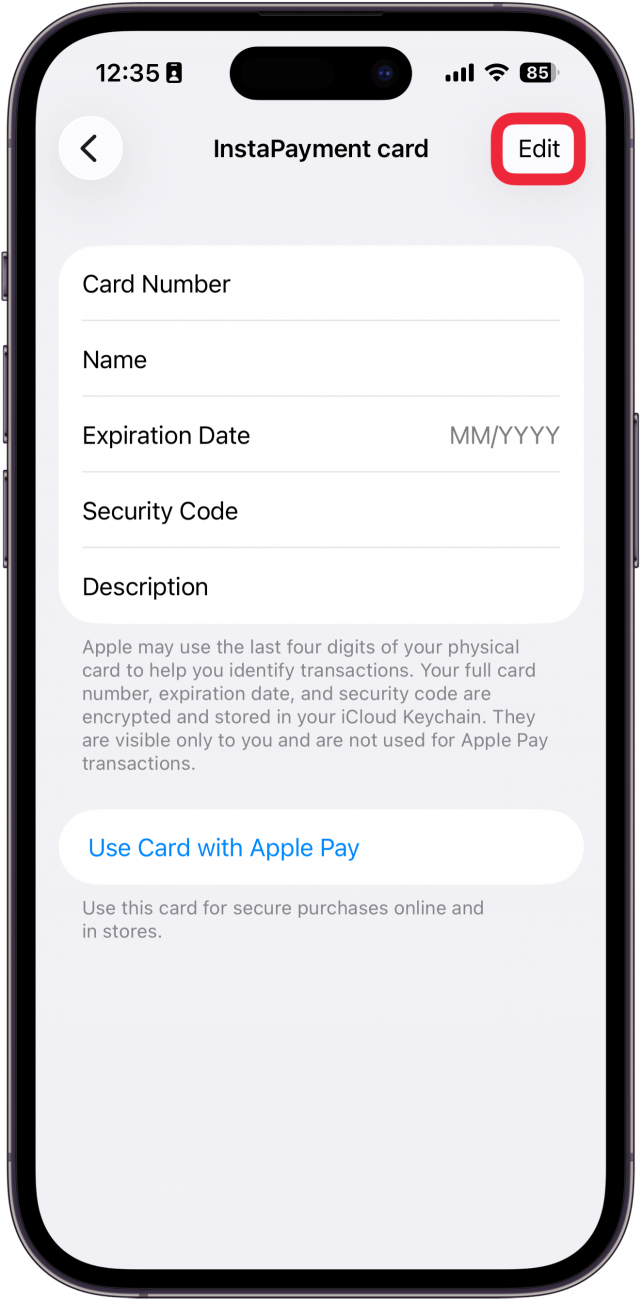
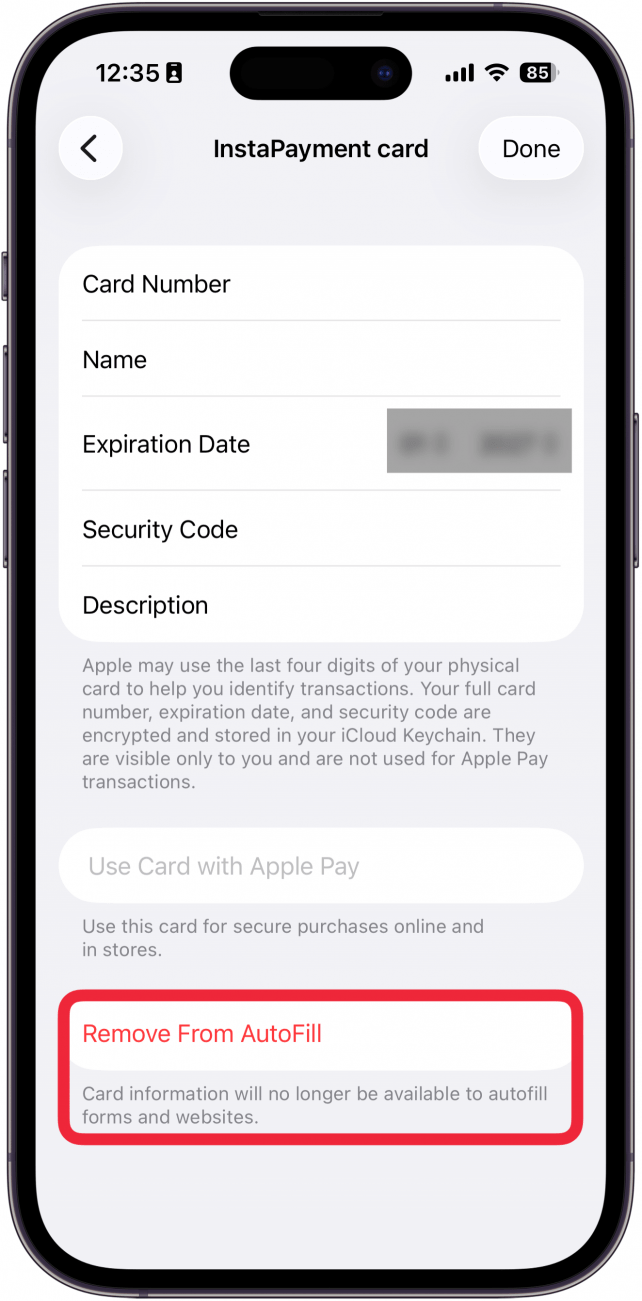
- Tap Remove from AutoFill.
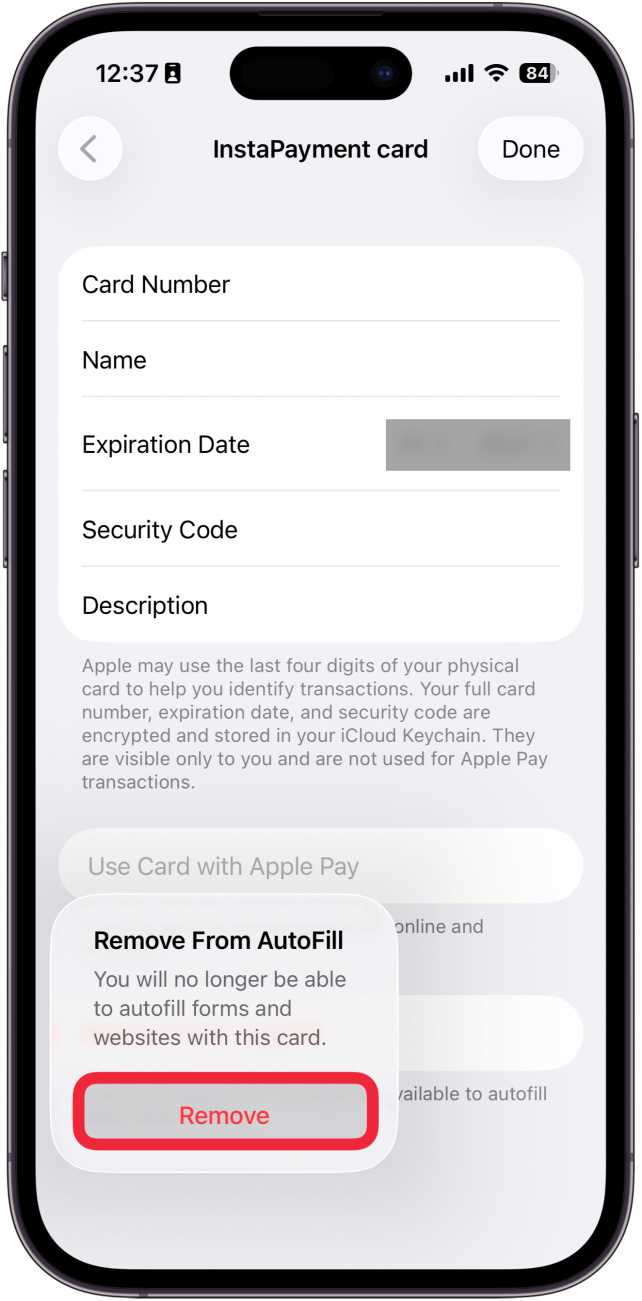
- Tap Remove again to confirm.
- Tap Add Card to add a new credit card.
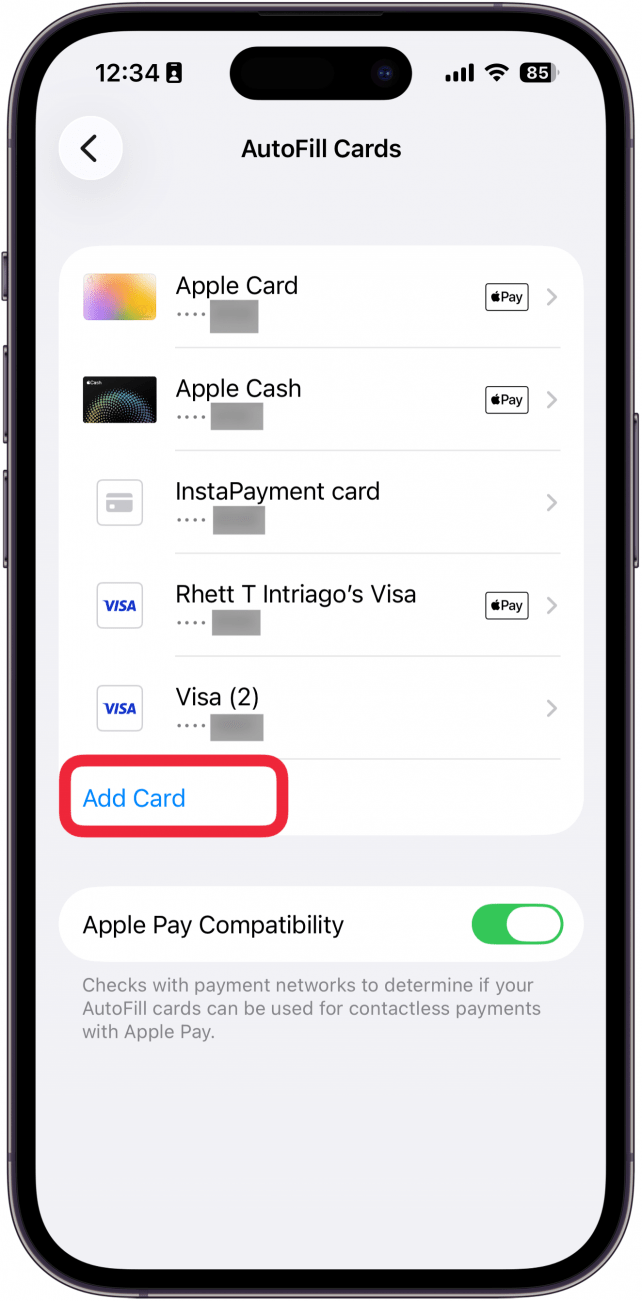
- Enter your card details, then tap Use Card with Apple Pay.

- Now, when you open a form in Safari, you can select AutoFill Contact, so you don't have to type all your information every time you need to sign up for or order something.

That’s how to edit AutoFill on your iPhone to change your address and payment information. For more Safari browsing tips and tricks, check out our free Tip of the Day newsletter.
More On: The Safari App

Every day, we send useful tips with screenshots and step-by-step instructions to over 600,000 subscribers for free. You'll be surprised what your Apple devices can really do.

Rhett Intriago
Rhett Intriago is a Feature Writer at iPhone Life, offering his expertise in all things iPhone, Apple Watch, and AirPods. He enjoys writing on topics related to maintaining privacy in a digital world, as well as iPhone security. He’s been a tech enthusiast all his life, with experiences ranging from jailbreaking his iPhone to building his own gaming PC.
Despite his disdain for the beach, Rhett is based in Florida. In his free time, he enjoys playing the latest games, spoiling his cats, or discovering new places with his wife, Kyla.

 Ashleigh Page
 Olena Kagui
 Leanne Hays
 Rhett Intriago







 Rachel Needell