Start Typing to Siri Right from Your Home Screen

A lifelong tech enthusiast, with experiences ranging from jailbreaking his iPhone to building his own gaming PC, Rhett specializes in maintaining privacy in a digital world and iPhone security.
Learn More A lifelong tech enthusiast, with experiences ranging from jailbreaking his iPhone to building his own gaming PC, Rhett specializes in maintaining privacy in a digital world and iPhone security.
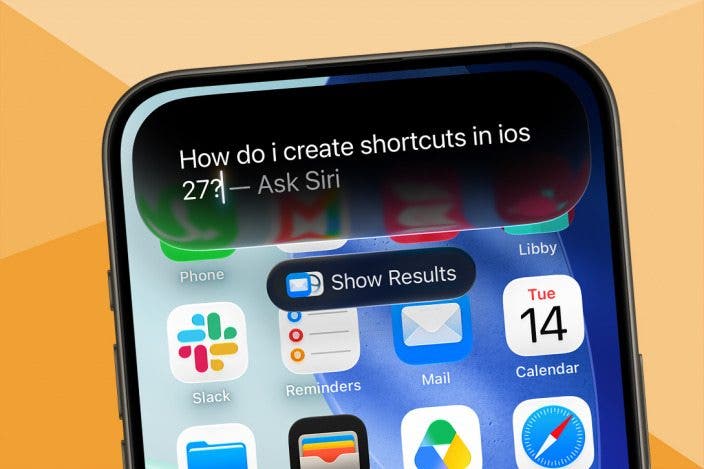
Learn MoreThe latest version of iOS has brought us the long-awaited Siri upgrade. If you have an iPhone 15 Pro or newer, your iPhone's virtual assistant is now powered by Apple Intelligence, making it smarter than ever before. You can even invoke Siri right from your Home Screen!
Why You'll Love This Tip
- Start using the new Siri AI without ever leaving your Home Screen.
- Use Siri even if you're in a situation where you can't speak aloud.
Use AI Assistant on iOS from Home Screen
System Requirements
This tip was performed on an iPhone 15 Pro running iOS 27. Find out how to install the latest OS.
On the newest version of iOS, you can start a conversation with the new Siri AI right from the Home Screen. For more helpful AI tips and tricks, be sure to sign up for our free Tip of the Day newsletter. Now, here's how to start a conversation with your AI assistant on iOS 27:
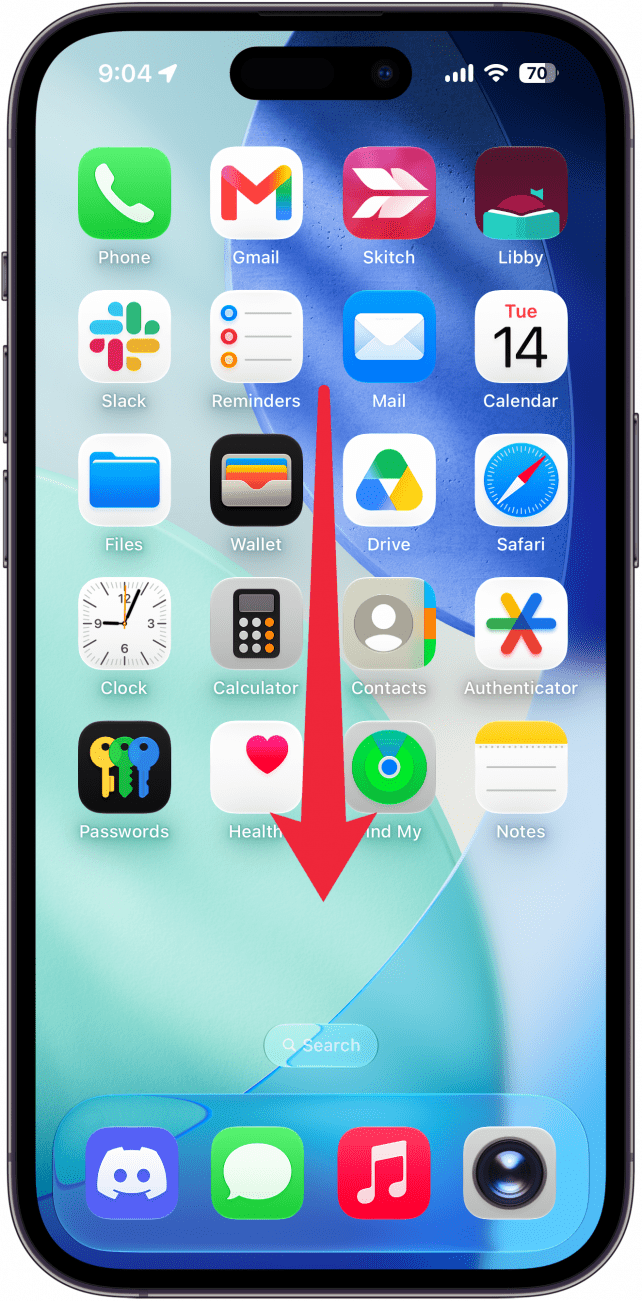
- Swipe down from the center of your Home Screen.
- Start typing to Siri.
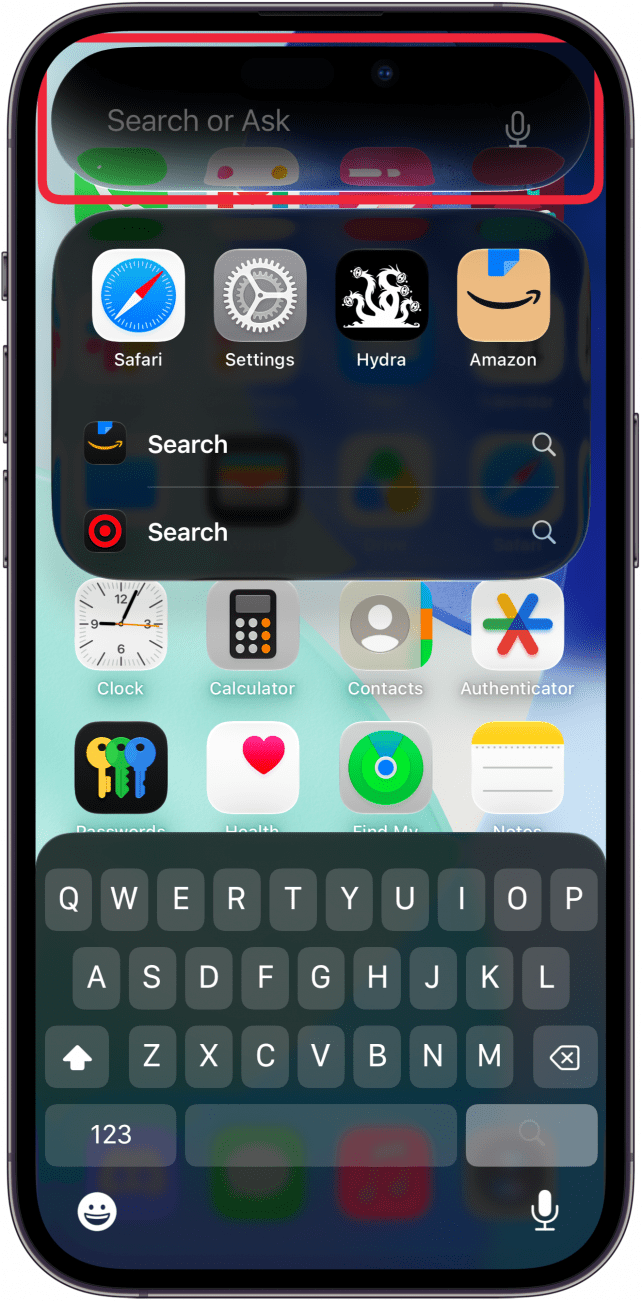
- Tap the blue right arrow key or Show Results.
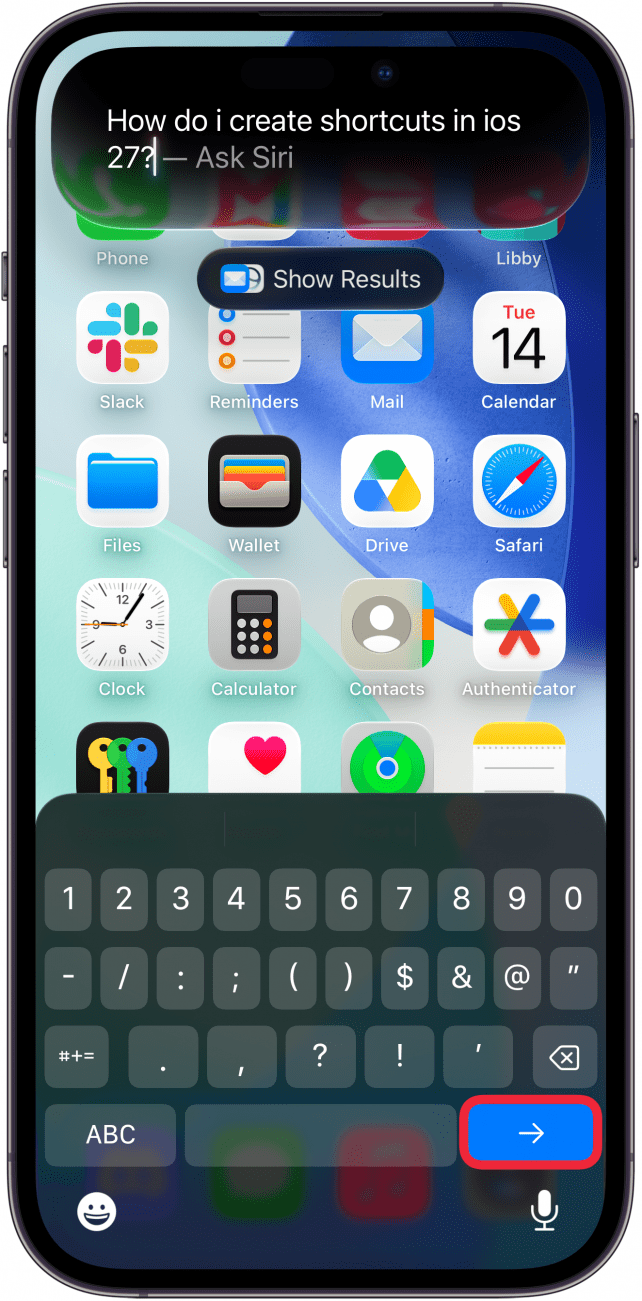
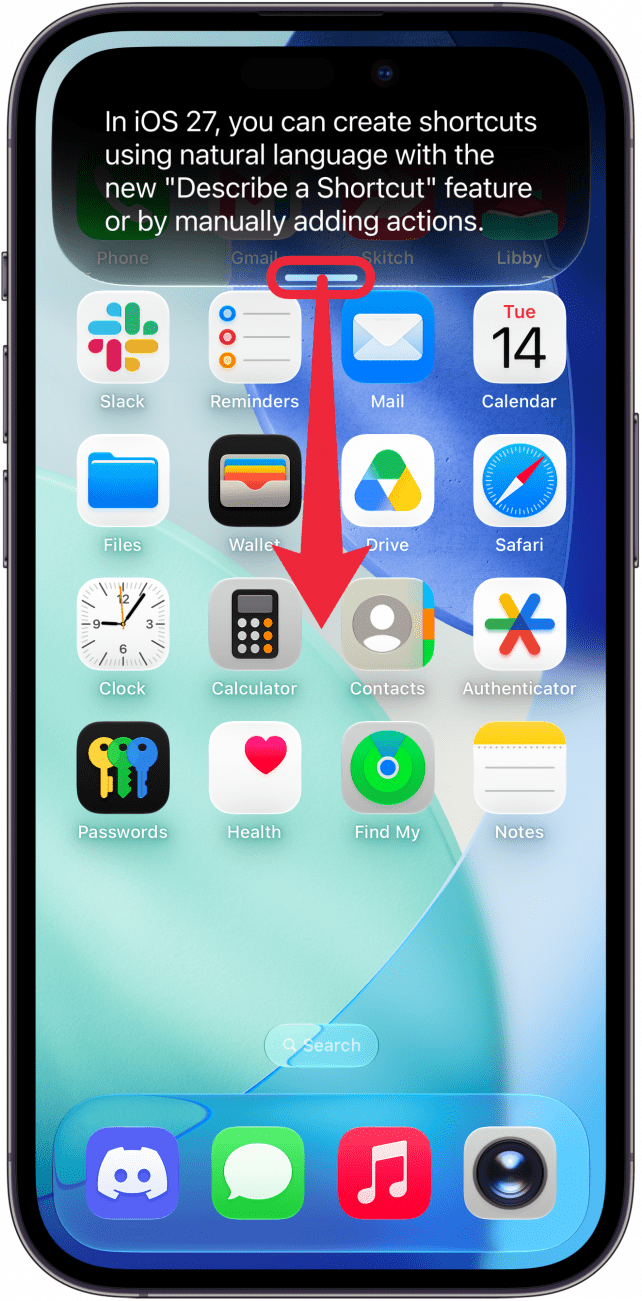
- Siri will give you a response. Swipe down on the gray bar at the bottom of the Siri window to expand it and see a more detailed answer.
- You can continue this conversation with Siri in this window, either my tapping the microphone icon and speaking, or tapping the text box and typing.
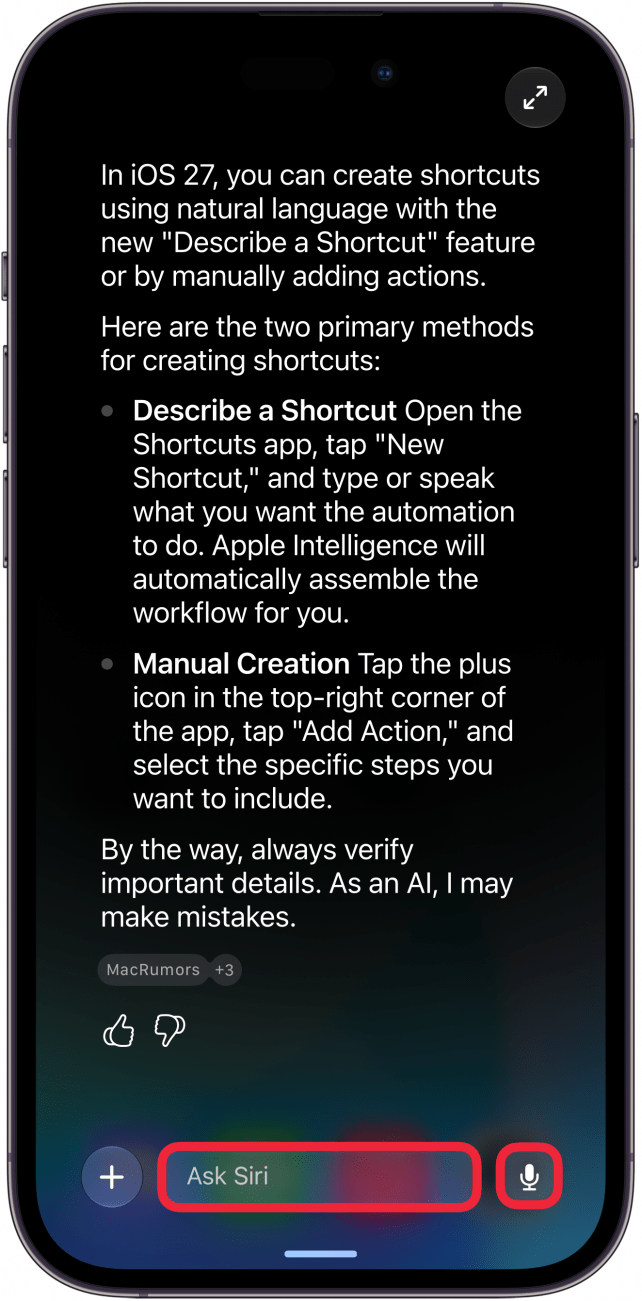
- You can also tap the outward facing arrows in the upper right corner to open the conversation in the Siri app.
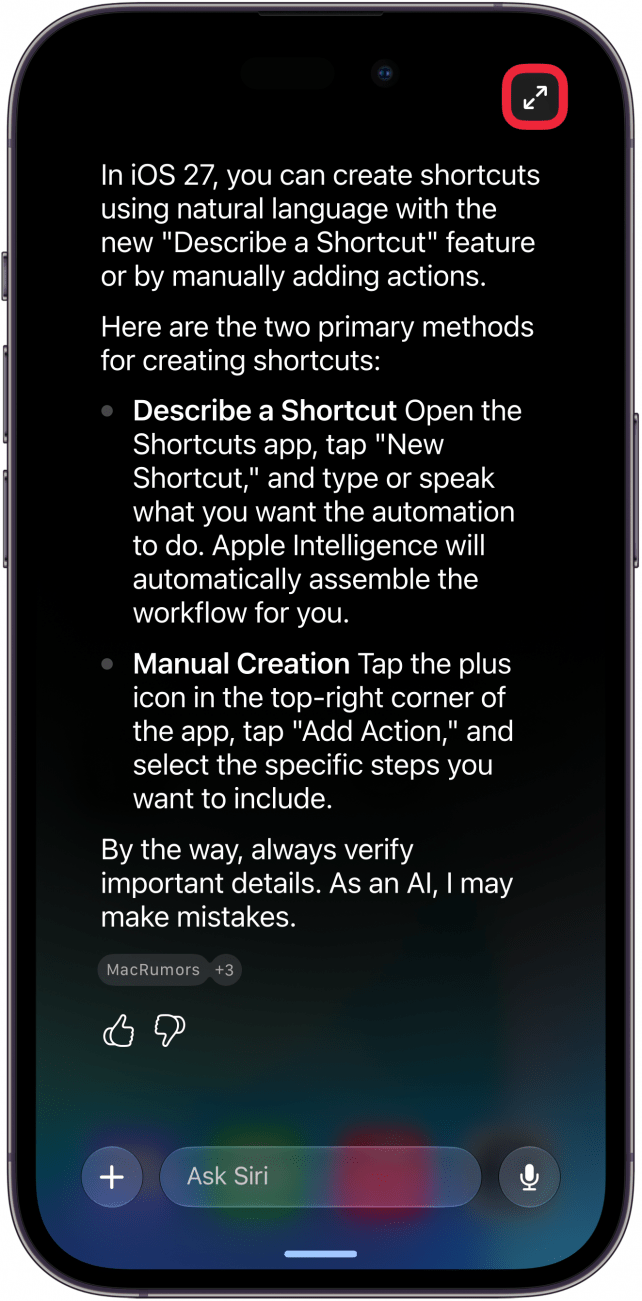
That's how to use the new Siri app on iPhone! Now you can easily use your AI assistant right from your Home Screen.
More On: Apple Intelligence

Every day, we send useful tips with screenshots and step-by-step instructions to over 600,000 subscribers for free. You'll be surprised what your Apple devices can really do.

Rhett Intriago
Rhett Intriago is a Feature Writer at iPhone Life, offering his expertise in all things iPhone, Apple Watch, and AirPods. He enjoys writing on topics related to maintaining privacy in a digital world, as well as iPhone security. He’s been a tech enthusiast all his life, with experiences ranging from jailbreaking his iPhone to building his own gaming PC.
Despite his disdain for the beach, Rhett is based in Florida. In his free time, he enjoys playing the latest games, spoiling his cats, or discovering new places with his wife, Kyla.
 Rachel Needell
 Olena Kagui
 Linda Ruth

 Rhett Intriago
 Amy Spitzfaden Both





 Leanne Hays