How do you take a video in picture mode on an iPhone? Use Apple's QuickTake, the fastest way to record a video on the iPhone.
Why You’ll Love This Tip
- Record video on your iPhone without leaving photo mode.
- Makes recording video quick and easy, so you don't miss important moments.
How to Record Video on iPhone with QuickTake
System Requirements
This tip was performed on an iPhone 17 Pro Max running iOS 26.3. Find out how to update to the latest version of iOS.
When you find the perfect moment for a video, you don’t always have time to switch between Photo and Video mode on your iPhone. To learn more Camera app tricks, don't forget to check out our Tip of the Day newsletter. Here's how to record on an iPhone quickly right from Photo mode, and directly from your Lock Screen:
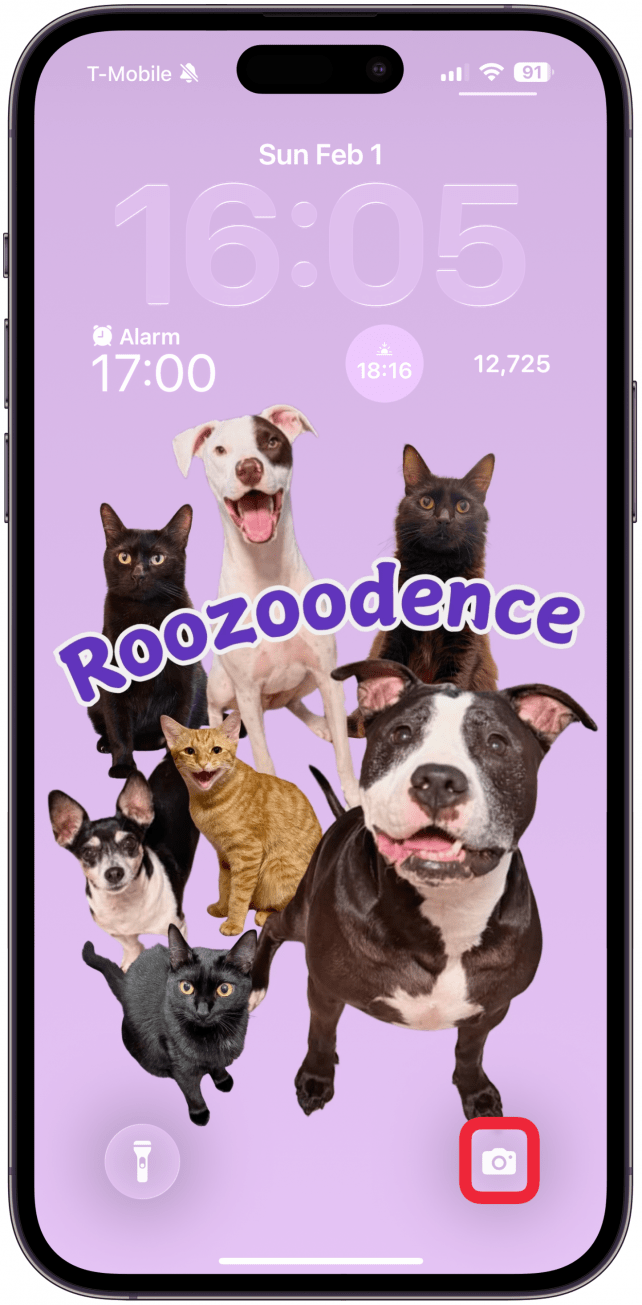
- Open the Camera app directly from your Lock Screen.
![Open the Camera app.]()
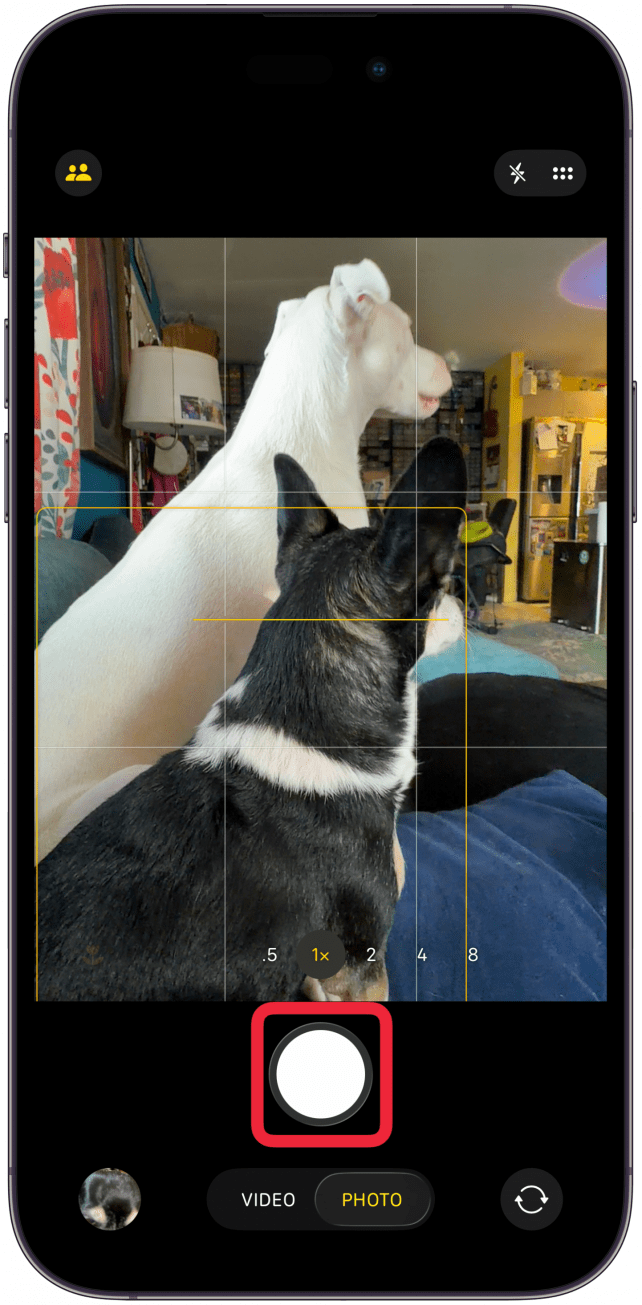
- In Photo mode, press and hold the Shutter button; your iPhone will begin video recording.
![In Photo mode, press and hold the Shutter button; your iPhone will begin video recording.]()
- You can drag the Shutter button to the right to temporarily lock your camera into Video mode.
![You can drag the Shutter button to the right to temporarily lock your camera into Video mode.]()
- When you're finished, tap the red square or release the Shutter button (if you didn't slide it to the right) to stop recording.
![When you're finished, tap the red square or release the Shutter button (if you didn't slide it to the right) to stop recording.]()
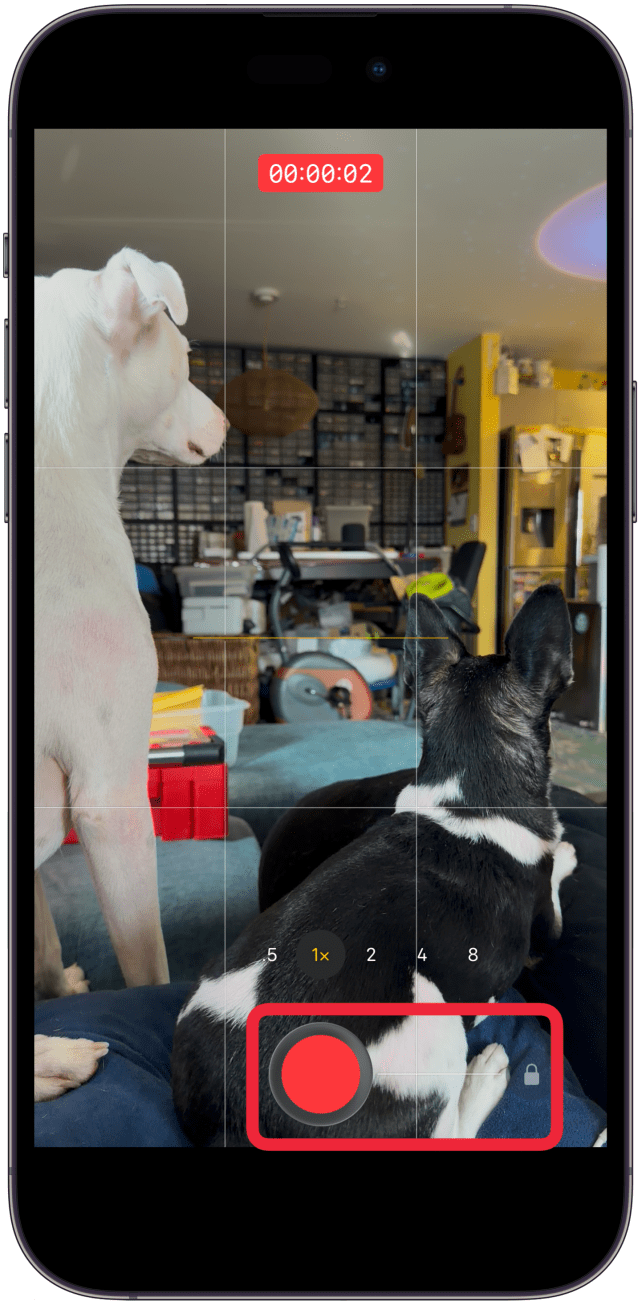
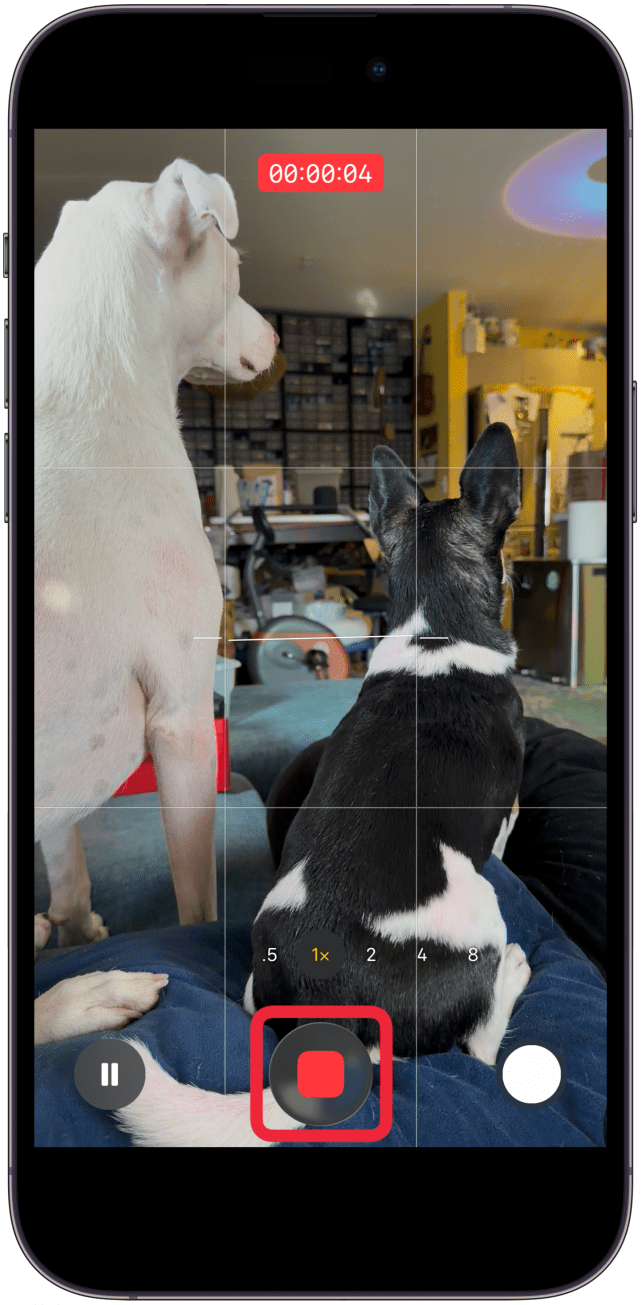
When you’re finished recording, your Camera app will return to Photo mode.

That’s it, you now know how to record a video on iPhone! But if you can't use it, then this method of taking photos while video shooting is great for capturing surprise shots at soccer matches or catching a pet in a cute moment without having to fumble about with Camera settings. The Camera app is truly versatile, and perfect for capturing life’s most precious and exciting moments. Next, learn how to reverse videos on iPhone.