By Rhett Intriago
Updated 10/15/2025
Can't decide which photo to use for your Lock Screen? Photo Shuffle wallpapers are the way to go! We'll teach you how to shuffle wallpapers on iPhones based on the photos in the album of your choice.
Why You'll Love This Tip
- See all your favorite photos on your Lock Screen.
- Avoid having sensitive photos appear on your Lock Screen.
How to Make Your Wallpaper Shuffle a Specific Photo Album
System Requirements
This tip was performed on an iPhone 16 running iOS 26. Find out how to update to the latest version of iOS.
Photo Shuffle is a Lock Screen option that lets you pick a photo album of your choice so that you see a variety of pictures as your wallpaper. Here's how to shuffle wallpaper on iPhones:
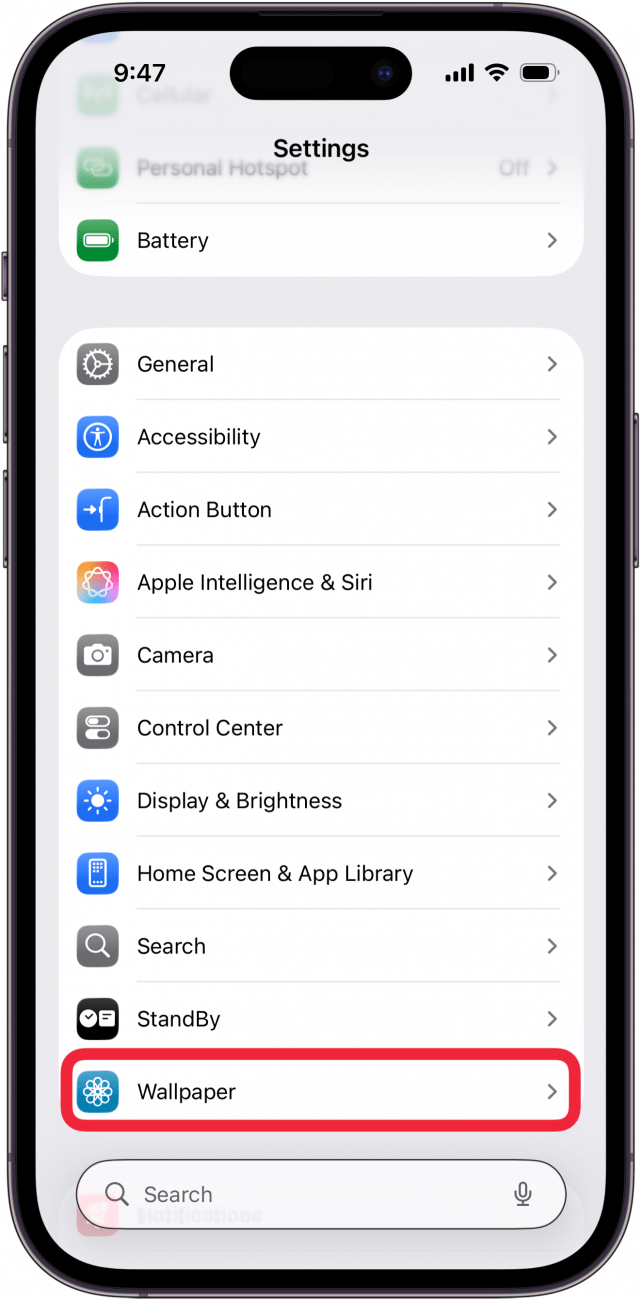
- Open the Settings app, and tap Wallpaper.

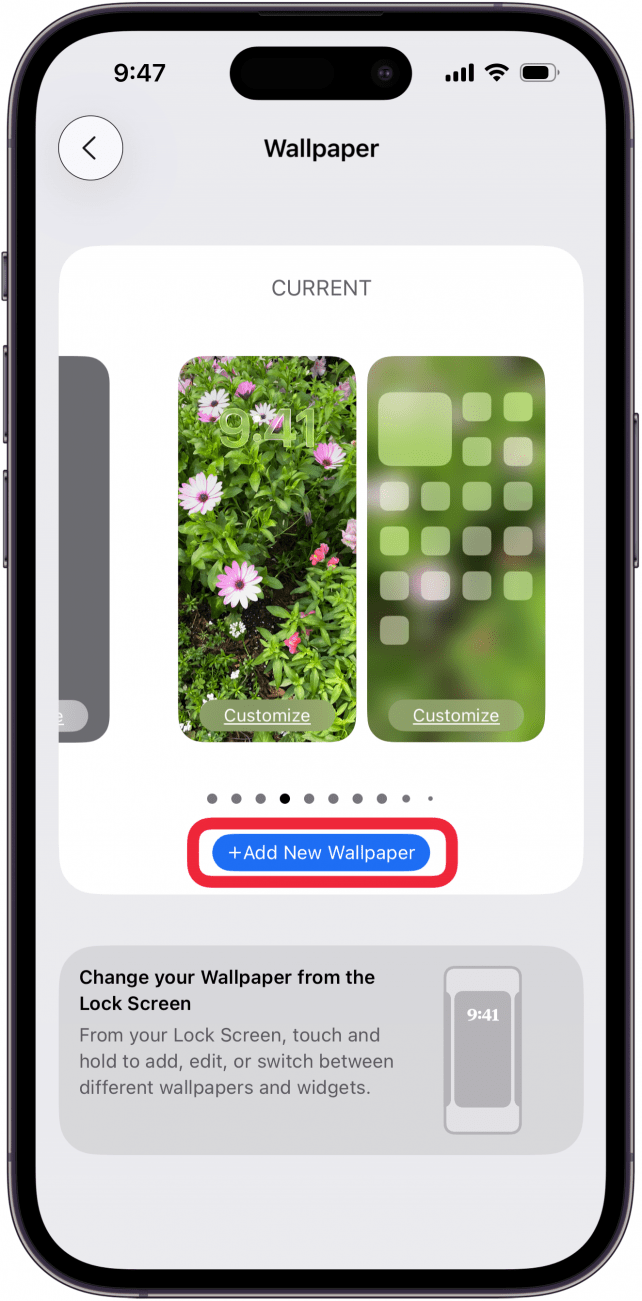
- Tap Add New Wallpaper.

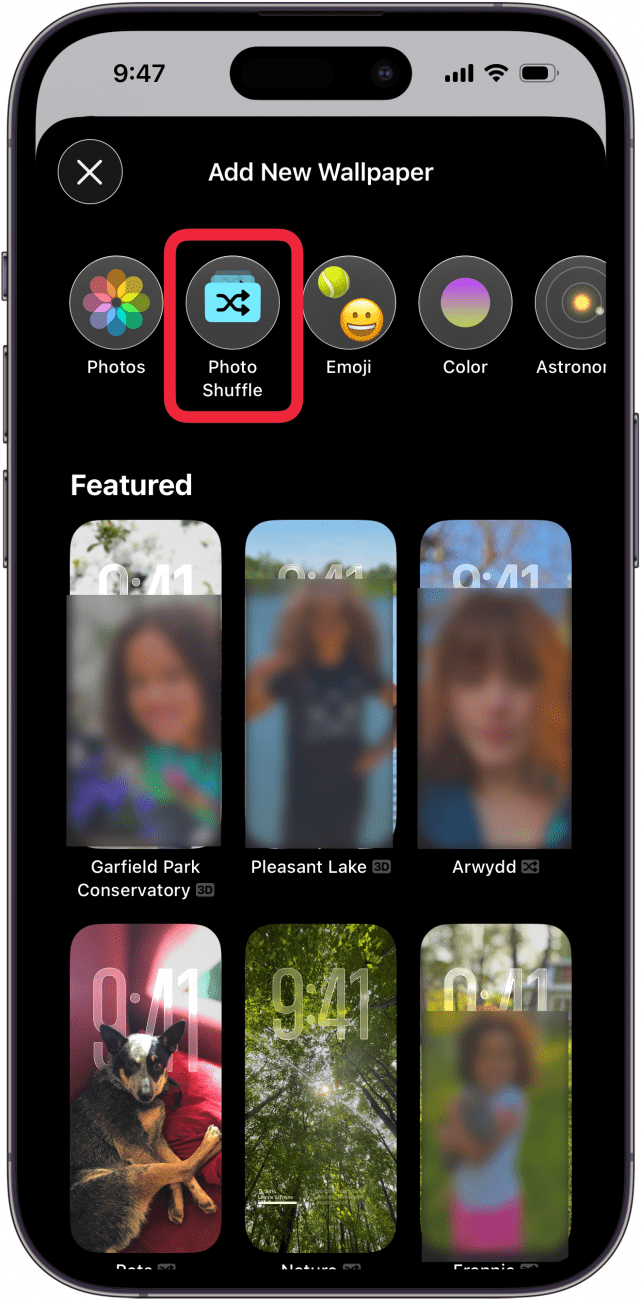
- Tap Photo Shuffle.

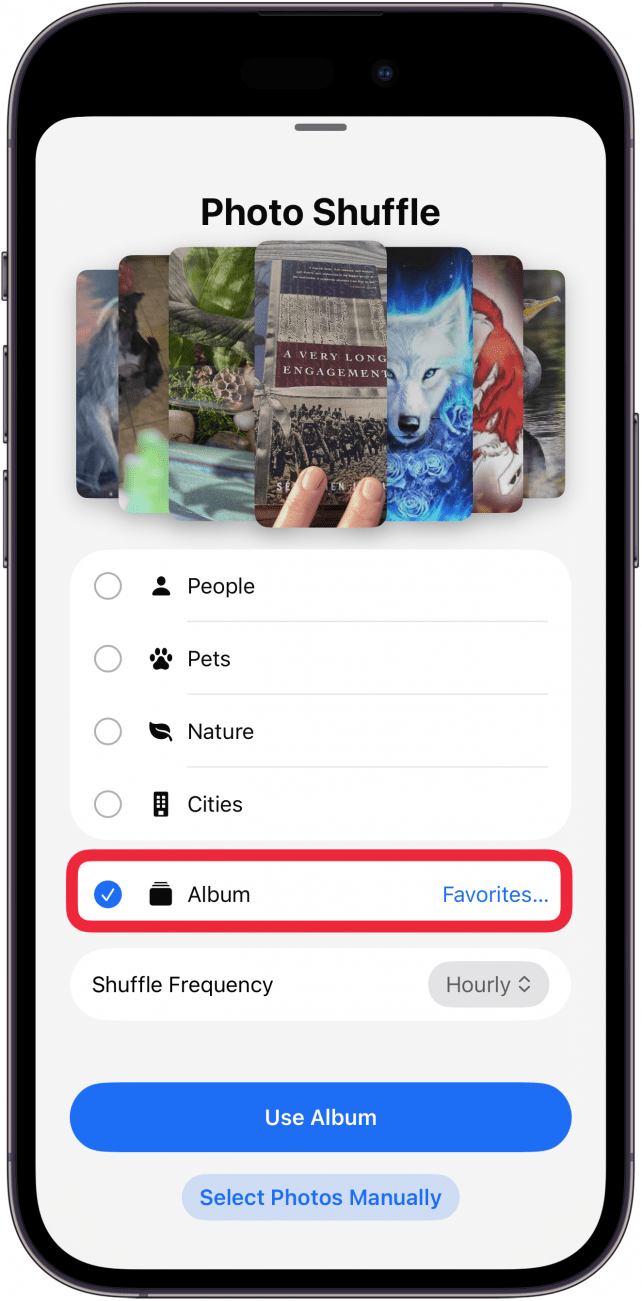
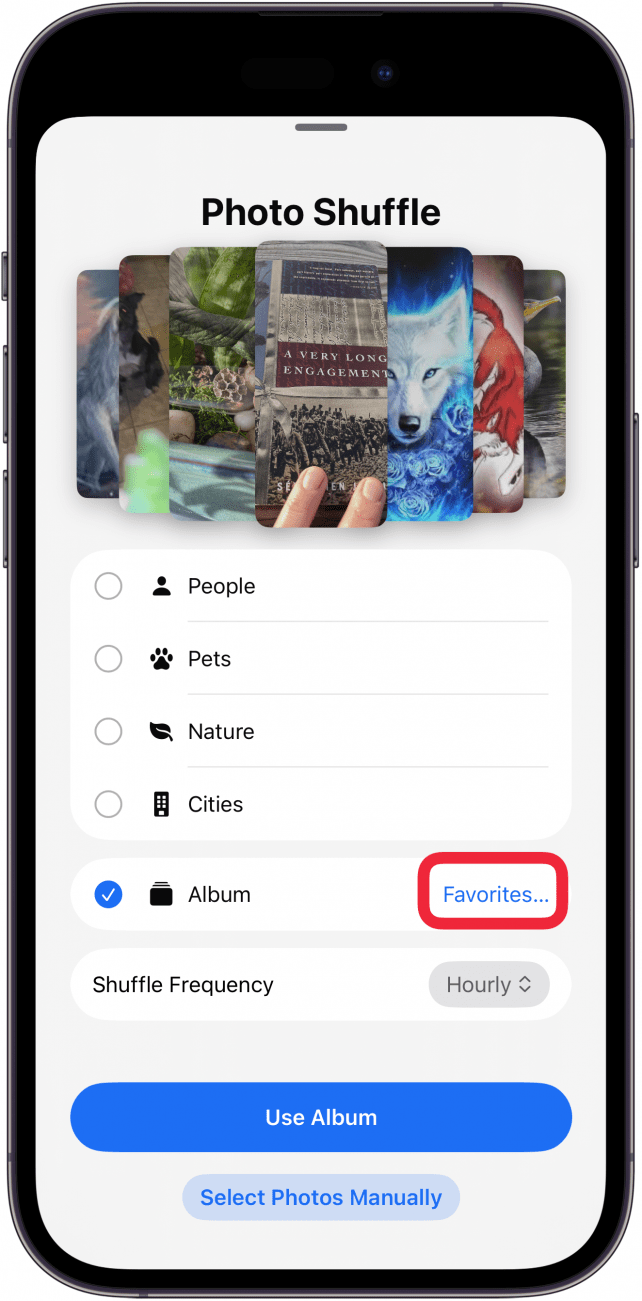
- Tap Album.

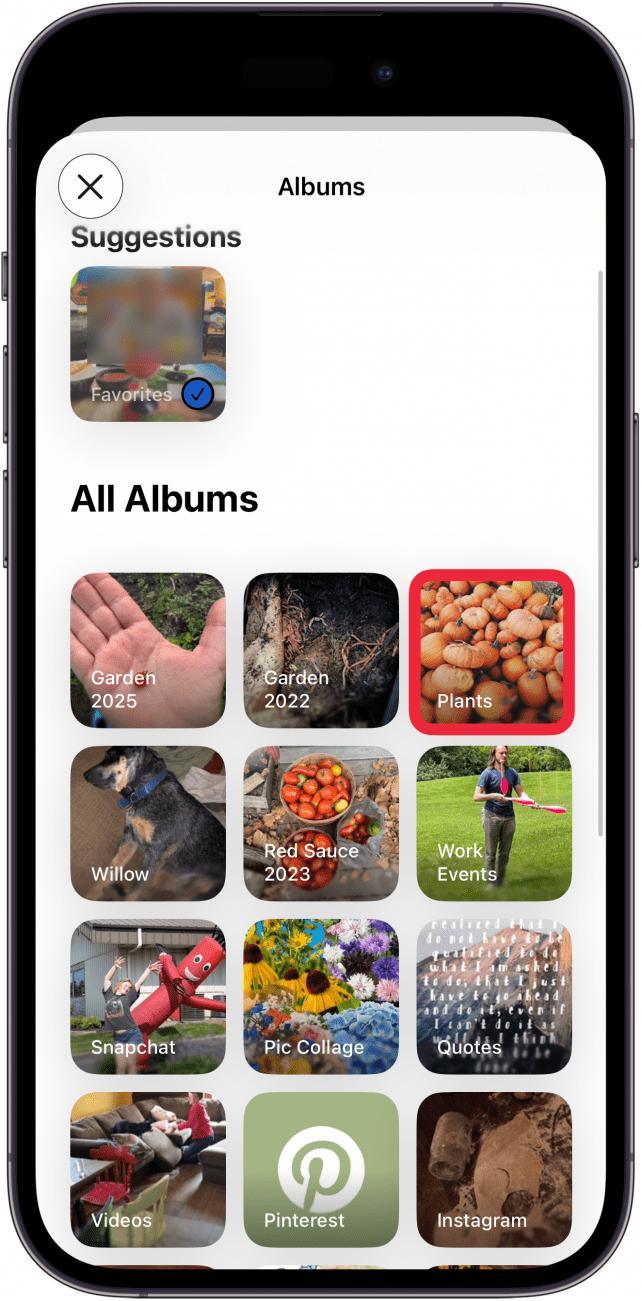
- When you tap Album, it might default to the Favorites album. Simply tap Favorites… to change which album you want.

- Scroll through your albums and select the one you want.

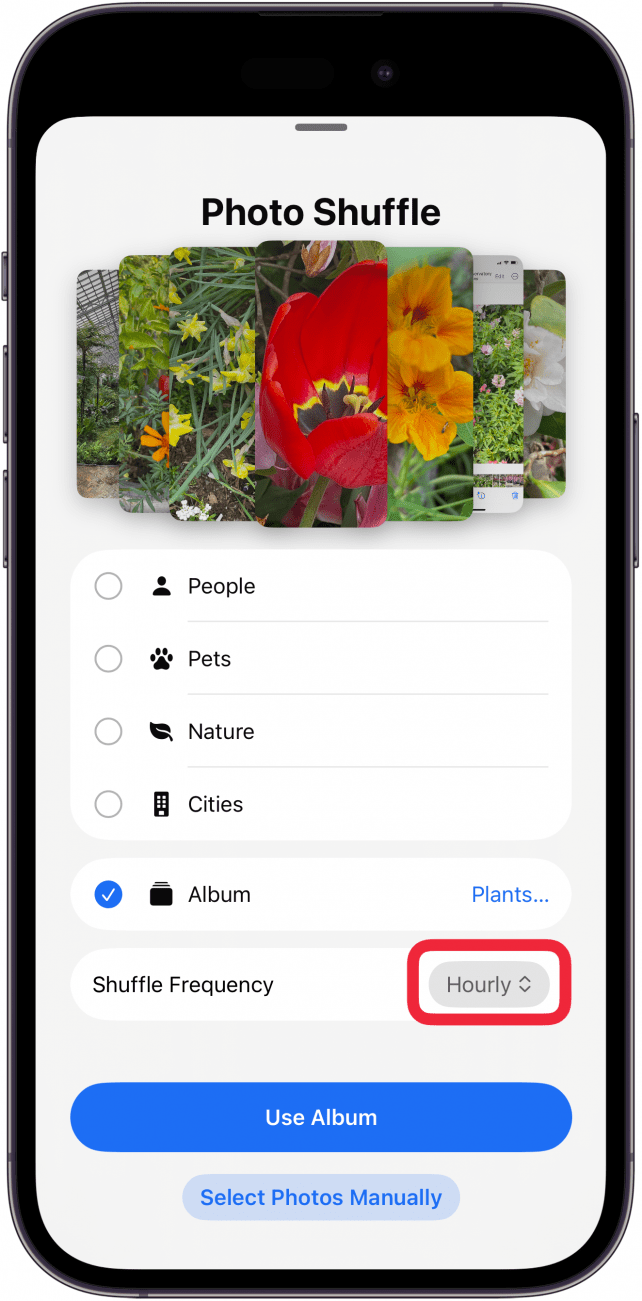
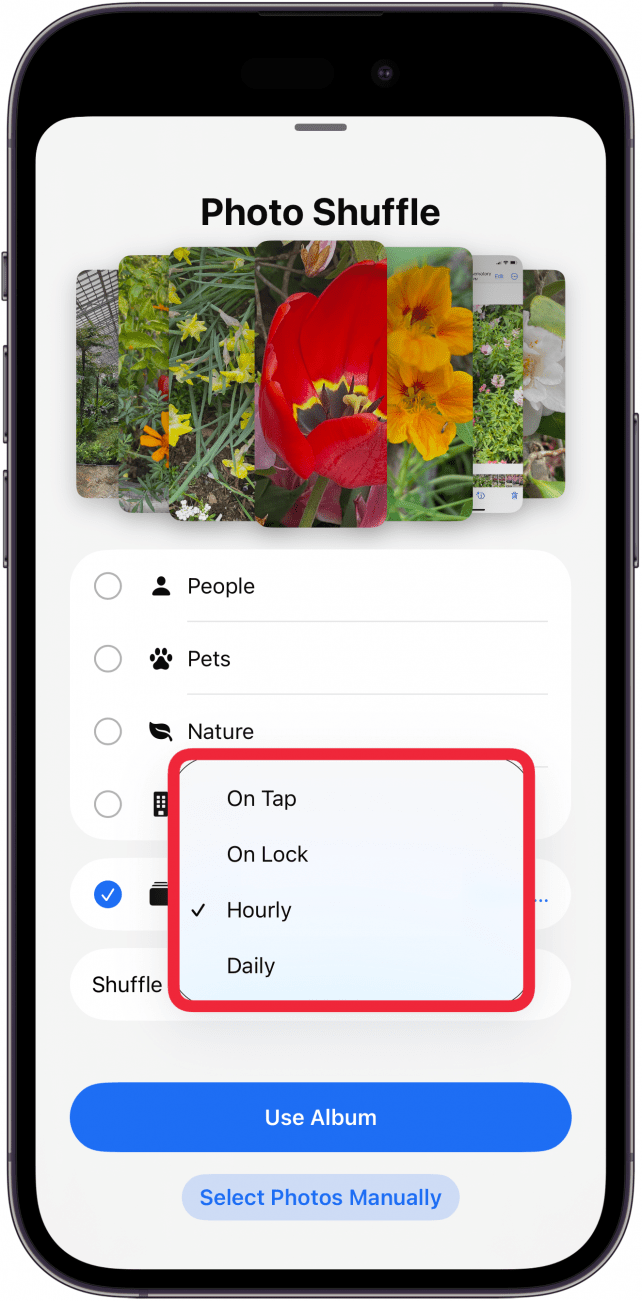
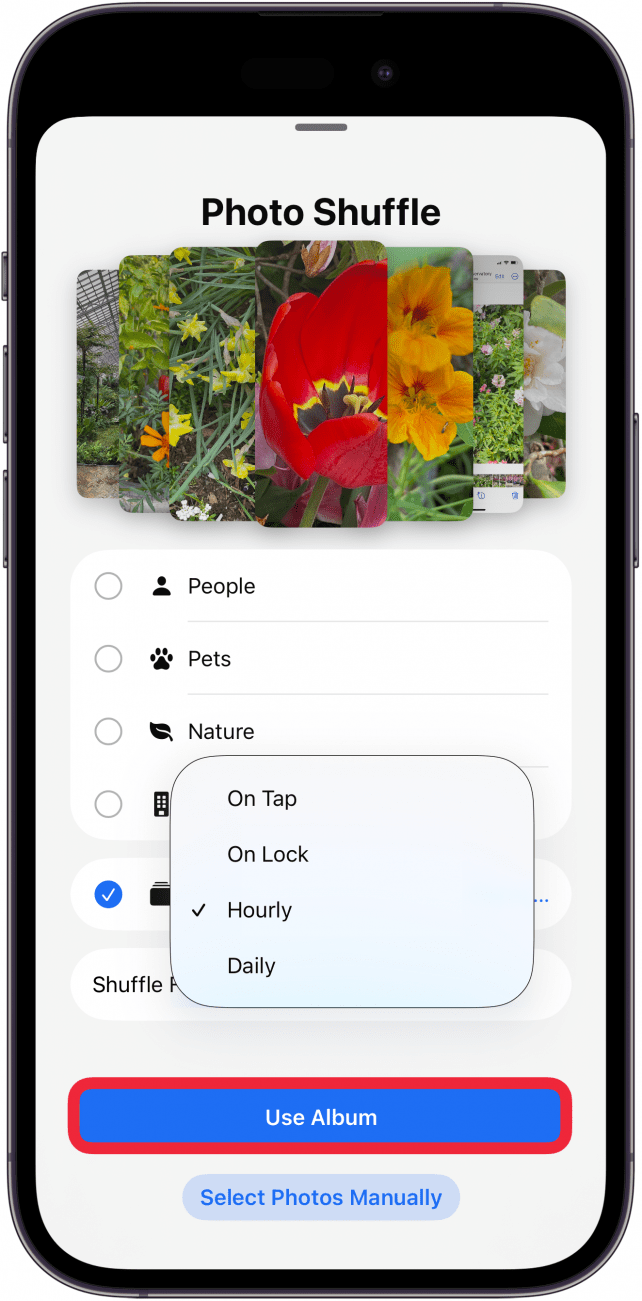
- Once you've selected your album, tap Shuffle Frequency to change how often you want the wallpaper to change.

- Choose between On Tap, On Lock, Hourly, and Daily.

- Tap Use Album to set your wallpaper.

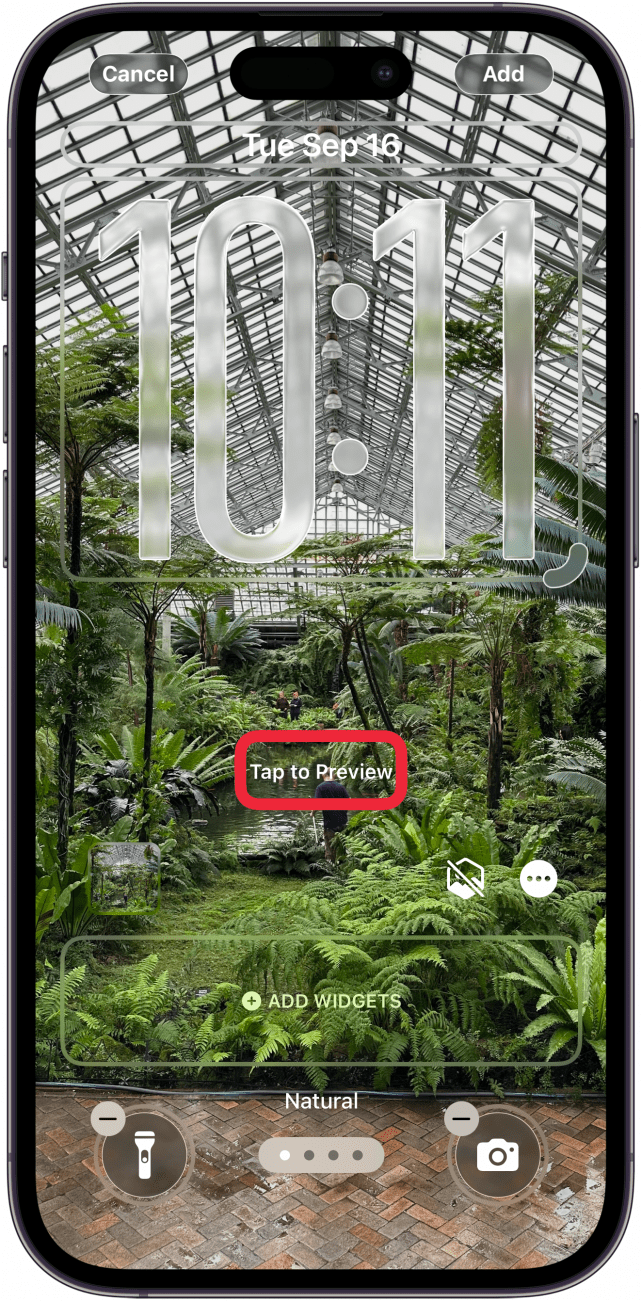
- Now, you'll be able to customize your Lock Screen. Tap Tap to Preview to see how the Lock Screen's photo will change.

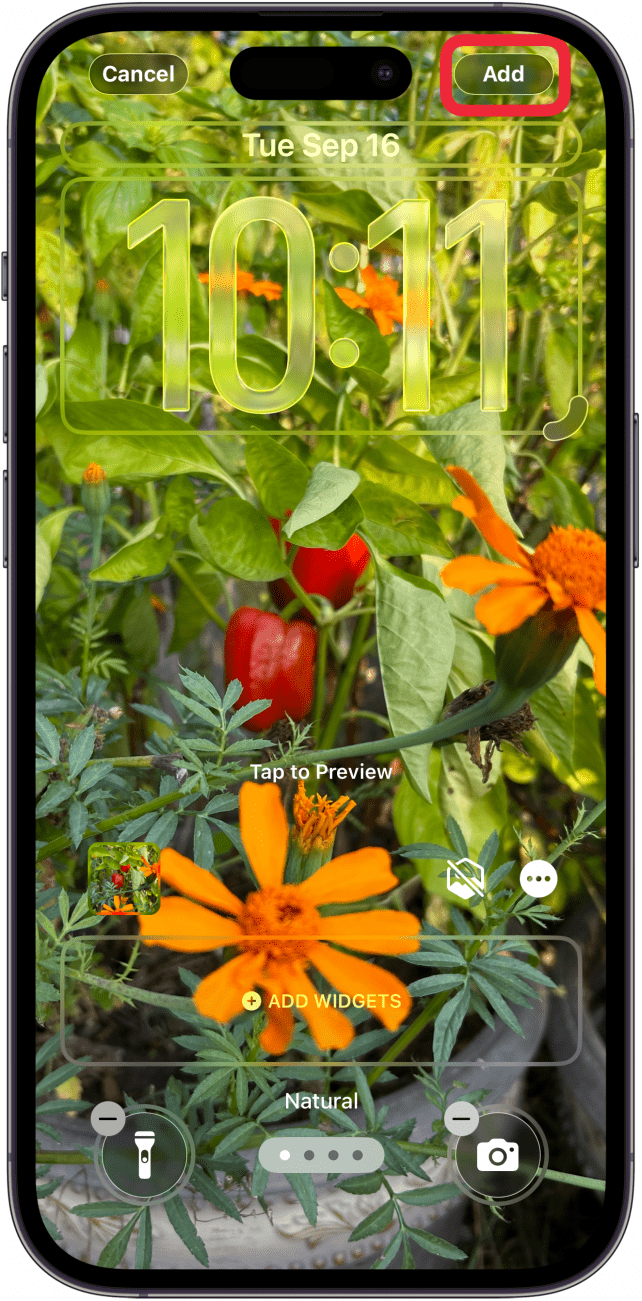
- Tap Add to confirm your new Lock Screen.

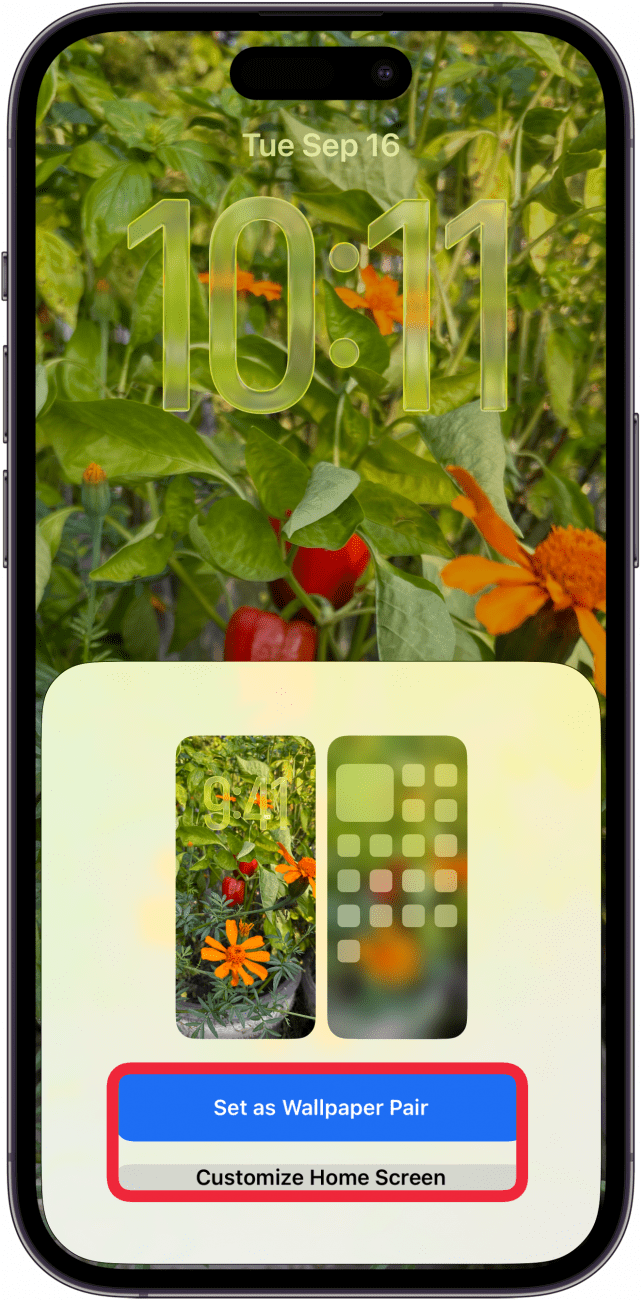
- Tap Set as Wallpaper or Customize Home Screen.

Now, Photo Shuffle should only show you photos from the selected album on your Lock Screen! Next, learn how to create a Focus-based Lock Screen. For more iPhone tips, don't forget to sign up for our free Tip of the Day newsletter.

Discover your iPhone's hidden features
Get a daily tip (with screenshots and clear instructions) so you can master your iPhone in just one minute a day.