* This article is from our Tip of the Day newsletter. Sign Up. *
Being able to make hands-free calls and send texts can come in handy when you're trying to multitask. Siri is a common method for dictating texts, but not everyone wants to enable Siri. Luckily, you don't need Siri to dictate texts in Messages. You can even use this method to edit out mistakes. Let's dive in with how to use voice-to-text on iPhone to dictate and edit texts without Siri.
Why You'll Love This Tip:
- Dictate texts without having to rely on Siri.
- Easily edit a dictated text without having to end dictation.
How to Voice Text on iPhone without Siri
System Requirements
This tip works on iPhones running iOS 14 or later, but the screenshots below were captured on iOS 17. Find out how to update to the latest version of iOS.
Talk-to-text on iPhone is a great alternative to Siri when you're trying to send texts hands-free. For more texting tricks and shortcuts, like how to send a voice message on iPhone, check out our free Tip of the Day newsletter. Now, let's go over how to use voice text on iPhone.

Note
Before you begin, make sure you have dictation enabled.
- Open a new or existing conversation in Messages.
![iphone messages app with a red box around the new message button]()
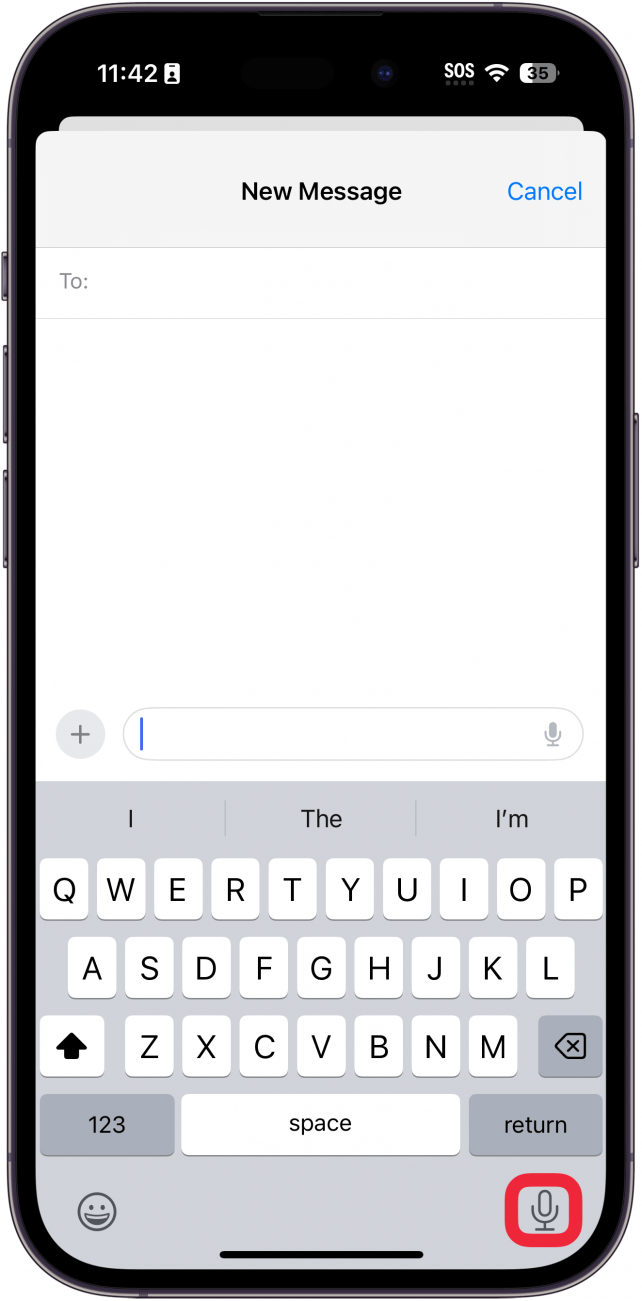
- On your keyboard, tap the microphone button.
![iphone new message screen with a red box around the keyboard dictation microphone icon]()
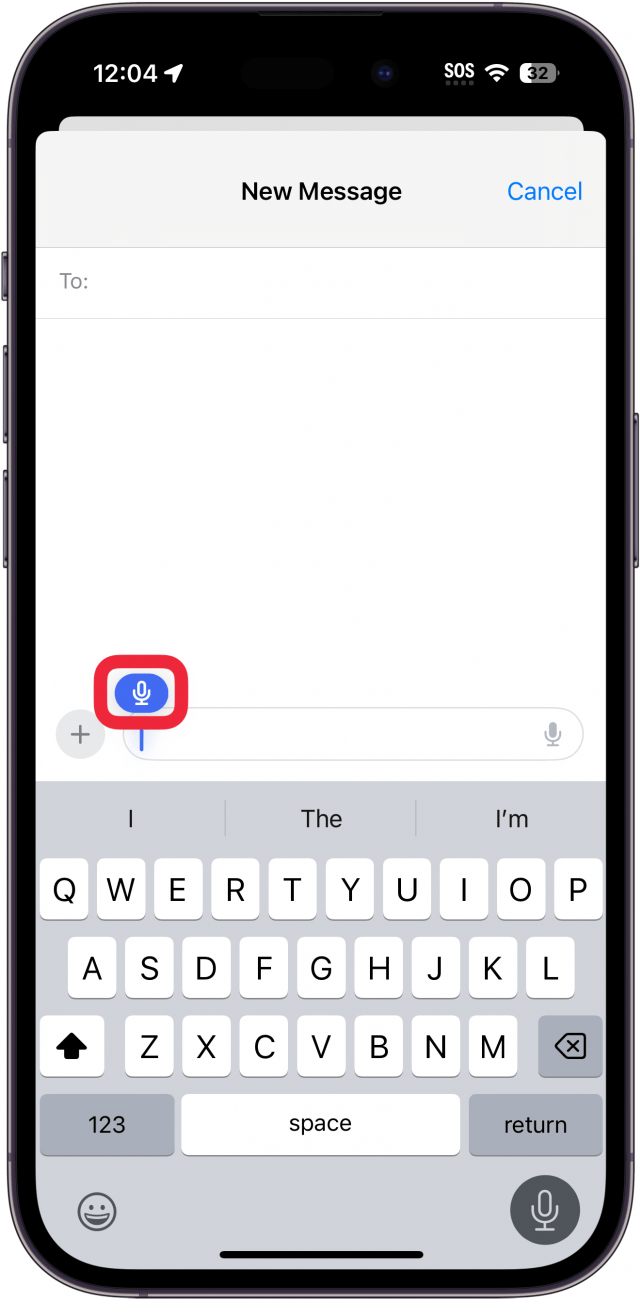
- You will see a small, blue microphone icon when Dictation is active. Begin speaking.
![iphone new message screen with a red box around the blue dictation microphone icon]()
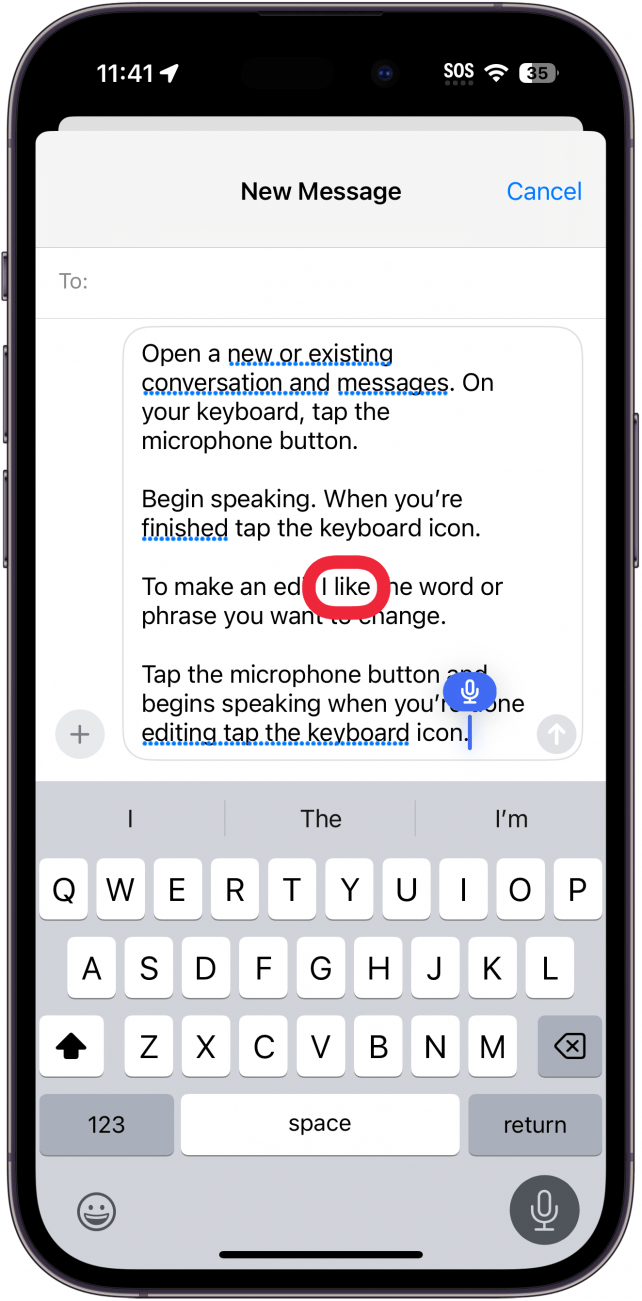
- To make an edit, use your cursor to highlight the word or phrase you want to change.
![iphone new message screen with typed out message and a red box around a mistyped phrase, "I edit"]()
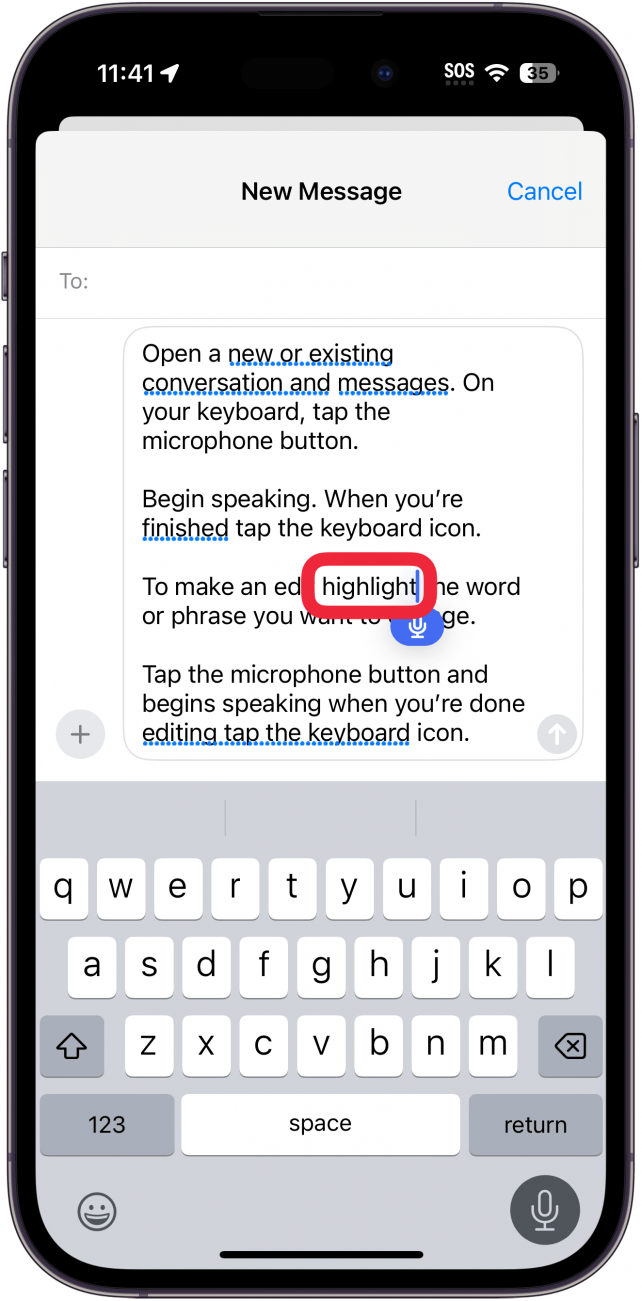
- Speak the correct word or phrase.
![iphone new message screen with typed out message and a red box around a corrected word, "highlight"]()
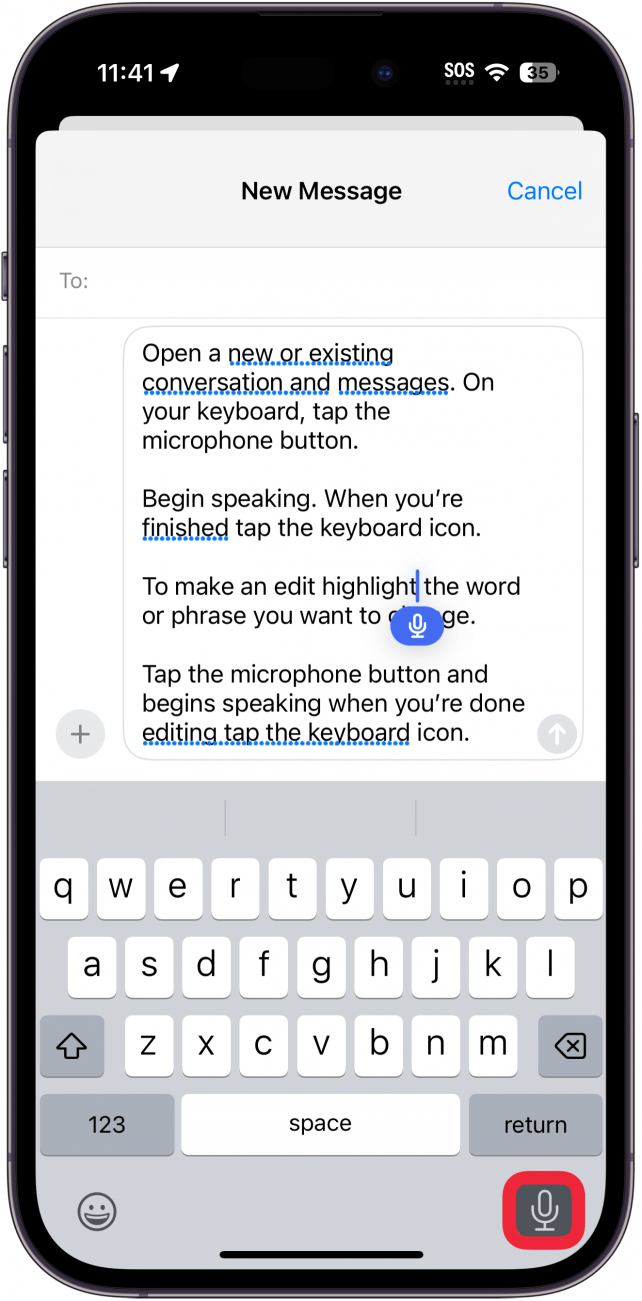
- When you're finished, tap the microphone button to end dictation.
![iphone new message screen with typed out message and a red box around the dictation microphone button]()

If you end dictation but then realize there's another change you want to make, you can highlight words or phrases and tap the microphone icon again to start up dictation again. And that's it! Once you're satisfied with the text, you're ready to send it. Happy chatting! If you'd rather use Siri to dictate a text, you can find out how to use Siri to voice-to-text on your iPhone.