How to Share Your Contact Photo on an iPhone & iPad

With 10-plus years of experience with Apple devices, Rachel specializes in all things iPad and is a Notes app expert. Find her writing in the Daily Tip newsletter and iPhone Life magazine.
Learn More With 10-plus years of experience with Apple devices, Rachel specializes in all things iPad and is a Notes app expert. Find her writing in the Daily Tip newsletter and iPhone Life magazine.
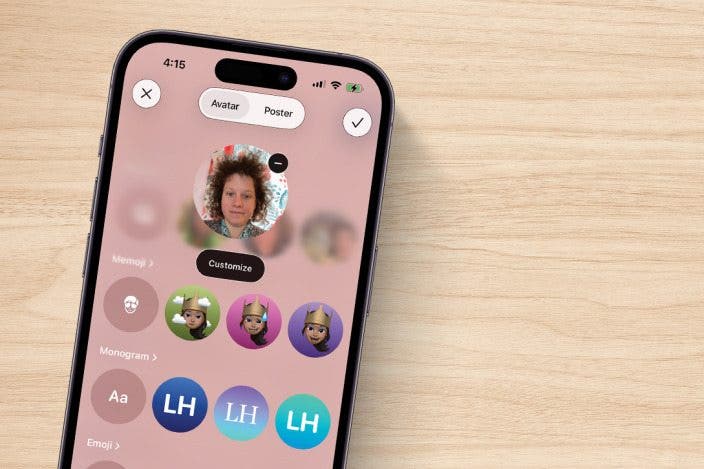
Learn MoreOnce you've created and customized your Contact Poster, you can share it with the people you're chatting with in Messages. Sharing your contact photo is a great way to display your personality with people in Messages, but you can also set the feature to share with only contacts or to always ask before sharing.
Why You'll Love This Tip:
- Learn how to share your contact poster with people you're messaging for a personal touch.
- Choose to share your contact poster with all contacts, or to always ask before sharing your contact poster.
How to Share Contact Photo on iPhone & iPad
System Requirements:
This tip works on any iPhone running iOS 17 or later, and was tested on an iPhone 17 Pro running iOS 26.5. Find out how to update to the latest version of iOS.
Before you can choose whether or not to share your contact poster with all your contacts or to always ask before sharing, you'll need to turn Name & Photo Sharing on. Here's how to share your name and photo on iPhone:
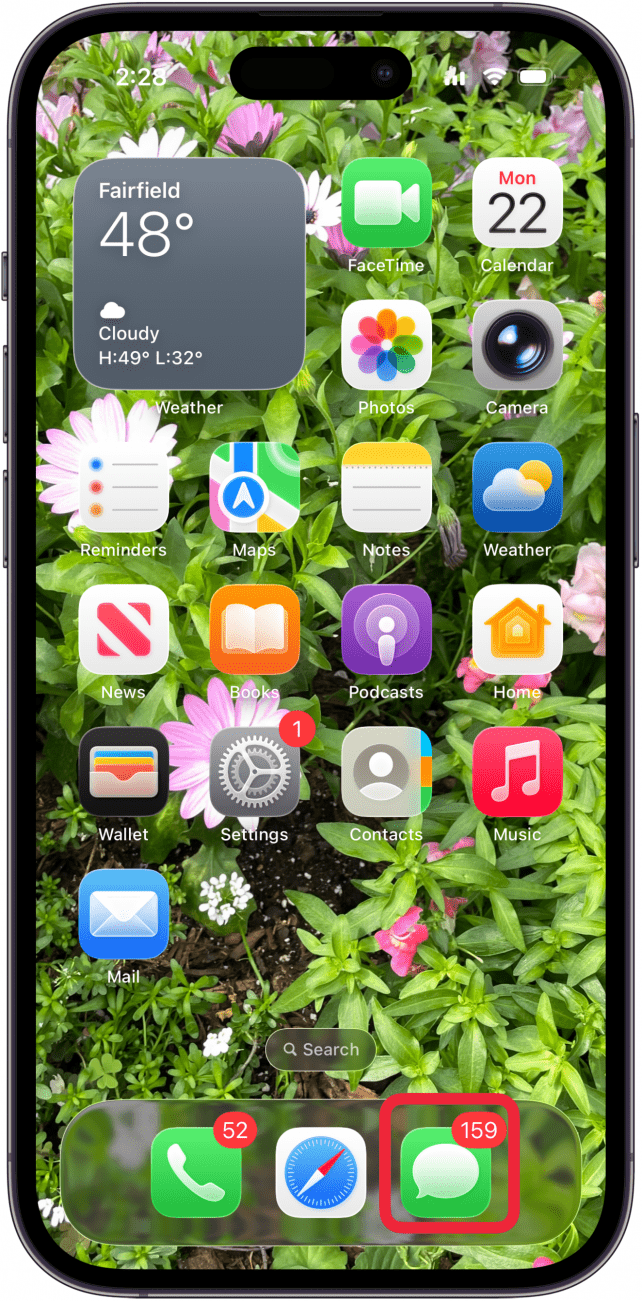
- Open the Messages app.
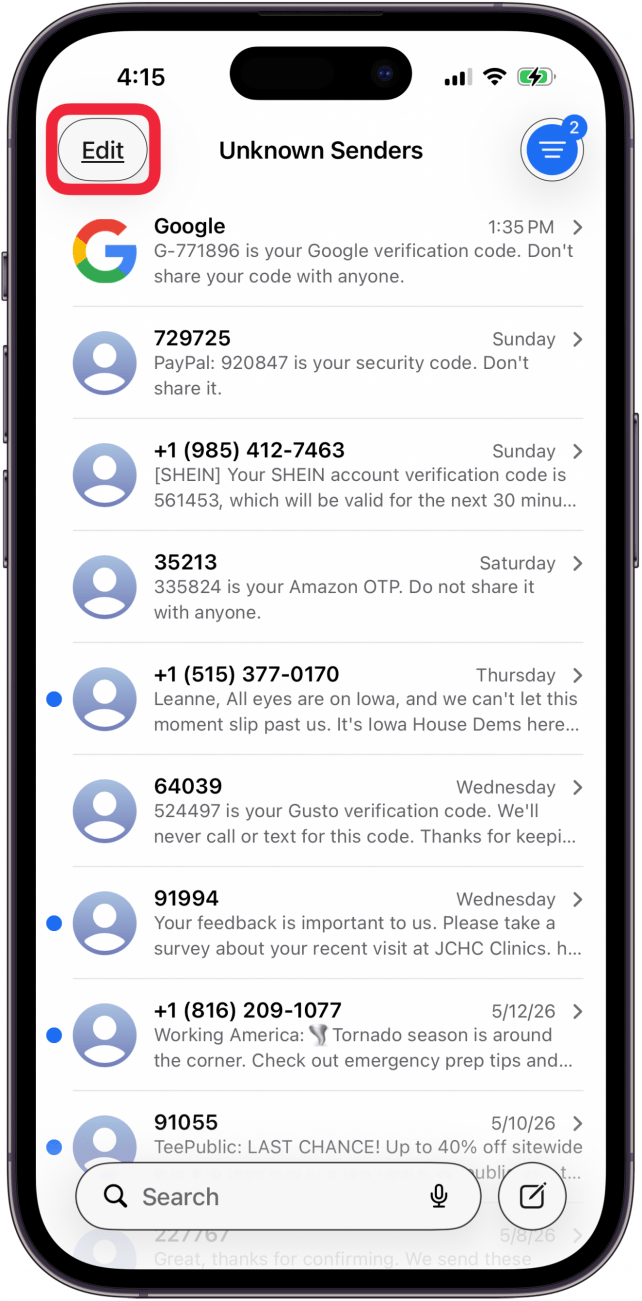
- Tap Edit.
- Tap Set up Name & Photo.

- First, toggle Name & Photo Sharing on.

- Next, under Share Automatically, choose Contacts Only to share with all your contacts when you message them automatically.
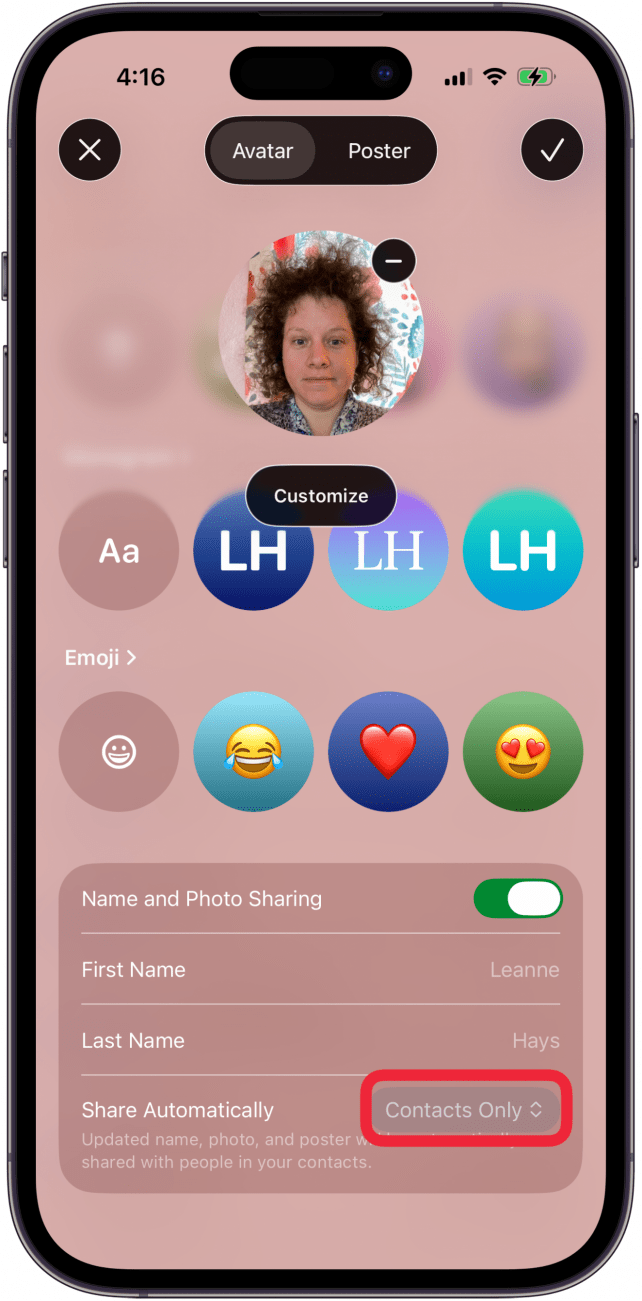
- Or, choose Always Ask to choose which messages to share your contact poster with, regardless of whether they are in your Contacts or not.
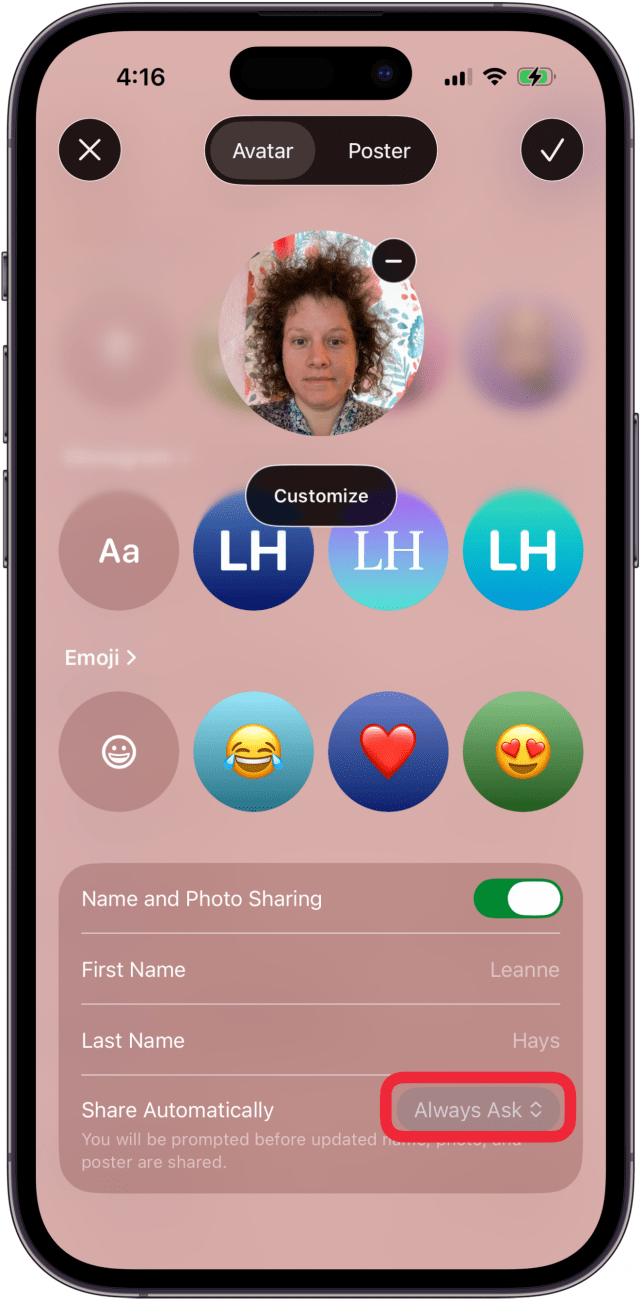
- Tap the check mark when finished to save your changes.

And that's how to share your name and photo on iPhone automatically with your contacts, or to set it to always ask before sharing.
Note
If you have Filter Unknown Senders on, your Steps 2 and 3 will look different. You will need to tap the more icon, as shown below, then tap your Name & Photo.
If you like learning tips about using your iPhone, be sure to sign up for our free Tip of the Day!
More On: iPad & iPhone Contact Posters
Top image credit: wk1003mike / Shutterstock.com

Every day, we send useful tips with screenshots and step-by-step instructions to over 600,000 subscribers for free. You'll be surprised what your Apple devices can really do.

 Leanne Hays
 Rhett Intriago

 Olena Kagui
 Rachel Needell


 Sarah Kingsbury