How to Use Siri Mode in Camera App on iPhone

In the last 10 years, Olena has been published in dozens of publications internationally and written hundreds of how-to articles and complex guides about Apple products, software, and apps.
Learn More In the last 10 years, Olena has been published in dozens of publications internationally and written hundreds of how-to articles and complex guides about Apple products, software, and apps.
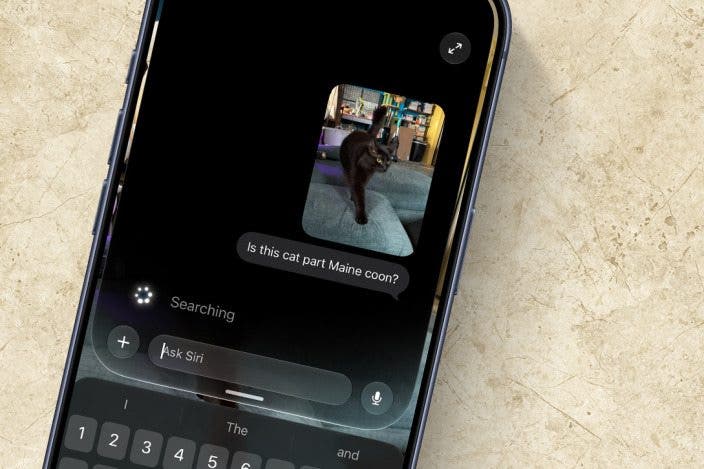
Learn MoreThe Camera app's Siri mode expands on Apple's Visual Intelligence and basically works like a built-in AI-powered Google Lens. Siri mode can help you identify certain animals and plants by just holding your camera in front of them. You can also "take a photo" to get information about what you are seeing and use AI to analyze it and learn more.
Why You'll Love This Tip
- Find the model name of a product you see so you can buy the same one or research specs.
- Identify a breed or species by just pointing your camera at a plant or animal.
- Get more information about something without having to identify it first.
How to Search Visually Using Siri Camera Mode
Requirements:
This tip was performed on an iPhone 17 Pro Max running iOS 27. Find out how to install the latest OS.
There are two ways to use Siri mode in the Camera app. You can either hold it up to see if it recognizes what it sees or you can tap what would be the shutter button to capture the image and analyze or research or the image with AI. To try this feature out:
- Open the Camera app.
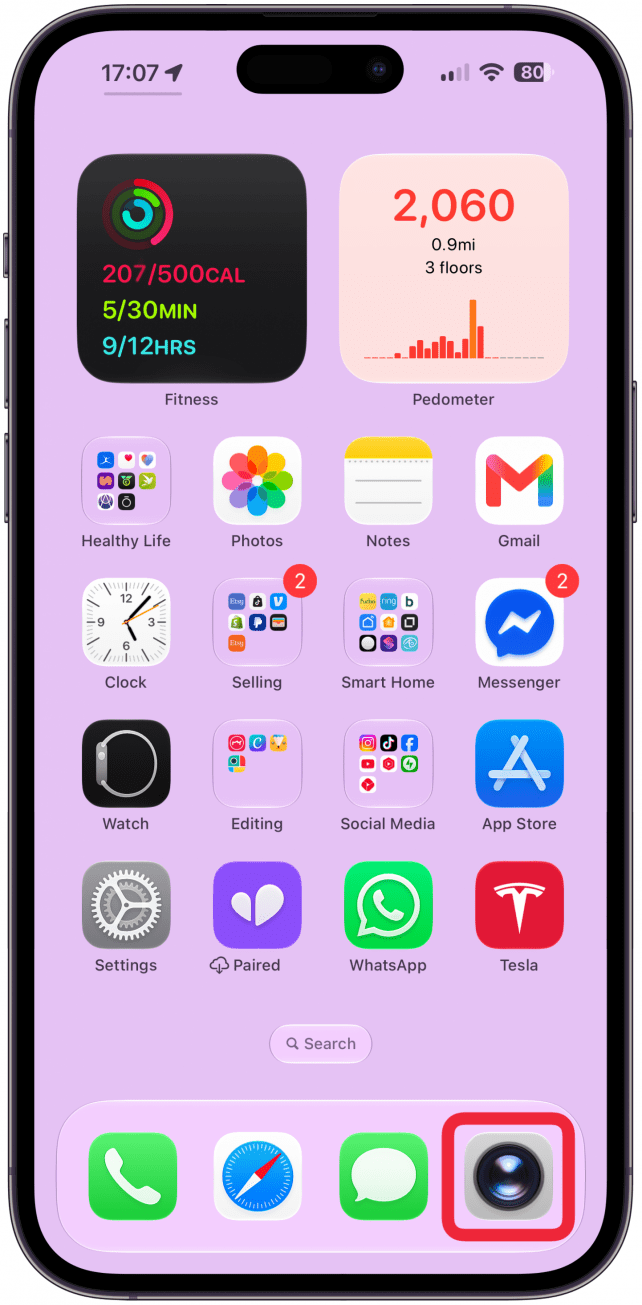
- Swipe left to switch from the default Photo mode to Siri mode.
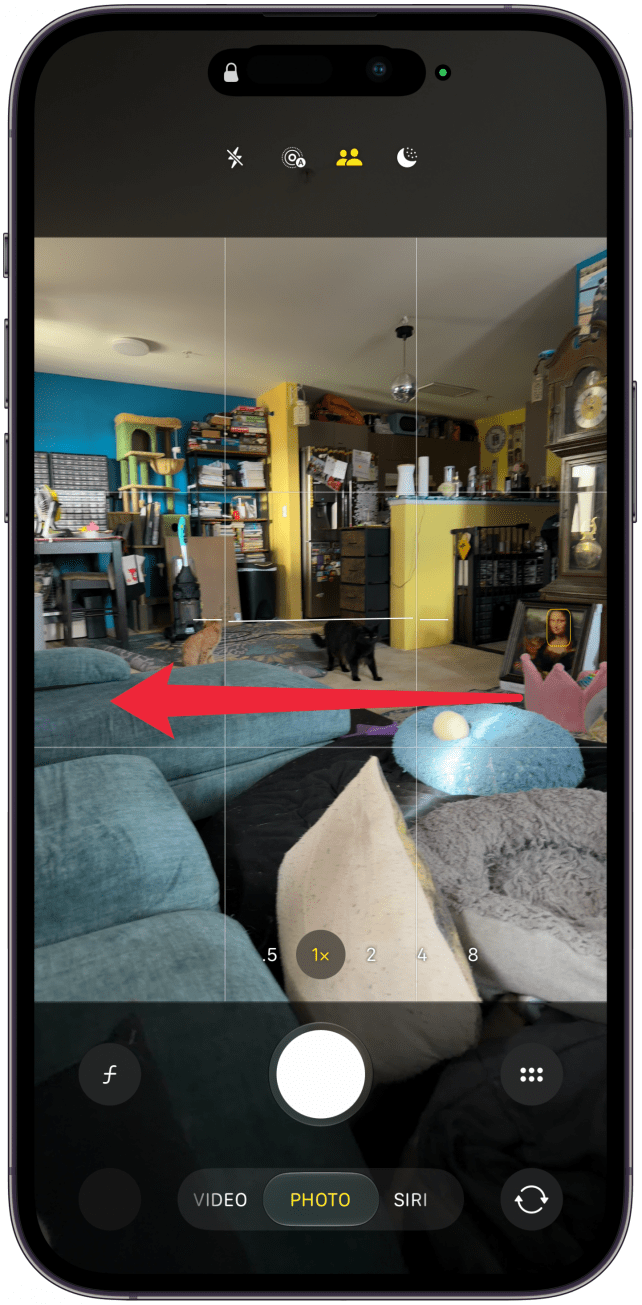
- If you hold your camera in front of certain objects or subjects, you'll see a pop-up with information about them. I have only had it recognize animals and the occasional plant. You can tap on the pop-up to learn more about it.
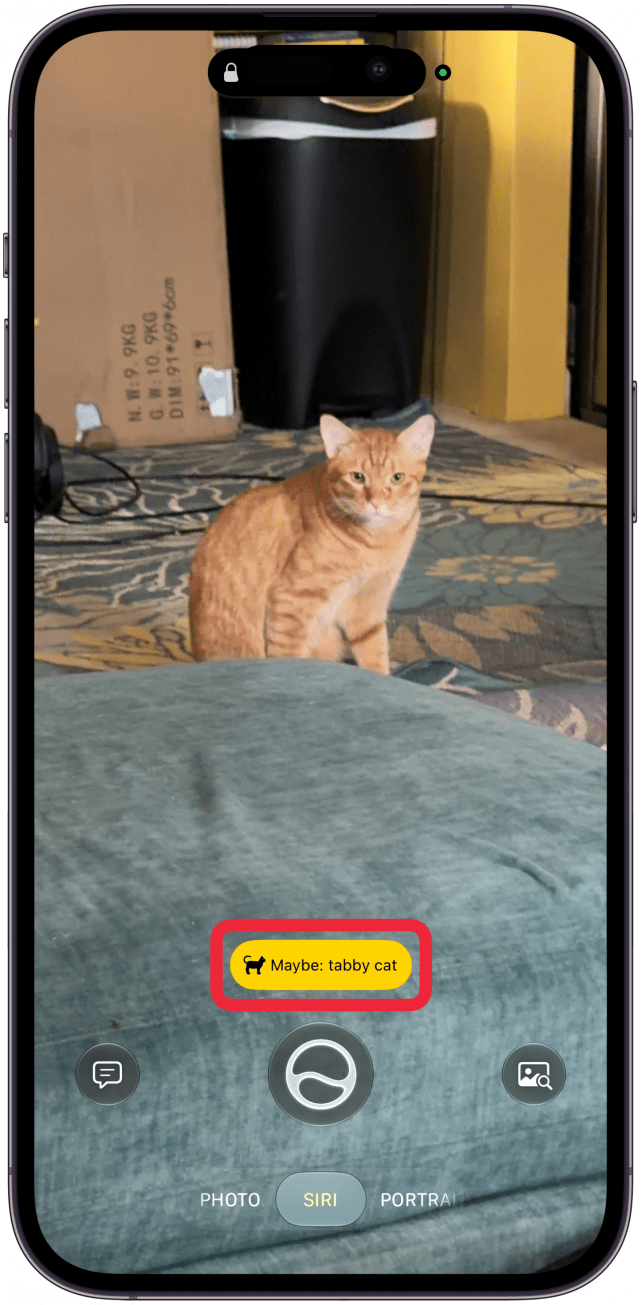
- The better way to use Siri mode is to tap the Siri button, which is in the same place that the shutter button would be in other Camera app modes.
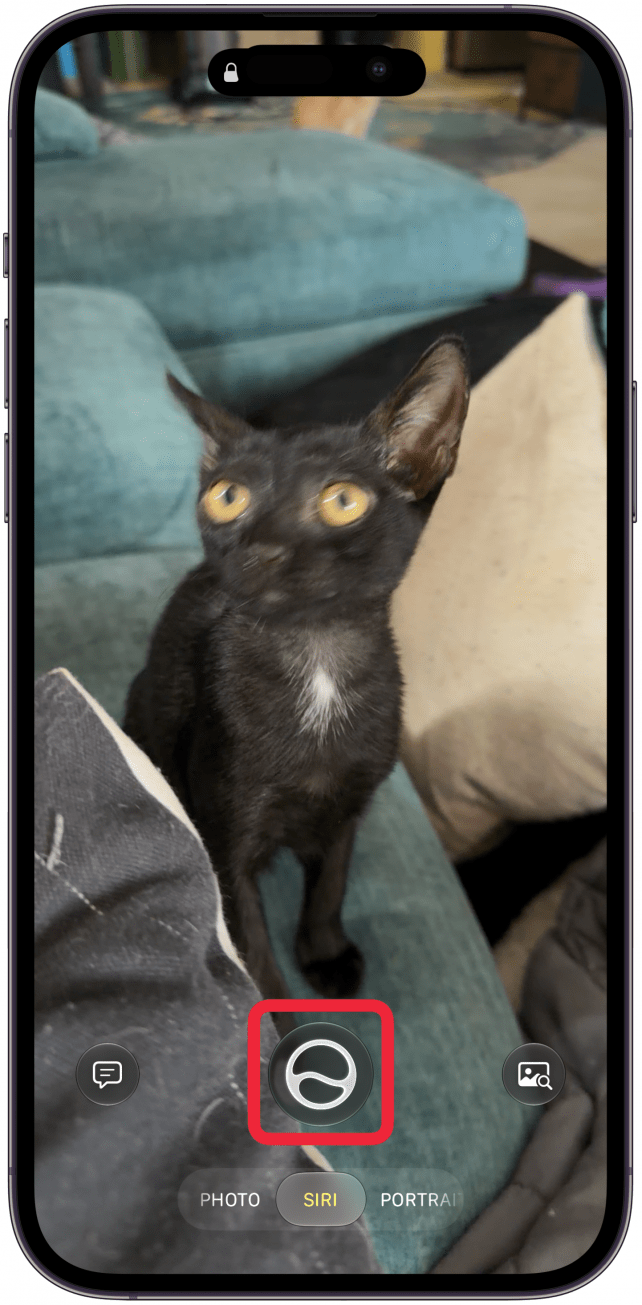
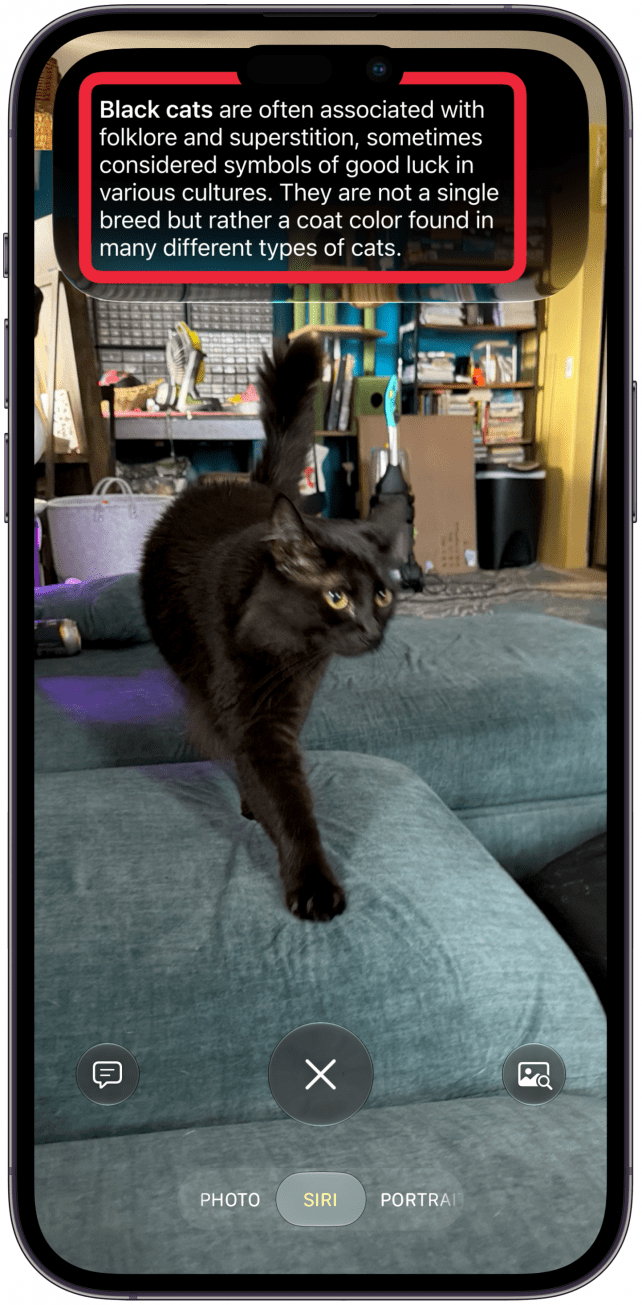
- Once you take the photo, Siri will offer some information about the image.
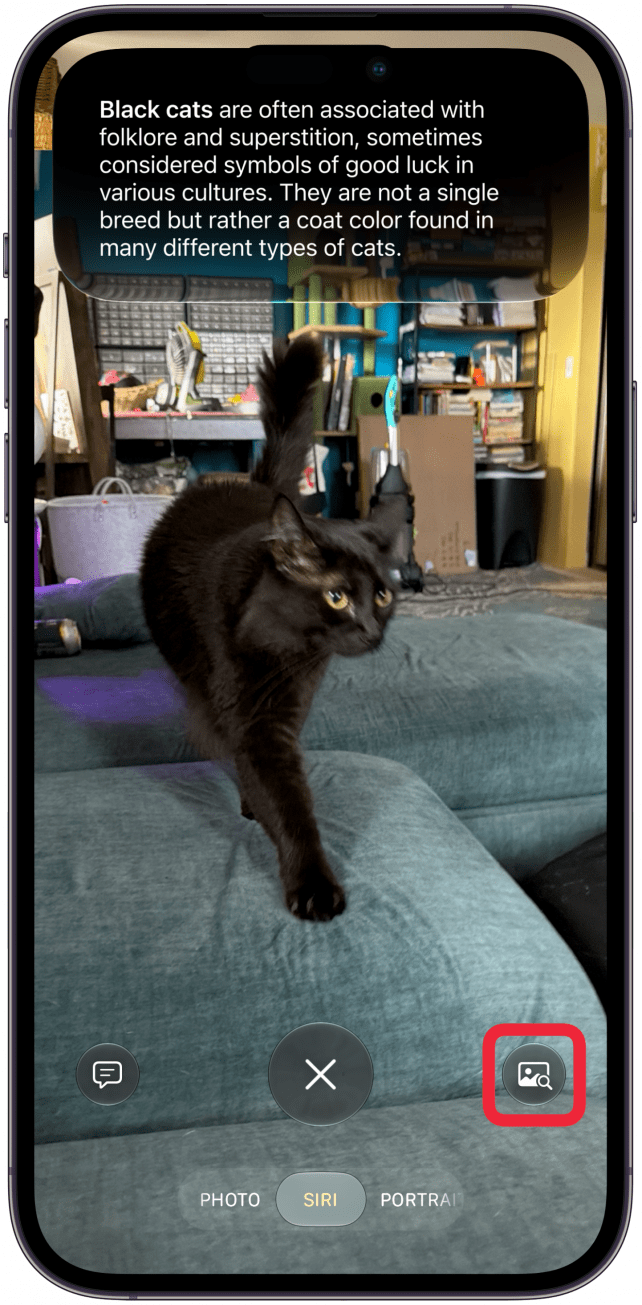
- You can then use the image with a magnifying glass icon to see similar images.
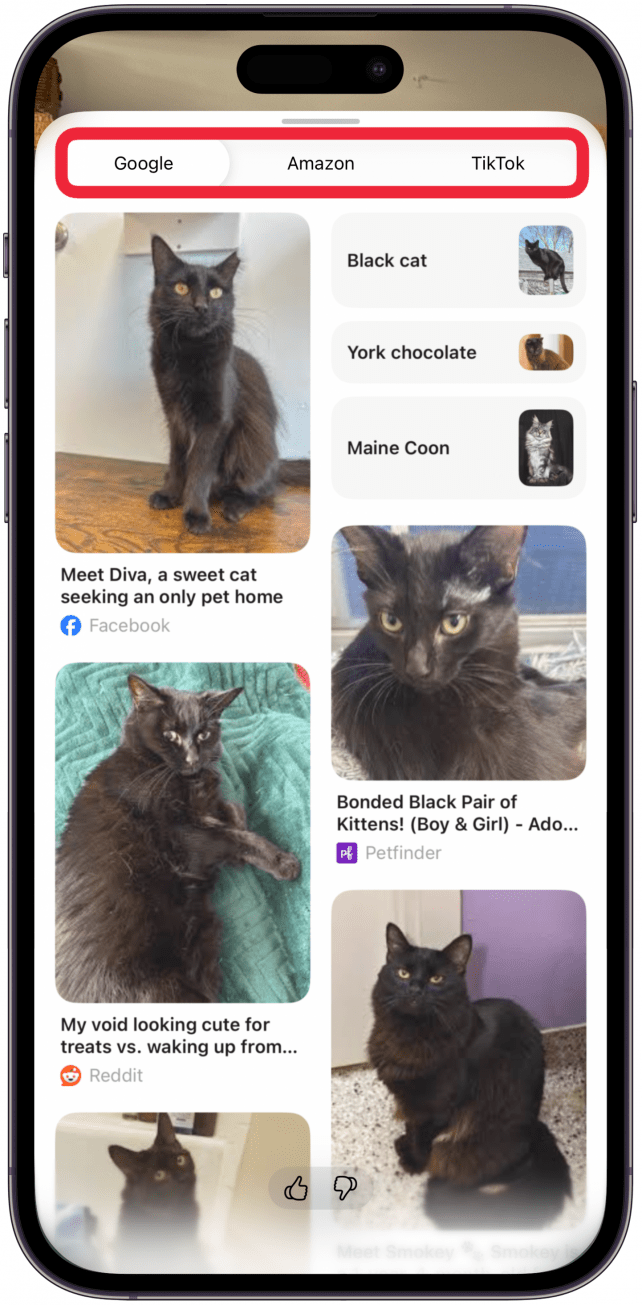
- By default, you'll see a set of similar images from a Google search. Sometimes, you can search for it on Google, Amazon, or TikTok.
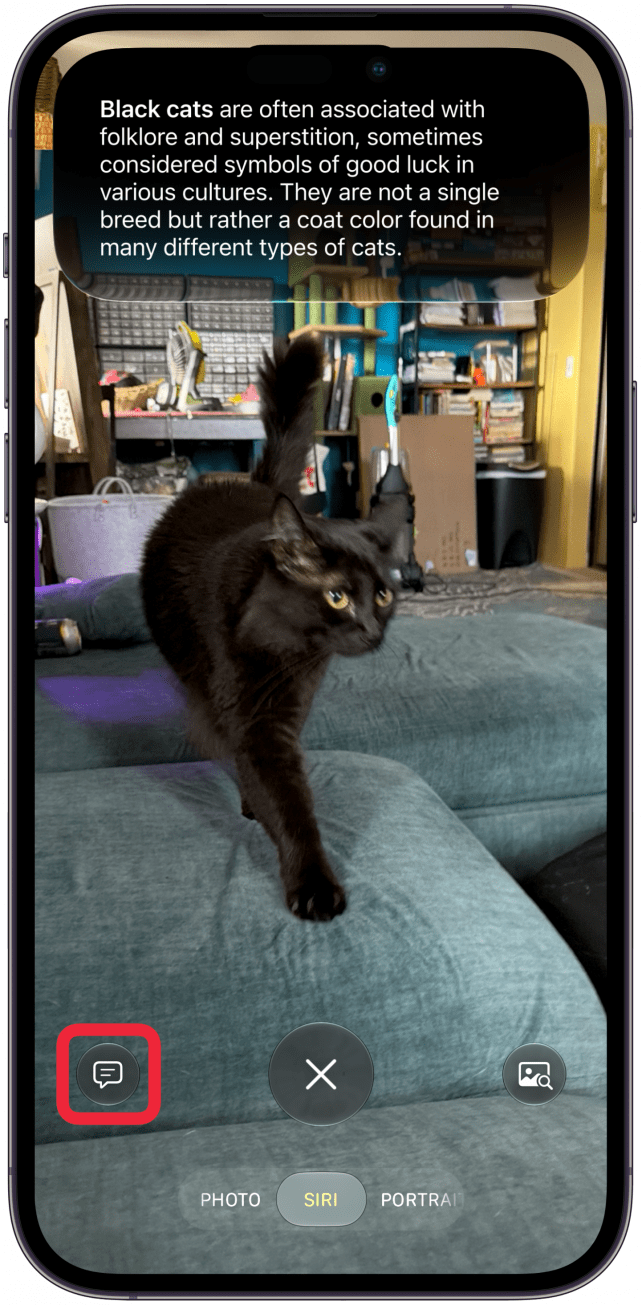
- To start a conversation with Siri about the image, tap the text icon in the bottom left corner.
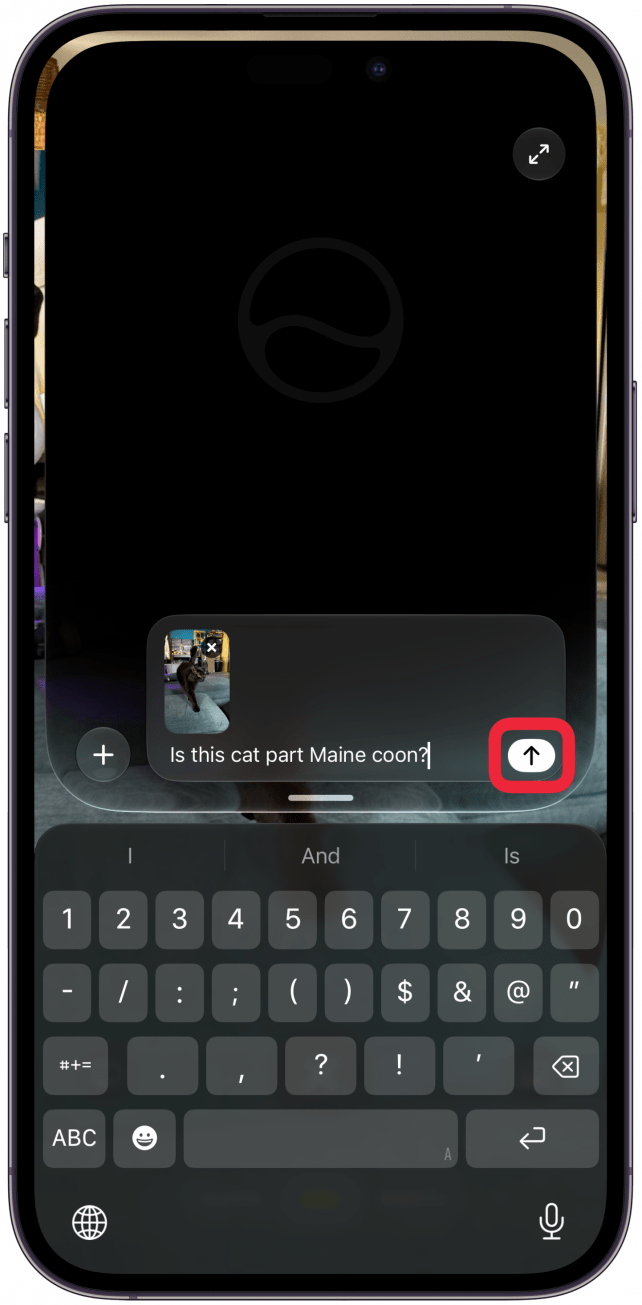
- Here you can type a question or write a prompt. If you prefer to speak to Siri, just tap the microphone icon and use your voice instead. Tap the arrow up icon to submit the prompt.
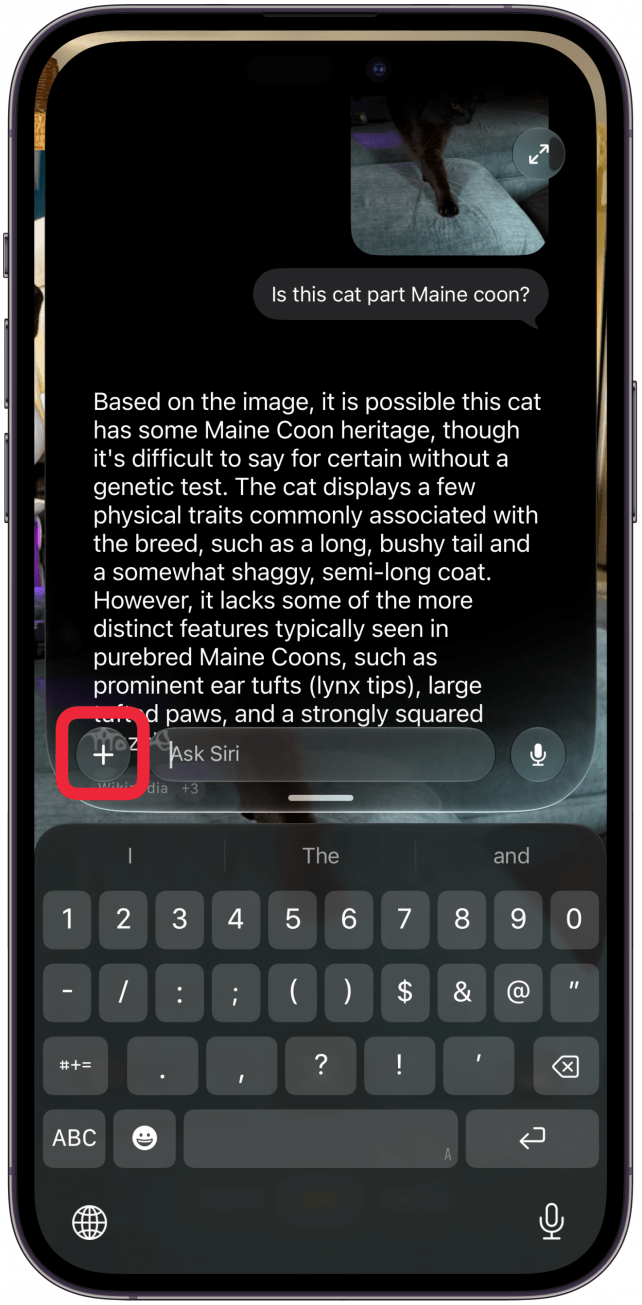
- You can keep asking followup questions or you can tap the plus icon to take a new image from the Camera app or access something from the Photos or Files apps.
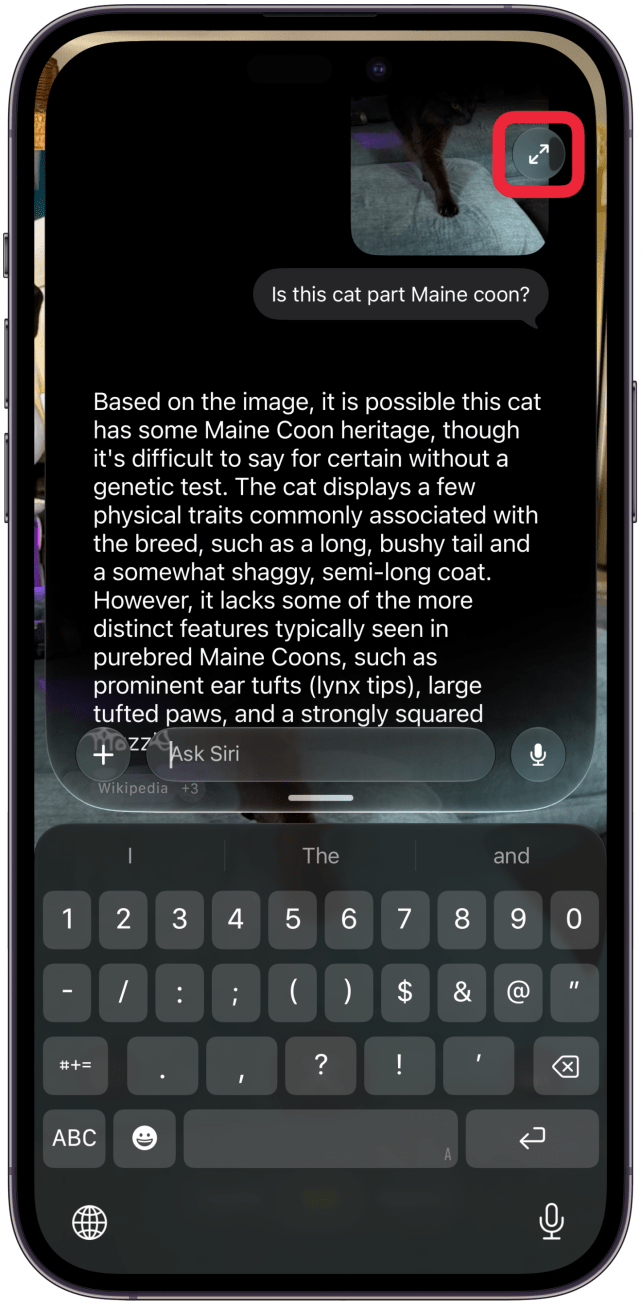
- If you tap the icon with two arrows in the top right corner or swipe up from the bottom of the chat, you will return to the image you took in the Siri app.
- Here you can tap on the X to take a new image or to navigate to a different camera mode.
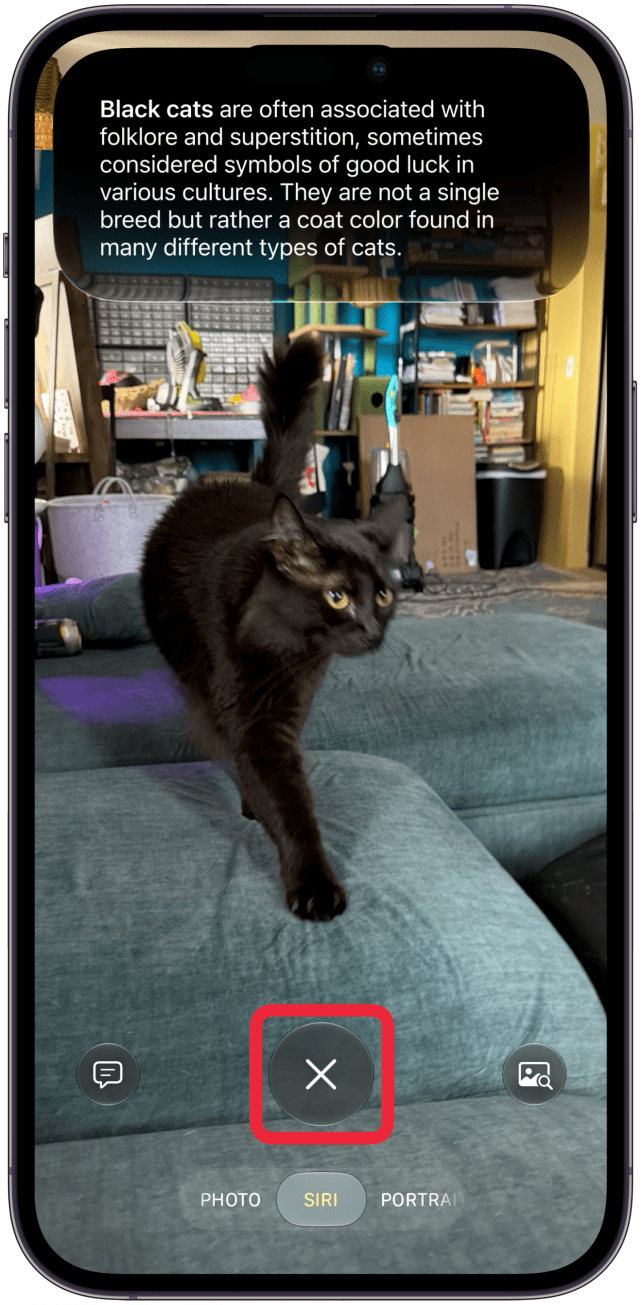
If you've taken an image via Siri mode, you'll be able to see it again within the Siri AI app where you can continue the conversation or see what information you looked up if you need a reminder.
Now you know how to use Siri mode in the Camera app! Next, learn how to start typing to Siri directly from your Home Screen.
Learn More: AI Tips
Top image credit: B art / Shutterstock.com

Every day, we send useful tips with screenshots and step-by-step instructions to over 600,000 subscribers for free. You'll be surprised what your Apple devices can really do.

Olena Kagui
Olena Kagui is a Feature Writer at iPhone Life. In the last 10 years, she has been published in dozens of publications internationally and won an excellence award. Since joining iPhone Life in 2020, she has written how-to articles as well as complex guides about Apple products, software, and apps. Olena grew up using Macs and exploring all the latest tech. Her Maui home is the epitome of an Apple ecosystem, full of compatible smart gear to boot. Olena’s favorite device is the Apple Watch Ultra because it can survive all her adventures and travels, and even her furbabies.

 Susan Misuraca
 Rhett Intriago

 Leanne Hays
 Rachel Needell
 Olena Kagui
 Amy Spitzfaden Both

 David Averbach


 Michael Schill