You can add a mailbox on your iPhone or iPad so that you can organize your emails based on sender, category, and more. It's quick and easy, and it can really upgrade how you use your email. Let's learn how to add a mailbox to your iPhone and iPad.
Why You'll Love This Tip
- Declutter your inbox and keep your emails organized when you set up a mailbox folder.
- Conveniently create email folders directly in the Mail app.
How to Add a Mailbox on iPhone & iPad
System Requirements
This tip was performed on an iPhone 15 Pro running iOS 26.4.2. Find out how to update to the latest version of iOS.
How do you add a mailbox to your iPhone? If you use the Mail app, you can add a mailbox on your iPhone to help keep your inbox nice and organized. Check out our Tip of the Day newsletter to learn more email tips and tricks. Now, here's how to create folders for emails on iPhone and iPad:
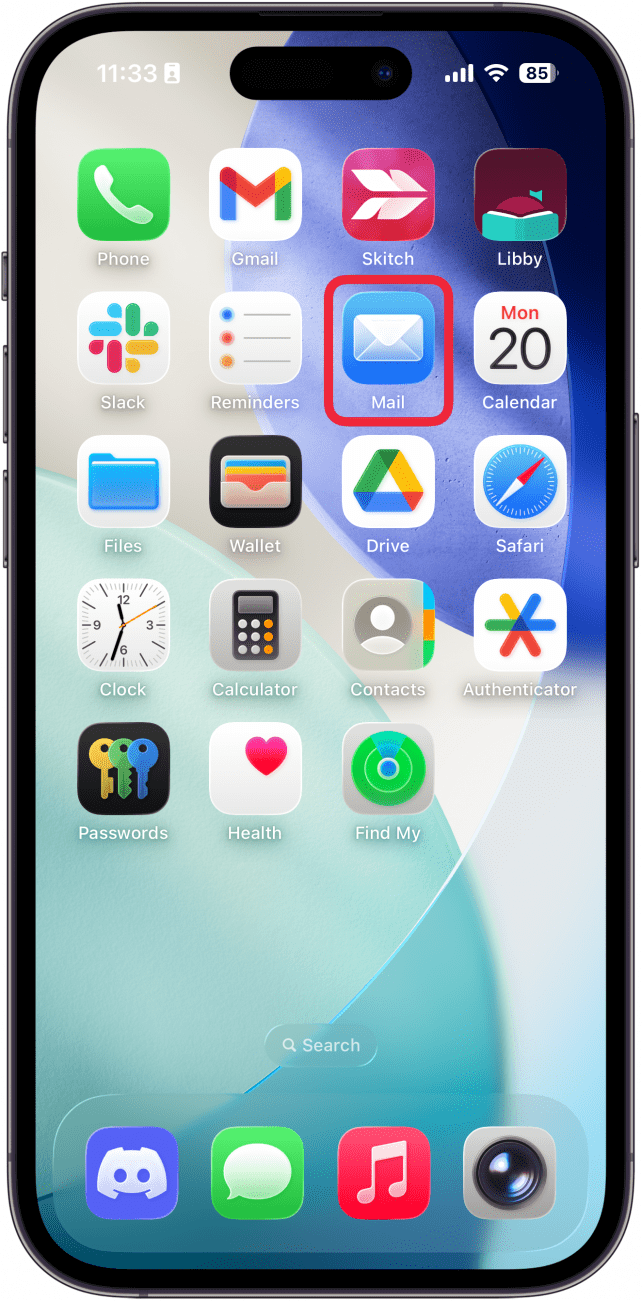
- Open the Mail app.
![a screenshot of the iphone home screen with a red box around the mail app]()
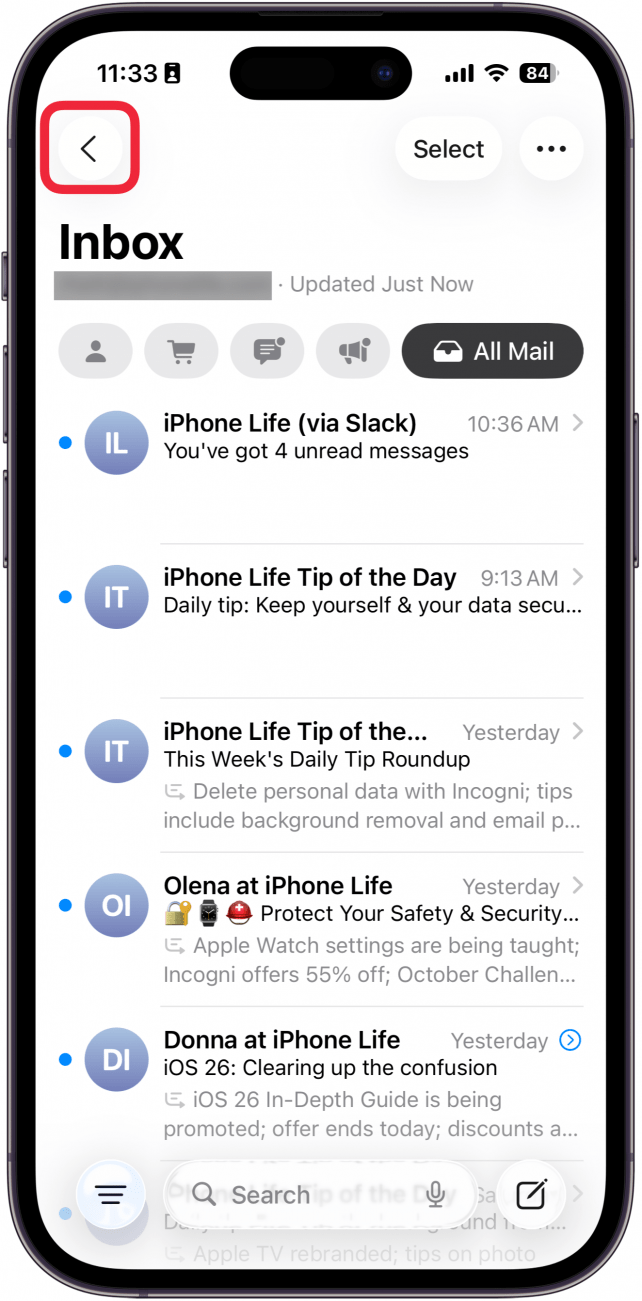
- If your Mail app opens to your inbox, tap the Back button. If you already see a list of your mailboxes, skip to step 3.
![a screenshot of the mail app on iPhone with a red box around the back button]()
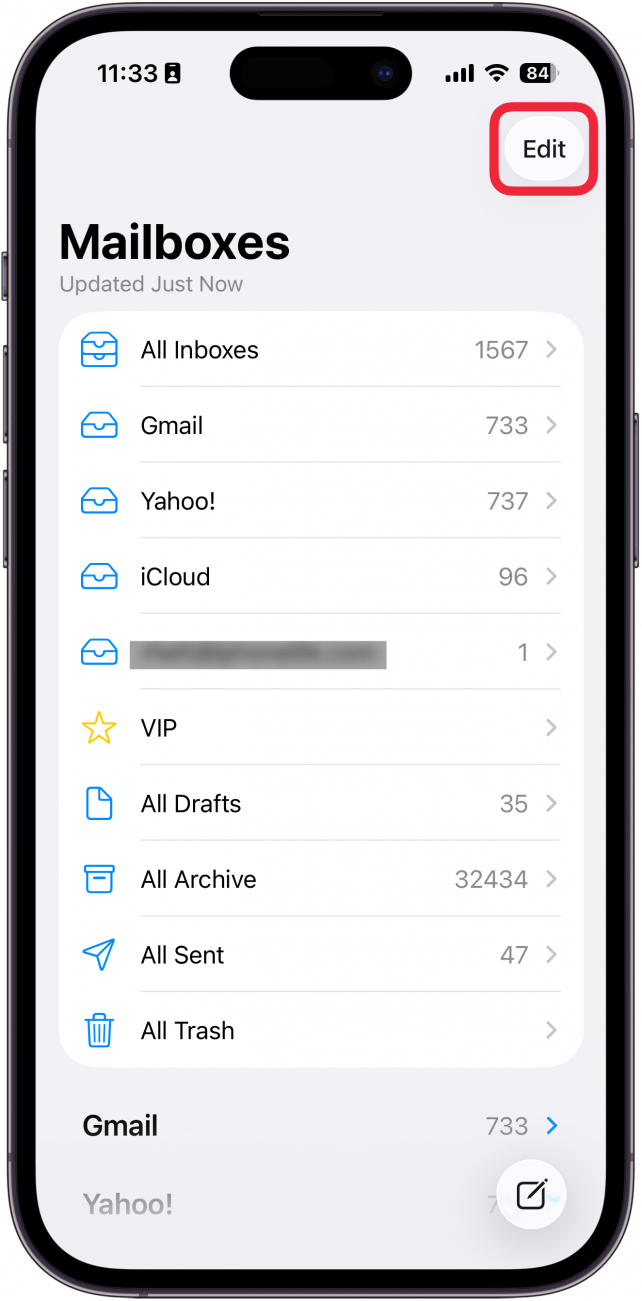
- Tap Edit.
![a screenshot of the mail app on iphone with a red box around the edit button]()
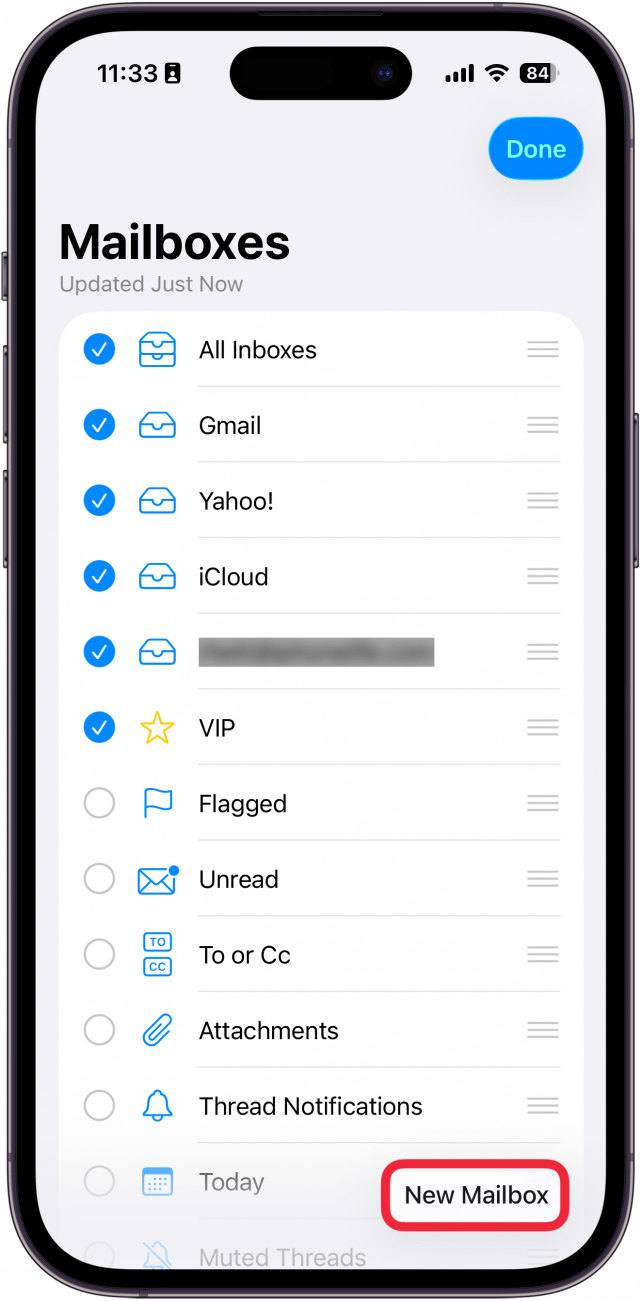
- Select New Mailbox.
![a screenshot of the mail app on iphone with a red box around the new mailbox button]()
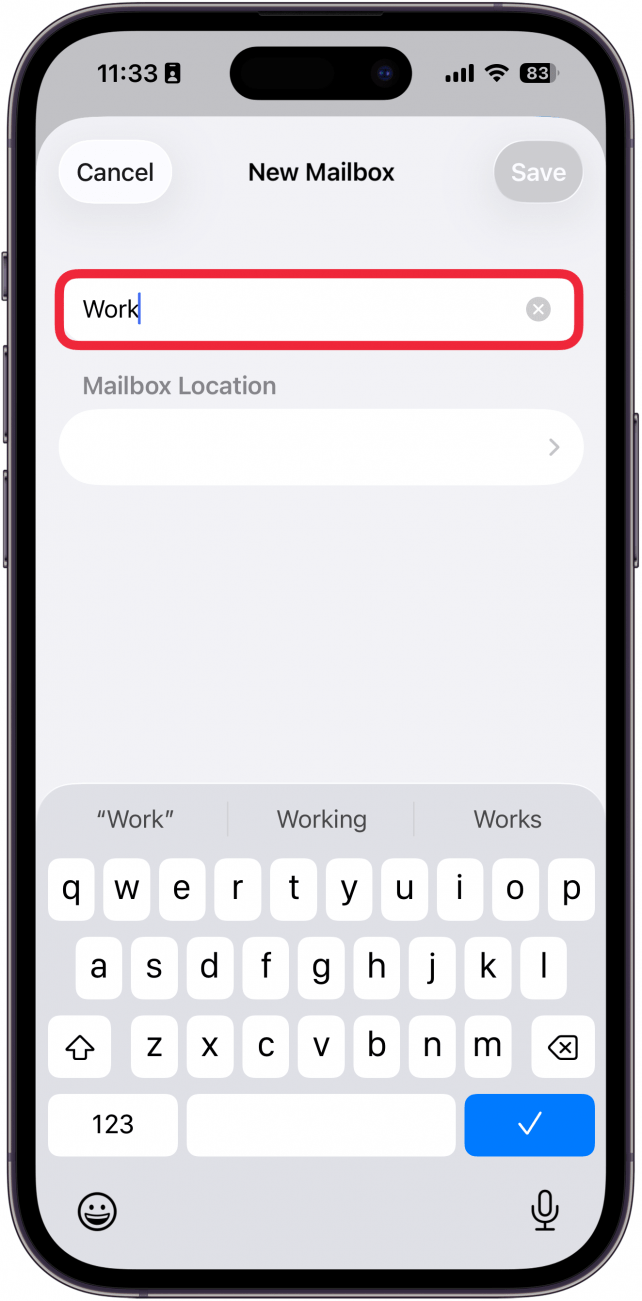
- Enter a name for your new email folder.
![a screenshot of the mail app on iphone displaying the new mailbox screen with a red box around the mailbox name button]()
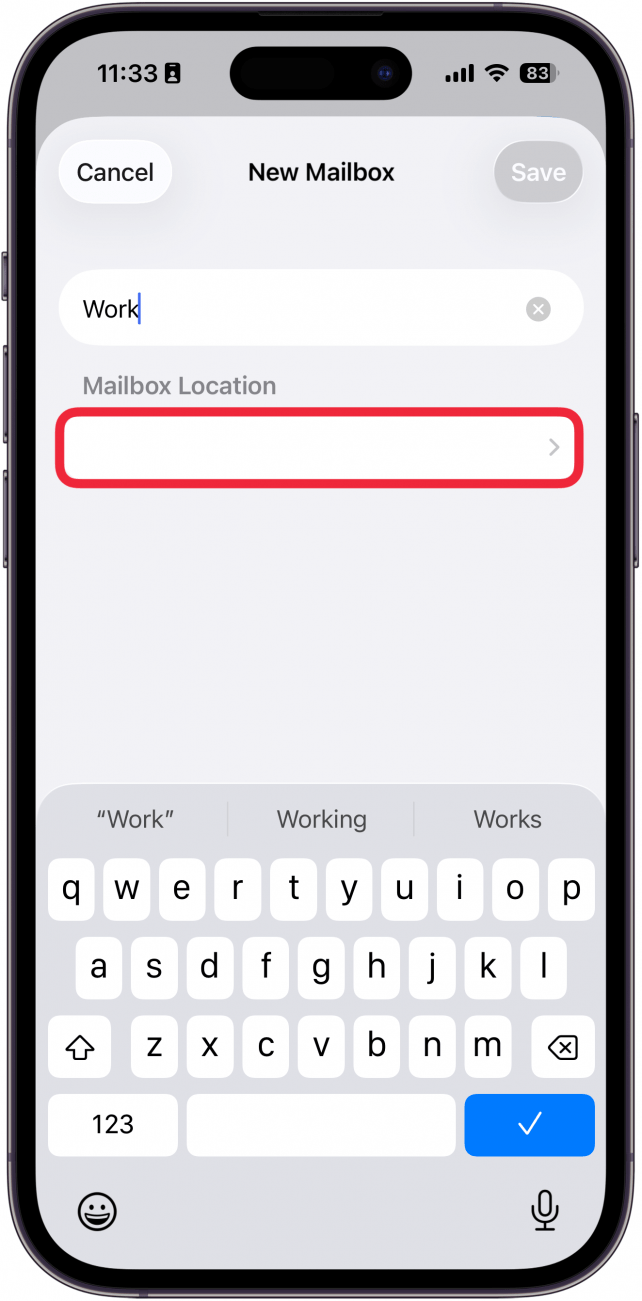
- Tap the blank cell under Mailbox Location.
![a screenshot of the mail app on iphone displaying the new mailbox screen with a red box around the location button]()
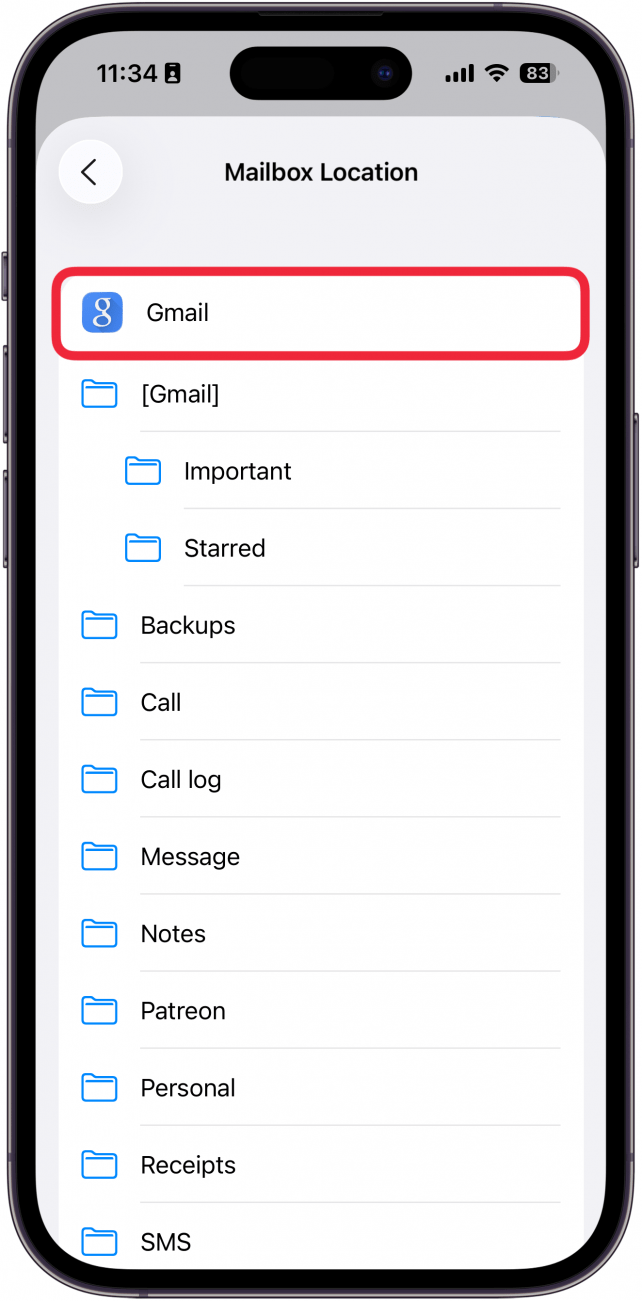
- From here, select the mailbox or folder where your new folder is to be stored.
![a screenshot of the mail app on iphone displaying a list of mailbox locations with a red box around gmail]()
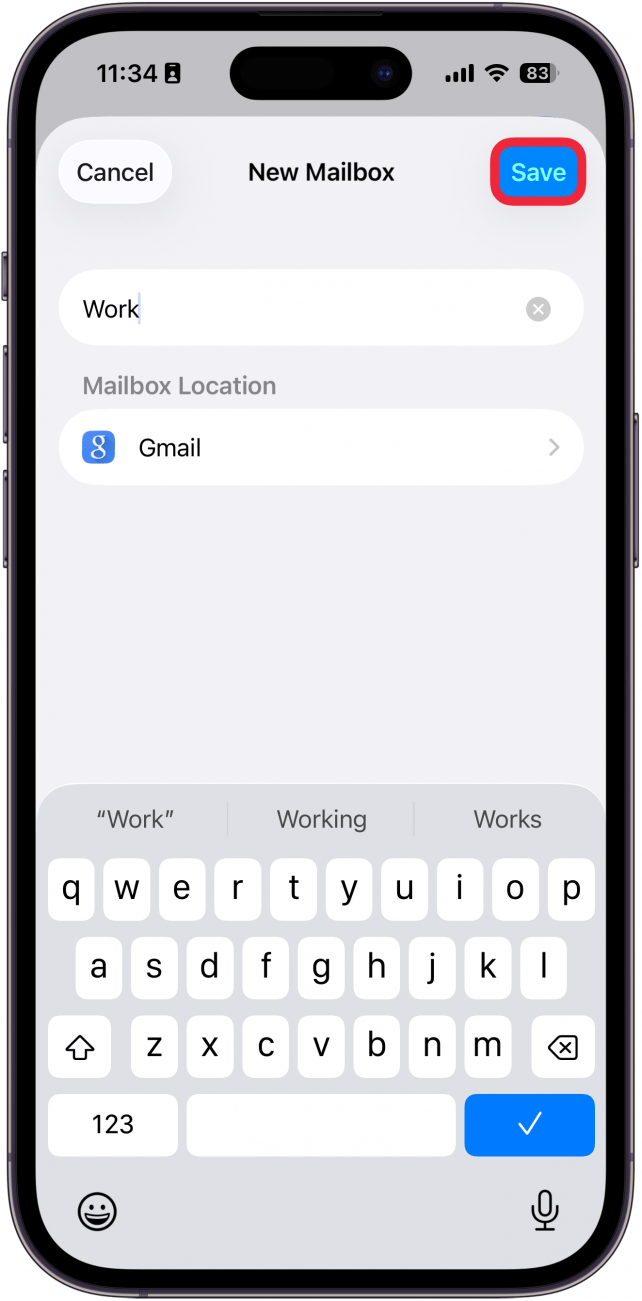
- Tap Save.
![a screenshot of the mail app on iphone displaying the new mailbox screen with a red box around the save button]()
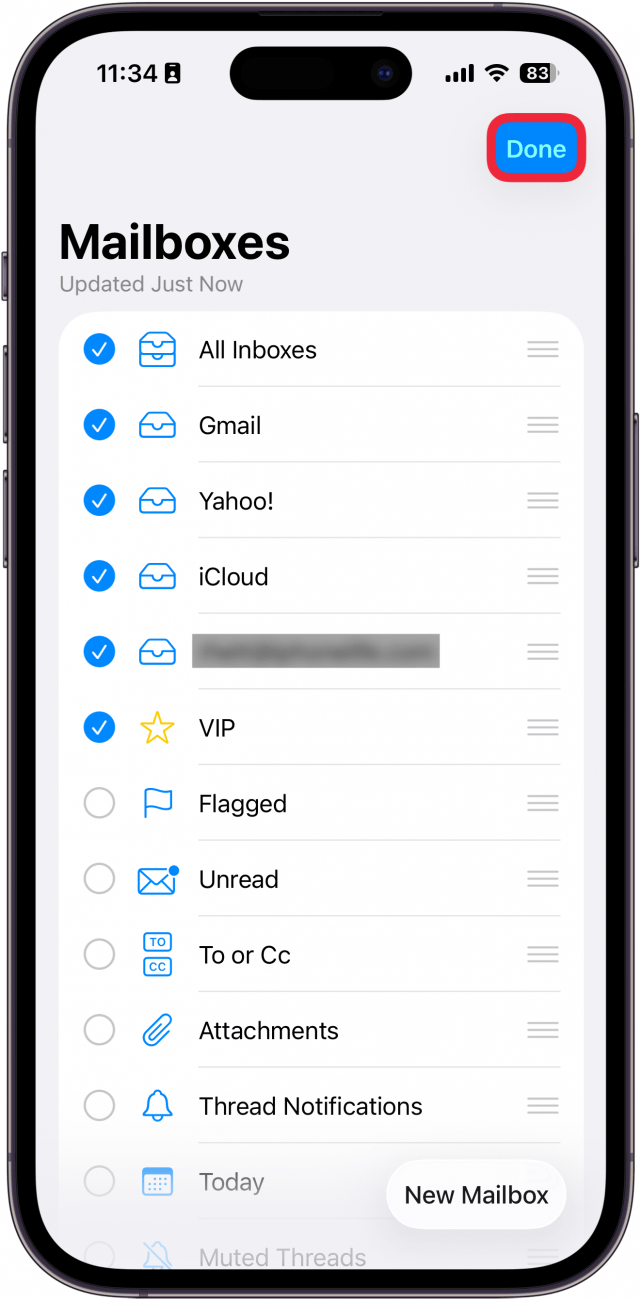
- Tap Done.
![a screenshot of the edit screen in the mail app on iphone with a red box around the done button]()
That's how to add a new mailbox on your iPhone or iPad. To move an email from your inbox into your new folder, all you have to do is swipe from right to left over the message, tap More, tap Move Message, then select your new folder!