Apple Pay makes it easy for iPhone users to send money and receive it. But, how do you cancel a cash app payment you've made with Apple Pay? Let's cover how to cancel an Apple Pay payment you made by mistake, or so that you don't have pending payments hanging out in your transaction history.
Why You'll Love This Tip:
- Learn how to cancel an Apple Pay payment you accidentally sent to the wrong recipient or for the wrong amount.
- Cancel Apple Cash payments that have been hanging around for too long, and use an alternative method to pay the recipient.
- Learn how to cancel an Apple Pay payment through text, and how to cancel an Apple Pay payment through Settings, if you can't find the text where you sent the payment.
How to Cancel Apple Pay Payment on iPhone & iPad
System Requirements
This tip works on iPhones running iOS 16 and later, and iPads running iPadOS 16 or later. The tip was tested on an iPhone 17 Pro running iOS 26.4.
Note: If the recipient has already accepted the payment, you will not be able to cancel it. This includes if the recipient has auto-accept payments turned on, in which case the payment will go through immediately. If you need to dispute the Apple Pay charge, you will need to contact Apple.
Apple Pay is arguably the easiest and most secure method to send money on iPhone. However, sometimes human errors happen, and you need to cancel an Apple Pay payment. We'll show you how, but keep in mind that you can only cancel an Apple Pay payment if the recipient has not yet accepted it. If they've accepted the money, you'll need to work with them to fix the situation. Here's how to cancel an Apple Pay payment:

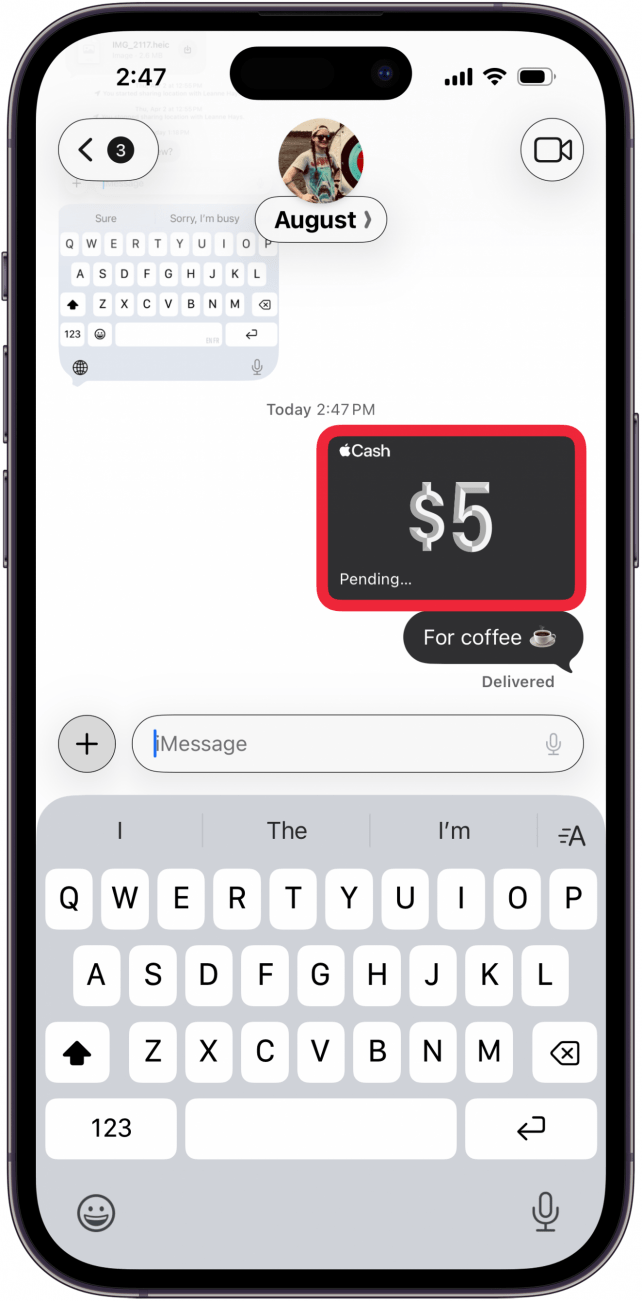
- Open the thread in the Messages app and tap on the Apple Pay payment.

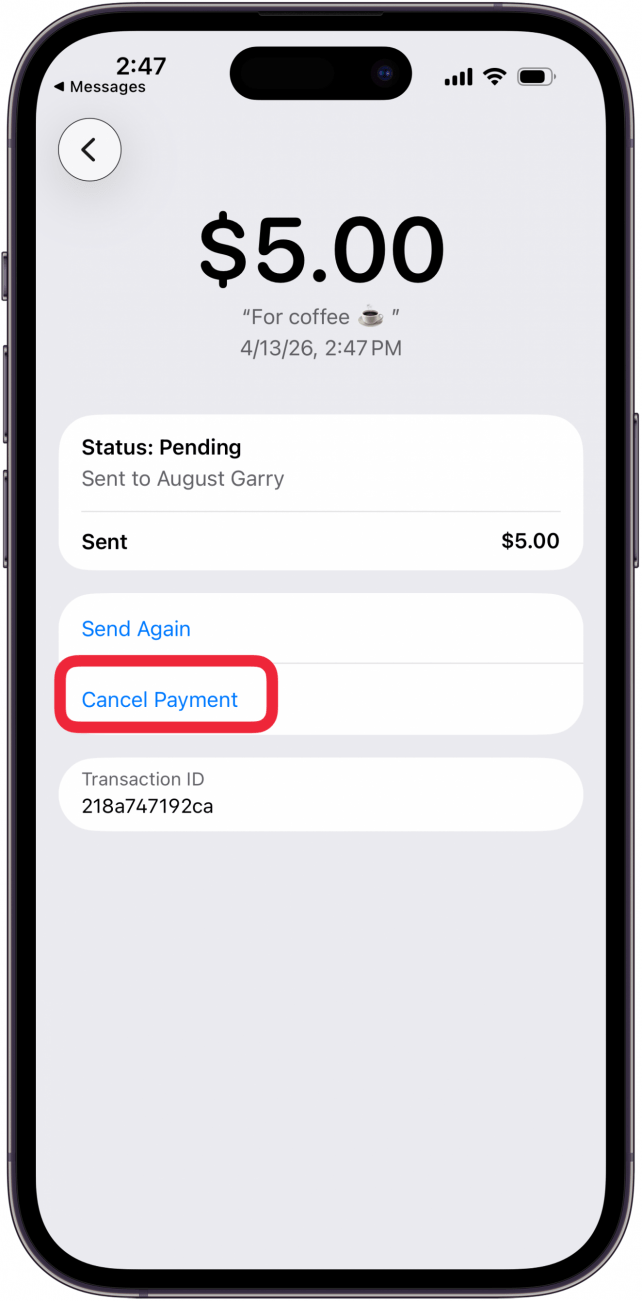
- Tap Cancel Payment.

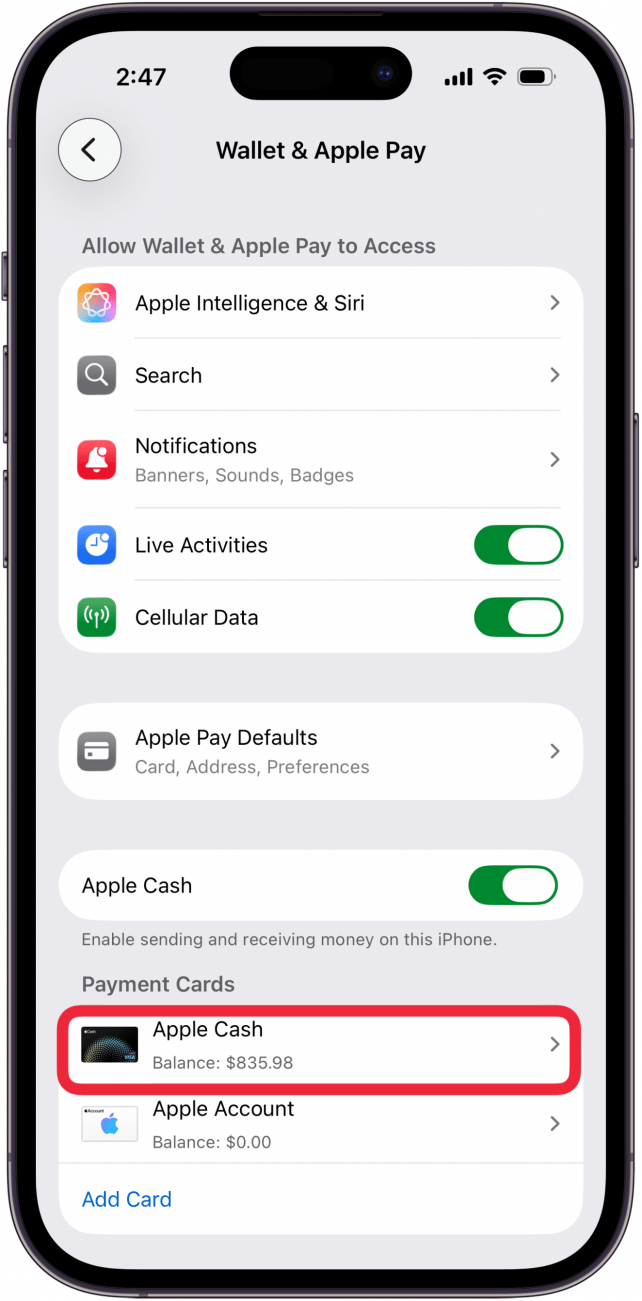
- If you've deleted the message or can't find it, open the Settings app, and tap Wallet & Apple Pay.

- Tap Apple Cash.

- Tap the Transactions tab if it isn't already selected.

- Tap the payment you want to cancel in the Latest Transactions list.

- Tap Cancel Payment.

- When you go back into the Messages thread, you'll notice that the payment now says Canceled.




Once you cancel an Apple Pay payment, your card will be refunded within one to three business days. Remember, Apple Pay works without internet, so you can't rely on a bad signal to stop a payment. For more great Apple device tutorials, check out our free Tip of the Day!
More On: Apple Pay & Apple Cash
Top image credit: W. Phokin / Shutterstock.com