How to Watermark Photos on iPhone
By Amy Spitzfaden Both
By Devala Rees
Dropping a pin is an easy way to temporarily mark a spot on the map so that you can easily find or retrace your steps to a marked location. This is especially useful when giving people directions to a large area without an address (such as a city park). Let's cover how to pin your location on the iPhone Maps app.
By Conner Carey
Safari Reader mode removes the clutter of a web page so you can easily read content without interruptions from ads. With Safari settings for Reader mode, you can customize your font, text size, and background color for a fun and easy-to-read browsing experience. Let's learn how!
By Tamlin Day
Setting a website to always open in Desktop or Reader Mode makes it easier to browse on your iPhone. With Safari's custom controls, you can also allow trusted websites access to your microphone, camera, and location. Let's cover how to customize Safari settings for a specific website.
By Conner Carey
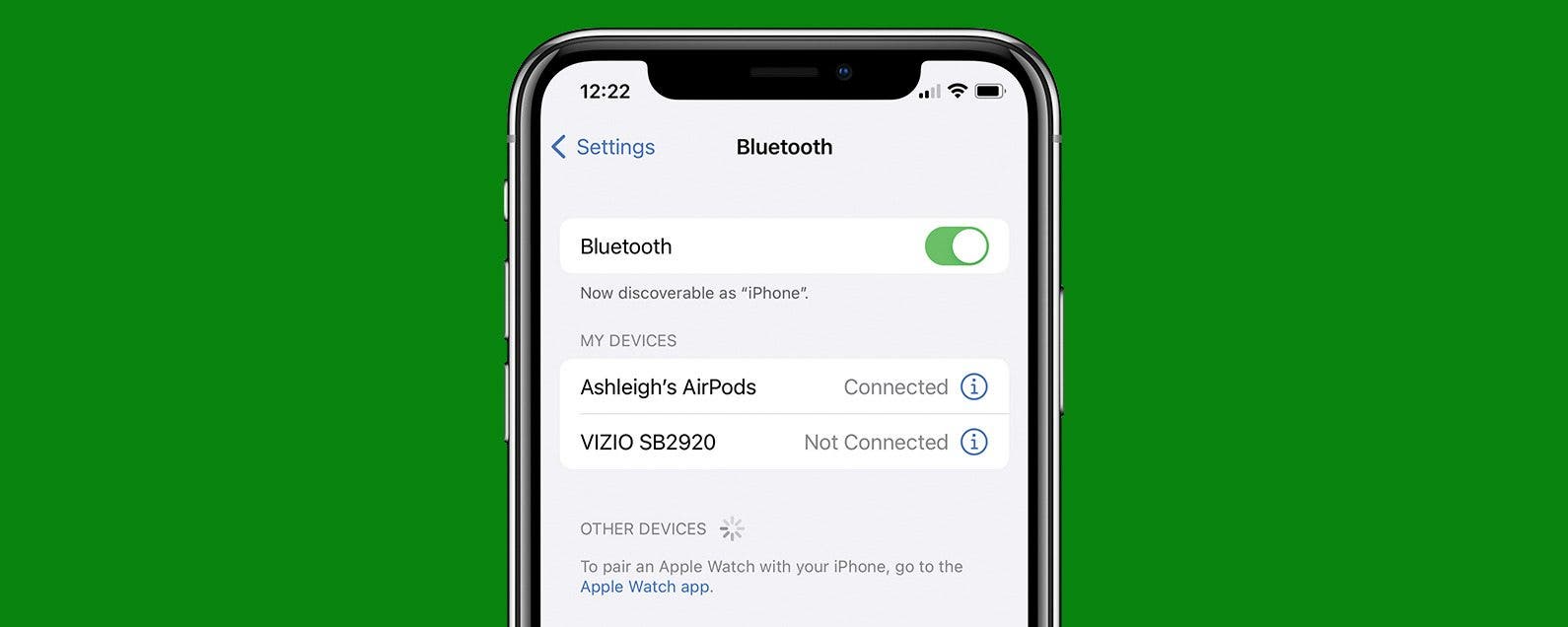
Do you own a Bluetooth speaker or a pair of headphones that you don't know how to disconnect from your iPhone? While you can disconnect your AirPods by simply putting them in the case, we'll also show you how to temporarily disconnect your Bluetooth devices in the Settings app.
By Ashleigh Page
Whether you're a long-time subscriber or a newbie in the midst of the Spotify Premium free trial, your paid subscription can be canceled at any time. Below, we'll cover how to cancel your Spotify account so that you'll revert from Premium back to the free version.
By August Garry
Did you know you can quickly switch between apps without ever opening the App Switcher? In this tip, we'll show you how to use the Home bar on your iPhone to toggle between open apps.
By Devala Rees
Apple Music features on iPhone allow you to queue up songs so that when the current song finishes, the app automatically moves on to the next song you selected. This lets you easily create custom playlists while you're listening. Let's cover how to queue songs on Apple Music.
By Ashleigh Page
Got an adorable, hilarious, or action-packed video that you're dying to add music to? While you can't add music to videos using your Photos app, the good news is that you can do this with the native Apple iMovie app. Below, we'll show you how to add music to a video for free using iMovie and with the third-party InShot video editing app.
By Conner Carey
Switching from Android to iPhone 13 or any other iOS phone may seem overwhelming, but these tips and the Move to iOS app make it a breeze! In this article, I will explain how to transfer data including photos, contacts, and apps from Android to iPhone. Plus, I'll give you tips on what to troubleshoot if Move to iOS is not working.
The iPhone Notes app offers checklists as an extremely easy way to keep your to-do lists and jotted-down ideas close at hand. If you use Notes checklists often, you may want to consider changing your settings so that Notes automatically sorts checked items to the bottom!
By Erin MacPherson
If you want to save an article or recipe on paper instead of on your iPhone, you'll probably want to print without ads. There's an easy way to do it, but you'll have to use a special setting to make it happen. We'll show you how to print webpages without ads the easy way!
By Olena Kagui
Markup is a nifty iPhone feature that allows users to doodle, magnify, and add text to images and PDFs in the Photos, Mail, Notes, Files, and Messages apps. Whether you need to add a signature, insert text, or draw shapes onto existing documents or photos, Markup has you covered. With Markup, you can save time when signing digital documents and add your personal flair to your images. Here how to use the markup tools on your iPhone.
By Sarah Kingsbury
When you turn on Reader View in Safari on an iPhone or iPad, you can enjoy articles without the clutter of ads and menus. Better yet, you can also share and even print this ad-free Reader mode version! Here’s how to use this convenient Safari setting to share web articles without ads.
By Emma Chase
It’s possible to turn off in-app purchases, but what about when you need to turn in-app purchases back on to help you pass a particularly challenging level or get more coins to give you an advantage? We'll show you how to turn on in-app purchases for when you need them.
By Hallei Halter
If you've got an Amazon gift card, you need to redeem it for the balance to appear on your account. Once the Amazon claim code is redeemed, the money can be used for purchases. Here's how to add an Amazon gift card to your account using your iPhone, iPad, or computer.
By Paula Bostrom
Now that we’re regularly using our iPhones to take videos, you may want to trim out unwanted frames to reduce file size. There are also those moments when you record preemptively in order to catch your shot, but afterward, you want to edit out the excess footage. Read on to learn how to cut a video on your iPhone or iPad to shorten it.
By Hallei Halter
Occasionally, you will see upside-down pictures in your iPhone Photos app, whether you've just downloaded images from your email or took an awesome action shot at a weird angle. We'll briefly cover the reasons why this happens and then walk through how to fix upside-down photos on your iPhone.
By Amy Spitzfaden Both
If you're on a vacation or attending an exciting event, you might want to know how to multiple photos on your Instagram story. Instagram stories disappear after twenty-four hours, so they can be useful for "photo dumps", where you want to share moment-by-moment accounts of whatever you're doing, but don't want to commit it permanently to your page. There are three options for adding many photos to your Instagram story, so let's learn them all. Here's how to post multiple pictures to one Instagram story.
By Ashleigh Page
If you want to protect your paper vaccination card (which should not be laminated) and create an easily accessible copy as a backup, it's best to scan the COVID vaccine card to iPhone via the Notes app. Below, we'll cover how to scan a document with an iPhone.
NULL