Let AI Read the Terms & Conditions for You

In the last 10 years, Olena has been published in dozens of publications internationally and written hundreds of how-to articles and complex guides about Apple products, software, and apps.
Learn More In the last 10 years, Olena has been published in dozens of publications internationally and written hundreds of how-to articles and complex guides about Apple products, software, and apps.
Learn MoreAs Apple users, we have all experienced seeing a huge block of text, scrolling to the very bottom, and tapping the 'I agree to the Terms and Conditions' button without actually reading a word. One of my favorite ways to use AI assistants is to upload ridiculously long files to it to analyze so that I can ask specific questions without having to read an entire book. This is useful if you're dealing with insurance paperwork, HOA rules, return policies, medical studies, work or real estate contacts, etc.
Why You'll Love This Tip
- Save time and get your questions answered without reading long confusing text.
- Understand what you are agreeing to by having it summarized in clear natural language.
How to Ask AI Specific Questions About a PDF or File
System Requirements
This tip was performed on an iPhone 17 Pro running iOS 27. Find out how to install the latest OS.
We've all tapped that "I Agree to Terms and Conditions" box without knowing what we are agreeing to, and unfortunately, it isn't possible to use an Apple device without doing so. But if you're curious about what you're agreeing to, especially when it comes to a negotiable contract, AI can help you clear things up. For this example, I will download the 930-page-long iOS and iPadOS Software License Agreement from Apple's website as a PDF that I will have ChatGPT (free) examine.
Warning
If you have any concerns about signing or agreeing to something, it is best to speak to a certified lawyer. While an AI app can help you understand a document, it can make mistakes and is not reliable enough in certain situations.
- Open ChatGPT.

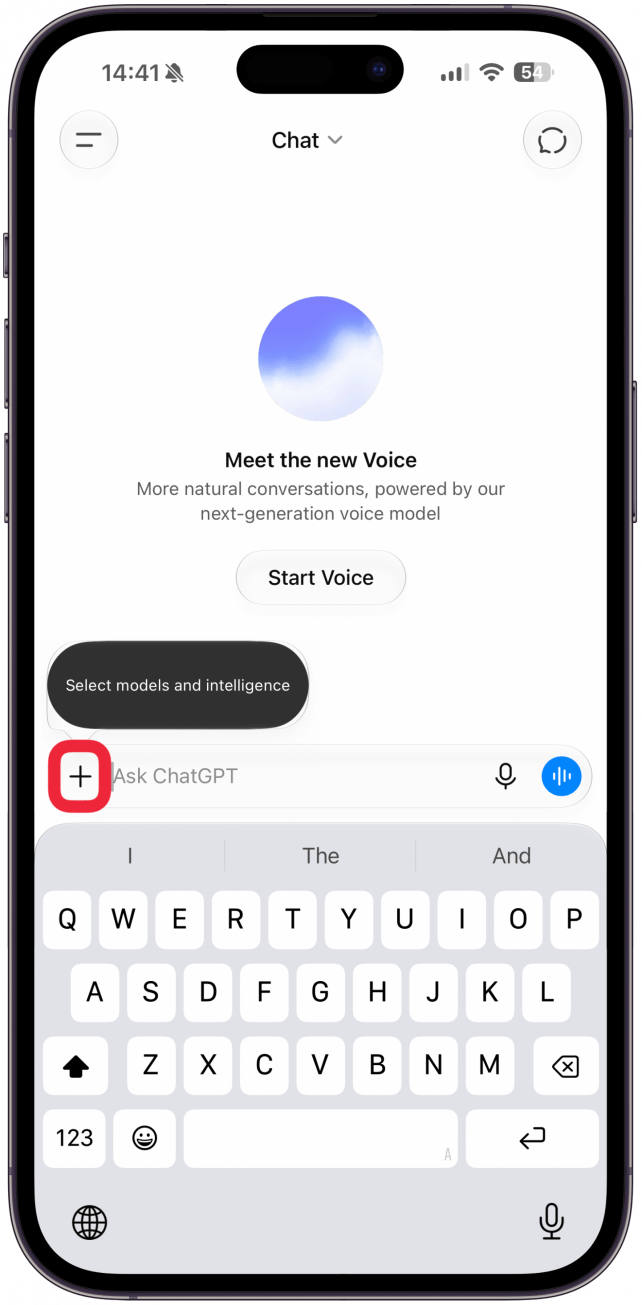
- Tap the plus icon.
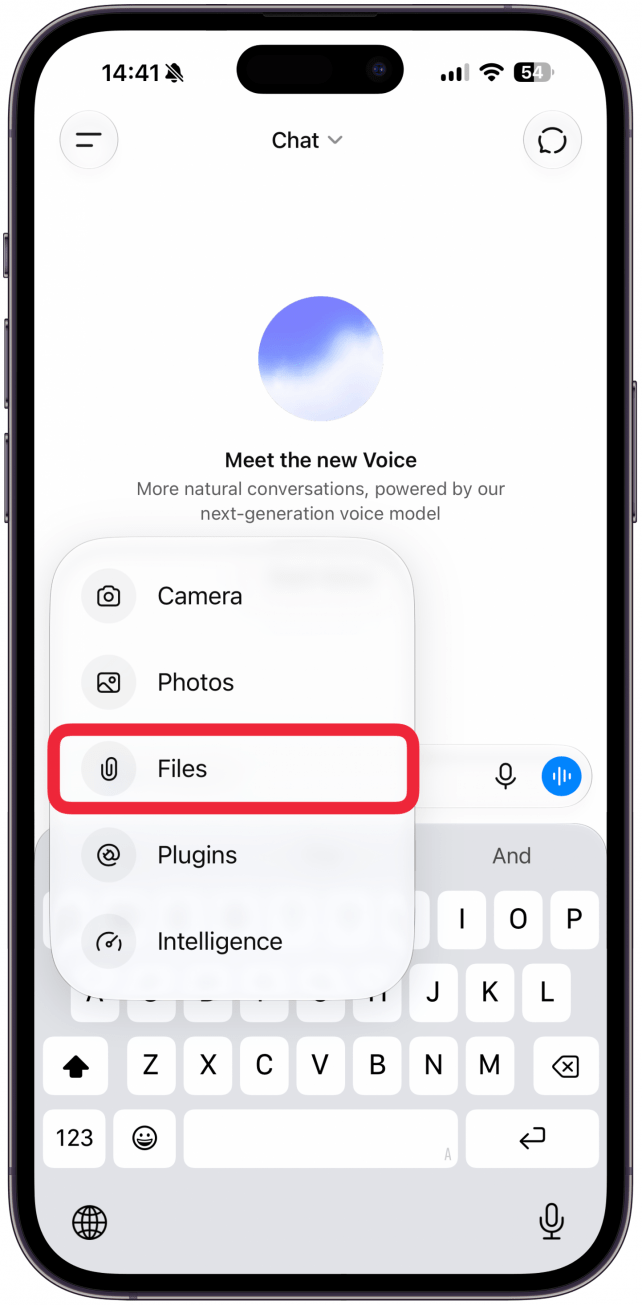
- Select Files.
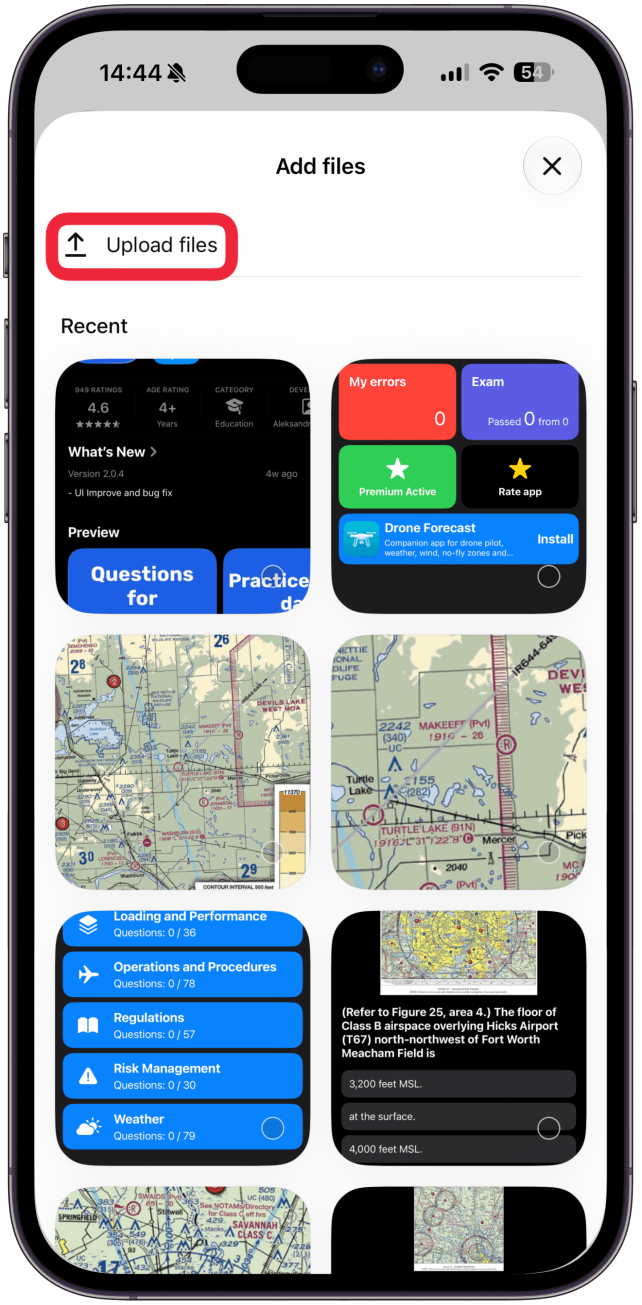
- You won't see PDFs under Recents, tap Upload files.
- This will take you to the Files app. You can scroll or search for the file you want. Since I just saved it, it was at the very top of the list. Tap on it so that it has a blue check mark on it.
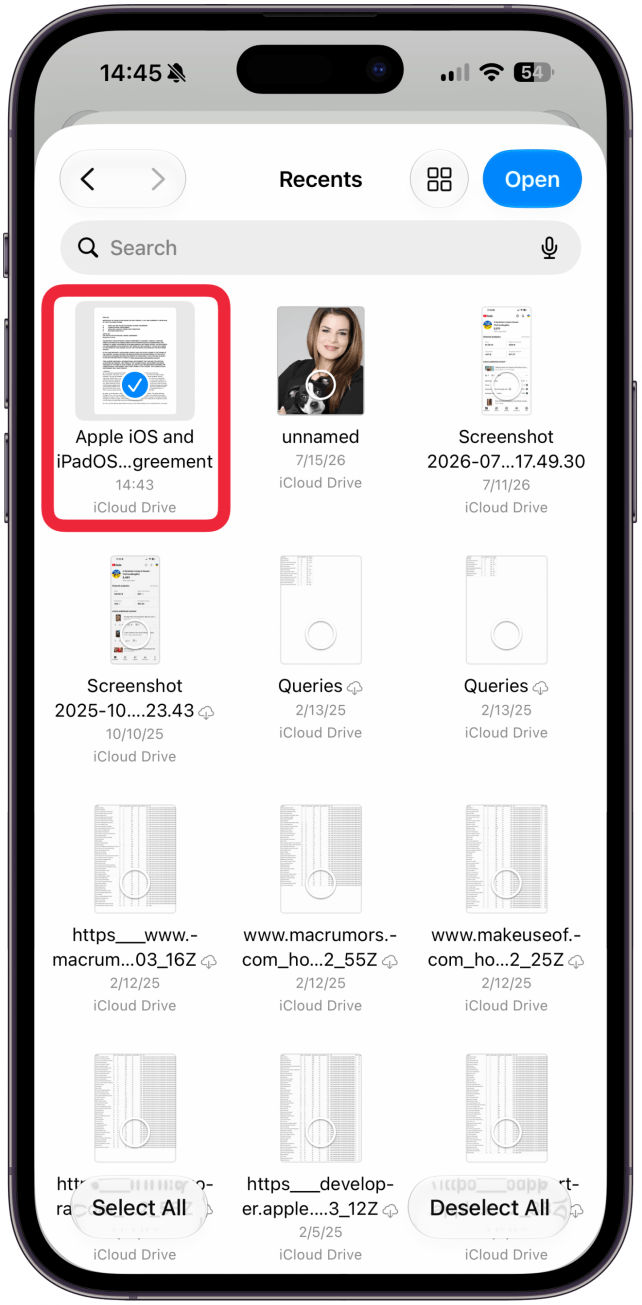
- Tap Open.
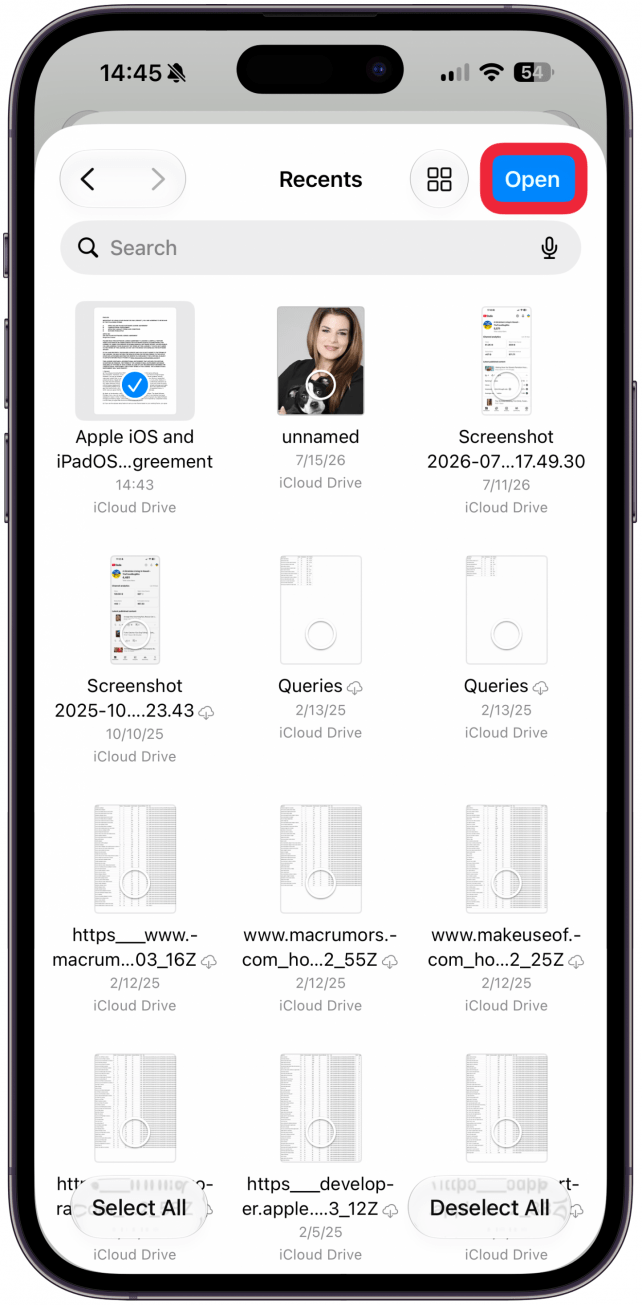
- You will see that the file has been uploaded.
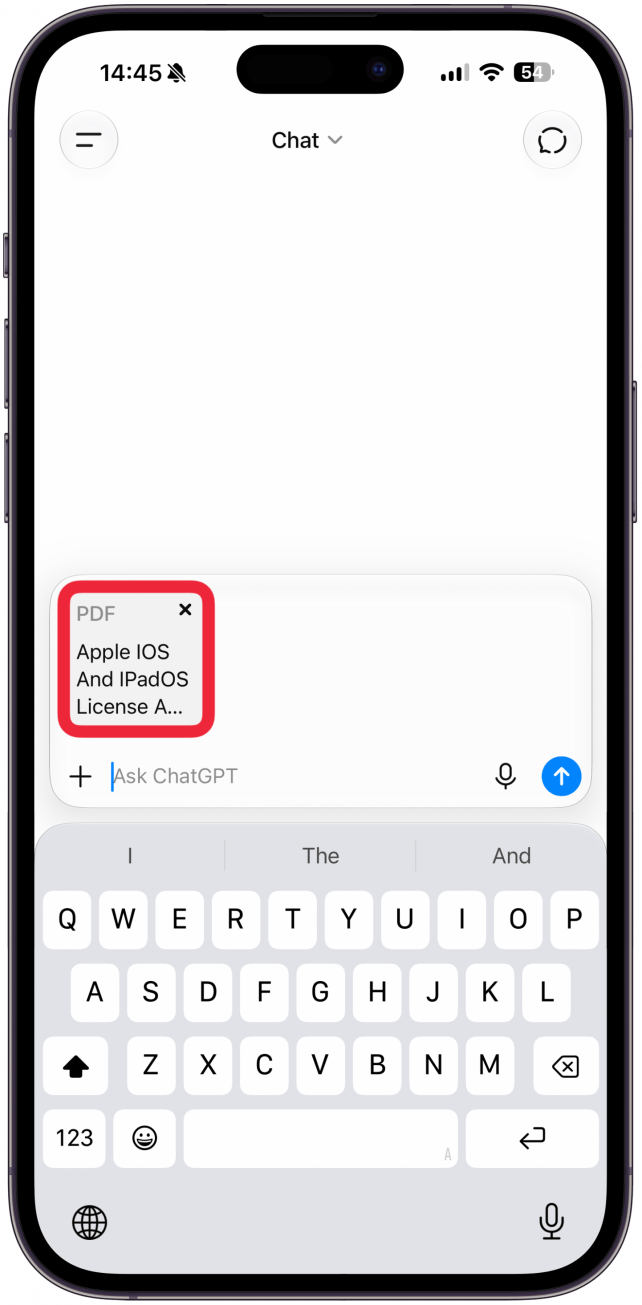
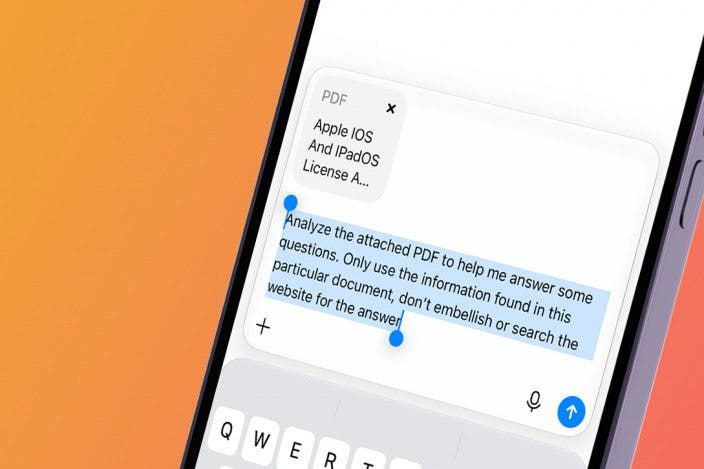
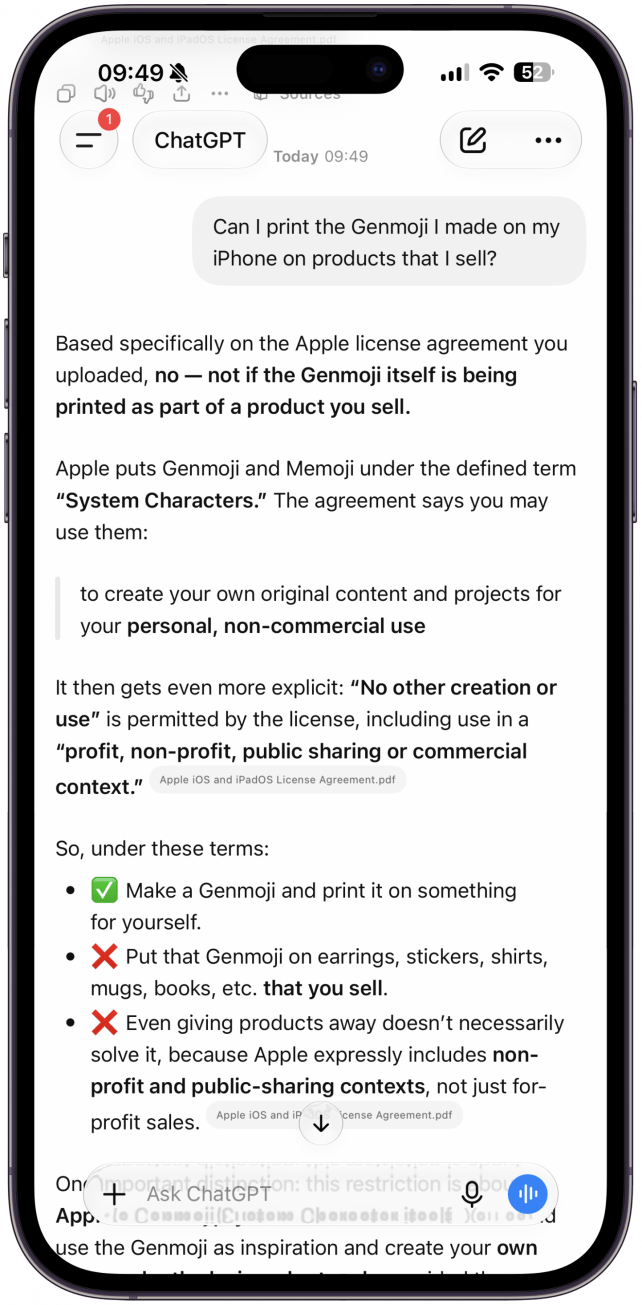
- Add a prompt along the lines of, "Analyze the attached PDF to help me answer some questions. Only use the information found in this particular document; don't embellish or search the web for the answer."
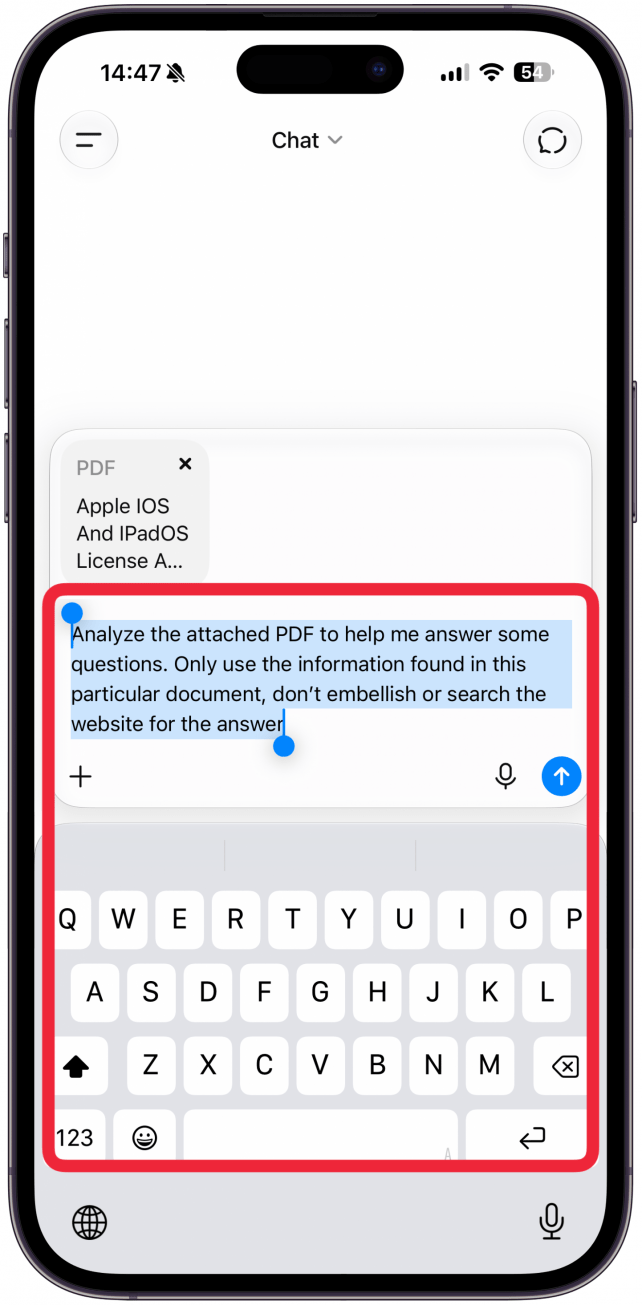
- You can tap the arrow up icon to submit this, or you can add a question now. I added this text: "My first question is, can Apple show my private data to anyone, including the FBI?" to my prompt, then tapped the arrow up icon.
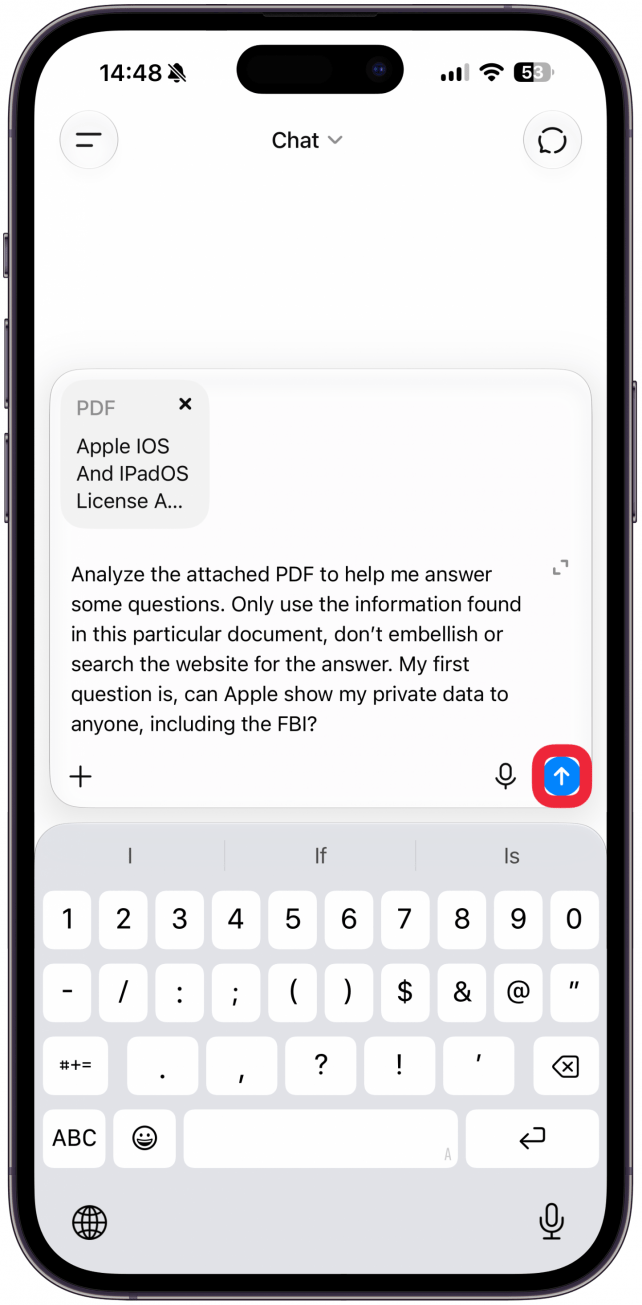
- The answer wasn't an explicit yes or no, but it did cite the document and provide relevant information. ChatGPT also let me know that I can ask more questions that will only pertain to this specific PDF. So you can ask more questions now or return to this conversation later to keep exploring the document. I'll ask one more question to demonstrate. "Can I print the Genmoji I made on my iPhone on products that I sell?"
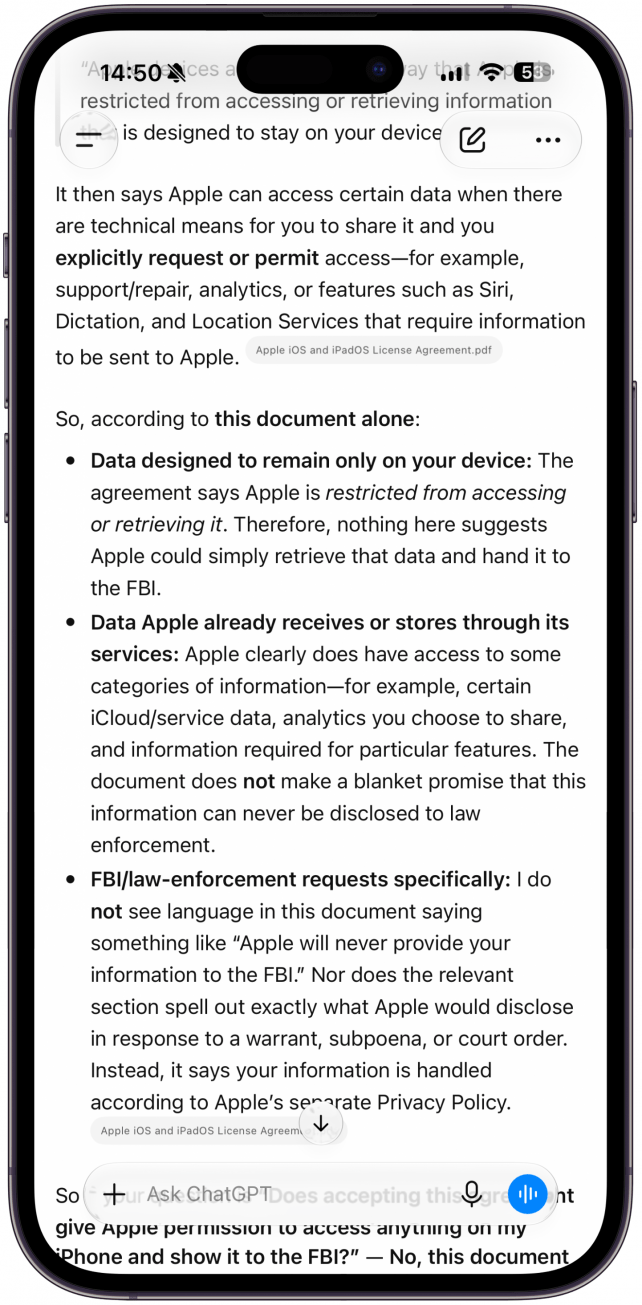
- And there you have it: You cannot use a Genmoji you made for profit, including printing it out on products you are selling.
Now you know how to use ChatGPT to upload a document and ask it specific questions. Similar steps can be used in many other AI apps. As expected, Apple's PDF says a lot without necessarily stating direct facts. It is common for documents like these to be crafted to protect the business from lawsuits. By not specifically stating an answer, there can be a loophole. However, that doesn't mean Apple or another company is doing anything nefarious with your data, though they may be able to legally cross lines we might otherwise consider unethical.
More On: AI Tips

Every day, we send useful tips with screenshots and step-by-step instructions to over 600,000 subscribers for free. You'll be surprised what your Apple devices can really do.

Olena Kagui
Olena Kagui is a Feature Writer at iPhone Life. In the last 10 years, she has been published in dozens of publications internationally and won an excellence award. Since joining iPhone Life in 2020, she has written how-to articles as well as complex guides about Apple products, software, and apps. Olena grew up using Macs and exploring all the latest tech. Her Maui home is the epitome of an Apple ecosystem, full of compatible smart gear to boot. Olena’s favorite device is the Apple Watch Ultra because it can survive all her adventures and travels, and even her furbabies.

 Olena Kagui

 Rhett Intriago

 Leanne Hays

 Amy Spitzfaden Both
 Susan Misuraca