How to Create Shortcuts Using Natural Language

A lifelong tech enthusiast, with experiences ranging from jailbreaking his iPhone to building his own gaming PC, Rhett specializes in maintaining privacy in a digital world and iPhone security.
Learn More A lifelong tech enthusiast, with experiences ranging from jailbreaking his iPhone to building his own gaming PC, Rhett specializes in maintaining privacy in a digital world and iPhone security.
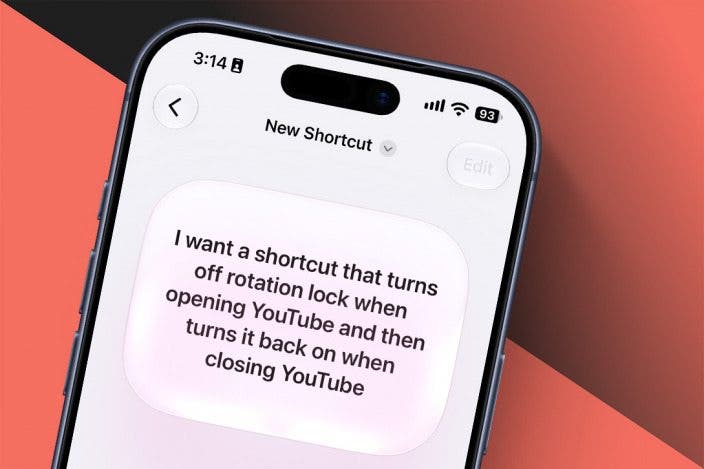
Learn MoreWith the implementation of Apple Intelligence, the Shortcuts app on your iPhone has been completely revamped. You can easily create new shortcuts by simply describing what you want the shortcut to do. Here's how!
Why You’ll Love This Tip
- Create almost any type of shortcut you can imagine.
- Create shortcuts by describing them instead of fumbling your way through menus.
Create iPhone Shortcuts Using AI
System Requirements
This tip was performed on an iPhone 15 Pro running iOS 27. Find out how to update to the latest version of iOS.
With iOS 27 and the implementation of Apple Intelligence, you can more easily create shortcuts by simply describing what you want the shortcut to do. Instead of having to manually figure out all the precise actions you need for a particular shortcut, AI can build it for you. For more on Apple Intelligence, be sure to sign up for our free Tip of the Day newsletter. Now, here's how to create shortcuts with AI on iOS 27:
- Open the Shortcuts app.
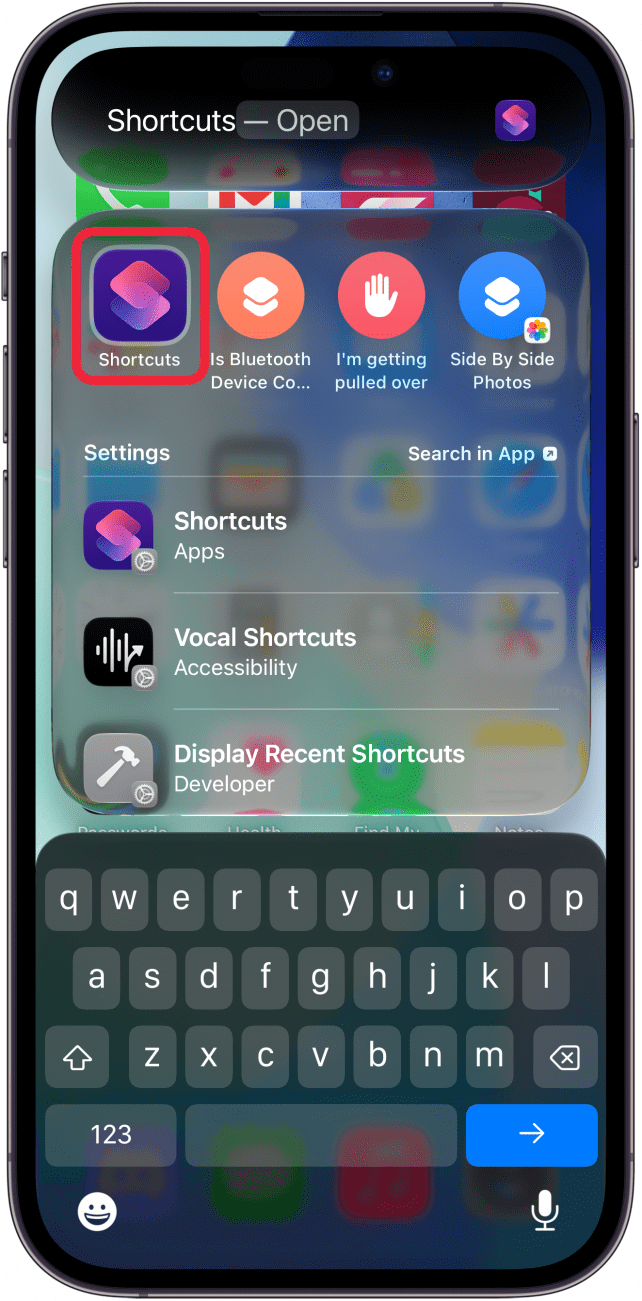
- Tap the plus icon.
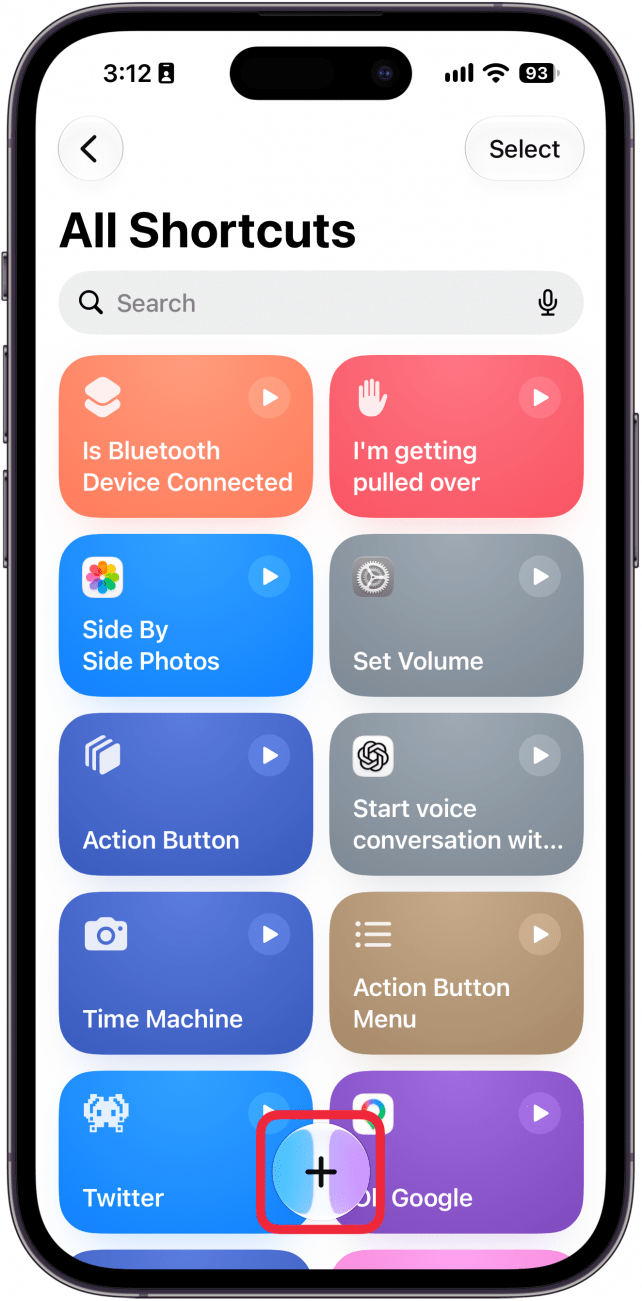
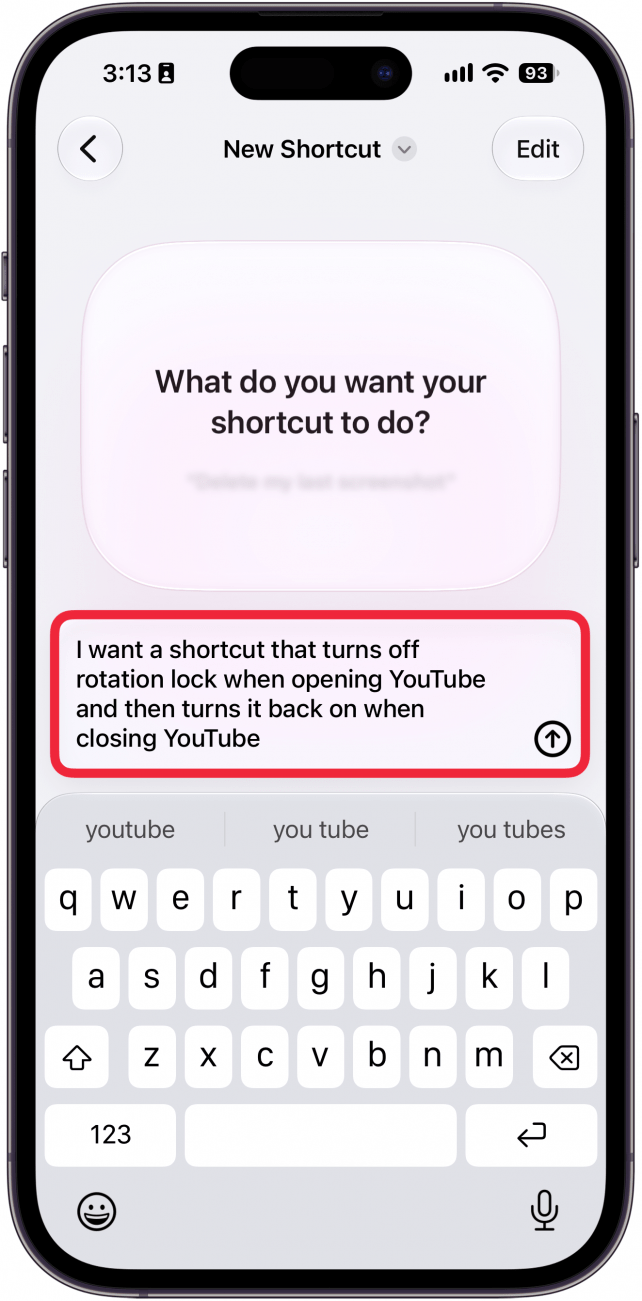
- On this screen, describe what you want the shortcut to do. Tap the send icon when you are done describing the shortcut.
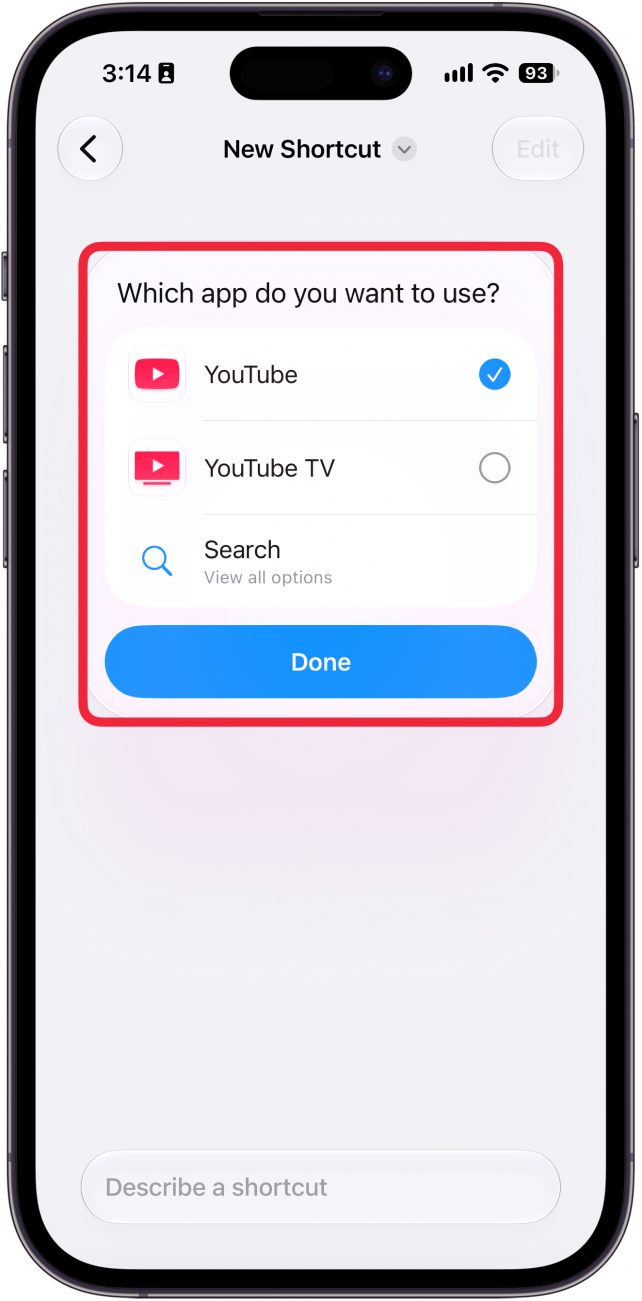
- The AI may ask you additional questions about the shortcut. For example, in this shortcut I created, the AI wanted me to specify which YouTube app I want the shortcut to apply to.
- Once the shortcut has been created, you can tap the text box at the bottom of the screen to make changes.
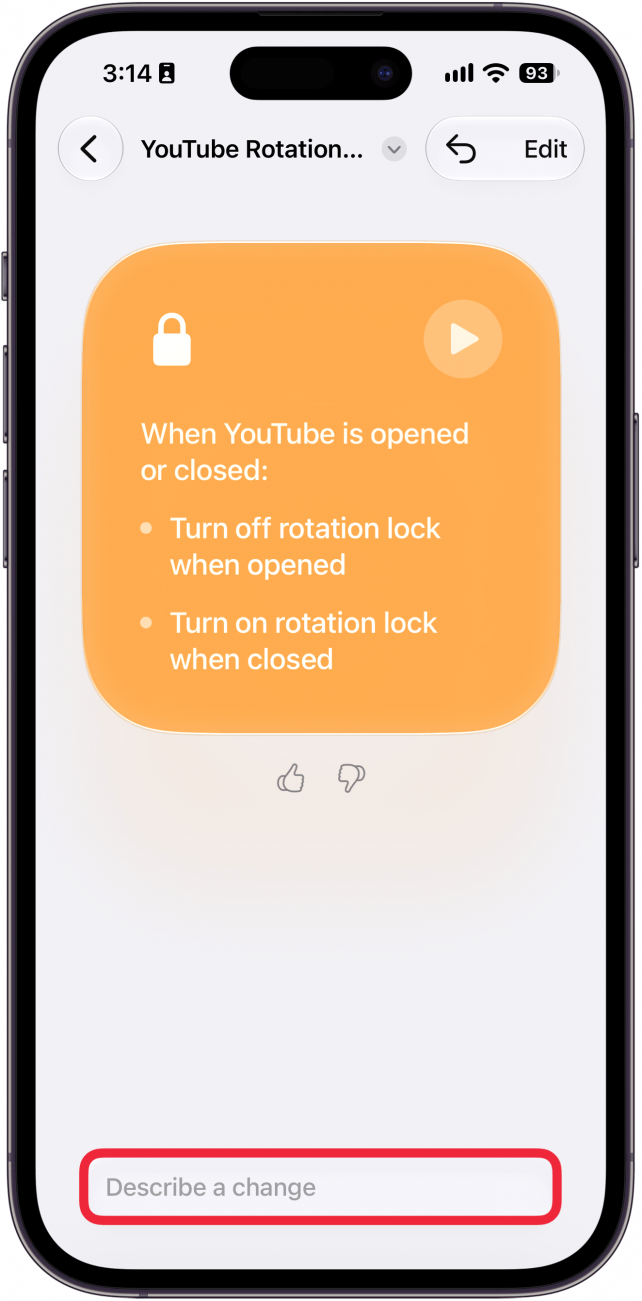
- Type up the changes you want to be made and hit the send icon just like when you created the original shortcut.
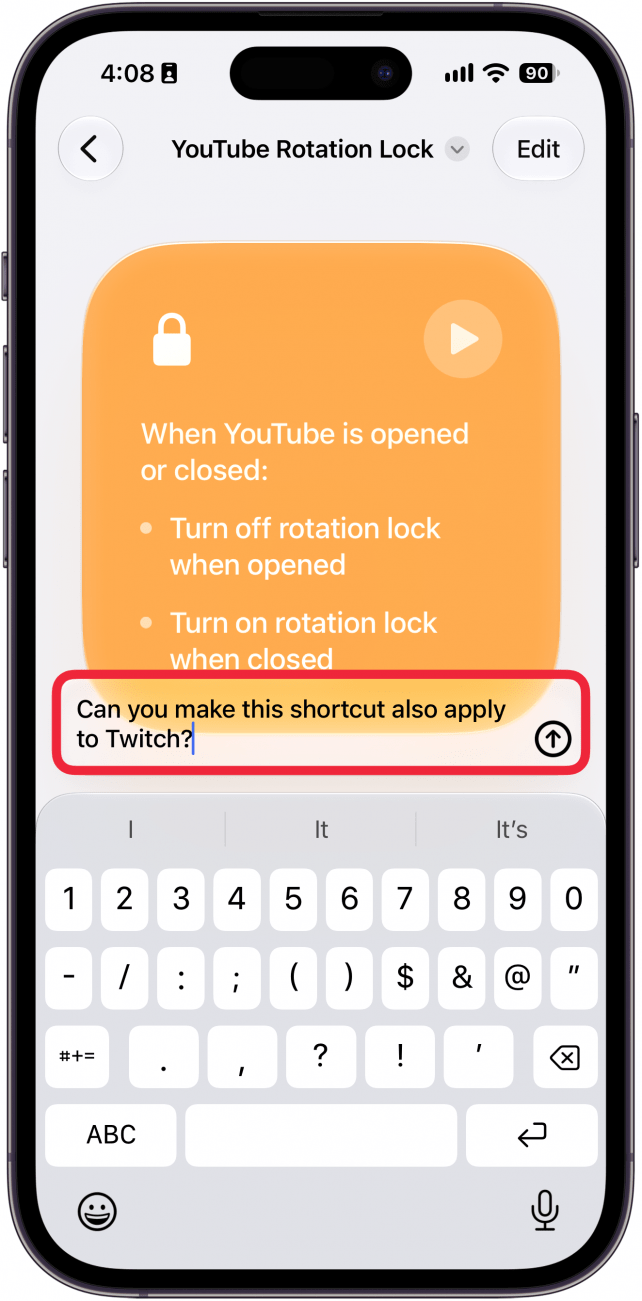
That's how to create shortcuts using AI on the iPhone! Now, you can create almost any shortcut you can imagine. If a shortcut is too complex for the AI to create on its own or it doesn't think it is possible, you can try making it manually.
More On: The Shortcuts App

Every day, we send useful tips with screenshots and step-by-step instructions to over 600,000 subscribers for free. You'll be surprised what your Apple devices can really do.

Rhett Intriago
Rhett Intriago is a Feature Writer at iPhone Life, offering his expertise in all things iPhone, Apple Watch, and AirPods. He enjoys writing on topics related to maintaining privacy in a digital world, as well as iPhone security. He’s been a tech enthusiast all his life, with experiences ranging from jailbreaking his iPhone to building his own gaming PC.
Despite his disdain for the beach, Rhett is based in Florida. In his free time, he enjoys playing the latest games, spoiling his cats, or discovering new places with his wife, Kyla.
 Leanne Hays

 Rhett Intriago
 Olena Kagui
 Cullen Thomas