Spotlight Search is a valuable way to do a quick search of everything on your iPhone. Now learn how to exclude certain apps from your search results. This can help you get more accurate results instead of coming up with a photo or message containing the text you are searching for.
Why You’ll Love This Tip
- Declutter your Spotlight Search results by deciding which apps show up.
- Keep apps you would rather stay hidden out of Spotlight Search results.
- If you have two or more apps with a similar name, you can prevent the less relevant one from showing up in your results.
How to Hide Apps from Search on iPhone
System Requirements
This tip was performed on an iPhone 17 Pro Max running iOS 26.3. Find out how to update to the latest version of iOS.
You can select which apps appear in Spotlight Search results by selecting searchable apps from a list in your Settings. Don’t forget to check out our free Tip of the Day for more neat iPhone tricks. Here’s how to search on iPhone without seeing certain apps in the results:
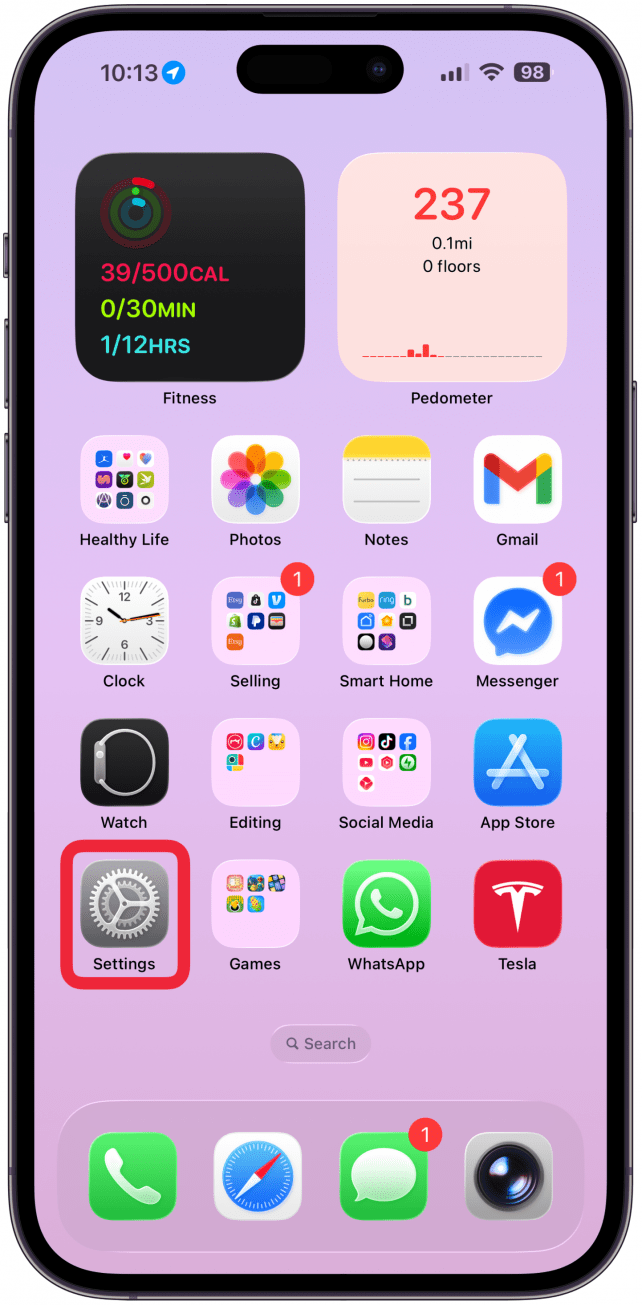
- Open Settings.
![Open Settings.]()
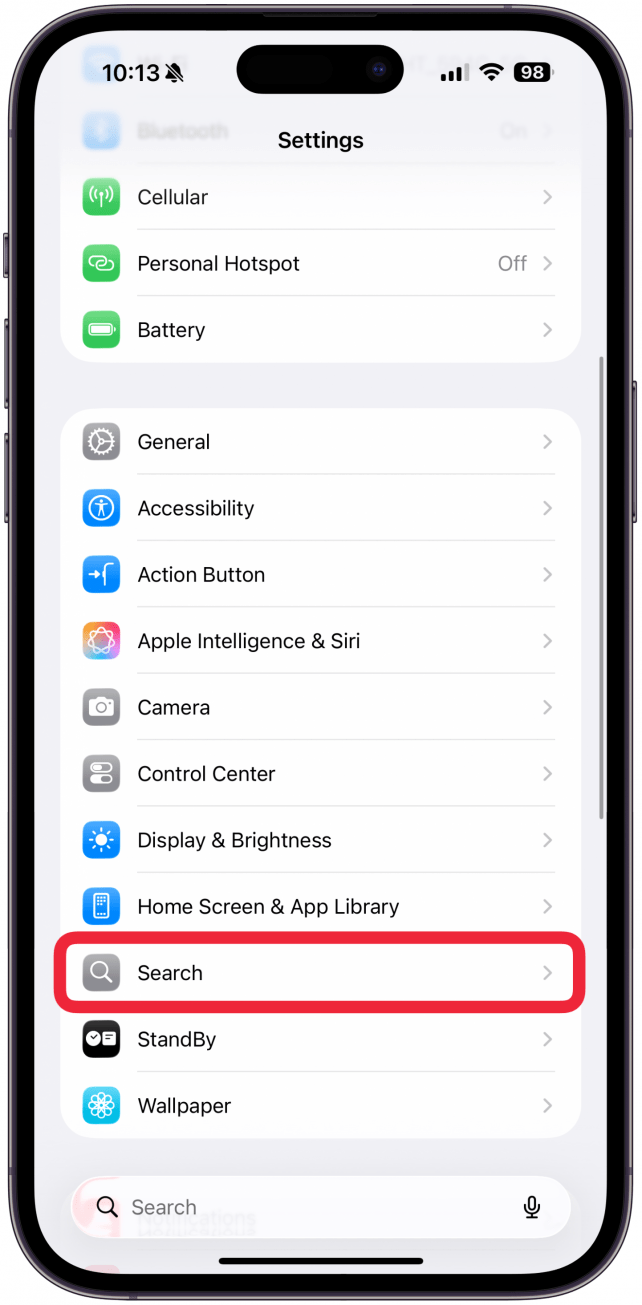
- Select Search.
![Select Search.]()
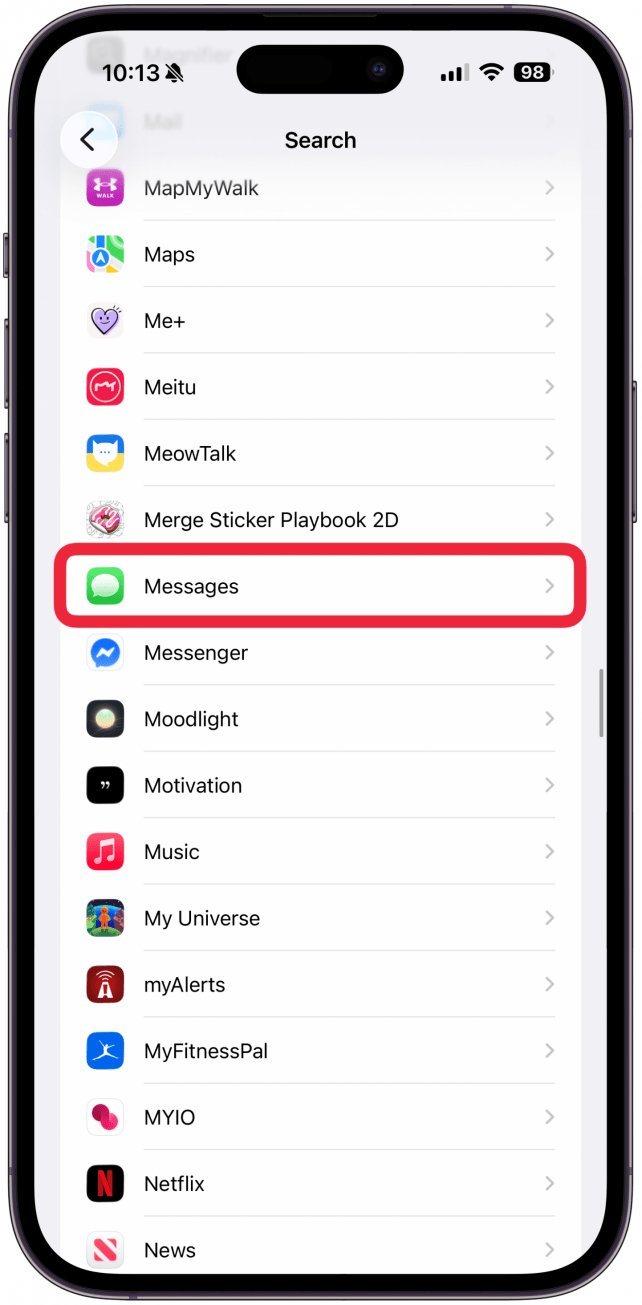
- Browse through the list and tap on the app you wish to remove from your search results.
![Browse through the list and tap on the app you wish to remove from your search results.]()
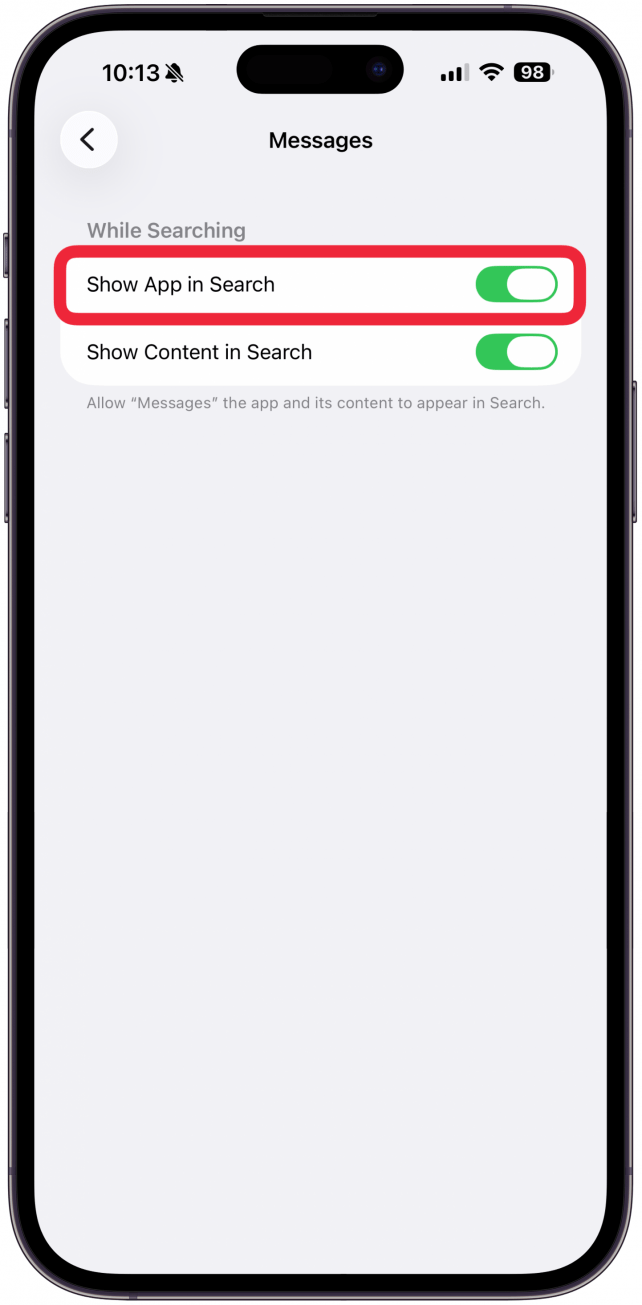
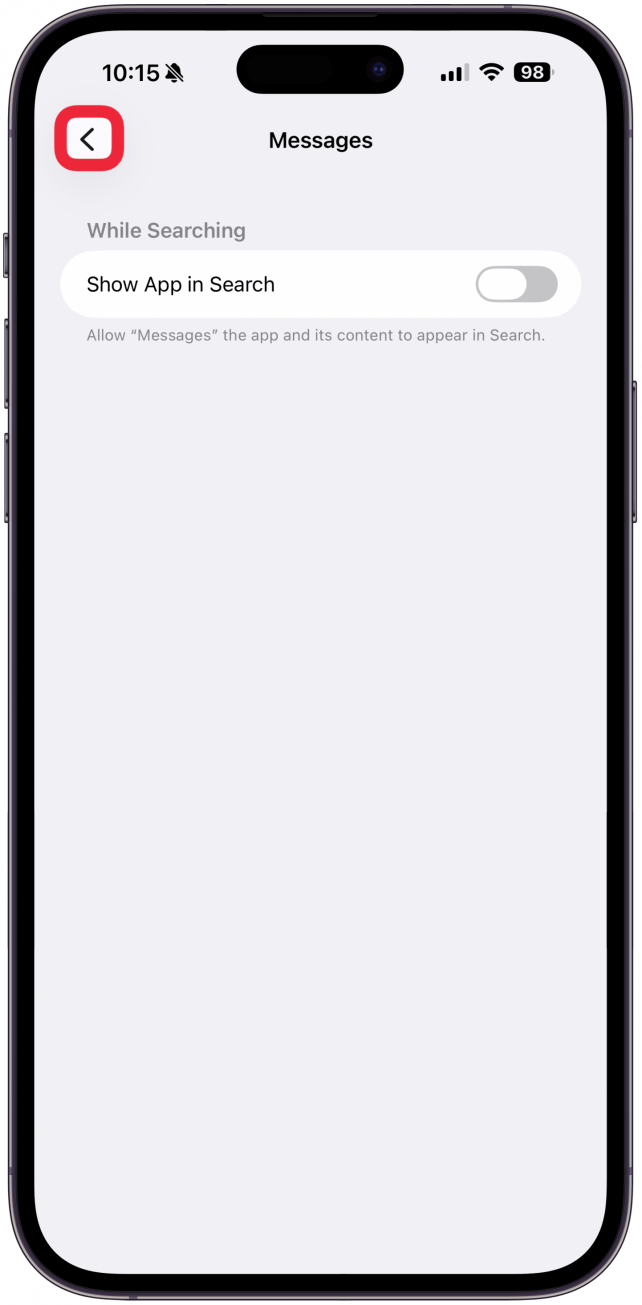
- Toggle off Show App in search if you want the app itself to not show up when you search for “Messages” in your results. This will also automatically toggle off content from the app.
![Toggle off Show App in search if you want the app itself to not show up when you search for “Messages” in your results. This will also automatically toggle off content from the app.]()
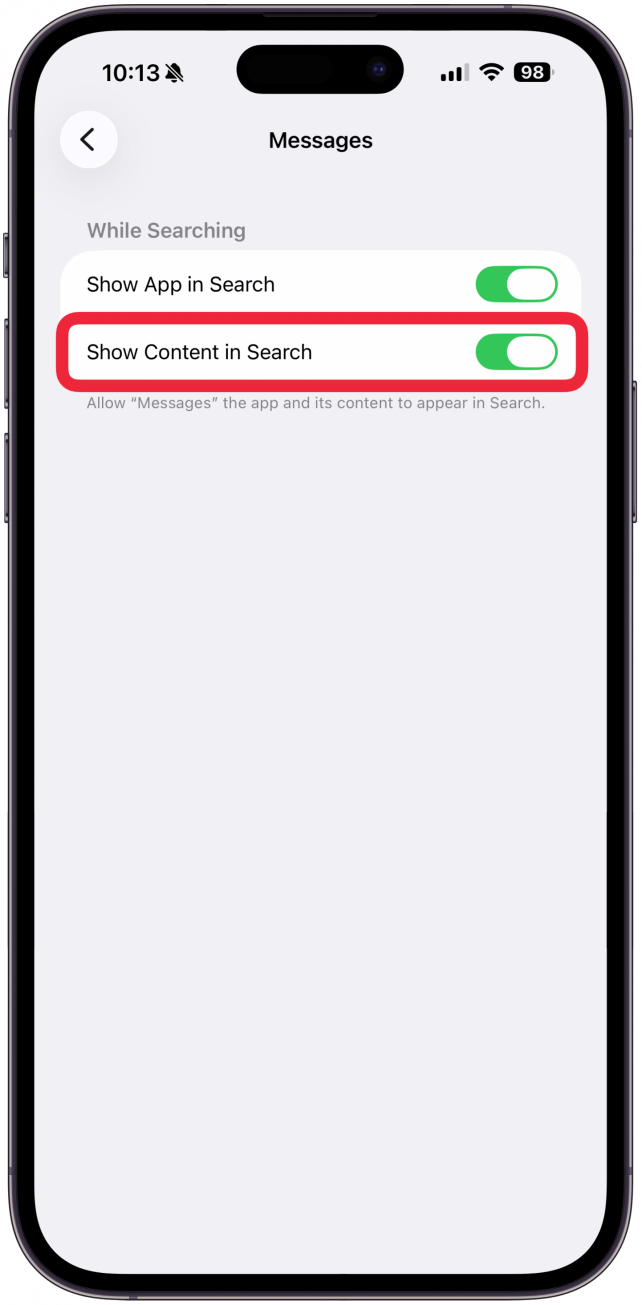
- Toggle off Show Content in Search while keeping Show App toggled on if you don’t want any content from the Messages app to appear in your results. The app itself will still show up.
![Toggle off Show Content in Search while keeping Show App toggled on if you don’t want any content from the Messages app to appear in your results. The app itself will still show up.]()
- Your changes will save automatically, just go back or exit Settings once you are done.
![Your changes will save automatically, just go back or exit Settings once you are done.]()
I like to remove apps such as Photos, Messages, and Files from the list, because those are easy to search specifically via that app so it can clutter up your results and make it harder to find what you’re looking for. Next, learn how to camera search Google with Visual Intelligence.