When you make a photo album on your iPhone, the Photos app automatically sorts that picture album in the Albums tab in order of when the album was created. You can rearrange albums on iPhone two different ways. Read on to learn how to organize photos by rearranging how your albums appear in the Photos app.
Why You’ll Love This Tip
- Learn how to rearrange albums in Photos on your iPhone or iPad using the drag-and-drop method.
- Learn how to sort albums on iPhone by Date Modified, Name, or Custom Order.
- Learn how to move albums around on iPhone so you can find your albums quickly and easily.
How to Organize Photos on iPhone & iPad by Reordering Albums
System Requirements
This tip was tested on an iPhone17 Pro running iOS 26.5. Find out how to update your iOS.
Want to learn how to rearrange albums on an iPhone or iPad in Apple's Photos app? Here's how to organize photo albums on iPhone into the order you like best; it's easy! Here's how to rearrange photo albums on iPhone in Apple's Photos app.
- Open the Photos app.

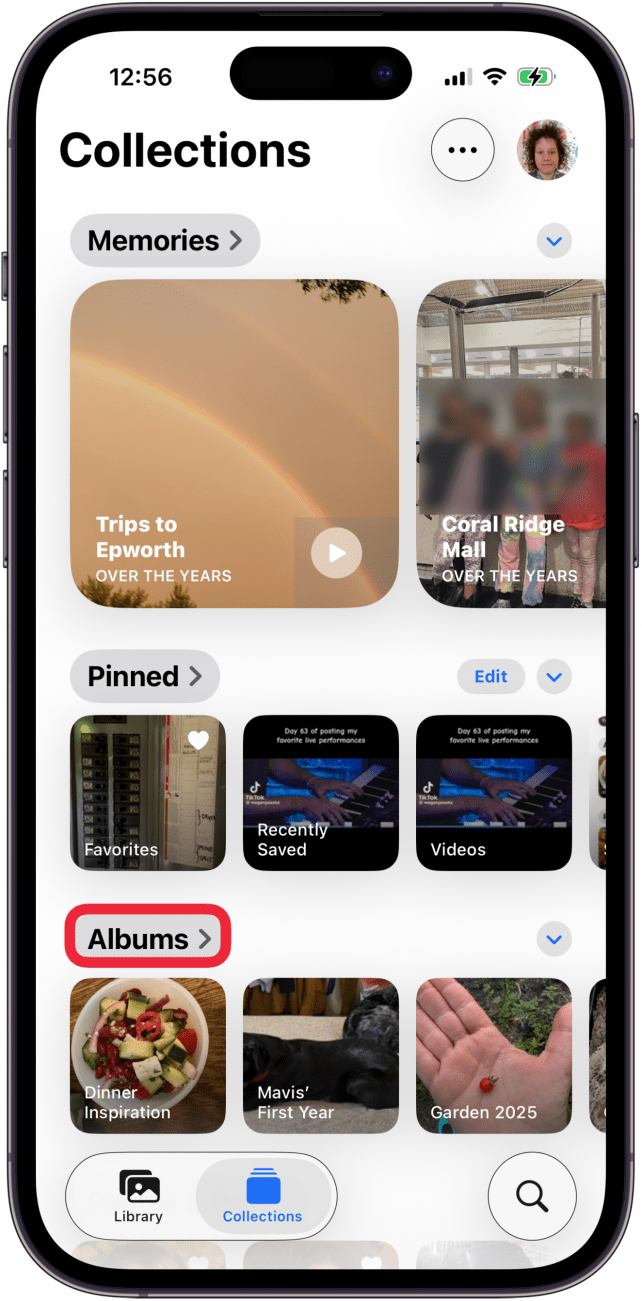
- Tap the Collections tab at the bottom of the screen.

- Scroll down and tap Albums.

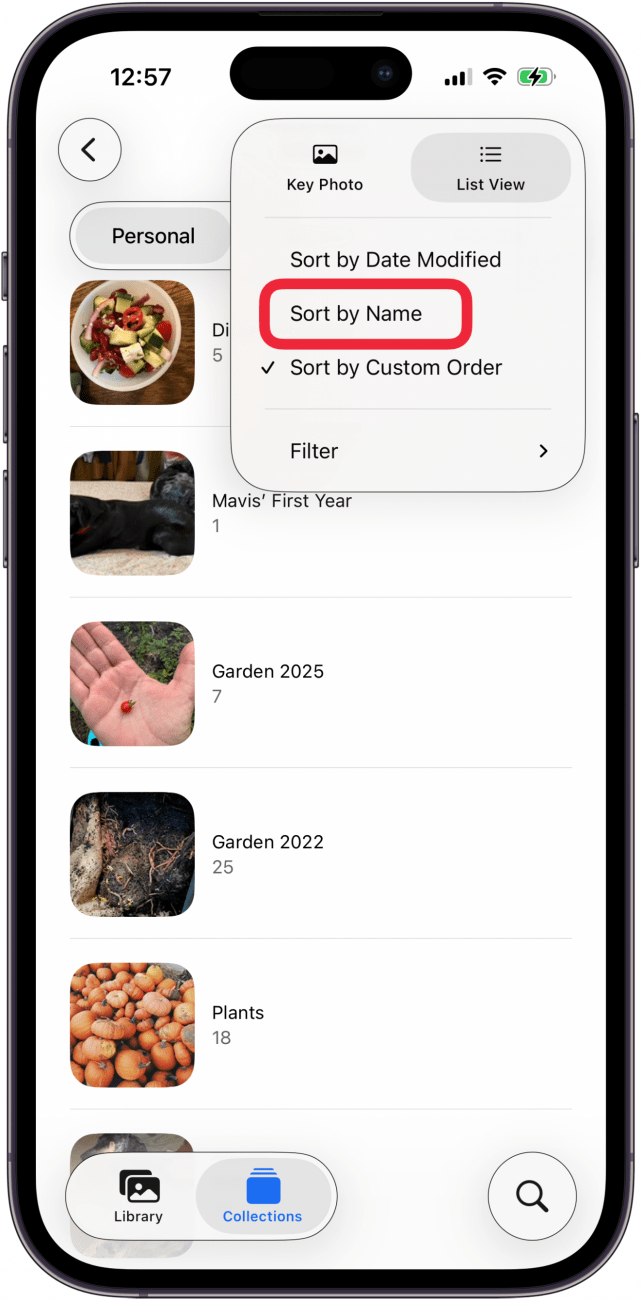
- Tap the more icon.

- Tap a photo album sorting option. Choose Sort by Name to sort albums alphabetically.

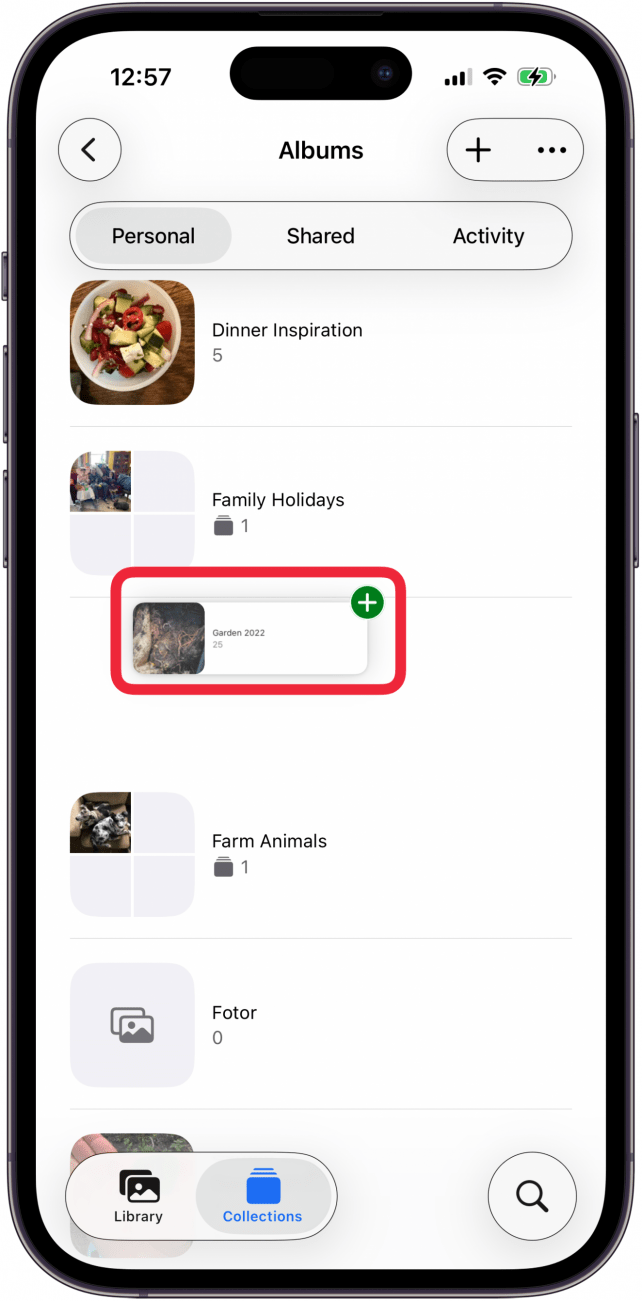
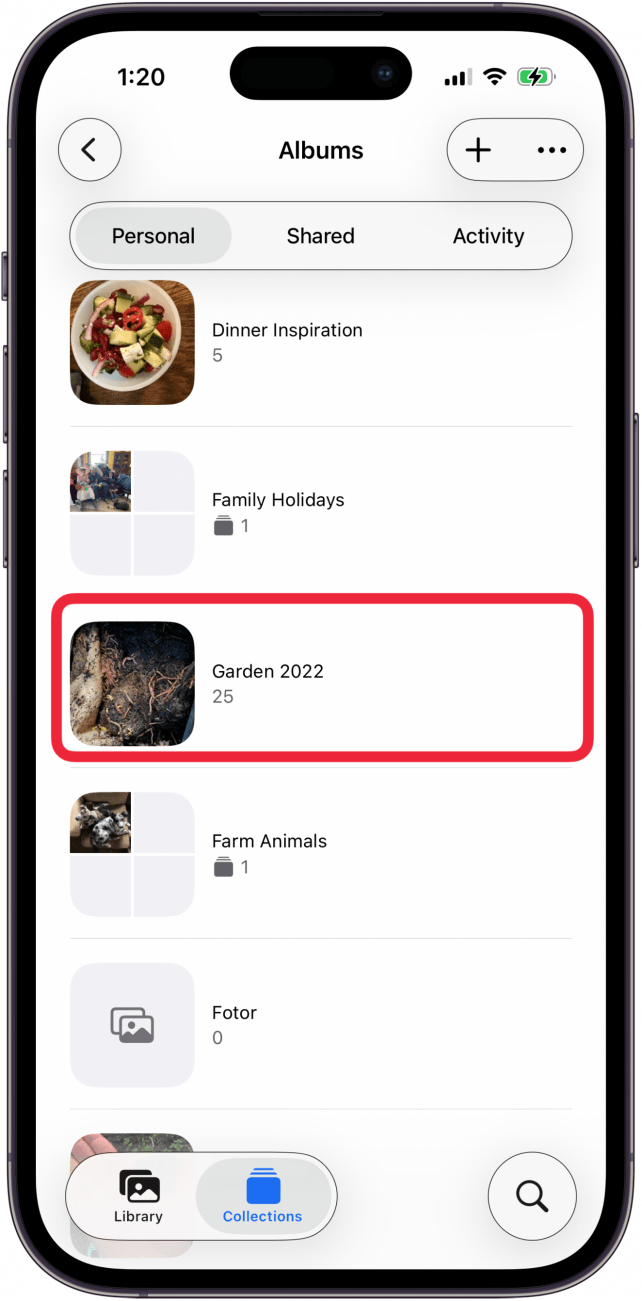
- Back in Albums, you can also touch and hold the center of a photo album you want to move, then drag it to a new place. You may need to try this more than once, as sometimes a menu pops up, and sometimes the album is ready to be dragged and dropped.

- Release your finger to drop the album in its new location.

- When you're done, close the Photos app, and you're finished rearranging albums on your iPhone or iPad.



Now you know how to organize photos on your iPhone or iPad by reordering albums. For more great tutorials on how to use your Photos app, check out our free Tip of the Day.