By Rhett Intriago
Wed, 09/09/2026
Organizing your photos just got a lot easier. The latest version of iOS has a feature that allows you to add keywords to photos so you can search for them with ease.
Why You'll Love This Tip
- Keep your photos organized by keyword.
- Easily search for photos using unique keywords.
How to Tag Photos with Keywords on iPhone
System Requirements
This tip was performed on an iPhone 15 Pro running iOS 27. Find out how to update to the latest version of iOS.
The latest version of iOS gives you the option to add keywords to your photos. You can then search for these keywords in the Photos app, and any photos tagged with that keyword will appear in the search results. To find out more about iOS 27's hidden features, be sure to sign up for our free Tip of the Day newsletter. Now, here's how to add keywords to photos:
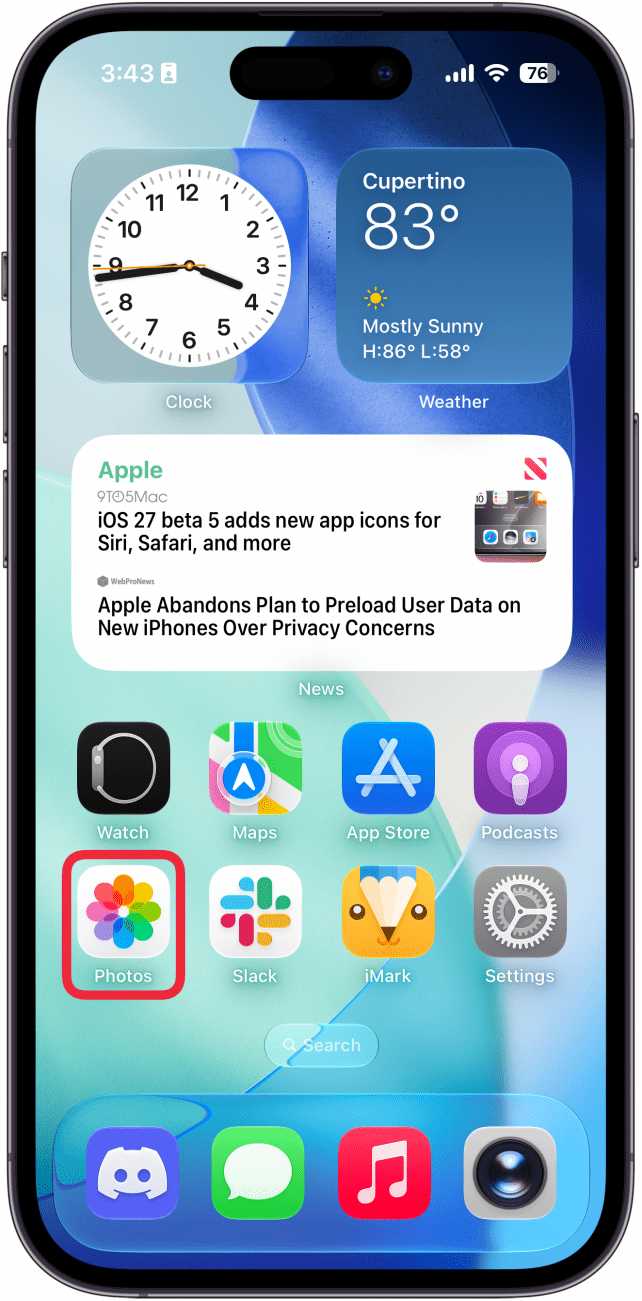
- Open the Photos app.
![a screenshot of the iphone home screen with a red box around the photos app]()
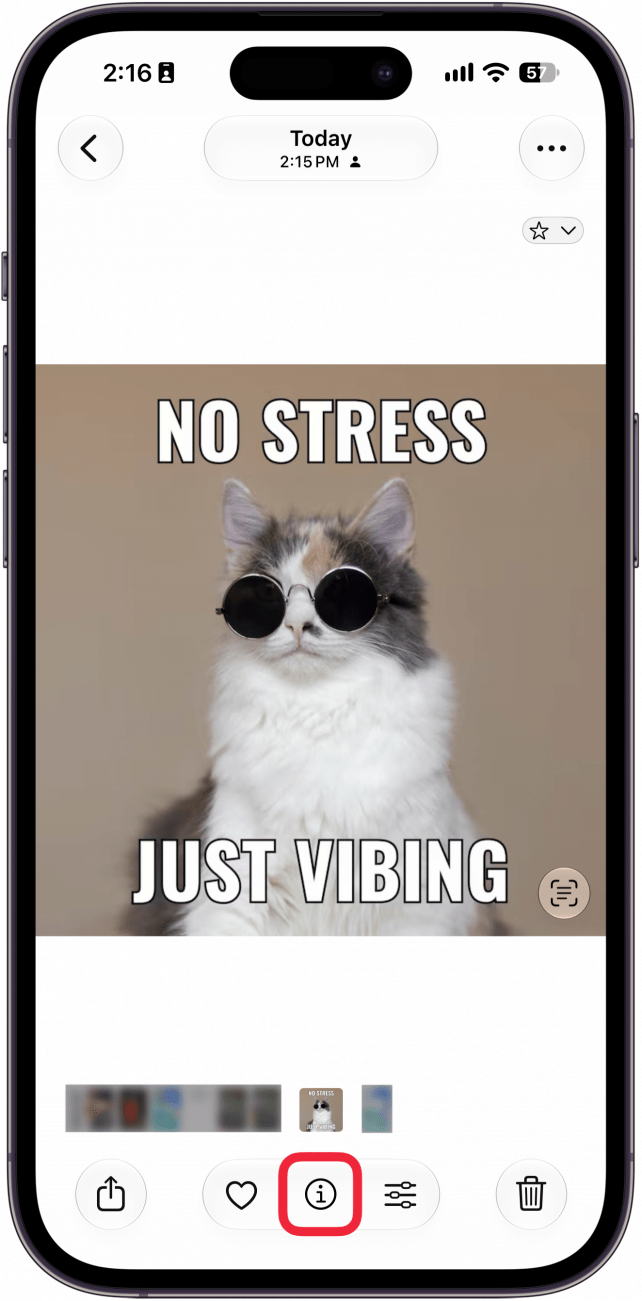
- When you locate the photo you want to tag, tap the info icon or swipe up on the photo.
![a screenshot of a photo on iphone with a red box around the info icon]()
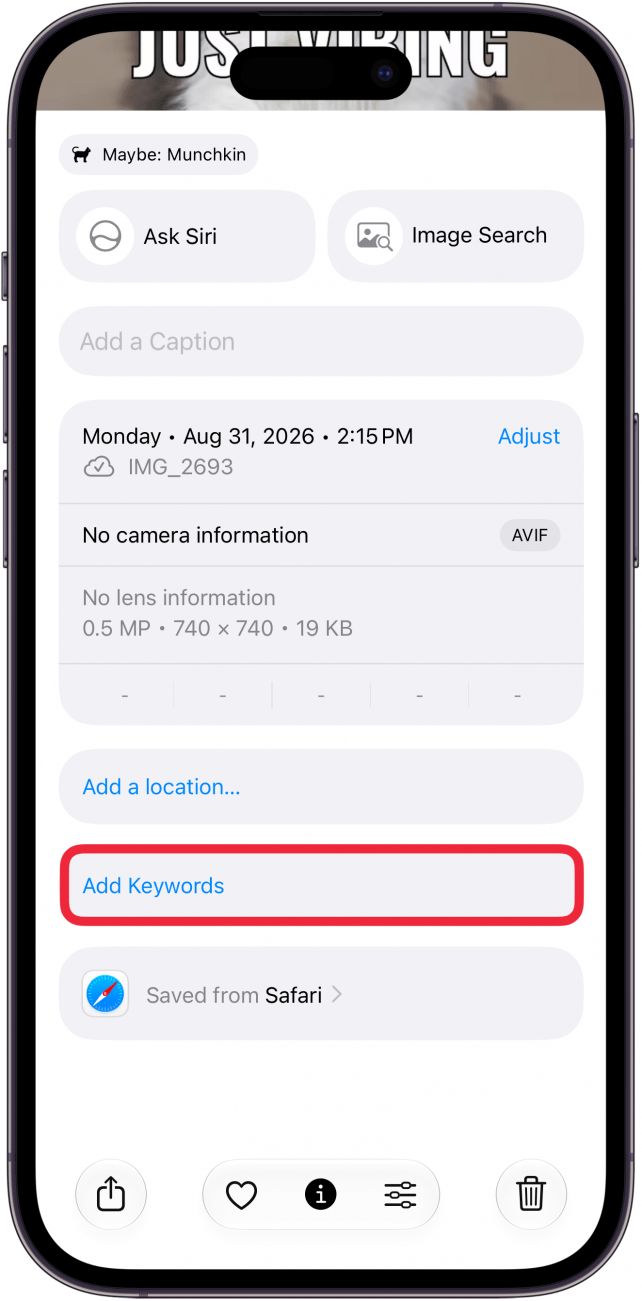
- Scroll down and tap Add Keywords.
![a screenshot of photo metadata on iphone with a red box around the add keywords button]()
- Enter the keyword(s) you want to add and then tap the checkmark icon.
![a screenshot of the add keywords screen in the photos app on iphone with a red box around the checkmark icon]()
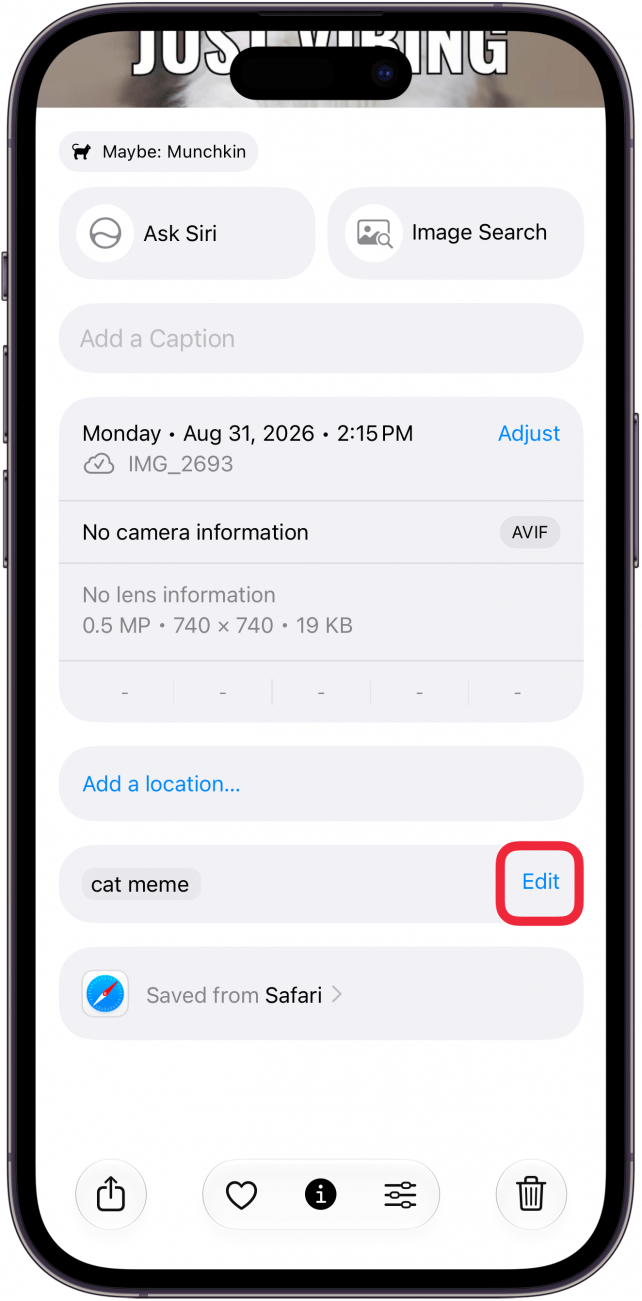
- If you want to edit or add more keywords later, you can tap Edit.
![a screenshot of photo metadata on iphone with a red box around the edit button next to the keywords]()
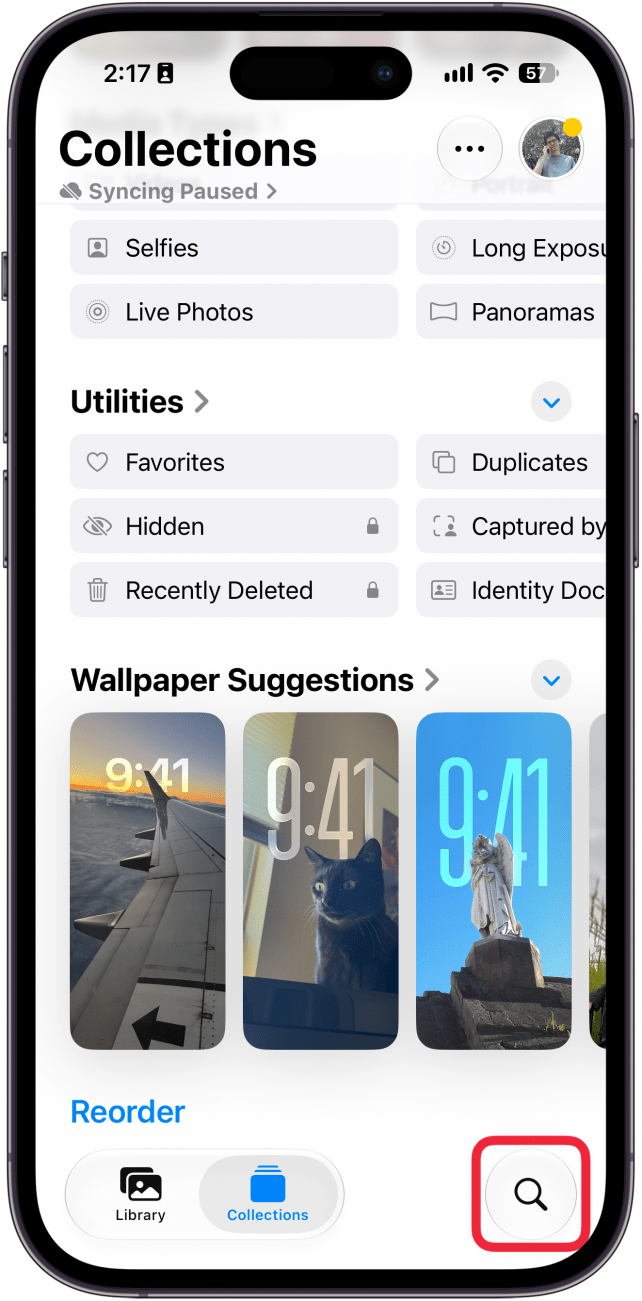
- To search the Photos app, tap the search icon (it looks like a magnifying glass).
![a screenshot of the photos app on iphone with a red box around the search icon]()
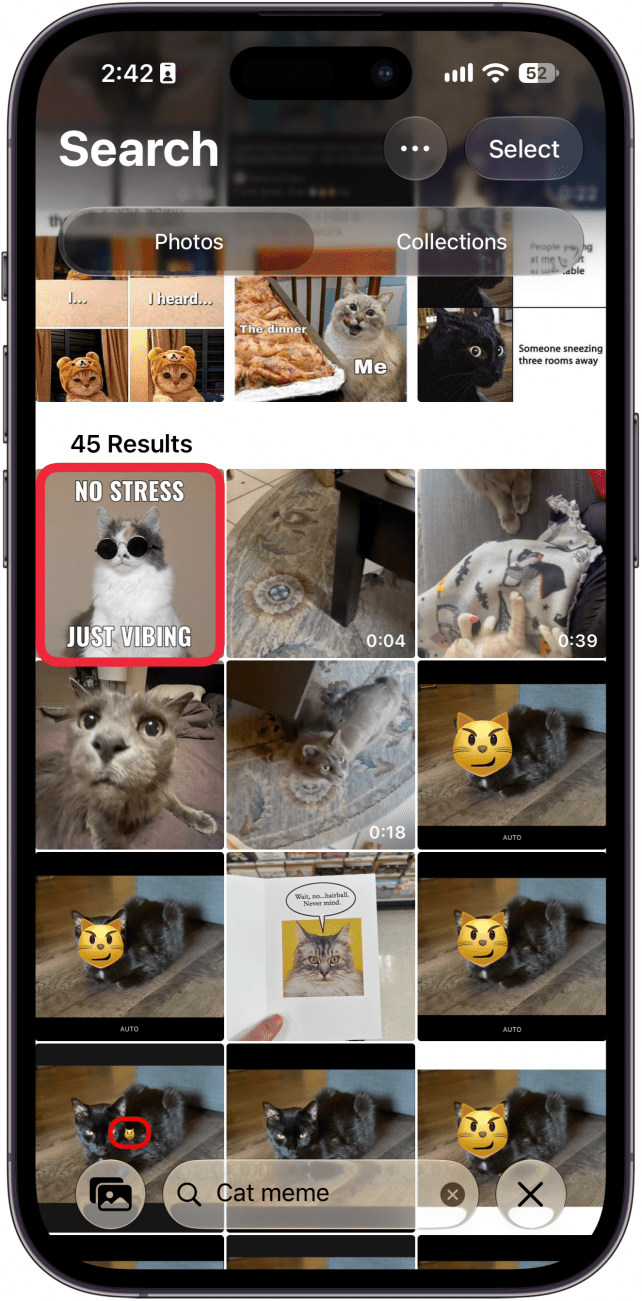
- Type in the keyword and you should see the photo you tagged.
![a screenshot of search results in the photos app with a red box around a photo that matches the search query for cat meme]()

That's how to tag your photos with keywords on the iPhone! Now you can keep your photos organized by keyword.

Discover your iPhone's hidden features
Get a daily tip (with screenshots and clear instructions) so you can master your iPhone in just one minute a day.