See a Map of Your Photos on iPhone

A lifelong tech enthusiast, with experiences ranging from jailbreaking his iPhone to building his own gaming PC, Rhett specializes in maintaining privacy in a digital world and iPhone security.
Learn More A lifelong tech enthusiast, with experiences ranging from jailbreaking his iPhone to building his own gaming PC, Rhett specializes in maintaining privacy in a digital world and iPhone security.
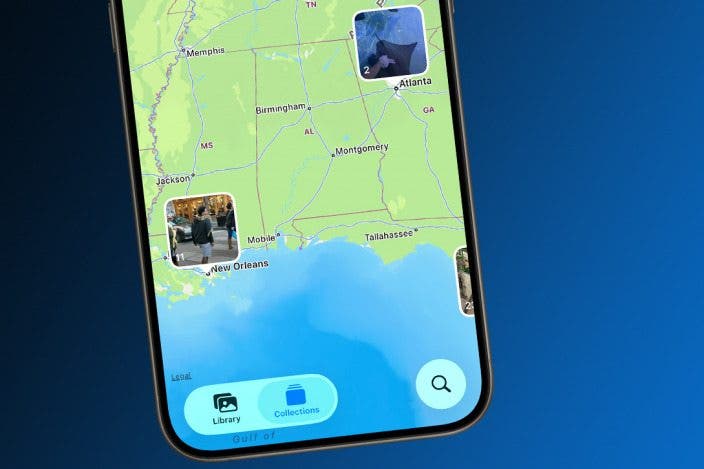
Learn MoreWhen you take photos with your location enabled, your iPhone will pin them to a map, which you can use to see everywhere you've been. Here's how to view your iPhone photos by location.
Why You’ll Love This Tip
- Easily find photos if you remember where you took them.
- See all the places you've traveled to and taken photos.
- Revisit memories of every location where you've taken photos.
How to View iPhone Photo Map
System Requirements
This tip was performed on an iPhone 15 Pro running iOS 26.4. Find out how to update to the latest version of iOS.
If you have Location Services enabled for your iPhone camera and photos, every picture you take will have a location saved to its metadata. The Photos app will pin these photos to a map, so that you can see all the places you've traveled to and taken photos. For more iPhone tips and tricks, check out our free Tip of the Day newsletter. Now, here's how to see your iPhone photos on a map:
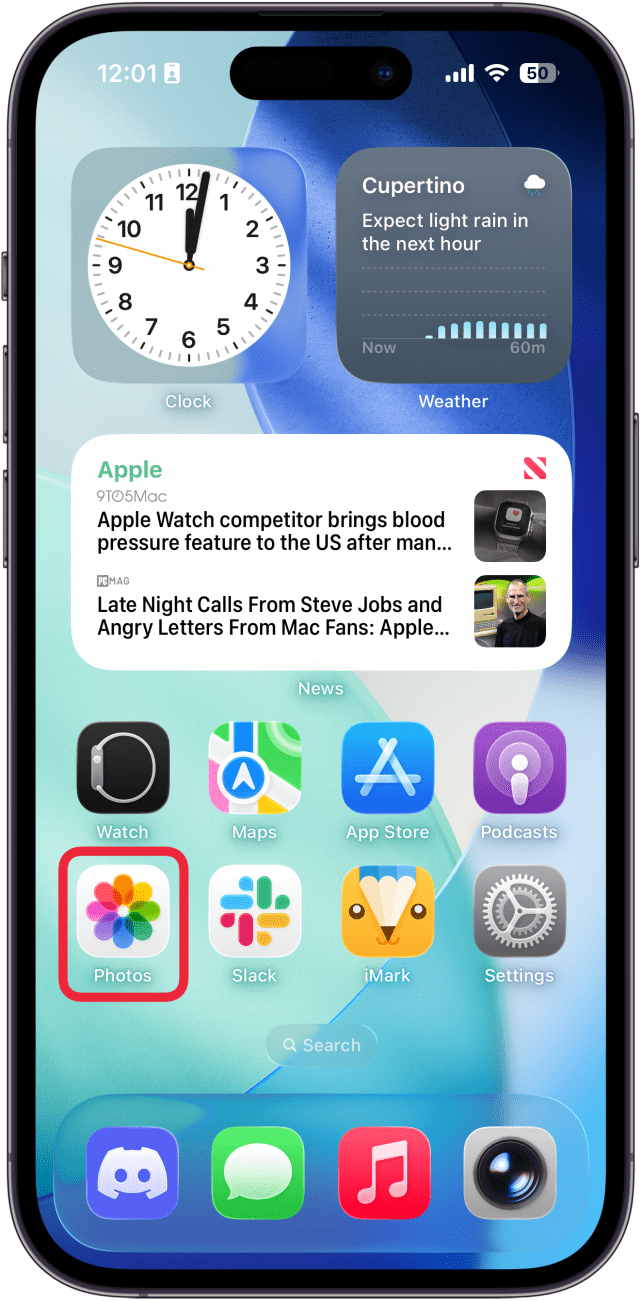
- Open the Photos app.
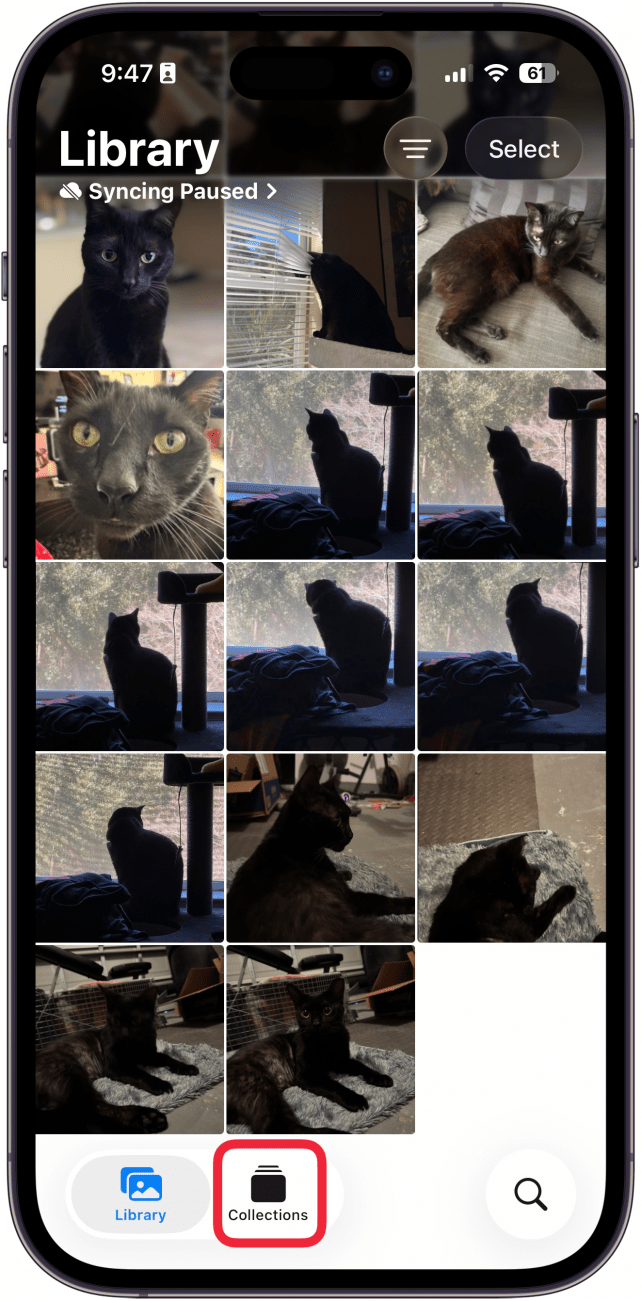
- Tap Collections (if you don't see the Collections button, scroll to the bottom of the Photos app first).
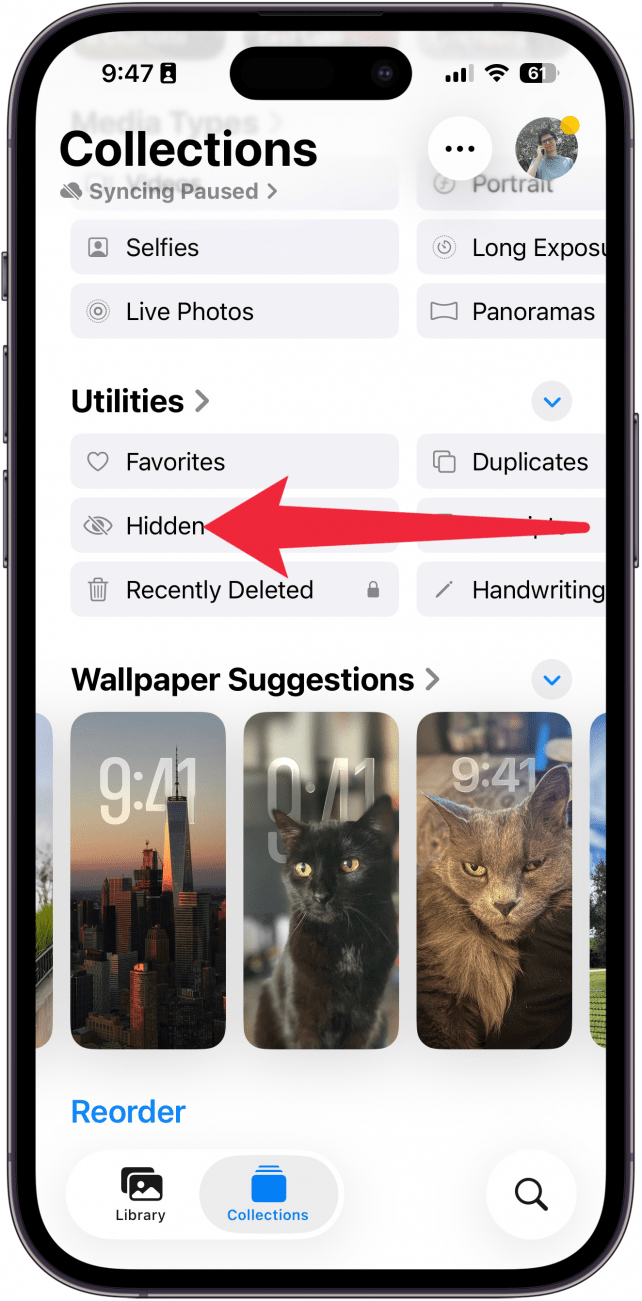
- Scroll down and, under Utilities, swipe to the left.
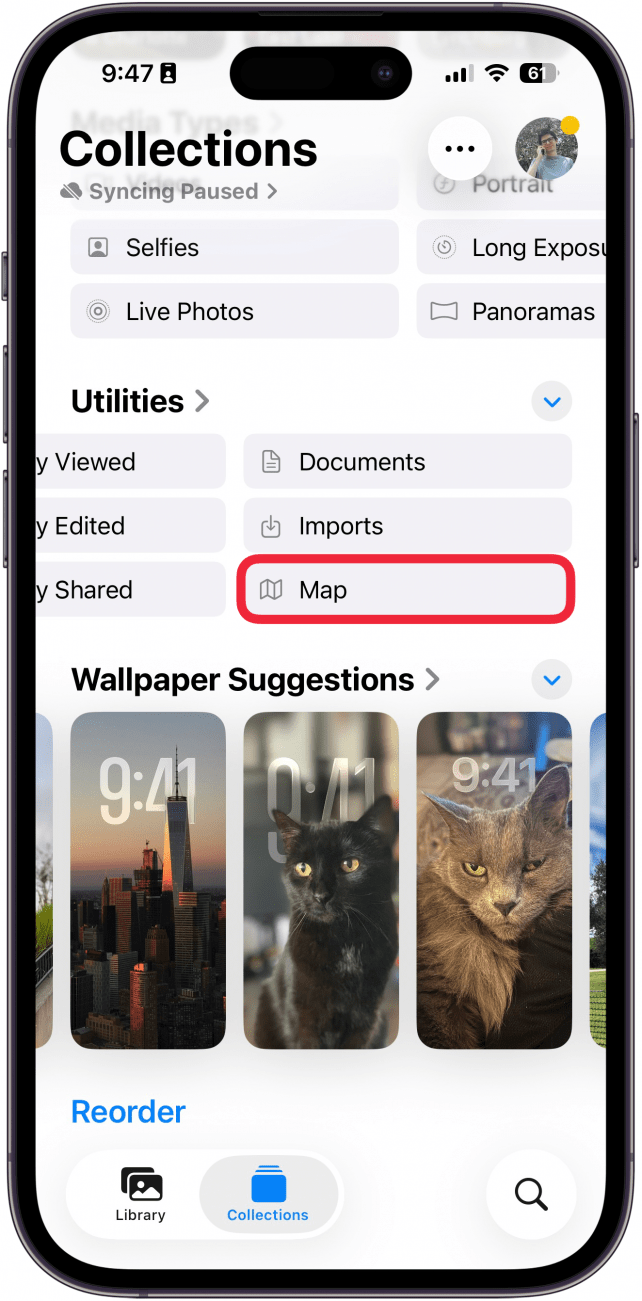
- Keep swiping left, and tap Map. (You may also see this option under Pinned Collections, but in case you've unpinned it, you can always find it here.)
- You'll see a map. Zoom in and out to see more, and tap a location to see all the photos you've taken there.
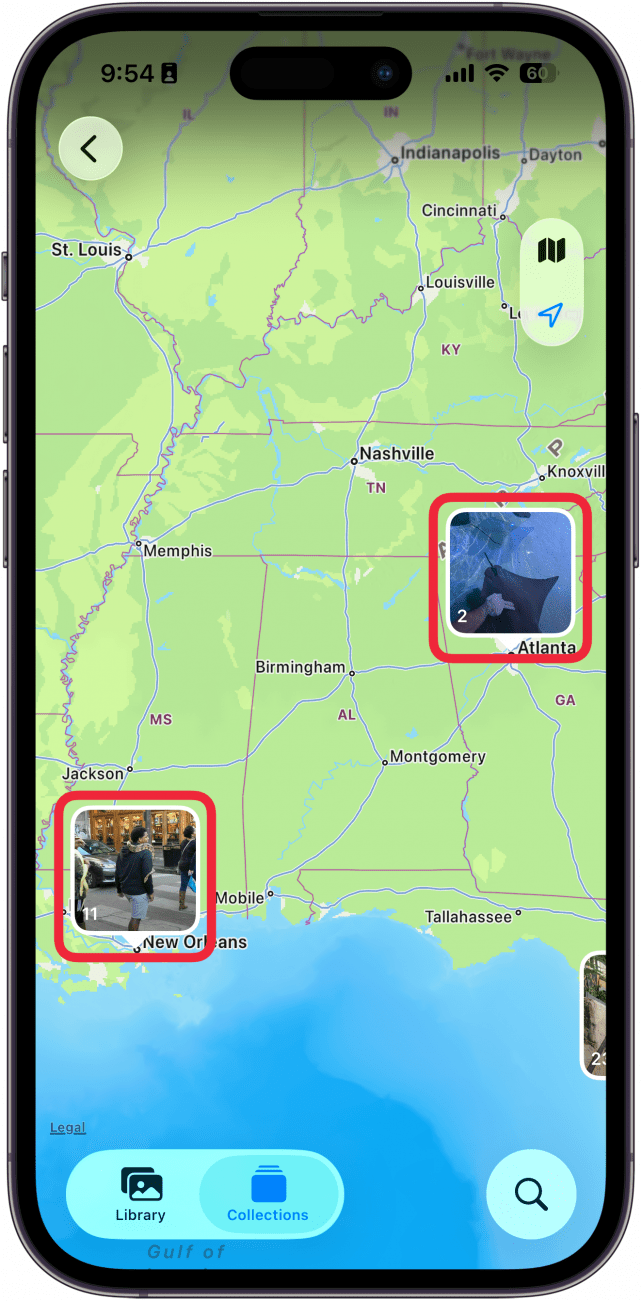
That's how to find the photo map on your iPhone. This is a fun way to keep track of all the places you've traveled to.

Every day, we send useful tips with screenshots and step-by-step instructions to over 600,000 subscribers for free. You'll be surprised what your Apple devices can really do.

Rhett Intriago
Rhett Intriago is a Feature Writer at iPhone Life, offering his expertise in all things iPhone, Apple Watch, and AirPods. He enjoys writing on topics related to maintaining privacy in a digital world, as well as iPhone security. He’s been a tech enthusiast all his life, with experiences ranging from jailbreaking his iPhone to building his own gaming PC.
Despite his disdain for the beach, Rhett is based in Florida. In his free time, he enjoys playing the latest games, spoiling his cats, or discovering new places with his wife, Kyla.

 Olena Kagui

 Rhett Intriago
 Leanne Hays
 August Garry

 Susan Misuraca
 Rachel Needell
 Cullen Thomas


 Hal Goldstein