I'm tired of seeing AI search results pop up first every time I do a Google search on my iPhone or iPad. So much so that I set about to discover how to get rid of AI search results on Google. Here's the fix I found.
Why You'll Love This Tip
- Get Google search results from human writers, rather than AI sources that may not be accurate.
- Lessen your impact on the environment by reducing your use of environmentally unfriendly AI.
How to Avoid AI Search Results on Google on Your iPhone & iPad
System Requirements
This tip works on iPhones running iOS 18 or later, and was tested on an iPhone 17 Pro running iOS 26. Find out how to update to the latest version of iOS.
Tired of seeing results from Artificial Intelligence in Google searches on your iPhone and iPad? Want to do your part to lower AI's environmental impact? Here's how to get rid of AI Google results.
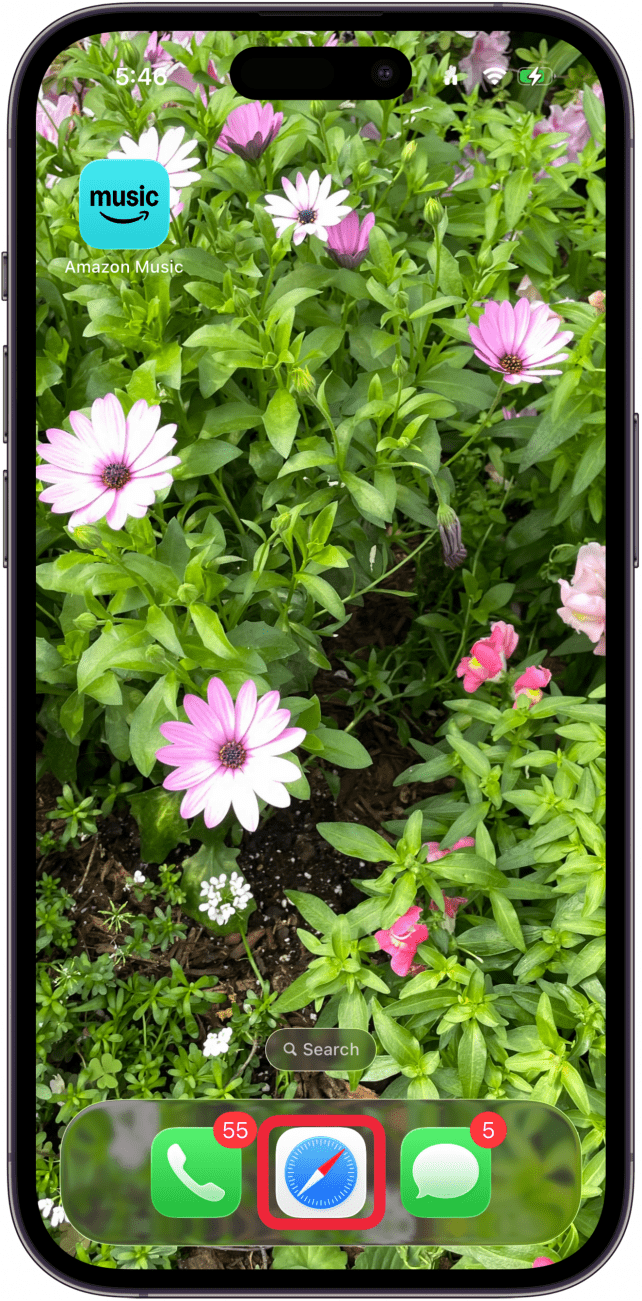
- Open your browser of choice, in my case, Safari.

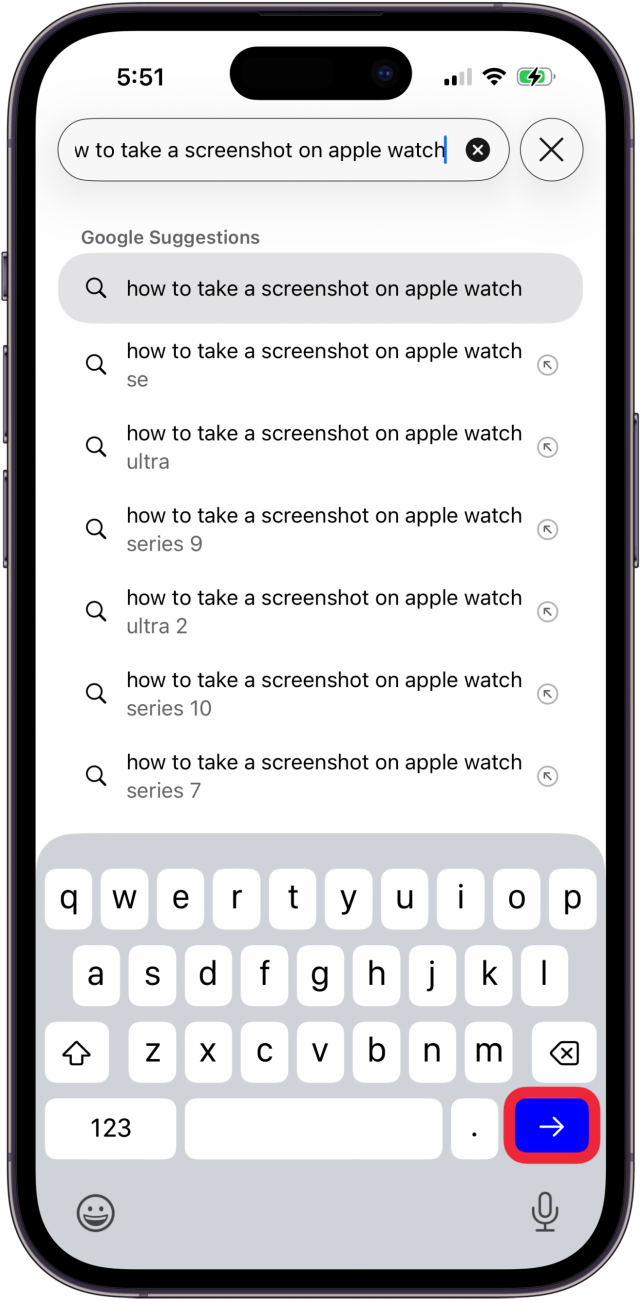
- Tap the Search bar and enter your query as usual.

- Tap the white arrow in the blue box to start your search.

- You'll see AI search results at the top of the results.

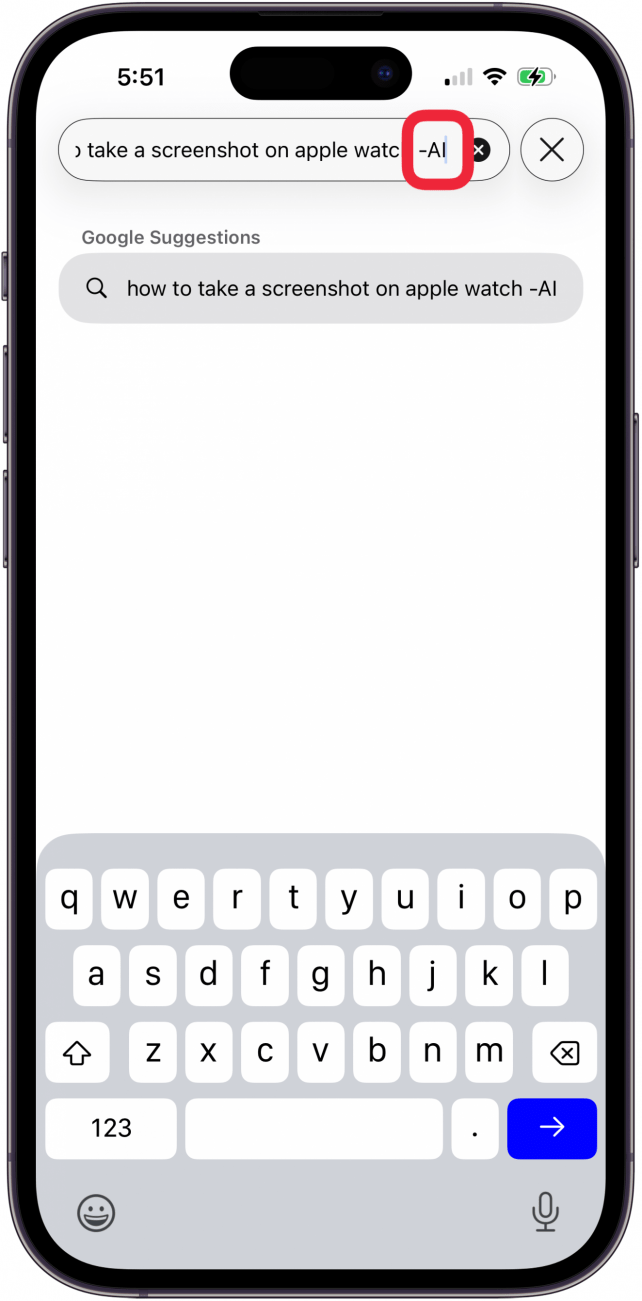
- Now add -AI at the end of your search terms.

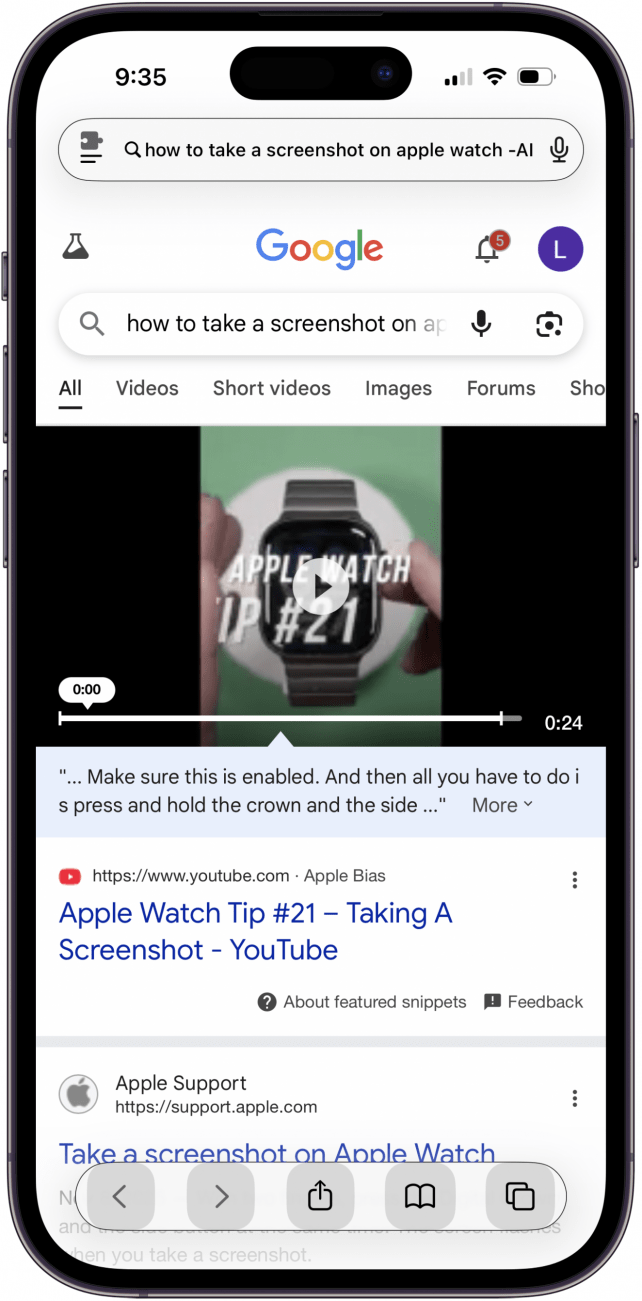
- This will force Google to omit AI search results, and you'll see your search results with zero AI.



That's how to turn off AI for Google searches on your iPhone and iPad. Be sure to check out our free Tip of the Day for more great web browser tutorials.

More On: Artificial Intelligence
Top image credit: Chingraph / Shutterstock.com