Phone calls on your iPhone are about to get a lot clearer. Apple previously implemented Voice Isolation and Wide Spectrum for FaceTime. Now, Voice Isolation is available for your regular phone calls as well. Here's everything you need to know about the Voice Isolation feature on your iPhone.
Why You'll Love This Tip:
- Make your voice clearer and easier to hear during phone calls.
- Eliminate background noise when talking on the phone.
How to Enable Voice Isolation on Your iPhone
System Requirements
This tip was performed on an iPhone 15 Pro running iOS 18.3.2. Find out how to update to the latest version of iOS.
So, what is Voice Isolation on your iPhone? The Voice Isolation feature filters out background sounds, making your voice easier to hear. I find this to be most handy when my apartment's landscaping team decides to mow the grass while I'm on the phone with a friend. On the other hand, Wide Spectrum enhances background sounds to capture a wider audio range. This is helpful when multiple people are talking on one end of a line, such as during a conference call. Here's how to turn on Voice Isolation:
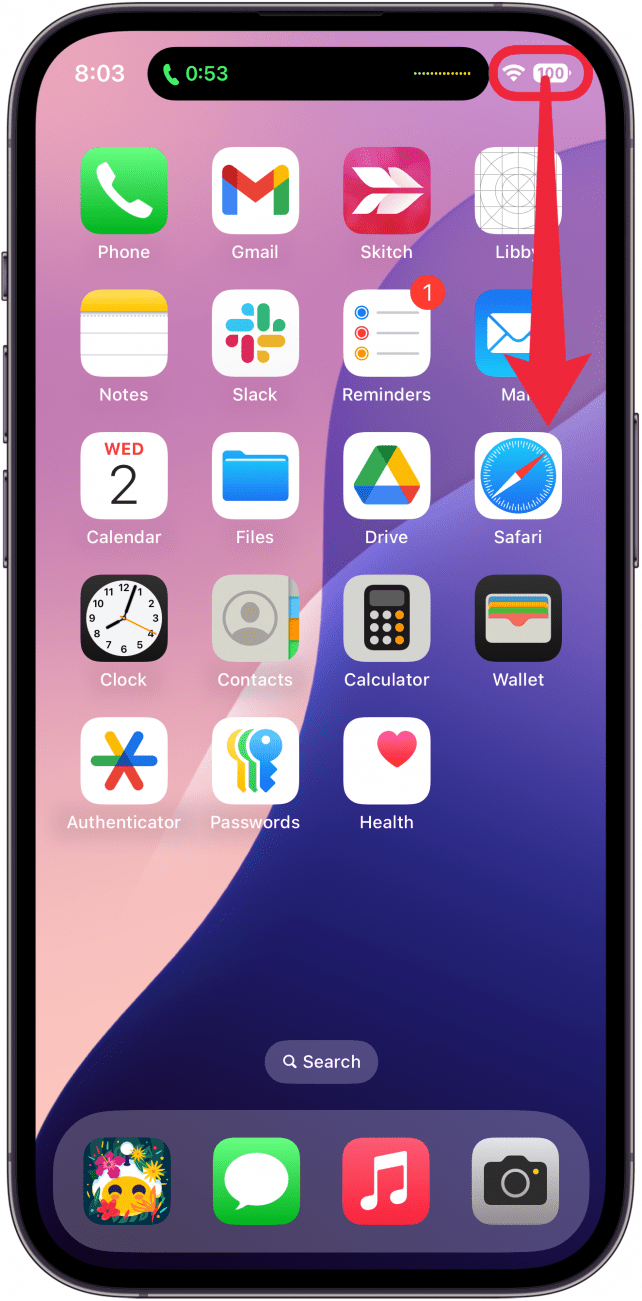
- While on a call, swipe down from the upper right edge of your display to open the Control Center (or swipe up from the bottom edge of the display if you are using an iPhone SE).
![iphone home screen with a red arrow pointing downward from the top right, indicating to swipe down and open the control center]()
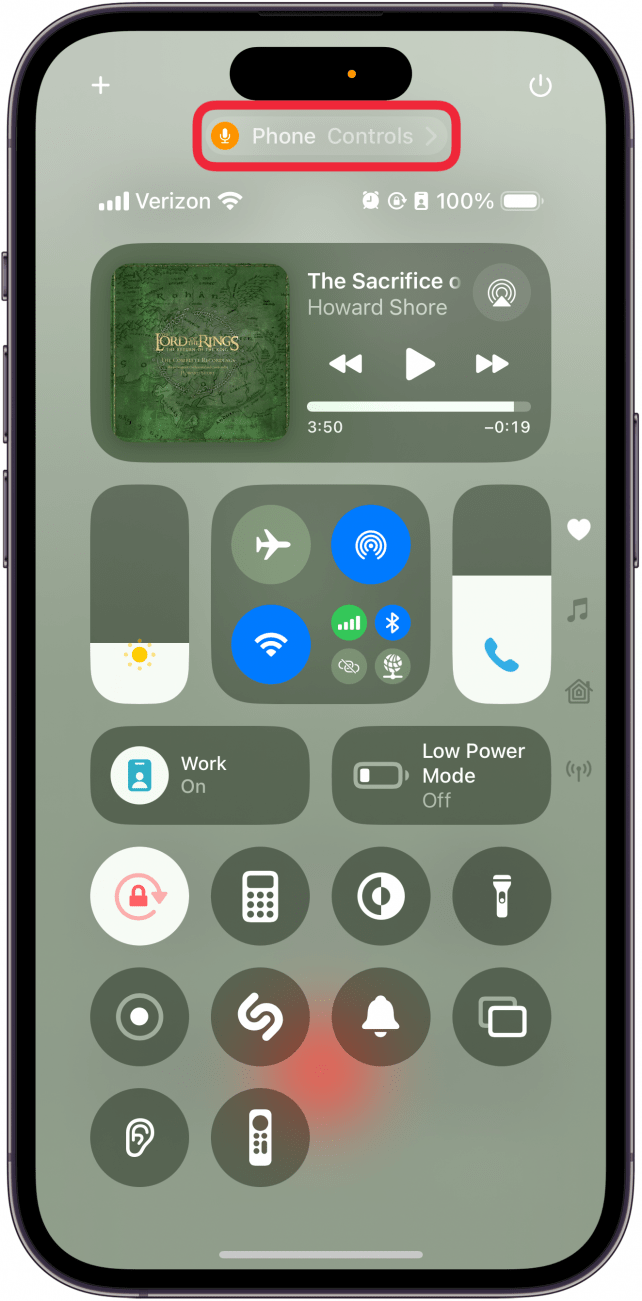
- Tap Phone Controls to adjust your iPhone microphone settings.
![iphone control center with a red box around Phone Controls]()
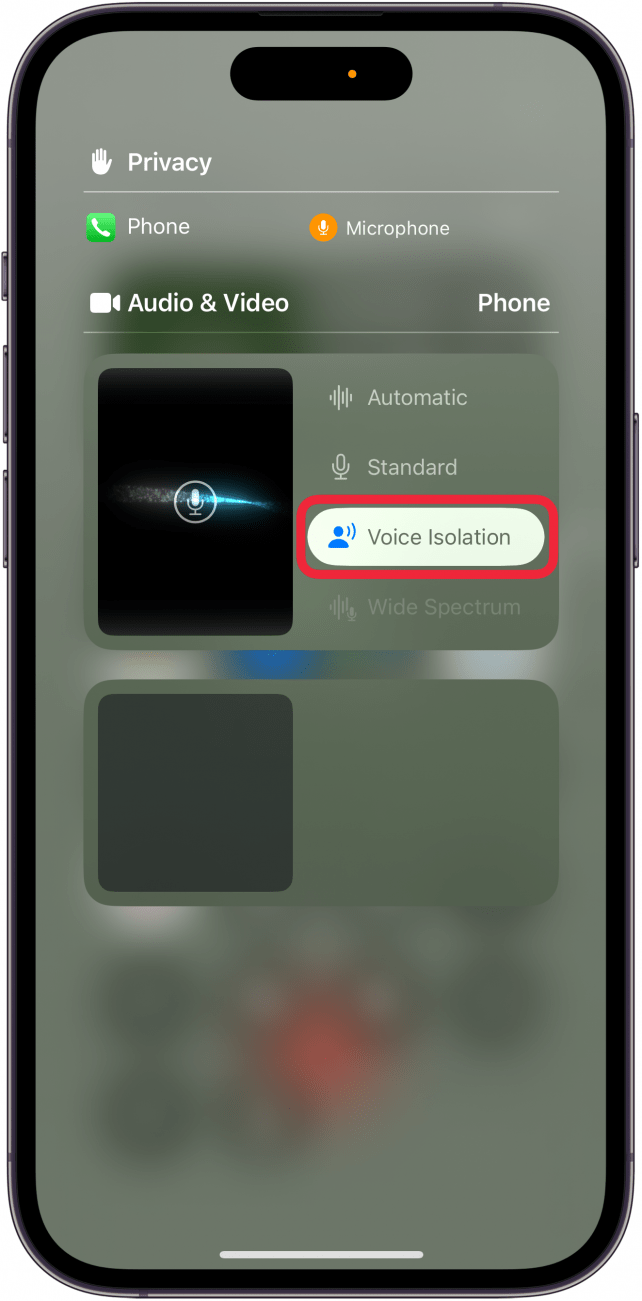
- Tap Voice Isolation to enable the feature. If you're on a FaceTime call, you can also select Wide Spectrum.
![iphone phone controls with a red box around voice isolation]()
Note
While Voice Isolation is available for both FaceTime and regular phone calls, Wide Spectrum is only available on FaceTime audio and video calls.
That's how to turn on Voice Isolation! Once you have enabled your iPhone's Voice Isolation or Wide Spectrum feature, the caller on the other end should be able to hear you loud and clear. Next, find out how to use hands-free calling on your iPhone.