Have you ever tapped send and immediately realized something was wrong with your email? We've all been there. You can unsend an email on your iPhone or iPad if you realize your mistake within a set amount of time. This can save you a lot of embarrassment and the pain of having to write a follow-up correction email.
Why You’ll Love This Tip
- Learn how to take back an email you wish you hadn’t sent.
- Avoid conflict, confusion, or embarrassment by unsending emails.
- Change the timeframe you have to unsend emails, from 10 seconds up to 30 seconds.
How to Recall and Email Sent on iPhone & iPad
System Requirements
This tip works on iPhones running iOS 16 or later, and was tested on an iPhone 17 Pro running iOS 26.4. Find out how to update to the latest version of iOS.
If you change your mind after tapping send on an email, you can unsend the email on your iPad or iPhone. If you wish to unsend an email that you sent via the Mail app, you have up to 30 seconds to do so.
Note: If you delete an email, does it unsend? The answer is no. The recipient still receives and keeps the email even if you delete it on your end. Using the Undo Send Delay feature is the only way to recall an email sent once you've hit the send icon.
- Open the Mail app on your iPhone.

- Draft an email and select a recipient, then tap the Send icon.

- Tap the Undo Send button at the top of the Inbox to stop the email from sending.


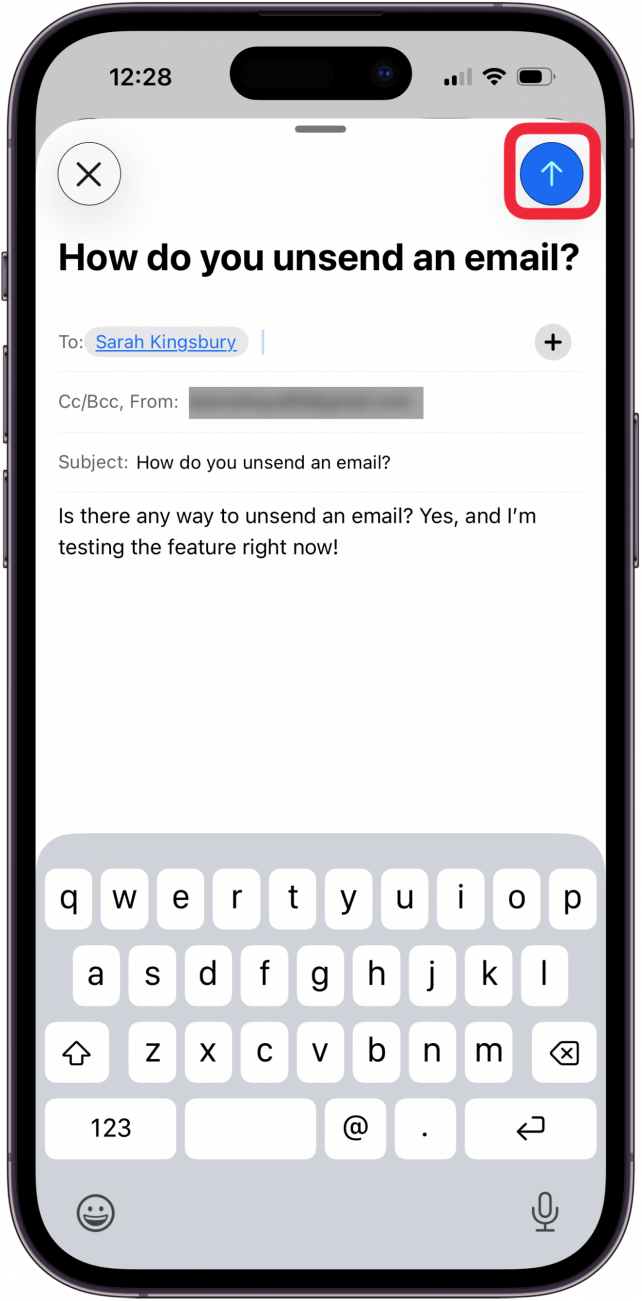
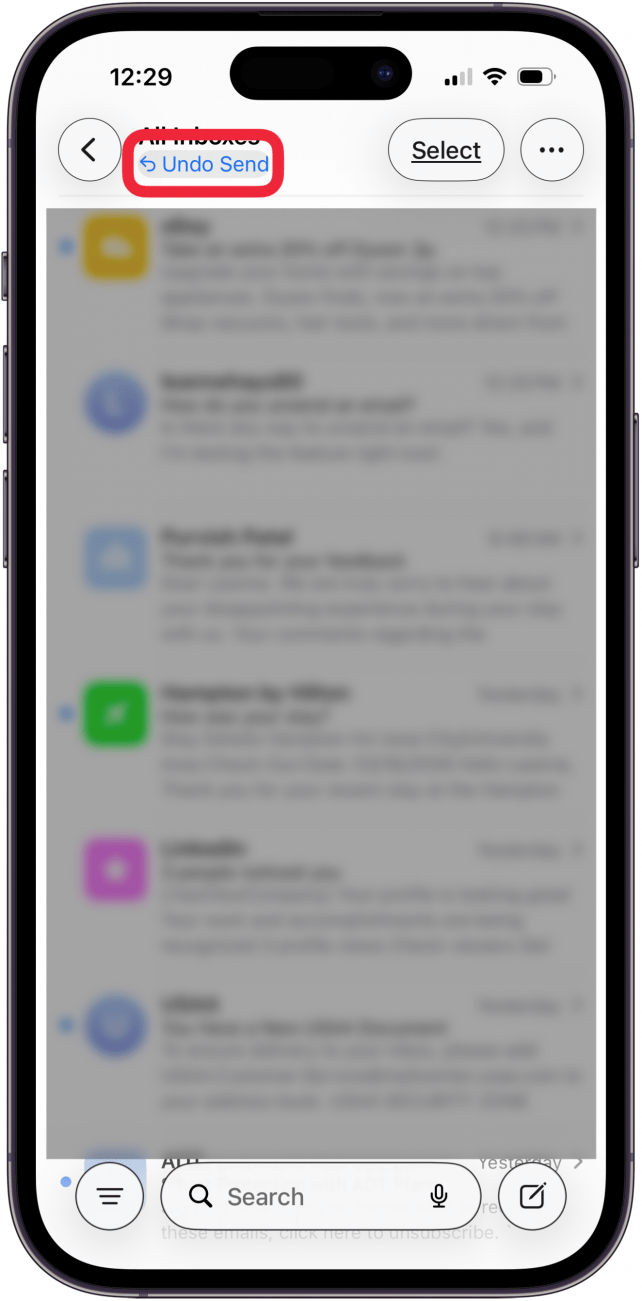
After you stop the email from sending, your Mail app will open the draft again, so you can edit it and resend if necessary.

If you wait longer than 10 seconds, you won’t be able to unsend the email unless you change the Mail Undo Send Delay in your settings. You can unsend an email regardless of whether the recipient has an iPhone or is running the latest software.
How to Change the Mail Undo Send Delay Time
If you’d like to give yourself some more time to unsend an email, you can do so in the settings:
- Open the Settings app.

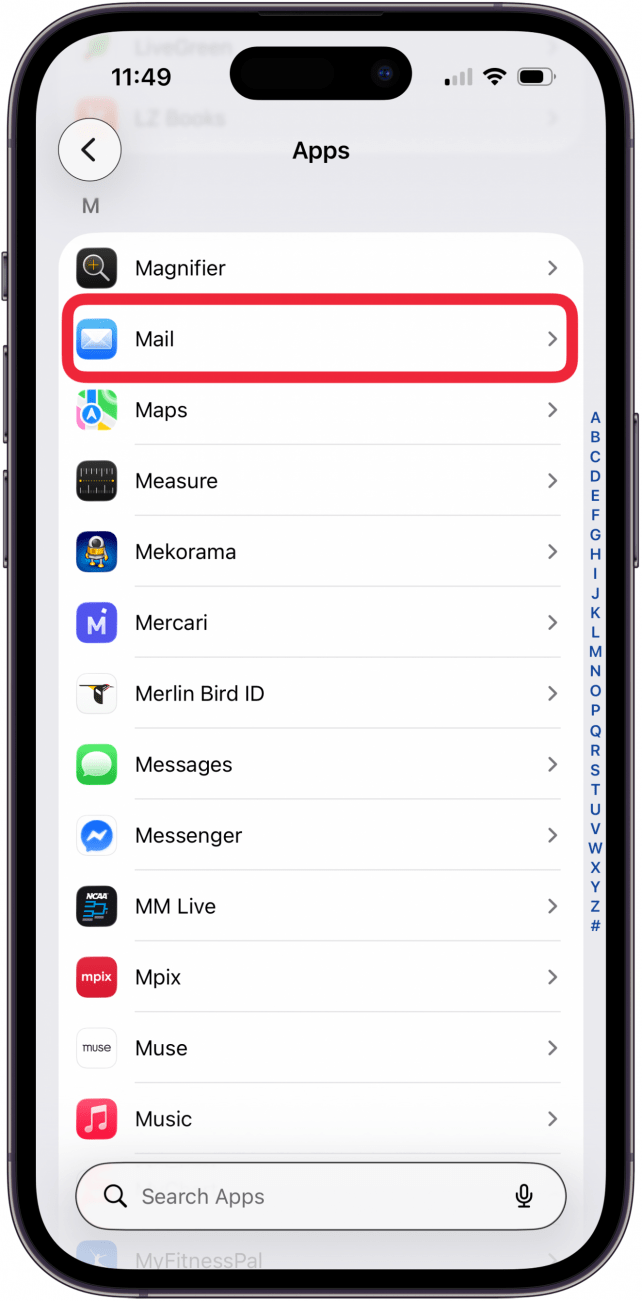
- Tap Apps.

- Tap Mail.

- Scroll to the bottom and tap Undo Send Delay.

- Here you can pick between Off, 10 Seconds, 20 Seconds, and 30 Seconds. Tap one to select it.



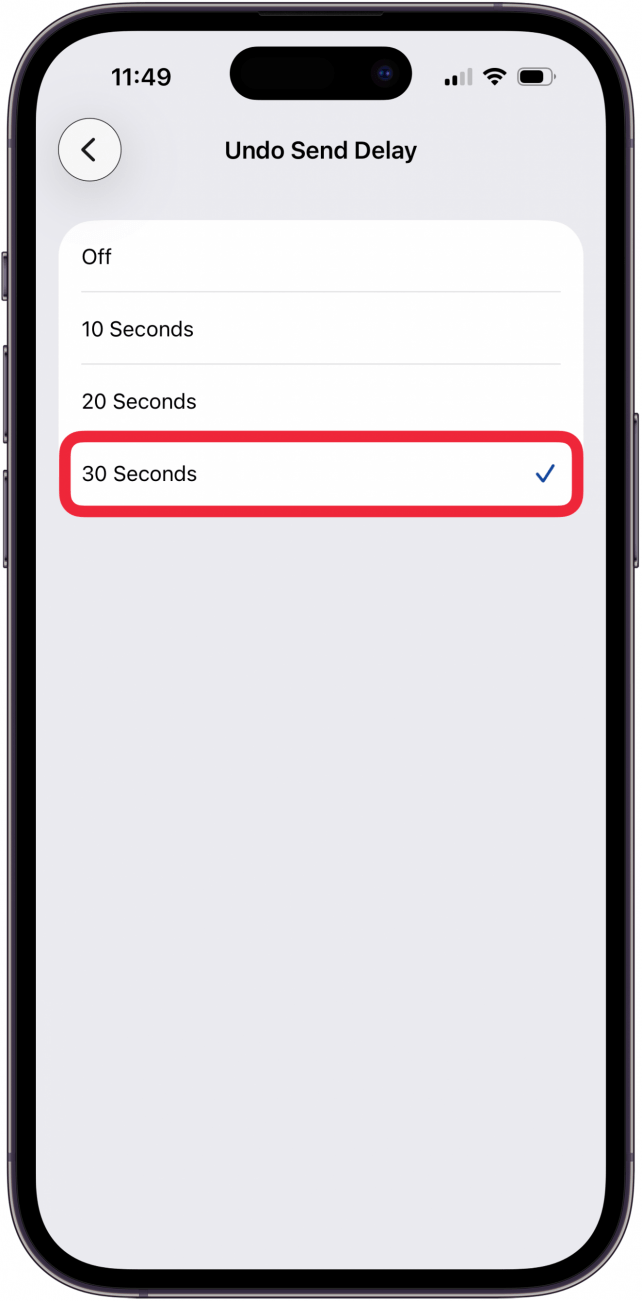
I like to set my unsend email time limit to 30 seconds because it usually takes me a while to realize I made a mistake, so the more time I have, the better. For more Mail app tips, sign up for our free Tip of the Day.