* This article is from our Tip of the Day newsletter. Sign Up. *
You probably already know that you can react to text messages with a heart or a thumbs up. But Memoji stickers are another fun way to react to text messages and give your conversation a personal touch. You can add stickers to an iMessage, even after that message was sent! If you already have a Memoji sticker sheet, then you probably want to know how to add those stickers in a message. This tip will show you how to add a Memoji sticker after the message is already sent, for the ultimate in text customization. Read on to learn how to use your Memoji stickers for text messages.
Related: Turn Yourself into an Animoji with Apple’s Memoji for iPhone

How to Add Stickers to a Message
- Open the Messages thread you want to use.
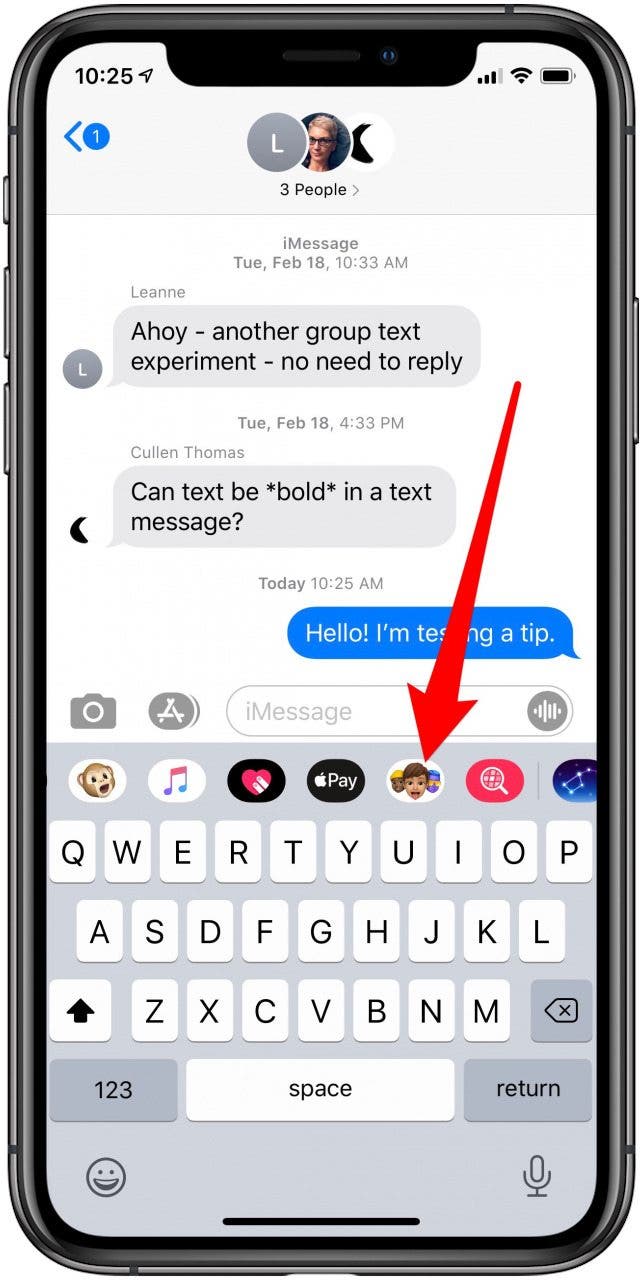
- If you see your app menu on the bottom of the screen, tap the gray App Store icon.
- Select the Sticker sheet icon.
![]()
![]()
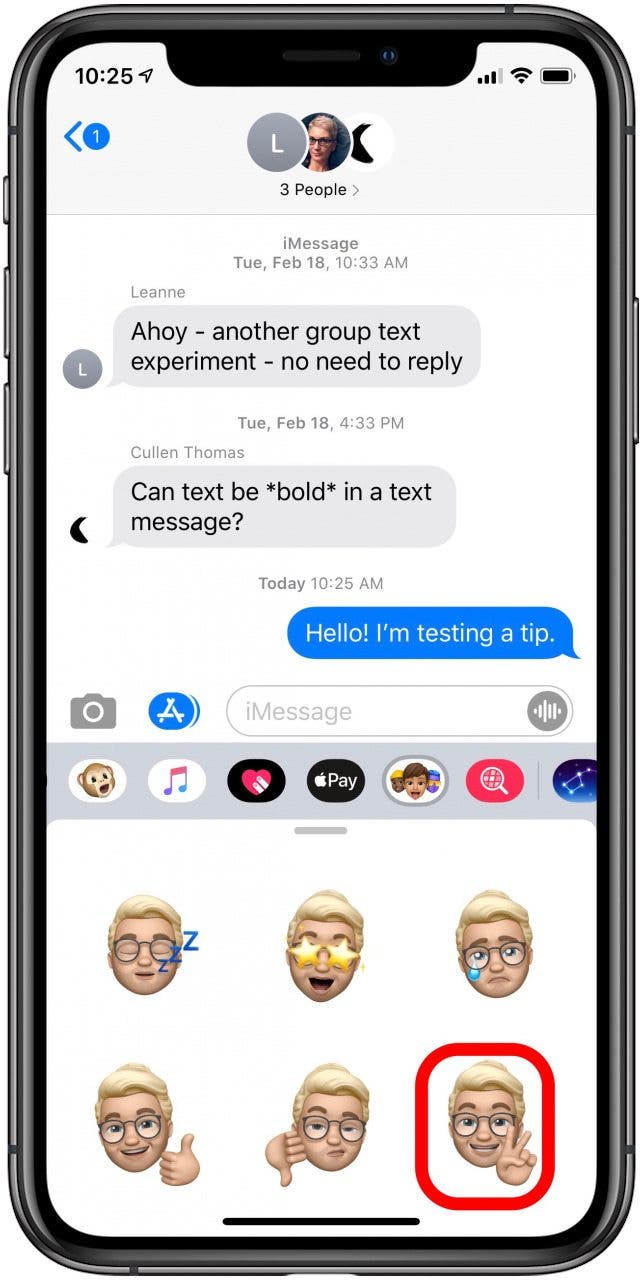
- Select the Sticker sheet you want to use.
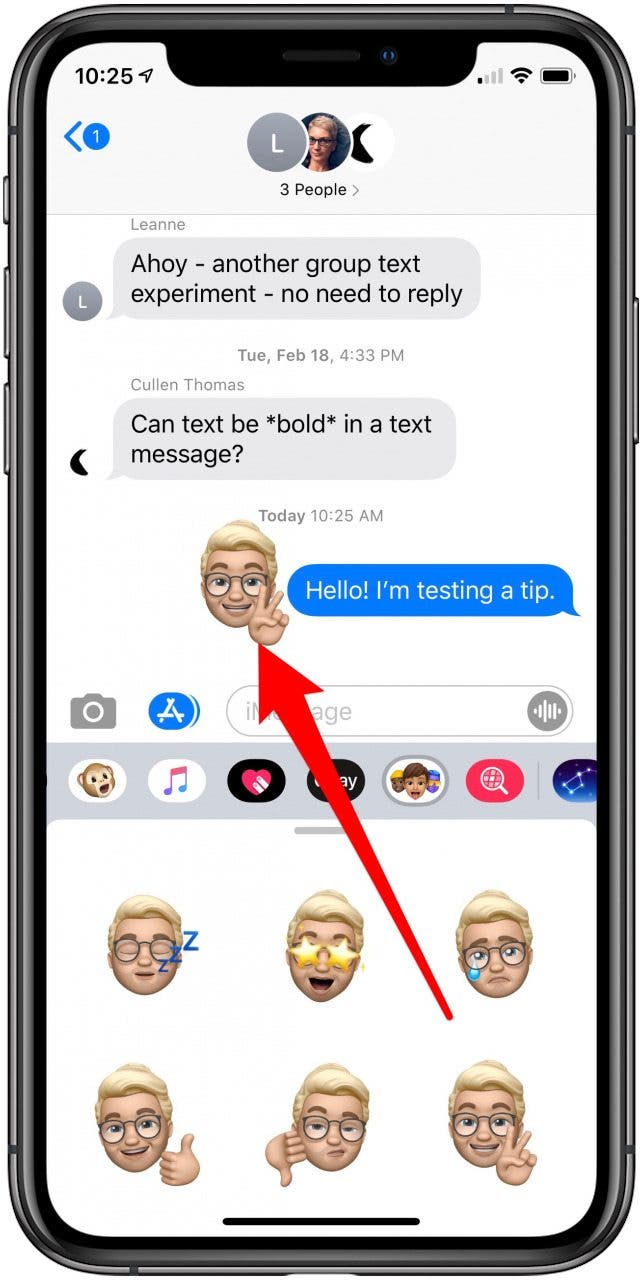
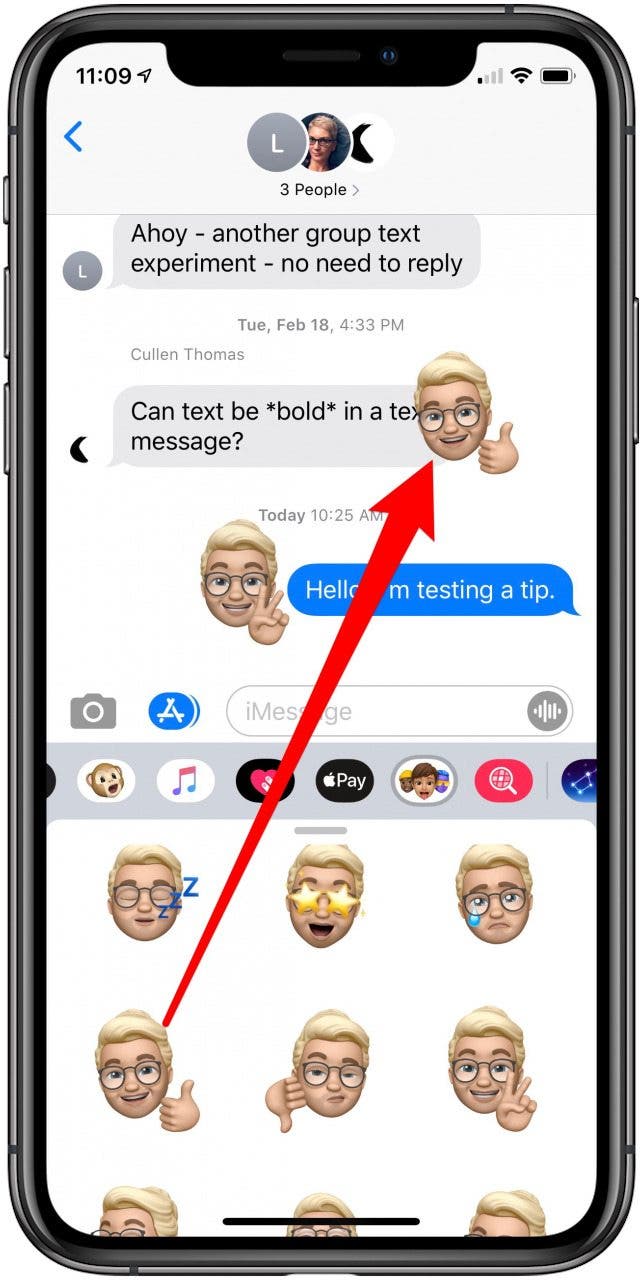
- Now, drag and drop the Memoji sticker you want to add to the conversation.
![]()
![]()
- You can drop it anywhere you want on the screen, and the person you’re talking to will see it as well!
![]()

That’s all there is to it! Now you can use Memoji stickers to react to your conversations. This works for all the stickers, not just Memoji, so you could react with a cow, an octopus, or any of the other fun options. Next, learn how to make a sticker out of a photo.