Lately, I've noticed that the app menu at the bottom of my messages is getting cluttered with icons that I never added. I was glad to learn that you can remove iMessage apps from the app menu to make it less cluttered. Let's get started learning how to delete iMessage apps from Messages on your iPhone, or add them back.
Why You'll Love This Tip
- Declutter your app menu in the Messages app.
- Quickly access your favorite apps in the app menu without endless scrolling.
How to Remove iMessage Apps from the iPhone Messages App Menu
System Requirements
This tip was written on an iPhone 17 Pro running iOS 26.5. Learn how to update iOS.
Here are the steps to remove iMessage apps from the app menu in Messages. You can also use this tip to add apps back to the iMessage app menu.
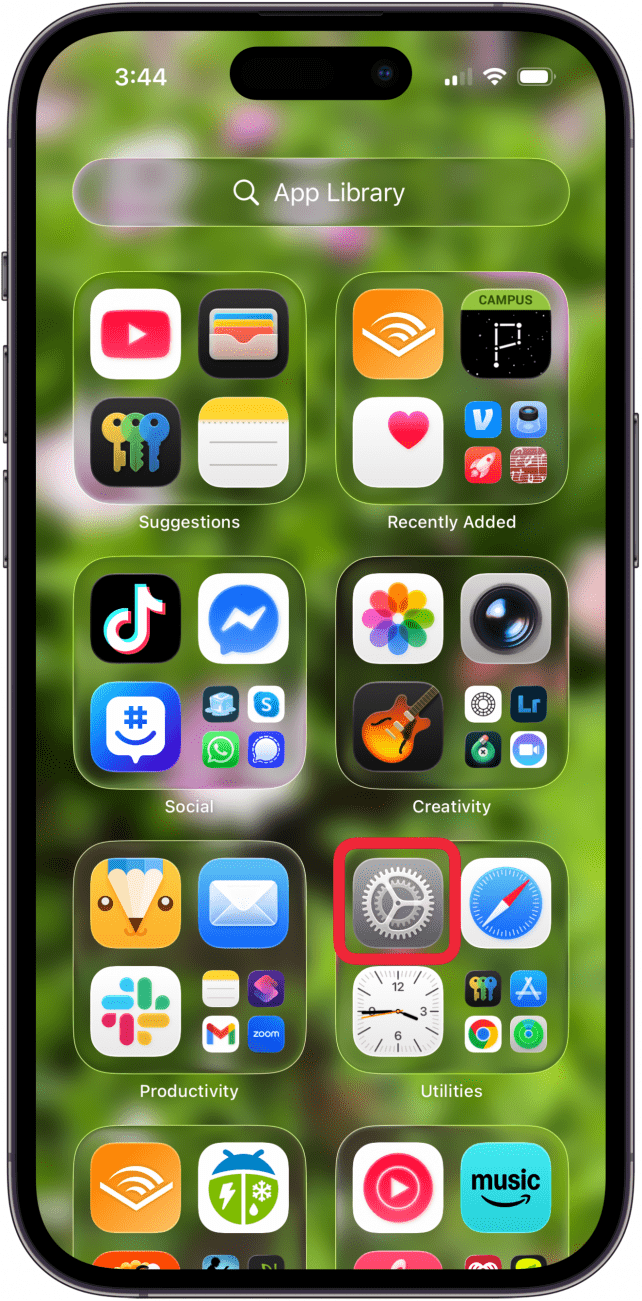
- Open the Settings app.

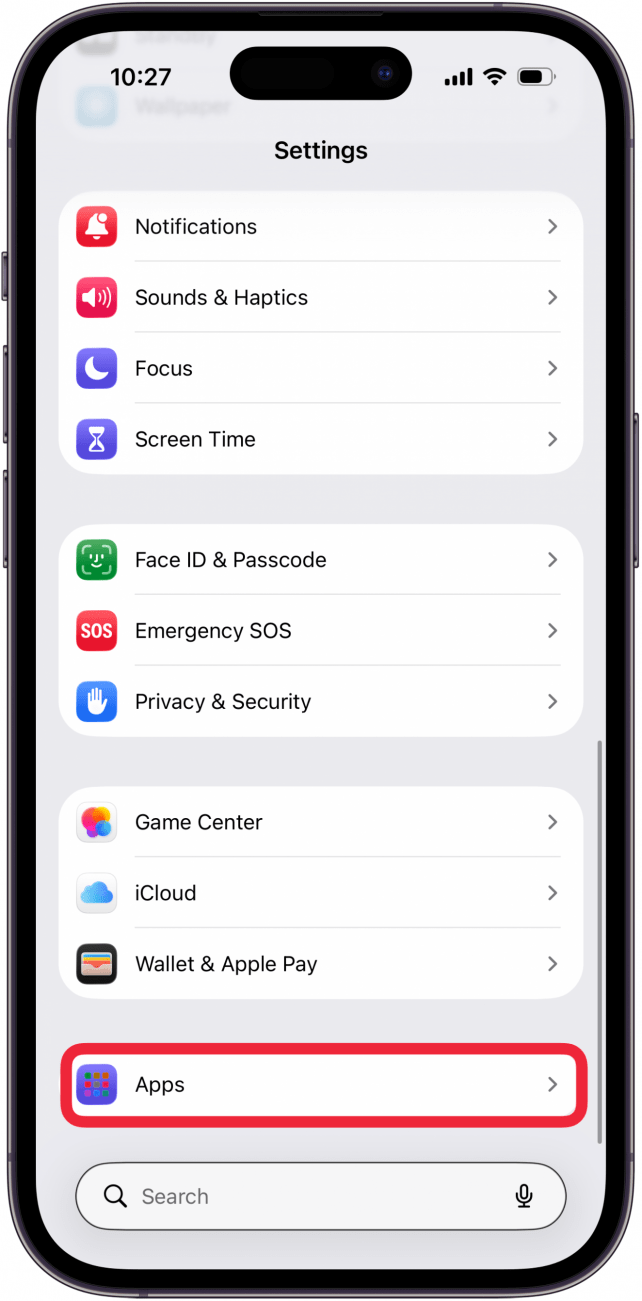
- Tap Apps.

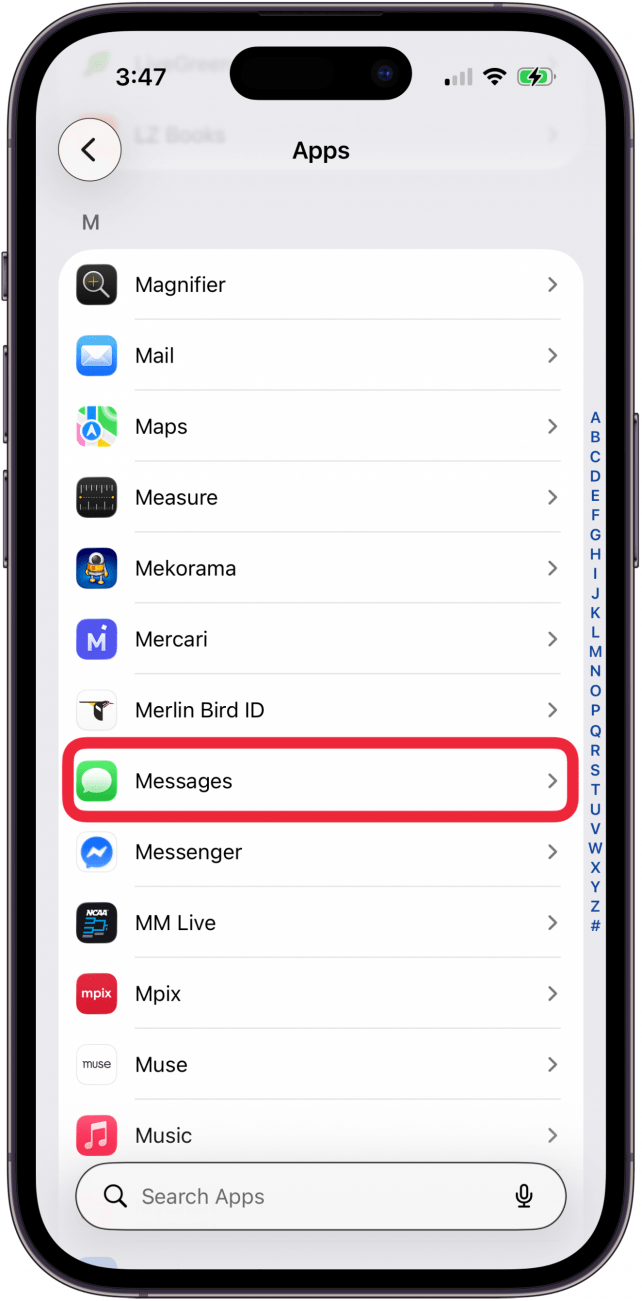
- Tap Messages.

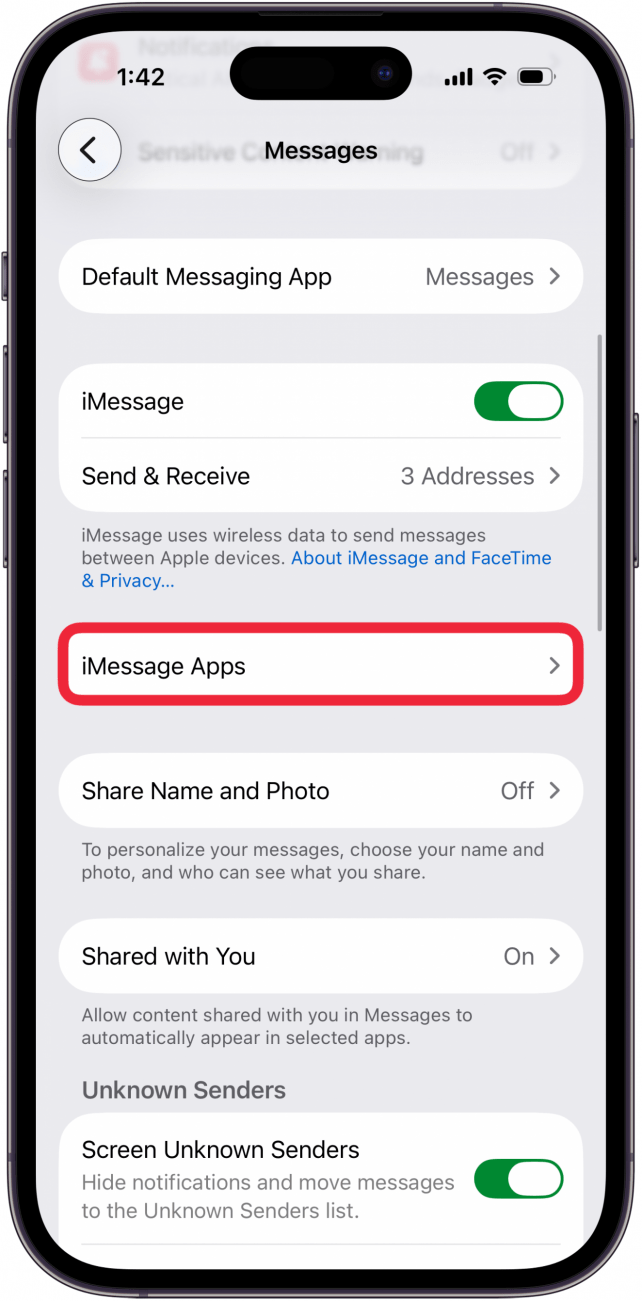
- Tap iMessage Apps.

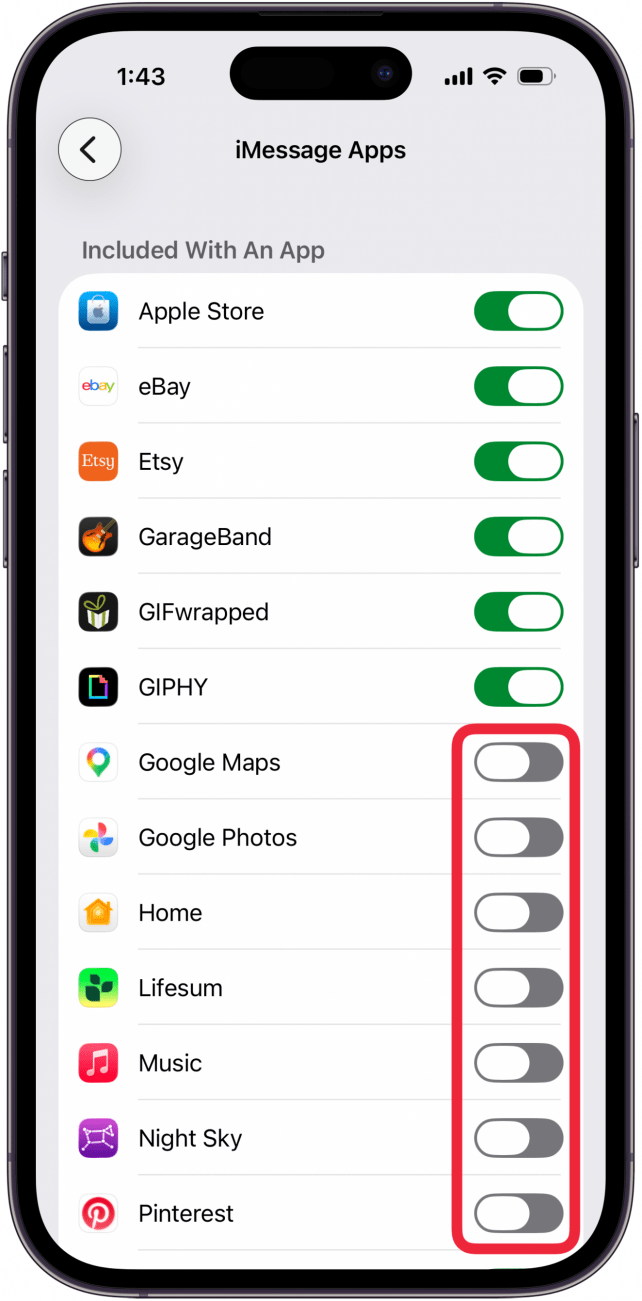
- From here, you can toggle off apps you do not want to appear in the Message App bar. Scroll down the page to see more options to turn off.

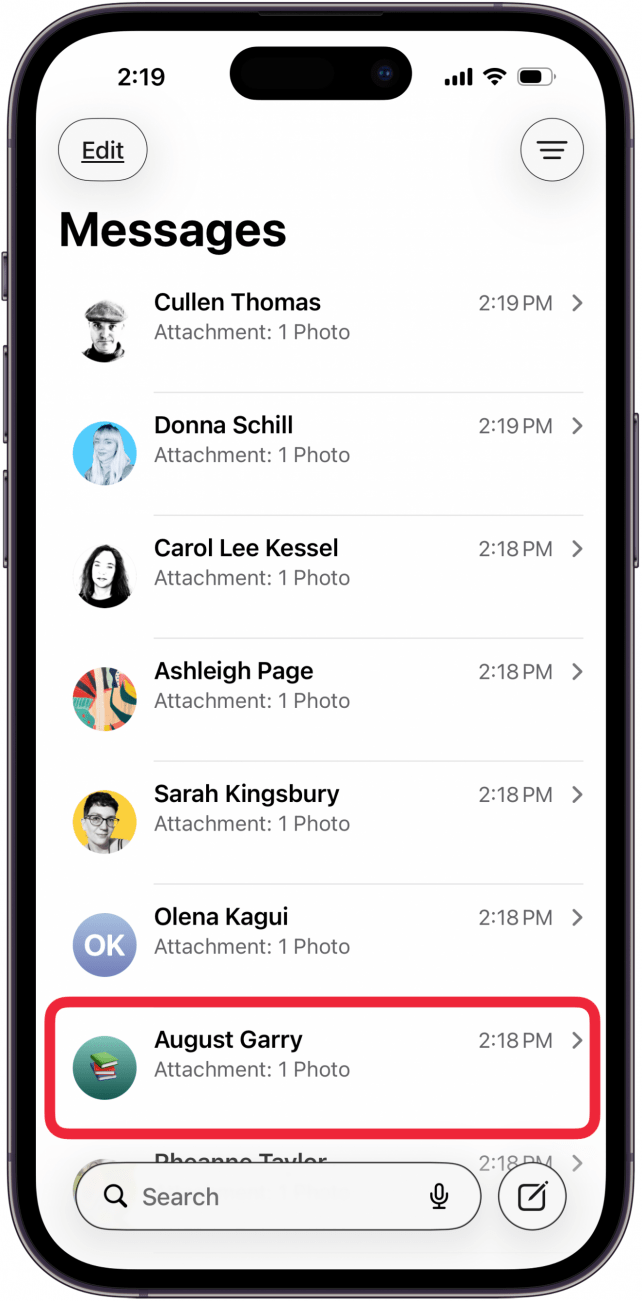
- To access the Message App Bar, open Messages.

- Tap any conversation to open it.

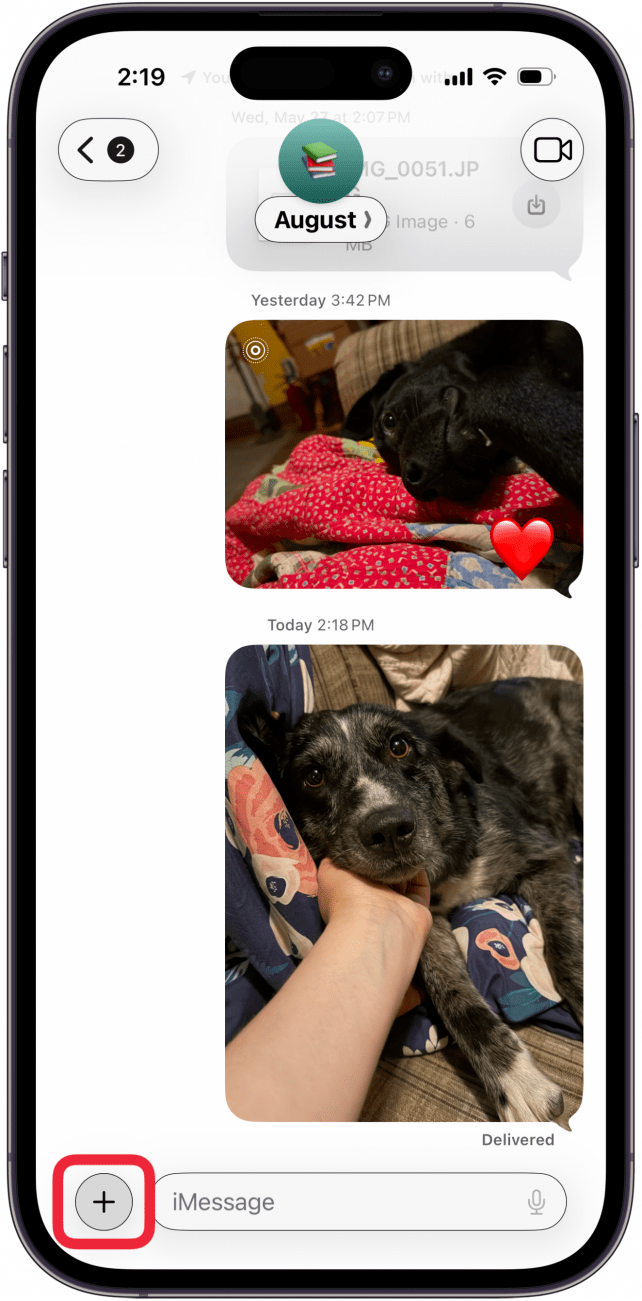
- Tap the plus button next to the text field.

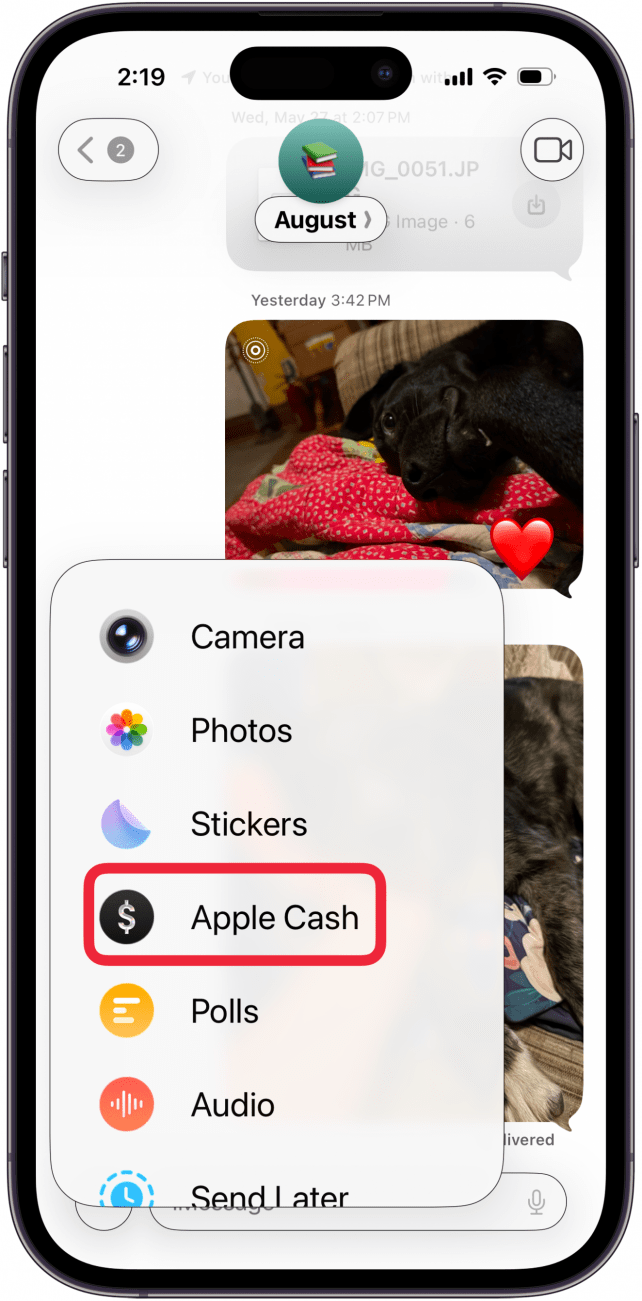
- Tap an app in the list, or scroll down to see the remaining apps in your Messages App bar.


And that's how to remove options from the menu in Messages. Now, your app will be less cluttered, and you can find the apps you actually need more easily. Be sure to sign up for our free Tip of the Day to learn more about the Messages app.