* This article is from our Tip of the Day newsletter. Sign Up. *
On top of being a super useful way to save your thoughts while busy, did you know that you can edit a voice memo? If you are recording a voice memo in the Voice Memos app and you want to trim the audio down, cut out a section, or replace a section of the audio, you can! Here's how to edit voice memos in the Voice Memos app.
Why You'll Love This Tip:
- Record your voice memos and worry about editing out imperfections later.
- Learn how to cut out, trim down, or replace a section of audio when recording a voice memo.
How to Edit a Voice Memo in the Voice Memos App
System Requirements
This tip was performed on an iPhone 12 running iOS 17.4 or later. Learn how to update to the latest iOS.
Being able to fix a voice memo after you've created it is a great tool to learn. However, do be careful before you tap the Done button! Once you make changes to a voice memo, it can be difficult to undo them. Here's how to edit a voice memo! If you like learning about using your iPhone, be sure to sign up for our free Tip of the Day!

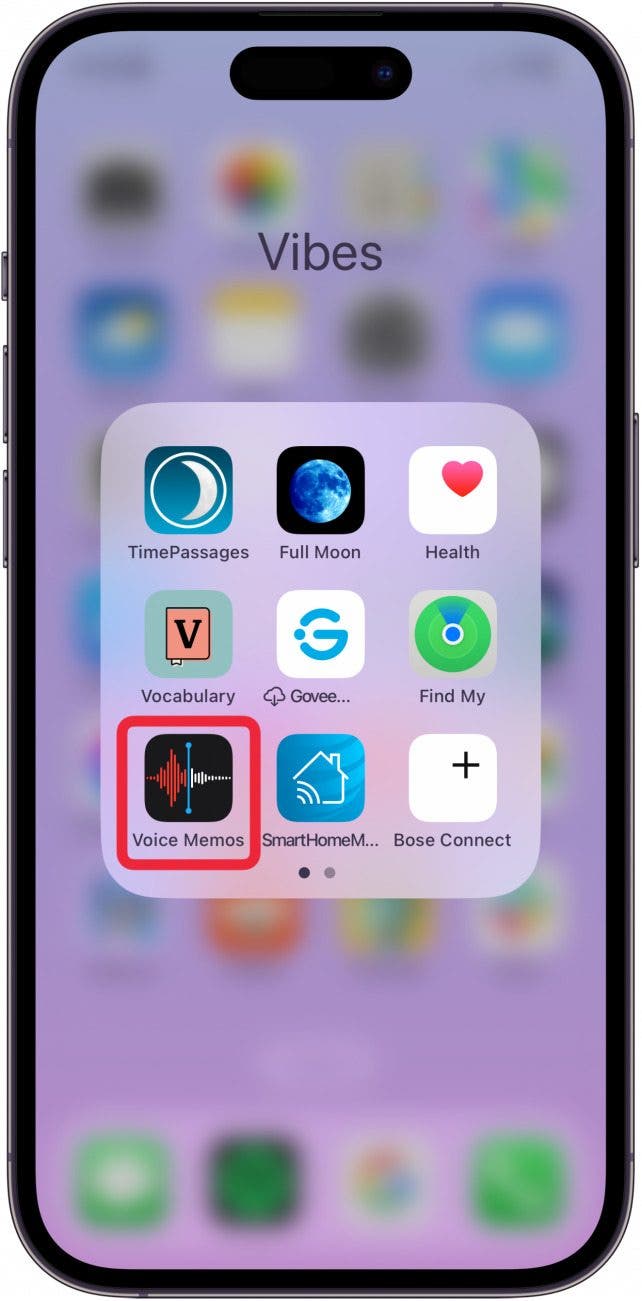
- Open the Voice Memos app.
![how to edit voice memos]()
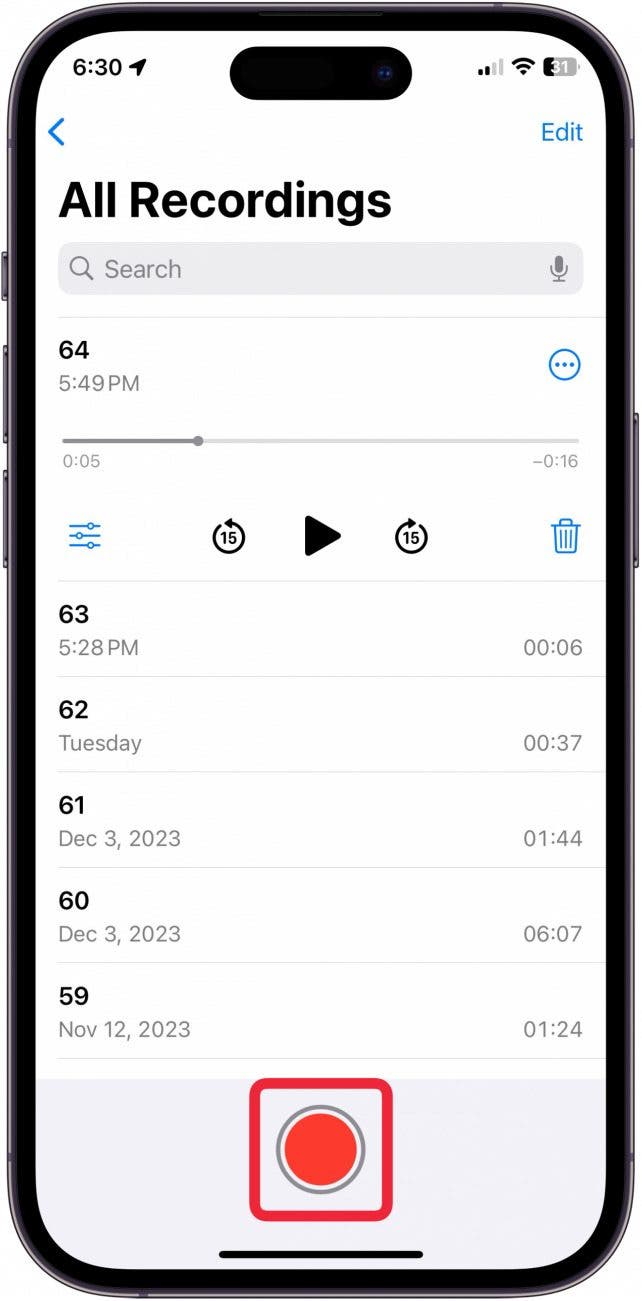
- Tap the Record button to record a voice memo.
![edit voice memos]()
- Tap the Record button again when you're finished recording.
![how to edit a voice memo]()
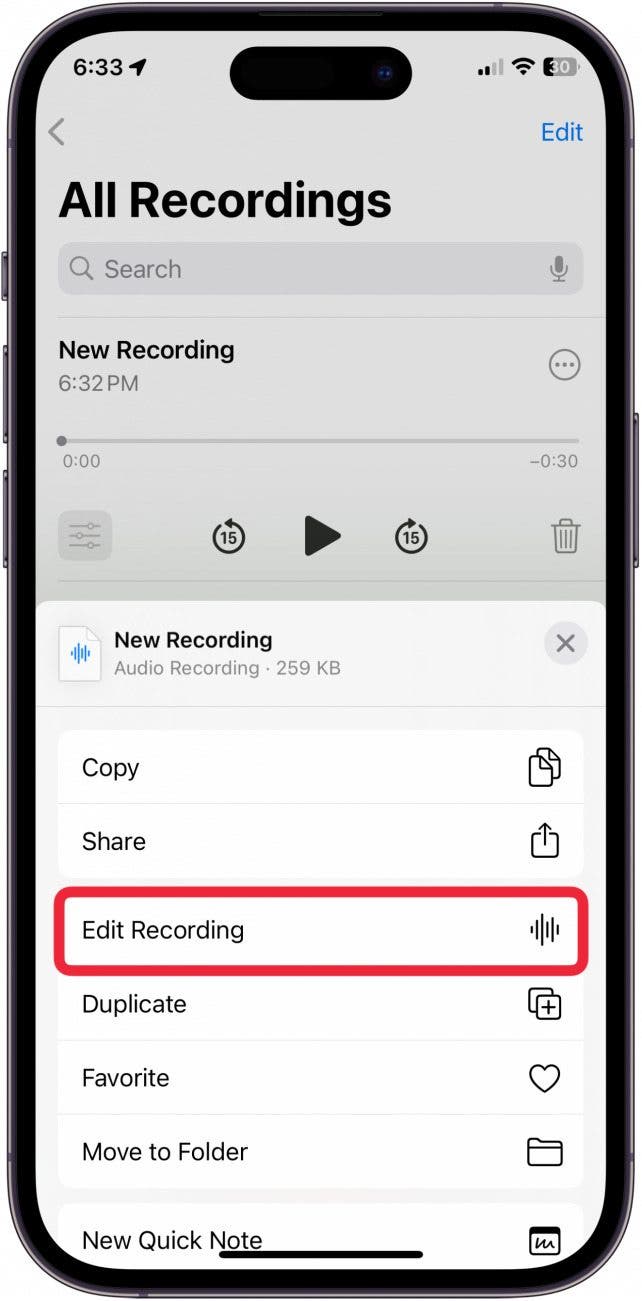
- Tap the three dots in a circle.
![how to edit voice memo]()
- Tap Edit Recording.
![how to edit voice memos on iphone]()
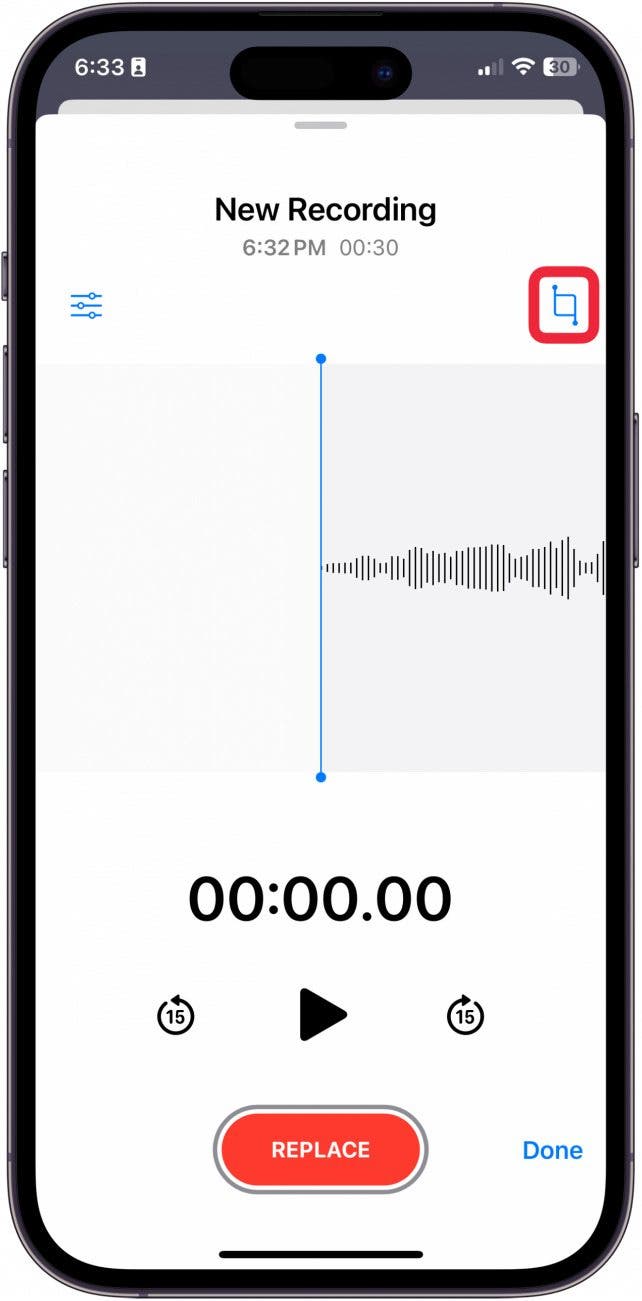
- Drag the audio bar to move it back and forth to control where you want to edit the recording.
![edit voice]()
- If you want to trim the voice memo down to something smaller or remove a portion of the recorded audio, tap the Trim button in the top right.
![how to edit audio recording]()
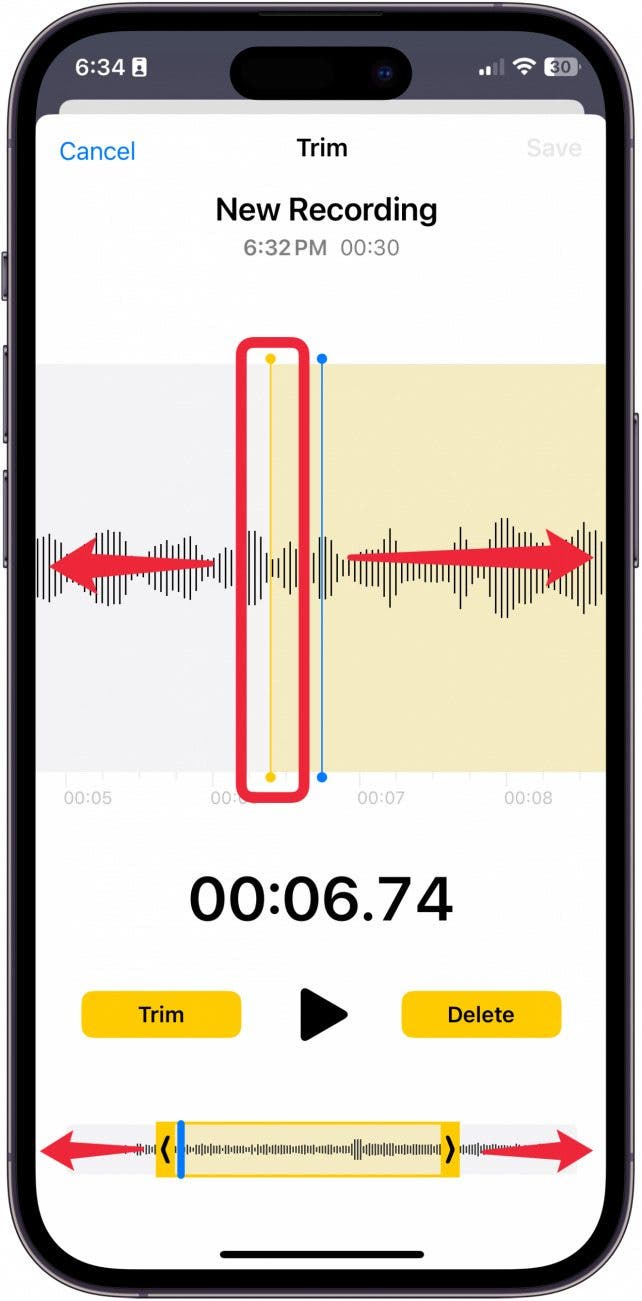
- Use the yellow bars to select the portion of the song you either want to remove or keep.
![edit a voice recording]()
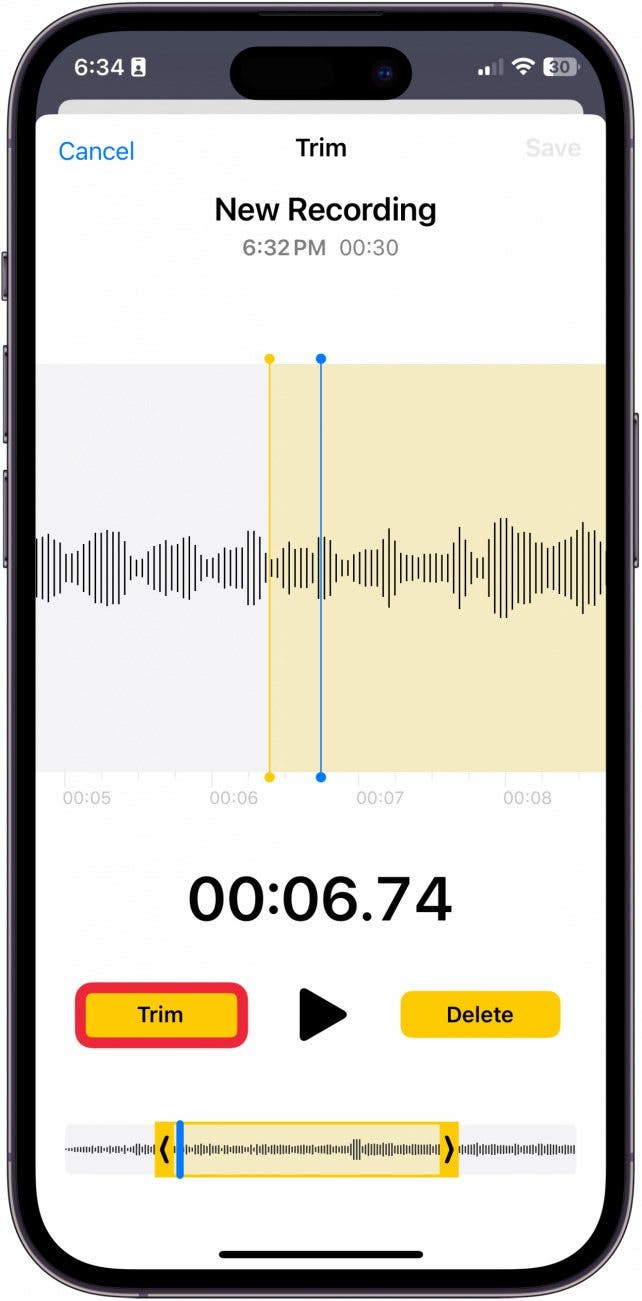
- To trim the voice memo down, tap Trim. Only the part of the audio within the highlighted yellow bars will remain.
![how to edit audio files on iphone]()
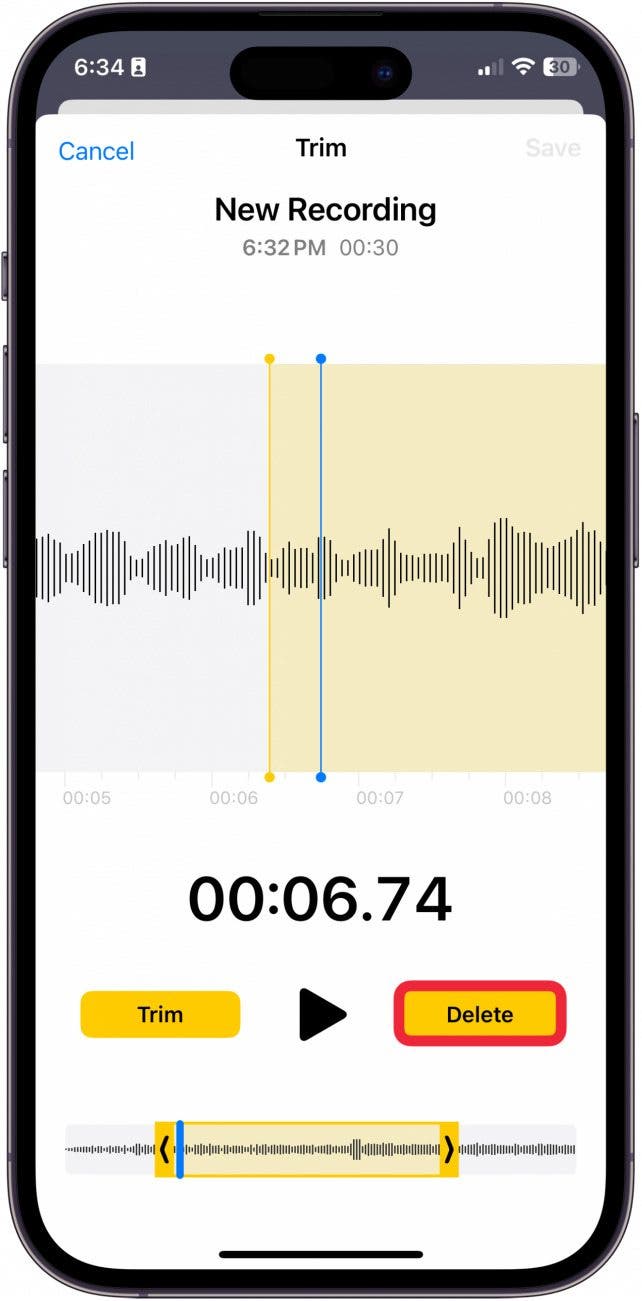
- To delete a part of the voice memo, tap Delete. The only part of the audio that will be deleted is highlighted within the yellow bars.
![voice recording on iphone]()
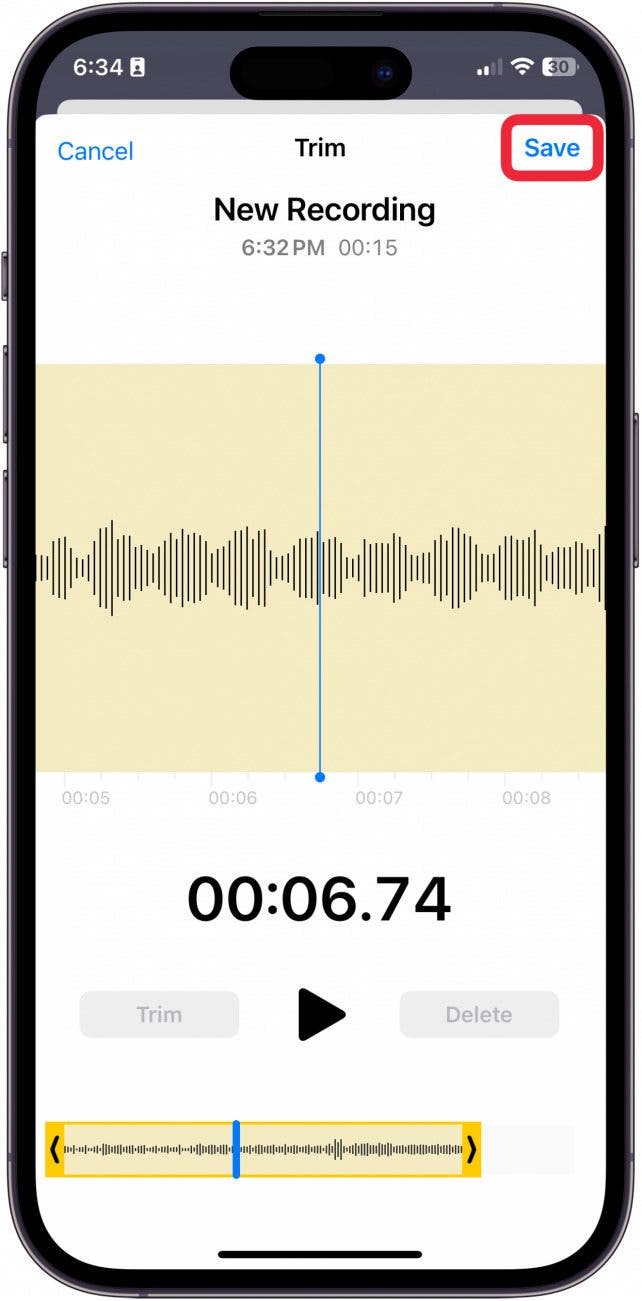
- Tap Save to save your changes.
![how to trim audio files on iphone]()
- Tap Cancel to undo your changes.
![voice memo app on iphone]()
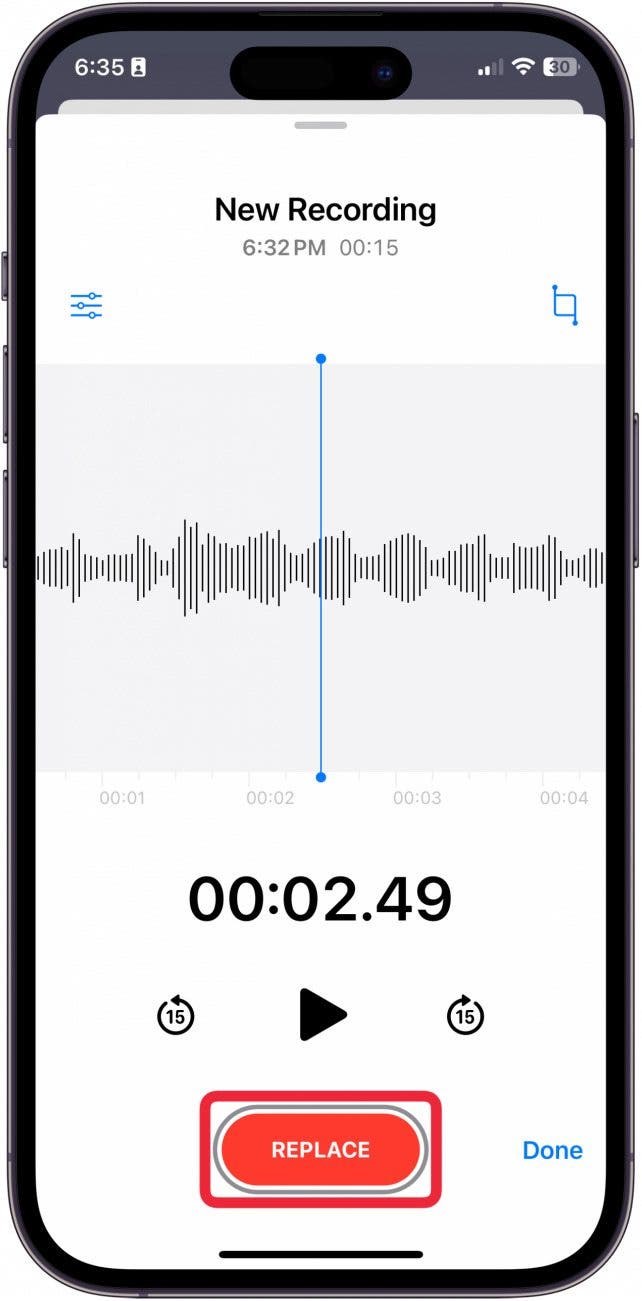
- To replace audio, drag the audio recording to where you want to replace.
![how to use voice memos on iphone]()
- Tap Replace.
![voice recordings on iphone]()
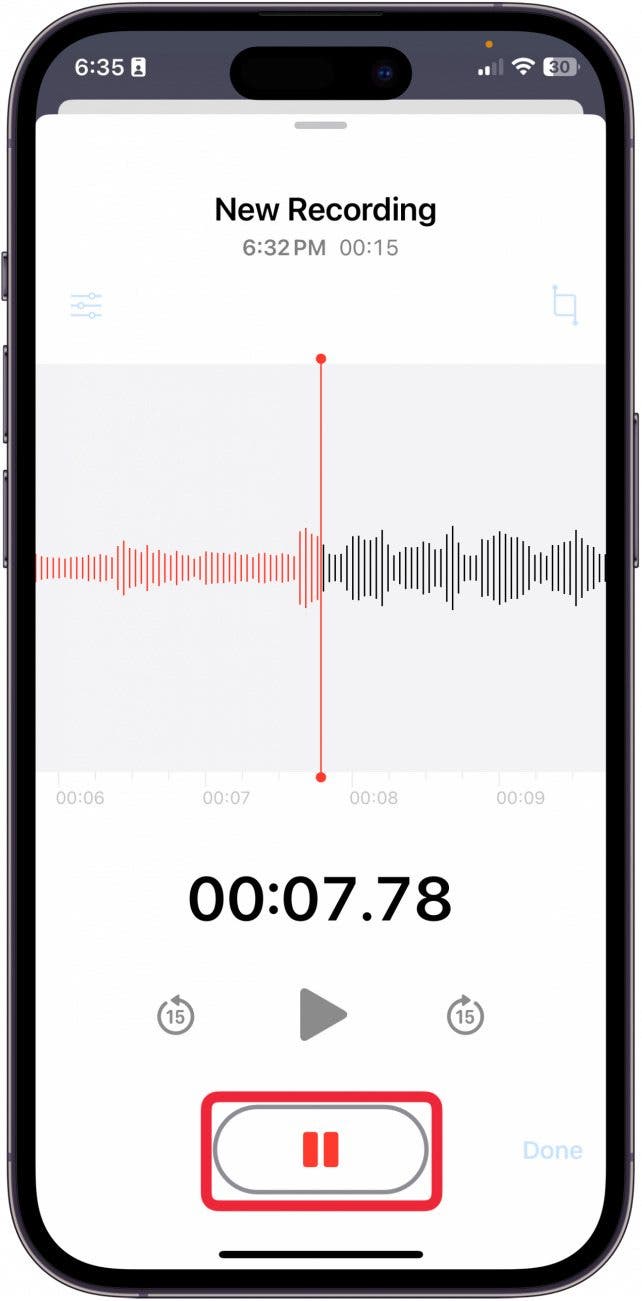
- Tap the Pause button to stop rerecording over the old audio.
![edit audio on iphone]()
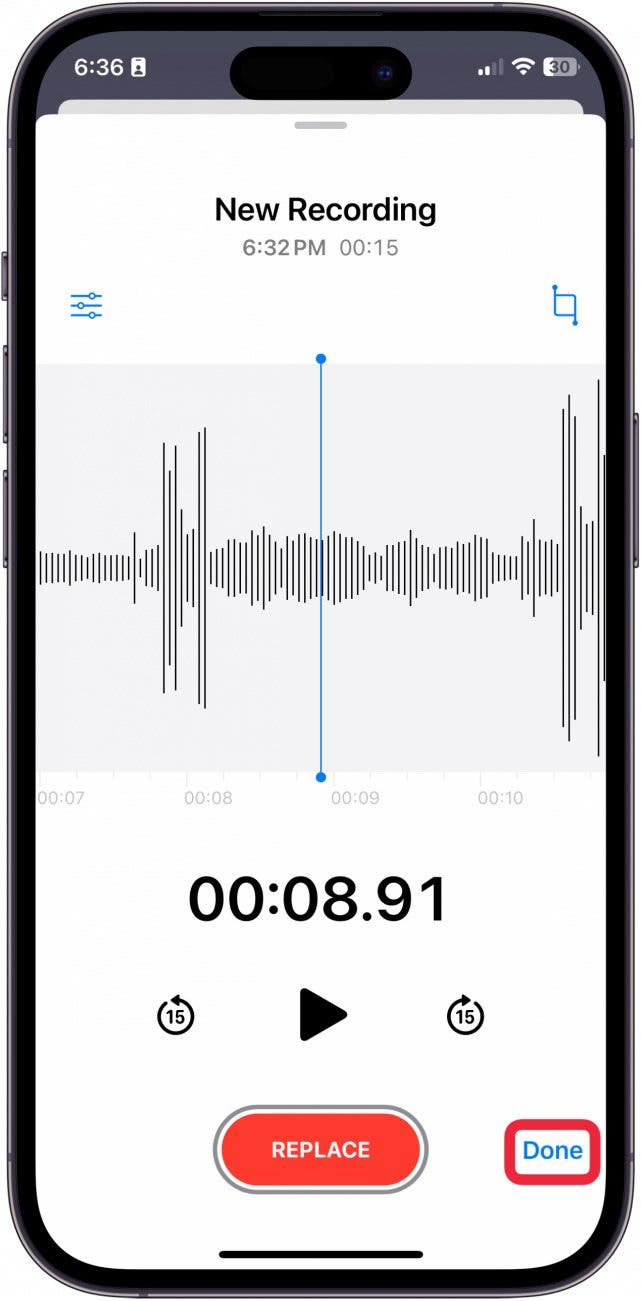
- Tap Done to save all your changes. Double check you want to save all the changes before saving!
![where is voice memos on iphone]()





And that's how you edit a voice memo in the Voice Memos app! This is super great for musicians, writers, or anyone who needs to brainstorm things verbally. Now, you don't have to leave in the twenty seconds of dead silence or the dog barking!