Are you tired of checking a website weekly, daily, or even hourly to see if a new album is available, a product is restocked, or enrollment has opened up for the class you've been wanting to take? Then, the new Notify Me feature in Safari is for you! Just enter what you want Notify Me to be on the lookout for, and how often, and Safari will do the rest.
Why You'll Love This Tip
- Get updated when concert tickets go on sale, enrollment for school break activities opens, out-of-stock items are restocked, new products become available, and more.
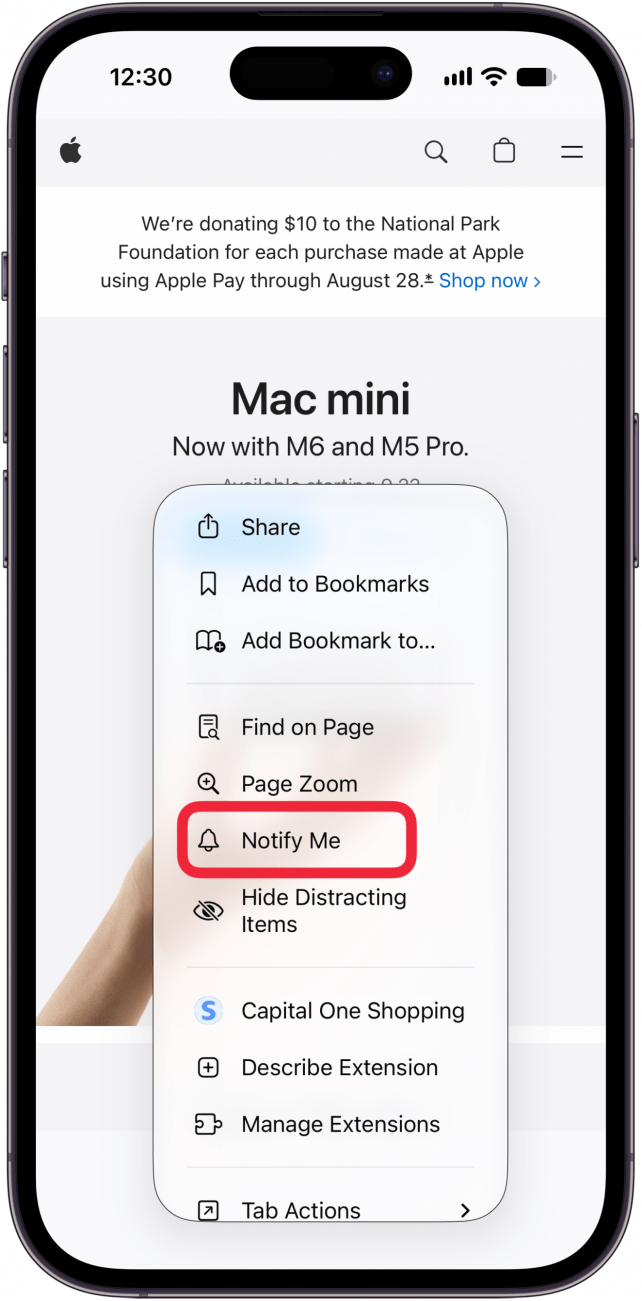
- To enable Notify Me, just tap the menu icon on a website, tap Notify Me, and choose an option or type what you'd like to be notified about.
How to Use the Safari Notify Me Feature in iOS 27 to See Website Updates & Changes
System Requirements
This tip was performed on an iPhone 17 running the iOS 27 beta, which will be shipped universally in September 2026. These steps do not work for users running iOS 26. Find out how to update to the latest version of iOS.
The iPhone Life team is waiting for Apple to announce the date and time of their annual September event, so we can plan our coverage. What better way to use the new Safari Notify Me feature, than to get the Apple announcement within the hour? Here's how to use Notify Me in Safari:
- Open the Safari app.

- Visit a website that you'd like to receive updates about, and tap the puzzle piece icon in the Search bar.

- Tap Notify Me.

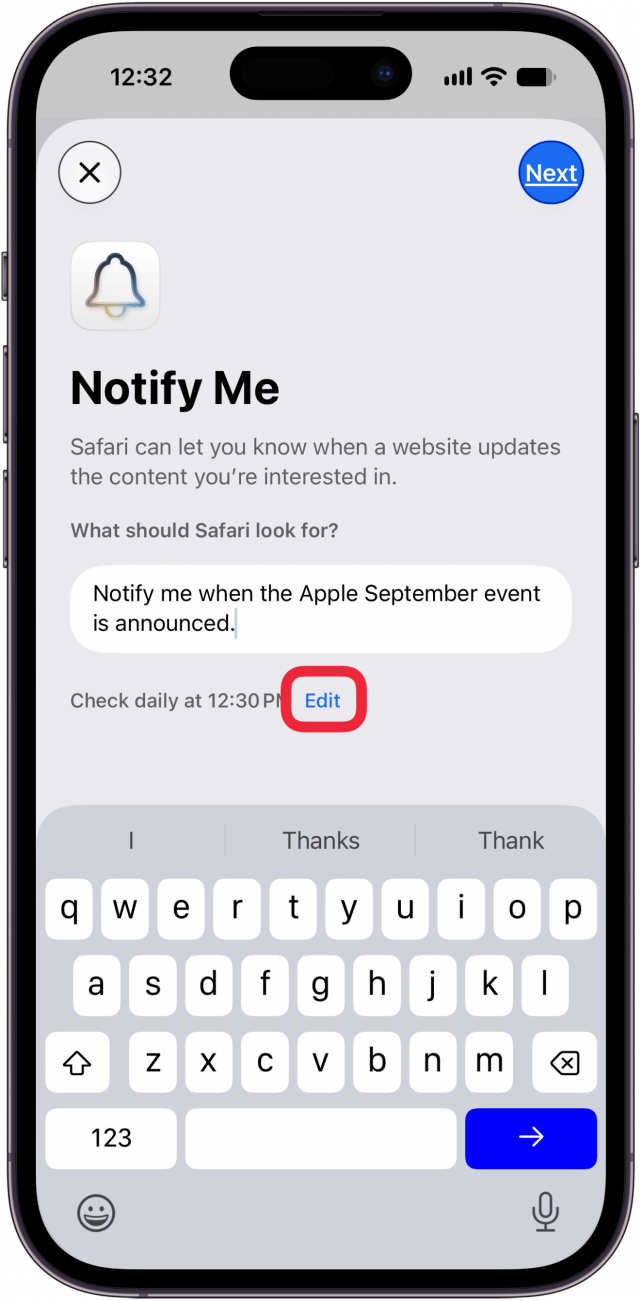
- Tap a suggestion, or type what you'd like Safari to notify you about in the What should Safari look for? field.

- If Safari doesn't respond to your request, try rephrasing it.
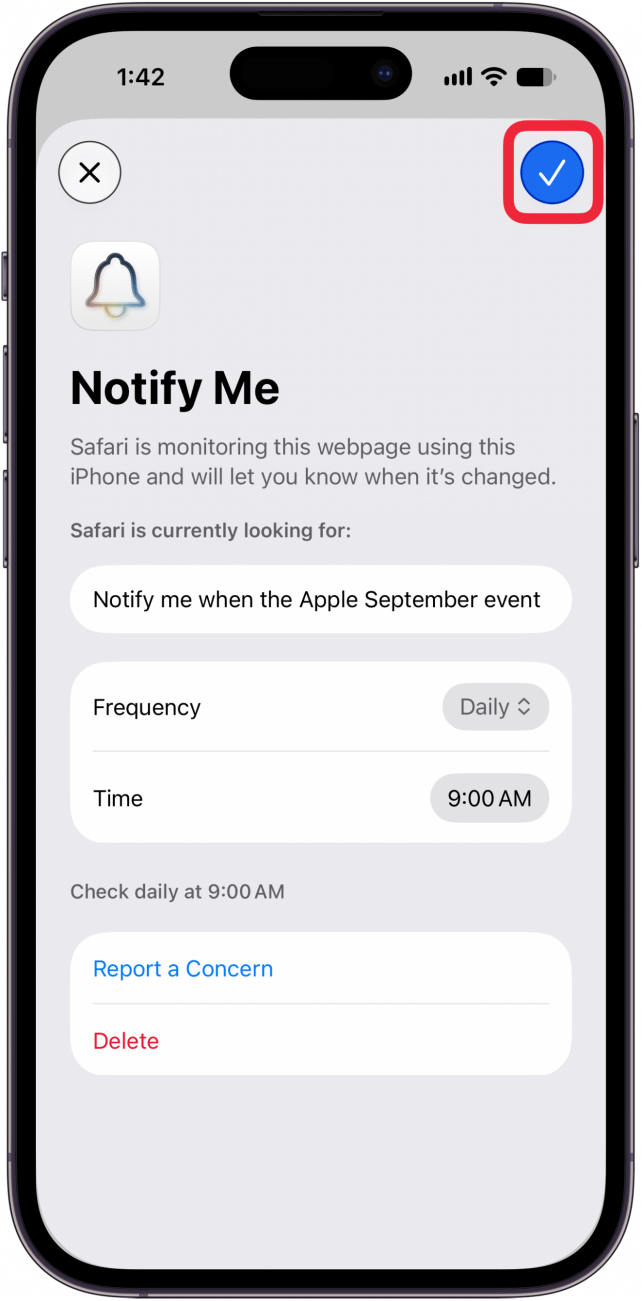
- You'll see how often, and when your query will be checked under the query field. Tap Edit to change this setting.

- Tap Hourly, Daily, Weekly, or Monthly, then select the time.

- Tap the check mark in the blue circle to finish.

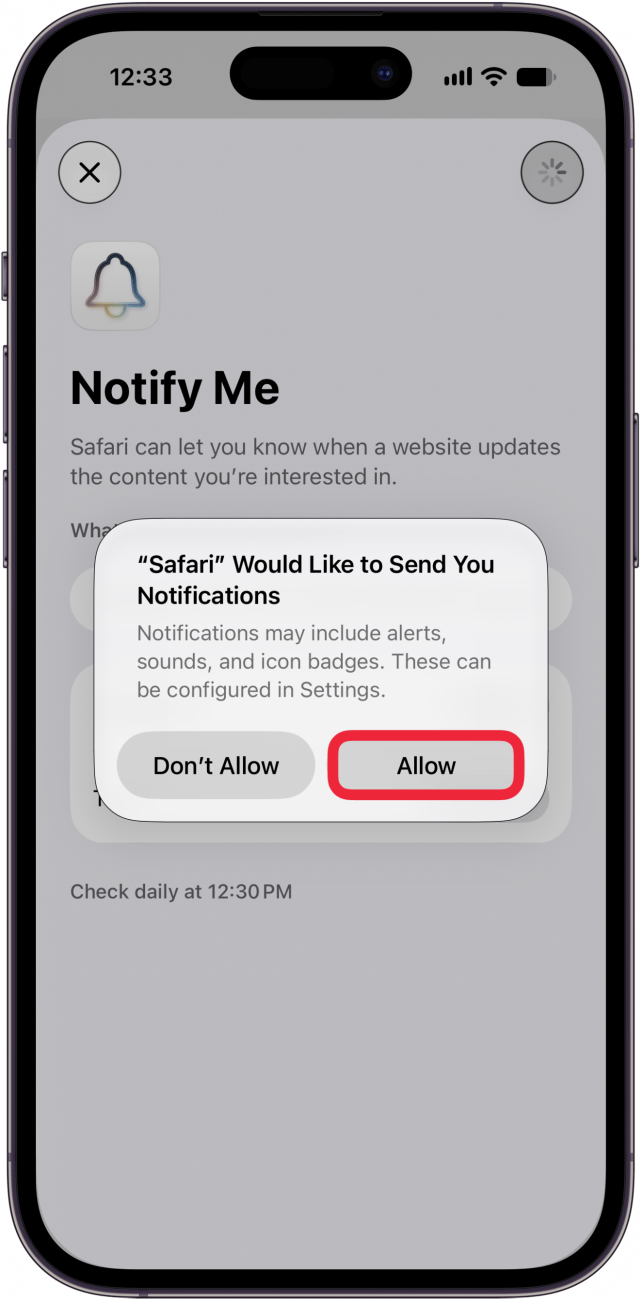
- Tap Allow to receive the Notify Me notification.

- You'll see a Notify Me banner at the top of your screen.





Note: Notify Me doesn't work on all websites, though more and more will add the feature over time.
Now you know how to use the Notify Me feature in Safari to get updated on website changes. Be sure to check out our free Tip of the Day for more great Safari tutorials.