There are a lot of different AI tools out there, and while many people started with ChatGPT, it might be time to try something new. The biggest deterrent to switching to a different LLM is all the time users have put into teaching it their preferences, etc. Fortunately, it's quite easy to export all your data from ChatGPT, or a different AI app, that you can then import into your new app so that you don't have to start personalizing from scratch.
Why You'll Love This Tip
- Easily export ChatGPT conversation and data all at once.
- Discover the "copy and paste history" feature to transfer all your data from an AI app to another.
- Switch to a new AI app without the hassle of retraining it.
How to Download All Your Data Using ChatGPT Exporter
System Requirements
This tip was performed on an iPhone 17 Pro Max running iOS 26.5. Find out how to update to the latest version of iOS.
ChatGPT was the first mainstream AI tool to gain popularity, and while other AI apps exist and can be even better than ChatGPT, many users are stuck using it because it already "knows" them well. Instead of training a new AI app from scratch, I'll teach you how to export all ChatgGPT conversations and data into a single file that can be uploaded to a different app. Don't forget to check out our free Tip of the Day newsletter for more AI tips. Before you take the steps below, make sure you have downloaded the ChatGPT app (free) and are logged into your account. Here's how to easily export your entire ChatGPT history:
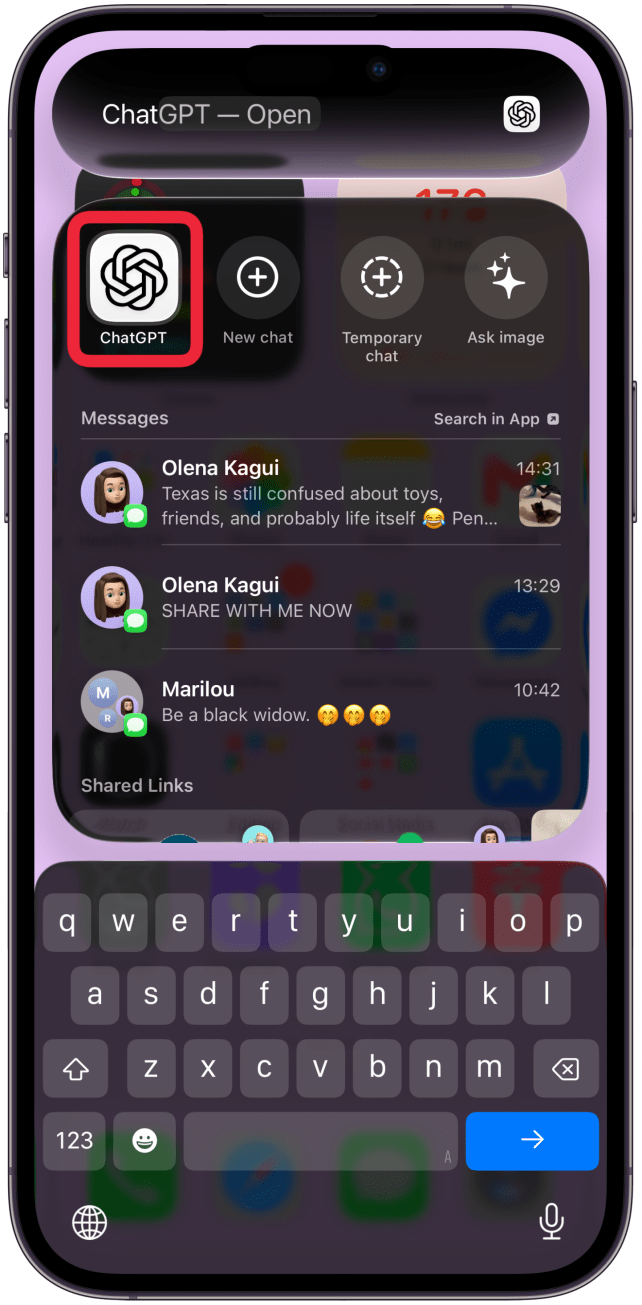
- Open ChatGPT on your iPhone.
![Open ChatGPT on your iPhone.]()
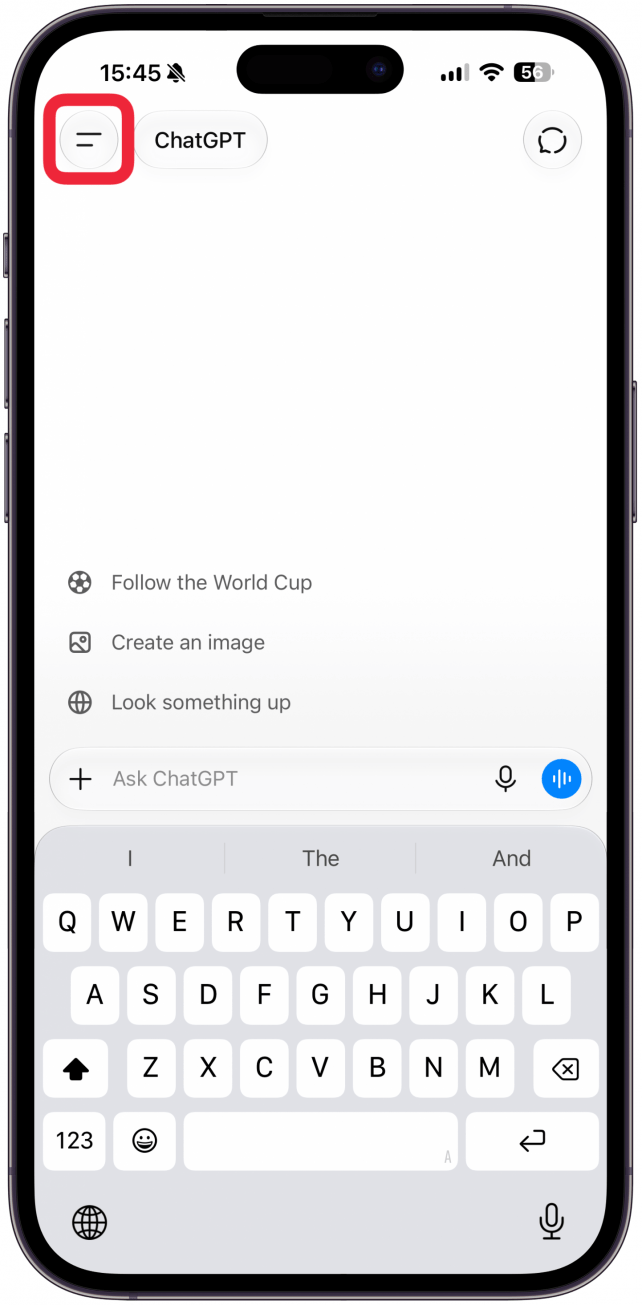
- Tap the icon with the two horizontal lines in the top left corner of the app.
![Tap the icon with the two horizontal lines in the top left corner of the app.]()
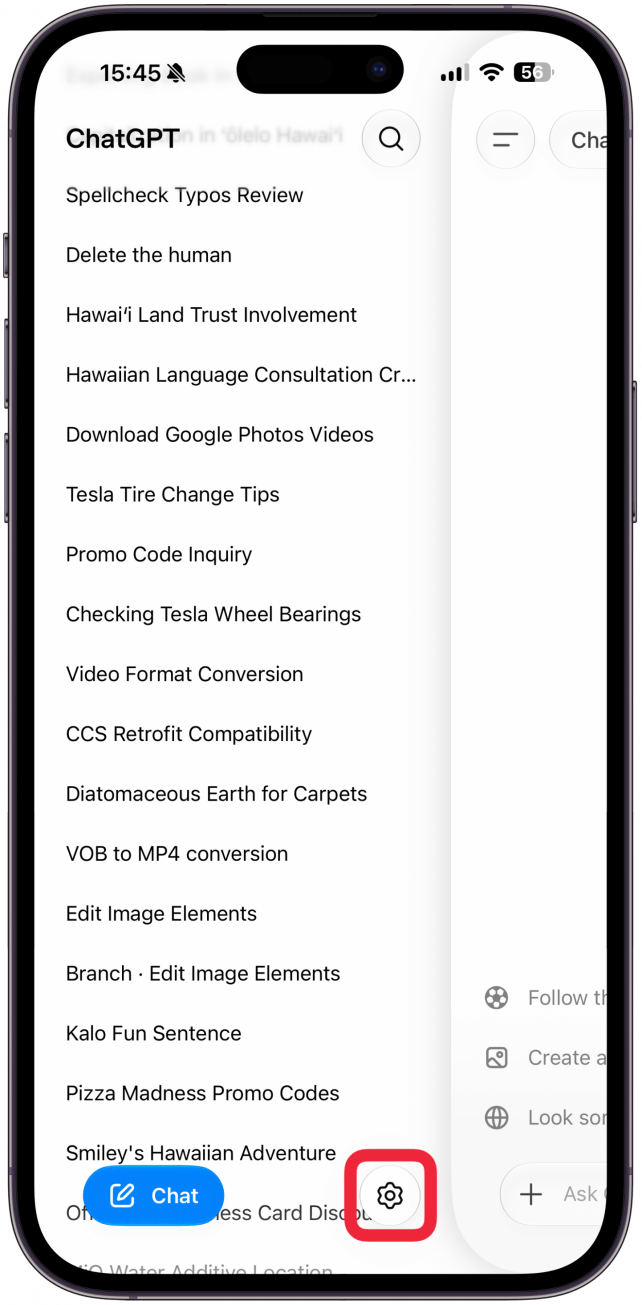
- Tap on the Settings icon at the bottom of the screen.
![Tap on the Settings icon at the bottom of the screen.]()
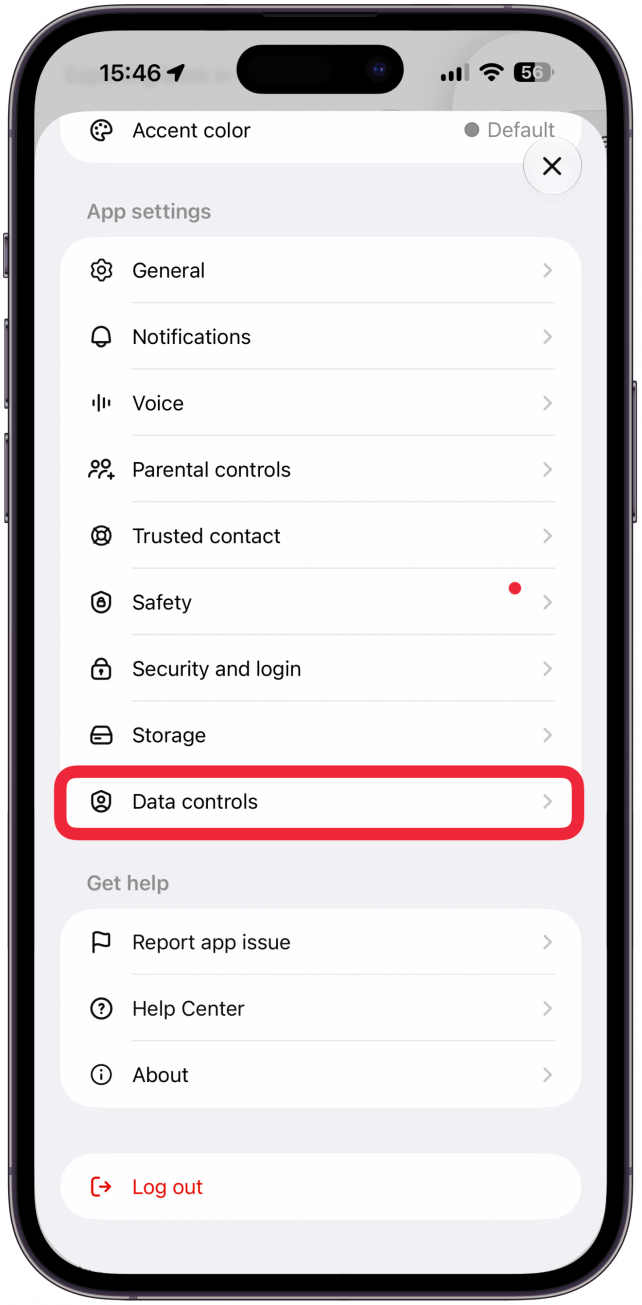
- Scroll down and select Data Controls.
![Scroll down and select Data Controls.]()
- Tap Export data.
![Tap Export data.]()
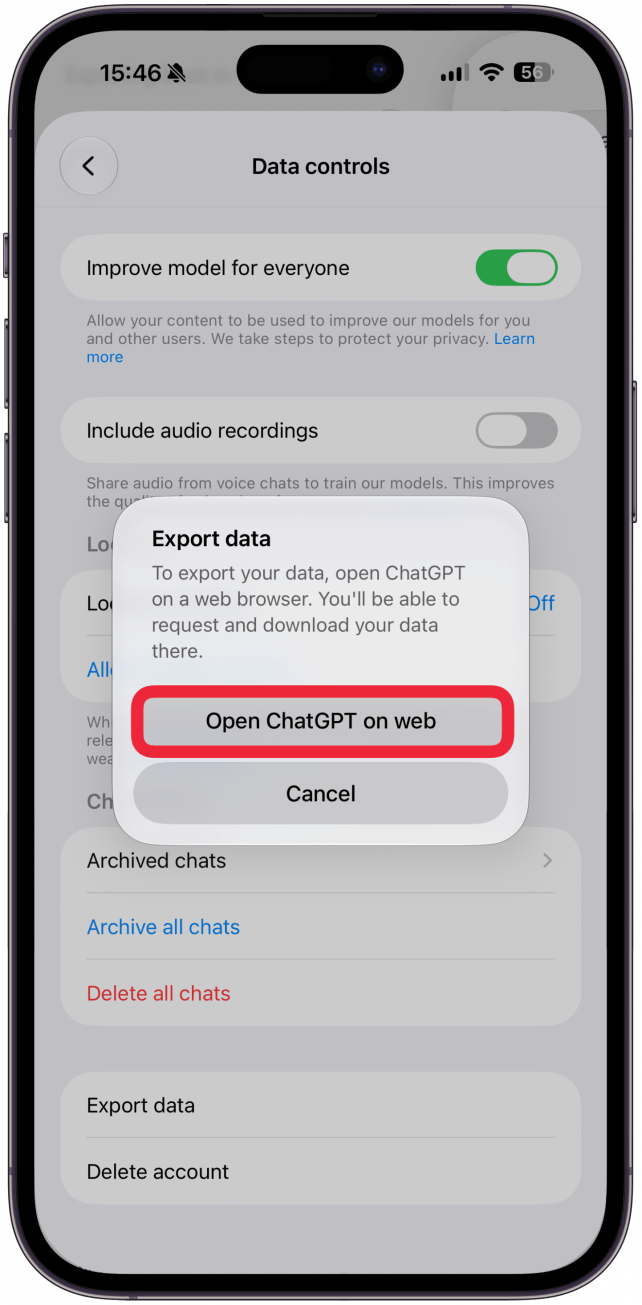
- You'll have to now be directed to open ChatGPT on a web browser. Tap Open ChatGPT on web and you'll be taken to the website via your default web browser. You may need to log in at this stage, if you are not already logged in via browser.
![You'll have to now be directed to open ChatGPT on a web browser. Tap Open ChatGPT on web and you'll be taken to the website via your default web browser.]()
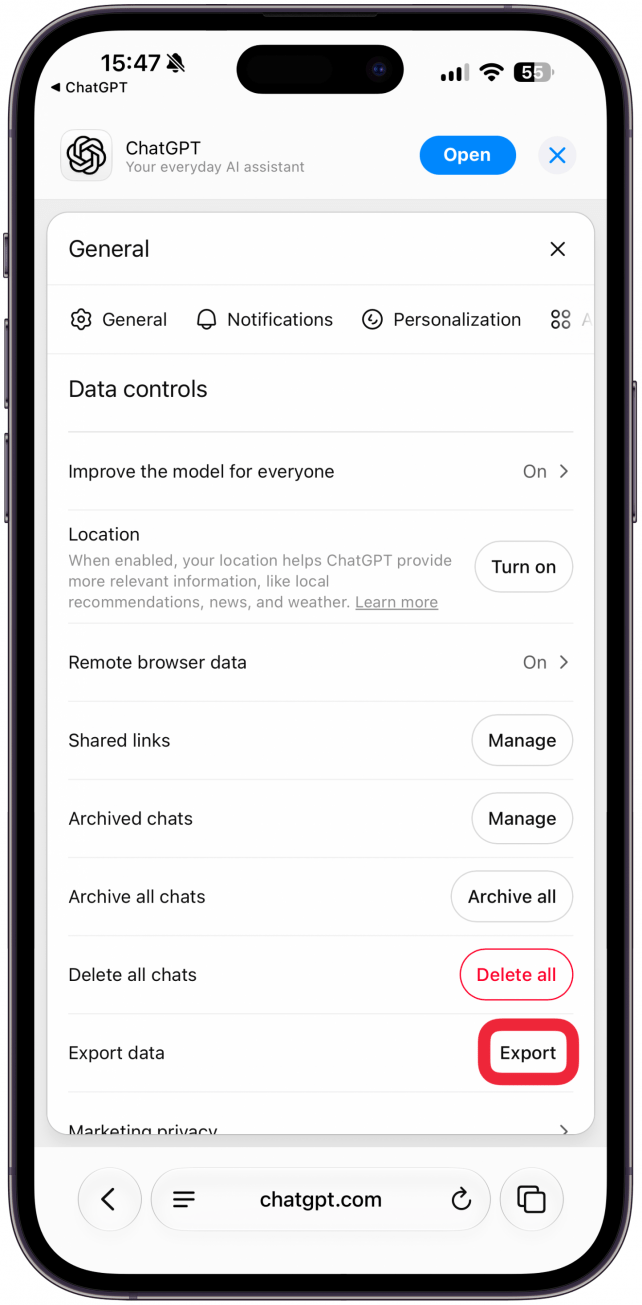
- Next to Export data, tap Export.
![Next to Export data, tap Export.]()
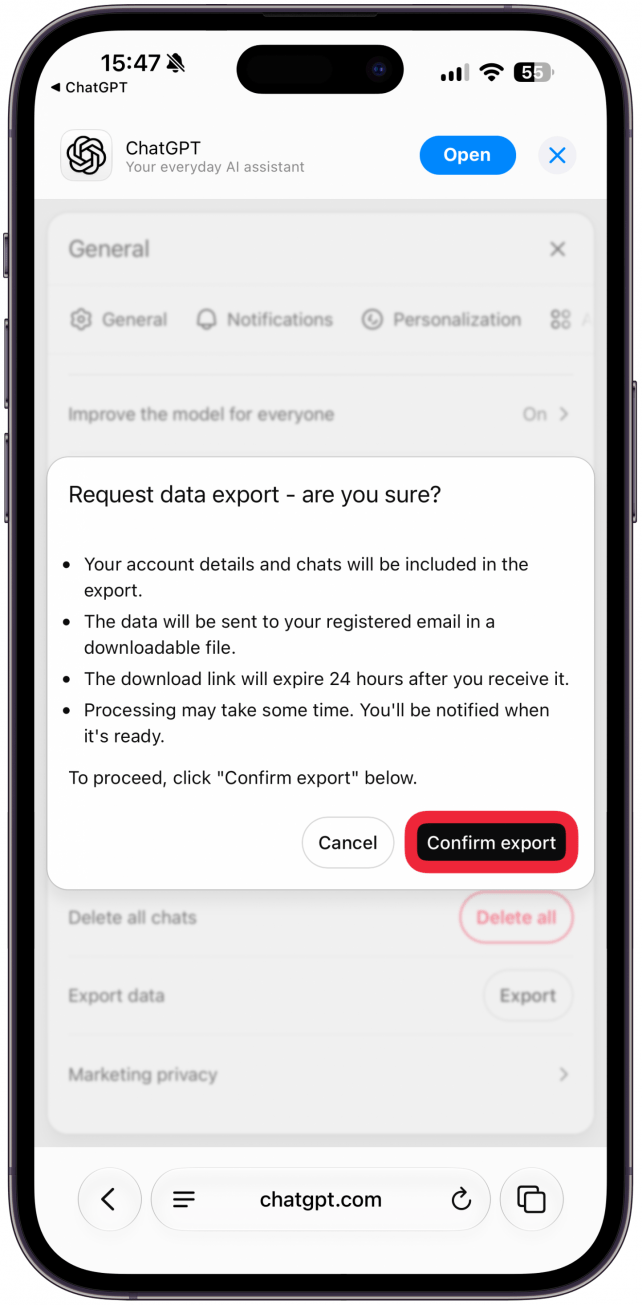
- Tap Confirm export.
![Tap Confirm export.]()
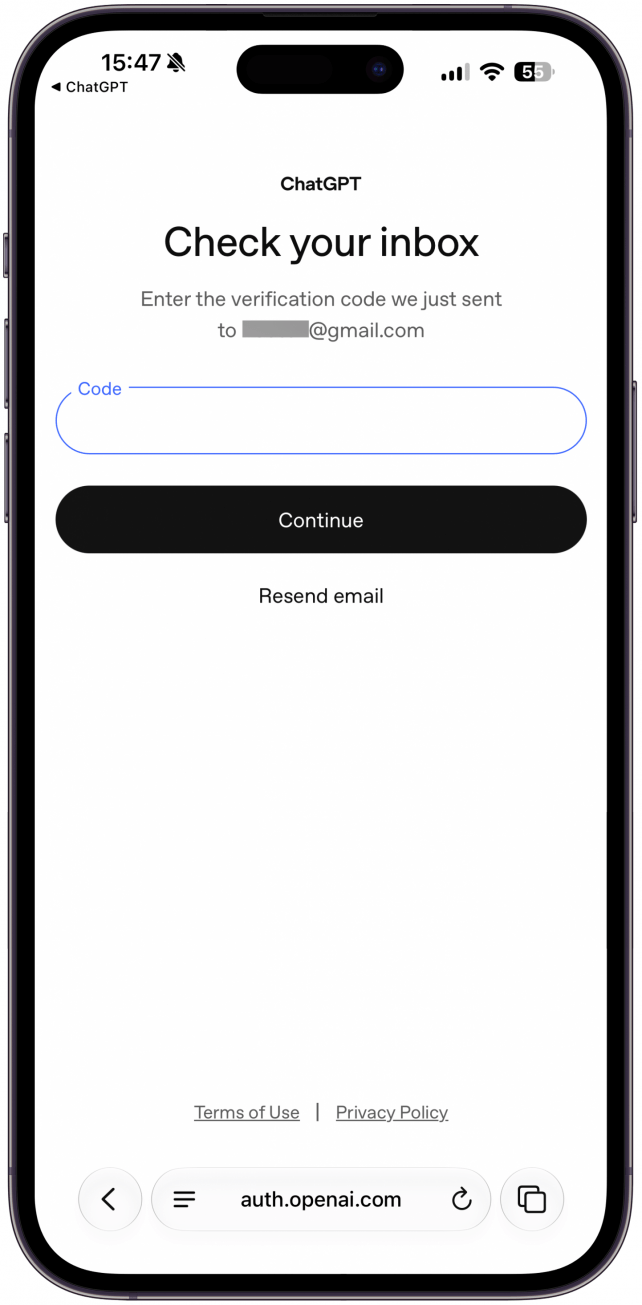
- A verification code will be sent to the email address that matches your account, it will show that email address on the screen. If you don't see the email after a few moments, tap Resend email. If you already logged in in step 6, you may not need to enter a verification code again.
![A verification code will be sent to the email address that matches your account, it will show that email address on the screen. If you don't see the email after a few moments, tap Resend email.]()
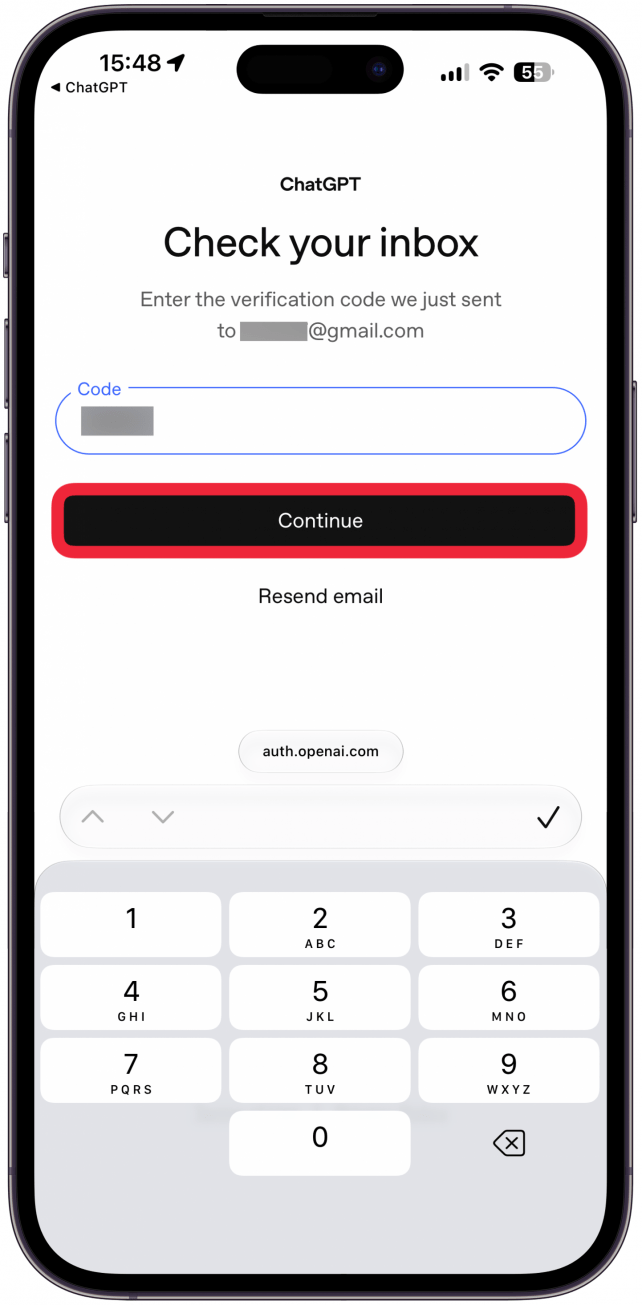
- Type in the code once you have it and tap Continue.
![Type in the code once you have it and tap Continue.]()
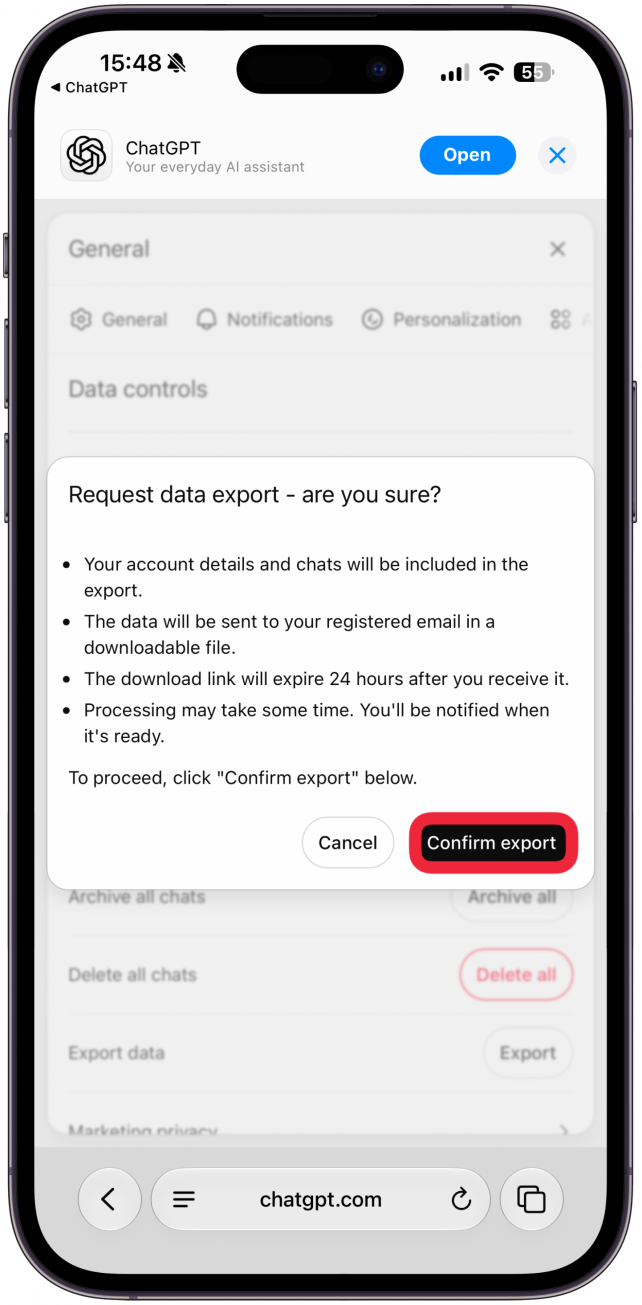
- Tap Confirm export.
![Tap Confirm export.]()
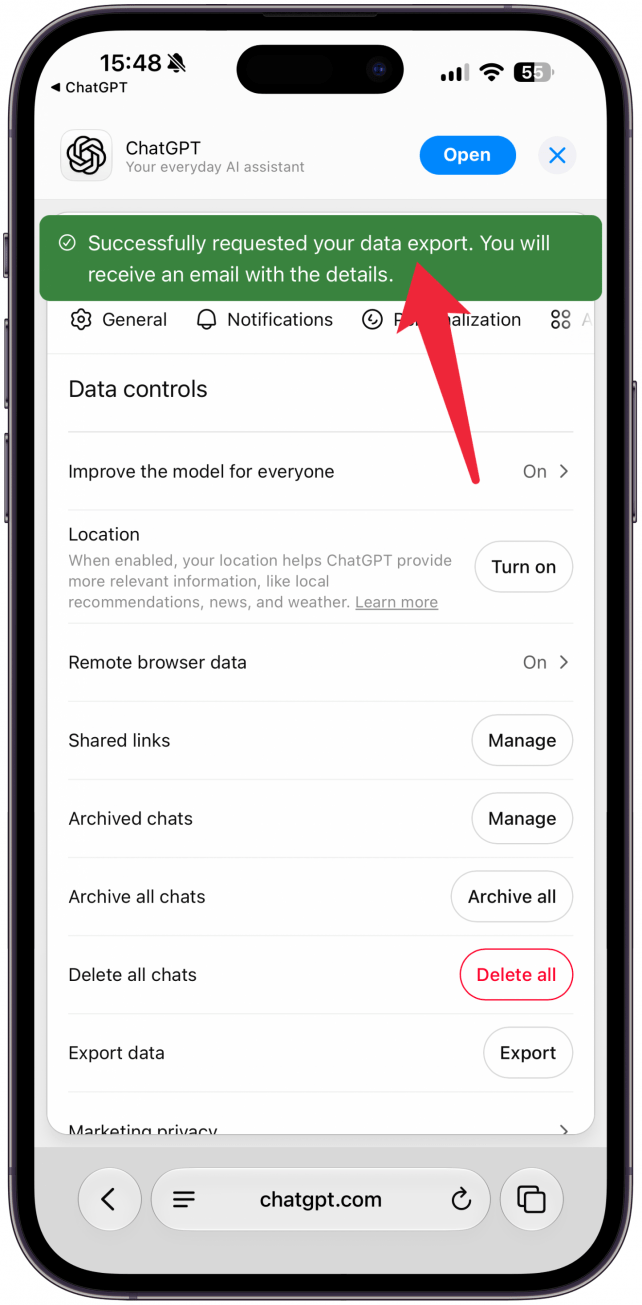
- You'll see green text at the top of your screen confirming that the details of the exported data will be emailed to you. Once you receive the email, you'll get a link, tapping on it will begin a download of a .zip file with all your data.
![You'll see green text at the top of your screen confirming that the details of the exported data will be emailed to you. Once you receive the email, you'll get a link, tapping on it will begin a download of a .zip file with all your data.]()

Some AI apps, like Claude, have a dedicated place to upload an exported data file, but you can usually also just upload it as a regular file and prompt the AI app to read all the data and use it when interacting with you.

If you are exporting your data from another AI app that doesn't have a dedicated export tool, you may be able to export it all using the prompt below from Medium. I haven't been able to confirm how well this works since it is hard to tell that all the data was transferred.
"I’m moving to another service and need to export my data. List every memory you have stored about me, as well as any context you’ve learned about me from past conversations. Output everything in a single code block so I can easily copy it. Format each entry as: [date saved, if available] — memory content. Make sure to cover all of the following — preserve my words verbatim where possible: Instructions I’ve given you about how to respond (tone, format, style, ‘always do X’, ‘never do Y’). Personal details: name, location, job, family, interests. Projects, goals, and recurring topics. Tools, languages, and frameworks I use. Preferences and corrections I’ve made to your behavior. Any other stored context not covered above. Do not summarize, group, or omit any entries. After the code block, confirm whether that is the complete set or if any remain."
Now you know how to export ChatGPT conversations and data so that you can import it into another app if you wish to switch to an alternative AI assistant. Next, learn how to use Gemini to turn photos into AI generated videos.