How to Add a Photo to a Contact on iPhone & iPad

Hallei has a background in creative and professional writing, with a focus on clear communication and creative thinking.
Learn More Hallei has a background in creative and professional writing, with a focus on clear communication and creative thinking.
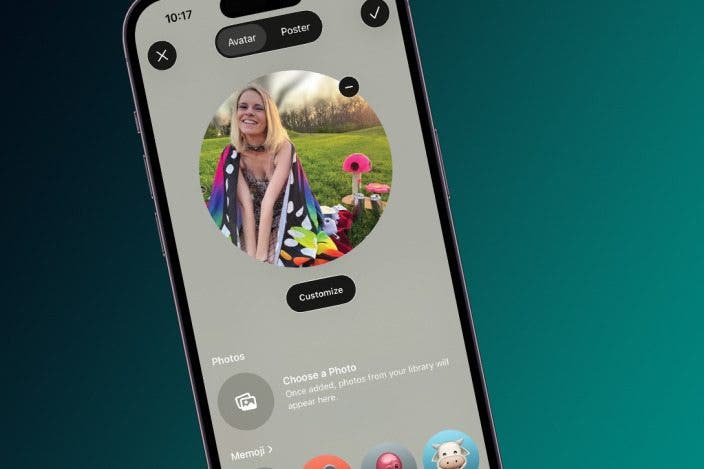
Learn MoreHaving a contact picture pop up with a name on your iPhone screen helps to reduce confusion. We'll walk through how to add iPhone contact photos (or a contact emoji, Memoji, or monogram if you prefer this fun option to a photo). In either case, having a contact pic appear when that person calls helps to differentiate between contacts.
Why You'll Love This Tip
- Learn how to add a photo to a contact on your iPhone to see your friends' pretty faces every time you call or text with them.
- Select a unique picture, emoji, Memoji, or monogram for each of your contacts.
- You can update a contact photo by going to Contacts, finding the contact card you want to edit, and editing the settings.
How to Add a Contact Photo on iPhone & iPad
System Requirements
This tip was performed on an iPhone 17 Pro running iOS 26.5, and works on iPhones running iOS 15 and later. Find out how to update to the latest version of iOS.
By adding a contact picture to iPhone and iPad contacts, you'll be able to"see" who's calling or texting you. Here's how to add iPhone contact pictures for your friends, family, and coworkers.
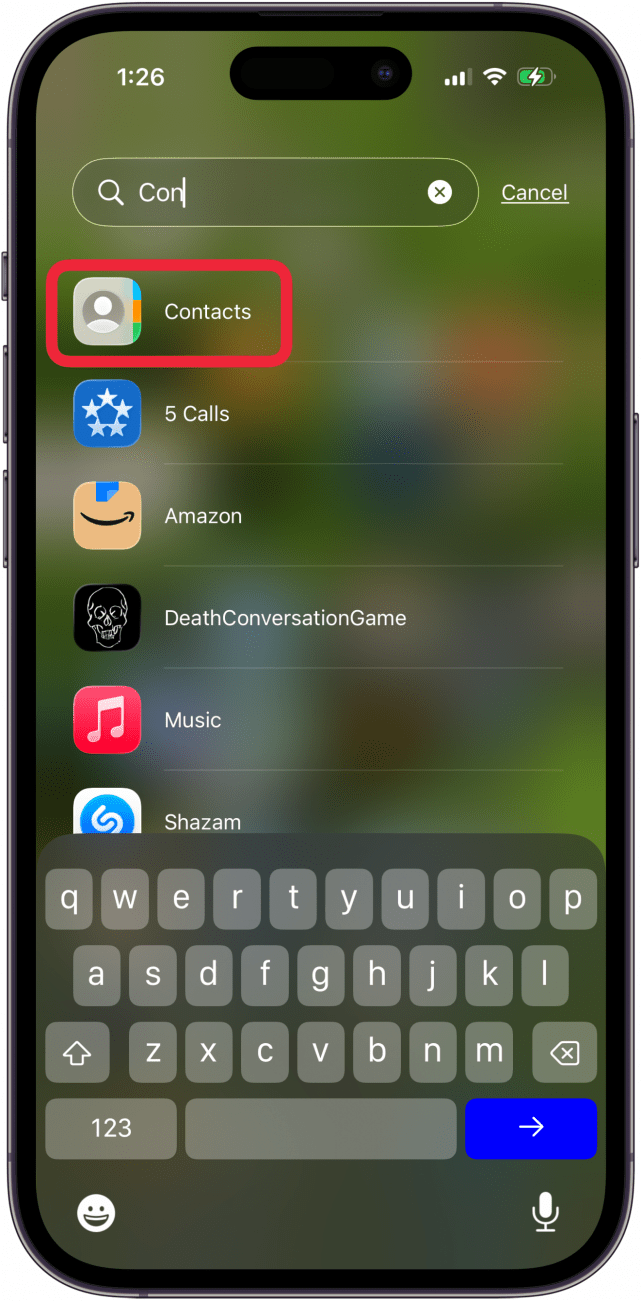
- Open the Contacts app.
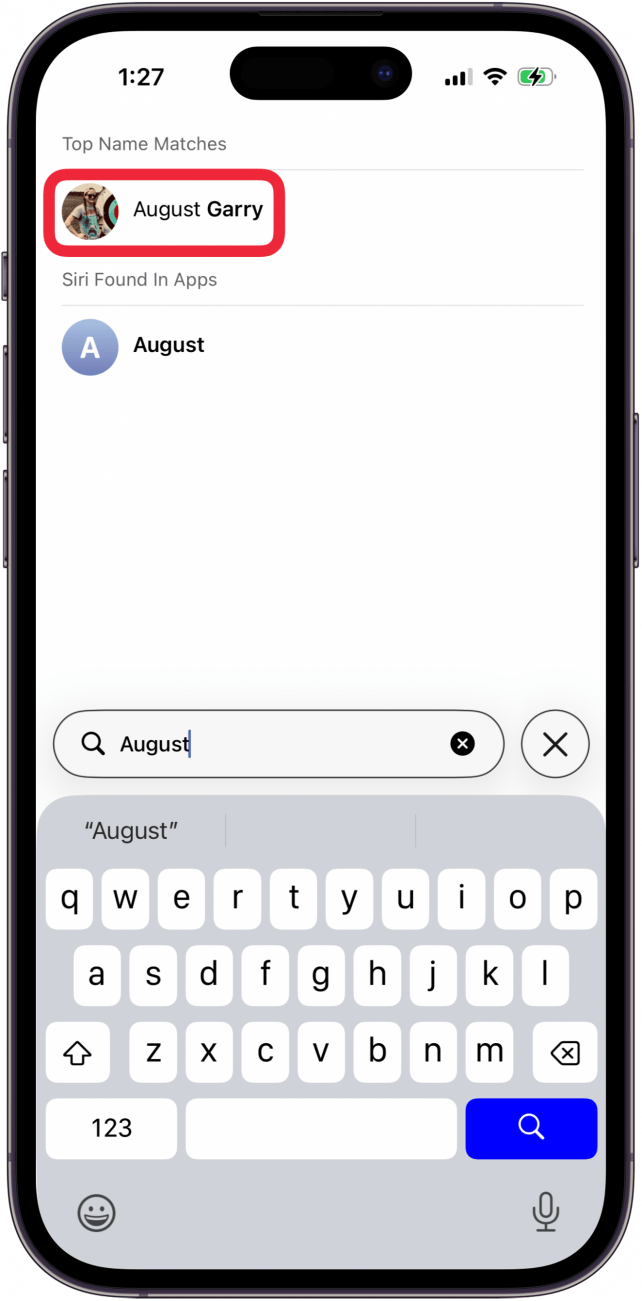
- Tap a contact.
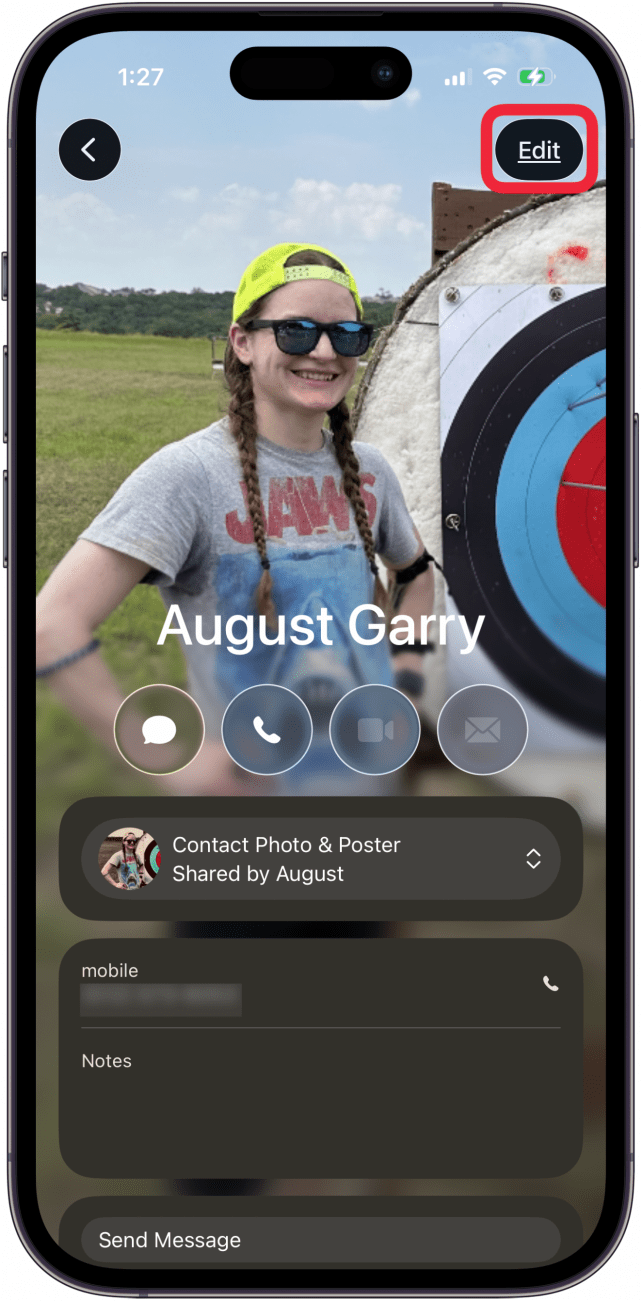
- Tap Edit in the top right.
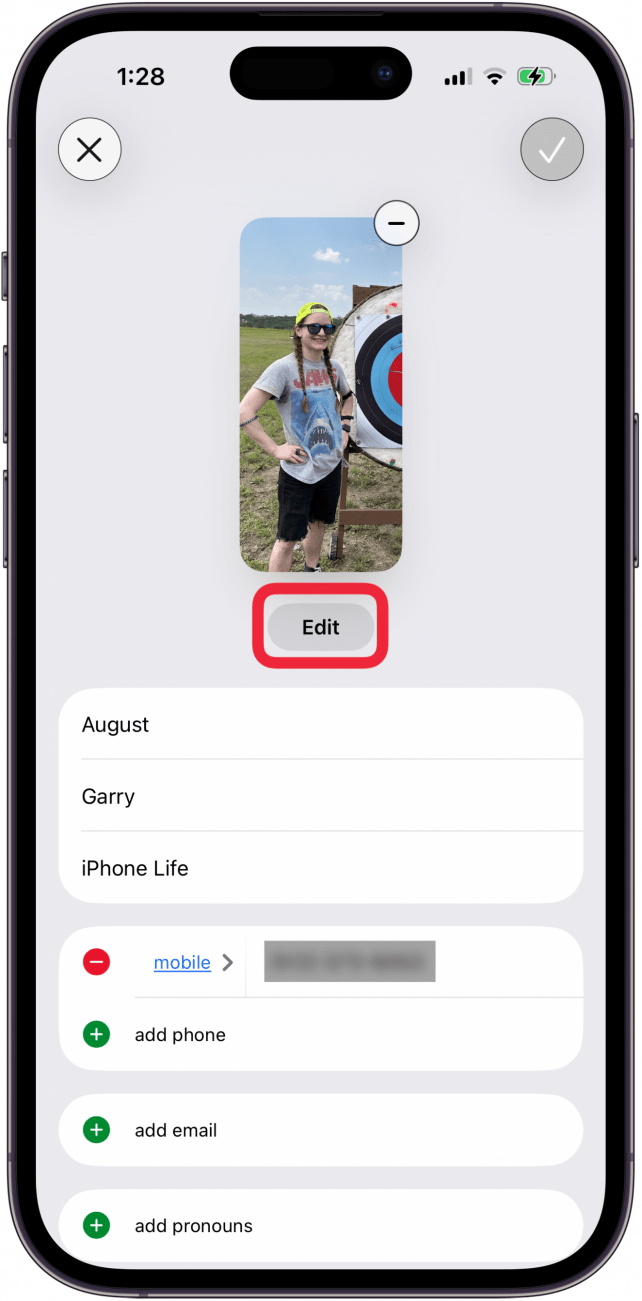
- Tap Edit again.
- Tap Photos, Memoji, Monogram, or Emoji. In this case, I'll tap Emoji.
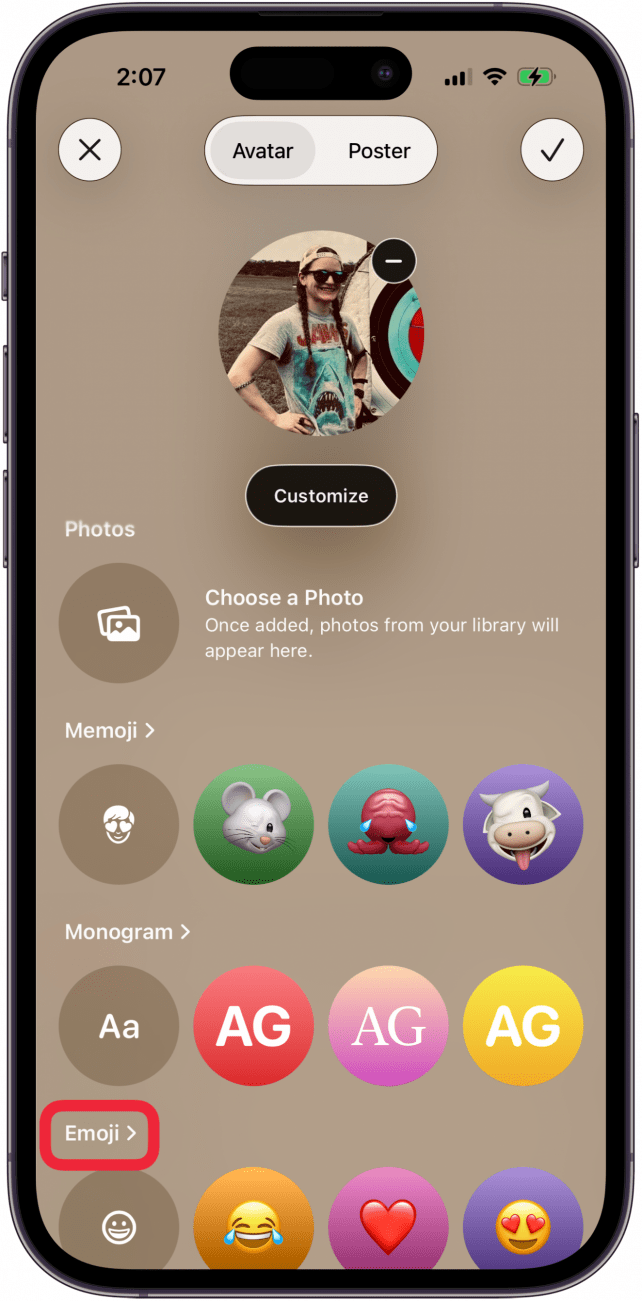
- Tap an emoji to select, or tap the emoji icon on the top left to see more options.
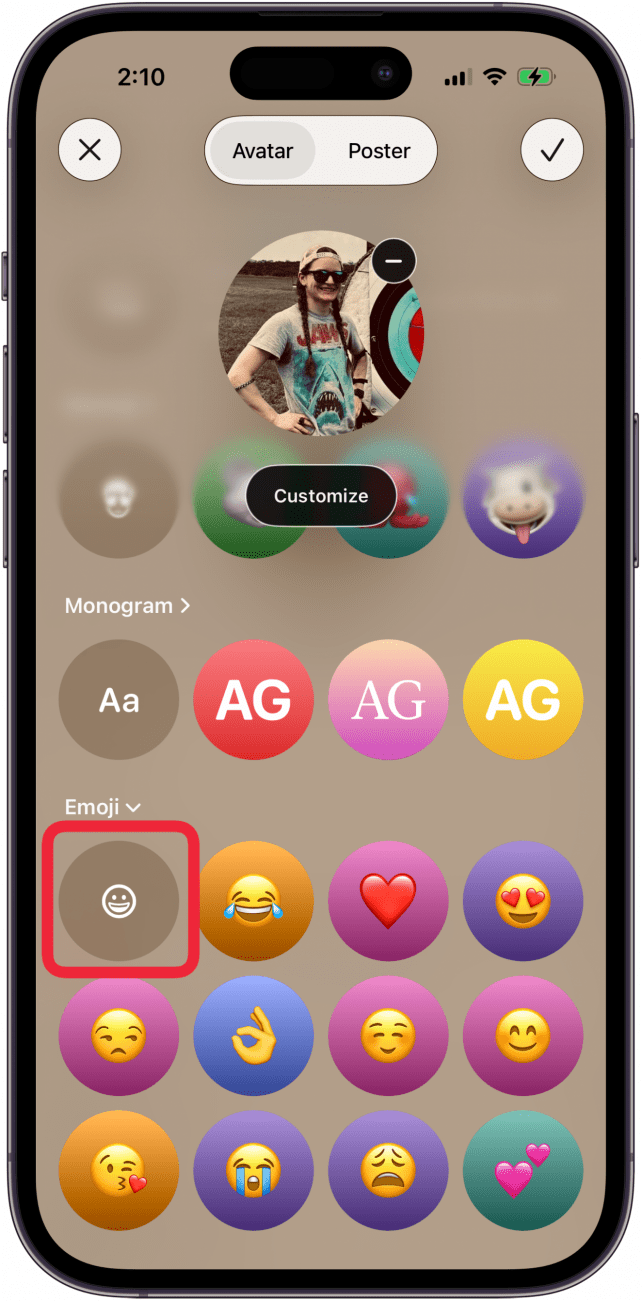
- Tap an option, or use the Search Emoji bar option if you don't see the emoji you want.

- Tap Choose.
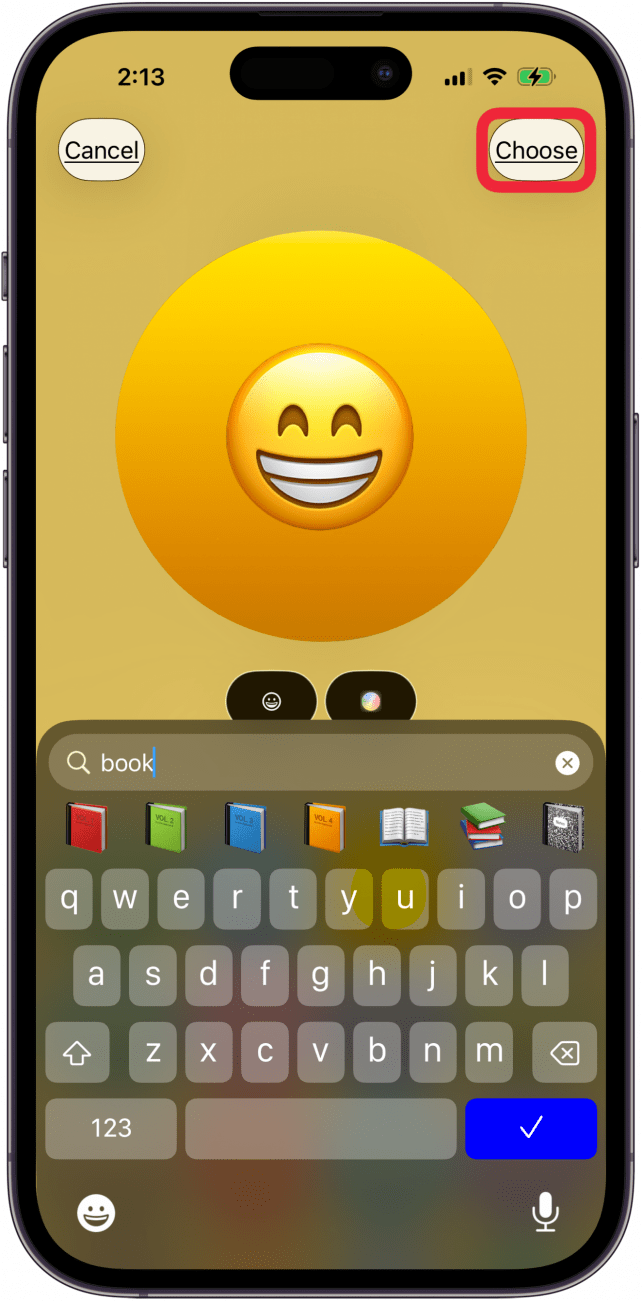
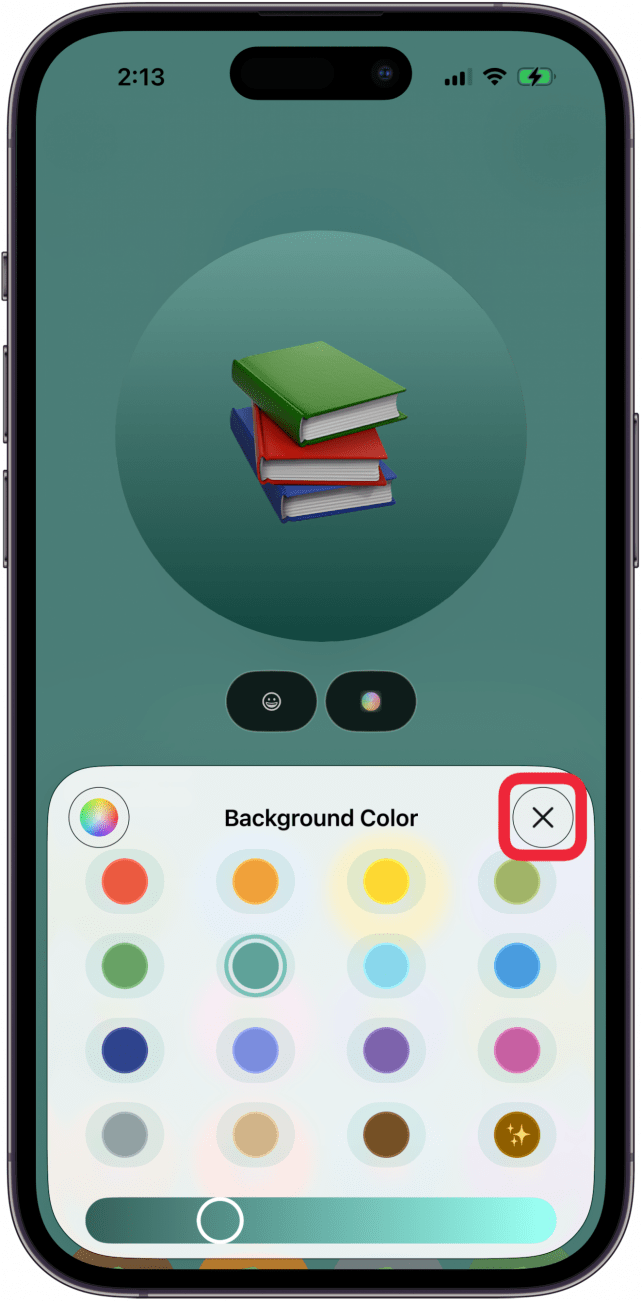
- Tap the Background Color icon.

- Tap a color to choose.
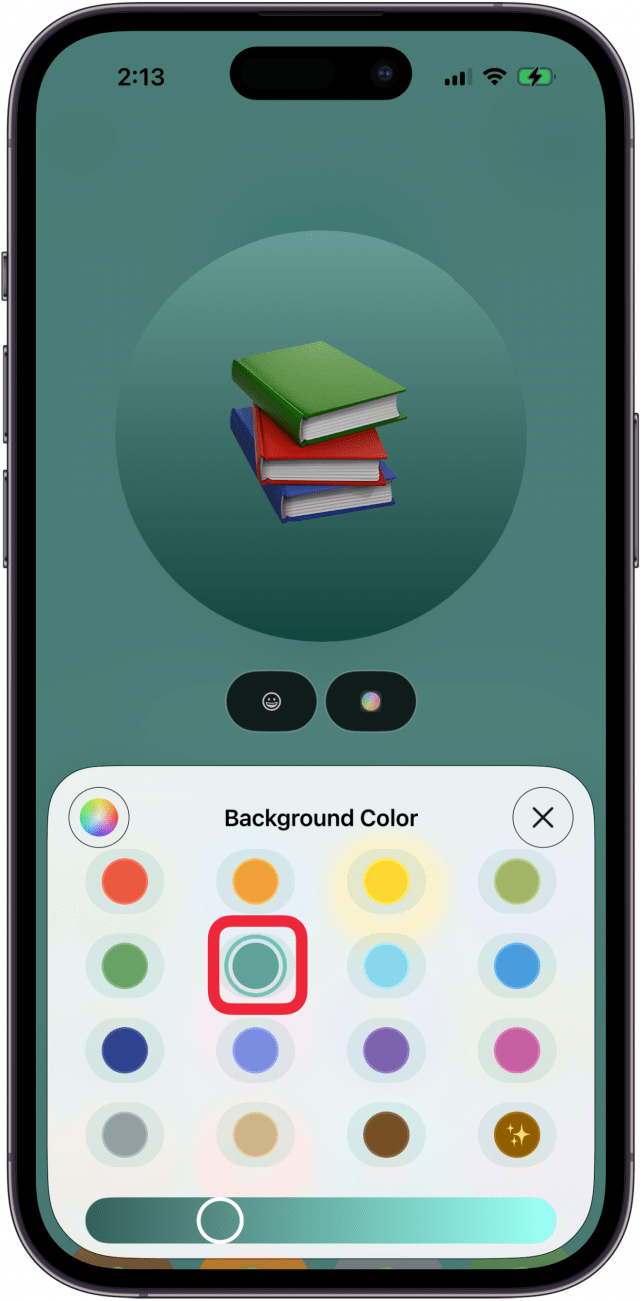
- Tap the X.
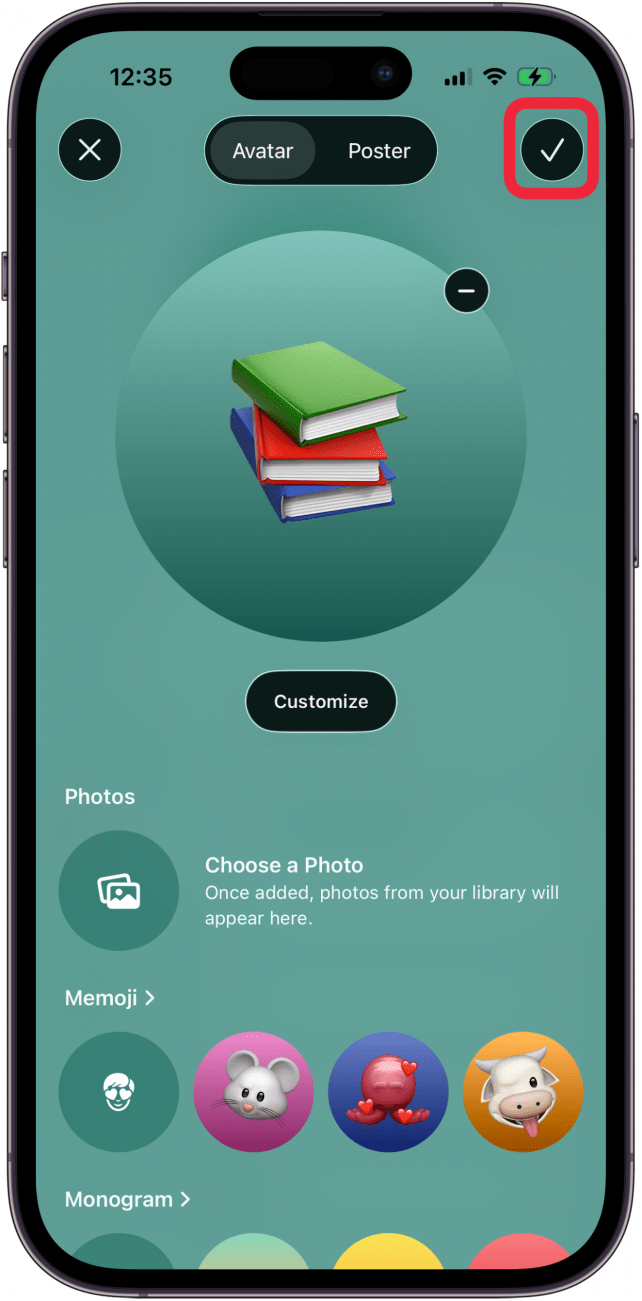
- Tap Choose.

- Tap the check mark.
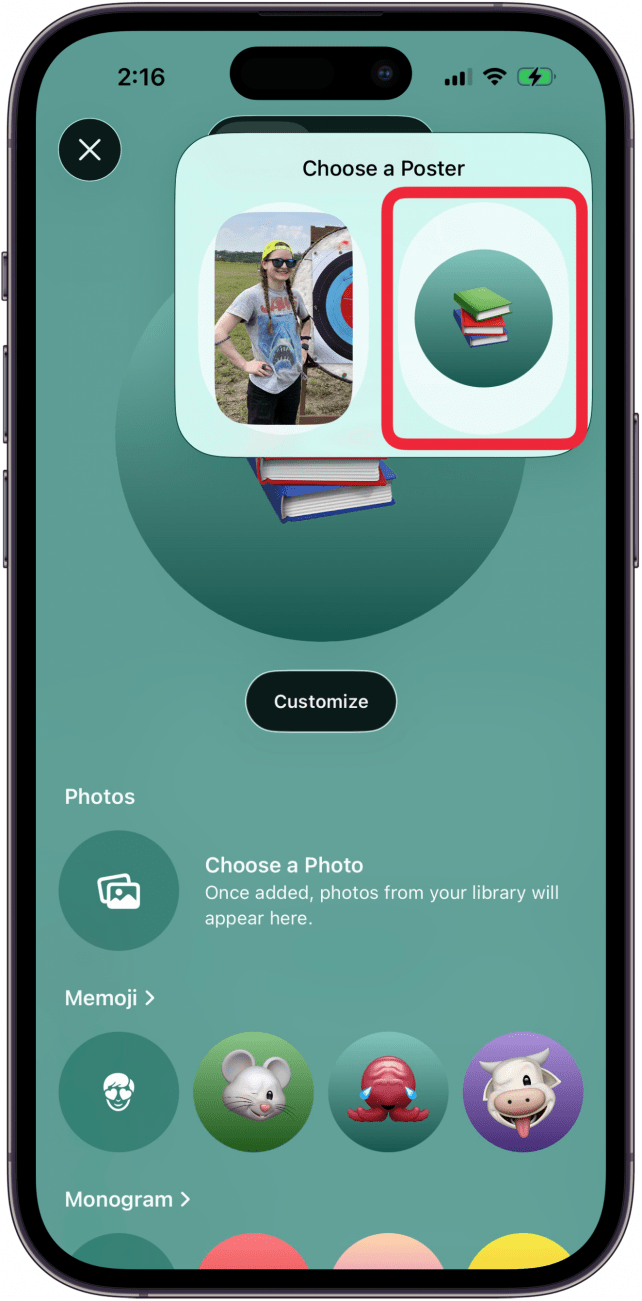
- Tap to choose the poster.
- Tap the check mark to confirm your decision.
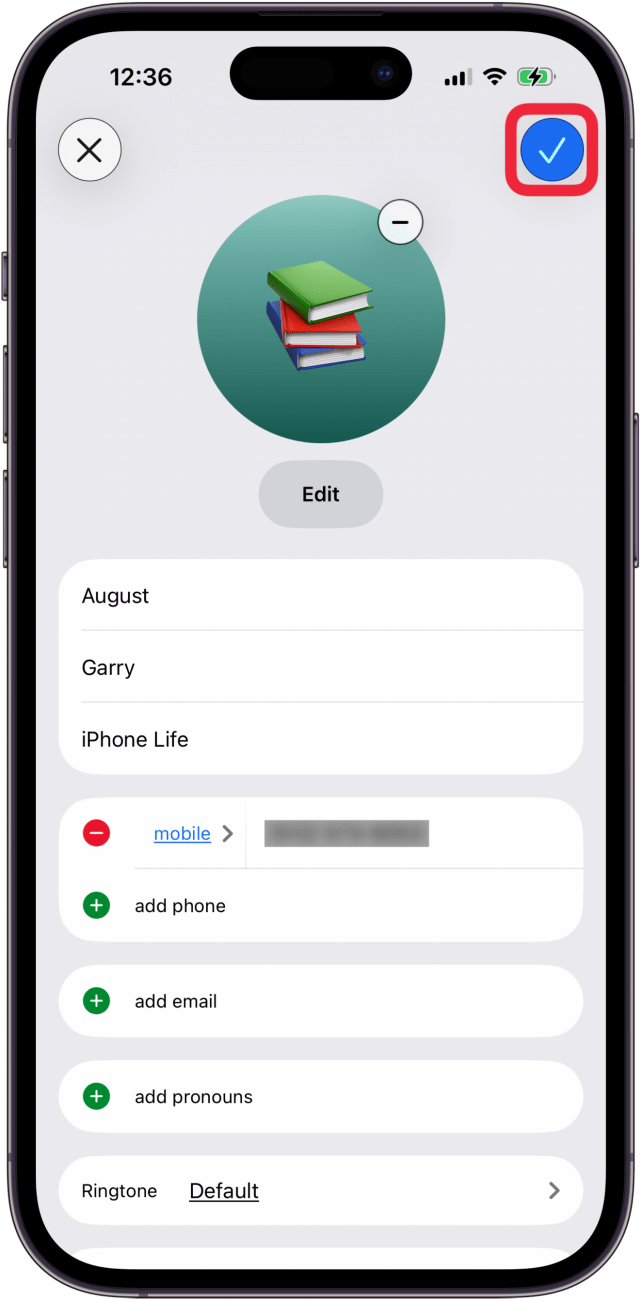
Your set picture will now display as the contact image in Messages conversations and when this contact calls you.
More On: iPad & iPhone Contact Posters

Every day, we send useful tips with screenshots and step-by-step instructions to over 600,000 subscribers for free. You'll be surprised what your Apple devices can really do.

Hallei Halter
Hallei is a 2018 graduate of Maharishi University of Management with a BFA in Creative & Professional Writing. She's currently working on a novel about people using witchcraft to clean their houses.

 Olena Kagui
 Rhett Intriago

 Rachel Needell
 Amy Spitzfaden Both
 Susan Misuraca

 Leanne Hays