While scrolling through Google search results, I’ll often open links in a new tab so I can quickly get back to the search results without having to wait for the page to reload. The Open in Background feature is great for opening multiple tabs at once without having to constantly switch back to your first tab. Here’s how to use this feature.
Why You’ll Love This Tip
- Open multiple links at once without having to switch back to your first tab.
- Continue browsing a web page after opening a new tab.
How to Open a New Tab in Safari in the Background
System Requirements
This tip was performed on an iPhone 15 Pro running iOS 26.2.1. Find out how to update to the latest version of iOS.
Opening a tab in the background simply means that you won’t auto-switch to the newly opened tab. Instead, you’ll stay on the current page and switch to the new tab when you’re ready to view it. For more helpful shortcuts and tricks, check out our free Tip of the Day newsletter. Now, here’s how open a new tab in Safari in the background:
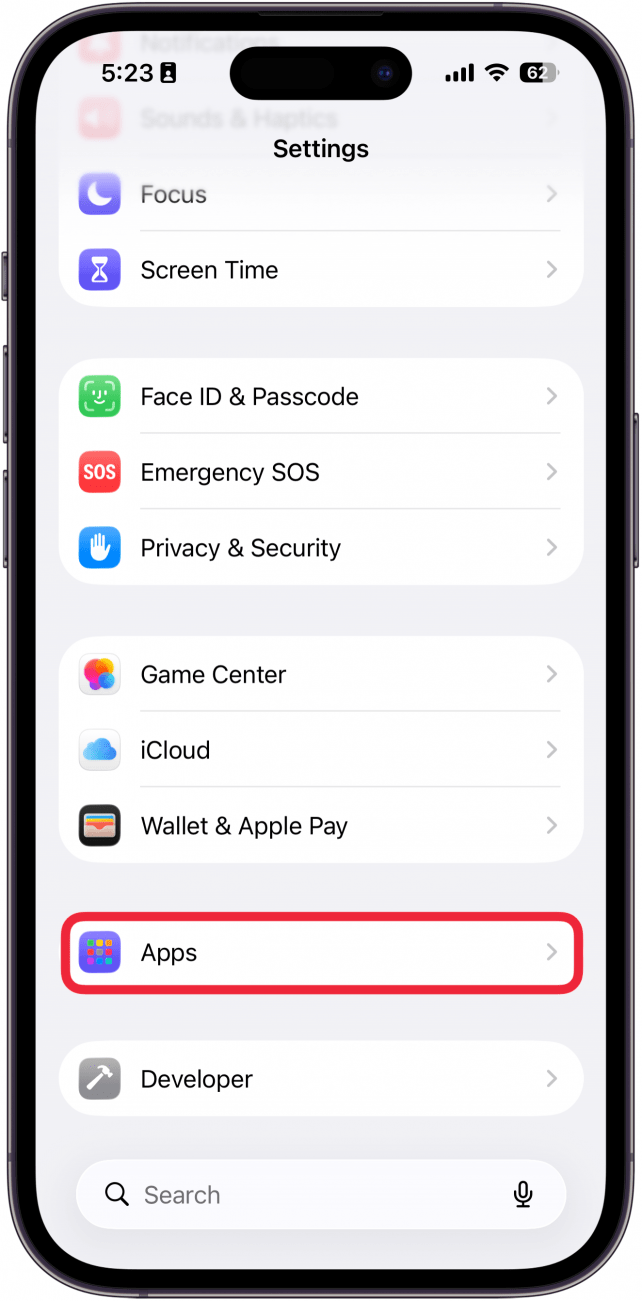
- Open the Settings app, and scroll down to Apps.
![a screenshot of the settings app on iphone with a red box around apps]()
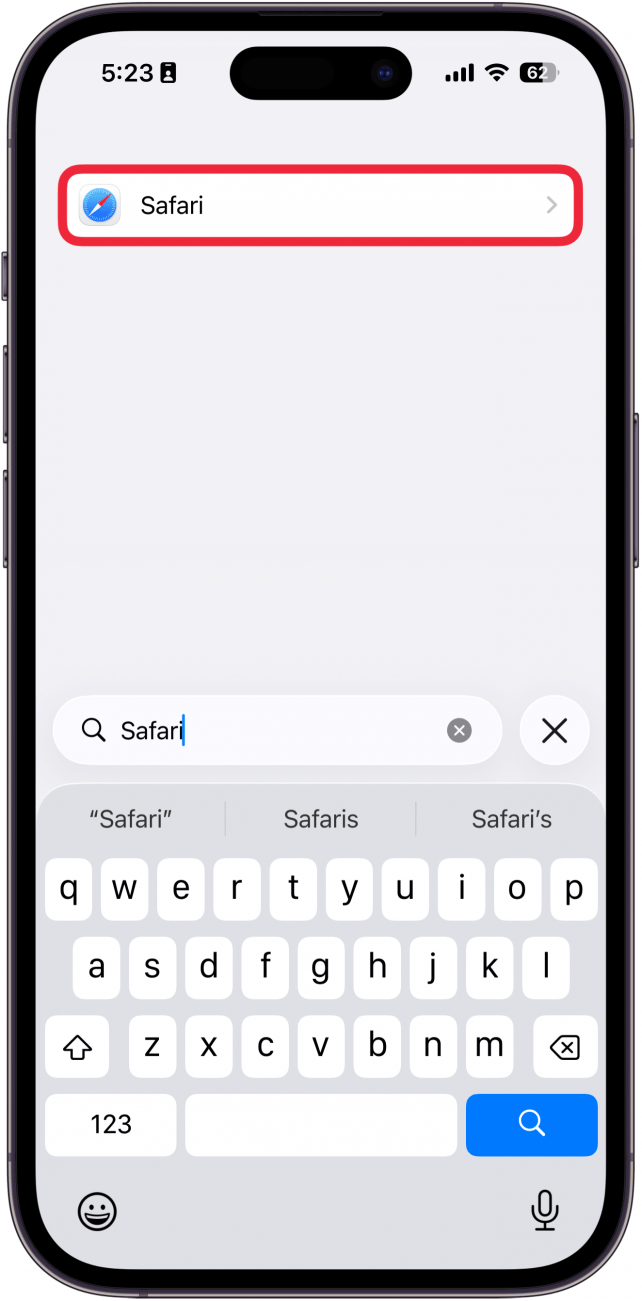
- Find Safari in the app list, or use the search bar.
![a screenshot of the settings app on iphone showing a list of installed apps with a red box around the safari app]()
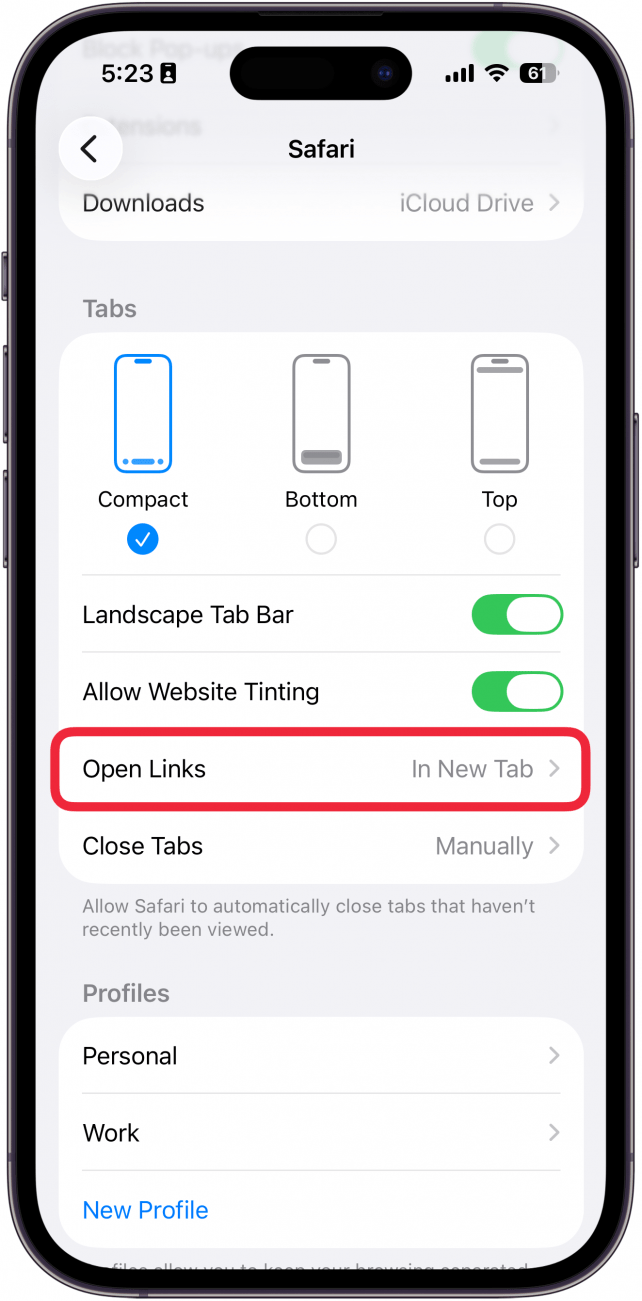
- Scroll down and select Open Links.
![a screenshot of safari settings on the iphone with a red box around open link]()
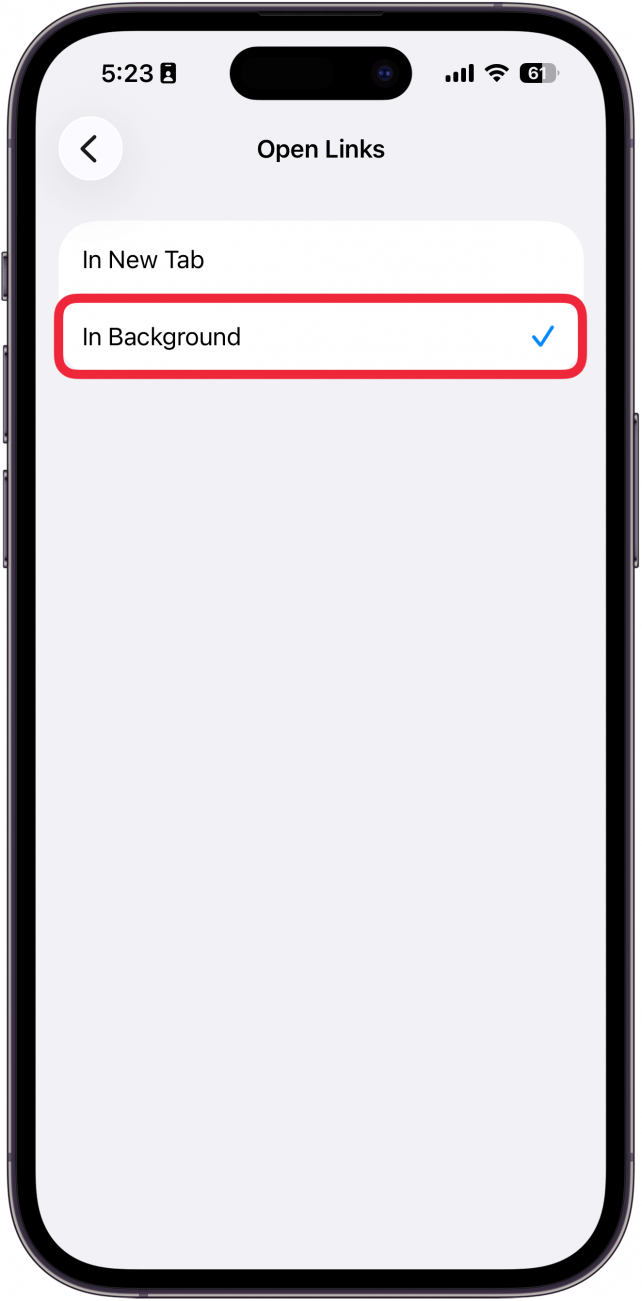
- Tap In Background.
![a screenshot of safari's open links settings on the iphone with a red box around the in the background option]()
Now, when you open a new tab in Safari, it’ll open in the background rather than automatically switching to the new tab.