Sometimes my call log gets cluttered with scam calls and telemarketers. What if you wanted to clean up your call log? How do you delete phone calls on the iPhone? Luckily, it’s very easy to erase calls from your iPhone’s call history. Let’s find out how to delete calls on the iPhone!
Why You’ll Love This Tip
- Clear spam and telemarketer calls from your call log to more easily find numbers you need.
- Keep your call history organized and decluttered.
How to Delete Call History on iPhone
System Requirements
This tip was performed on an iPhone 15 Pro running iOS 18.5. Find out how to update to the latest version of iOS.
Whenever your call history is filled with missed calls from scammers and telemarketers, it’s time to erase some calls. For more useful iPhone tips and tricks, check out our free Tip of the Day newsletter. Now, here’s how to delete phone calls from the iPhone:
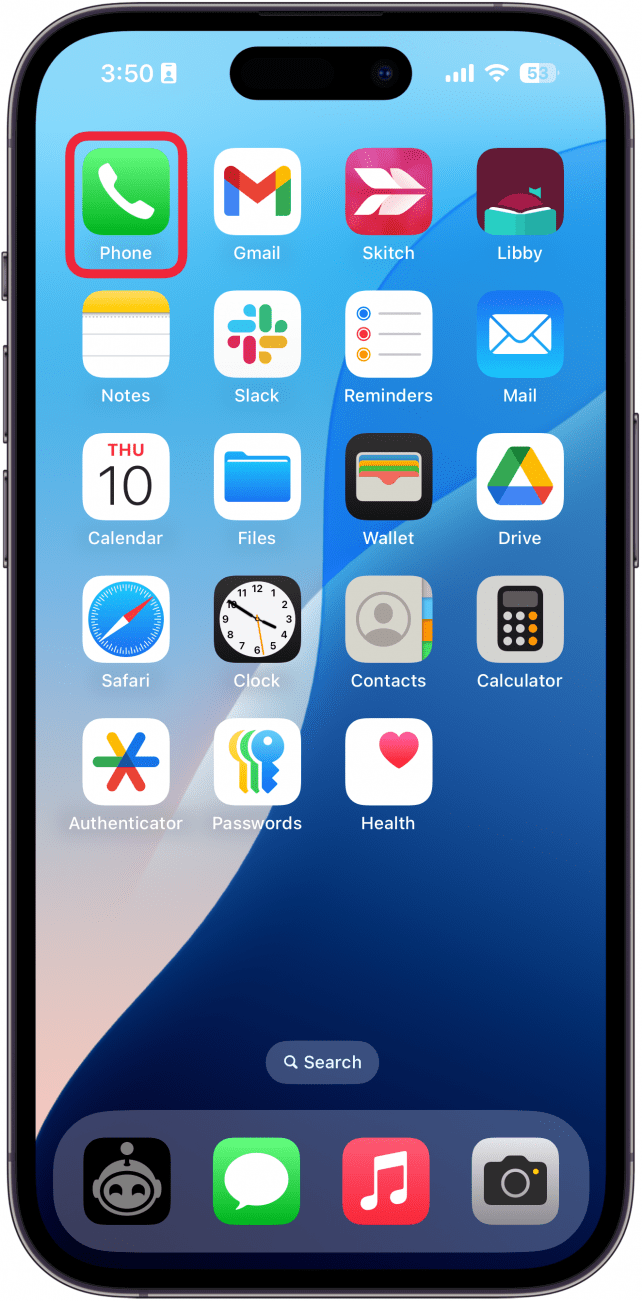
- Open the Phone app.
![a screenshot of an iphone home screen with a red box around the phone app]()
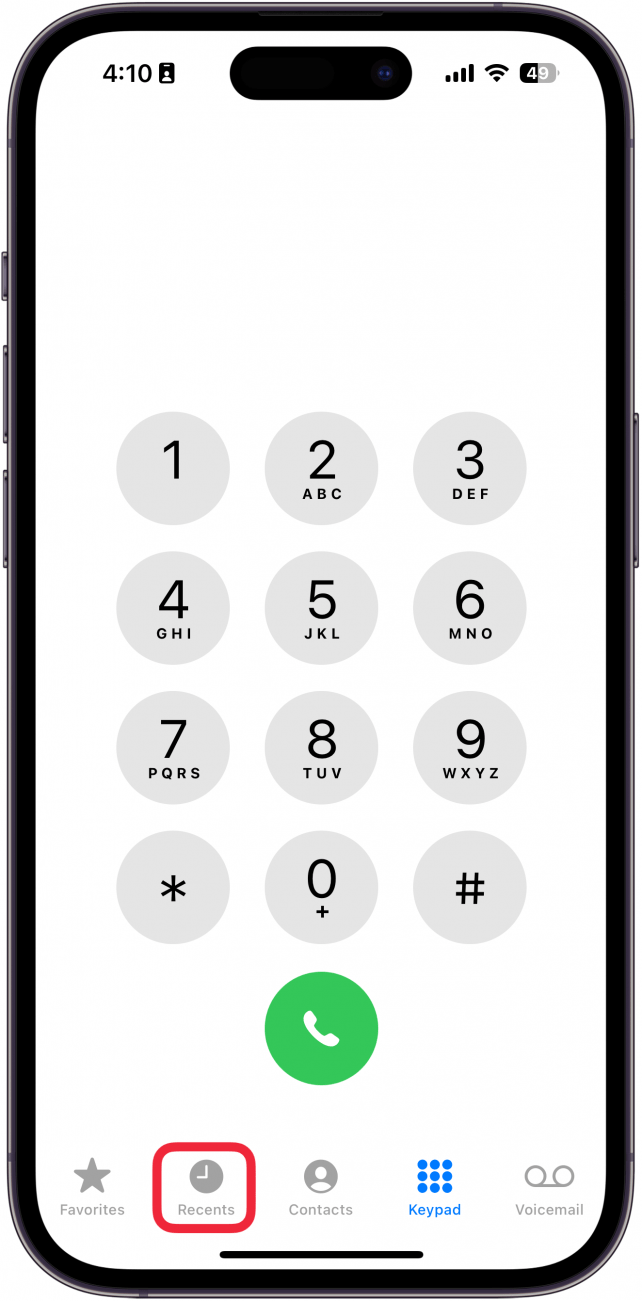
- If it is not already selected, tap the Recents tab.
![a screenshot of the iphone's phone app displaying the keypad with a red box around the recents tab]()
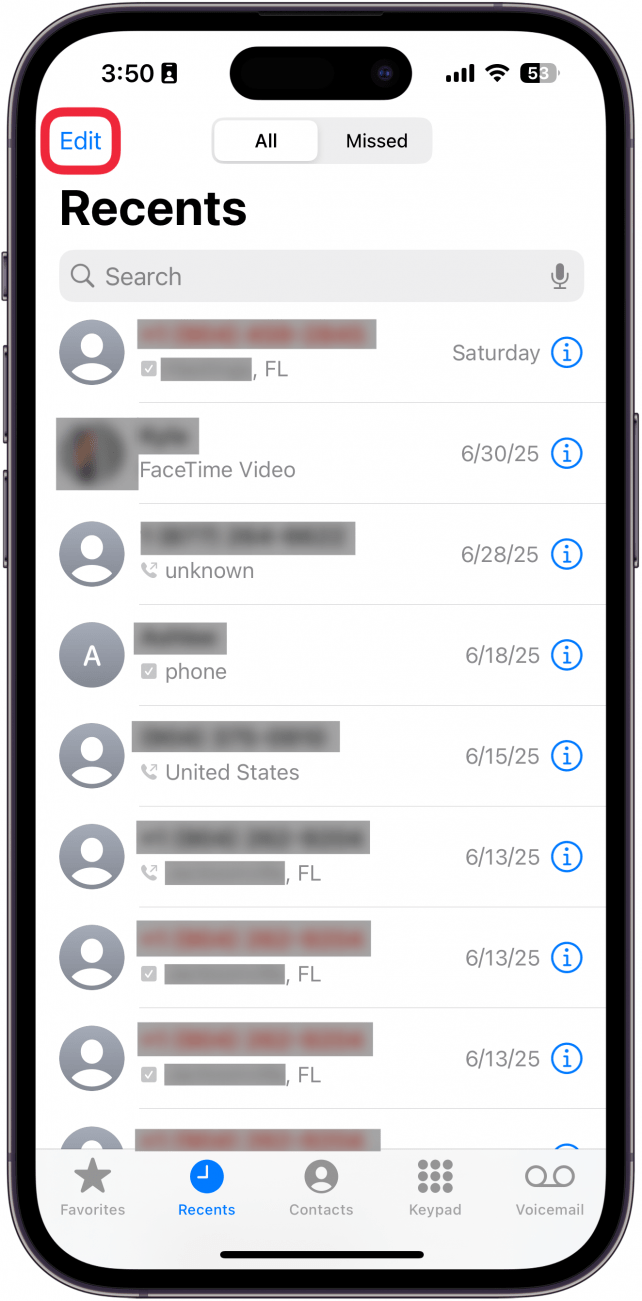
- Tap Edit.
![a screenshot of the iphone's phone app with a red box around the edit button]()
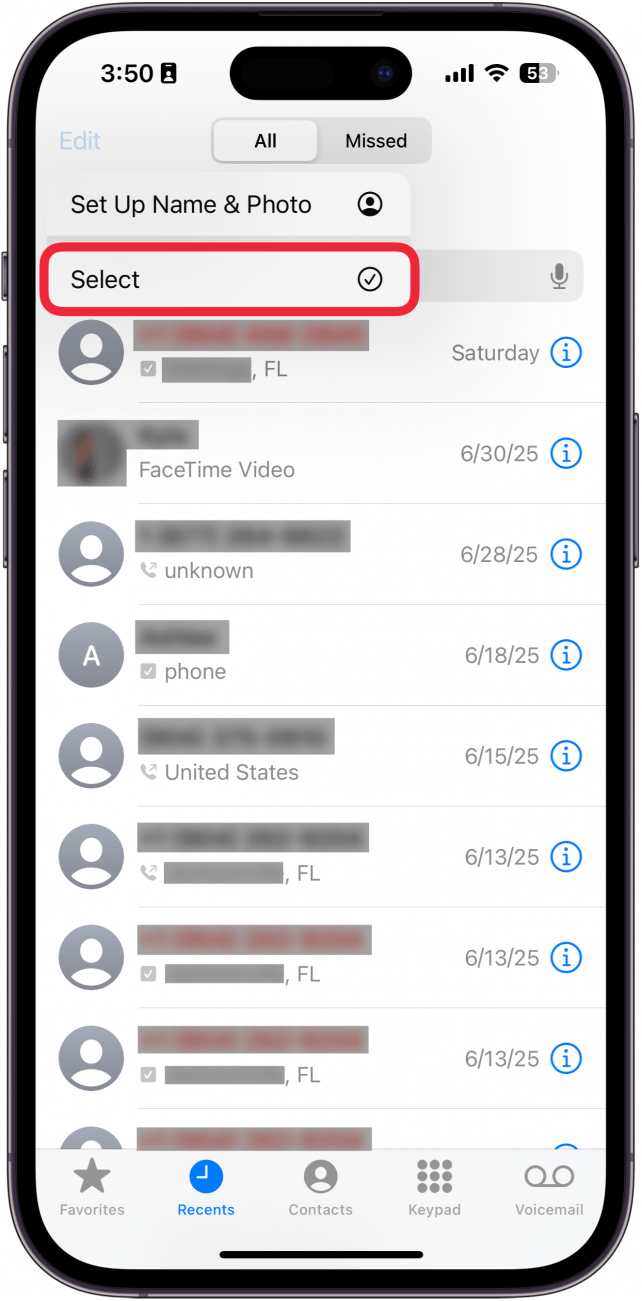
- Tap Select.
![a screenshot of the iphone's phone app displaying a menu with the option Select outlined in red]()
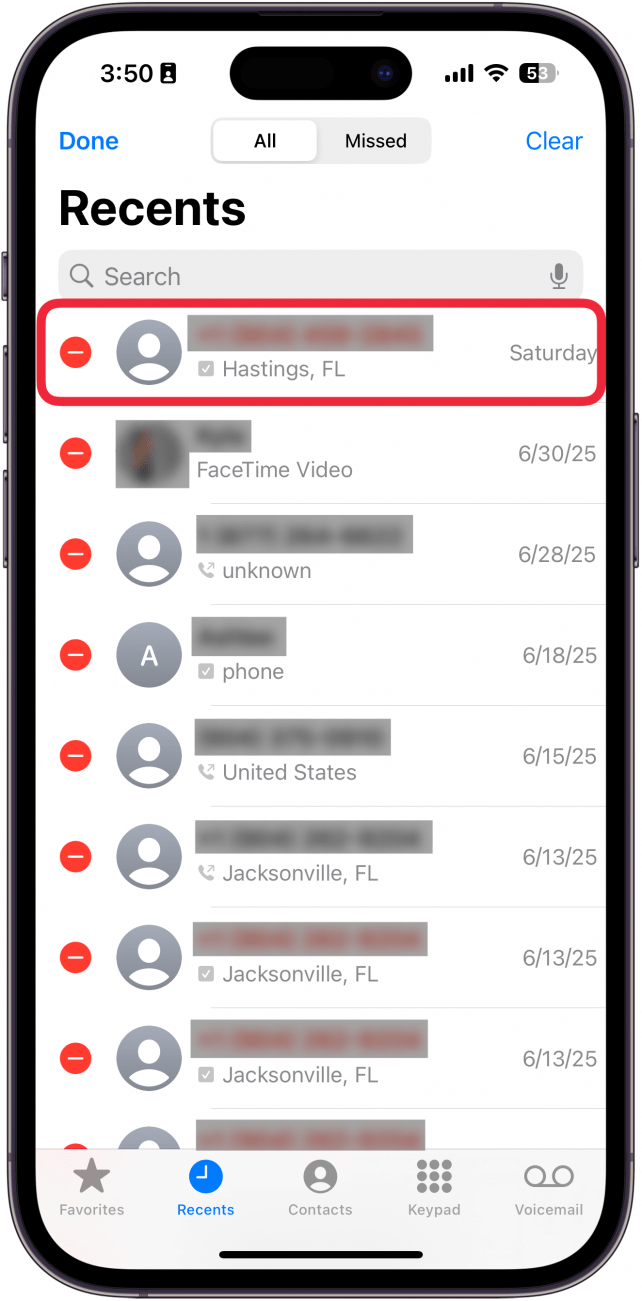
- Tap the minus icon to the left of the call you want to delete.
![a screenshot of the iphone's phone app with a red box around the first call with a red minus sign next to it]()
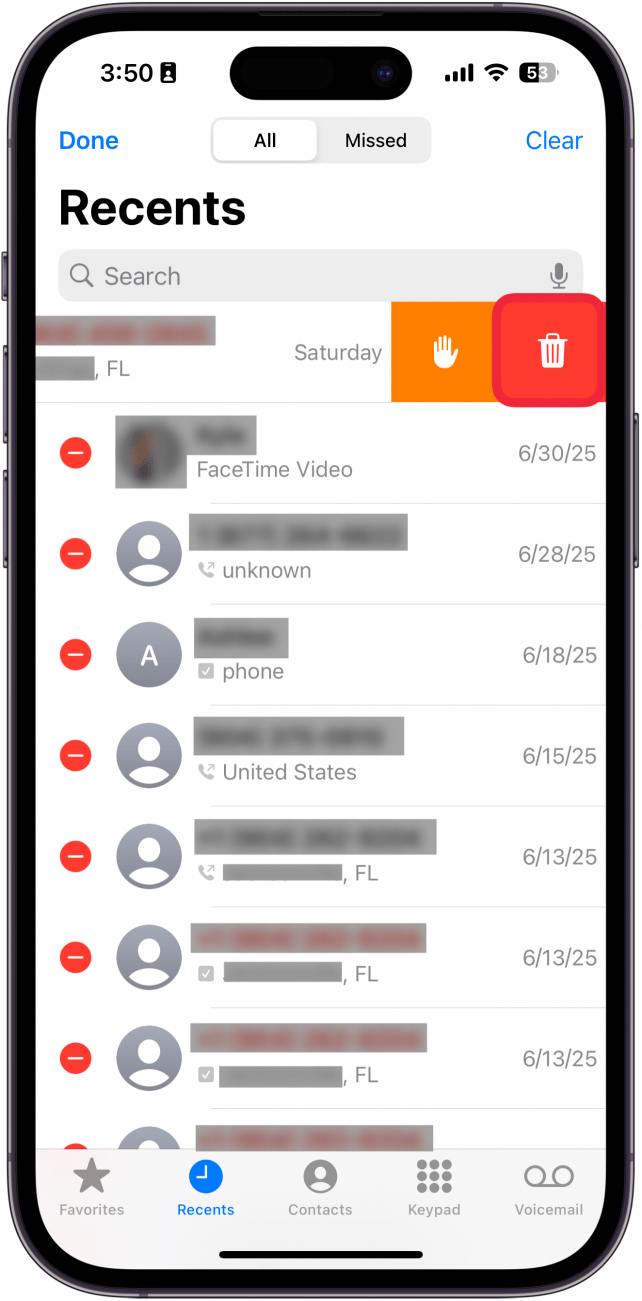
- Tap the trash can icon to delete the call.
![a screenshot of the iphone's phone app with a red box around the trash can icon]()
- Tap Done when you are finished.
![a screenshot of the iphone's phone app with red minus signs next to all the calls and a red box around the done button]()
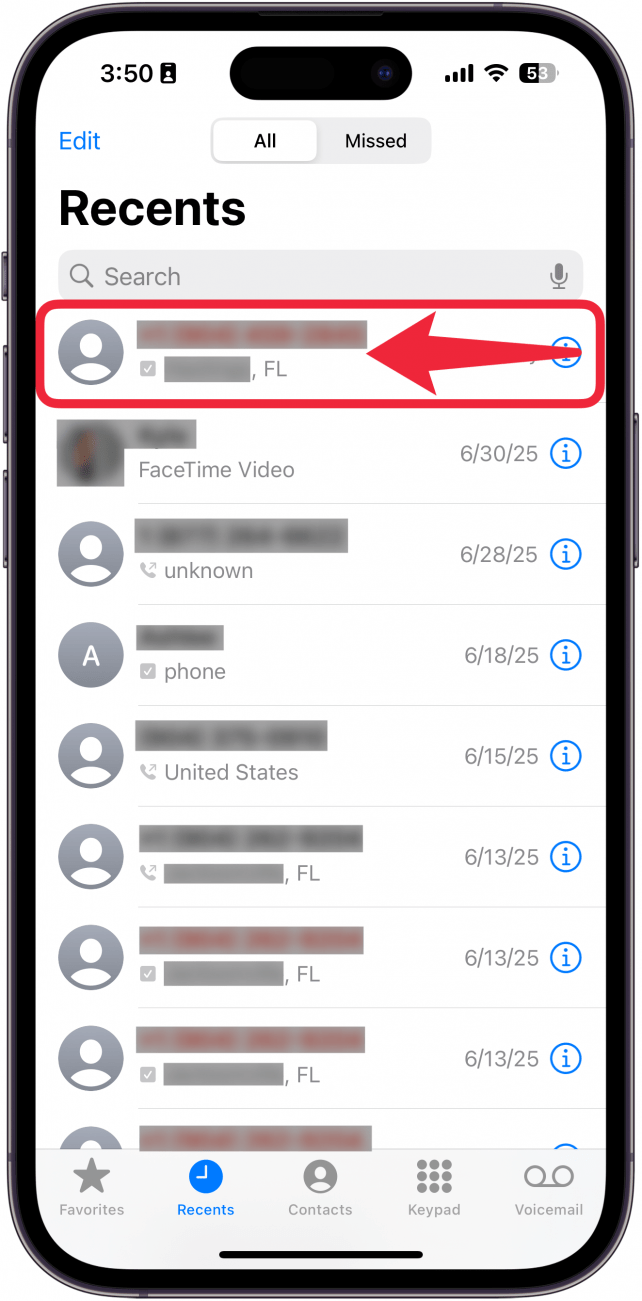
- Alternatively, you can simply swipe on the call.
![a screenshot of the iphone's phone app with a red box around the first call with a red arrow pointing to the left, indicating to swipe left]()
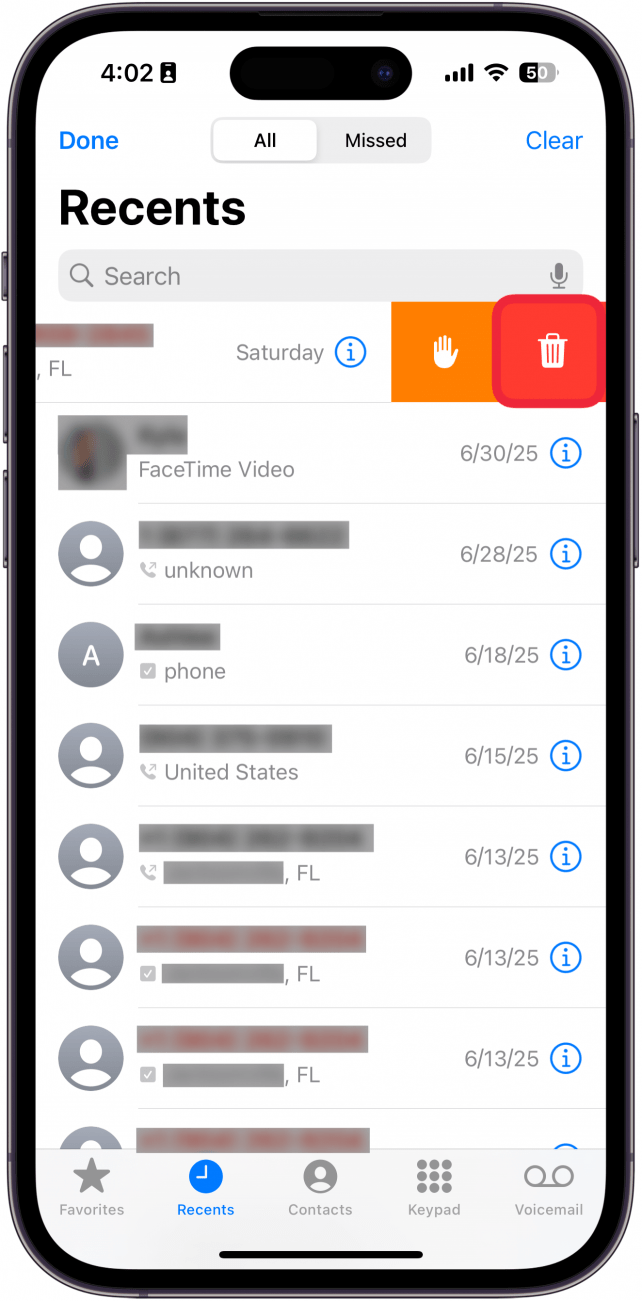
- Then, tap the trash can icon.
![a screenshot of the iphone's phone app with a red box around the trash can icon]()

That’s how to delete phone calls from your iPhone. Now, you can easily clean up your call history. Next, find out how to use hands-free calling on your iPhone.