When you search the web in Safari on your iPhone or iPad, the default search engine determines which search engine is used to look for results. In addition to Chrome, iOS also gives you the option to use DuckDuckGo, which doesn't track your search history. Here's how to change the default search engine on an iPhone or iPad to DuckDuckGo.
Why You’ll Love This Tip
- Browse the internet more privately by using DuckDuckGo as your default search engine.
- Keep your information out of data profiles, and keep your data from being sold by using DuckDuckGo.
How to Change Your Search Engine on iPhone
System Requirements
This tip was performed on an iPhone 17 Pro running iOS 26. Find out how to update to the latest version of iOS.
This method tells you how to set Google, Yahoo, Bing, Ecosia, or DuckDuckGo as the default search engine for Safari. If you have languages other than English set up as preferred languages on your device, you may see other options that include popular search engines in those languages.
Note: Setting Google as your default search engine in Safari is different from browsing the web with Chrome. To make Chrome the default browser on your iPhone or iPad, simply download the iOS Chrome app from the App Store and browse the web using the Chrome app instead of the Safari app.
Now, here's how to change the default search engine to DuckDuckGo on your iPhone or iPad:

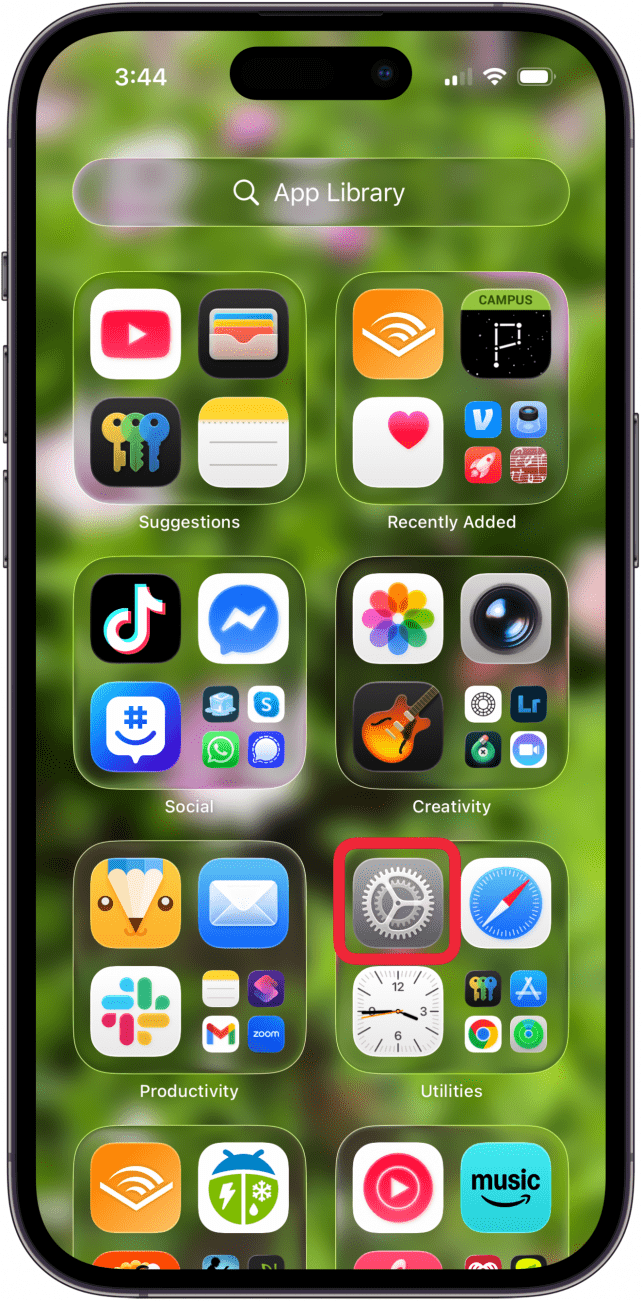
- Open Settings.

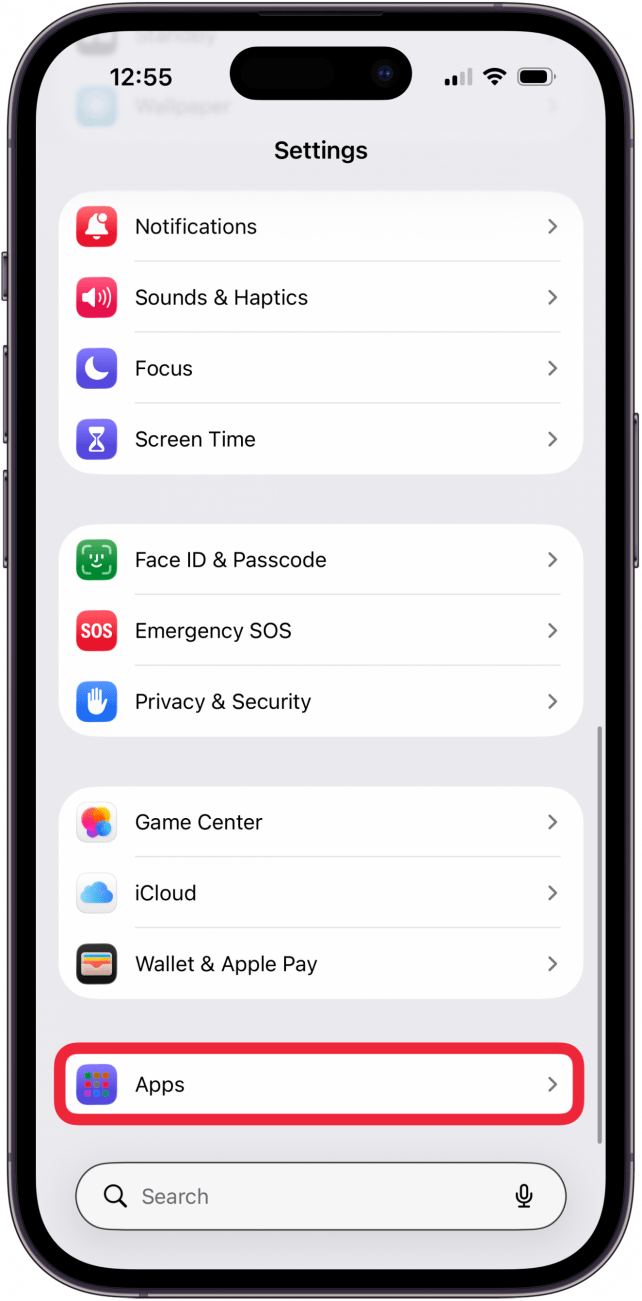
- Tap Apps.

- Tap Safari.

- Tap Search Engine.

- Choose your preferred search engine from the list by tapping it. In this case, tap DuckDuckGo.



Now you can use whichever search engine you'd like! To learn more about using Safari on your iPhone, check out our free Tip of the Day newsletter.