Upgrade Your Shared Photo Albums to Invite Android Users

Leanne puts her love of troubleshooting and repair to use managing our Ask an Expert Facebook group and has authored hundreds of how-to, Apple news, and gear review articles.
Learn More Leanne puts her love of troubleshooting and repair to use managing our Ask an Expert Facebook group and has authored hundreds of how-to, Apple news, and gear review articles.
Learn MoreHave you ever gone on a trip with an Android-using friend, only to discover you can't create a shared album for all the photos you took together? Now, you can upgrade shared albums you created so you can share them with friends and family who don't have Apple devices. No more texting photos back and forth!
Why You'll Love This Tip
- Share photo albums with Android users.
- Upgrading a shared album stores the album in full resolution. (Keep in mind this does take up more storage.)
How to Upgrade a Shared Album on Your iPhone & iPad
System Requirements
This tip was performed on an iPhone 17 Pro running iOS 27. These steps do not work for users running iOS 26. Find out how to update to the latest version of iOS.
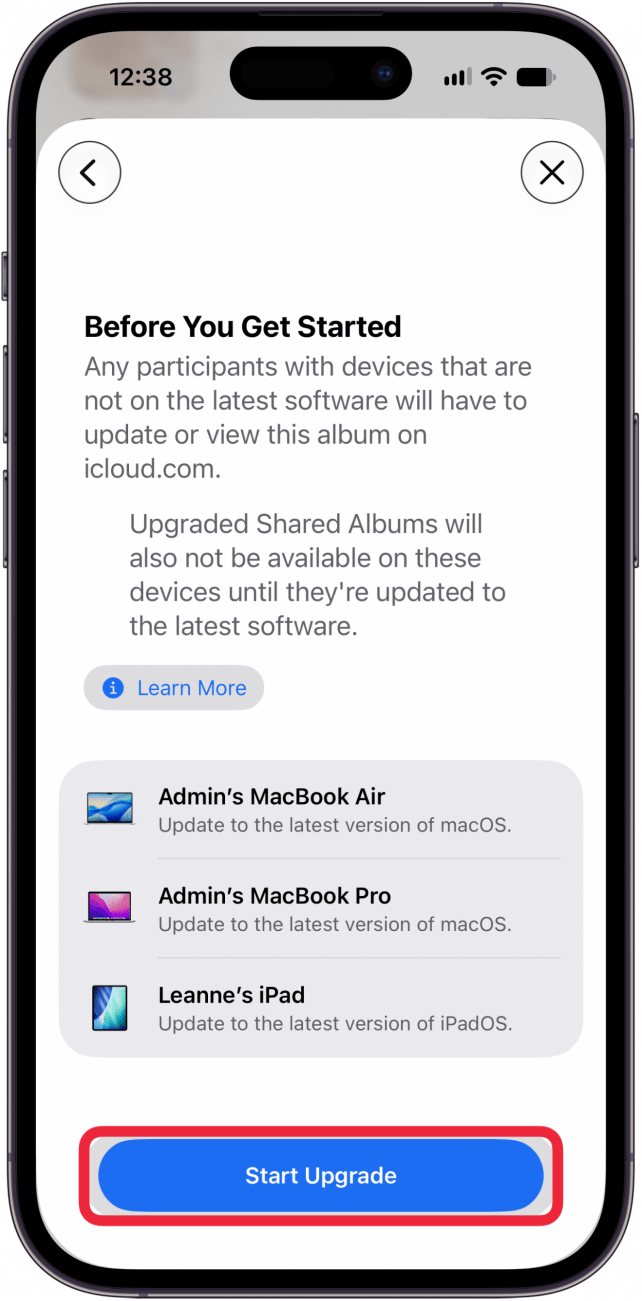
When you upgrade your photo album, you'll now be able to share it with any Android-using friend. You can't upgrade all your shared albums at once, so follow the steps below to upgrade them one at a time. This may be improved in a future operating system. You can also only upgrade shared albums you created.
Note: If you upgrade your album, group album members with devices that don't have the latest software will only be able to see the album on the iCloud website.
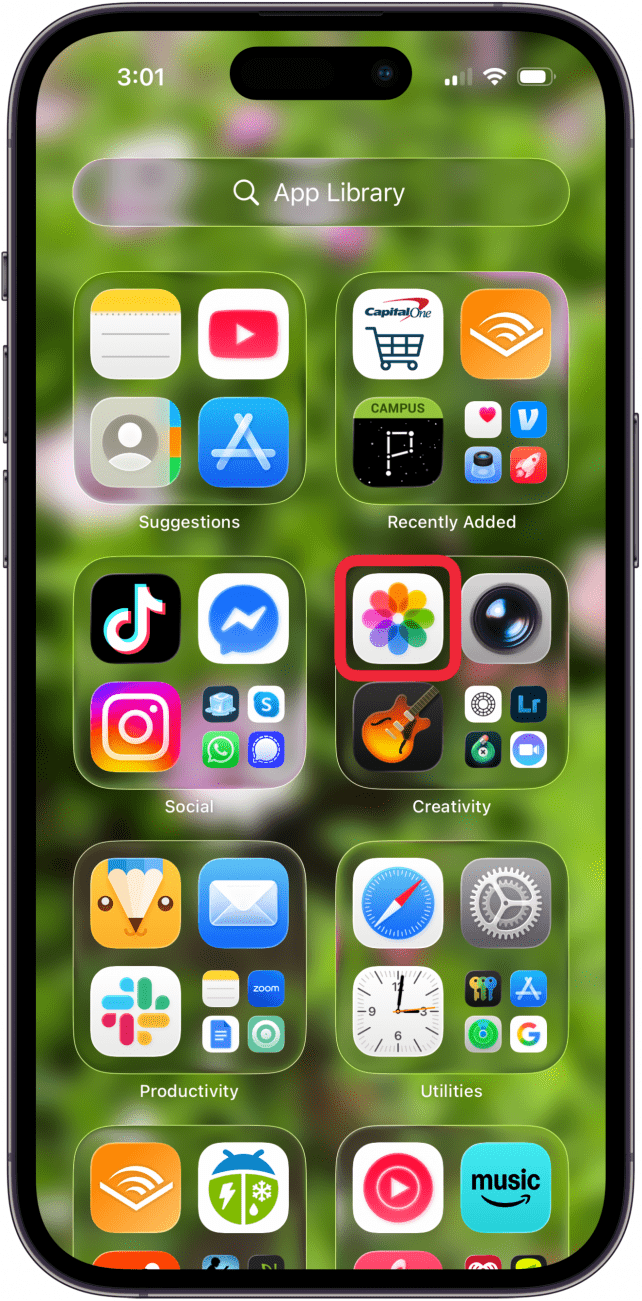
- Open the Photos app.
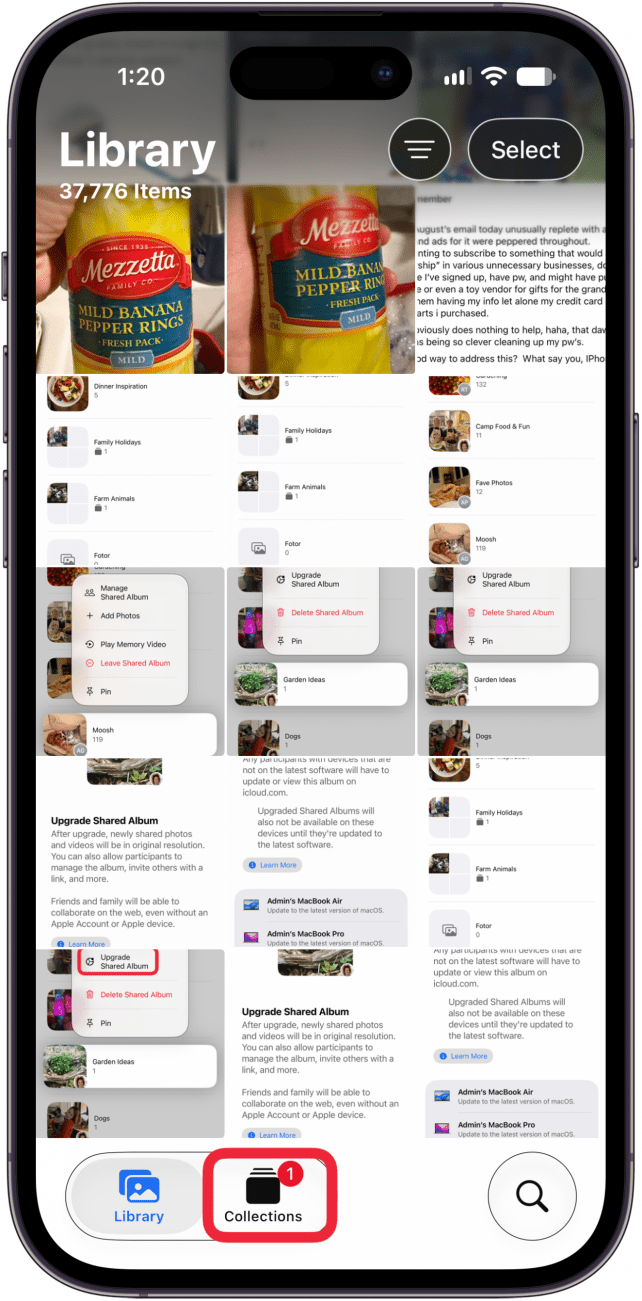
- Tap the Collections tab.
- Tap Albums.
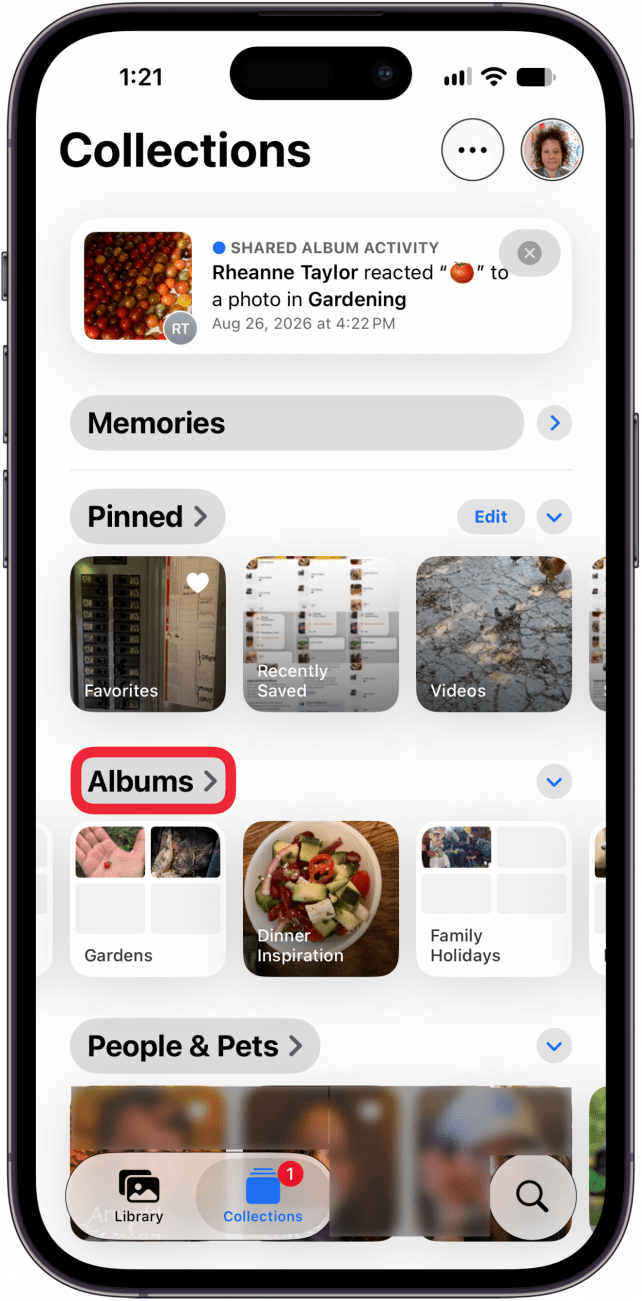
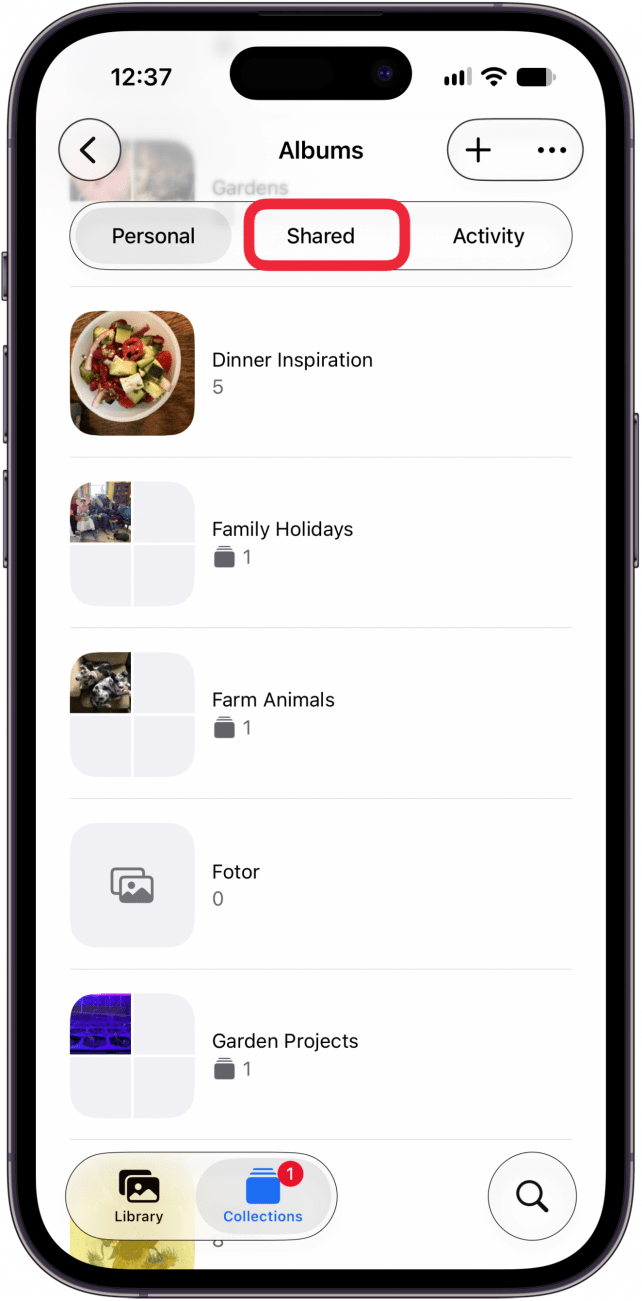
- Tap Shared.
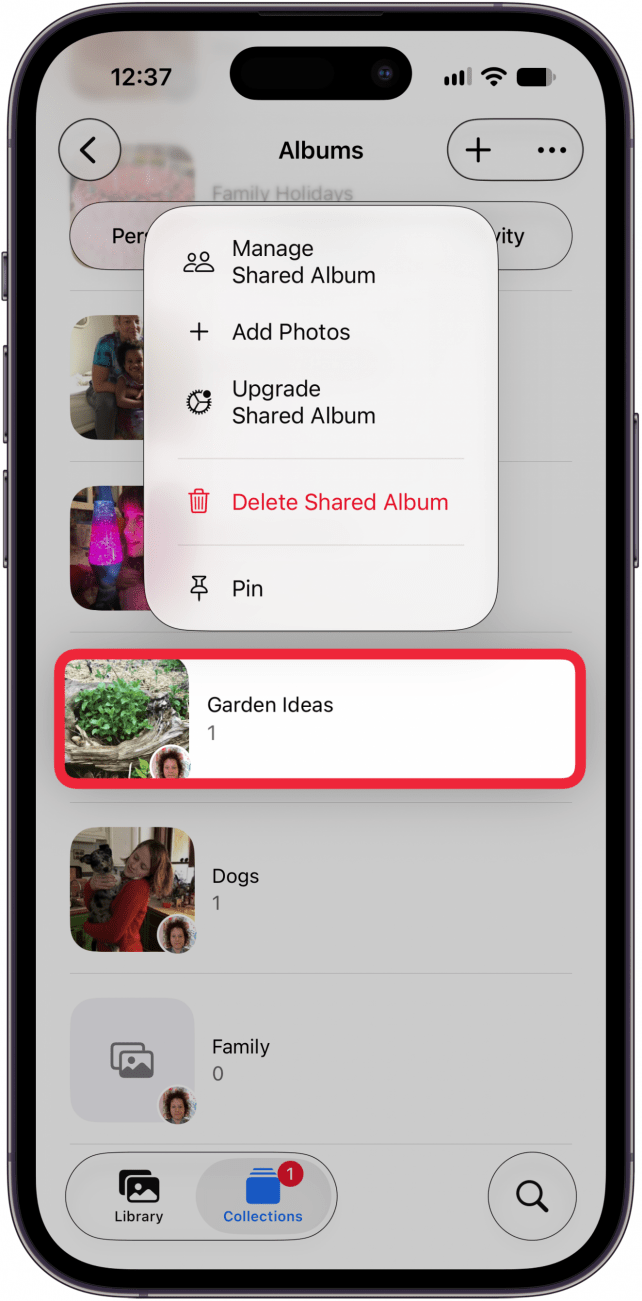
- Touch and hold a shared album you created.
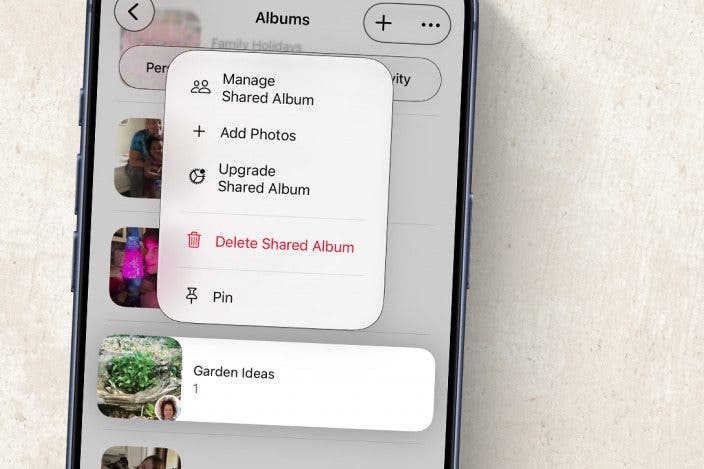
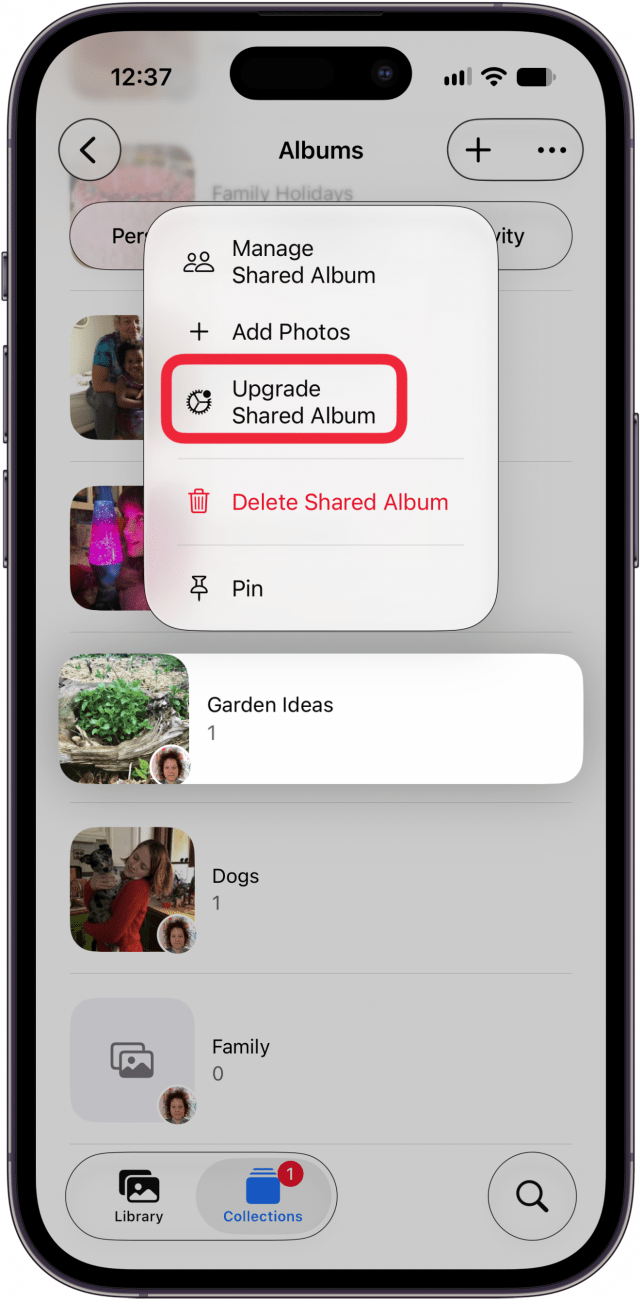
- Tap Upgrade Shared Album.
- Tap Get Started.

- Tap Start Upgrade.
More On: Shared Photo Albums
Top image credit: W. Phokin / Shutterstock.com

Every day, we send useful tips with screenshots and step-by-step instructions to over 600,000 subscribers for free. You'll be surprised what your Apple devices can really do.

Leanne Hays
Leanne Hays has more than sixteen years of experience writing for online publications. As a SEO Specialist and Feature Writer for iPhone Life, she has authored hundreds of how-to, Apple news, and gear review articles, as well as a comprehensive Photos App guide. Leanne holds degrees in education and science and loves troubleshooting and repair. This combination makes her a perfect fit as manager of our Ask an Expert service, which helps iPhone Life Insiders with Apple hardware and software issues.
In off-work hours, Leanne is a mother of two, homesteader, audiobook fanatic, musician, and learning enthusiast.

 Rhett Intriago
 Ashleigh Page
 Leanne Hays

 Rachel Needell
 Olena Kagui