Apple's AirPrint allows you to print photos or documents wirelessly from your iPhone or iPad. If you come across a photo or an article you'd really like to share with your spouse or roommate, AirPrint lets you create a hard copy of the article with just a few taps on your screen. Find out how to print from an iPhone.
Why You'll Love This Tip
- Print photos, recipes, guides, and anything else you can think of from your iPhone.
- Print anything you want without ever plugging anything into your printer.
How to Print from iPhone with AirPrint
System Requirements
This tip was performed on an iPhone 15 Pro running iOS 27. Find out how to update to the latest version of iOS.
AirPrint on iPhone requires a compatible wireless printer, but most relatively new printers these days support the Apple feature. As long as your printer already has wireless printing turned on and is on the same Wi-Fi network as your Apple device, it's super simple to send a file to print straight from your iPhone or iPad. For more tips on using AirPrint or AirPlay, be sure to sign up for our free Tip of the Day newsletter.

- While AirPrint will work regardless of what app you're printing from, this tip will walk you through printing a web page in Safari. Once on the page you'd like to print, long press the address bar.
![a screenshot of safari on iphone with a red box around the address bar]()
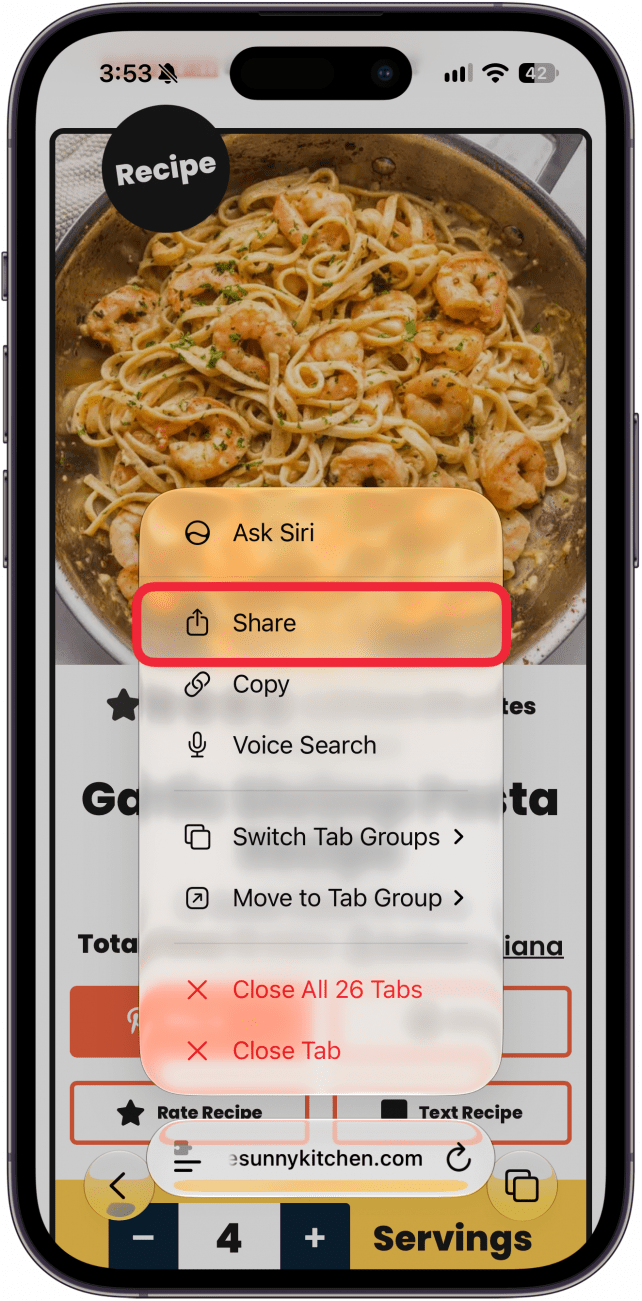
- When it comes to printing from your iPhone, start by looking for the Share button.
![a screenshot of safari on iphone displaying page options with a red box around the share button]()
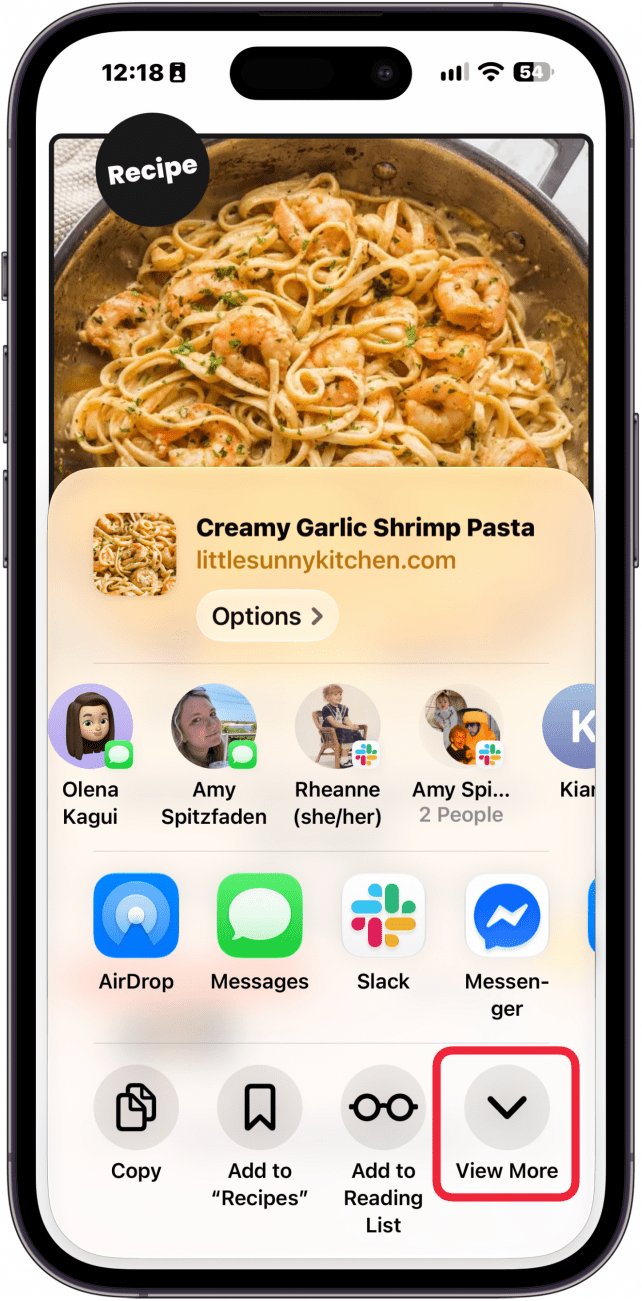
- On the Share sheet, tap View More (or scroll down).
![a screenshot of safari on iphone displaying the share sheet with a red box around the view more button]()
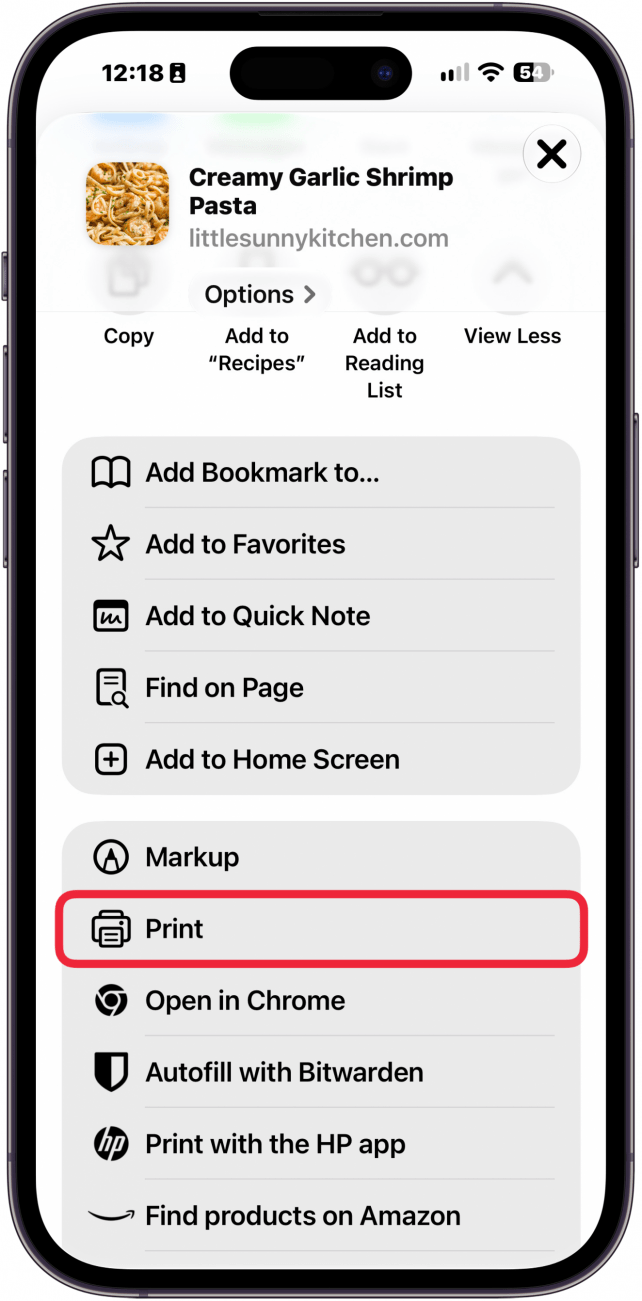
- Scroll down and tap Print.
![a screenshot of the share sheet on iphone with a red box around the print button]()
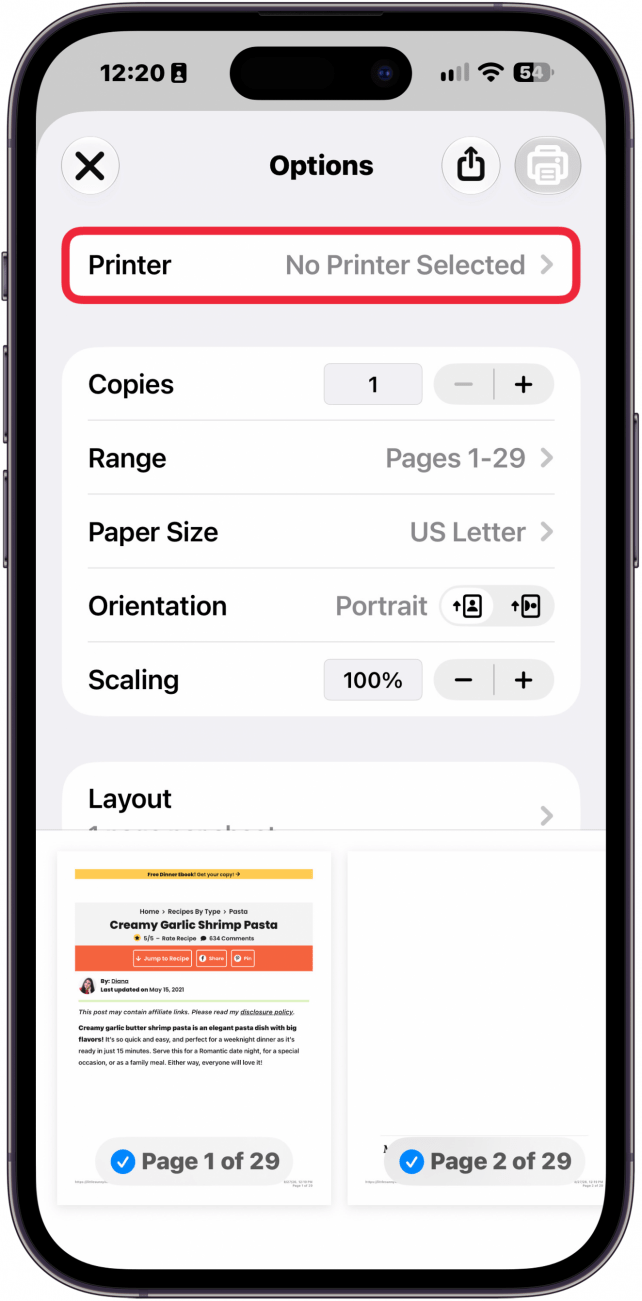
- Here, on the Print Options screen, tap Printer to open printer selection.
![a screenshot of printing options on iphone with a red box around the printer button]()
- Tap your printer.
![a screenshot of printer options on iphone displaying a list of printers with a red box around a single printer]()
- Make any adjustments to the print options and then tap the print icon in the upper right.
![a screenshot of printer options on iphone with a red box around the print button]()



Note
If the page you are trying to print appears strangely in the print preview, try switching to Reader View and printing again.
That's how to print from iPhone to printer. AirPrint on the iPhone is super simple and doesn't require configuring any special settings on your Apple device at all. With this Apple feature, printing from the iPhone or iPad is easier than ever.