Generate an AI Image of Someone from Your Photo Library

In the last 10 years, Olena has been published in dozens of publications internationally and written hundreds of how-to articles and complex guides about Apple products, software, and apps.
Learn More In the last 10 years, Olena has been published in dozens of publications internationally and written hundreds of how-to articles and complex guides about Apple products, software, and apps.
Learn MoreThe easiest way to generate AI images based on the photos in your Photo Library is using the iPhone's very own Image Playground app. This native app makes it possible to use the photos you've taken of your friends for free without uploading your photos to a third-party app or website.
Why You'll Love This Tip
- Image Playground is a native app that lets you create AI generated images from photos you've taken of your friends.
- Generate AI images without uploading your personal photos to third-party apps or websites.
How to Create an AI Image from a Photo of Your Friend
System Requirements
This tip was performed on an iPhone 17 Pro Max running iOS 27. Find out how to install the latest OS.
Generating AI images has gotten so popular that many of the images you see online have been altered. It can be fun to play around with AI and Image Playground makes it easy to tweak photos you've taken yourself. Just keep in mind that some people don't like AI and might not appreciate having their image altered without their consent.
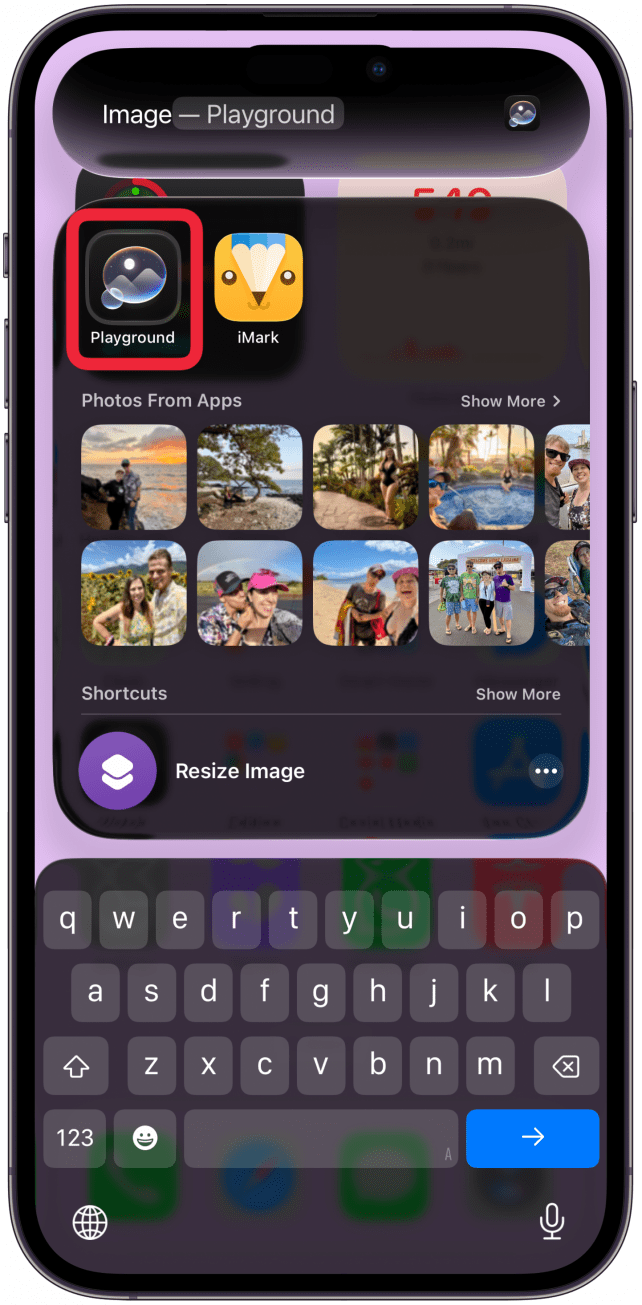
- Open Image Playground.
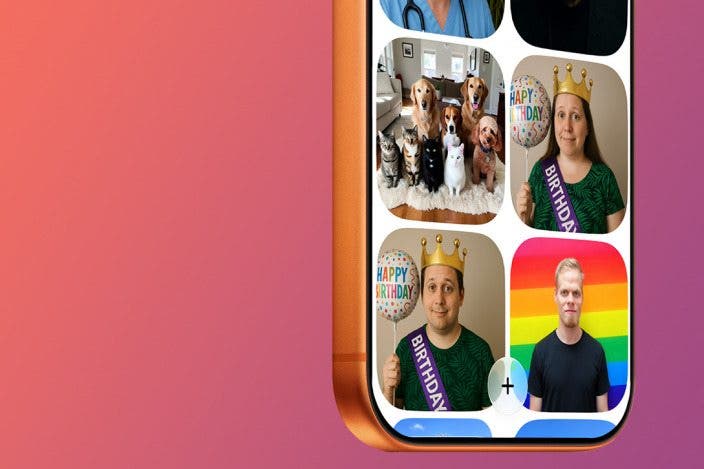
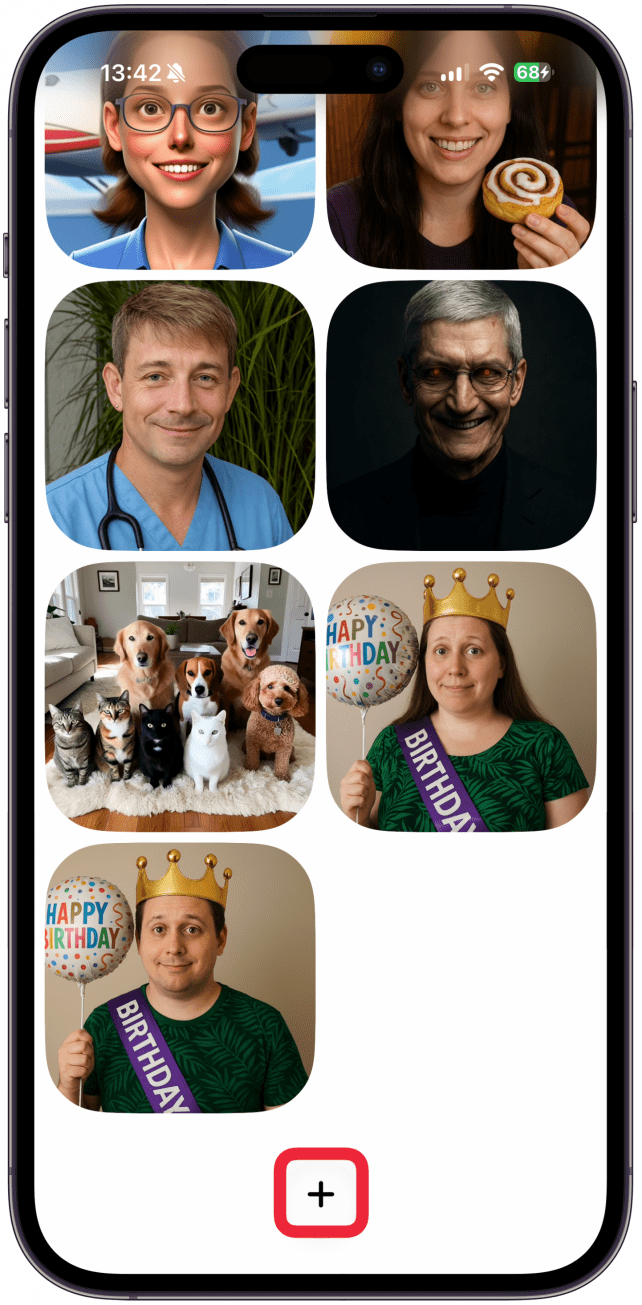
- If you've used it before, you'll see previously generated images. Tap the plus button at the bottom of the screen.
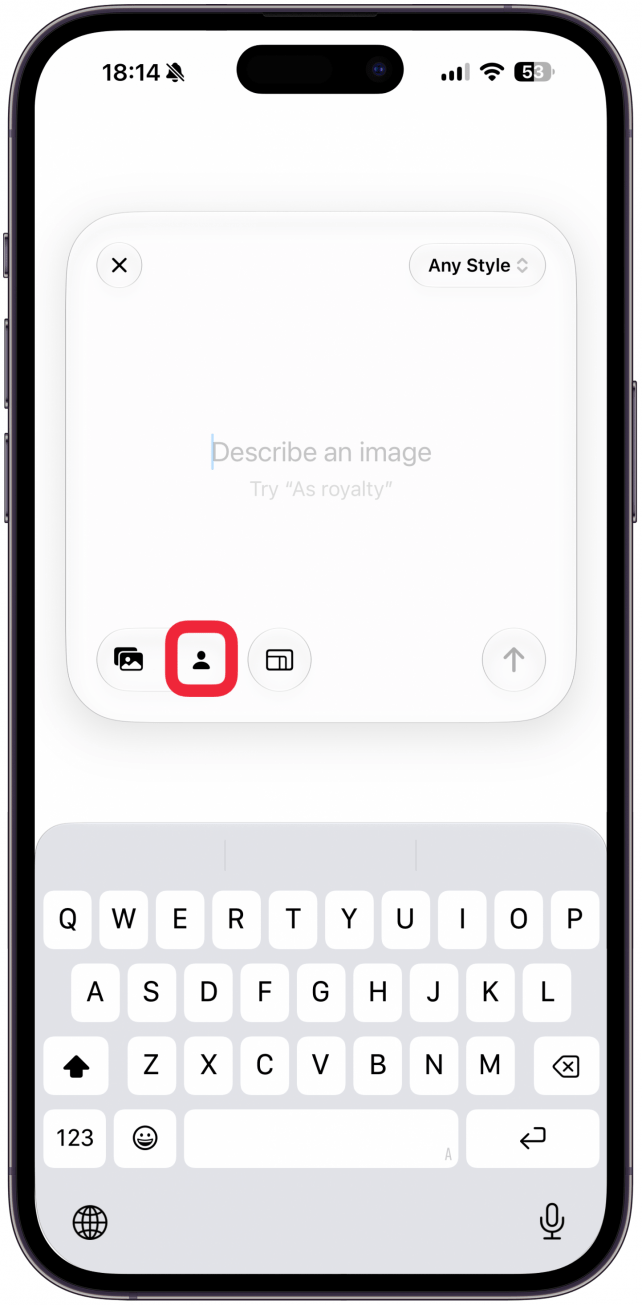
- Here you'll be able to upload an image, write a prompt, and pick an image style. The order doesn't matter, but I like to start with the image. If you're generating an image of someone you've photographed, skip the photo icon and tap the person icon instead.
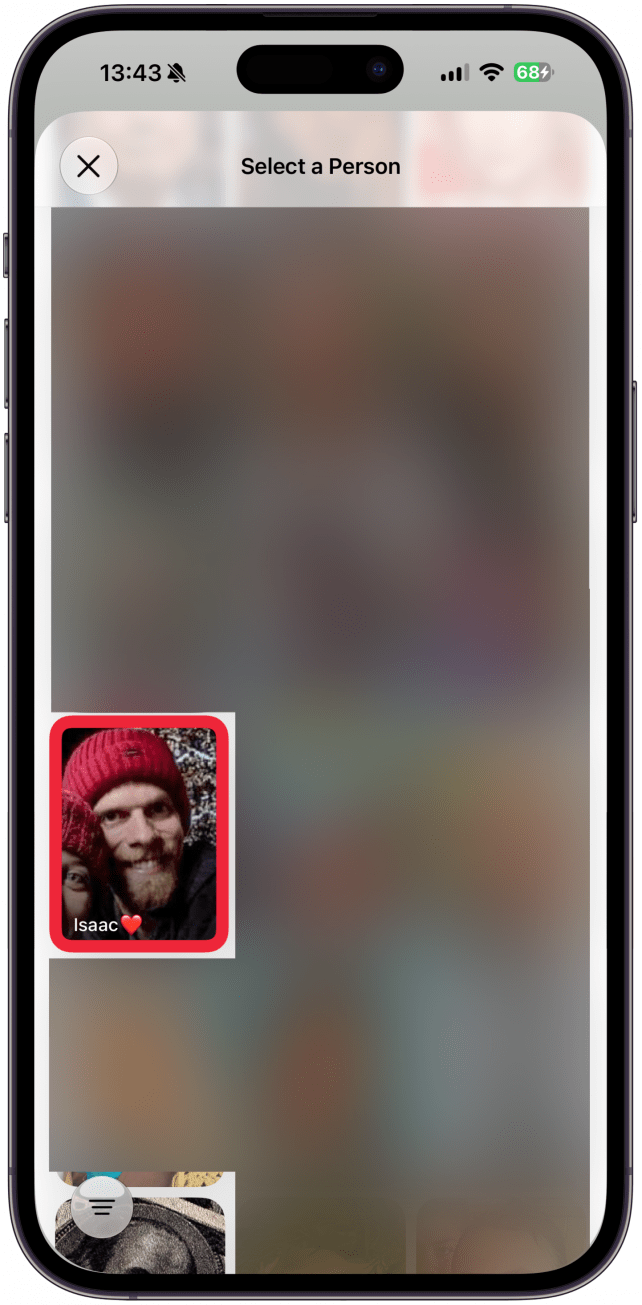
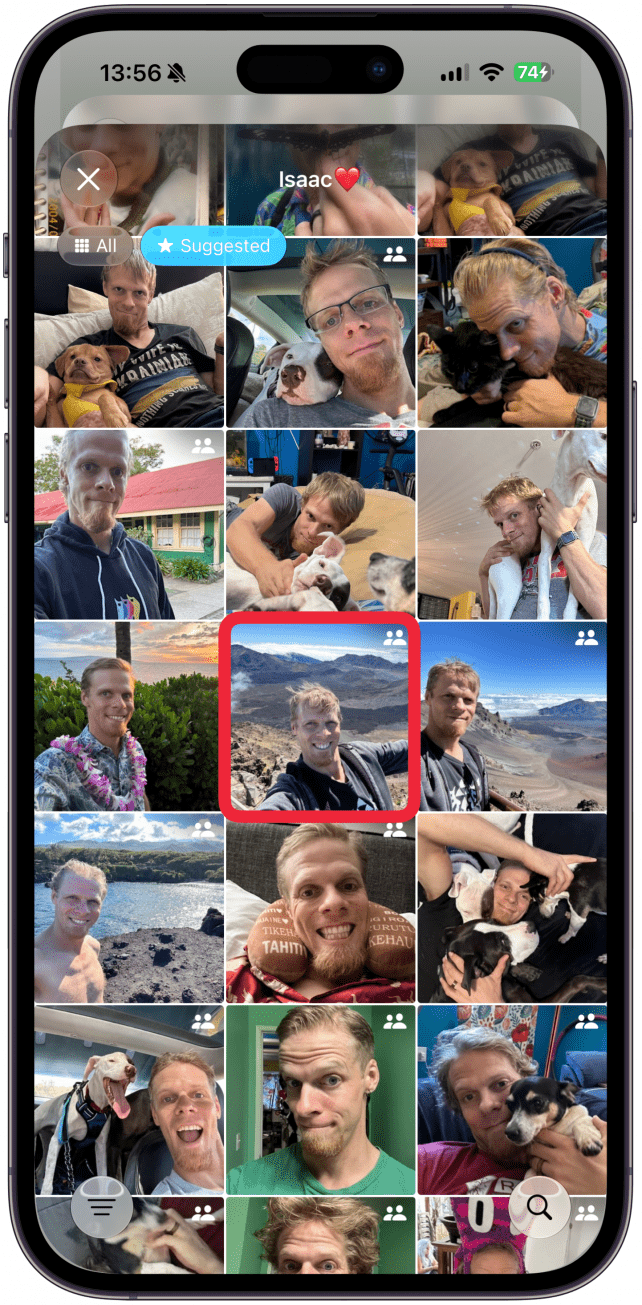
- Here you'll see lots of different people that your phone recognizes from your photos. Some people might be duplicated because face detection isn't perfect. Tap on one to see more photos of them.
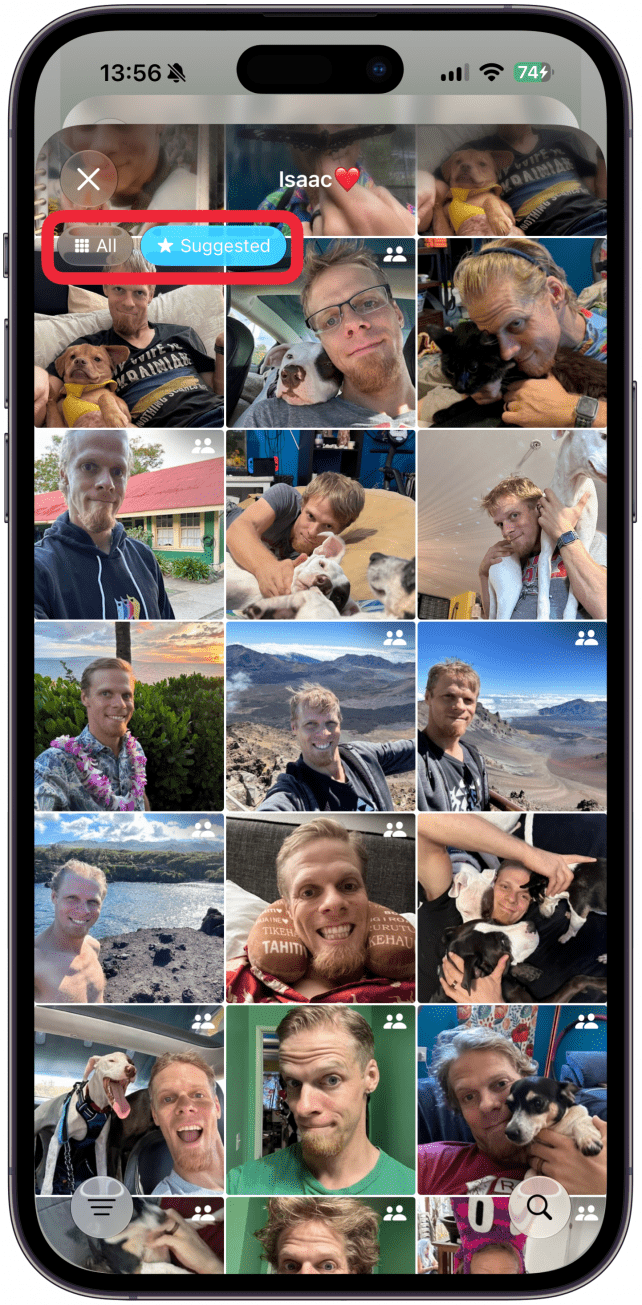
- By default you will see suggested photos of this person. If you want to see more options, tall All at the top. I prefer to stay on Suggested because I have thousands of photos and I find it easier to navigate.
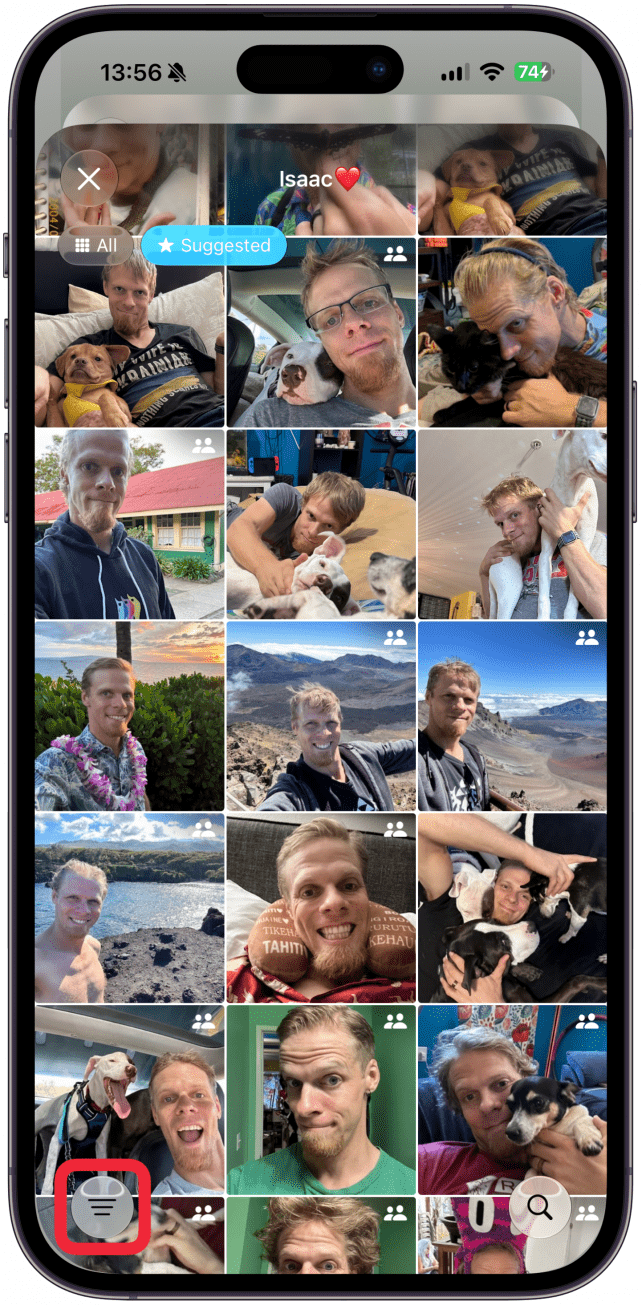
- At the bottom of the screen you can tap the burger icon (three lines) to filter the images to help you find a specific image. The filtering options are the same as the ones in your Photos app.
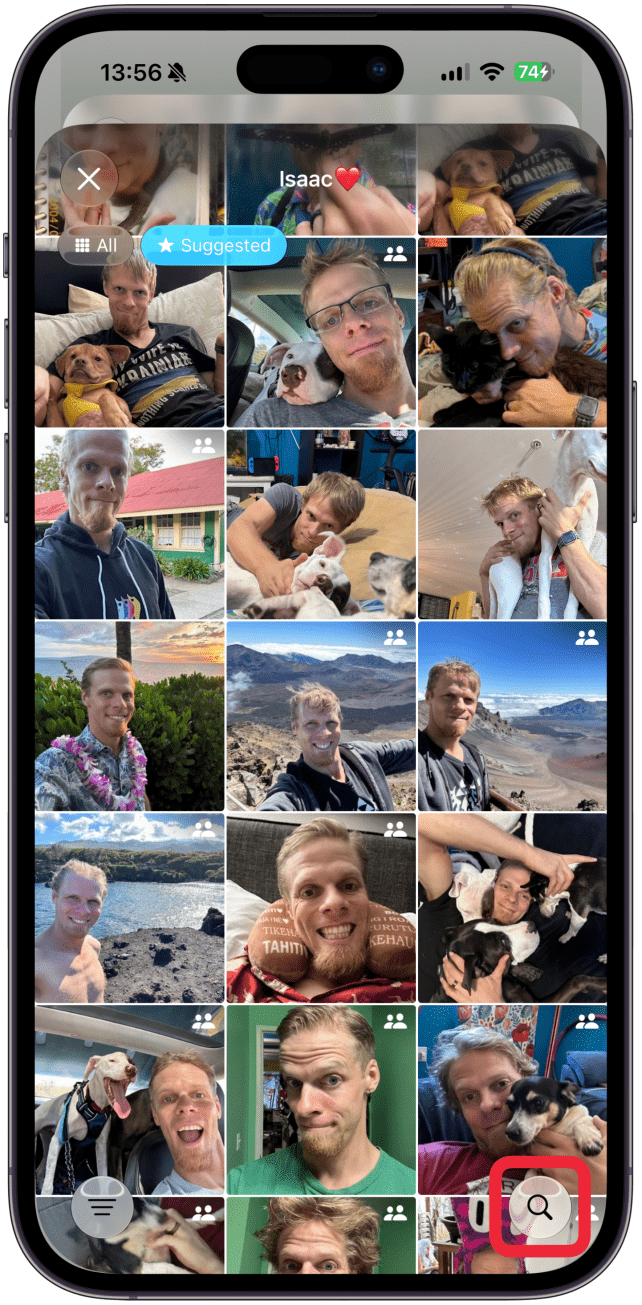
- At the bottom right you'll see a magnifying glass icon to search for a particular photo like you would in the Photos app.
- Tap on a photo to select it. Remember that the actual photo won't be used, AI will only use it as a reference to generate the person in the photo. If the person is holding a pet or an object, they will not be included.
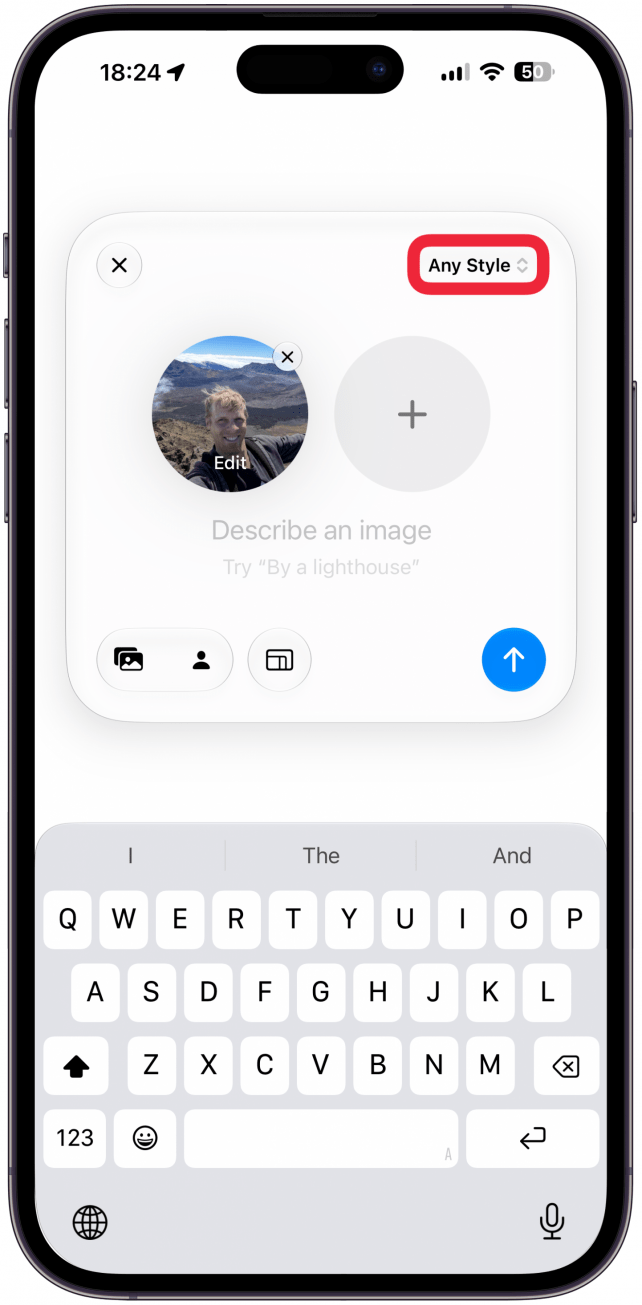
- Now you can add another image by tapping the plus icon and following the same steps to find the photo you want. I will stick with just one. Tap the text on the dropdown menu in the top right corner.
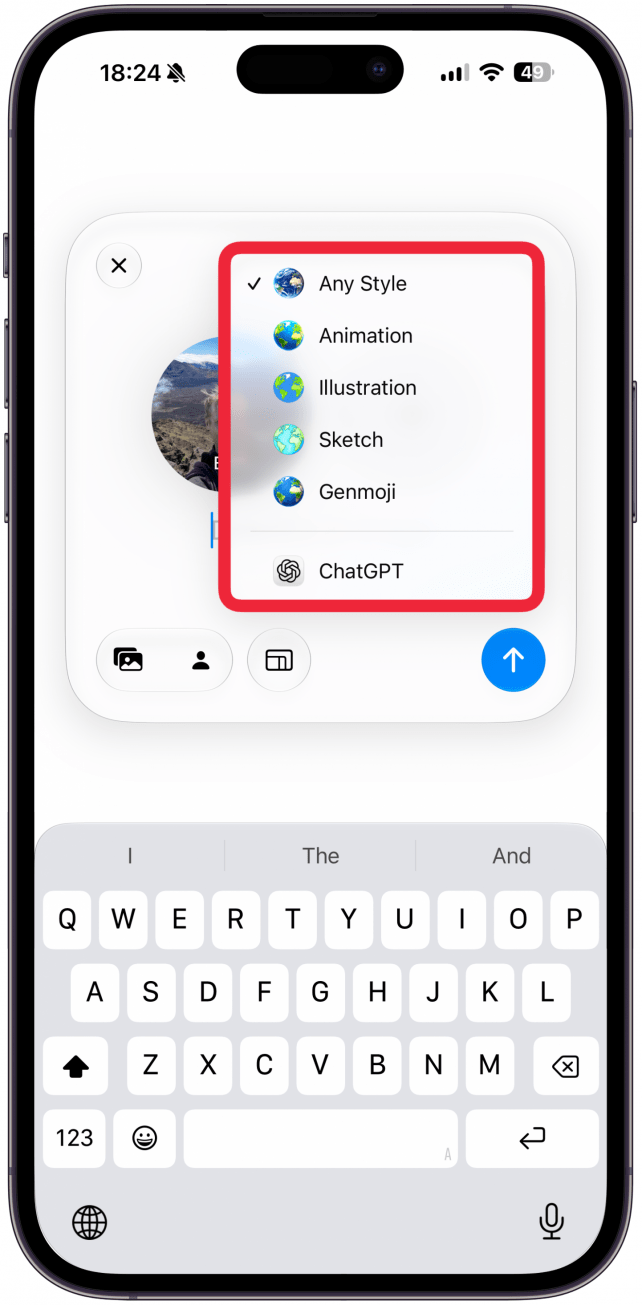
- Here you can pick between Any Style, Animation, Illustration, Sketch, Genmoji, and ChatGPT. I'll pick Any Style, but I recommend trying each one to see the difference.
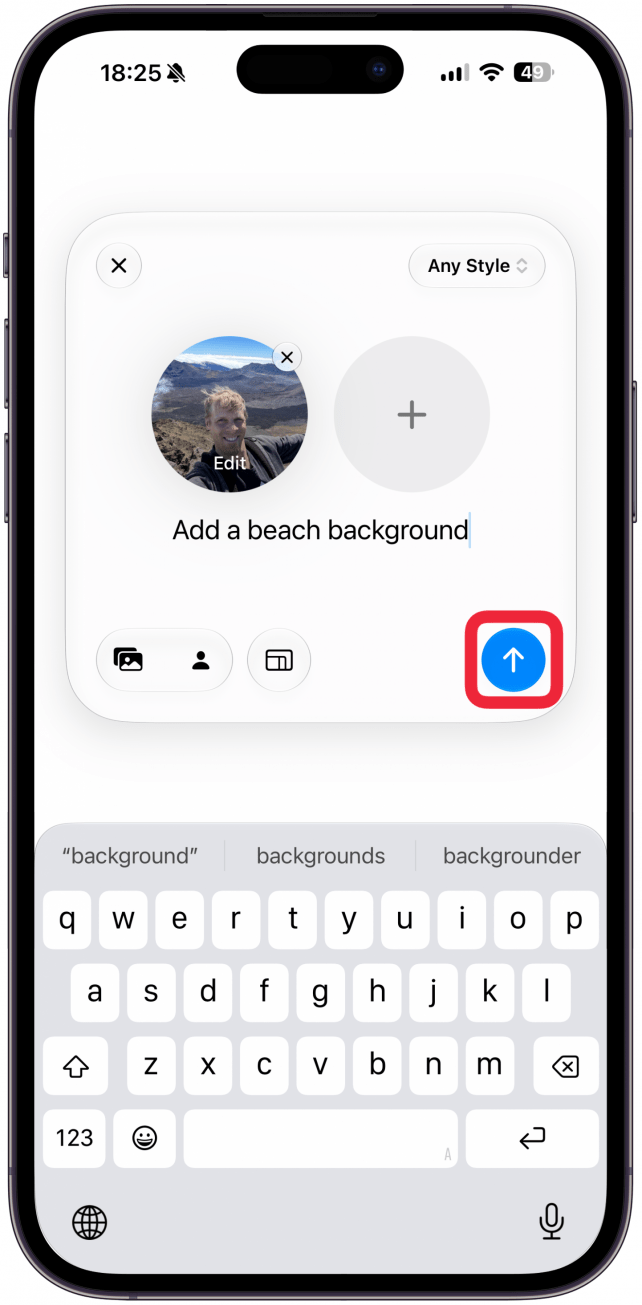
- Now write a prompt. The more specific you are, the better the generated image will turn out. I will go with a simple "add a beach background."
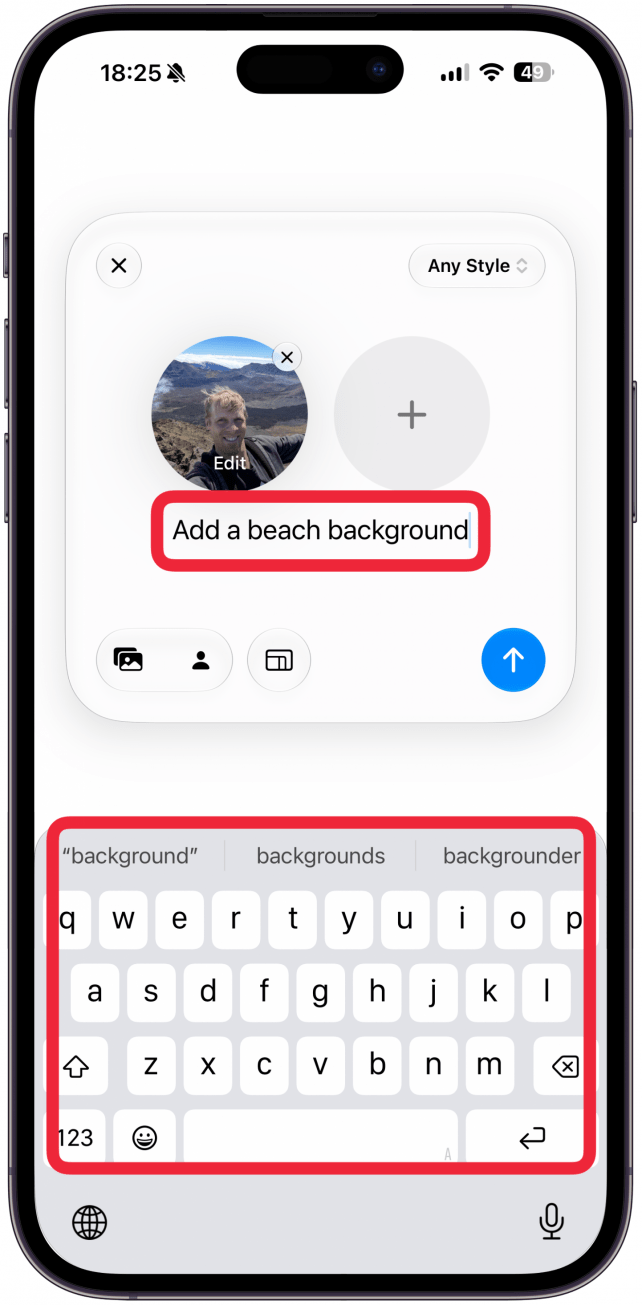
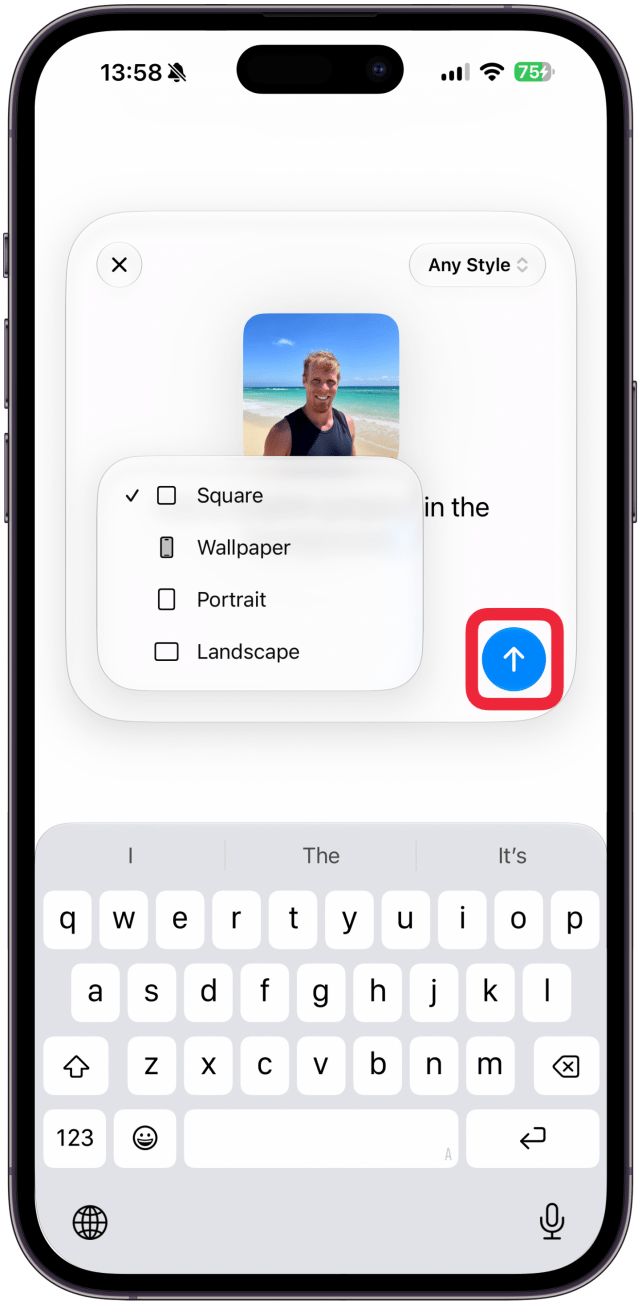
- Tap the arrow up icon to generate the image.
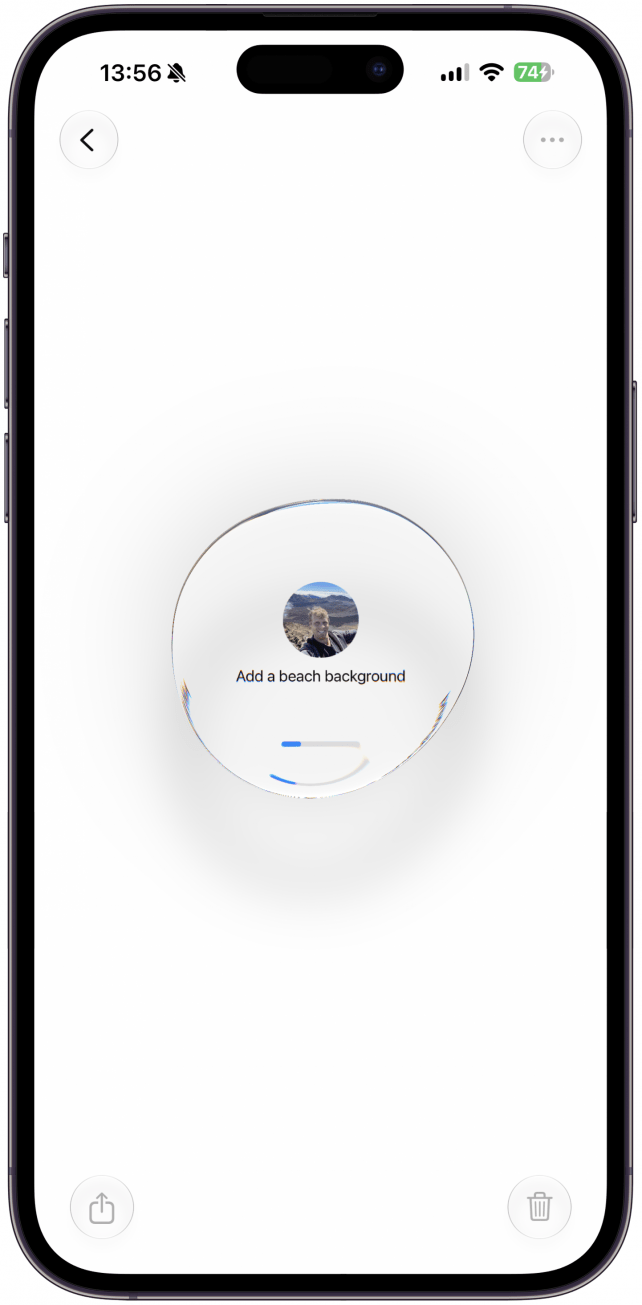
- It might take some time to generate. You will see the progress bar moving as it gets generated.
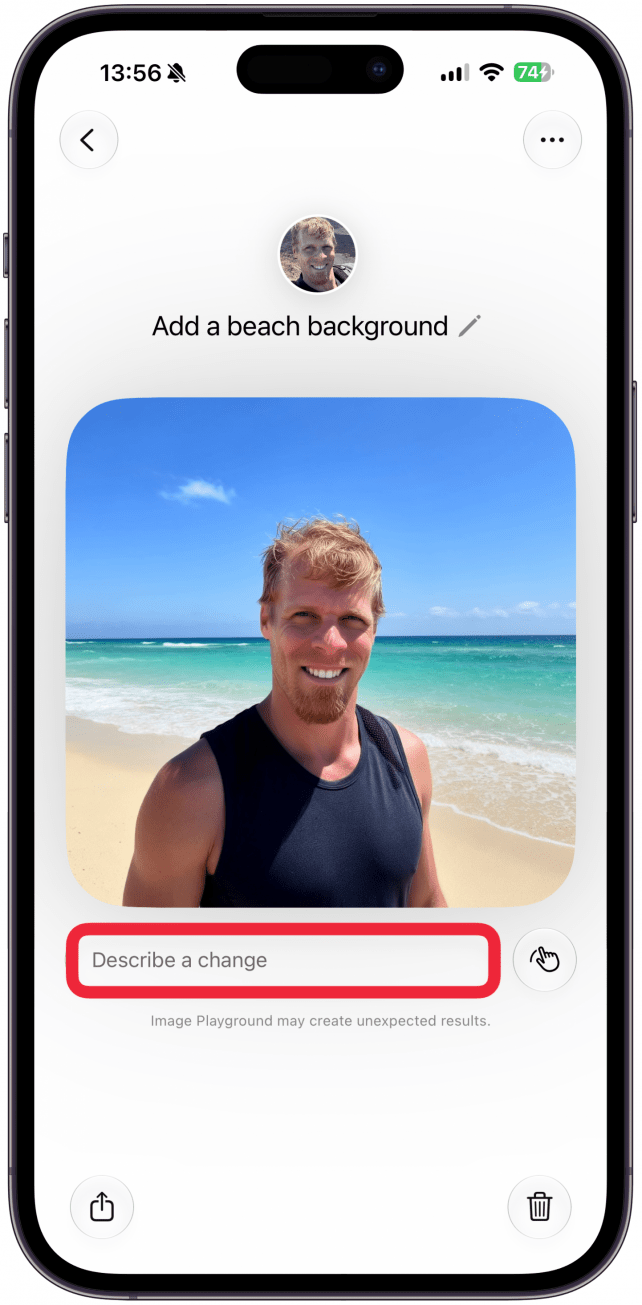
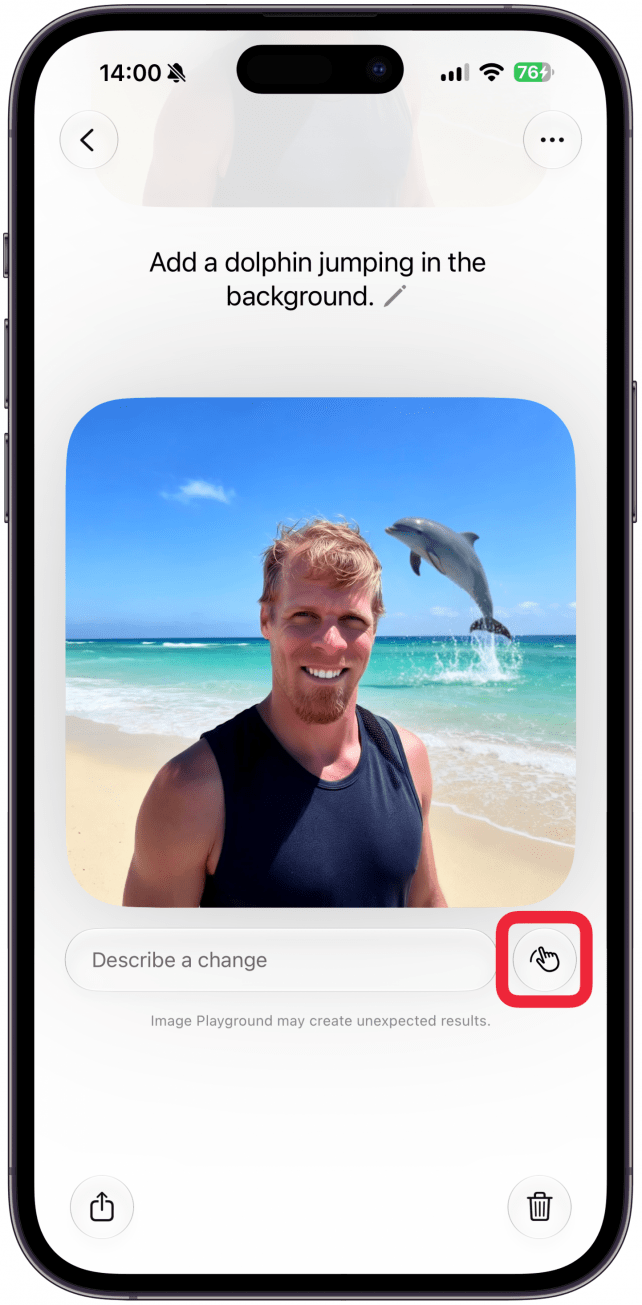
- Once the image is generated, you'll be able to describe a change you want made to the image. I'll do, "add a dolphin jumping in the background."
- Once you've written your prompt, you'll also be able to change the style or the ratio. The image is a square by default, but if you tap the ratio button, you can change it to Wallpaper, Portrait, or Landscape.
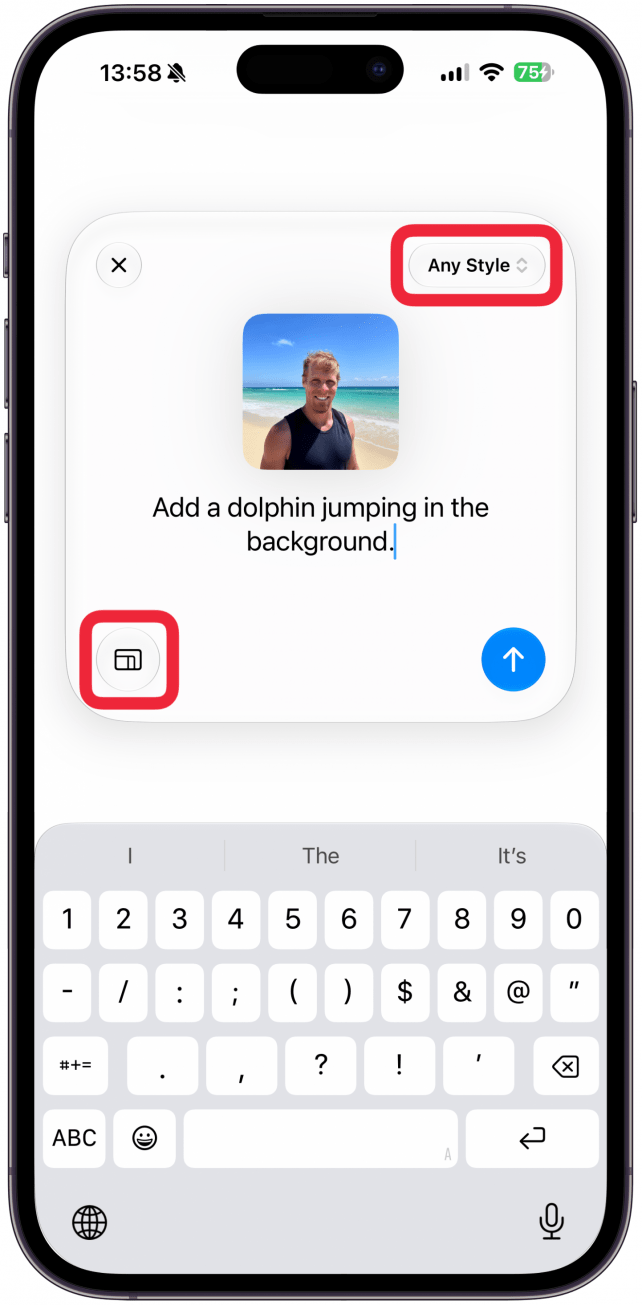
- Once you are ready to re-generate the image, tap the arrow up icon.
- You can keep describing changes if you aren't happy with the image yet. If you tap the smudging finger icon, you'll be able to tap, brush, or circle what you want to edit.
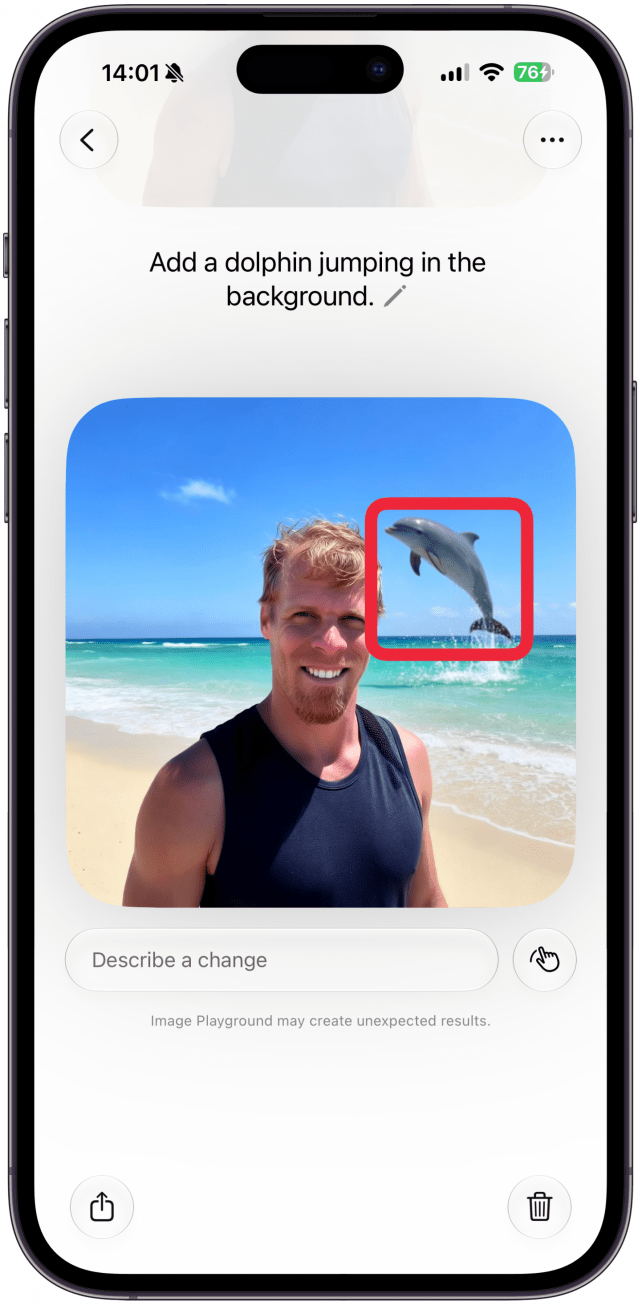
- I'll tap on the dolphin, but you can select any part of the image you would like to change.
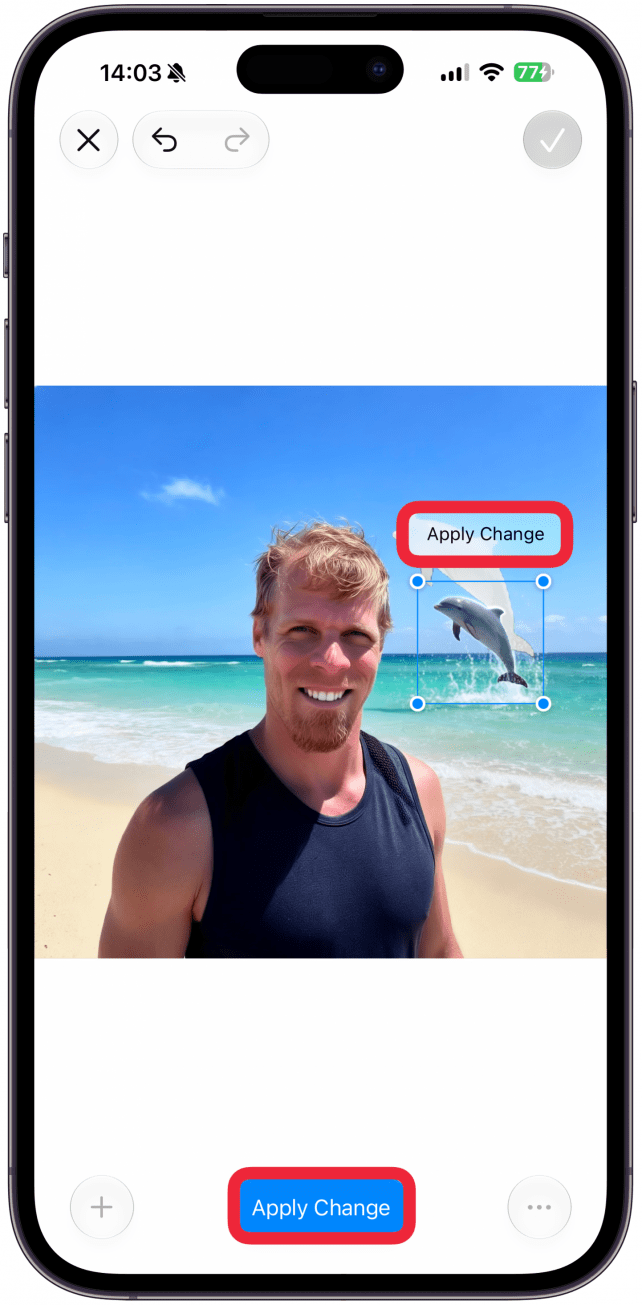
- Now I have the option to add something to the selected object, change the selected object, or remove it. You can also resize it by dragging one of the corners or move it by dragging it elsewhere. I made it a little smaller and lower down.
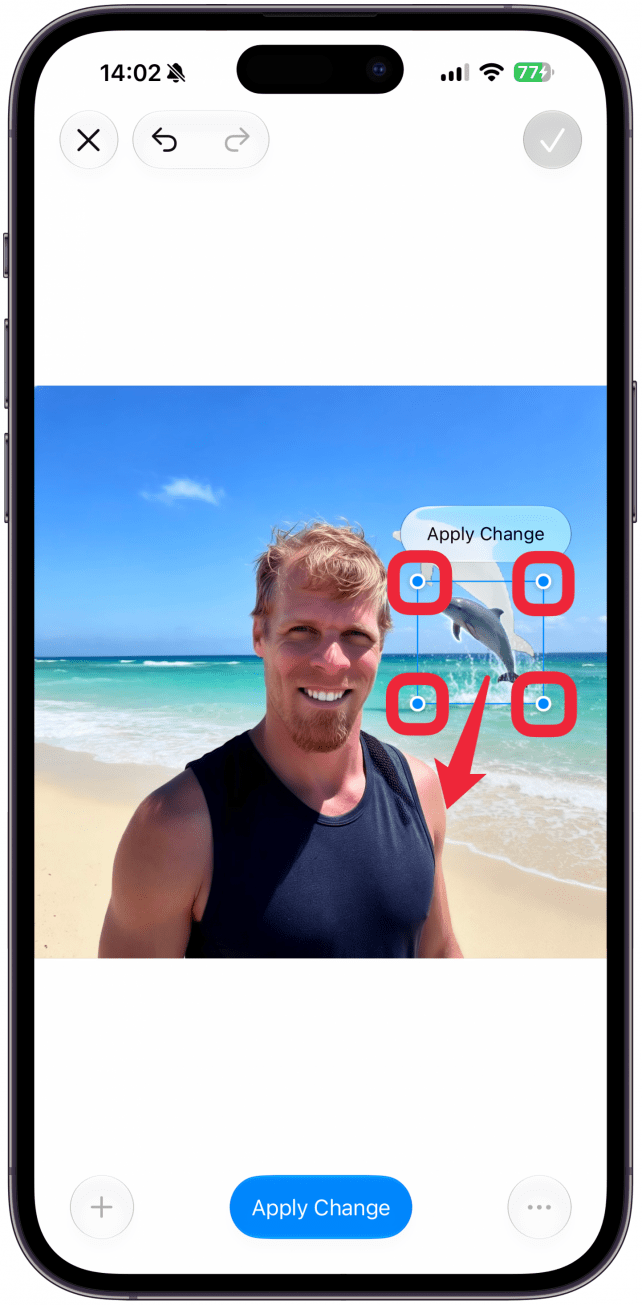
- Image Playground won't make any changes until you tap Apply Change above the selected image or at the bottom of the screen once you are ready.
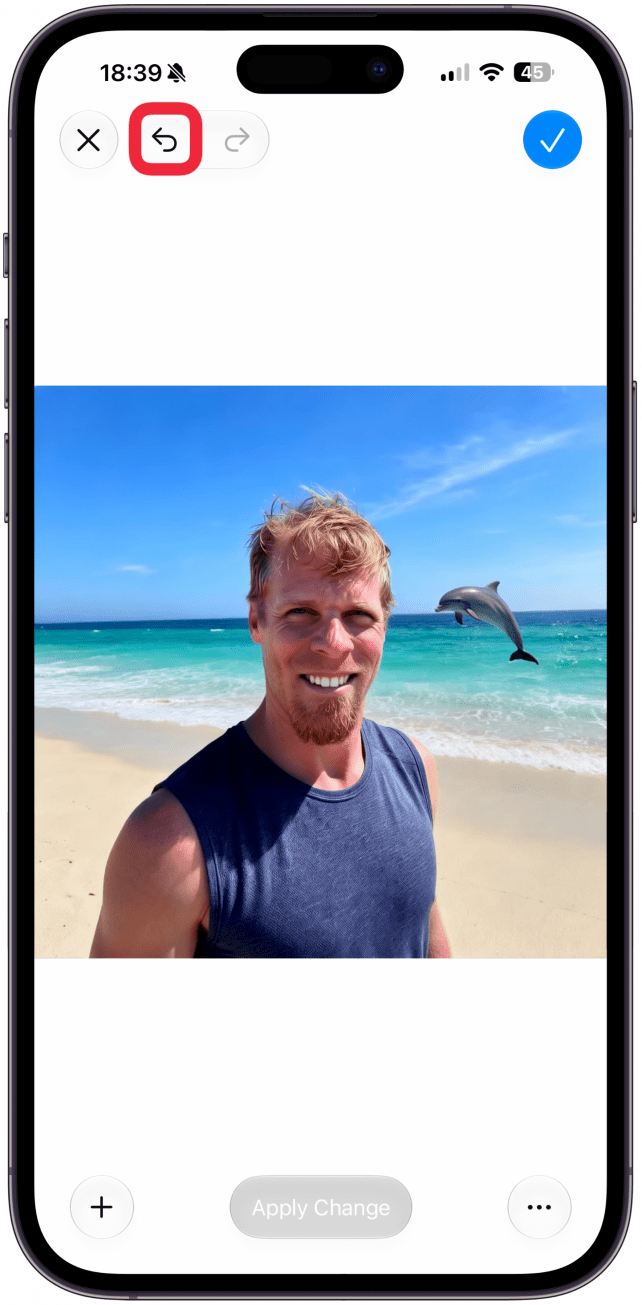
- Once the image is generated, you can tap the undo button to return to the previous version of the image.
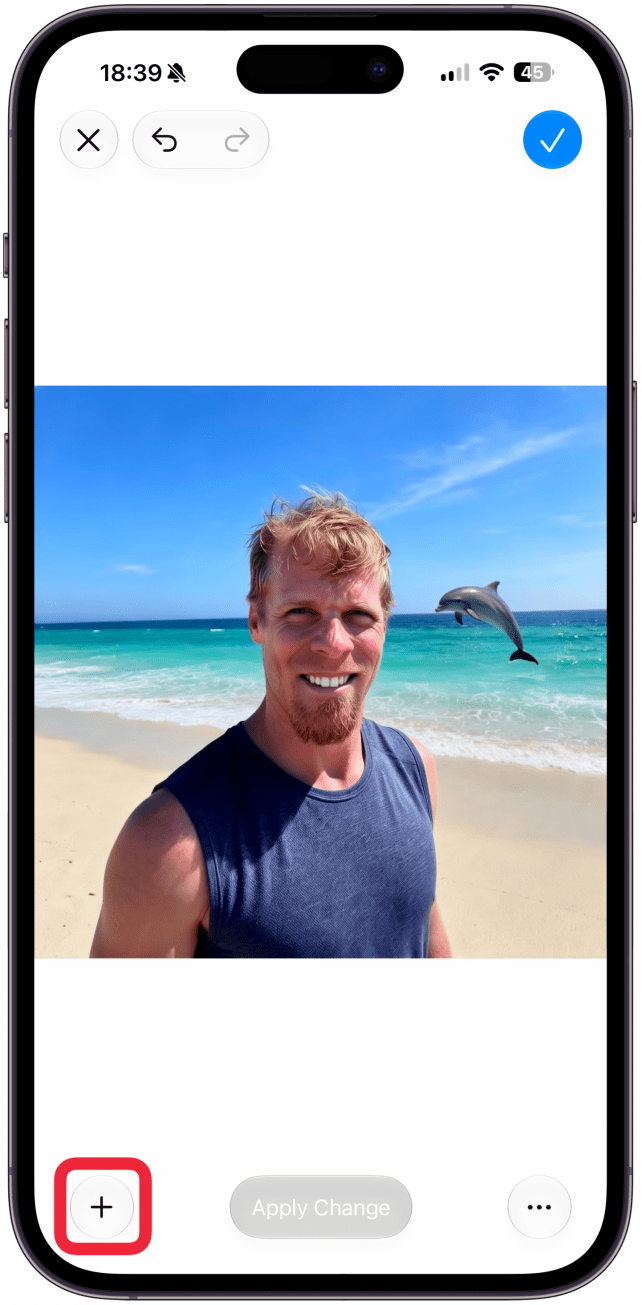
- You can tap the plus button to make more changes.
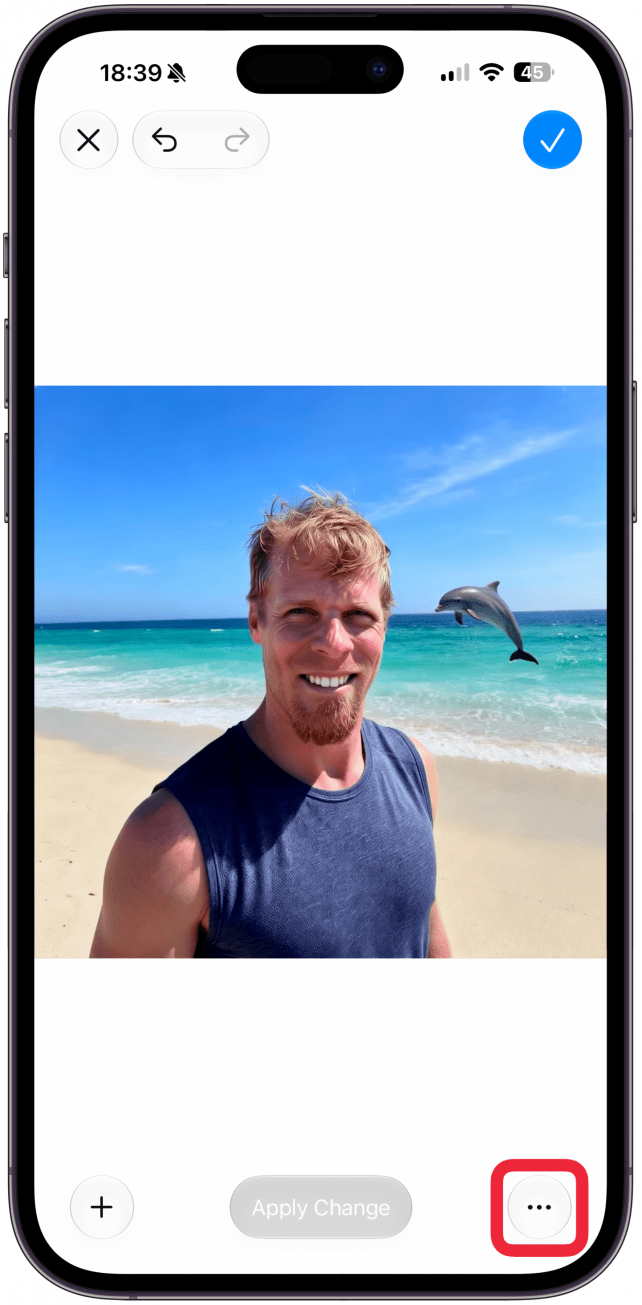
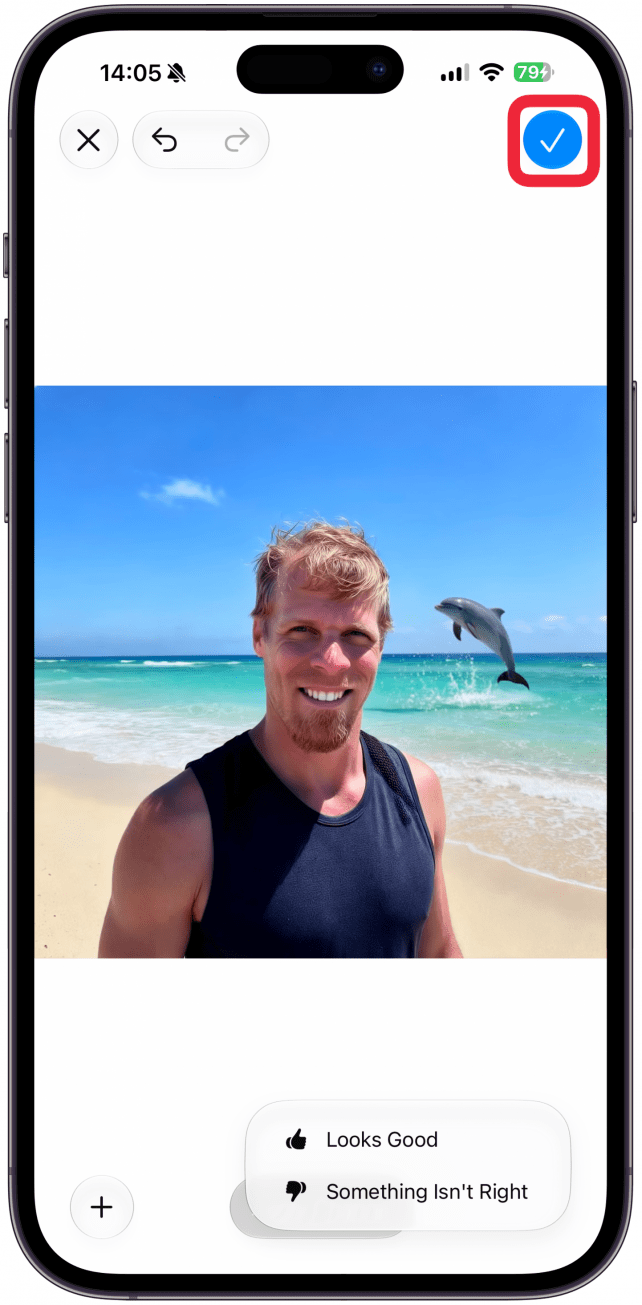
- And you can tap the more button (three dots) to give Image Playground feedback.
- Tap the blue check mark to save the changes you made to the image.
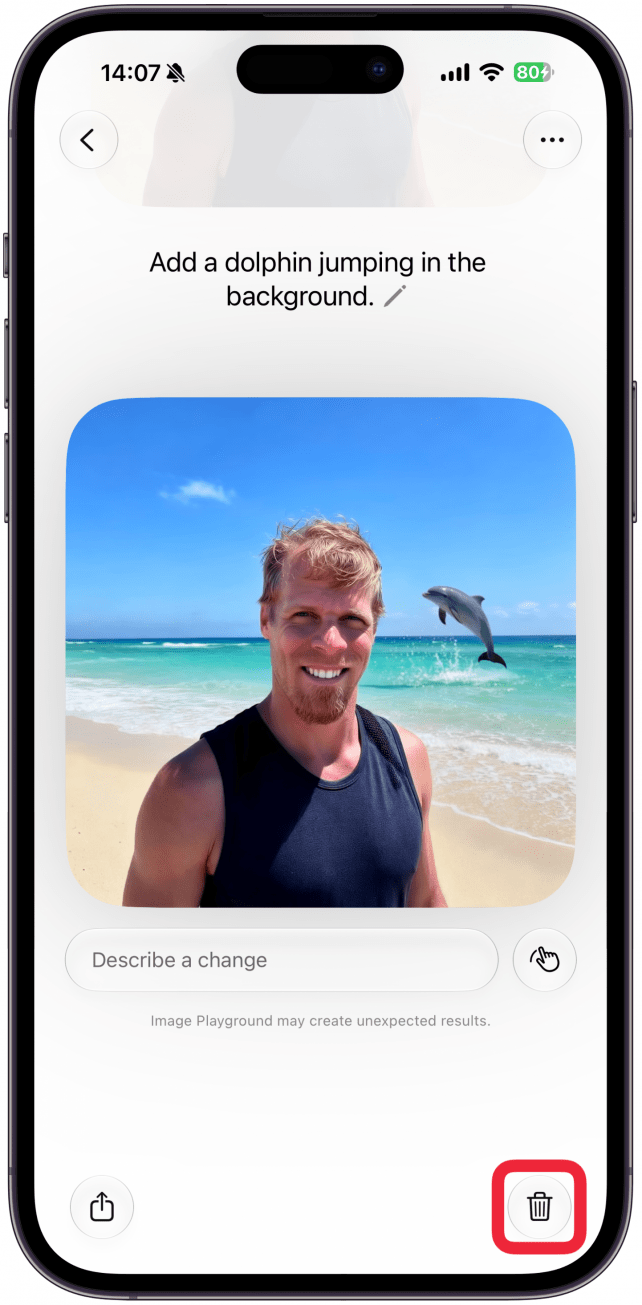
- You can tap the trash icon to delete it.
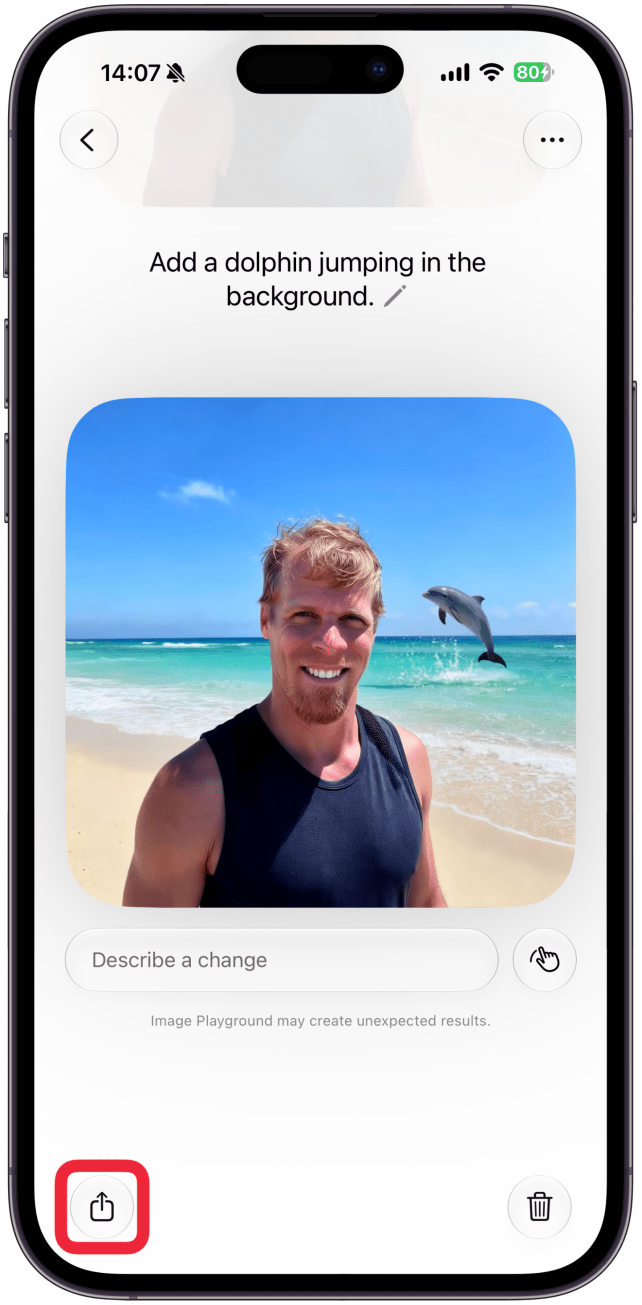
- To share or save the image, tap the share icon in the bottom left corner.
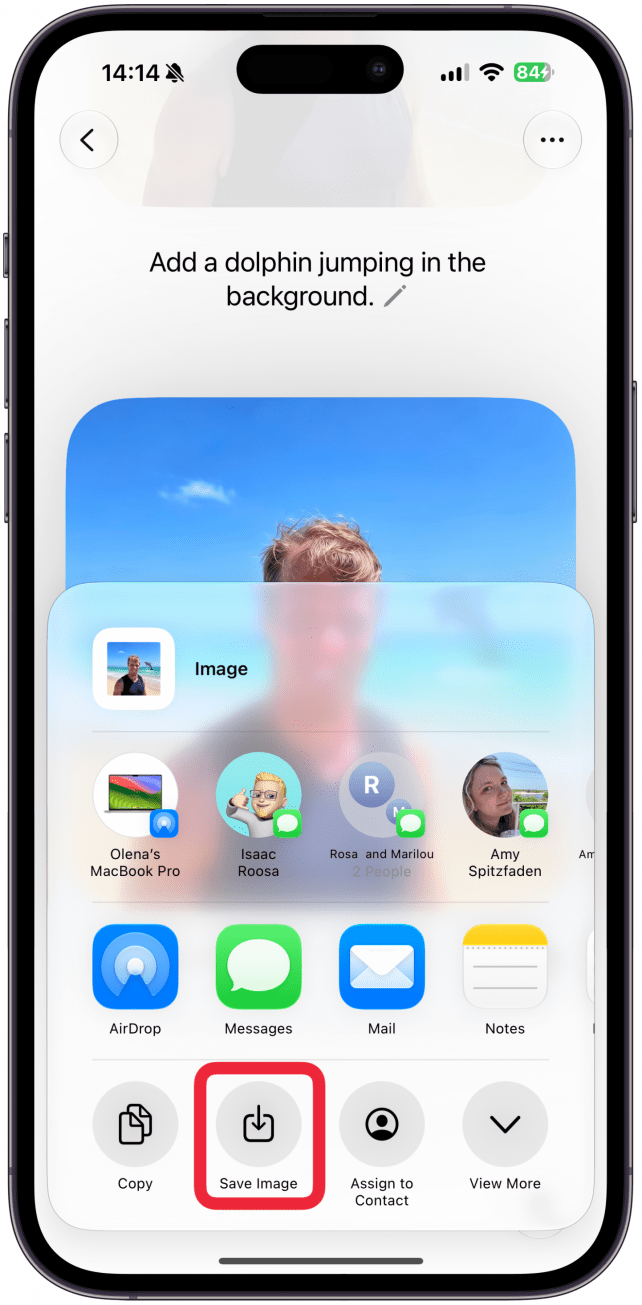
- Use the share sheet as you normally would. If you tap Save Image, the image will appear in your Photos app. If you leave the app without saving it, you'll still be able to find the image and the previous versions of it in Image Playground even if you never formally saved it. You can keep making changes to it indefinitely.
If you want to edit a generated image but wish to start a new workflow, tap on a layered image. You can swipe up and down to see the different versions. If you tap the more button (three dots) and select Duplicate, that individual image will appear in the Image Playground.
Now you know how to create an AI image of the people you've photographed on your phone! If you wish to share a generated image in the future via the Messages app, you can tap the plus icon, select Image Playground, tap on Library at the top of the screen, and then tap on the image(s) that you wish to send, and tap the blue check mark in the top right corner to insert it into the message you are sending. Next, learn how to detect AI images.

Every day, we send useful tips with screenshots and step-by-step instructions to over 600,000 subscribers for free. You'll be surprised what your Apple devices can really do.

Olena Kagui
Olena Kagui is a Feature Writer at iPhone Life. In the last 10 years, she has been published in dozens of publications internationally and won an excellence award. Since joining iPhone Life in 2020, she has written how-to articles as well as complex guides about Apple products, software, and apps. Olena grew up using Macs and exploring all the latest tech. Her Maui home is the epitome of an Apple ecosystem, full of compatible smart gear to boot. Olena’s favorite device is the Apple Watch Ultra because it can survive all her adventures and travels, and even her furbabies.
Related topics
Related Articles
 Leanne Hays
 Olena Kagui
Quick Launch a Selfie with a Shortcut You Didn't Know Exists
 Amy Spitzfaden Both
 Rhett Intriago
Bad Breakup? How to Stop Sharing Location & More with Your Ex on an iPhone

 Rachel Needell

 August Garry
Apple's Groundbreaking New Headset & Everything Else Announced at WWDC 2023



 Cullen Thomas