How to Slow Down a Video on iPhone: The Easiest Way

A lifelong tech enthusiast, with experiences ranging from jailbreaking his iPhone to building his own gaming PC, Rhett specializes in maintaining privacy in a digital world and iPhone security.
Learn More A lifelong tech enthusiast, with experiences ranging from jailbreaking his iPhone to building his own gaming PC, Rhett specializes in maintaining privacy in a digital world and iPhone security.
Learn MoreWhat to Know
- You can record video in Slo-Mo on iPhone using Slo-Mo mode in the Camera app.
- If you forget to record in Slo-Mo, you can use iMovie to slow down the video.
- The iMovie app has a slider that can slow down and speed up videos.
Slowing down a video is a good way to make the shot more dramatic. Luckily, the iPhone has a Slo-Mo option built in to make shooting slow-motion video more convenient. However, what if you forgot to switch to Slo-Mo mode? Let’s find out how to slow down a video on the iPhone.
How to Make a Video Slow Motion
There are two main ways to slow down a video on iPhone. The easiest way is to shoot with the iPhone’s Slow-Mo mode, which is native to the Camera app. You can then edit the video on your iPhone and choose where you want the slowdown to occur.
But what should you do if you forget to shoot in Slo-Mo mode? Is there a way to slow down a video on your iPhone? There is! For more tips on shooting video on your iPhone, be sure to sign up for our free Tip of the Day newsletter.
How to Slow a Video Down on iPhone
If you didn’t shoot your video using Slo-Mo mode, then you can always use the iMovie app to slow down the video. The effect won’t feel as smooth as when shooting in Slo-Mo, but it will still slow down the action. Here’s how to slow down a video on iPhone:
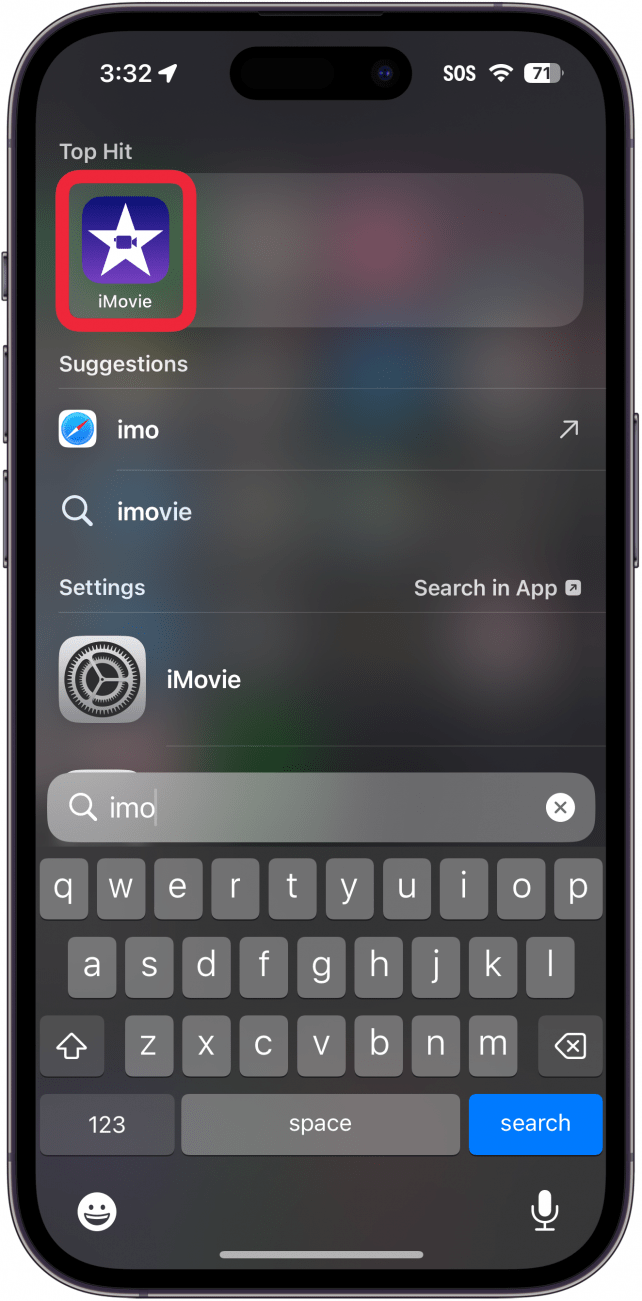
- Open iMovie.
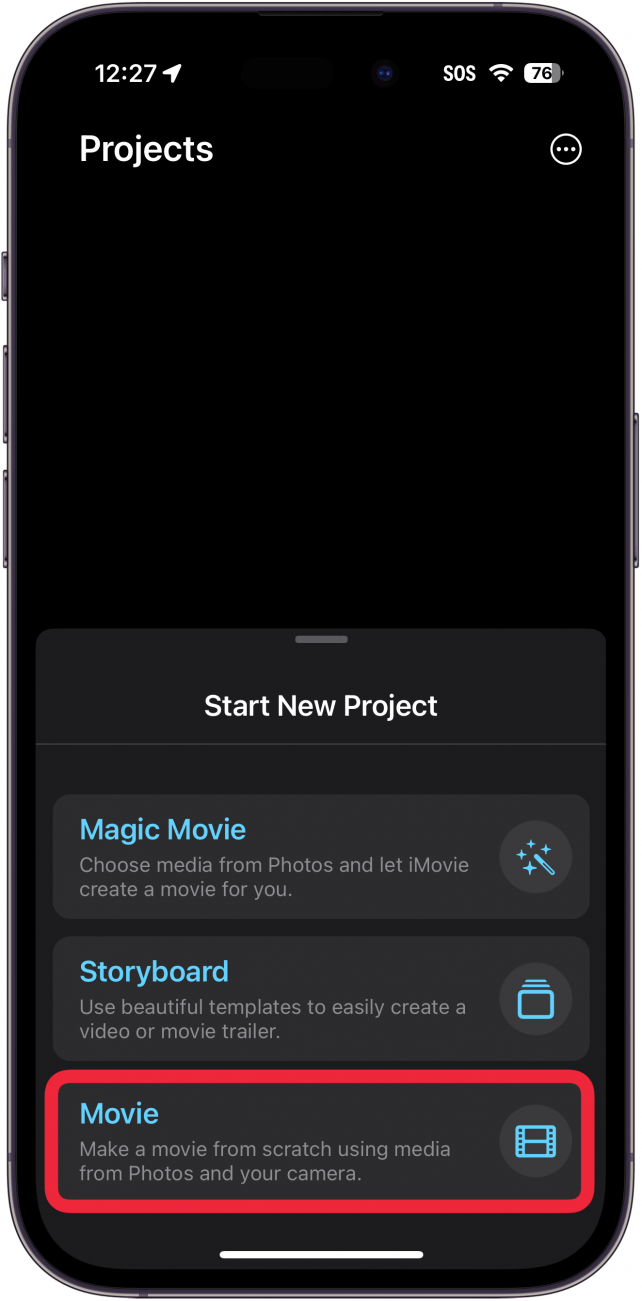
- Tap Start New Project and select Movie.
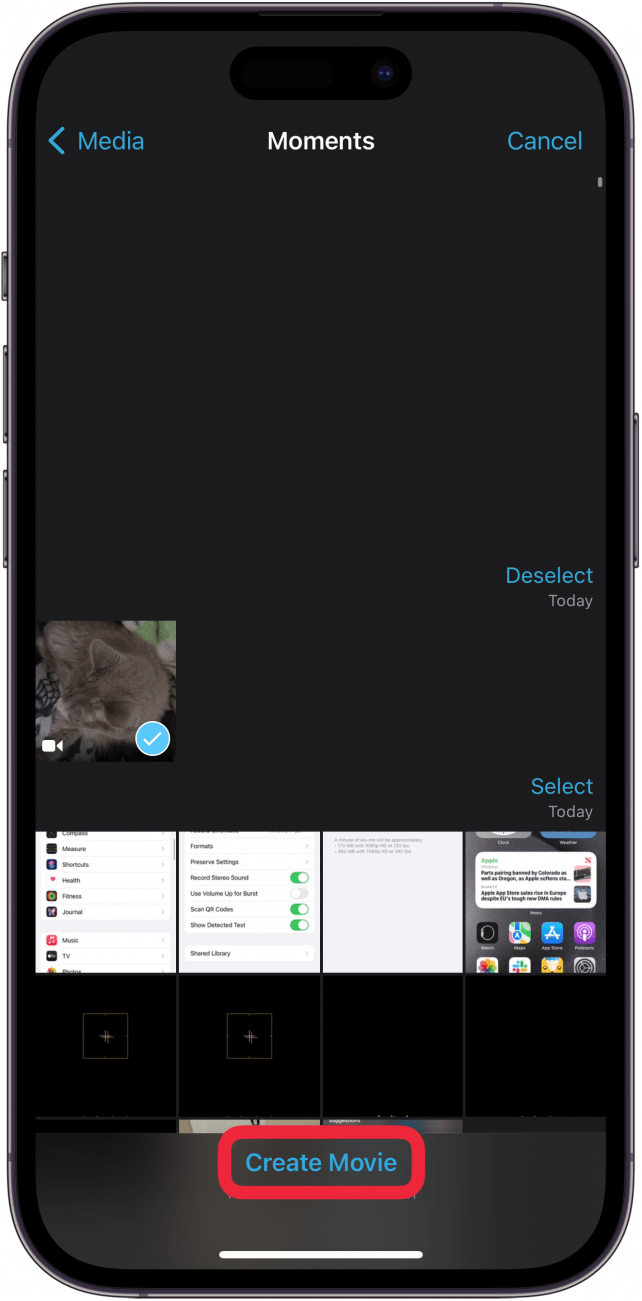
- Tap the video you want to slow down, and then tap Create Movie.
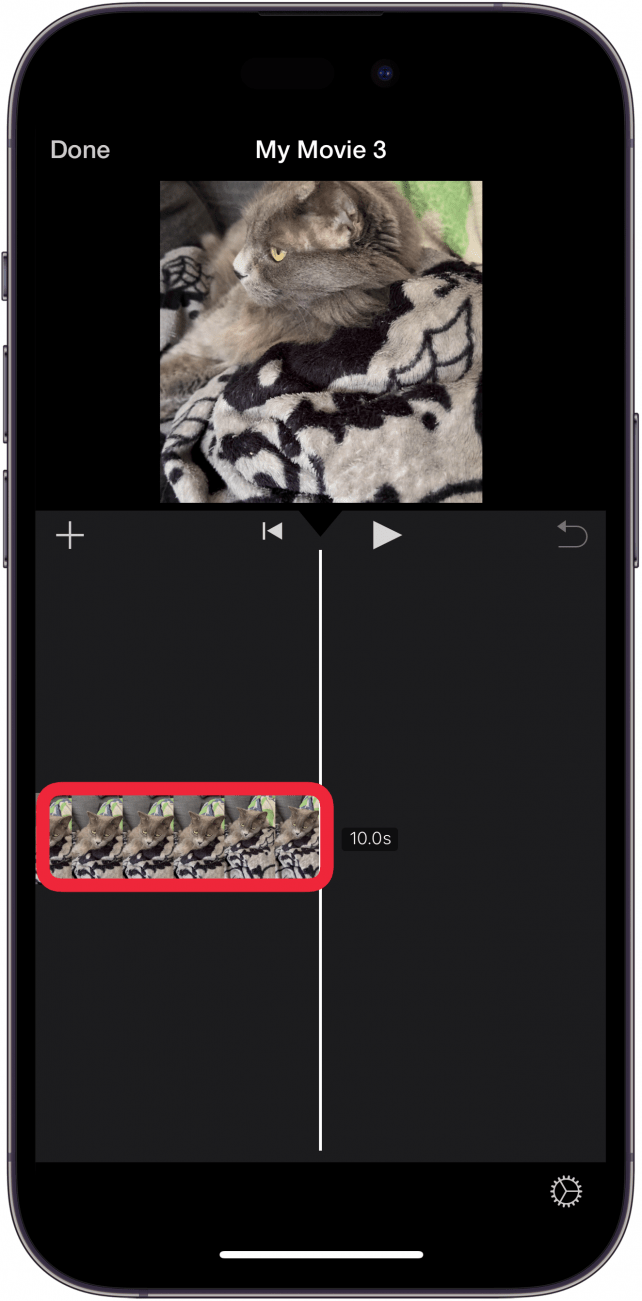
- Tap the video in the editing track.
- If the video is cropped, tap the zoom icon. If it is not cropped, skip to step 7.
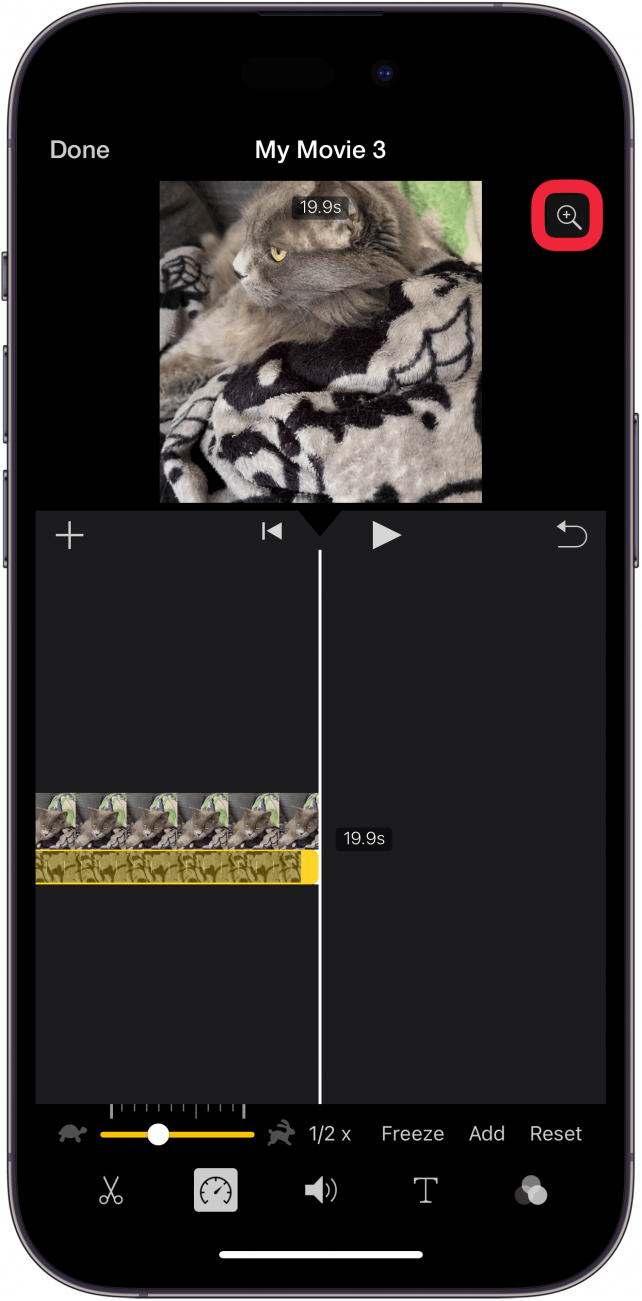
- Pinch the video to zoom it out.
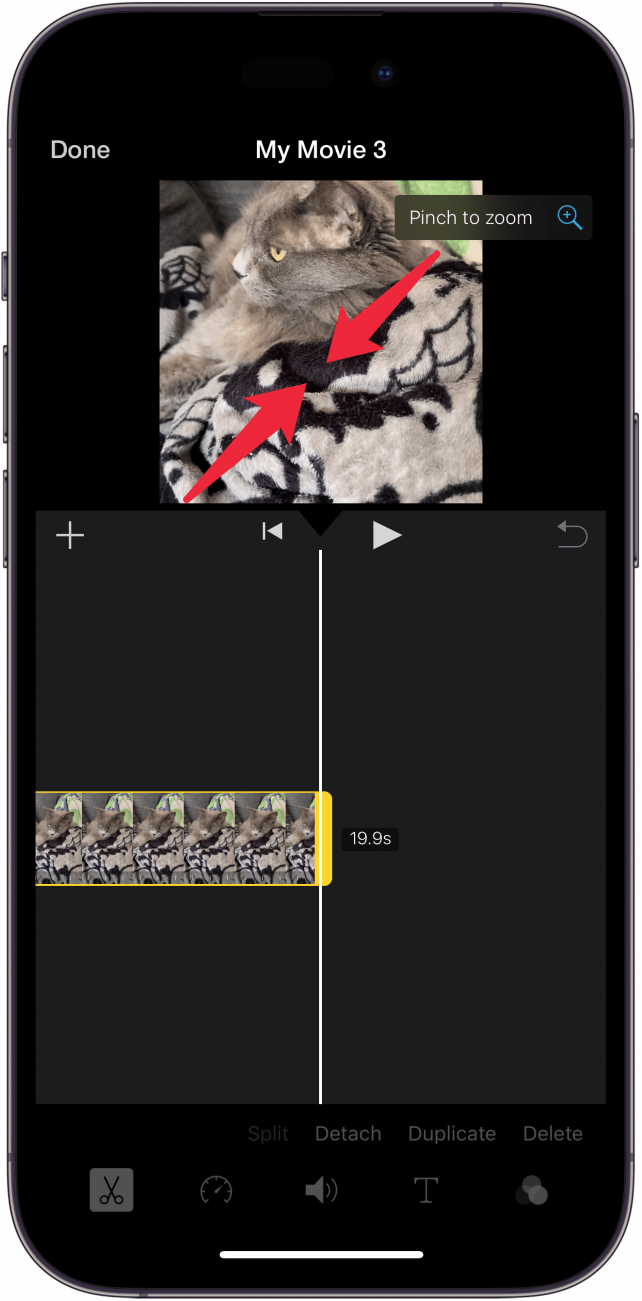
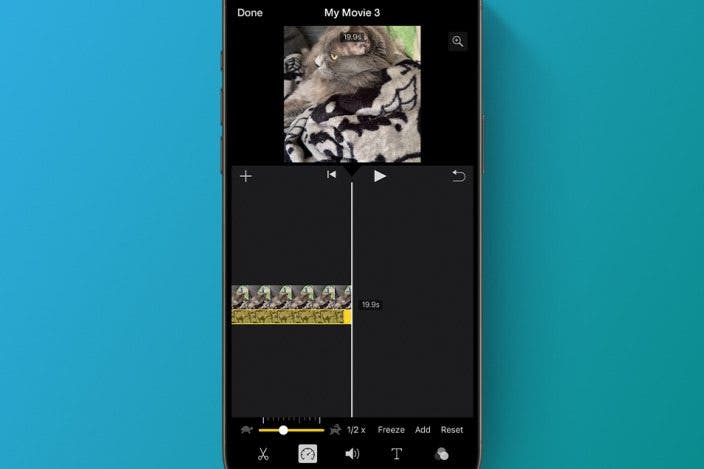
- Tap the speed icon (it looks like a car’s speedometer).

- Tap and drag the slider toward the turtle icon to slow down the video. The closer the slider is to the turtle, the slower it will be.
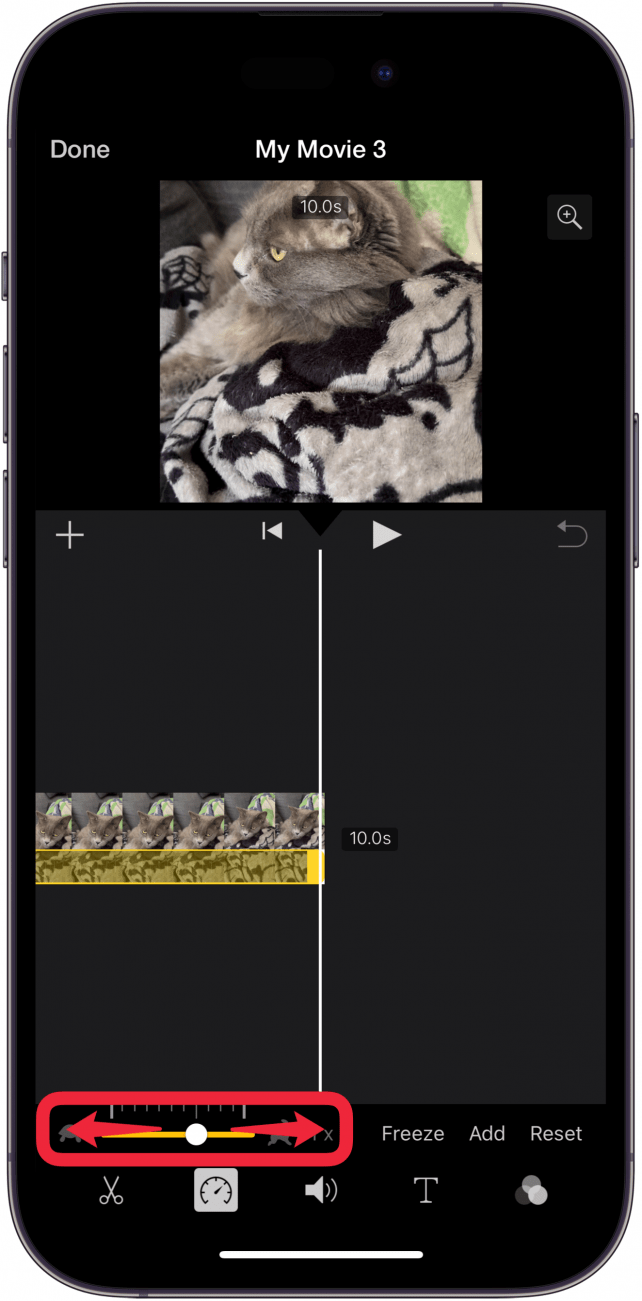
- Tap Done.
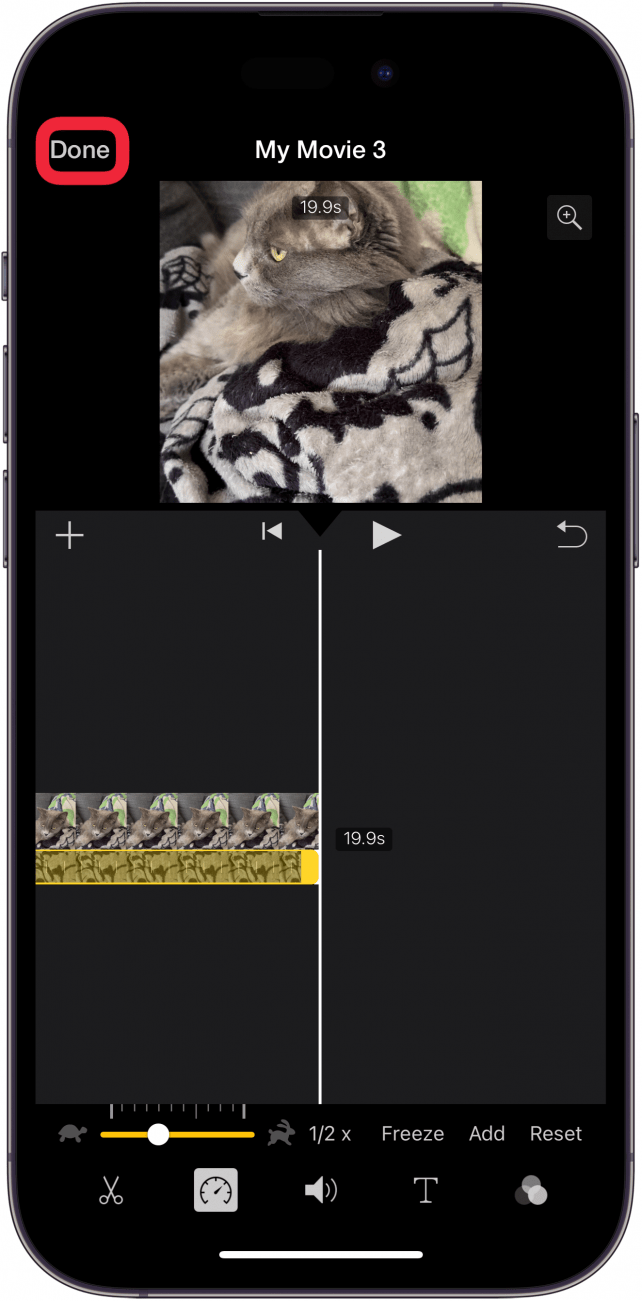
- Tap the share icon.

- You may see the Export and Share menu. If you do, tap Save or Share Video. If you don't see this screen, simply move on to the next step.
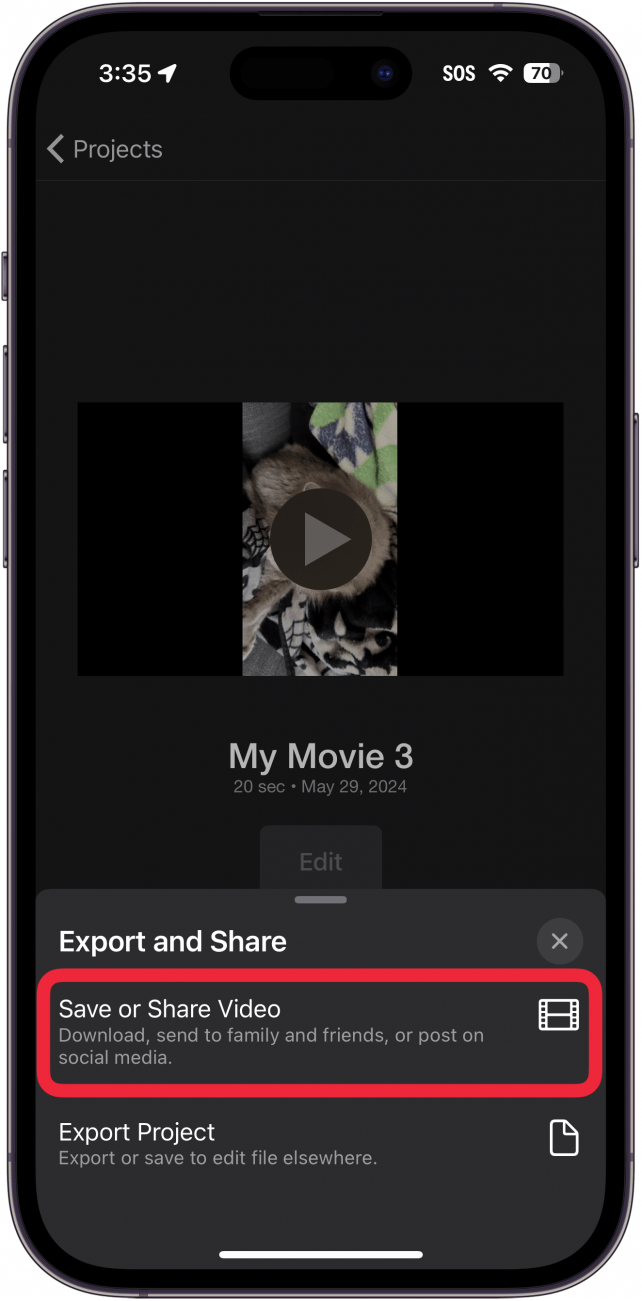
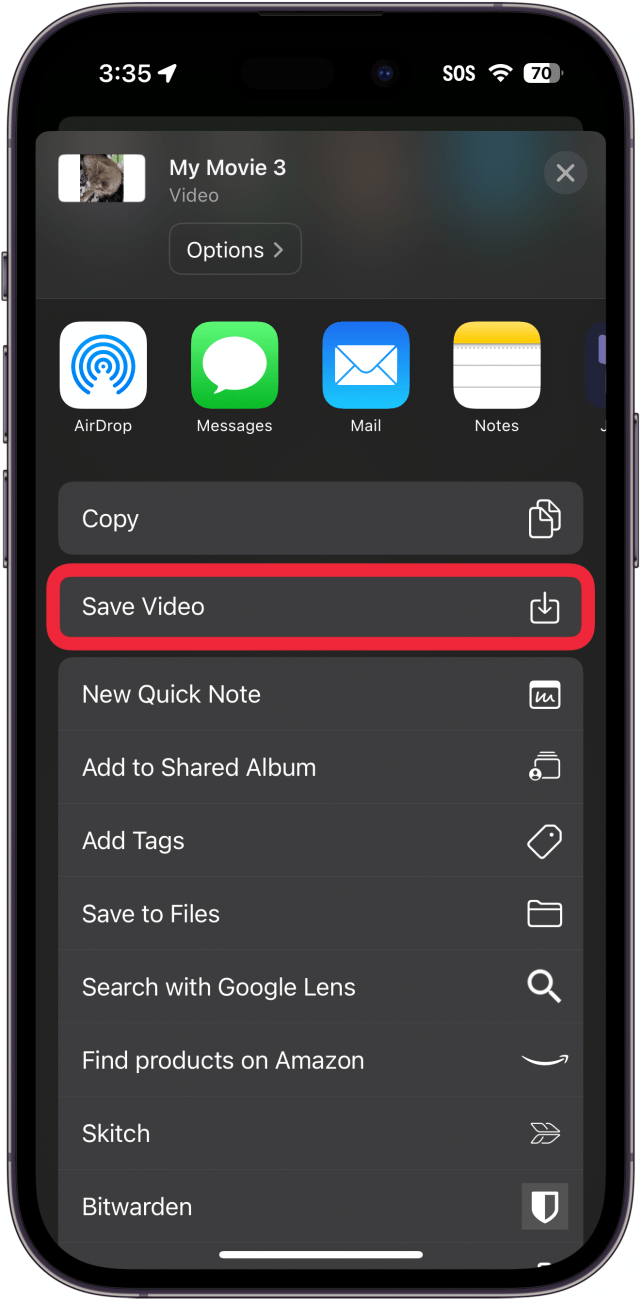
- Scroll down and tap Save Video.
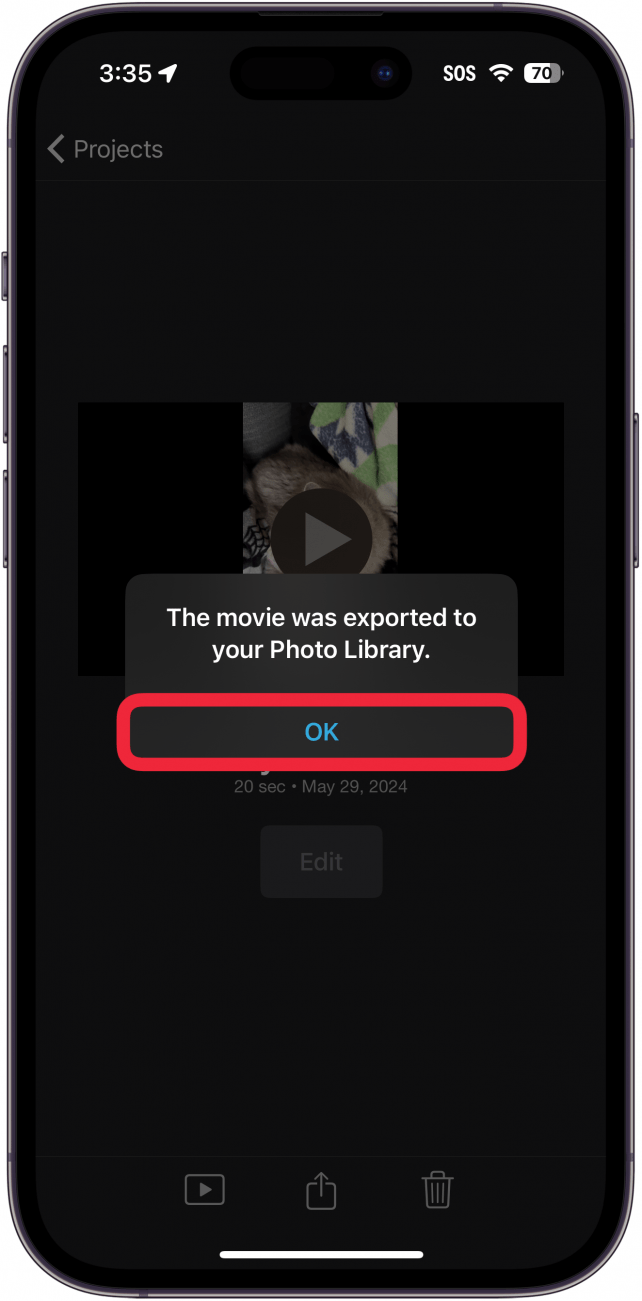
- Wait for the video to export and tap OK.
Note
If your source video was filmed in portrait orientation, iMovie will add black bars to the sides of the video. To avoid this, you could rotate the video on your iPhone to landscape before opening it in iMovie, and then rotate the exported video back to portrait orientation.
That’s how to slow down a video on the iPhone. You can find your slowed-down video in the Photos app. Next, find out what to do when videos are not playing on your iPhone.
FAQ
- How do you speed up a video on the iPhone? You can use the iMovie app to slow down OR speed up videos. Check out our article on how to speed up a video on iPhone for more details.
- How do you turn a video into a timelapse on the iPhone? Your iPhone camera has a Time-Lapse mode which you can use to capture time-lapses. Head over to our article that goes over how to convert video to time-lapse on the iPhone to find out how this works.

Rhett Intriago
Rhett Intriago is a Feature Writer at iPhone Life, offering his expertise in all things iPhone, Apple Watch, and AirPods. He enjoys writing on topics related to maintaining privacy in a digital world, as well as iPhone security. He’s been a tech enthusiast all his life, with experiences ranging from jailbreaking his iPhone to building his own gaming PC.
Despite his disdain for the beach, Rhett is based in Florida. In his free time, he enjoys playing the latest games, spoiling his cats, or discovering new places with his wife, Kyla.
 Susan Misuraca
 Olena Kagui
 Leanne Hays

 August Garry
 Amy Spitzfaden Both

 Rhett Intriago
 Rachel Needell