Here's a tip that you might not use too often, but that's useful to have if you have to get through an audiobook quickly, say, for a class or work assignment. Did you know that you can speed up the playback tempo in your Audible app on iPhone? You can also slow down the narration speed, although I've never needed to use that feature. Read on to learn how to speed up or slow down the narration speed in the Audible app on your iPhone and iPad.
Why You’ll Love This Tip
- Speed up the narration speed of your audiobook if you need to get through a book more quickly.
- You can change the narration speed again whenever you want.
How to Change Narration Speed in the Audible App
System Requirements
This tip was performed on an iPhone 17 Pro running iOS 26.4. Find out how to update to the latest version of iOS.
Want to change the Audible default speed on your iPhone? It's easy to change Audible reading speed, either faster or slower; here's how.
- Open the Audible app.

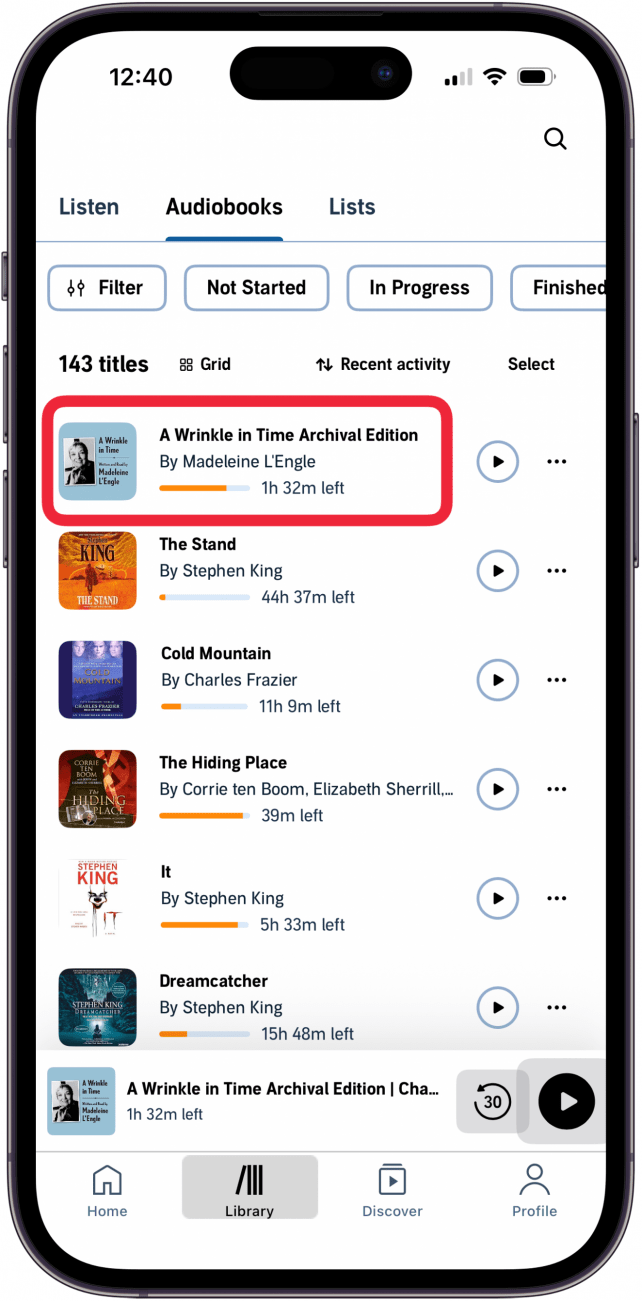
- Tap the Library tab.

- Tap the Listen or Audiobooks tab to find the audiobook you want to listen to.

- Tap the book you'd like to listen to.

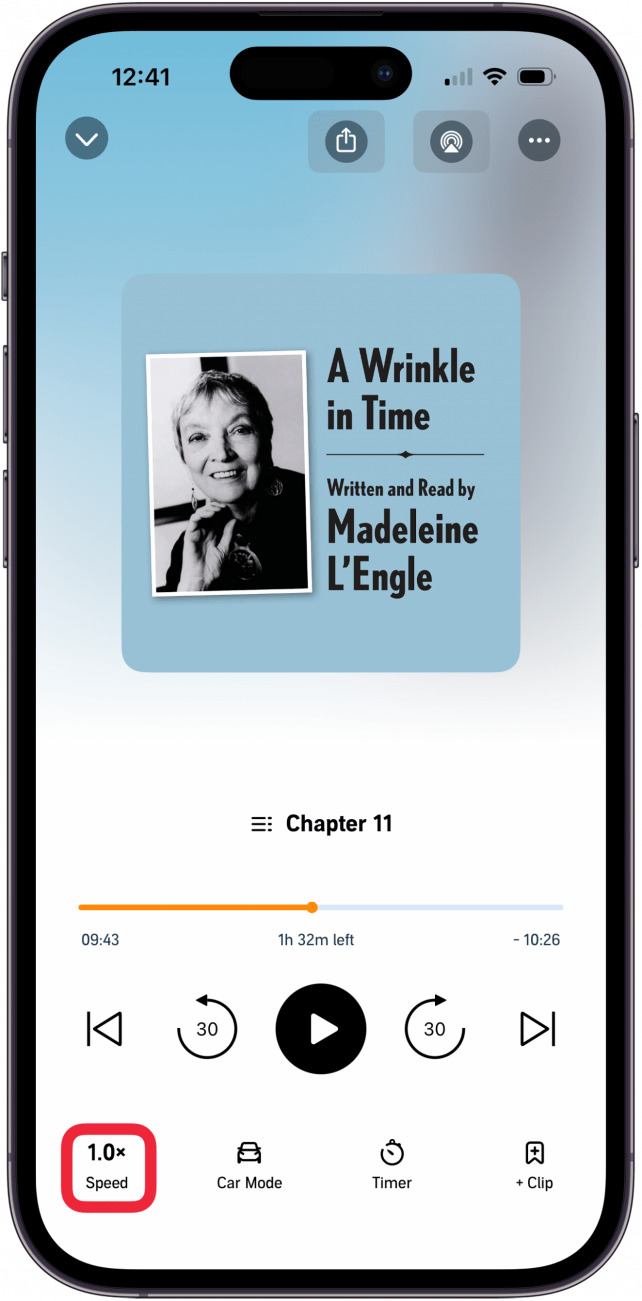
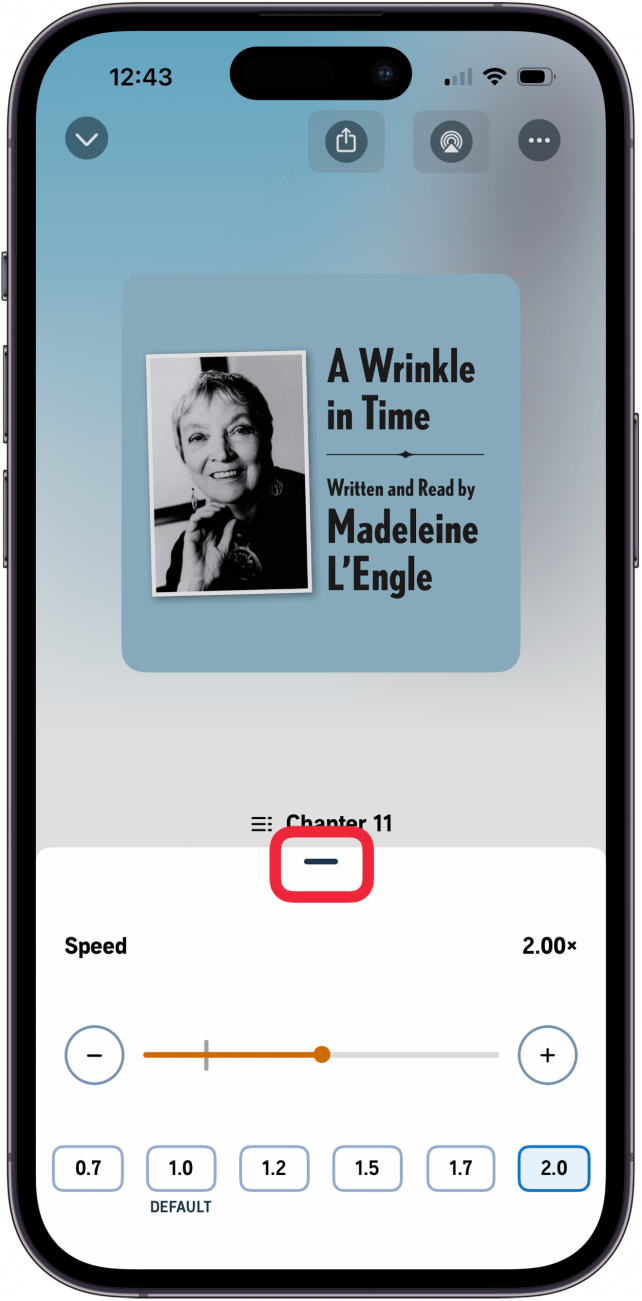
- Tap Speed at the bottom left corner of your screen.

- You can move the orange dot on the slider to the left or right to decrease or increase the narration speed.

- Or, you can tap one of the numbers at the bottom of the screen to set the speed anywhere from .7 to 2.0.

- Swipe down on the gray bar to close the speed options.

- Tap the Play icon when you're ready to listen to your audiobook. You can change the speed again whenever you want.





Of course, reducing the narration speed will make the playback sound a bit sluggish, while increasing the speed may make it sound like Alvin and the Chipmunks are reading your audiobook! To learn more about audiobooks on your iPhone and iPad, check out our free Tip of the Day newsletter.

More On: Audiobooks & the Books App
Top image credit: panitanphoto / Shutterstock.com