By Leanne Hays
Mon, 09/28/2026
Before you share your contact card, make sure the information on it is correct. Here's how to update your own contact card on your iPhone or iPad.
Why You'll Love This Tip
- Make sure your contact card has an up-to-date photo and your most current mailing and email address.
- To update your own contact card, tap your name in the Contacts app, tap edit, then change anything incorrect, and add any missing information. Tap the white check mark in the blue circle when you're done.
How to Edit Your Own Contact Card on Your iPhone & iPad
System Requirements
This tip was tested on an iPhone 17 Pro running the iOS 27 beta, which will be shipped universally in September 2026. Find out how to update to the latest version of iOS.
It's important that your contact card is updated with your latest information, so that when you share your contact card, the recipient has all the necessary info about you. Here's how to update your contact card on an iPhone or iPad.
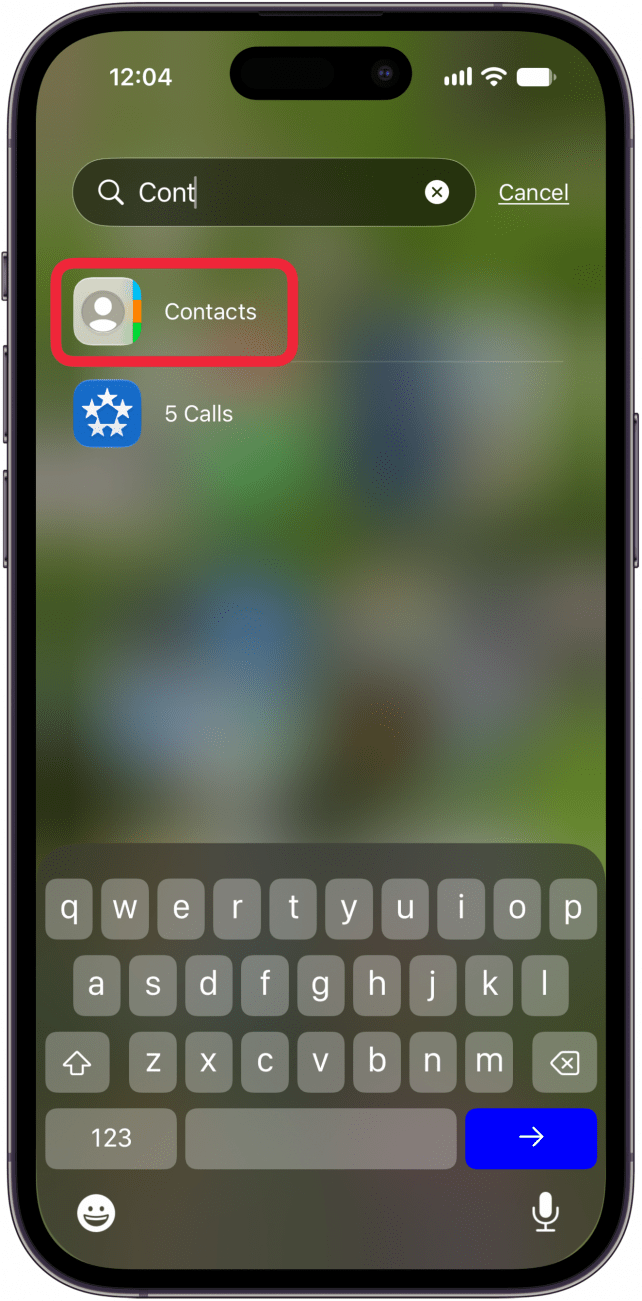
- Open the Contacts app.

- Tap your own contact at the top of the page.

- Tap Edit at the top-right corner of the screen.

- Now, you can update your name, company, phone number, and email addresses.

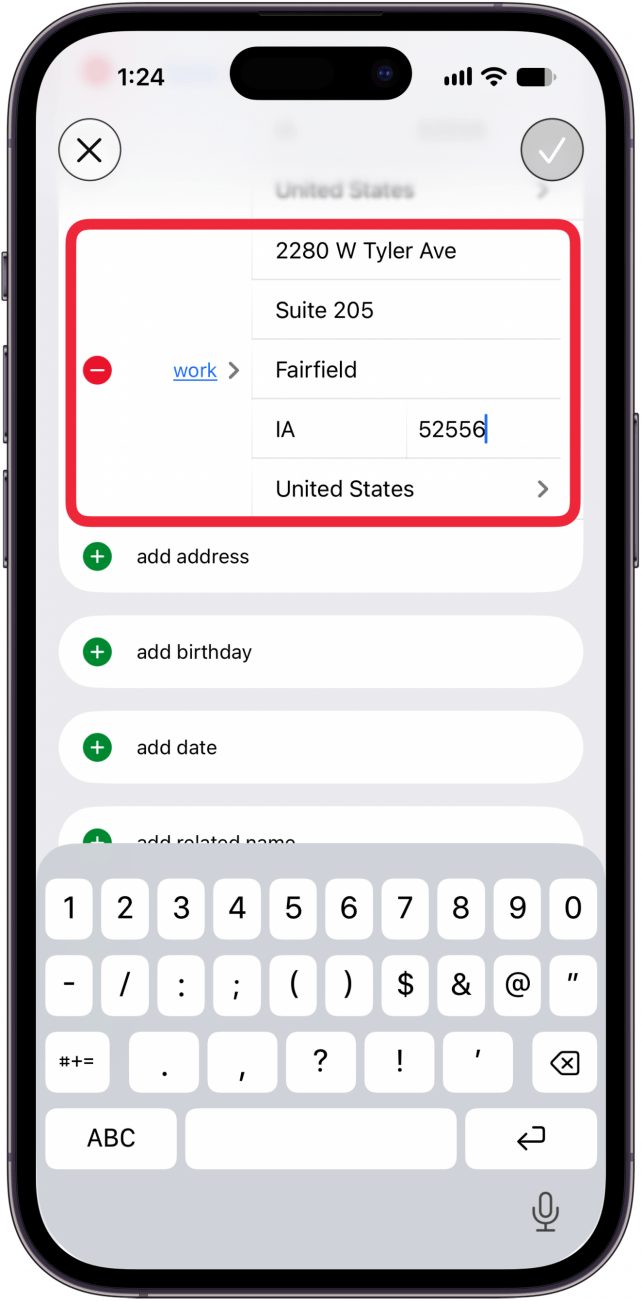
- Swipe up to see more options, including add pronouns, add url, and adding or changing your home and work address.

- Swipe up again to add birthday, add date, Edit Medical ID, and more.

- Finally, swipe up one more time to link contacts or add to list (add your contact to a list of contacts you've created).

- The only thing I need to edit is my work address, since we've moved to a new office. All I needed to do was delete the old address, and enter the new one.

- Tap the check mark at the top of the page to save your edits.




Now you know how to change your own contact card on your iPhone or iPad. Be sure to check out our free Tip of the Day for more Contacts app tutorials.

Discover your iPhone's hidden features
Get a daily tip (with screenshots and clear instructions) so you can master your iPhone in just one minute a day.