By Leanne Hays
Wed, 02/11/2026
Want to customize your photos by drawing on them? We'll show you how to draw on photos on your iPhone and iPad with Markup.
Why You'll Love This Tip
- Learn how to draw on pictures on your iPhone or iPad using the Markup feature.
- You can change Markup tools, color, width, opacity, and more to make a dynamic drawing.
How to Draw on Pictures on iPhone & iPad
System Requirements
This tip works on iPhones running iOS 16 or later, and was tested on an iPhone 17 Pro running iOS 26. Find out how to update to the latest version of iOS.
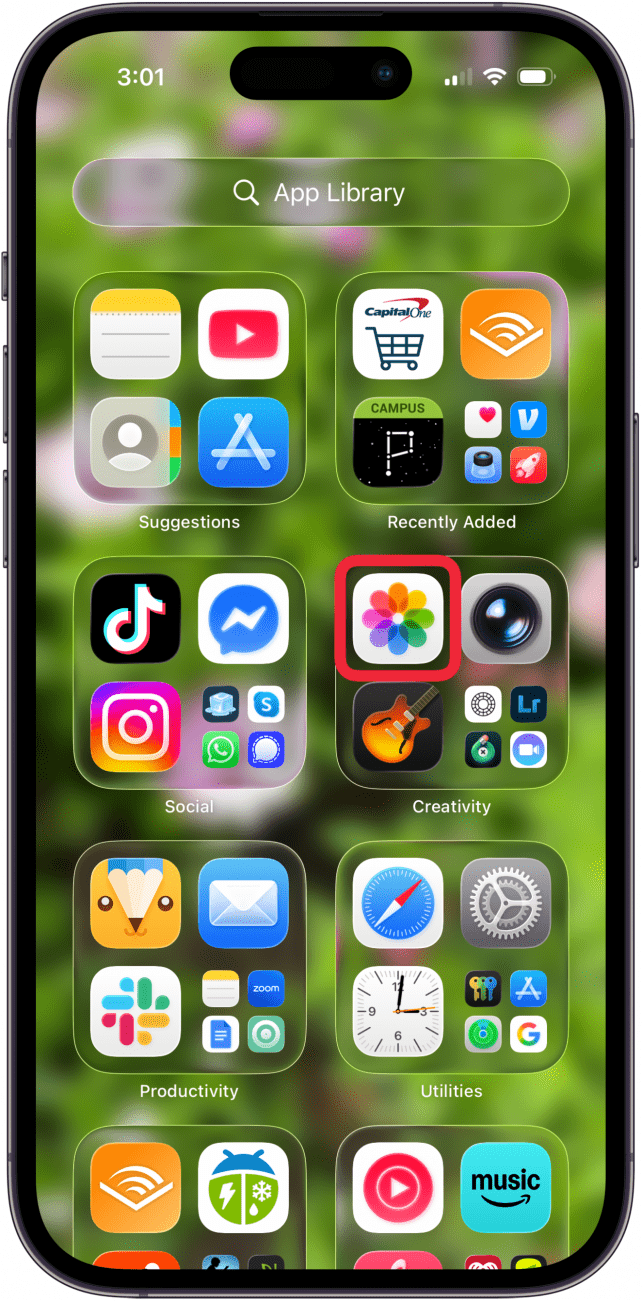
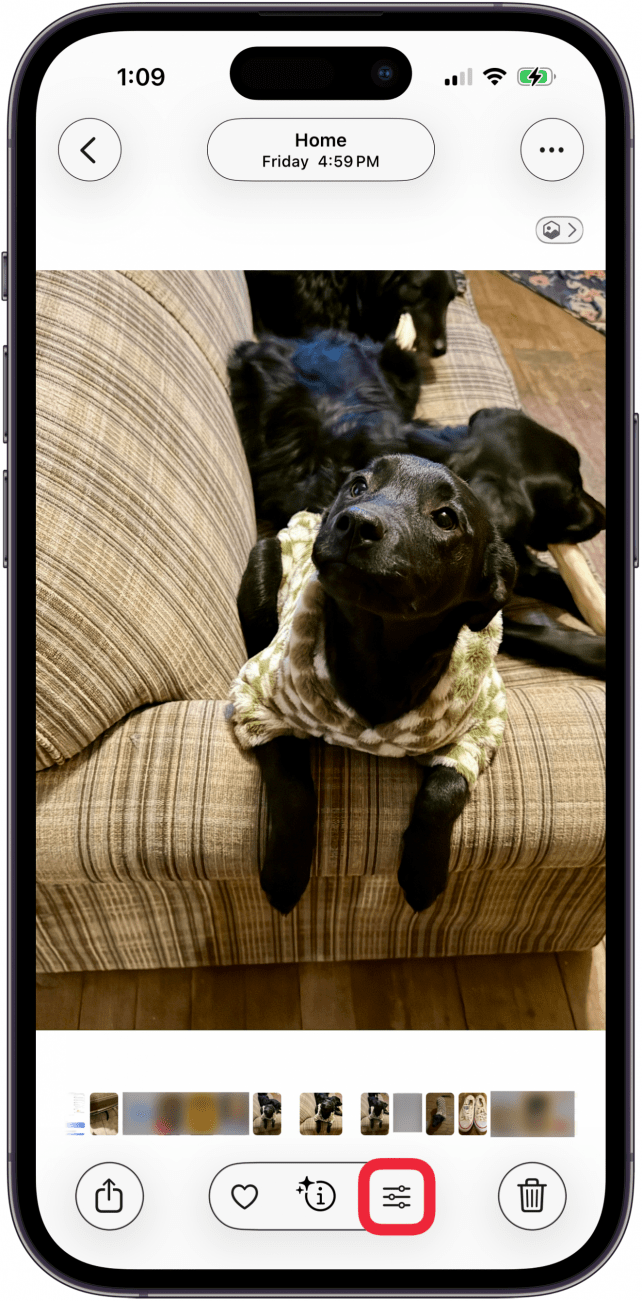
Want to add a doodle or a couple of handwritten words to a photo on your iPhone or iPad? Here's how to draw on photos on iPhone with Markup.
-
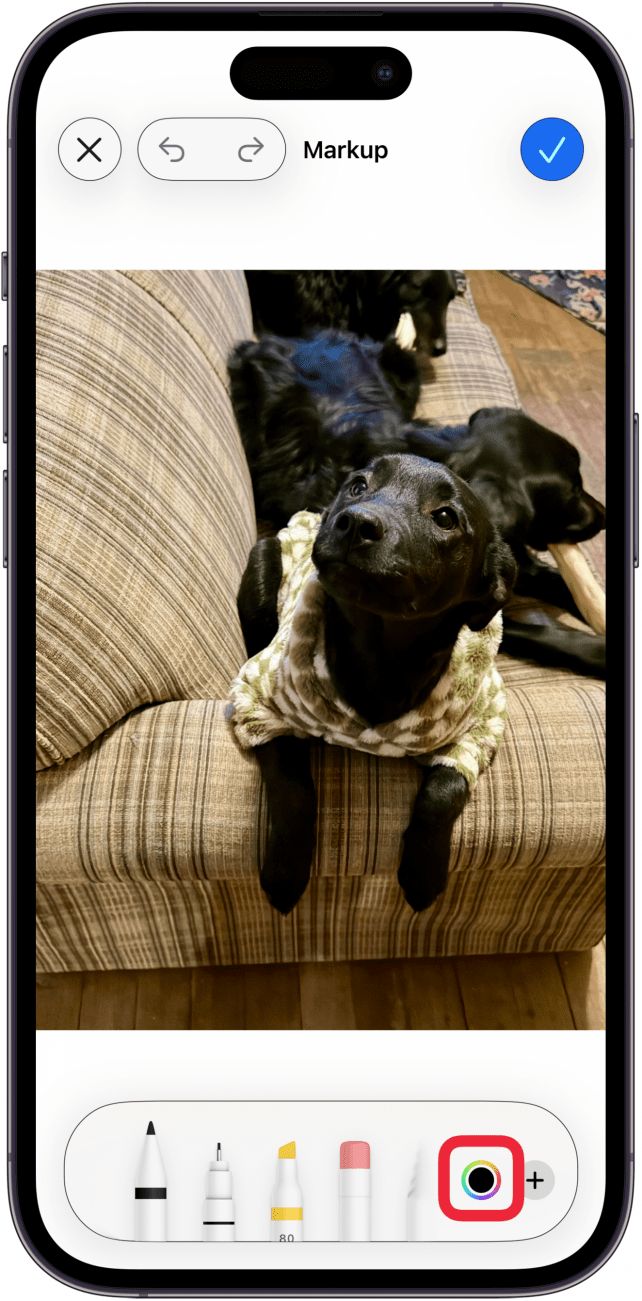
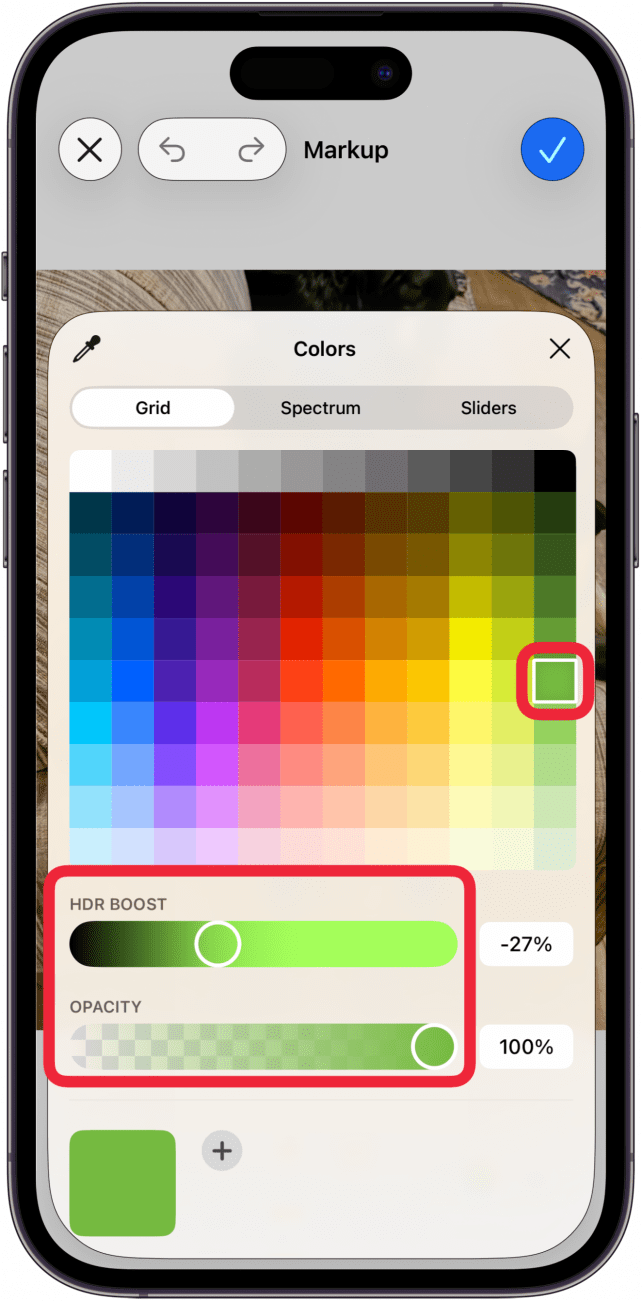
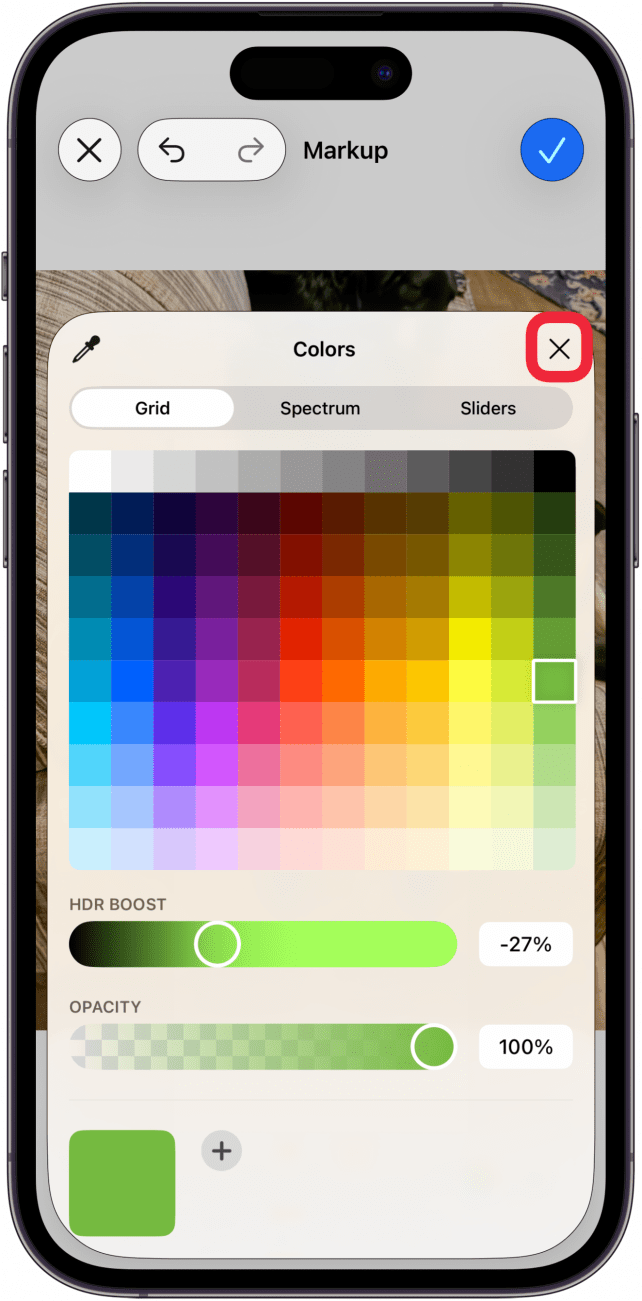
Tap a color, and use the sliders if you want to change HDR Boost and/or Opacity.

-
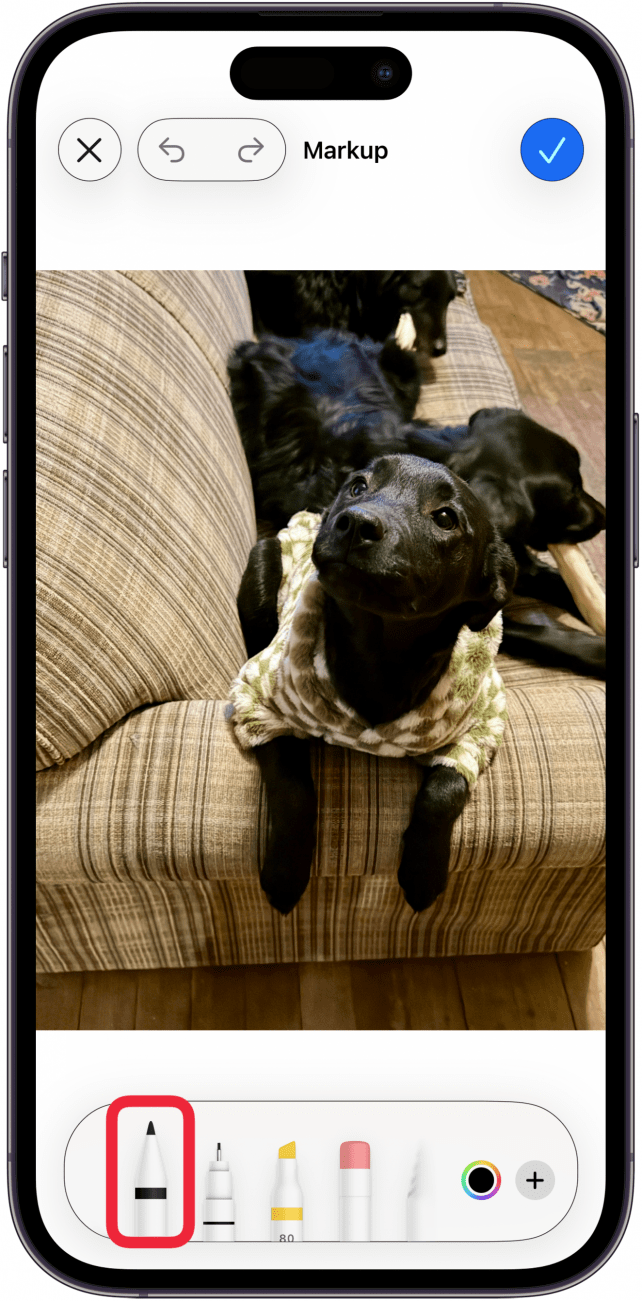
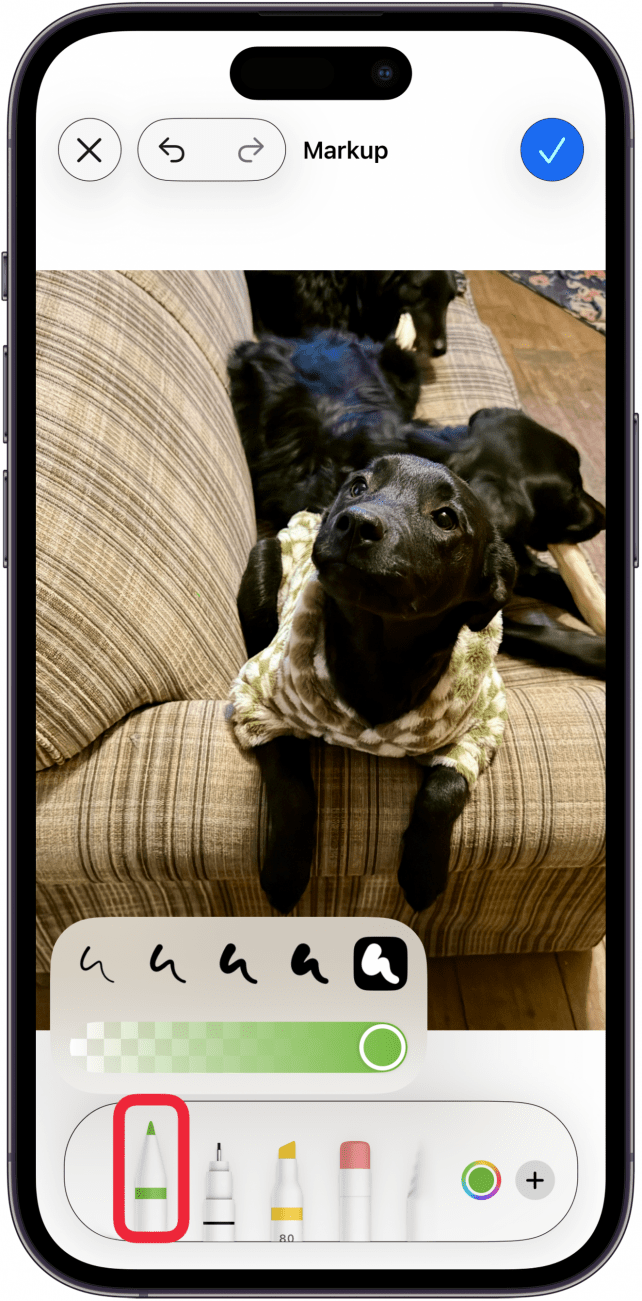
Tap the same tool again to change the color opacity and thickness.

-
Tap the Eraser to erase any parts of your drawing you're not happy with.

-
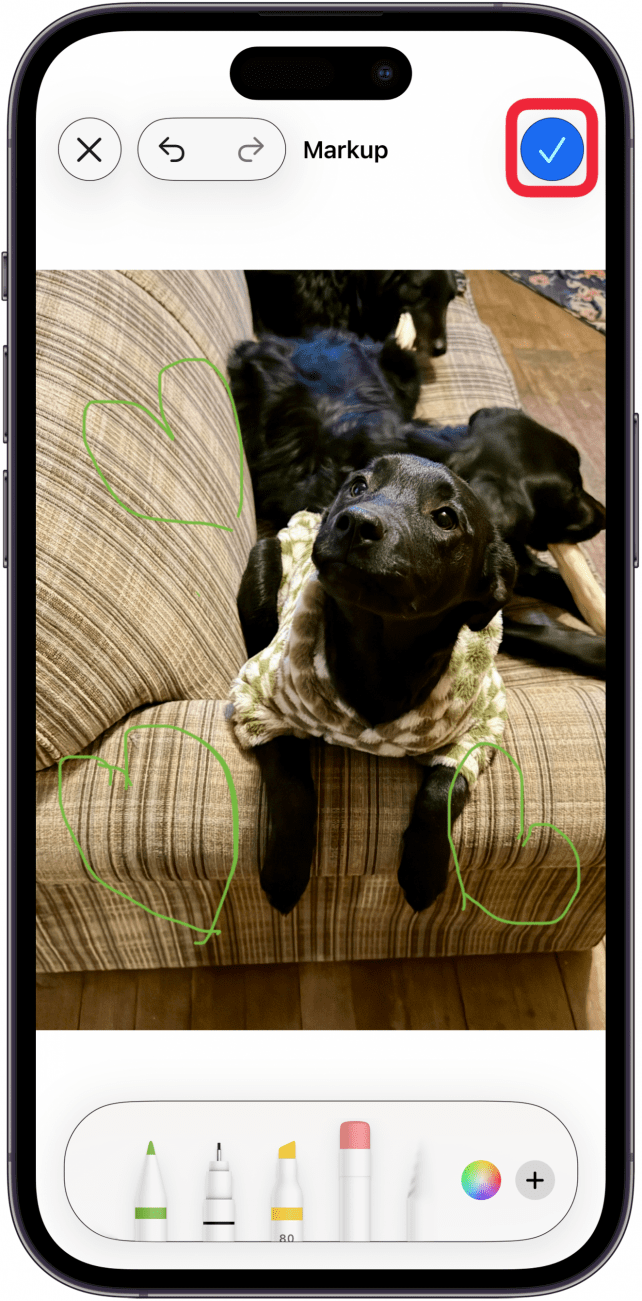
Tap the check mark in the blue circle when you're finished drawing.



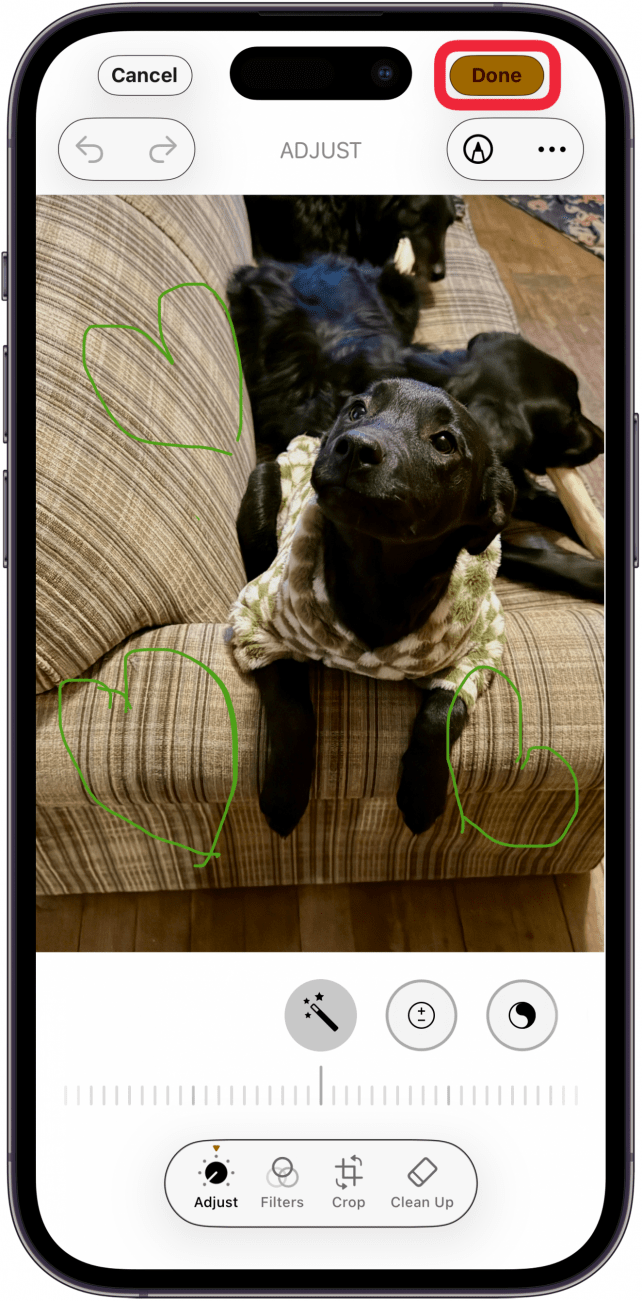
That's how to draw on a photo on your iPhone or iPad using Markup. Next, check out our free Tip of the Day
More On: Editing Photos
Top image credit: wk1003mike / Shutterstock.com

Discover your iPhone's hidden features
Get a daily tip (with screenshots and clear instructions) so you can master your iPhone in just one minute a day.