How to Use Both Front & Back iPhone Cameras Simultaneously

In the last 10 years, Olena has been published in dozens of publications internationally and written hundreds of how-to articles and complex guides about Apple products, software, and apps.
Learn More In the last 10 years, Olena has been published in dozens of publications internationally and written hundreds of how-to articles and complex guides about Apple products, software, and apps.
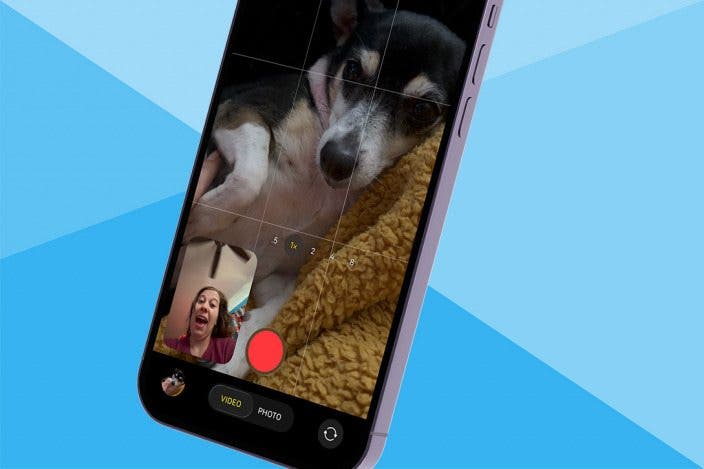
Learn MoreYou've likely seen videos where you are seeing what the person recording is seeing along with their face, as though the video was recorded using the front and back cameras at the same time. Now, iPhones 17 and newer can finally do this using the built-in Camera app! The new feature is called Dual Capture, and it lets users record a "picture in picture" video without having to download a third-party reaction camera app!
Why You'll Love This Tip
- Take a video of something special while simultaneously capturing your reaction to the heartfelt moment.
- Learn how to change the location of the front camera recording quickly and easily so you don't miss a thing.
How to Film Picture in Picture on iPhone Using Dual Capture
System Requirements
This tip was performed on an iPhone 17 Pro Max running iOS 26.1. Find out how to update to the latest version of iOS.
I'll teach you how to use the Dual Capture feature, which lets you take a dual-camera recording, using the back camera and front camera simultaneously. For more Camera app tips, be sure to check out our free Tip of the Day newsletter. Here's how to take dual-camera iPhone videos, often known as reaction videos:
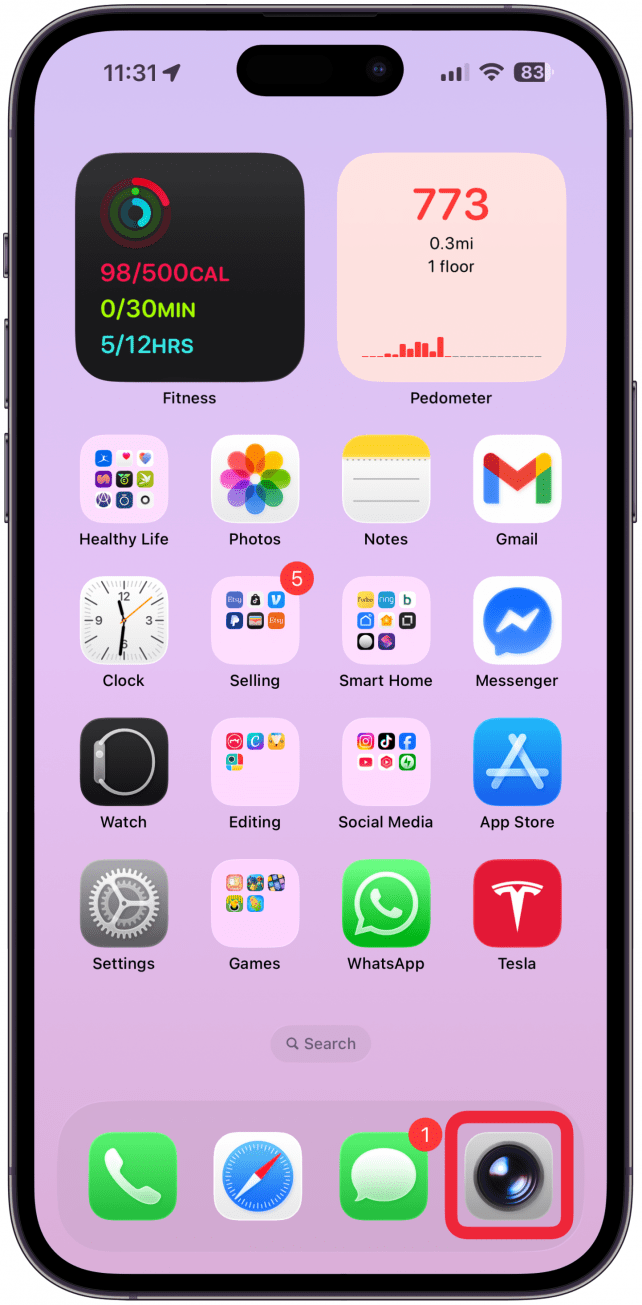
- Open the Camera app.
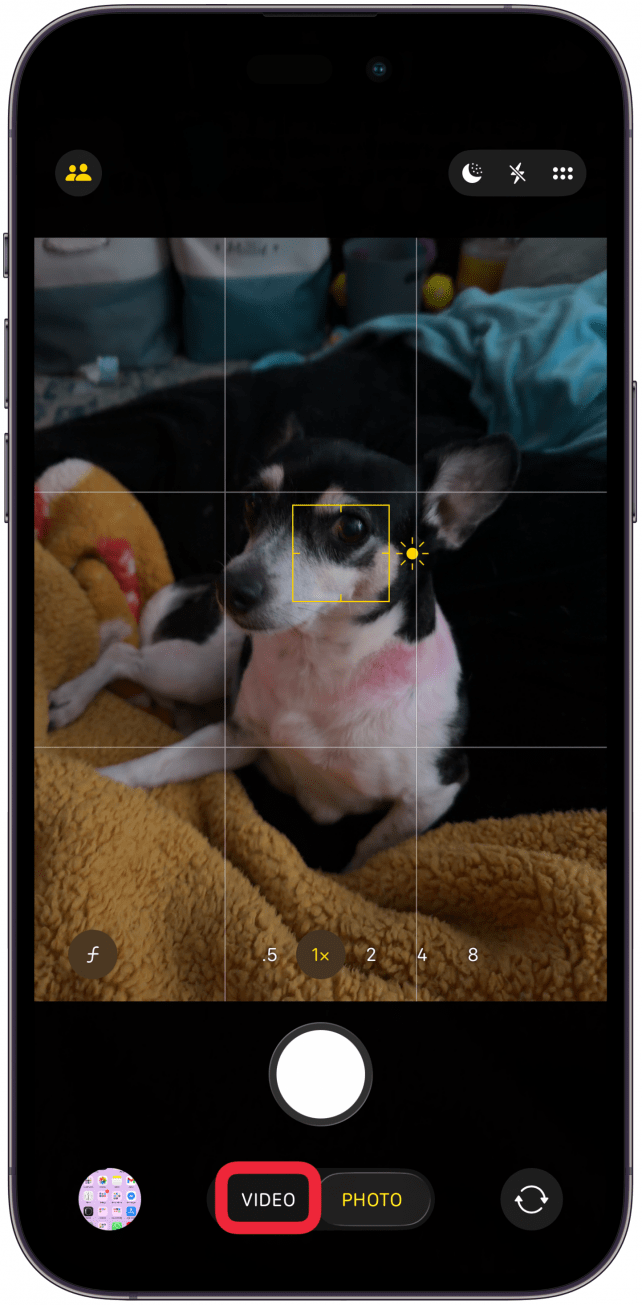
- Navigate to video mode by tapping on Video.
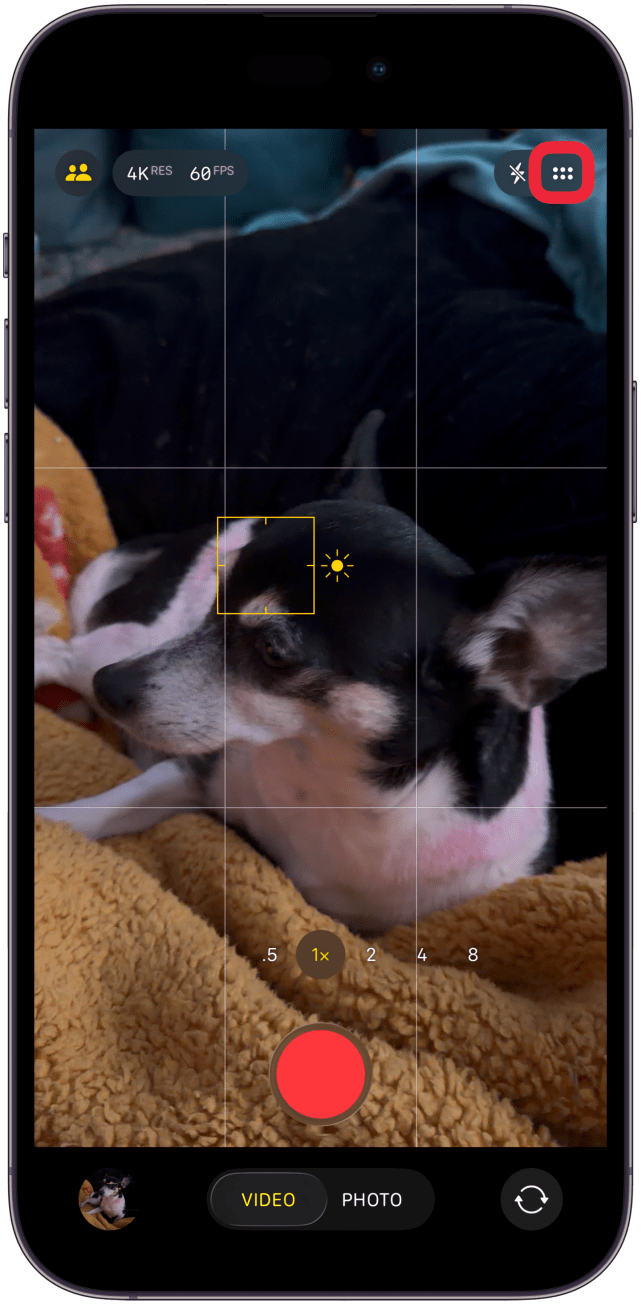
- Tap the six-dot icon in the top-right corner.
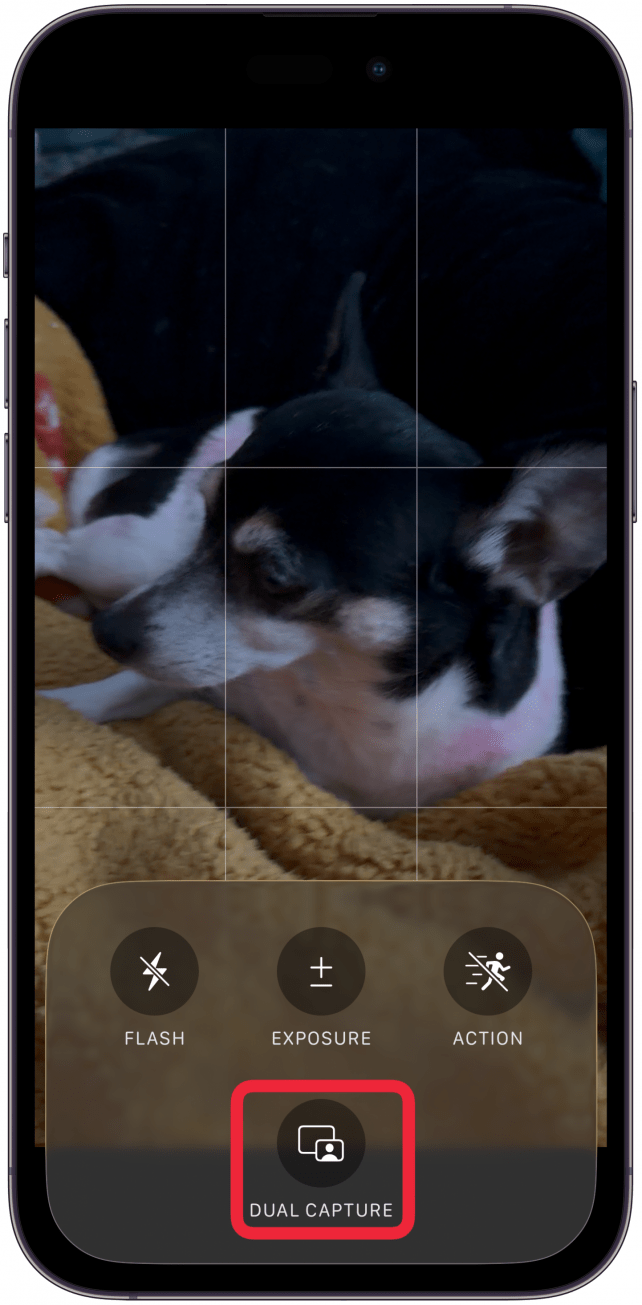
- Select Dual Capture.
- You should now see a smaller square showing what your front camera sees, while the rest of the screen shows what your back camera sees. You can drag the front camera view to any corner of your screen before and during the recording.
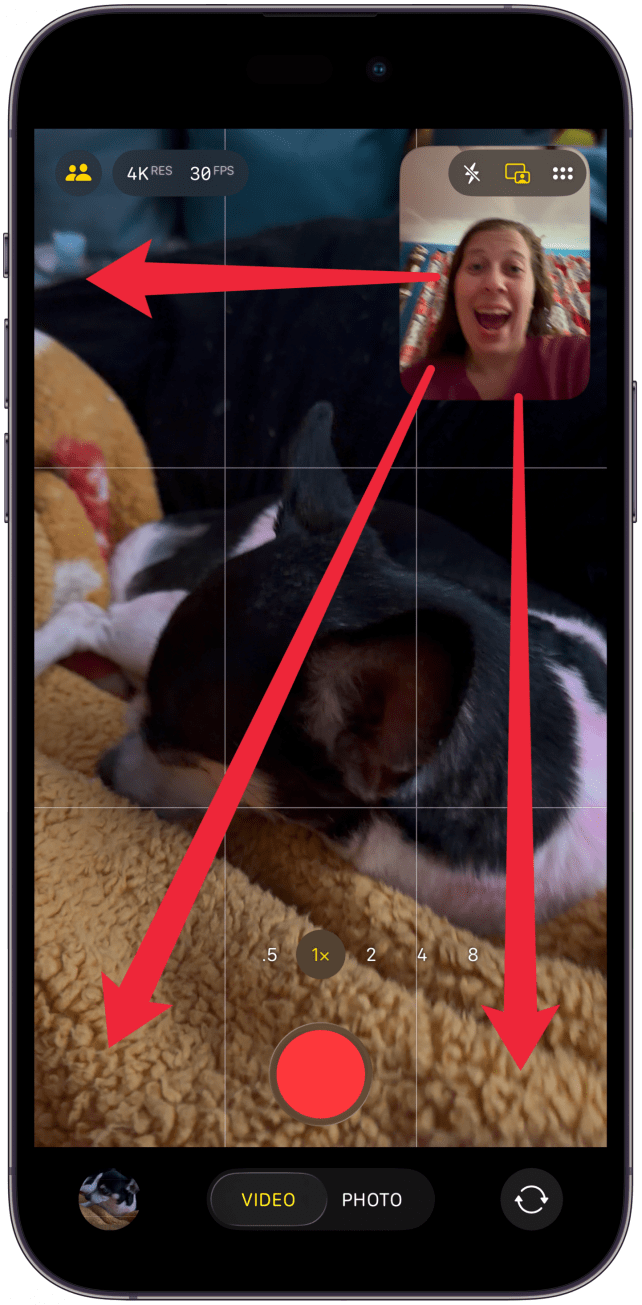
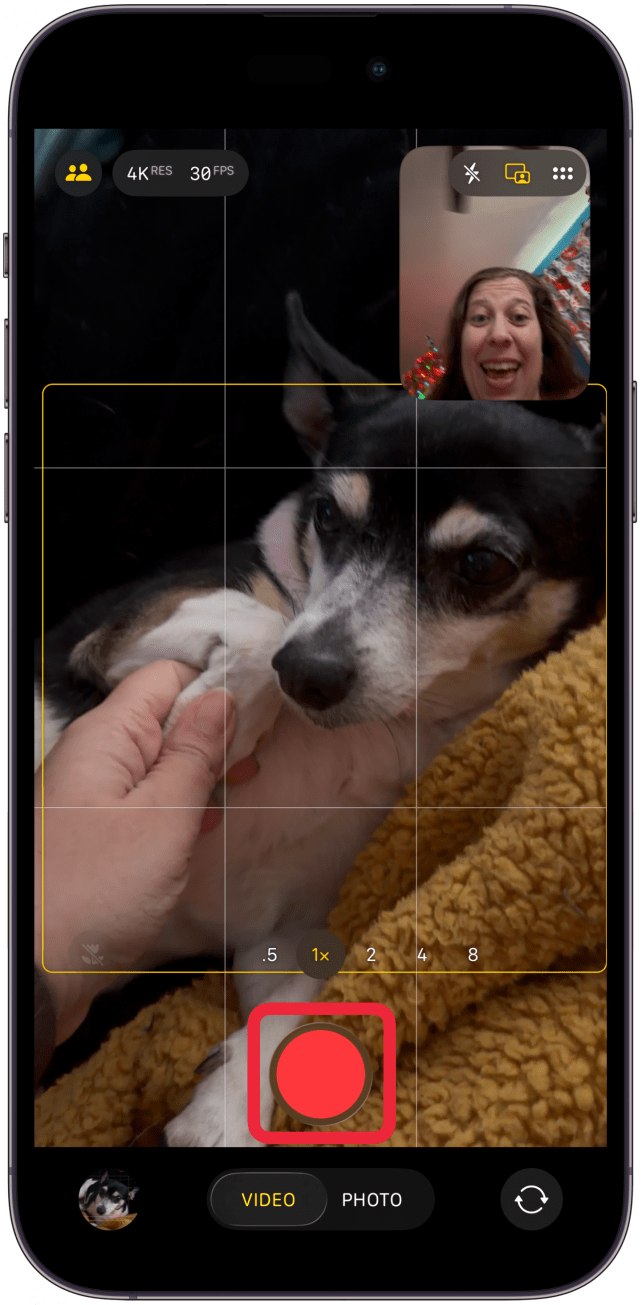
- Tap the shutter button to record.
- Tap the pause icon to pause the recording. You can later resume recording as long as you keep the Camera app open. Tap the red square to stop recording.
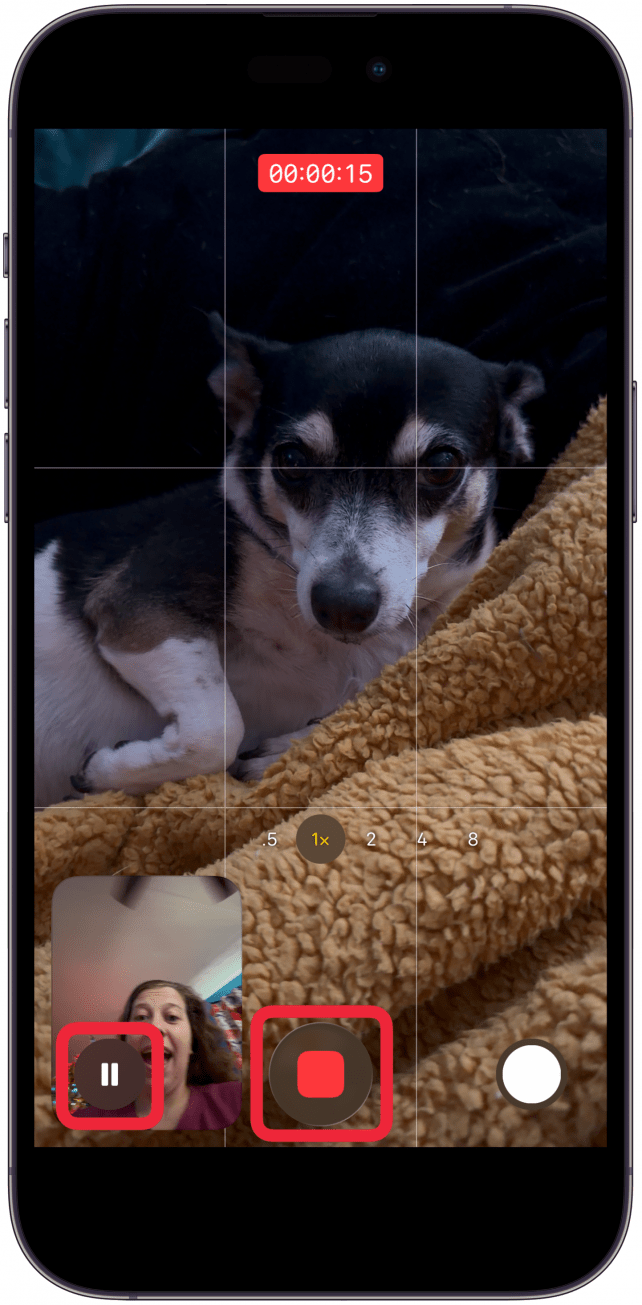
Now you know how to do a duo camera recording! Keep in mind that you can also tap the smaller shutter button next to the red square in step 8 to capture a photo of the front and back camera at the same time. Imagine recording your child playing a sport while also capturing how proud you are of them.
Warning
You can only move the front camera view before and during the recording; it isn't possible to move it while you edit. Other editing options are the same as for regular videos. You are able to crop the video when you are editing.
The benefits of using a dual camera capture, officially called Dual Capture, are that you can film what you see in front of you while capturing your own reaction. This is great for videos of your children or pets and for a variety of other occasions.
More On: Camera App

Every day, we send useful tips with screenshots and step-by-step instructions to over 600,000 subscribers for free. You'll be surprised what your Apple devices can really do.

Olena Kagui
Olena Kagui is a Feature Writer at iPhone Life. In the last 10 years, she has been published in dozens of publications internationally and won an excellence award. Since joining iPhone Life in 2020, she has written how-to articles as well as complex guides about Apple products, software, and apps. Olena grew up using Macs and exploring all the latest tech. Her Maui home is the epitome of an Apple ecosystem, full of compatible smart gear to boot. Olena’s favorite device is the Apple Watch Ultra because it can survive all her adventures and travels, and even her furbabies.
 Leanne Hays
 Rhett Intriago
 Rachel Needell
 Olena Kagui

 Amy Spitzfaden Both


 Cullen Thomas