How to Select All on an iPhone or iPad

Leanne puts her love of troubleshooting and repair to use managing our Ask an Expert Facebook group and has authored hundreds of how-to, Apple news, and gear review articles.
Learn More Leanne puts her love of troubleshooting and repair to use managing our Ask an Expert Facebook group and has authored hundreds of how-to, Apple news, and gear review articles.
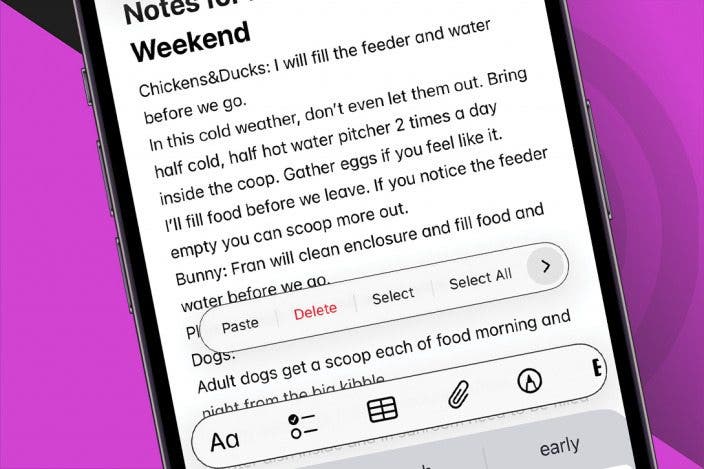
Learn MoreHere's how to use Select All on an iPhone or iPad to copy, paste, delete, and AutoFill text and more in a few easy taps. Plus, the secret trick to using Select All when the touch-and-hold technique isn't working.
Why You'll Love This Tip
- Select all text in an email, note, and more to copy, paste, delete, and other options.
- Learn the secret way to select all if the touch-and-hold technique doesn't work.
How to Select All Text on iPhone
System Requirements
This tip works on iPhones running iOS 16 or later, and was tested on an iPhone 17 Pro running iOS 26. Find out how to update to the latest version of iOS.
According to Apple, "After selecting the text you want to revise, you can type, or tap the selection to see editing options." These editing options are supposed to include Select All, but in my experience, Select All doesn't always show up as an option. Here's how to select all on an iPhone or iPad, and what to do if the option doesn't appear.
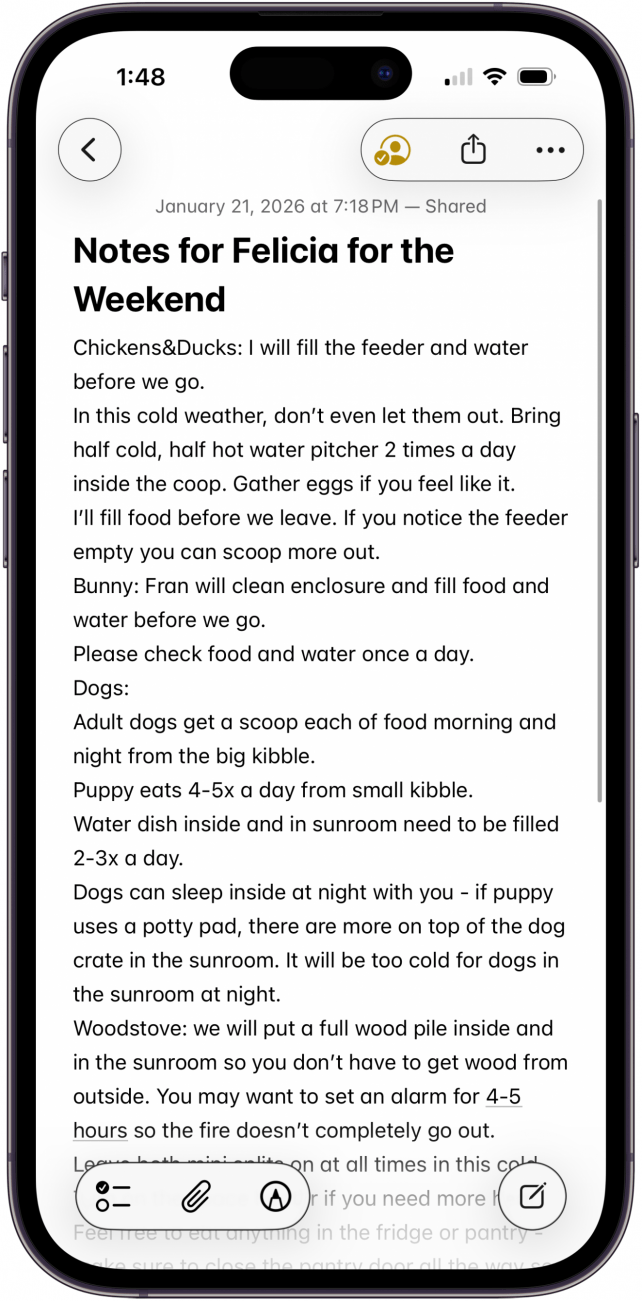
Open a note from the Notes app, an email in the Mail app, or any other app that you need to use the Select All feature.
- Touch and hold anywhere in the text you want to select. Make sure you do not highlight a word when holding your finger down, as that can prevent "Select All" from appearing. It may be easier to touch at the end of a paragraph.
- Tap Select All.
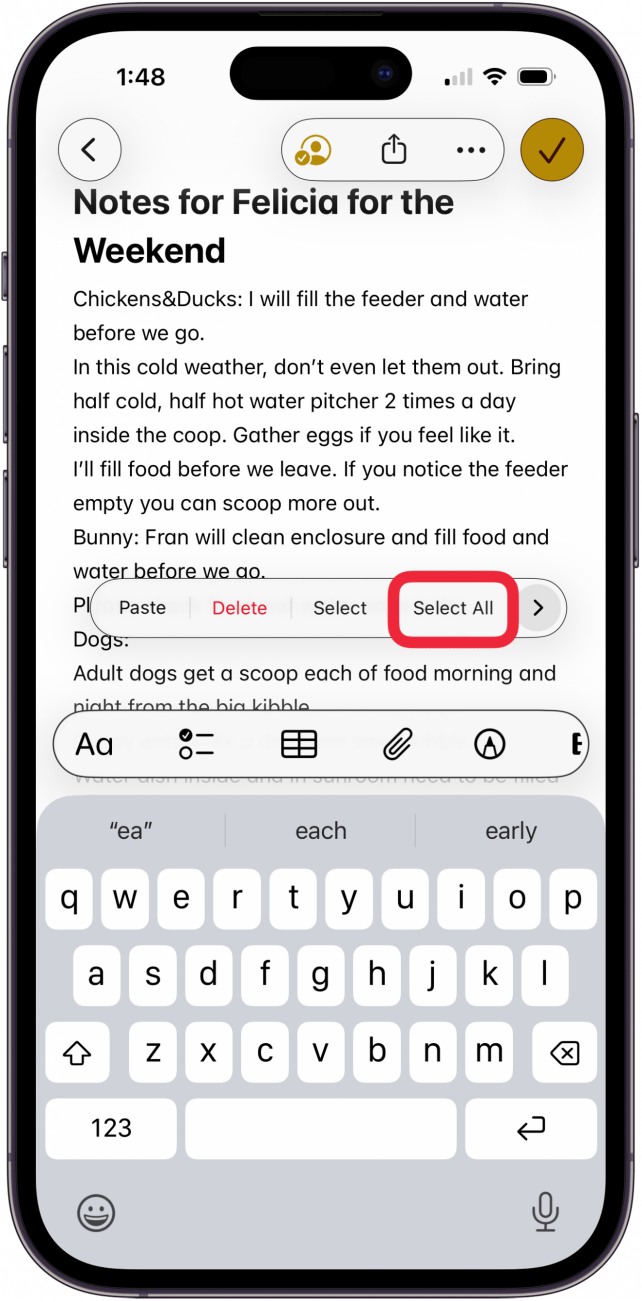
- You'll see a range of choices, including Cut, Copy, Paste, Delete, AutoFill, and an arrow for more options.
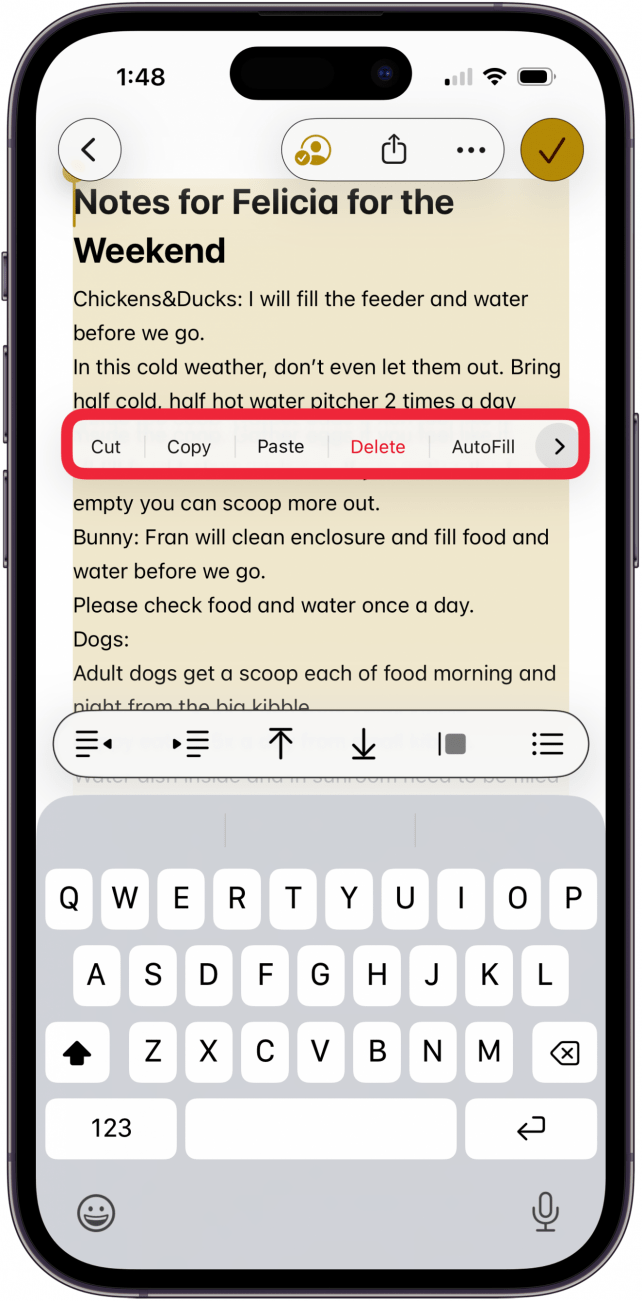
- If you're having a hard time getting Select All to show up using the steps above, turn on Voice Control, then say "Select All" instead!
That's how to select all text on an iPhone or iPad. Next, check out our free Tip of the Day for more great iPhone copy and paste tutorials.

Every day, we send useful tips with screenshots and step-by-step instructions to over 600,000 subscribers for free. You'll be surprised what your Apple devices can really do.

Leanne Hays
Leanne Hays has more than sixteen years of experience writing for online publications. As a SEO Specialist and Feature Writer for iPhone Life, she has authored hundreds of how-to, Apple news, and gear review articles, as well as a comprehensive Photos App guide. Leanne holds degrees in education and science and loves troubleshooting and repair. This combination makes her a perfect fit as manager of our Ask an Expert service, which helps iPhone Life Insiders with Apple hardware and software issues.
In off-work hours, Leanne is a mother of two, homesteader, audiobook fanatic, musician, and learning enthusiast.
Related Articles

 Olena Kagui
 Rachel Needell
 Rhett Intriago
 Linda Ruth

How to Check Your iPhone Battery Level on Your Apple Watch
 Leanne Hays

Buyer's Guide 2024: Best Nature & Travel Gear
 Donna Schill


 Ashleigh Page