Turn Off Location History in Apple Maps


A lifelong tech enthusiast, with experiences ranging from jailbreaking his iPhone to building his own gaming PC, Rhett specializes in maintaining privacy in a digital world and iPhone security.
Learn More A lifelong tech enthusiast, with experiences ranging from jailbreaking his iPhone to building his own gaming PC, Rhett specializes in maintaining privacy in a digital world and iPhone security.
Learn MoreThe Maps app on your iPhone can save a record of every place you visit, so you can check where you’ve been. The good news is, it’s completely optional. You can easily opt out from within Apple Maps’ settings. Let’s go over how to turn off Apple Maps history.
Why You’ll Love This Tip
- Stop the Apple Maps app from tracking your location history.
- Prevent others with access to your phone from seeing where you’ve been.
How to Turn Off Apple Maps History
System Requirements
This tip was performed on an iPhone 15 Pro running iOS 26.2. Find out how to update to the latest version of iOS.
Can you see your Apple Maps history? You can with the new Visited Places feature. The first time you open Apple Maps after installing iOS 26, you will be prompted to enable Visited Places. You can decline at that moment, but if you decide to opt in, you can easily turn the feature off in the Settings app. For more iPhone tips and tricks, be sure to sign up for our free Tip of the Day newsletter. Now, here’s how to turn off frequent places on your iPhone:
- Open the Settings app, and scroll down to Apps.
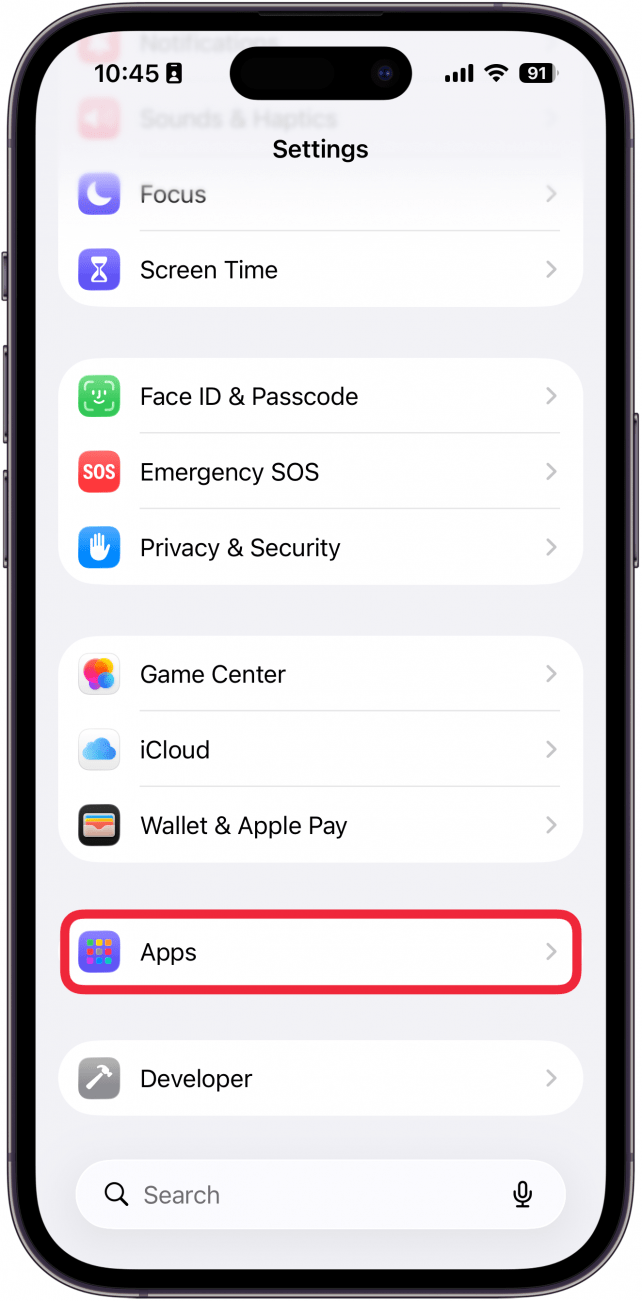
- Find the Maps app in the list (or use the search bar).
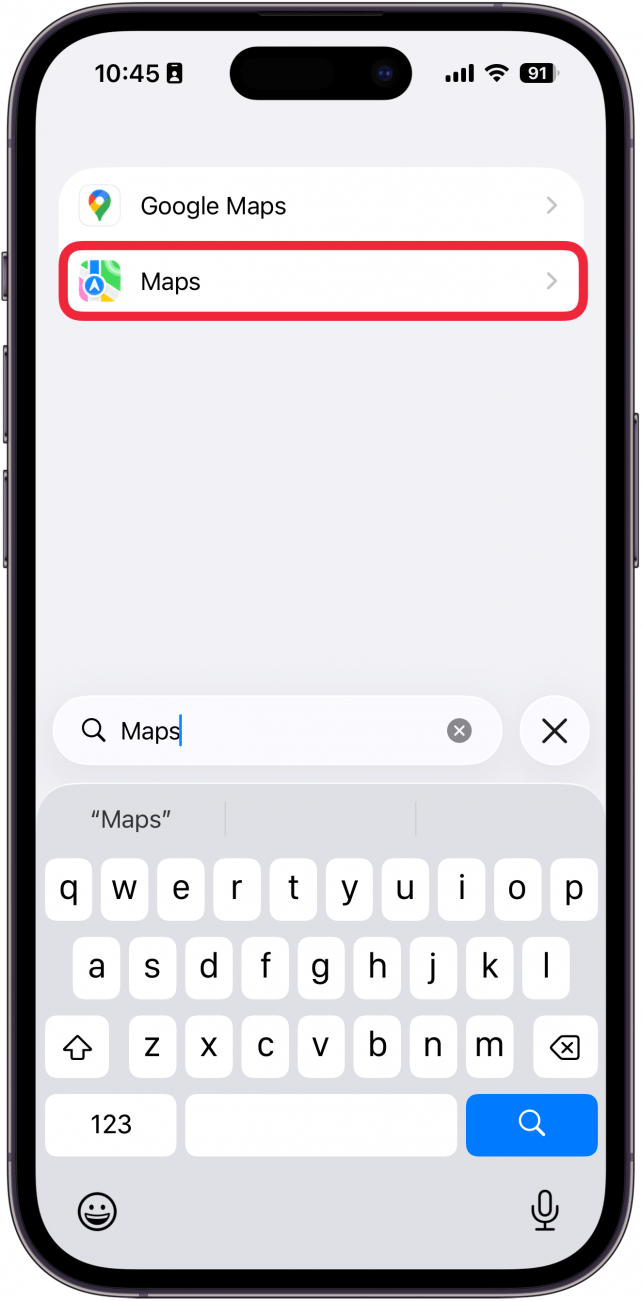
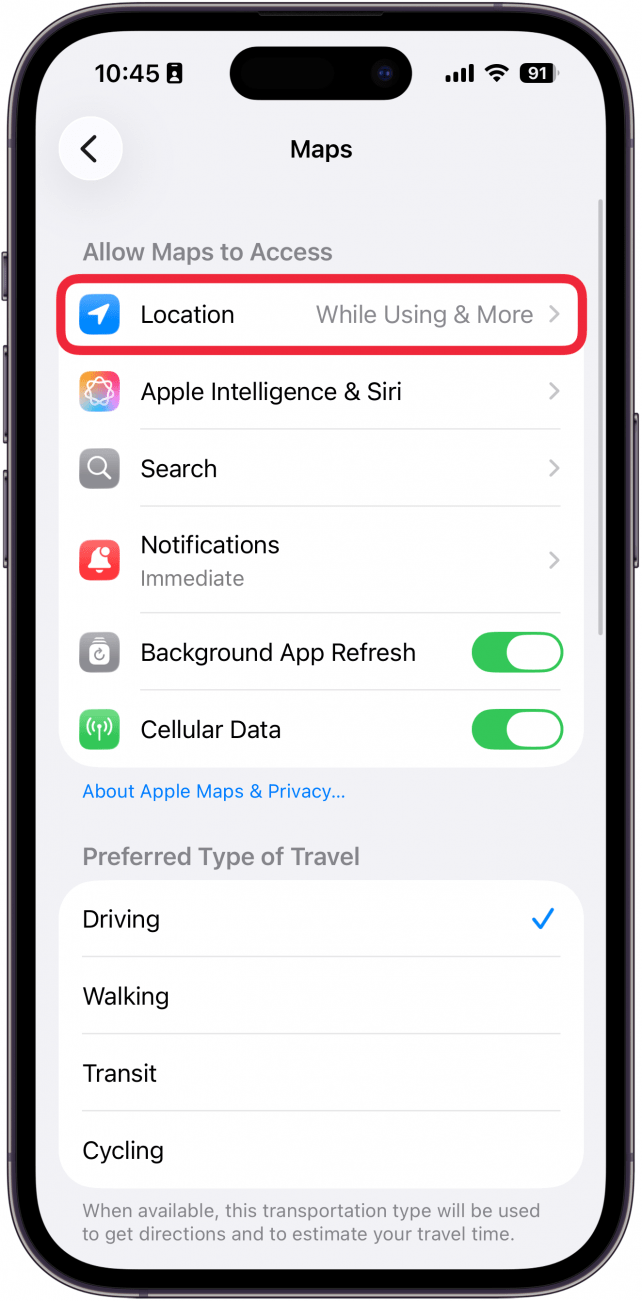
- Tap Location.
- Tap the toggle next to Visited Places to disable (or enable) the feature.
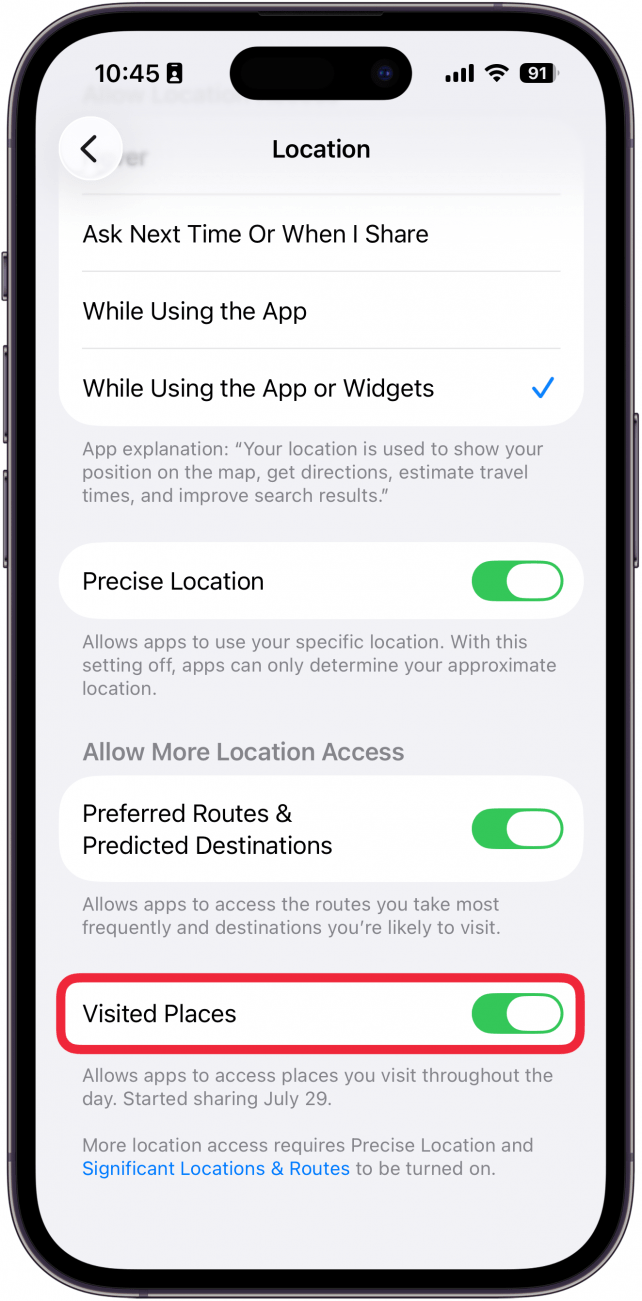
That’s how to hide your recent places on iPhone. If you ever want to turn Visited Places back on, you can repeat the steps above to get back to the setting. Keep in mind that, in order to use Apple Maps to get driving or walking directions, you will have to enable Location Services, so Maps will be able to track your location while you're using the app. But by disabling Visited Places, you can stop Maps from keeping a record of the places you visit throughout the day.
More On: Apple Maps

Every day, we send useful tips with screenshots and step-by-step instructions to over 600,000 subscribers for free. You'll be surprised what your Apple devices can really do.

Rhett Intriago
Rhett Intriago is a Feature Writer at iPhone Life, offering his expertise in all things iPhone, Apple Watch, and AirPods. He enjoys writing on topics related to maintaining privacy in a digital world, as well as iPhone security. He’s been a tech enthusiast all his life, with experiences ranging from jailbreaking his iPhone to building his own gaming PC.
Despite his disdain for the beach, Rhett is based in Florida. In his free time, he enjoys playing the latest games, spoiling his cats, or discovering new places with his wife, Kyla.
Related topics
Related Articles

Best Third-Party Tesla Accessories for Tesla Model X, Y, 3 & S
 Olena Kagui
 Rhett Intriago
 Susan Misuraca
 Amy Spitzfaden Both
 Linda Ruth

 Rachel Needell




 Hal Goldstein